Message Center
Message Center


Document

- Documentation
 Message CenterGuidesChatbot Message Receiving ConfigurationHow to Configure Chatbot Message Callbacks
 Copy page
 Download PDF
Chatbot Message Receiving Configuration
How to Configure Chatbot Message Callbacks
Copy pageDownload PDFHow to Configure Chatbot Message Callbacks
Chatbot management
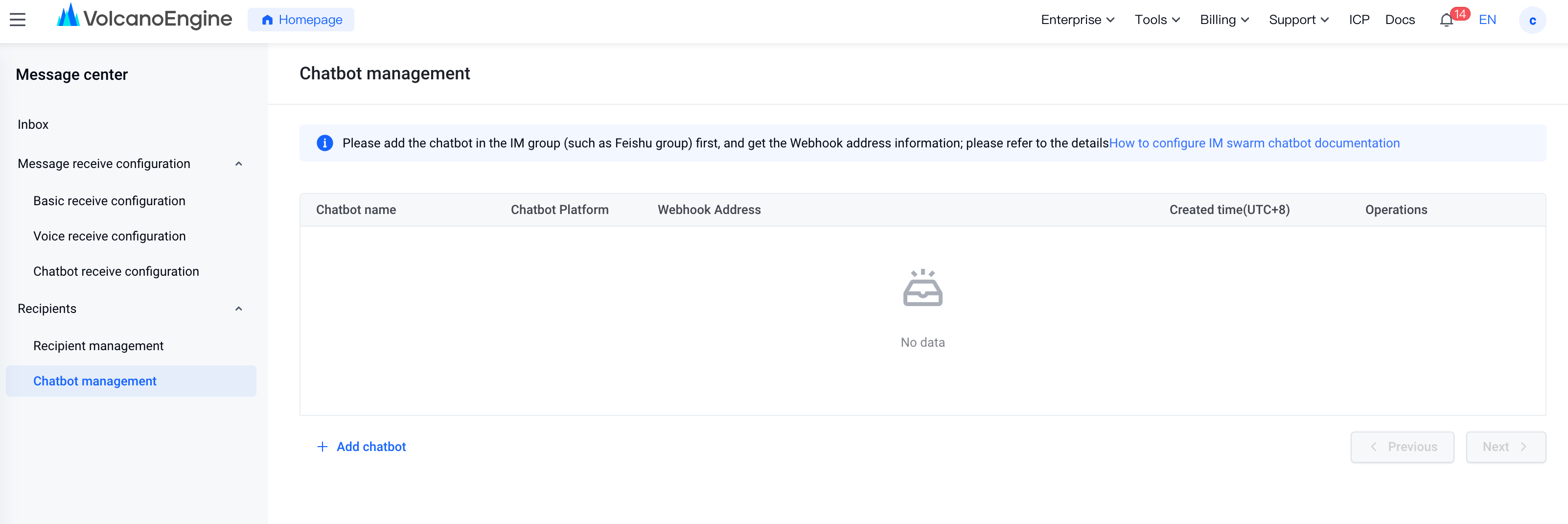
- On the Chatbot receiving configuration page, click Chatbot management in the upper right corner. Then, you can view all the configured chatbots.
Adding a message receiving chatbot
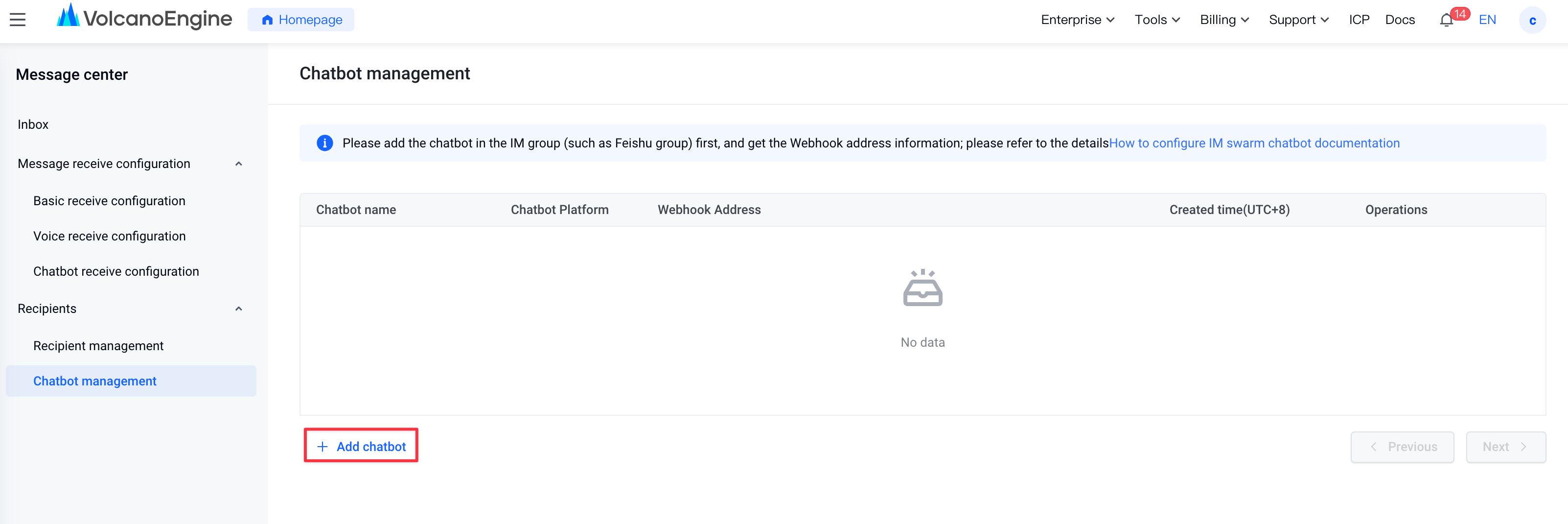
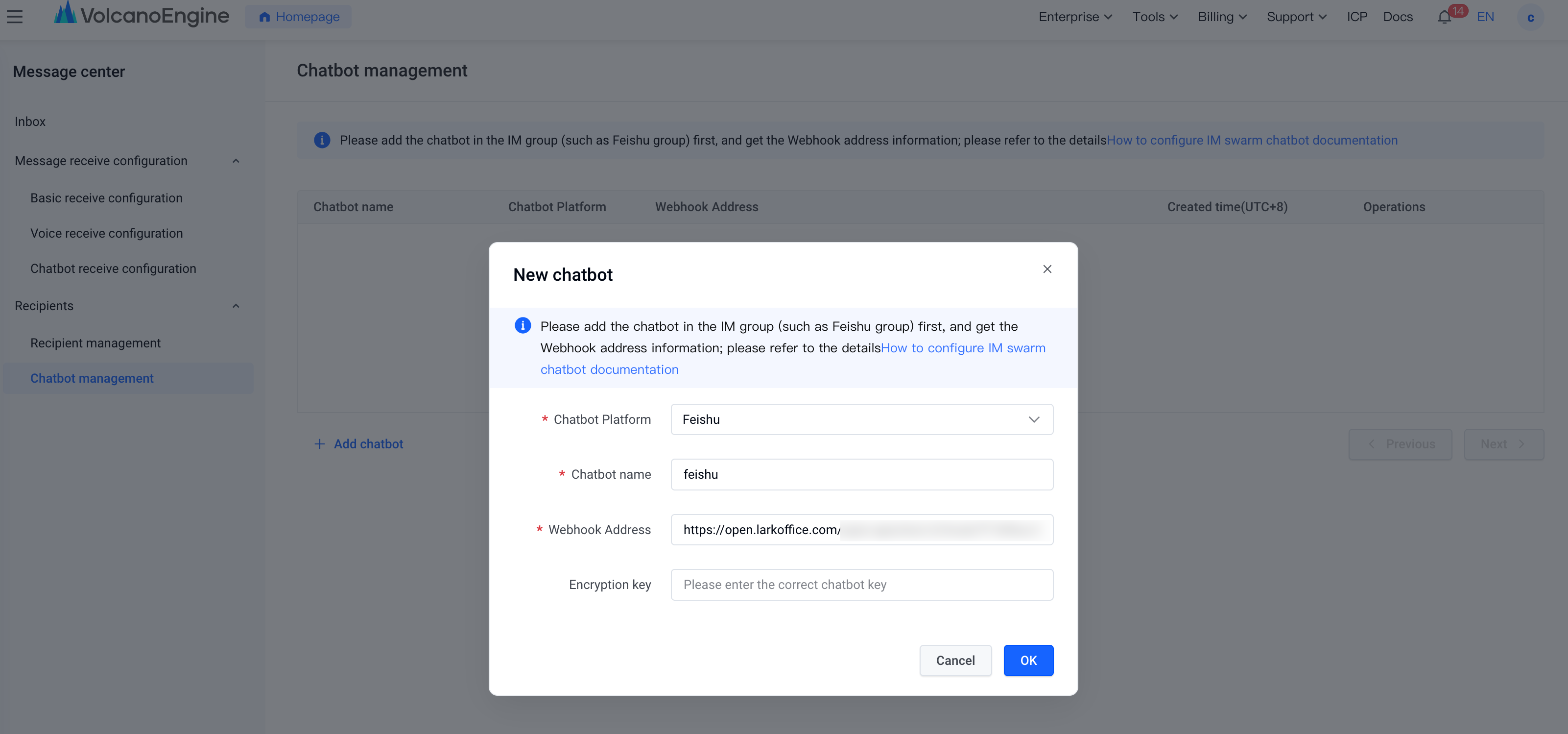
- On the Chatbot management page, click Add chatbot in the lower left corner. In the pop-up window, select the chatbot type, enter information, and save.
- The following chatbots are supported: Feishu chatbot, WeCom chatbot, DingTalk group chatbot, and Slack. You can configure them according to the corresponding document:
Testing a chatbot
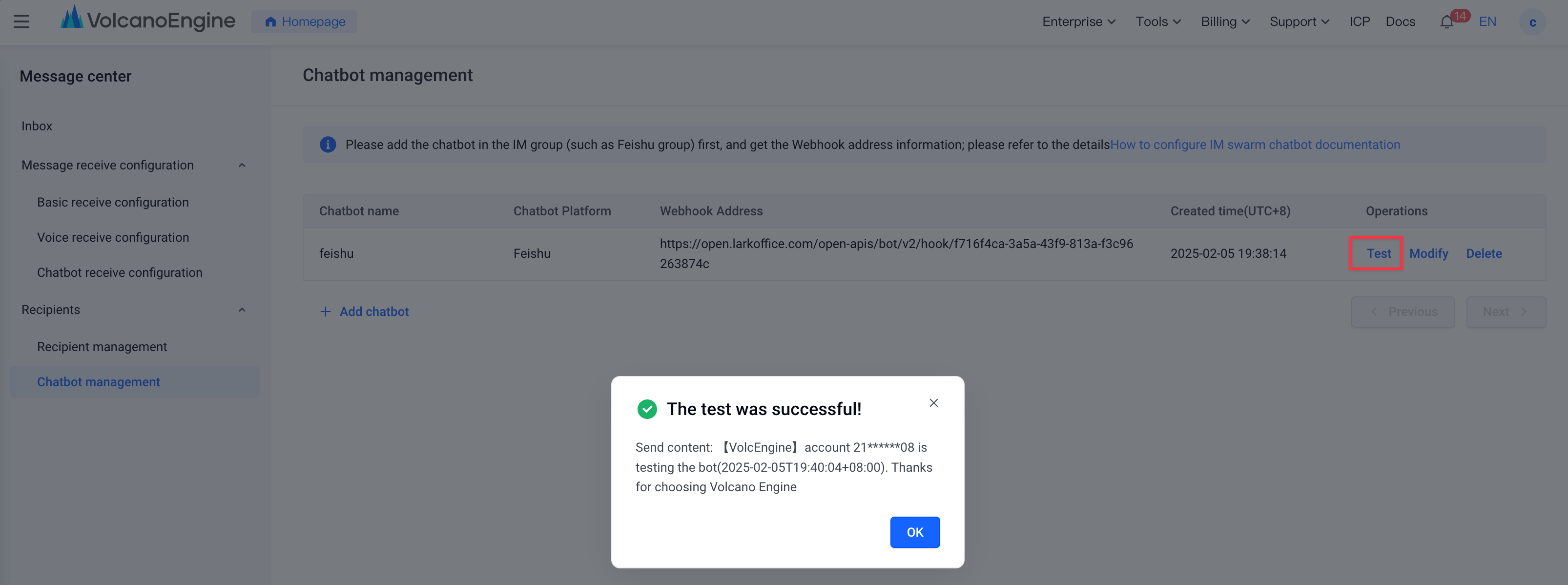
- Click Test in the Actions column. Then, the message center will send a test message to the chatbot. If a successful test prompt is displayed, the chatbot has been configured successfully.
Editing a chatbot
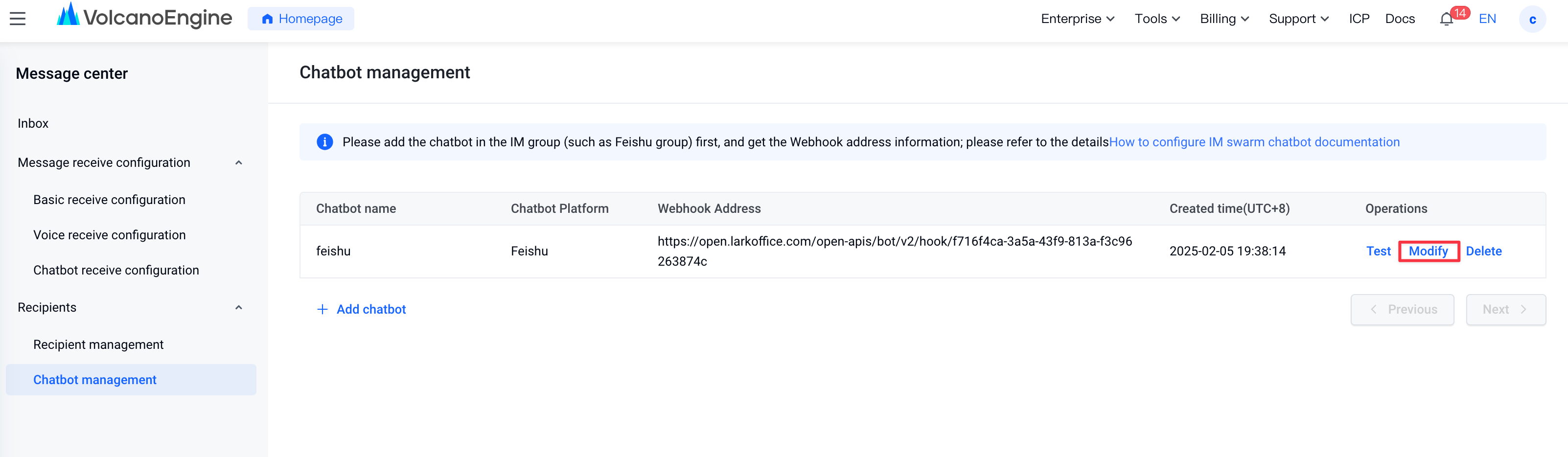
- Click Edit in the Actions column. In the pop-up window, edit the chatbot.
Deleting a chatbot
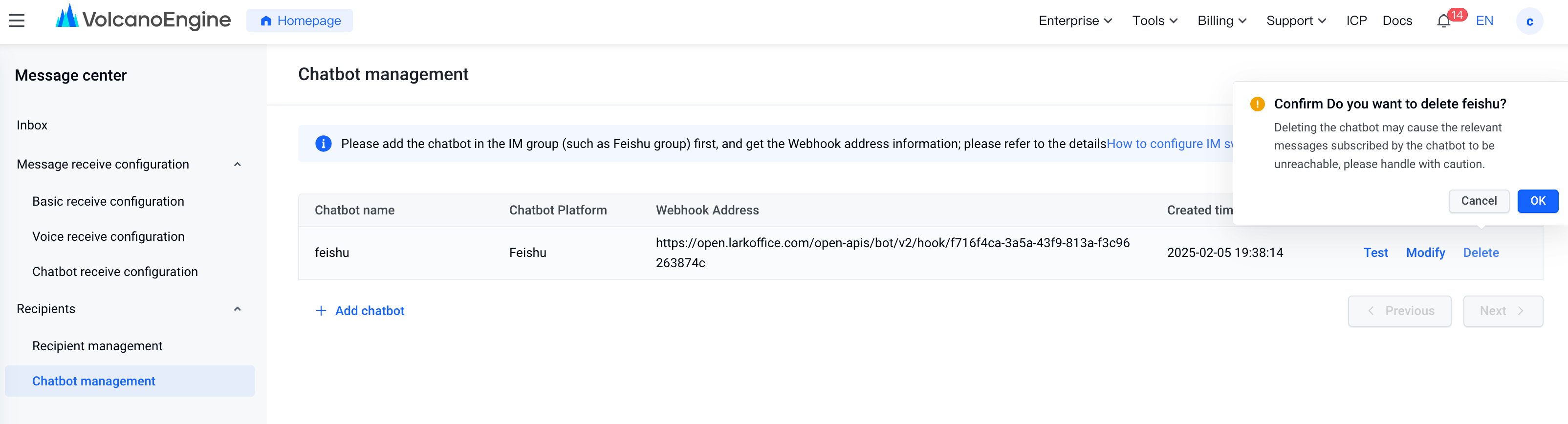
- Click Delete in the Actions column. In the pop-up window, confirm the information and click Delete.
Last updated: 2025.03.06 20:36:52
All rights reserved © Beijing Volcano Engine Technology Co., Ltd2024
