Data Migration Service
Data Migration Service


Document

- Documentation
 Data Migration ServiceUser GuideDMS 1.0 Migration GuideCreate migration task - use public network
 Copy page
 Download PDF
DMS 1.0 Migration Guide
Create migration task - use public network
Copy pageDownload PDFCreate migration task - use public network
This article explains how to create a migration task using the public network in the DMS console.
Background information
The DMS supports the following source cloud providers and data source types:
- AWS Cloud
- Tencent Cloud
- Huawei Cloud
- Qiniu Cloud
- Kingsoft Cloud
- Google Cloud
- Other S3 protocol object storage
- Object Storage - Volcano Engine
warning
The DMS only supports migrating data between Volcano Engine buckets in the same region.
When migrating files, HTTP standard attributes are migrated by default, including Content-Type, Content-Disposition, Content-Encoding, Content-Language, Cache-Control, and Expires.
Prerequisites
- Ensure that you have registered a Volcano Engine account and completed real name verification. For details, see Account Registration and Real Name Verification.
- You have obtained relevant information about the data source, such as AccessKey ID and Secret AccessKey, Endpoint, and bucket name.
- You have created a bucket in Object Storage. For details, see Create Bucket.
Notes
If the source bucket has versioning enabled, DMS only migrates the latest versions of objects to the target bucket and does not migrate previous versions.
Steps
- Log in to the DMS Console.
- On the Migration tasks page, click Create migration task.
- On the Select network page, configure the following parameters.
- ParameterDescriptionTask nameSpecify a name for this migration task. The naming rules are as follows:
- Between 3 and 32 characters.
- Contain only lowercase letters, numbers, or hyphens (-).
- The name cannot start or end with a hyphen (-).
Network typeSelect Public network.
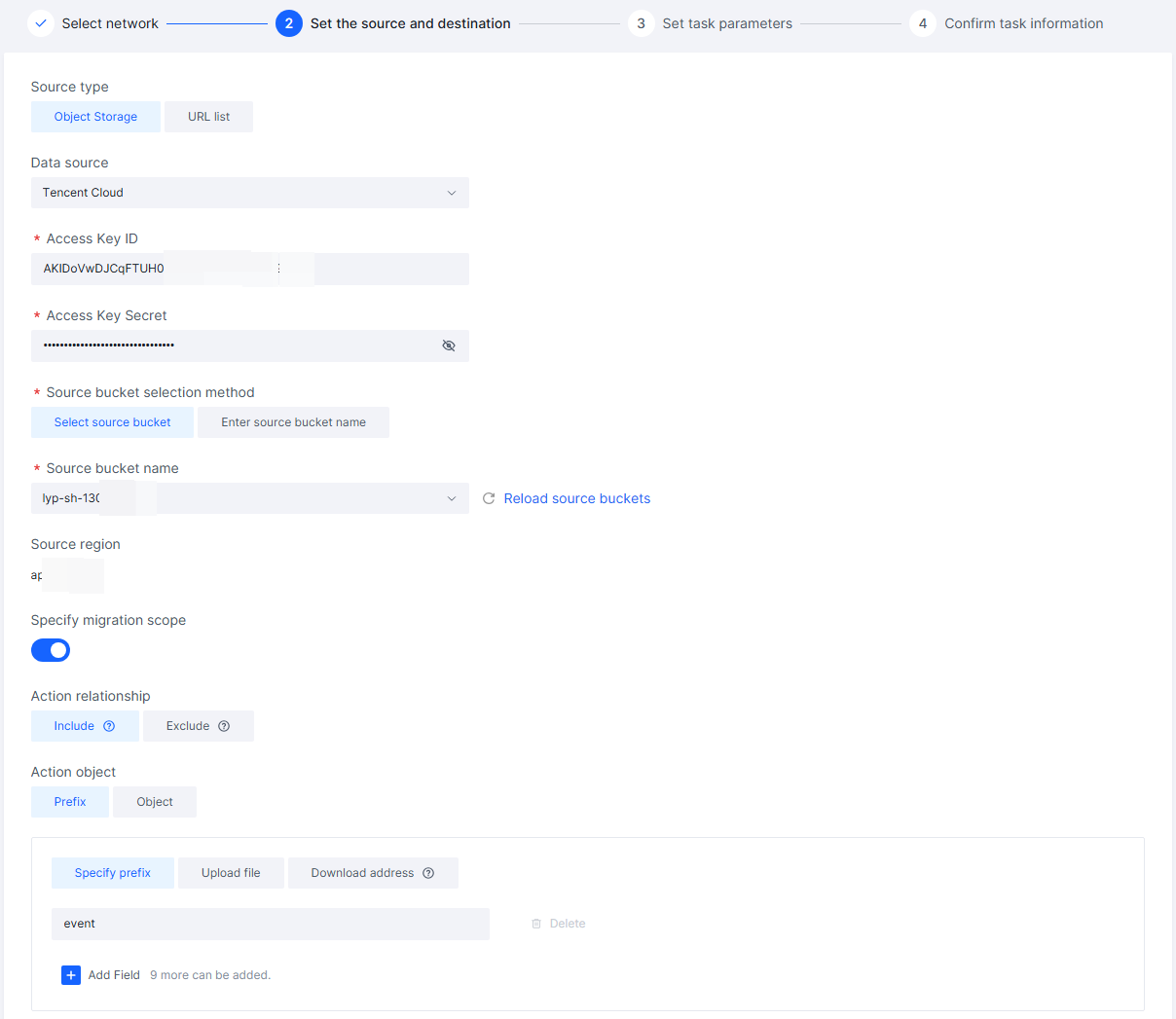
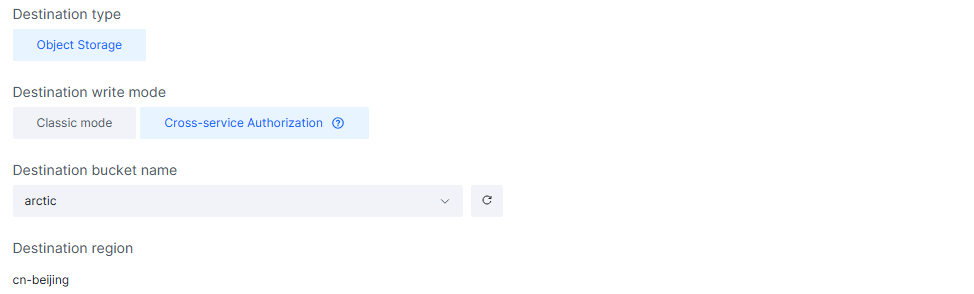
- Click Next step: Set up source and destination to configure the following source and destination parameters.
- Source type is Object Storage
-
- Source type is URL list
warning
- When source type is URL list, the file size of each URL in the URL list file must not exceed 300 GB.
- When source type is URL list, each line in the URL list must not exceed 65,536 characters (64 KB).
- Currently, only URL list files encoded in UTF-8 are supported.
-
- Destination parameter
-
-
- Click Next: Set task parameters to configure the following parameters.
warning
- Click Next: Set task parameters, and the system automatically verifies the source connection information. If the information is incorrect, a permission precheck prompt dialog will appear, notifying you of insufficient source or destination permissions. Continuing might result in unexpected migration outcomes.
- When the source type is URL list, you can only configure Skip archived objects, Skip failed objects, Range-get migration, Overwrite policy, and File storage method, traffic control, and sample verification parameters on the Set task parameters page.
-
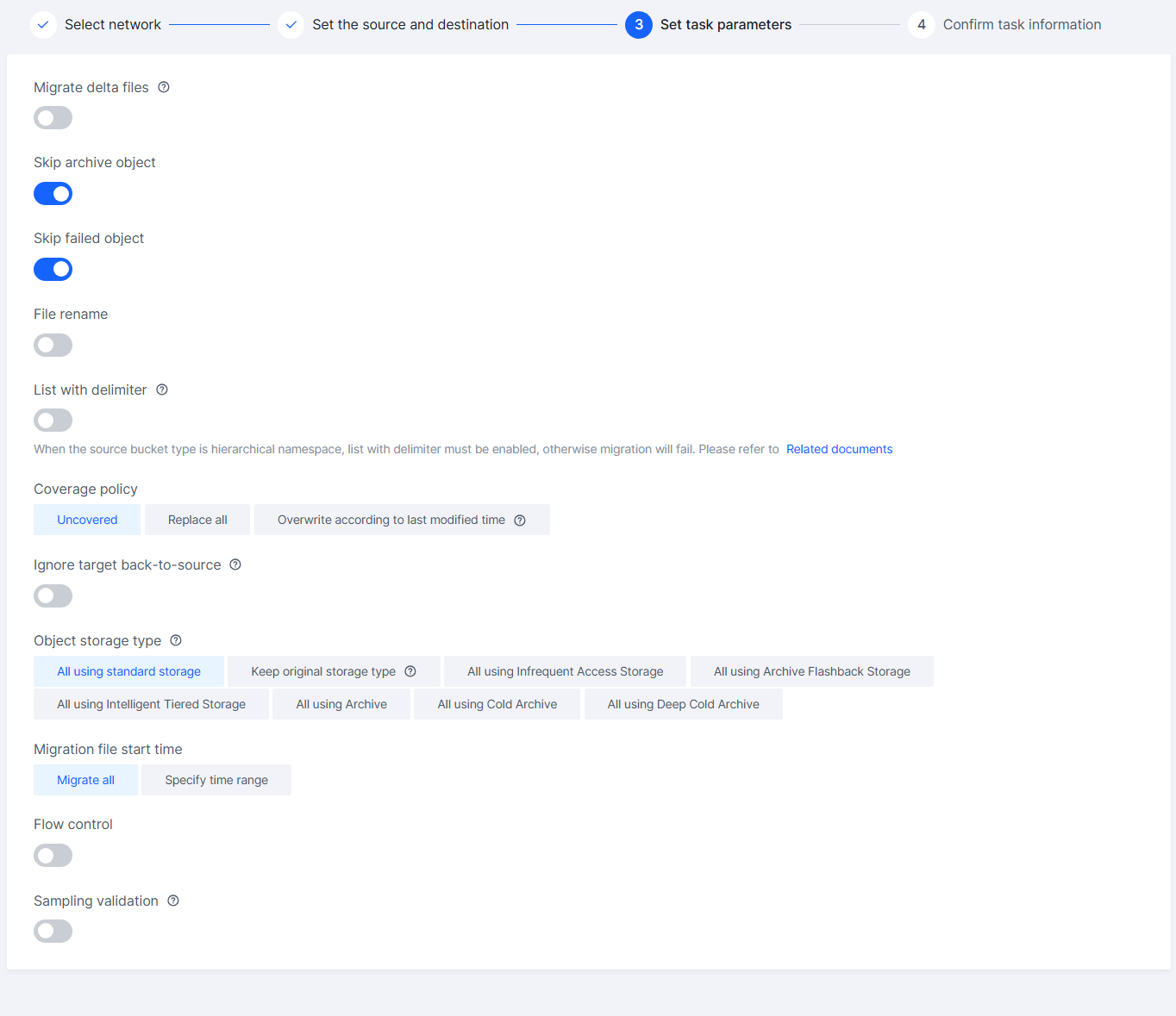
- ParameterDescriptionMigrate incremental filesDisabled by default. When enabled, you can customize incremental migration parameters. The parameter descriptions are as follows:
- Incremental migration interval: After the initial (full) migration, this specifies how often to start an incremental migration task, in hours. Only integers from 1 to 24 are supported.
- Number of incremental migrations: After the initial (full) migration is complete, this specifies the number of incremental migrations to perform. Only integers from 1 to 100 are supported.
Skip archive objectsSet whether to Skip Archived Objects. This is enabled by default, as follows:- Enable Skip Archived Objects: Files of delayed access storage type will not be migrated during data migration.
- Disable Skip Archived Objects: During data migration, thawed files of delayed access storage type will be migrated, while unthawed files of delayed access storage type will not be migrated.
tipThe delayed access storage types for each data source are as follows:- Alicloud: Archive Storage (Archive), Cold Archive Storage (ColdArchive)
- Tencent Cloud: Archive Storage (ARCHIVE), Deep Archive Storage (DEEP_ARCHIVE)
- Huawei Cloud: Archive Storage (COLD), Deep Archive Storage (DEEP_ARCHIVE)
- Qiniu Cloud: Archive Storage, Deep Archive Storage
- Kingsoft Cloud: Archive Storage type
- Other S3 protocol storage: GLACIER, DEEP ARCHIVE.
- Object Storage - Volcano Engine: Archive Storage (ARCHIVE), Cold Archive Storage (COLD_ARCHIVE)
Google Cloud Storage does not offer a delayed access storage type. If your data source is Google Cloud, there is no need to set the Skip Archive Objects parameter.Skip failed objectsIf you do not have permission for a source object during migration, that object will fail to migrate. You can set whether to skip failed objects. Enabled by default. Details:- When skip failed objects is enabled, migration will continue regardless of how many objects fail.
- Turn off Skip Failed Objects: If 20 consecutive objects fail to migrate during the process, the task will be paused and marked as failed.
Range-get migrationSet whether to enable range-get migration. Disabled by default. After enabling range-get migration, DMS supports migrating files with resumable transfers. If network interruptions occur, files are retransferred starting from the breakpoint, reducing extra traffic and lowering costs.warning- The range-get migration parameter can be set only when the source type is URL list.
- Before enabling range-get migration, ensure the source supports this feature; otherwise, range-get migration will not take effect.
Renaming filesDisabled by default. When enabled, you can set file renaming rules. File renaming supports regular expression replacement. Enter the regular expression for files to rename and the replacement string. For example:- Add the prefix prefix-path/: Set the regular expression to ^ and the replacement text to prefix-path/.
- Change the prefix prefix-old/ to prefix-new/: Set the regular expression to ^prefix-old/ and the replacement text to prefix-new/.
- Remove the prefix prefix-old/: Set the regular expression to ^prefix-old/ and leave the replacement text empty.
- Change the suffix .txt to .csv: Set the regular expression to .txt$ and the replacement text to .csv.
- Rename the file abc.jpg to aaa.jpg: Set the regular expression to abc and the replacement text to aaa.
List with delimiterDue to source bucket configurations (such as bucket acceleration), TOS can only access files in the root directory of the source bucket. Delimiter-based listing lets you access files in multi-level directories, as explained below:- Enable delimiter-based listing: TOS can access files in multi-level directories of the source bucket, ensuring all files are migrated to TOS.
- Disable delimiter-based listing: Migrating files will be faster, but if bucket acceleration is enabled on the source bucket, not all files may be migrated to TOS.
warning- If you enable delimiter-based listing, set specified migration scope to include, and specify the range using a prefix (including specified prefix, file upload, and download address), the prefix must end with a slash (/).
- If the source bucket does not return files in lexicographical order when listing files, the results may be incomplete or cause an infinite loop, preventing the migration task from completing successfully We recommend mounting the source bucket locally and migrating files using DMS 2.0 semi-managed mode. For details, see DMS 2.0 Quick Start.
Overwrite policyYou can specify the overwrite policy for files with the same name in the source and destination. Policy descriptions are as follows:- Overwrite all: For files with the same name, the source directly overwrites the destination without any checks.
- Do not overwrite: For files with the same name, the source is skipped without any checks.
- Overwrite based on last modified time: When a file with the same name exists on both the source and destination, the lastmodify field (last modified time) determines whether to overwrite. Overwriting happens only if the source file’s last modified time is later than the destination file’s.
Ignore destination callbackWhen the covering strategy for the migration task is set to No overwrite, DMS checks whether the files to be migrated already exist at the destination. If the destination bucket has HeadObject request back-to-source enabled and the source site has the file to be migrated, DMS will consider the file as already existing in the destination bucket. As a result, the migration will be skipped, leading to missing files in the final migration count.After enabling Ignore destination back-to-source, DMS ignores the back-to-source rules of the destination bucket and migrates the files directly. If you use the "don't overwrite same-named files" strategy and your destination bucket has back-to-source enabled, we recommend turning on the "Ignore destination back-to-source" feature.File storage methodSet the storage class for files migrated to TOS. You can select from Standard Storage, Keep Original Storage Attributes, Infrequent Access Storage, Archive Flashback Storage, Intelligent Tiering Storage, Archive Storage, Cold Archive Storage, and Deep Cold Archive Storage. For details about TOS storage classes, see Storage type. The following are parameter descriptions for Retain original storage attributes and Use intelligent tiering for all files:- Retain original storage attributes: When migrating to TOS, the file storage type is set according to the corresponding relationship between S3 and TOS. For more information, see Correspondence between S3 and TOS when migrating data.
- Use intelligent tiering for all files: When migrating to TOS, files are stored in the Intelligent Tiering frequent access layer.
tip- Deep Cold Archive is currently in closed beta in TOS. To set the migrated files to Deep Cold Archive storage type, contact your account manager.
- If the migration source uses the delayed access storage type, change its status to instant access before migration. Otherwise, the migration will fail.
- If the availability zone attributes of the destination and source files differ, the destination takes precedence by default.
- When the source type is a URL list, retaining the original storage attributes is not supported.
File migration start timeFilter files to be migrated based on the last modified time. The default option is Migrate all. Parameter instructions are as follows:- Migrate all: Migrate all files in the source bucket.
- Specify time range: Filter files for migration. Three methods are supported, as described below:
- Specify start time: Only set the start date; leave the end date blank. Only files modified after this date are migrated.
- Specify end time: Only set the end date; leave the start date blank. Only files modified before this date are migrated.
- Specify time range: Set both start and end dates. Only files modified within this time frame are migrated.
Traffic controlDisabled by default; when disabled, the default speed is 1000 MB/s.Enable the speed switch and click Add field to set migration task throttling periods and maximum speed. Speed limit details are as follows:- The default maximum speed is 100 MB/s.
- The maximum speed can be set from 0 MB/s to 1000 MB/s.
Sampling verificationDisabled by default. When sample verification is enabled, DMS retrieves 100 bytes of each object from the source and 100 corresponding bytes from the destination for comparison to ensure data consistency between the source and destination. For a detailed introduction to sampling verification, see Data Consistency Check.warningUsing the sampling verification feature generates additional outbound public traffic at the source, which incurs corresponding charges from the source object storage.
- Click Next: Confirm task information to review the migration task parameters on this page.
- After confirming the parameters, read and select Storage product and service terms, then click Submit.
warning
After submitting, a cost reminder dialog will pop up. The DMS itself does not charge any fees. However, migrating data from the public network to Volcano Engine generates public network traffic fees, which are charged by the storage service provider of the source site.
- In the Fee Reminder dialog box, click Acknowledged, Next.
- (Optional) If you select Cross-Service Authorization, you also need to click Confirm in the popup Cross-Service Authorization dialog box.
tip
After the task is created, it will start automatically. You can view its creation time and status in the Migration Task List. Additionally, click the custom list field icon in the upper-right corner of the Migration Task List page, select Storage Migration Progress and File Quantity Migration Progress to view the migration progress.
Last updated: 2026.04.08 18:10:43
All rights reserved © Beijing Volcano Engine Technology Co., Ltd2024
