Message Queue for RabbitMQ
Message Queue for RabbitMQ


Document

- Documentation
 Message Queue for RabbitMQQuick StartProduce and consume messagesConnect to the RabbitMQ management address
 Copy page
 Download PDF
Produce and consume messages
Connect to the RabbitMQ management address
Copy pageDownload PDFConnect to the RabbitMQ management address
Access the RabbitMQ instance management address via browser to use the open-source RabbitMQ cluster management tool.
Prerequisites
- The RabbitMQ instance has been successfully created. For detailed description, please refer to Create instance.
- The private network address for using the Web UI cannot be accessed directly via browser. Please use the public network address instead. If you did not enable public network access when creating the RabbitMQ instance, enable it first. For instructions, see Setting public network access.
Operation steps
- Log in to Message Queue for RabbitMQ console.
- On the Instances page, click the target instance name.
- Copy and record the public network address of the Web UI Endpoint in the Service access area on the Instances details page.
- Access the Web UI login page through a browser using the Web UI address.
-
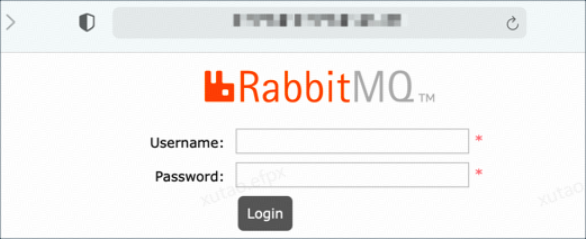
- Enter your username and password, then click Login.
- Enter the RabbitMQ instance administrator username and password here. By default, the username and password are set when the instance is created.
tip
- If you have changed the administrator username or password in the Web UI, use the updated credentials to log in.
- If you forget your username or password, reset them to set new credentials. For password reset instructions, refer to Reset administrator user password.
- View the Web UI.
-
Last updated: 2025.10.13 11:45:50
All rights reserved © Beijing Volcano Engine Technology Co., Ltd2024
