TrafficRoute DNS Suite
TrafficRoute DNS Suite
TrafficRoute DNS Suite


Document
Product Billing
VolcanoEngine DNS
Getting Started
Activate VolcanoEngine DNS And Add a Domain
Route User Requests to a Website Server
Set up an Email Address
Route User Requests to CDN
User Guide
Configure DNS servers provided by DNS for a Domain
Domain Management
DNS Record Management
Load Balancing
Import or Export DNS Records
Batch Operation
Line Group Management
Access Log Management
Value-added Services
API reference
Record Set APIs
Line APIs
DNS Query Metrics APIs
IP-based Line APIs
SDK Reference
IP-based Line Management
Legal
VolcanoEngine GTM
Getting Started
User Guide
GTM Instance Management
Policy Management
Rule Management
Software-defined parsing for AnyMatch
Pool Management
Alarms and Notifications
Statistics and Analysis
Health Check
Route analysis
API Reference
GTM instance management
Policy Management
Health Check Management
Pool Management
Rule Management
Load Feedback Management
Best Practices
FAQs
VolcanoEngine PrivateZone
Product Overview
Getting Started
User Guide
Domain Management
Authoritative domain management for cloud products
Record Management
ECS Hostname Records Management
Import or Export DNS Records
Advanced DNS
Resolver
Forward DNS Requests to An External DNS Server
Forward DNS Requests From On-premise IDC/Third-party Cloud Services to Resolver
Access Log Management
DNS Query M.etrics
Best Practices
Use the DNS Cache Plugin to Improve Availability
API Reference
Domain APIs
DNS Record APIs
Record Set APIs
Cross-account VPC Association APIs
Resolver APIs
ECS Hostname Synchronization APIs
Cross-account resource sharing
SDK Reference
VolcanoEngine HTTPDNS
Getting Started
User Guide
Custom domain resolution
Software-defined parsing: AnyMatch
Access log management
Use the DoH protocol
API Reference
Account management APIs
Key management interface
Domain name management interface
Custom parsing management interface
Encrypted DNS management interface
Client development guide
Use the client SDK
Integrate SDKs
Android SDK
iOS SDK
API Reference
Android SDK
HttpDNS class
Method
iOS SDK
TTDnsResolver class
Attribute
Method
VolcanoEngine PublicDNS
Getting Started
Troubleshooting Guide
- Documentation
 TrafficRoute DNS SuiteVolcanoEngine PublicDNSGetting StartedIntegrate PublicDNSLinux (Ubuntu server)
 Copy page
 Download PDF
Integrate PublicDNS
Linux (Ubuntu server)
Copy pageDownload PDFLinux (Ubuntu server)
Steps
Refer to the following steps to use PublicDNS through the traditional DNS protocol:
tip
This document uses Ubuntu 22.04 LTS server edition as an example.
Change DNS settings in resolv.conf
In most cases, you can directly modify the DNS settings in resolv.conf.
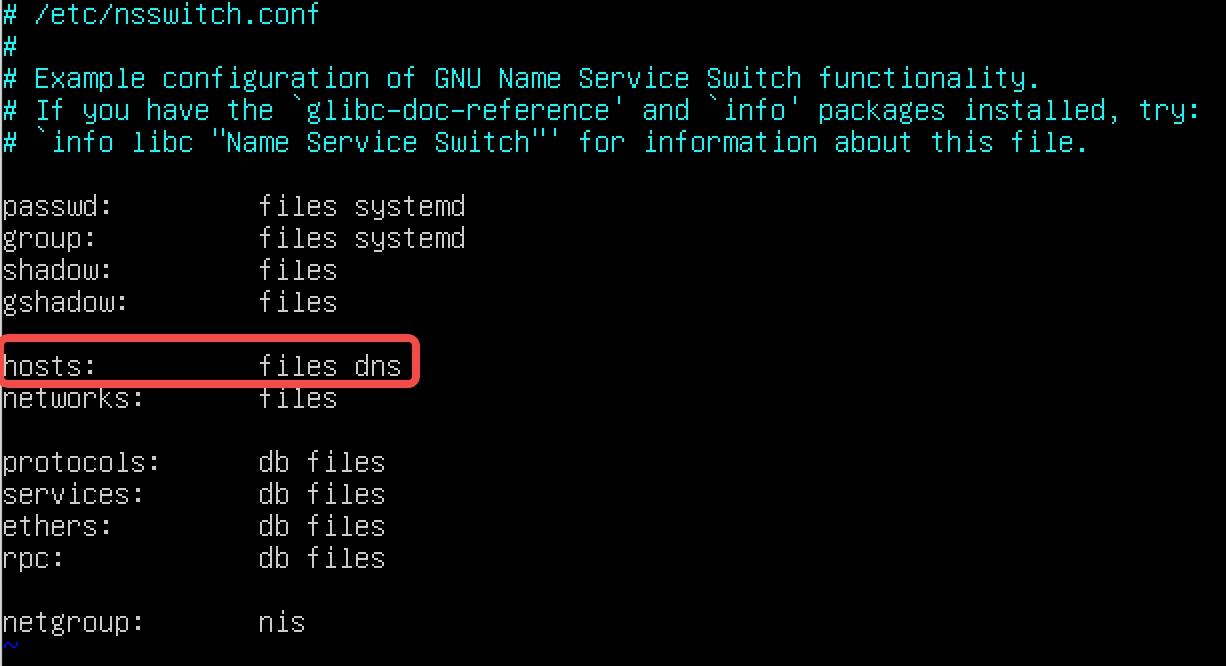
- Open the /etc/nsswitch.conf file. Ensure the configuration of the hosts field is as follows:
- vim /etc/nsswitch.conf
-
- Open the /etc/resolv.conf file in edit mode.
- sudo vim /etc/resolv.conf
- If the file contains the nameserver parameter, you need to save the value of the nameserver field locally or record it manually on paper.
-

- Change the value of the nameserver field to the IPv4 address of the DNS server for VolcanoEngine PublicDNS. After making changes, save the content and exit.
-

Change DHCP settings
If your system uses DHCP Client, after the system is restarted, DHCP Client will automatically overwrite the configuration of the /etc/resolv.conf file. In this case, you need to refer to the following steps to set up the DHCP Client:
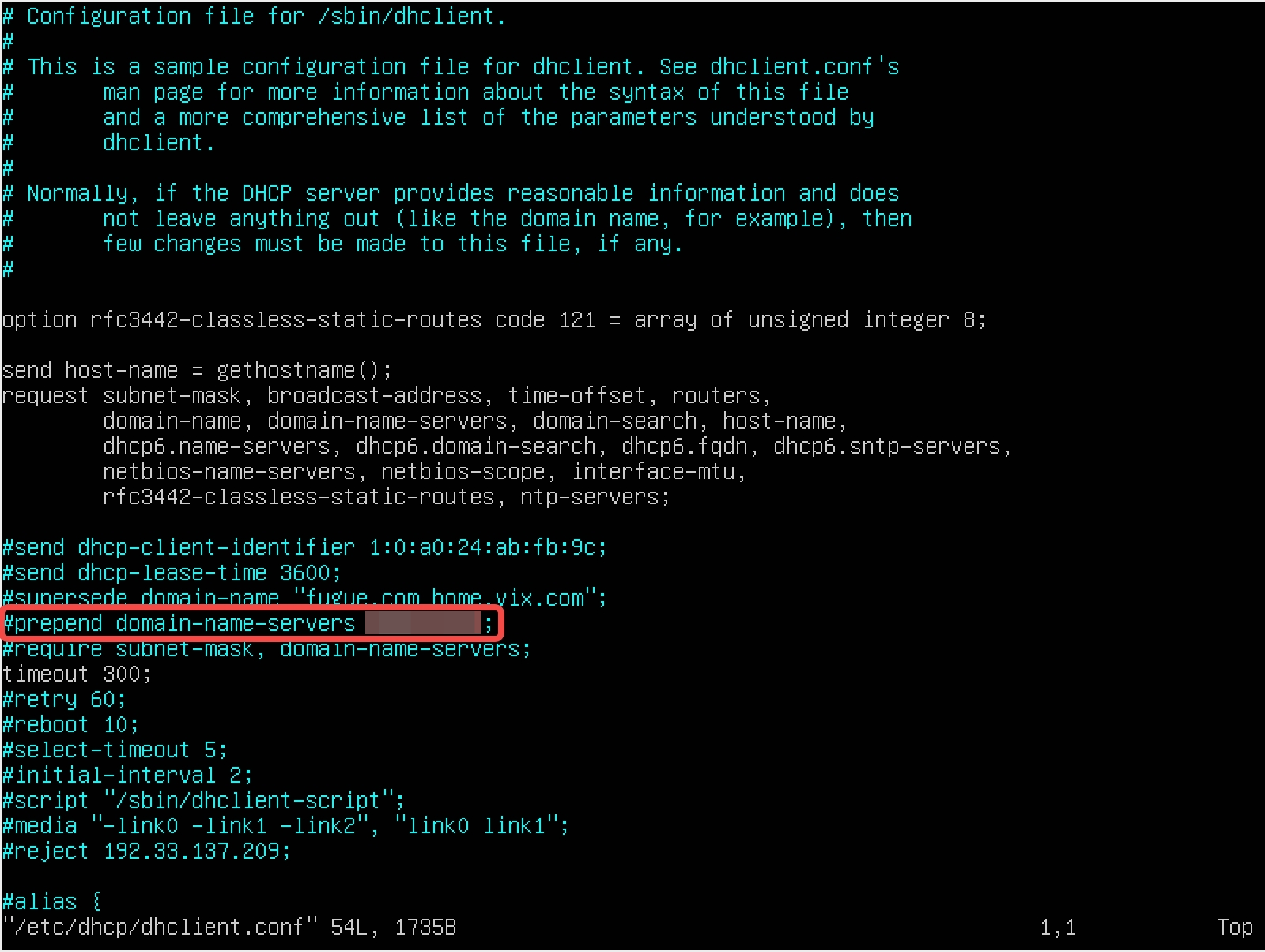
- Use edit mode to open the /etc/dhcp/dhclient.conf file.
sudo vim /etc/dhcp/dhclient.conf
- Locate the prepend domain-name-servers field.
-
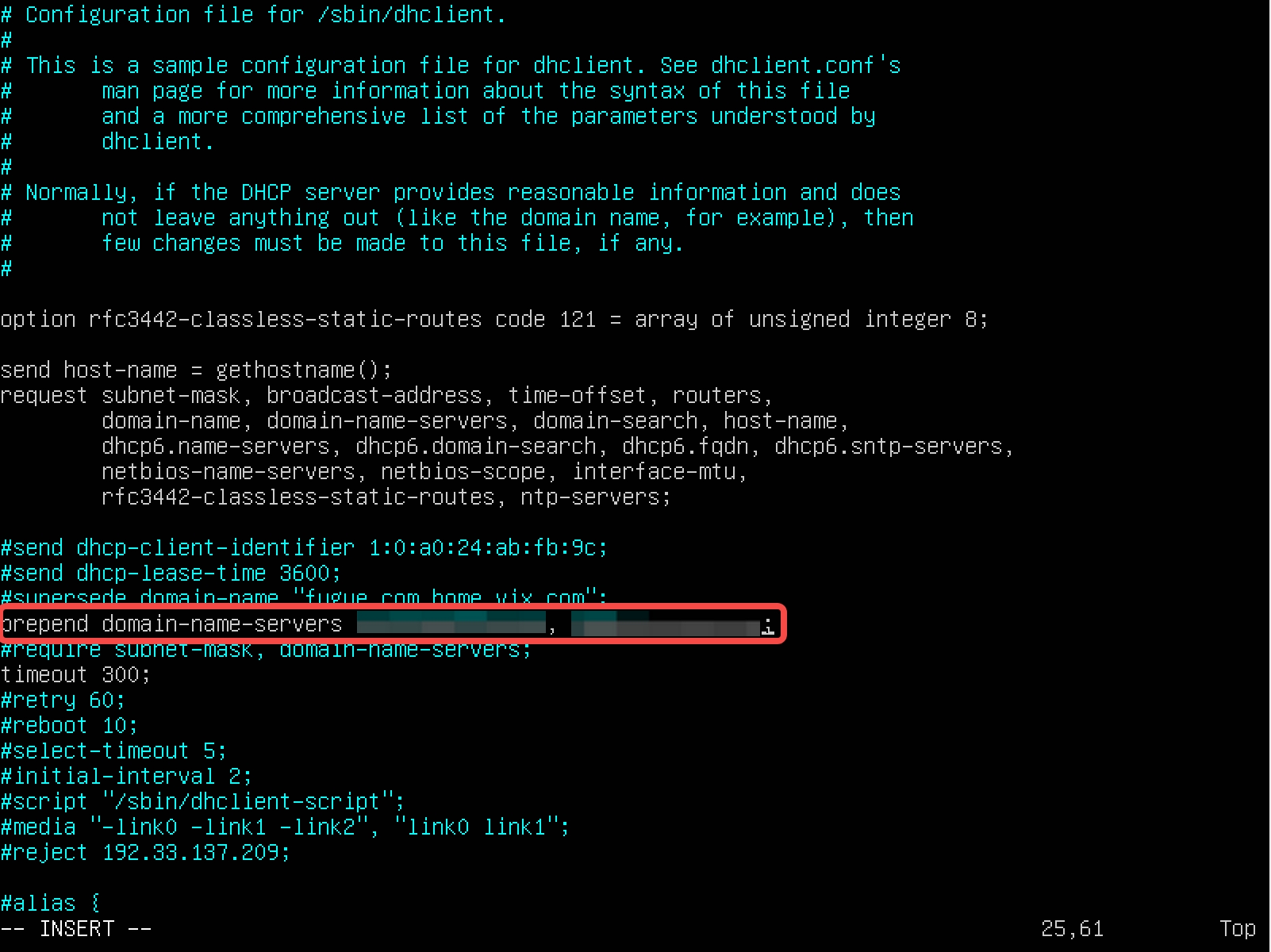
- Remove the content before the prepend domain-name-servers field#Number. Enter the IPv4 address of the PublicDNS DNS server after domain-name-servers. Separate addresses using English commas,Separator. After making modifications, save the content and exit.
-
- Run sudo dhclient to reload the dhclient.conf file.
sudo dhclient
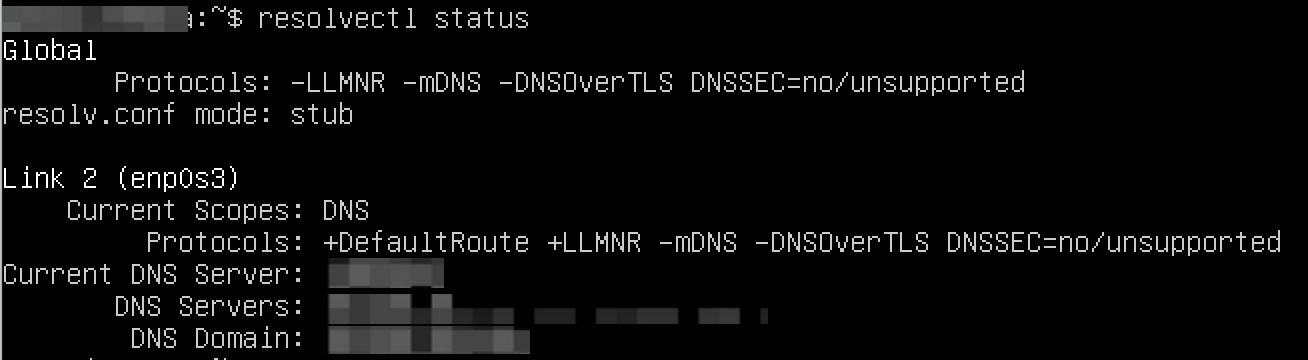
- Run the resolvectl status command to confirm that the DNS server address has been changed.
Next step
Last updated: 2025.11.10 22:36:04
All rights reserved © Beijing Volcano Engine Technology Co., Ltd2024
