You need to enable JavaScript to run this app.
文档中心
函数服务

函数服务

复制全文
下载 pdf
Browser Session
一键部署 Browser Session 应用
复制全文
下载 pdf
一键部署 Browser Session 应用
本文为您介绍如何通过函数服务(veFaaS)应用中心一键部署 Browser Session 应用。​
背景信息​
  • 应用介绍​
  • veFaaS 提供浏览器会话能力,作为一项 Browser as a Service 服务,直接对内外用户提供浏览器实例。​
  • 用户可通过多语言 SDK 获取浏览器资源,再通过 Playwright/Puppeteer 浏览器等工具、上层服务(如 browser-use)来访问浏览器资源。​
  • 运行时​
  • Native 运行时。​
  • 关联云服务​
注意​
关联的云服务会产生相应的使用费用。计费详情,请查看关联云服务对应的计费文档。​
  • browser-session-manager​
  • 函数服务:面向用户提供浏览器实例生命周期管理的接口。​
  • browser-pool​
  • API 网关:browser-session-manager 通过该网关管理浏览器实例。​
前提条件​
  • 已开通本应用关联的所有云服务。​
  • IAM 用户需确保已授权 VeFaaSFullAccess、APIGFullAccess、STSAssumeRoleAccess 策略。如果缺少以上策略,请联系主账号或管理员进行授权。具体操作,请参见 创建用户并授权。​
  • 已创建 Serverless 网关类型的 API 网关实例。详细操作,请参见 创建实例。​
  • 首次使用函数服务,需确保已完成跨服务授权。如未授权,控制台会弹出跨服务授权页面引导您进行授权。​
操作步骤​
  1. 在顶部导航栏,选择目标地域。​
说明​
目前仅 华北2(北京)地域支持该应用。​
  1. 在左侧导航栏选择 应用 > 我的应用。​
  1. 在 应用 页面,单击 创建应用。​
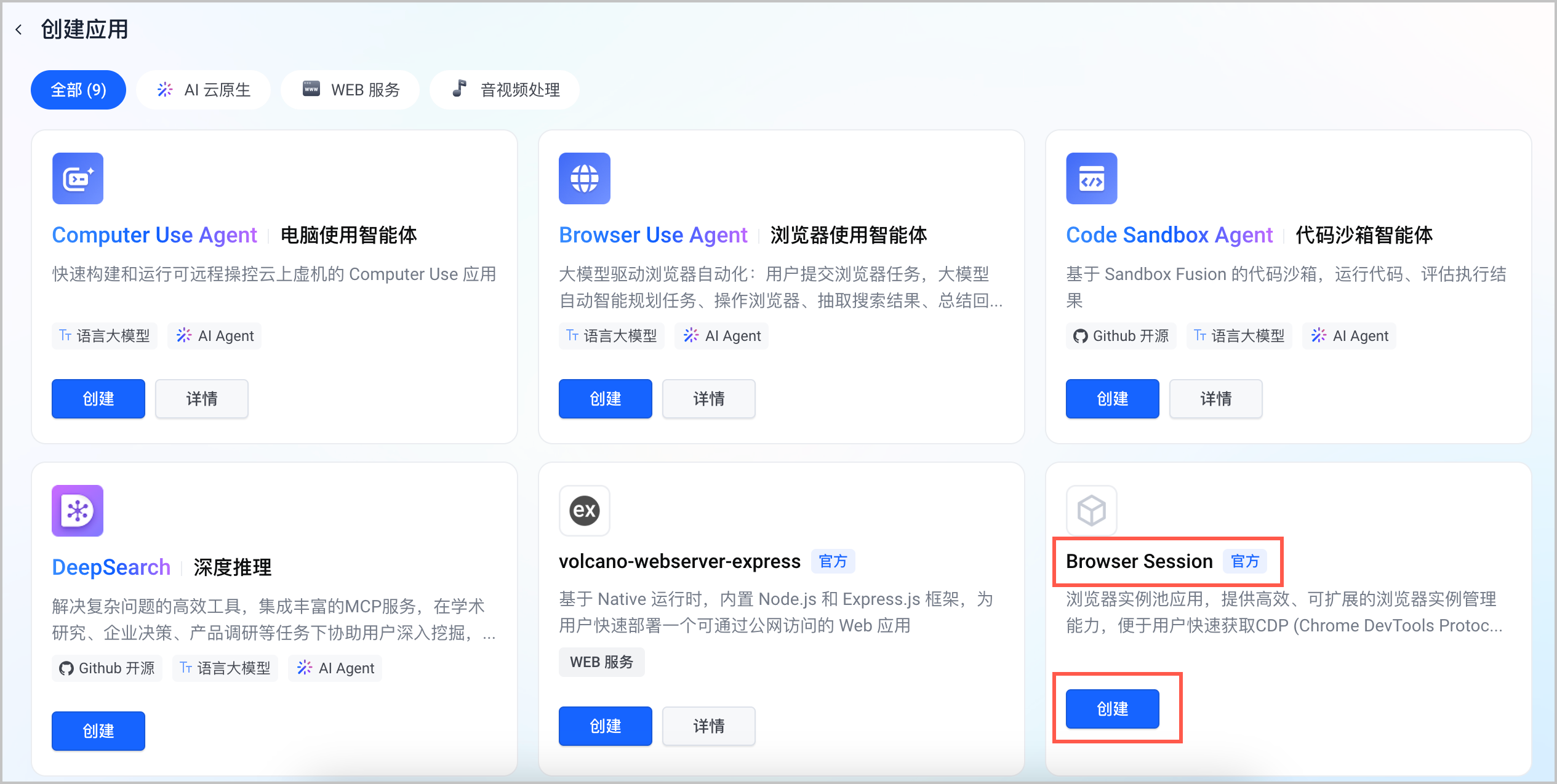
  1. 在 创建应用 页面,选择 Browser Session 模板,单击 创建。​
  • ​​​
  1. 在 创建应用 页面,配置应用参数。​
  • 基础信息​
  • ​
    配置项​
    说明​
    已选模板​
    展示选择的模板。本场景为 Browser Session。​
    名称​
    根据系统提示的命名规则,自定义应用的名称。您也可以直接使用系统自动生成的应用名称。​
    备注​
    填写当前应用的备注信息,可以为空。​
    IAM 角色​
    应用中心提供了系统默认角色 ServerlessApplicationRole,该角色包含了应用中心需要访问的部分云资源权限。​
    • 如果您的用户角色未包含此角色,将会自动添加该角色。​
    • 如果您的用户角色已包含此角色,系统会自动检测该角色是否已包含当前应用需要的所有策略。当缺少相关策略时,控制台会提示需要添加的策略名称,请单击 添加策略 进行添加。​
    注意​
    • IAM 用户需确保已授权 IAMReadOnlyAccess 策略,否则无权限获取 ServerlessApplicationRole 角色信息。​
    • IAM 用户如需进一步为 ServerlessApplicationRole 角色添加策略,需确保已授权 IAMFullAccess 策略。​
    • 更多 IAM 用户的角色相关操作,请参见 IAM 文档。​
    关联云服务​
    展示当前应用需要使用的所有云服务名称、开通状态及开通目的。​
    注意​
    使用关联云服务时可能产生的计费以及对账号余额的要求,请参见相关云产品计费文档:函数服务计费说明、API 网关计费说明。​
    ​
  • 资源配置​
  • ​
    配置项​
    说明​
    浏览器资源池配置​
    ​
    地域​
    展示当前应用及应用下关联云资源所在的地域。​
    函数名称​
    根据系统提示的命名规则,自定义函数名称。您也可以直接使用系统自动生成的函数名称。​
    访问配置​
    ​
    网关实例​
    选择前提条件中准备的 Serverless 类型 API 网关实例。将在该实例下自动创建 API 网关触发器相关资源,包括:服务、Upstream、路由。​
    API 访问密钥​
    火山引擎访问密钥 Access Key ID 和 Secret Access Key(AK/SK)信息。获取方法,请参见 Access Key 管理。​
    ​
  1. 单击 确定,开始创建和部署应用。​
  • 系统将自动跳转至应用详情页面,您可以实时查看应用部署状态和日志。​
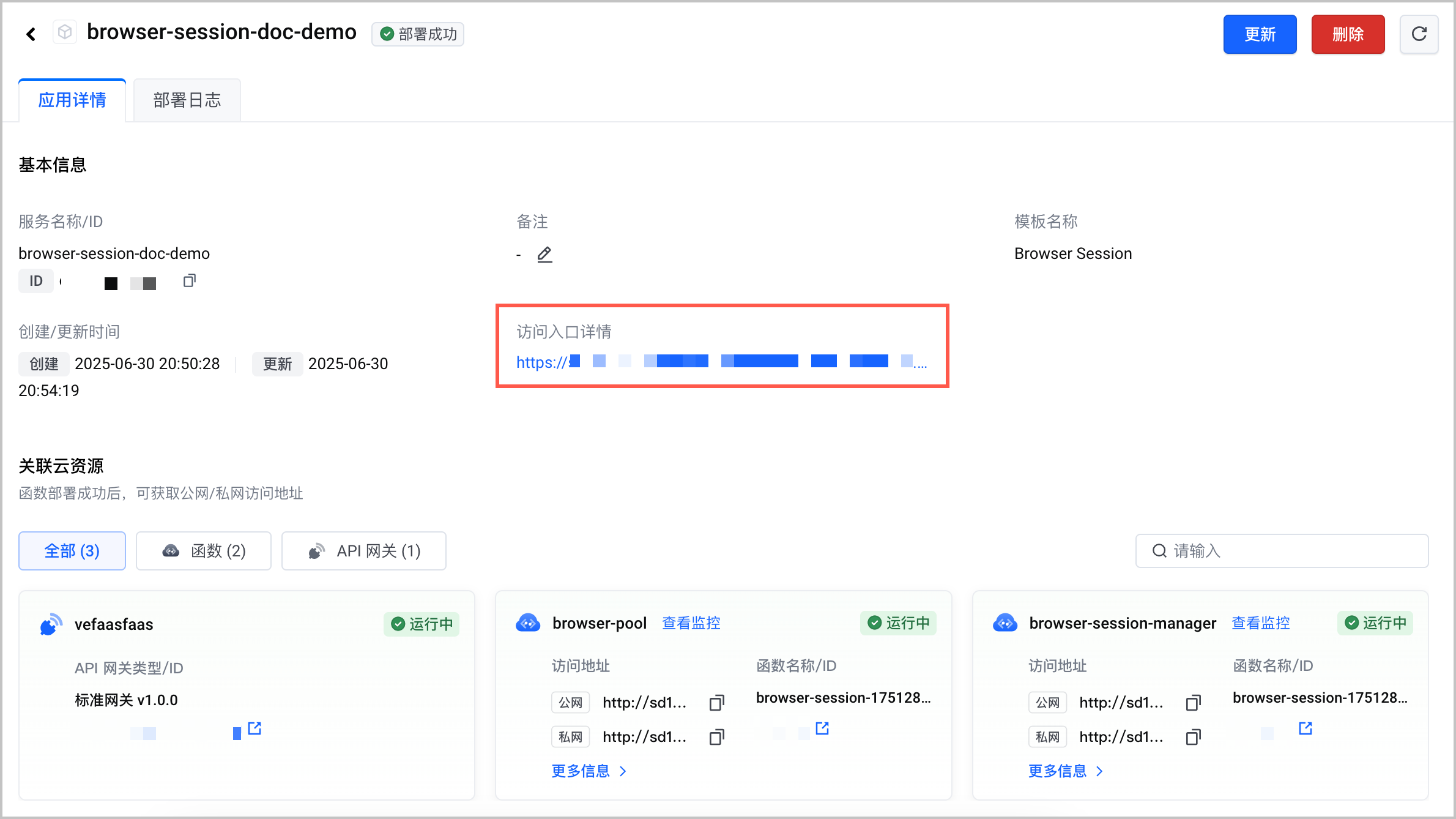
  1. 应用部署成功后,在 应用详情 页签单击 访问入口详情 下的访问地址,即可进入您自己的应用交互界面。​
  • ​​​
使用浏览器​
通过上述 操作步骤,可以获取一个浏览器实例,接下来将为您介绍如何使用浏览器。​
浏览器操作工具​
通过 Playwright/Puppeteer 等浏览器操作工具使用:​
  • Playwright​
  • ​
    from playwright.sync_api import sync_playwright​
    import websocket​
    import json​
    import requests​
    import time​
    ​
    def test_with_cdp():​
    # cdp_url = "ws://******.apigateway-cn-beijing.volceapi.com/v1/browsers/c400ec0c-37f3-4c01-a796-e406081b9678/devtools/browser/936c2835-3bf7-4a4b-99f5-7679088fed8e"​
    cdp_url = "https://******.apigateway-cn-beijing.volceapi.com/v1/browsers/9ebdaa2a-f075-48de-a92d-6cf23b1a0ded"​
    ​
    with sync_playwright() as playwright:​
    browser = playwright.chromium.connect_over_cdp(cdp_url)​
    print("Connected to browser via CDP")​
    ​
    context = browser.new_context()​
    page = context.new_page()​
    page.goto("https://toutiao.com")​
    print(page.url)​
    browser.close()​
    ​
    if __name__ == "__main__":​
    test_with_cdp()​
    ​
  • 输出结果:​
  • ​
    Connected to browser via CDP​
    https://www.toutiao.com/​
    ​
  • Puppeteer​
  • ​
    import asyncio​
    from pyppeteer import connect​
    ​
    async def test_with_cdp():​
    cdp_url = 'ws://******.apigateway-cn-beijing.volceapi.com/v1/browsers/02a2ce20-f8b7-46e3-9caa-f2023bd00c28/devtools/browser/f3f017c4-8e57-499d-8903-3e37b14e6c01'​
    ​
    try:​
    # Connect to the remote browser using CDP​
    browser = await connect({​
    'browserWSEndpoint': cdp_url,​
    'defaultViewport': None​
    })​
    print('Connected to browser via CDP')​
    ​
    # Create a new page​
    page = await browser.newPage()​
    ​
    # Navigate to toutiao.com​
    await page.goto('https://toutiao.com')​
    print(page.url)​
    ​
    # Close the browser connection​
    await browser.close()​
    except Exception as error:​
    print('Error:', str(error))​
    ​
    if __name__ == "__main__":​
    # Run the async function using asyncio.run()​
    asyncio.run(test_with_cdp()) ​
    ​
browser-use​
在 browser-use 中使用 veFaaS 提供的浏览器实例。​
​
from langchain_openai import ChatOpenAI​
from browser_use import Agent​
import asyncio​
from dotenv import load_dotenv​
from browser_use.browser.browser import Browser, BrowserConfig​
from browser_use.browser.context import BrowserContext​
​
load_dotenv()​
​
async def main():​
browser = Browser(​
config = BrowserConfig(​
cdp_url = "https://******.apigateway-cn-beijing.volceapi.com/v1/browsers/9ebdaa2a-f075-48de-a92d-6cf23b1a0ded"​
)​
)​
​
context = BrowserContext(​
browser=browser,​
)​
​
agent = Agent(​
task="访问 baidu.com 并找一下 pico 最新型号",​
llm=ChatOpenAI(model="gpt-4o"),​
browser_context=context​
)​
await agent.run()​
​
asyncio.run(main())​
​
输出结果:​
​
➜ cdp git:(web) ✗ python run_browser_use.py​
INFO [browser_use] BrowserUse logging setup complete with level info​
INFO [root] Anonymized telemetry enabled. See https://docs.browser-use.com/development/telemetry for more information.​
/Users/bytedance/.pyenv/versions/3.12.8/lib/python3.12/site-packages/browser_use/agent/message_manager/views.py:59: LangChainBetaWarning: The function `load` is in beta. It is actively being worked on, so the API may change.​
value['message'] = load(value['message'])​
INFO [agent] 🚀 Starting task: 访问 baidu.com 并找一下 pico 最新型号​
INFO [agent] 📍 Step 1​
INFO [browser] Connecting to remote browser via CDP https://xxxxxx.apigateway-cn-beijing.volceapi.com/v1/browsers/9ebdaa2a-f075-48de-a92d-6cf23b1a0ded​
INFO [agent] 🤷 Eval: Not applicable - starting fresh with a new task.​
INFO [agent] 🧠 Memory: Starting with a new task to find the latest model of 'pico' on baidu.com.​
INFO [agent] 🎯 Next goal: Navigate to baidu.com​
INFO [agent] 🛠️ Action 1/1: {"open_tab":{"url":"https://www.baidu.com"}}​
INFO [controller] 🔗 Opened new tab with https://www.baidu.com​
INFO [agent] 📍 Step 2​
INFO [agent] 👍 Eval: Success - Navigated to baidu.com successfully.​
INFO [agent] 🧠 Memory: Landed on Baidu, starting to search for the latest Pico model.​
INFO [agent] 🎯 Next goal: Enter 'Pico 最新型号' in the search box and perform the search.​
INFO [agent] 🛠️ Action 1/2: {"input_text":{"index":12,"text":"Pico 最新型号"}}​
INFO [agent] 🛠️ Action 2/2: {"click_element":{"index":8}}​
INFO [controller] ⌨️ Input Pico 最新型号 into index 12​
INFO [agent] Something new appeared after action 1 / 2​
INFO [agent] 📍 Step 3​
INFO [agent] 👍 Eval: Success - Entered the search and received results regarding Pico.​
INFO [agent] 🧠 Memory: Searched for 'Pico 最新型号' on Baidu and found relevant information about the new models: PICO 4 Ultra and PICO Neo3 Enterprise Edition.​
INFO [agent] 🎯 Next goal: Summarize the findings and conclude the task.​
INFO [agent] 🛠️ Action 1/1: {"done":{"text":"The latest models of Pico are the PICO 4 Ultra and PICO Neo3 Enterprise Edition. PICO 4 Ultra includes 21 system updates and is marketed with enhanced mixed reality experiences. The PICO Neo3 Enterprise Edition targets enterprise markets with a new 6DoF optical positioning system, powered by Qualcomm Snapdragon XR2 chip, featuring 4K HD display and immersive audio components.","success":true}}​
INFO [agent] 📄 Result: The latest models of Pico are the PICO 4 Ultra and PICO Neo3 Enterprise Edition. PICO 4 Ultra includes 21 system updates and is marketed with enhanced mixed reality experiences. The PICO Neo3 Enterprise Edition targets enterprise markets with a new 6DoF optical positioning system, powered by Qualcomm Snapdragon XR2 chip, featuring 4K HD display and immersive audio components.​
INFO [agent] ✅ Task completed​
INFO [agent] ✅ Successfully​
​
Swagger​
Swagger 可视化的 API 请参见 veFaaS Browser Session Manager API。​
API 列表​
​
获取浏览器实例列表
创建新浏览器
获取浏览器信息
删除浏览器
获取浏览器 JSON 版本
​
GET /browsers​
按 Pod 分组返回所有浏览器实例。​
返回参数​
  • 200 OK:以 JSON 格式成功返回按 Pod 分组的浏览器元数据。​
  • 500 Internal Server Error:服务发生错误,请重试或联系您的火山引擎客户经理,获取技术支持。​
返回示例​
​
{​
"pod-name-1": {​
"podExpireAt": "2024-01-01T12:00:00Z",​
"browsers": [​
{​
"id": "browser-123",​
"pod_name": "pod-name-1",​
"status": "ready",​
"port": 9222,​
"cdp_url": "ws://localhost:9222/devtools/browser/abc123",​
"ws_url": "ws://localhost:9222/devtools/browser/abc123",​
"created_at": "2024-01-01T10:00:00Z",​
"expiration_time": "2024-01-01T11:00:00Z",​
"deleted_at": "",​
"options": {​
"enable_enhancement": true,​
"timeout": 300​
}​
}​
]​
}​
}​
​
​
​
多语言 SDK​
​
Python
Node.js
​
  • 安装命令:​
  • ​
    pip install vefaas-browser-session​
    ​
  • SDK 示例:​
  • ​
    from vefaas_browser_session import Configuration, ApiClient, BrowsersApi​
    ​
    ​
    def create_browser():​
    browser_session_endpoint = 'https://sd1mt1m354gpj4to2lgh0.apigateway-cn-beijing.volceapi.com/v1'​
    ​
    try:​
    configuration = Configuration(host=browser_session_endpoint)​
    client = ApiClient(configuration=configuration)​
    api = BrowsersApi(client)​
    response = api.create_browser()​
    ​
    browser_id = response.id​
    cdp_url = response.cdp_url​
    ws_url = response.ws_url​
    ​
    print(f"✅ Browser created: {browser_id}")​
    print(f"🔗 CDP URL: {cdp_url}")​
    print(f"🌐 WebSocket: {ws_url}")​
    ​
    return cdp_url​
    except Exception as e:​
    print(f"❌ Error: {str(e)}")​
    return None​
    ​
    if __name__ == "__main__":​
    create_browser()​
    ​
  • 预期返回结果如下:​
  • ​
    ➜ cdp git:(master) ✗ python python.py​
    ✅ Browser created: c5f7362d-055a-4905-934d-ff17d179cb59​
    🔗 CDP URL: https://sd1mt1m354gpj4to2lgh0.apigateway-cn-beijing.volceapi.com/v1/browsers/c5f7362d-055a-4905-934d-ff17d179cb59​
    🌐 WebSocket: ws://sd1mt1m354gpj4to2lgh0.apigateway-cn-beijing.volceapi.com/v0.1/browsers/c5f7362d-055a-4905-934d-ff17d179cb59/devtools/browser/cb87c79d-5371-4247-8145-be8eac5c0205?faasInstanceName=vefaas-2u02weu6-9e8t31v73p-d1uhb86366fga65vi7m0-sandbox​
    ​
  • ​
​
​
最近更新时间:2025.08.07 19:45:05
这个页面对您有帮助吗?
有用
有用
无用
无用