VPN Connet
VPN Connet


Document

- Documentation
 VPN ConnetQuick startGetting started with SSL-VPNSSL-VPN quick start
 Copy page
 Download PDF
Getting started with SSL-VPN
SSL-VPN quick start
Copy pageDownload PDFSSL-VPN quick start
SSL-VPN enables remote client access to a Virtual Private Cloud (VPC) by establishing a secure encrypted tunnel between the client and the VPC. This allows users to securely access services deployed in the VPC from their on-premises networks.
Background
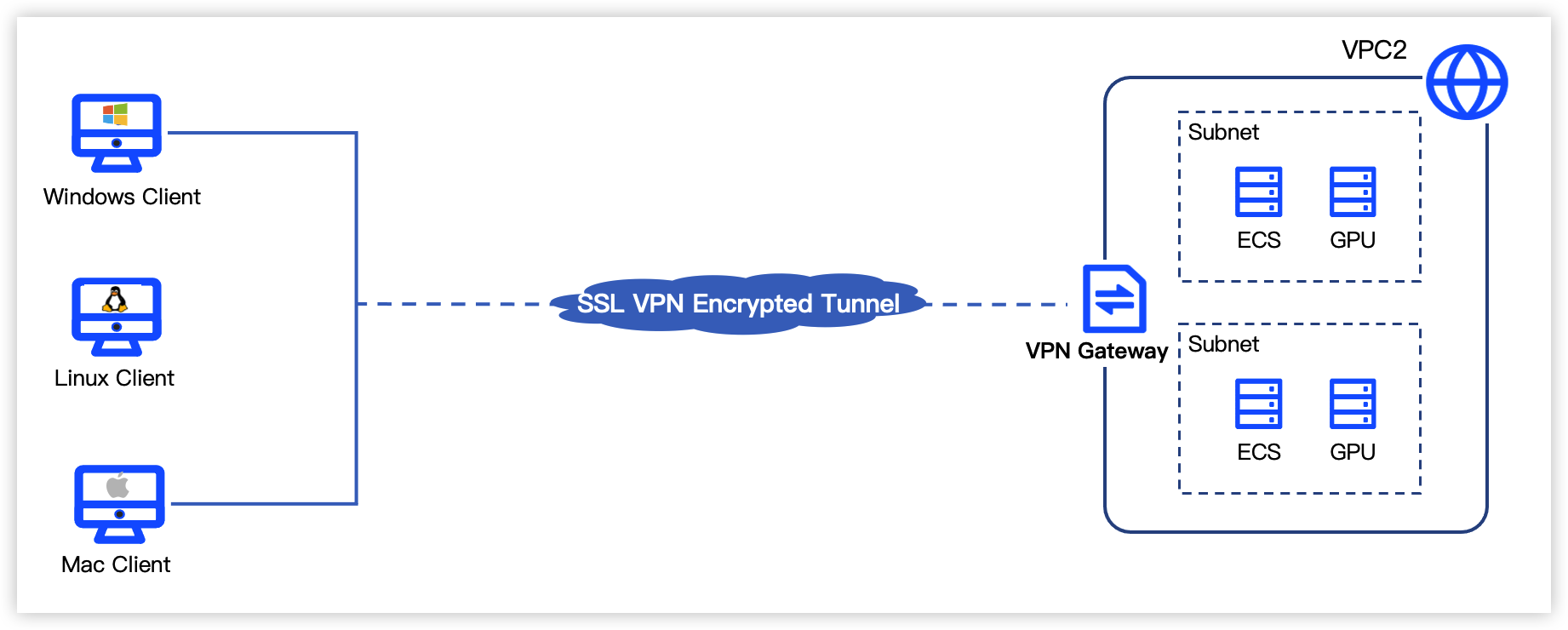
Due to business development, a company expected to access purchased services in its VPC (VPC2) from the on-premises client. After comprehensive consideration, the company chose the SSL-VPN connection feature for its simple operation and flexible use. Its SSL VPN client could intercommunicate with its VPC anytime anywhere by just loading a certificate into the SSL VPN client and initiating a connection. Taking this scenario as an example, this section describes how to configure Linux, Mac, and Windows clients to establish an encrypted tunnel via SSL-VPN connection.
Prerequisites
- You have activated a cloud account and completed real-name authentication before purchasing VPN-related resources.
- You have created VPC2 and its subnets in China (Beijing). For procedure, see Creating a VPC.
- You have ensured the security group rules used by Elastic Compute Service (ECS) instances in VPC2 allow clients to access resources within VPC2. For procedures, see Security Group overview and Adding a security group.
Limits
- The client must have normal internet access.
- The CIDR block for an SSL VPN client configured on an SSL VPN server must not conflict with the VPN gateway route.
- The CIDR block for an SSL VPN client configured on an SSL VPN server must not overlap with that of the SSL VPN server to be accessed.
- The CIDR block for an SSL VPN client configured on an SSL VPN server must not conflict with route entries in the route table of the subnet associated with the VPN gateway.
- The CIDR block for an SSL VPN client configured on an SSL VPN server must not overlap with 100.64.0.0/10, 169.254.0.0/16, or 127.0.0.0/8.
Procedure
- Create a VPN gateway: Create a VPN gateway necessary for an SSL-VPN connection on VPC2 and enable SSL connection.
- Create an SSL VPN server: Create an SSL VPN server and specify the private CIDR block to be accessed and the CIDR block to be used by the client.
- Create an SSL VPN client and download certificate: Create an SSL VPN client and download the client certificate.
- Configure the client: Download the corresponding VPN software and load the client certificate downloaded in the previous step.
- Test connectivity: Initiate a connection from the client to verify connectivity.
Last updated: 2026.07.15 18:14:15
All rights reserved © Beijing Volcano Engine Technology Co., Ltd2024
