VPN Connet
VPN Connet


Document

- Documentation
 VPN ConnetBest PracticesConnections between virtual private clouds and data centersIPsec-VPN connection via VPN gatewayBuilding connectivity between VPC and data center via VPN-IPsec (multiple non-fixed egress IPs)
 Copy page
 Download PDF
IPsec-VPN connection via VPN gateway
Building connectivity between VPC and data center via VPN-IPsec (multiple non-fixed egress IPs)
Copy pageDownload PDFBuilding connectivity between VPC and data center via VPN-IPsec (multiple non-fixed egress IPs)
This topic describes the configuration method for VPN Connect when an on-premises data center (IDC) gateway's egress IP is non-fixed. In this example, the IDC has multiple IPs to connect to the cloud, and all of them are not fixed.
Background
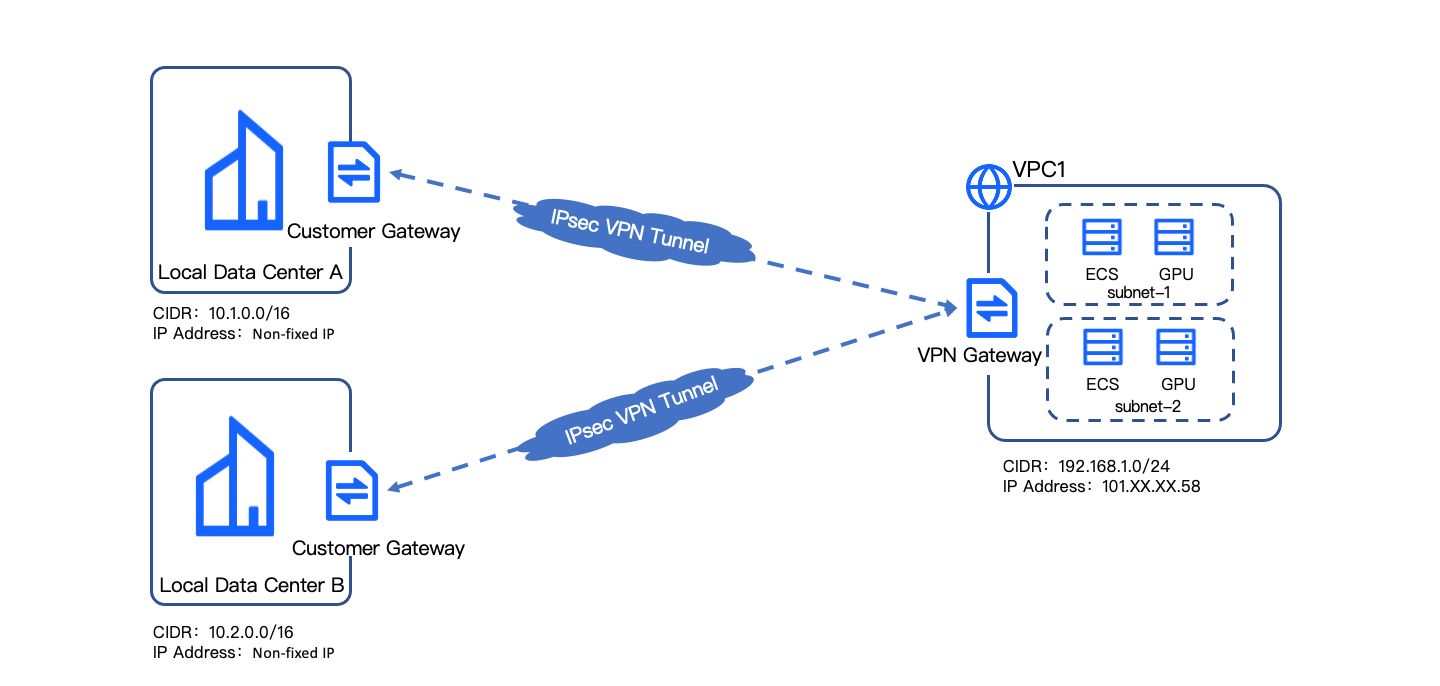
Currently, an enterprise has two branches (Branch A and Branch B) that need to access the cloud resources at headquarters. Due to network restrictions, the local gateway egress IPs of both branches are non-fixed static public IPs. Considering cost efficiency, the enterprise hopes to use VPN connections from the IDCs to access the cloud. This topic explains how to configure VPN connections to achieve network connectivity under this special non-fixed egress IP scenario.
Given the enterprise's current situation, there are two possible solutions. This topic only covers the configuration for Solution 2. For actions of Solution 1, see Building connectivity between VPC and data center via VPN-IPsec (single non-fixed egress IP).
- Solution 1: Configure one IPsec-VPN connection with the customer gateway IP set as 0.0.0.0, allowing both branches to access the VPC. However, if both branches initiate connections simultaneously, the later connection will preempt the earlier one, causing the earlier connection to disconnect.
- Solution 2: Configure two IPsec-VPN connections with the customer gateway IP set as 0.0.0.0, separately enabling both branches to access the VPC. The only difference between the two IPsec connections is the Remote ID (on the VPC side); all other configurations are identical. The two IPsec connections do not interfere with each other, allowing both branches to access cloud VPC resources simultaneously.
warning
The phase 1 authentication algorithm, encryption algorithm, and DH algorithm of the second IPsec connection must match those of the first IPsec connection in this solution.
Prerequisites
- A Virtual Private Cloud (named VPC1) and its subnet are being created. For procedure, see Creating a VPC.
- The CIDR blocks have been properly planned, ensuring no overlap between the parts of IDC A and IDC B to be connected to the cloud and the private CIDR blocks of VPC1.
Related information
The information obtained is shown below. VPC1, its subnet, and Elastic Compute Service (ECS) are existing cloud resources, while the VPN gateway and customer gateway are resources to be created in the following steps.
tip
The configuration process for VPN connections with a non-fixed egress IP address at the customer gateway is the same as for scenarios with a static public IP at the customer gateway, but differences in parameter settings occur during customer gateway creation and IPsec-VPN connection creation phases and require attention.
Procedure
Step 1: Create VPN gateway
- Log in to the VPN gateway console.
- In the top menu bar, select the target project Project-01 and region China (Beijing).
- Click Create VPN Gateway and configure the VPN gateway parameters based on the table below.
- ParameterDescriptionSample valueBasic informationBilling methodThe billing method for the VPN gateway.SubscriptionRegionsSelect the region where the VPN gateway resides. The VPN gateway must reside in the same region as VPC1.China (Beijing)NameName of the VPN gateway.VPNGW-testTunnel modeThe tunnel mode of the VPN gateway.Single tunnelNetwork ConfigurationBandwidthSet the bandwidth cap for the VPN gateway.This value is the bandwidth shared for all IPsec-VPN connections and SSL-VPN connections created on this VPN gateway.20MbpsVPCThe Virtual Private Cloud (VPC) where the VPN gateway resides.VPC1 | 192.168.1.0/24SubnetSelect the subnet where the VPN gateway resides. The subnet must reserve enough IPv4 addresses to deploy the VPN gateway.Subnet 1|192.168.1.128/25BGP ASNSet the Autonomous System Number (ASN) for the VPN gateway. Configuring BGP ASN for a VPN gateway is only required for an IPsec-VPN connection in dynamic routing mode. This example uses static routing, so BGP ASN configuration is not required.--Function configurationIPsec-VPN capabilityEnable IPsec-VPN connectivity as needed. After enabling, you can use the IPsec-VPN feature and can enable SSL-VPN connectivity concurrently.CheckSSL-VPN capabilityEnable SSL-VPN connectivity as needed. After enabling, you can use the SSL-VPN feature and can enable IPsec-VPN connectivity concurrently.DisabledMore informationDurationThe validity period for which the VPN gateway is subscribed.1 monthAutomatic renewalSelect whether to enable automatic renewal.Not selectedAffiliated ProjectThe project to which the resource belongs. It is fixed as the project Project-01 selected before entering the creation page. Cloud resources cannot be shared between different projects.Project-01
- Click Confirm order, and follow the console guidance to review and accept the legal terms.
- Click Buy now for payment to complete the purchase. Click Confirm order, and complete the action as prompted by the interface.
- The VPN gateway VPNGW-test was created successfully, with the system-assigned gateway egress IP 180.XX.XX.43.
Step 2: Create customer gateway
- Log in to the Customer Gateway console.
- In the top menu bar, select the target project Project-01 and region China (Beijing).
- Click Create Customer Gateway, and configure the customer gateway based on the table below.
- ParameterDescriptionSample valueRegionsSelect the region where the customer gateway resides. The customer gateway must reside in the same region as the Virtual Private Cloud (VPC1) and the VPN gateway (VPNGW-test).China (Beijing)NameSet the name for the customer gateway.CGW-testIP AddressType the static public IP address of the peer VPN gateway, which is the gateway’s egress IP address. This scenario’s peer has no fixed gateway egress IP address, so it must be set to 0.0.0.0.0.0.0.0BGP ASNSet the ASN (Autonomous System Number) for the customer gateway. User gateway BGP ASN needs to be set only when IPsec connections use dynamic route propagation mode. This operation demonstration uses static route propagation mode, so configuring user gateway BGP ASN is not required.--Affiliated ProjectThe project to which the customer gateway belongs is fixed as Project-01 selected before entering the creation page.Project-01
- After configuration, click Accept.
Step 3: Create IPsec-VPN connection
Create the first IPsec-VPN connection
- Log in to the VPN Connection console.
- In the top menu bar, select the target project Project-01 and region China (Beijing).
- Click Create VPN Connection, and configure the IPsec-VPN connection based on the table below.
- Basic information
- ParameterDescriptionSample valueRegionsSelect the region where the IPsec-VPN connection is located.China (Beijing)NameName of the IPsec-VPN connection.IPsecVPN-test-AAffiliated ProjectThe project to which the resource belongs, fixed as Project-01 selected before entering the creation page.Project-01
- Associate resources
-
- Connection information
-
- Advanced configuration
tip
This section only covers parameters requiring special configuration; keep all other parameters at default values.
-
- After completing the configuration, click Create.
Create a second IPsec-VPN connection
Follow steps 1 to 5 in creating the first IPsec-VPN connection to create the second one. Except for the IPsec-VPN connection name and Remote ID, all other settings match the first connection and are not repeated here.
warning
The authentication algorithm, encryption algorithm, and DH algorithm in the first phase IKE configuration of the second IPsec-VPN connection must be the same as those in the first connection.
tip
The Remote ID 10.XX.XX.2 here can be any IP address except the first Remote ID 10.XX.XX.1, used only to distinguish between the two IPsec connection tunnels.
Step 4: Configure route for VPN gateway
- Log in to the VPN gateway console.
- In the top menu bar, select the target project Project-01 and region China (Beijing).
- Click the VPN gateway name "VPNGW-test" in the list.
- Select the Routing information tab, then click Add route.
- Configure the route according to the following table.
-
- Click OK to complete adding the route entry to the IDC within VPNGW-test.
- Add the following routes using the same method.
-
tip
If the VPC hosting the VPN gateway has a custom route table, and the subnet associated with this custom route table needs access to a remote IDC via a VPN connection, you must manually add a route entry to this custom route table with the Destination CIDR as the IDC's CIDR block and the next hop type as VPN gateway. For specific actions, see Add route.
Step 5: Configure on-premises route and initiate connection
- Download the configuration files for IPsecVPN-test-A and IPsecVPN-test-B respectively.
- Log in to the VPN Connection console, select the IPsec-VPN connection in China (Beijing) under Project-01.
- In the IPsec connection list, select the IPsec connection created in Create IPsec-VPN connection.
- Click Download IPsec Config.
- Click Download.
- Configure route for on-premises gateway
- Configure the on-premises gateway routing at IDCs A and B, following the downloaded IPsecVPN-test-A and IPsecVPN-test-B configuration files. Ensure the IPsec configurations match on both sides. For detailed configuration, see File transfer overiew.
- Initiate connections from IDC A and IDC B respectively.
- Initiate connections simultaneously: both IPsec-VPN connections succeed.
- Initiate connections sequentially: both IPsec-VPN connections succeed.
tip
The scenarios in this topic are applicable when the peer has no fixed gateway egress IP address, and a connection cannot be initiated from the VPC. After all configurations are complete, the negotiation request must be initiated from the IDC. Similarly, if an existing IPsec-VPN connection disconnects, the negotiation request still needs to be initiated from the IDC.
Last updated: 2026.07.15 18:21:42
All rights reserved © Beijing Volcano Engine Technology Co., Ltd2024
