Certificate Center
Certificate Center


Document

- Documentation
 Certificate CenterSSL CertificateUser guideDownload and install certificateConvert certificate formats
 Copy page
 Download PDF
Download and install certificate
Convert certificate formats
Copy pageDownload PDFConvert certificate formats
This article describes how to convert certificate formats using OpenSSL and Keytool, and covers the following topics: (1) using OpenSSL to convert certificates from PEM to PFX, and (2) using Keytool to convert certificates from PFX to JKS.
tip
You can also use the Certificate format conversion tool from the Certificate Center to convert certificate formats.
Environment
This tutorial uses the following environment:
- Operating system: Ubuntu 22.04 64-bit
- Certificate tools:
- OpenSSL:OpenSSL 3.0.5
-

- To install OpenSSL, see the official OpenSSL website.
- If you need to install OpenSSL on a Windows system, see the OpenSSL installer for Windows.
- Keytool: automatically installed with Java 11.016.
-

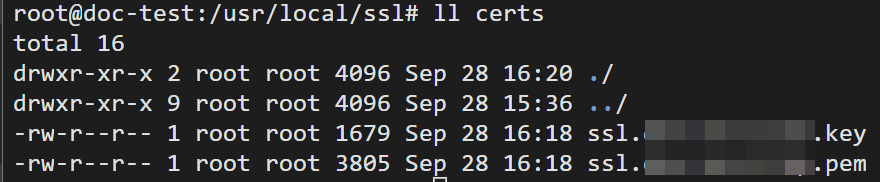
- Sample certificate and private key:
- ssl.example.com.pem: certificate file.
- ssl.example.com.key: private key file.
- The sample certificate and private key are stored in /usr/local/ssl/certs.
-
Converting from PEM to PFX
This section describes how to use OpenSSL to convert an existing PEM certificate to a PFX certificate.
Preparations
Before you start, you need to prepare the following files:
- Certificate file: generally a file with a .crt or .pem extension.
- Private key file: Typically has the .key extension.
tip
If your certificate is managed in the Certificate Center, you can download it from the Certificate Center console. When downloading a certificate, you can select the download option for other server types. For detailed instructions, see Download Certificate.
Command Overview
To convert the format, we will use the following OpenSSL command: pkcs12.
The basic syntax for the command is as follows:
openssl pkcs12 -export -in <cert.pem> -inkey <cert.key> -out <cert.pfx>
Variable Description
- <cert.pem>: The name of the source certificate file.
- <cert.key>: The name of the source private key file.
- <cert.pfx>: the name of the file to write the PFX certificate to.
Usage Example
cd /usr/local/ssl/certs
openssl pkcs12 -export -in ssl.example.com.pem -inkey ssl.example.com.key -out ssl.example.com.pfx
Enter Export Password:
Verifying - Enter Export Password:
After running the pkcs12 command, follow the command prompt to set a password for the PFX certificate.
tip
Remember the password you set for the PFX certificate. You need to provide the certificate password when installing the PFX certificate.
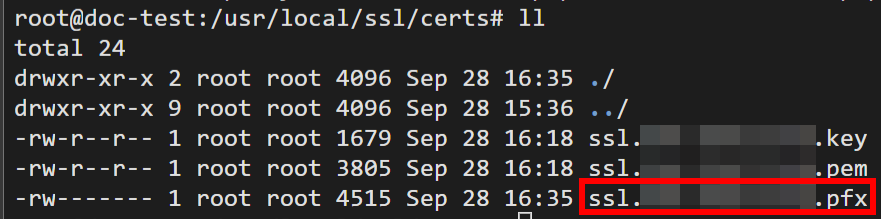
After the operation is complete, you can view the newly generated PFX certificate in the current path.
Convert from PFX to JKS
This chapter describes how to use Keytool to convert an existing PFX certificate to a JKS certificate.
Preparations
Prepare a PFX certificate. You need to know the password for the PFX certificate.
Command Overview
To convert the format, use the following Keytool command: keytool -importkeystore.
The basic syntax for this command is as follows:
keytool -importkeystore -srckeystore <cert.pfx> -srcstoretype pkcs12 -destkeystore <cert.jks>
Variable Description
- <cert.pfx>: The name of the source PFX certificate.
- <cert.jks>: The name of the destination file for the JKS certificate.
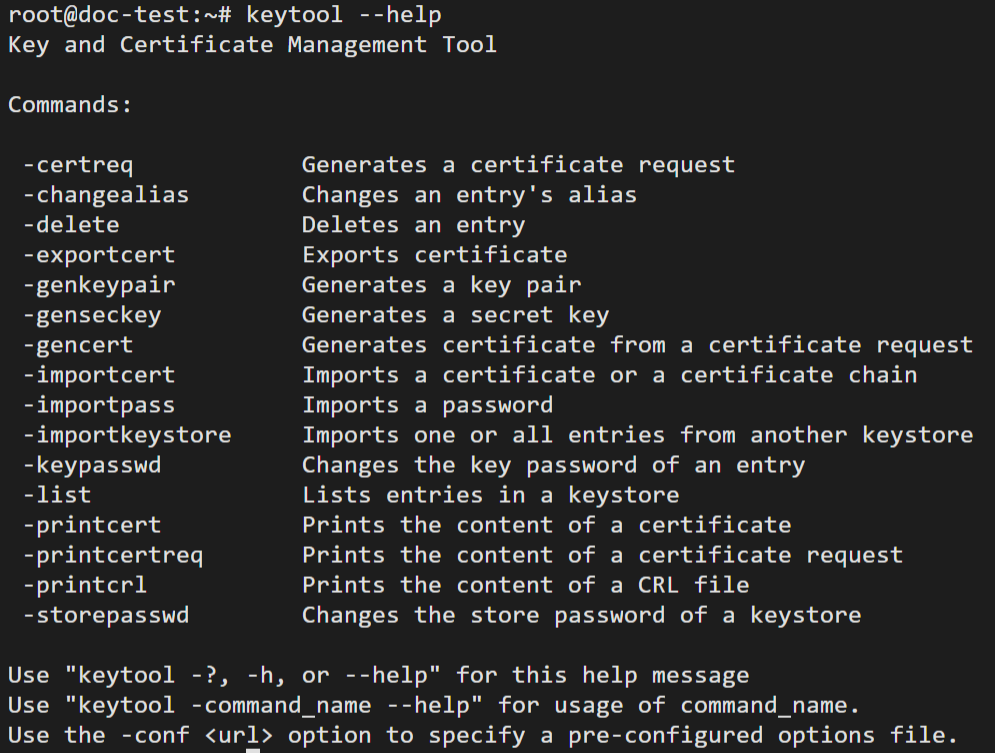
For more information about the keytool command, use keytool --help.
Usage Example
cd /usr/local/ssl/certs
keytool -importkeystore -srckeystore ssl.example.com.pfx -srcstoretype pkcs12 -destkeystore ssl.example.com.jks
Importing keystore ssl.example.com.pfx to ssl.example.com.jks...
Enter destination keystore password:
Re-enter new password:
Enter source keystore password:
Entry for alias 1 successfully imported.
Import command completed: 1 entries successfully imported, 0 entries failed or cancelled
After running the importkeystore command, follow the prompts to set a password for the JKS certificate. You need to enter the new password twice, and then enter the password for the source PFX certificate.
tip
Remember the password you set for the JKS certificate. You need to provide the corresponding certificate password when installing the JKS certificate.
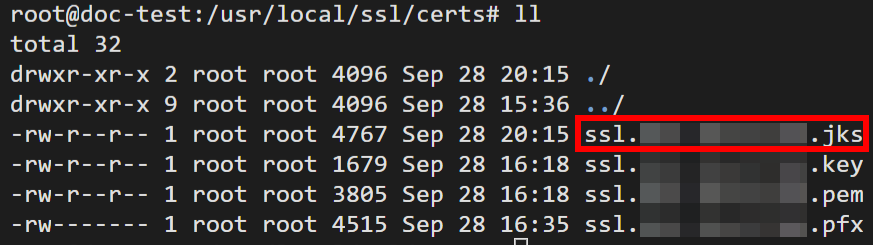
Once the operation is complete, you can view the newly generated JKS certificate in the current path.
Last updated: 2026.04.01 10:51:36
All rights reserved © Beijing Volcano Engine Technology Co., Ltd2024
