Certificate Center
Certificate Center


Document

- Documentation
 Certificate CenterSSL CertificateUser guideCertificate applicationCreating an SSL certificate order
 Copy page
 Download PDF
Certificate application
Creating an SSL certificate order
Copy pageDownload PDFCreating an SSL certificate order
This article describes how to create an SSL certificate order in VolcanoEngine Certificate Center.
Background
Certificate Center's SSL Certificate Service allows you to order SSL certificates from major certificate authorities (CAs). To obtain an SSL certificate, you must first create an SSL certificate order and submit a certificate request to a CA. After the CA approves your certificate request, it will issue your certificate.
Before creating an SSL certificate order, refer to the following documents for more information:
- SSL Certificate Billing Instructions: Learn about all the SSL certificate specifications supported by Certificate Center.
- SSL Certificate Selection Guide: Learn how to select an SSL certificate.
Prerequisites
Procedure
- Log in to the Certificate Center console.
- In the left navigation pane, select SSL certificate > Certificates.
- Click Purchase Certificate.
- On the Purchase certificate page, complete the relevant configurations according to the configuration instructions, and then click Buy now.
- Confirm the order and complete the payment.
After the order is created, you can view the corresponding certificate instance on the Certificate management page. If your order includes multiple certificates, you will receive the corresponding number of certificate instances.
tip
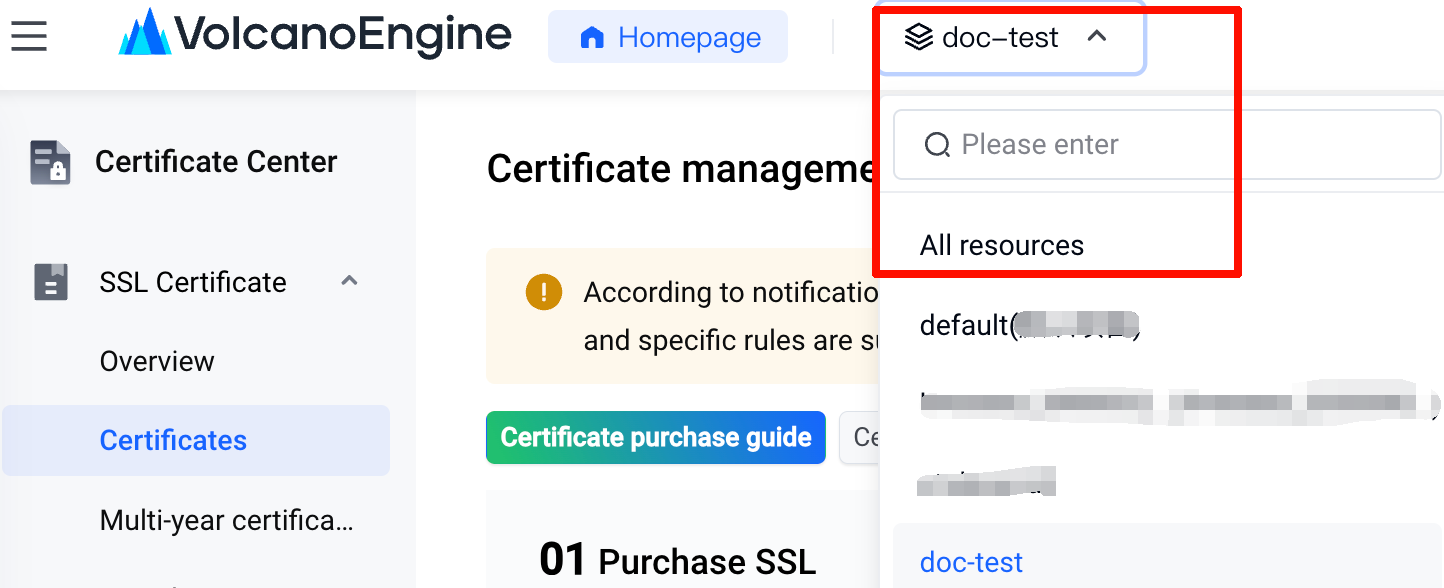
If you receive a notification that your order was created successfully, but do not see the corresponding certificate instance in the list, check the project selected in the top navigation bar. The list only shows the certificate instances that belong to the selected project.
Configuration instructions
Category | Configuration item | Description |
Certificate information | Certificate standard | Select a certificate standard. Options:
|
| Certificate type | Select the certificate level. Options:
|
| Certificate brand | Select a certificate brand. A certificate brand corresponds to a CA. Options:
tip Some brands appear only after you select a specific certificate level. If a brand option is missing, it means the brand does not offer certificates at the current certificate level. For more information, see SSL Certificate Billing Instructions. |
| Domain type | Select the domain name type to be protected by the certificate. Options:
warning
|
| Service duration | Select the subscription duration for your SSL Certificate Service.
tip Starting February 10, 2026, VolcanoEngine Certificate Center will adjust the validity period rules for relevant public SSL/TLS certificates in accordance with the latest baseline requirements of the CA/B Forum and the actual implementation policies of each certificate vendor. All certificate brands will be included in the platform's unified change scope starting February 10, 2026. However, the specific certificate validity period and pricing rules will be subject to the final implementation policies of each certificate vendor. For details, see Notice on Shortening SSL Certificate Validity Period. |
| Purchase method | Select a purchase method. Options:
tip
|
| Quantity | Enter the quantity of certificates to purchase. tip This configuration item only appears when the Purchase Method is set to Purchase by Quantity. |
| Remark | Add remarks to the certificate for easier management. |
More options | Project | Assign a VolcanoEngine project to the certificate. If your order includes multiple certificates, the selected project applies to all of them. A project is a VolcanoEngine resource management tool that groups resources from different cloud products, enabling project-level access control, bill classification, and more. For more information, see Project Overview. In the Certificate Center, a certificate (also known as a "certificate instance") represents a type of resource. You can assign a project to each certificate.
Example: Assume your certificate is under the doc-test project. After the certificate order is created, you must select doc-test or All Resources as the project in the top navigation bar to view the certificate in the console.
tip After the order is created, you can go to the Project Management page to modify the project to which the certificate belongs. |
| Tag | Add one or more tags (in key-value pair format) to the certificate. With tags, you can classify, search, and control permissions for certificates from different dimensions, enhancing the flexibility of resource management. |
Service Agreement | Agreement | By selecting this option, you confirm that you have read and agree to the Certificate Center's Terms of Service. |
Last updated: 2026.04.01 10:51:37
All rights reserved © Beijing Volcano Engine Technology Co., Ltd2024
