Auto Scaling
Auto Scaling


Document

- Documentation
 Auto ScalingBest PracticesConfiguring multiple instance types to improve scaling success rate
 Copy page
 Download PDF
Best Practices
Configuring multiple instance types to improve scaling success rate
Copy pageDownload PDFConfiguring multiple instance types to improve scaling success rate
Within the same scaling group, you can select multiple instance types with similar performance, specification, or price as the scaling configuration source. When a higher-priority instance type cannot be used to create an instance, the next-priority instance type is automatically used. This enhances the fault tolerance and high availability of scale-out operations, and applies to scenarios requiring business continuity without reliance on a single instance type.
Configuration note
Scaling groups support two types of scaling configuration sources: scaling configuration and instance launch template:
- The creation methods, multi-instance type configuration methods, usage process, and limits of the two types differ slightly. You can refer to Scaling configuration sources to select the appropriate scaling configuration source type.
- Only one scaling configuration source can be associated with a scaling group.
This topic describes how to configure a scaling group with multiple instance types by using a scaling configuration and an instance launch template.
Configure a scaling group by using a scaling configuration
After you create a scaling group, you can create a scaling configuration and associate it with the scaling group. The procedure is as follows:
- Create a scaling group: When you configure the scaling configuration source, select "Not set now". For information about other parameters, see Creating scaling groups.
- Create a scaling configuration: The following only lists parameters related to multiple instance types. For information about other parameters, see Creating scaling configurations.
- In the "Instance Type" section, select the instance type. The selected type here is the preferred type for scale-out, which is the highest-priority type.
tip
We recommend that you select an instance type with "Normal stock" to improve the success rate of scaling out.
- In the "Multi-type" section, select "Enable multi-type selection", select multiple instance types, and drag to sort the types in the list below. The preferred type has the highest priority and cannot be adjusted. To modify the preferred instance type, clear "Enable multi-type selection" before you proceed.
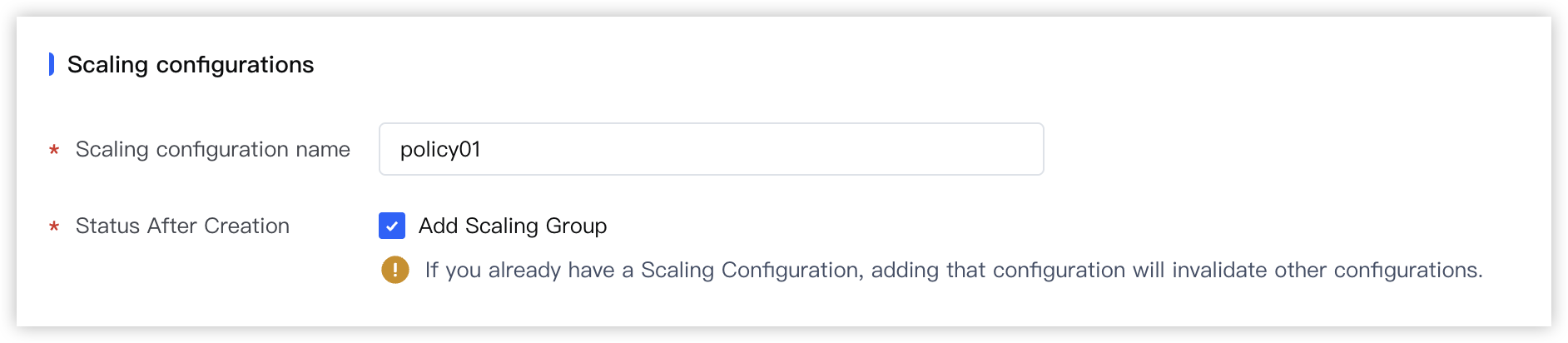
- In the "Status After Creation" section, select "Associate scaling group".
-
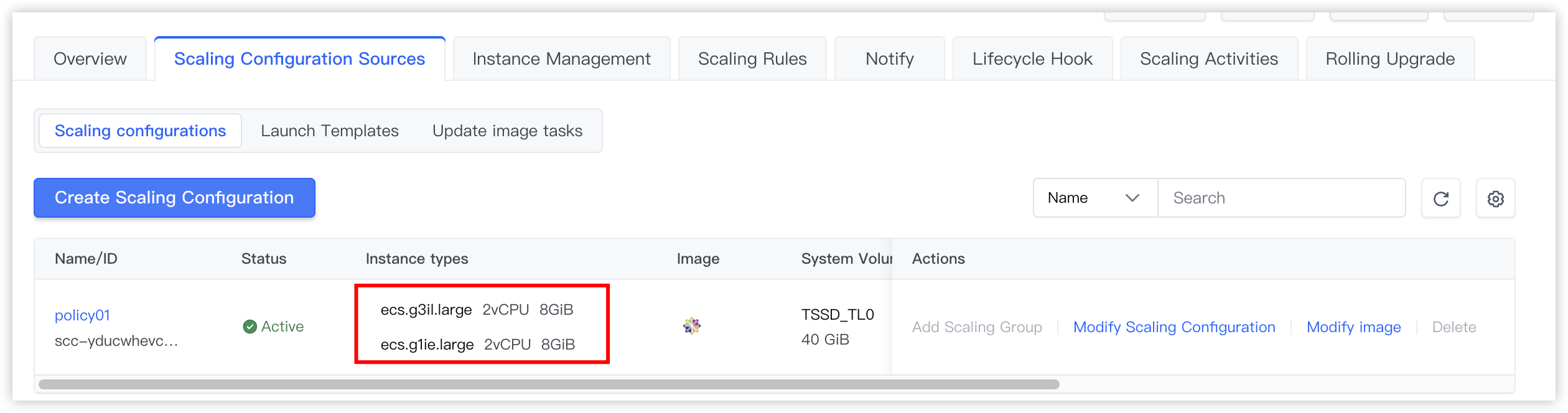
- At this point, you have successfully created a scaling group with multiple instance types. You can go to the scaling group details page and view the selected instance types on the "Scaling Configuration Sources > Scaling configurations" tab.
- To modify the instance types, click the "Change scaling configuration" button on the right side of the scaling configuration.
-
- Subsequently, you can enable the scaling group and create scaling rules to trigger scaling operations for the scaling group.
Configure a scaling group by using an instance launch template
After you create an instance launch template, you can select the template to create a scaling group. You can also create a scaling group first and then select an instance launch template. This section describes how to select an instance launch template to create a scaling group. The procedure is as follows:
- Create an instance launch template: You can create an instance launch template by using various methods. For example, you can create an instance launch template from an existing instance or recreate an instance launch template by following the console wizard. For more information, see Creating instance launch templates.
- Create a scaling group: The following only lists parameters related to multiple instance types. For information about other parameters, see Creating scaling groups.
-
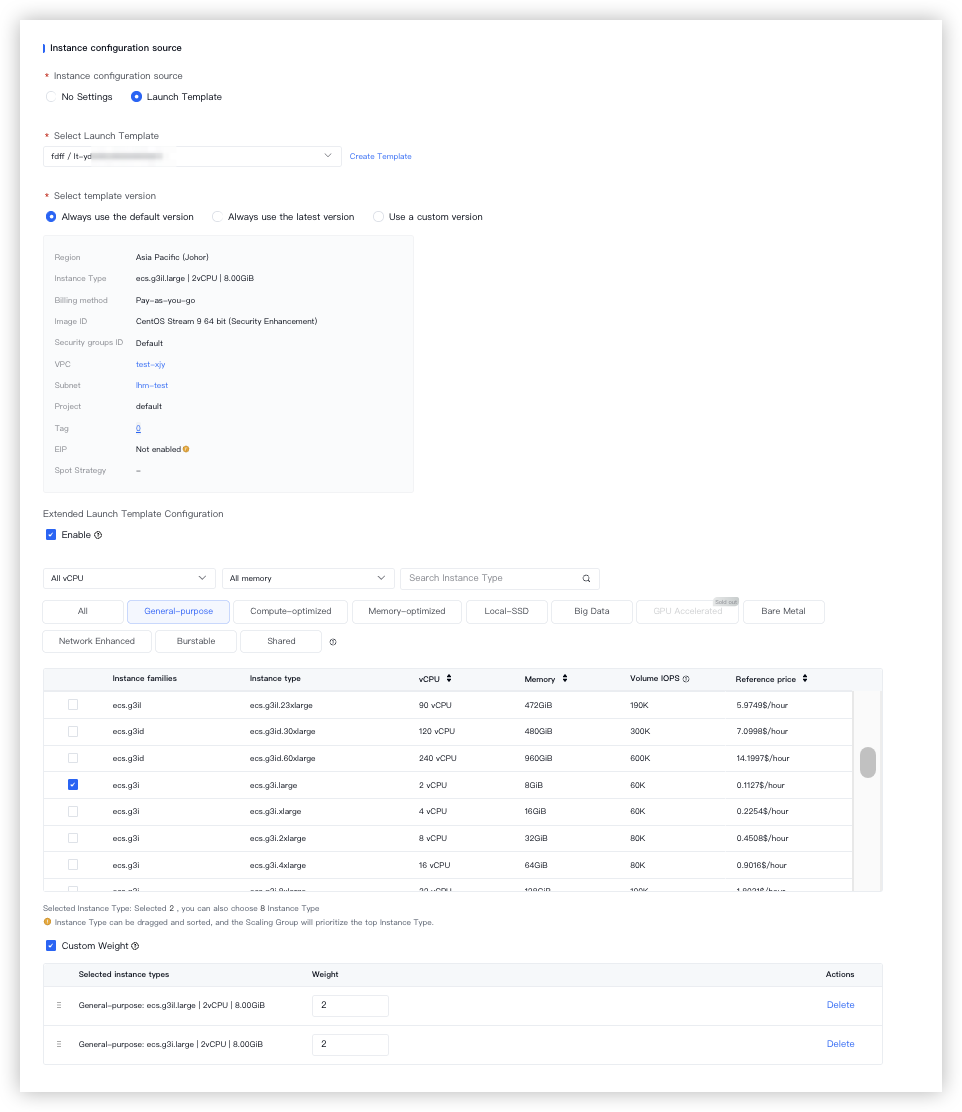
- ParameterDescriptionSample valueSelect Launch Template/Select template versionYou can select any version of the template.-Extended Launch Template ConfigurationAfter you click "Enable", you can select multiple instance types. You can click the
 icon to the left side of "Selected instance types" and drag to sort the instance types.tipThis parameter is currently in Beta. To apply for a trial, contact your account manager.Enable
- At this point, you have successfully created a scaling group with multiple instance types. You can view the associated launch template on the "Scaling Configuration Sources > Launch Templates" tab of the scaling group details page.
- To modify the instance types, click the "Modify the Launch Template" button on the right side of the launch template.
- Subsequently, you can enable the scaling group and create scaling rules to trigger scaling operations for the scaling group.
Last updated: 2026.06.24 17:08:56
All rights reserved © Beijing Volcano Engine Technology Co., Ltd2024
