You need to enable JavaScript to run this app.
Auto Scaling

Auto Scaling

Copy page
Download PDF
Scaling group
Creating scaling group
Copy page
Download PDF
Creating scaling group
Scenario​
This topic describes how to create a scaling group, including how to define the instance count/vCPU capacity, cooldown time, and subnet of the scaling group.​
Prerequisites​
Create a scaling group and associate it with a load balancer​
When you create a scaling group, if you want to associate a load balancer with it, confirm that you have a Load Balancer instance in the same VPC as the scaling group and that the instance is in Normal status. Refer to CLB quick start or ALB quick start to complete the initialization of the corresponding Load Balancer instance.​
tip​
You can associate a load balancer with multiple scaling groups. You can also associate a scaling group with multiple load balancers. After you associate a scaling group with a load balancer, instances in the scaling group will be automatically added to one or more specified backend server groups under the load balancer.​
Procedure​
  1. Log in to the Scaling Group console. ​
  1. In the top menu bar, select the project and region of the target resource.​
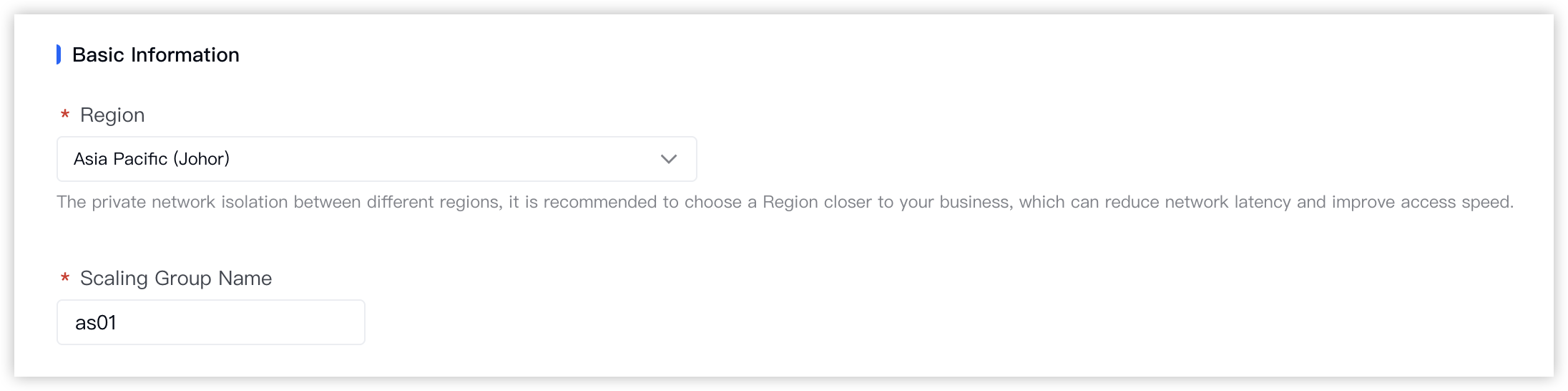
  1. Click the "Create Scaling Group" button to configure the basic information of the scaling group.​
  • ​​​
  • ​
    Parameter​
    Description​
    Example value​
    Region​
    Select the region to which the scaling group and instances belong.​
    In this example, the default value China (Guangzhou) is used.​
    Scaling Group Name​
    Configure the name of the scaling group.​
    as01​
    ​
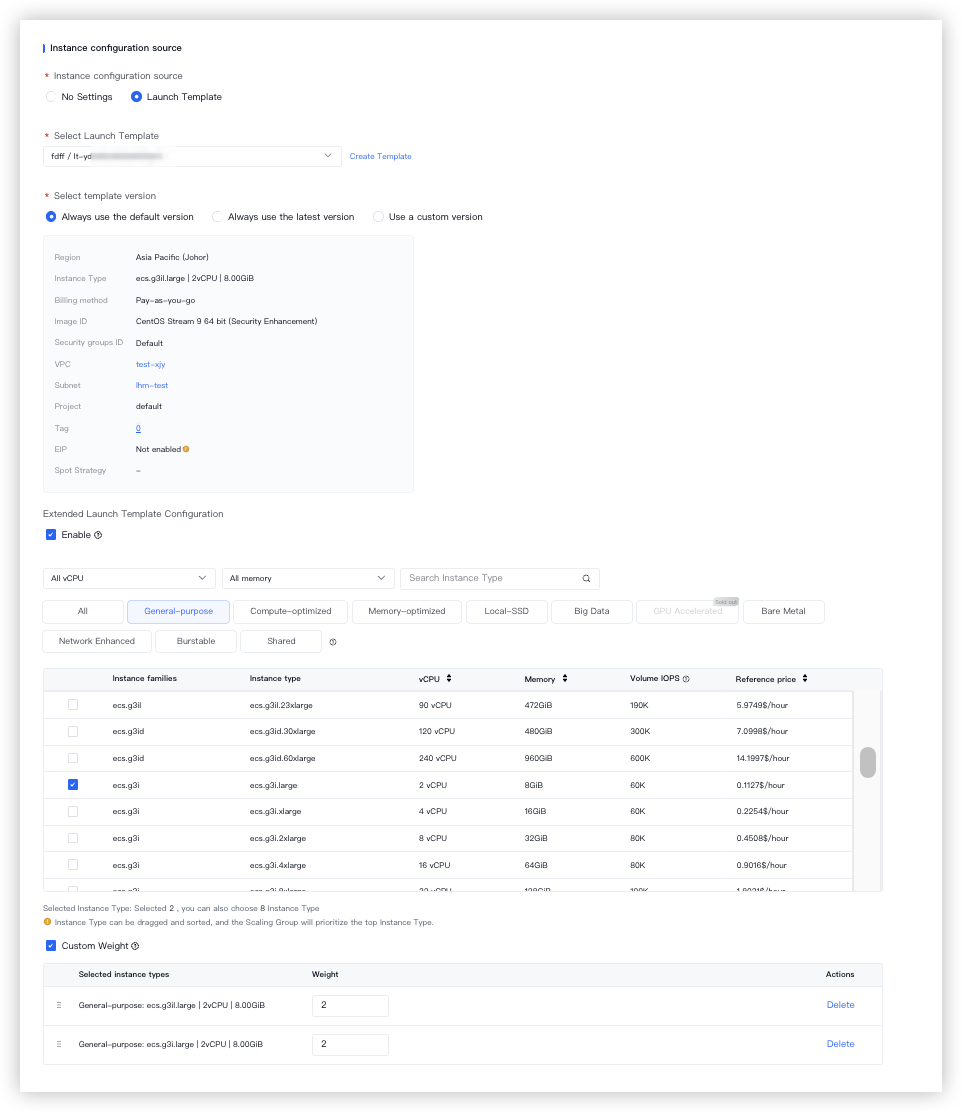
  1. Configure the scaling configuration source, which serves as the configuration source for automatically scaling out instances in the scaling group.​
  • Select "Not Settings": After the scaling group is created, you will need to create and associate a scaling configuration or select an instance launch template, and enable the scaling group before the scaling group can work as expected.​
  • Select "Launch Template": After the scaling group is created, you can directly enable the scaling group.​
For more information and limits on instance launch templates, see Overview of scaling configuration source.​
  • The following table describes the related parameters.​
  • ​​​
  • ​
    Parameter​​
    Description​
    Sample value​
    Select Launch Template/Select template version​
    You can select any version of the template.​
    -​
    Extended Launch Template Configuration​
    If you select "Enable", you can select multiple instance types and adjust their priorities.​
    tip​
    This parameter is currently in Beta. To apply for a trial, contact your account manager.​
    • Priority: You can click ​​ to the left side of "Selected instance types" and drag to sort the instance types.​
    tip​
    • When the scaling group scales out, upon meeting the scaling policy requirements, if the higher-priority instance type in the specified availability zone is out of stock or fails to be provisioned as expected, a lower-priority instance type will automatically be used to create instances. For more information, see Automatically scaling out instances.​
    • When the scaling group scales in, upon meeting both the scaling policy and instance removal policy requirements, lower-priority instances in the specified availability zone are removed first. For more information, see Automatically removing instances.​
    • Custom Weight: A weight specifies the unit capacity occupied by each instance type in the scaling group. You can customize the weight of each instance type. We recommend that you define the weight based on the contribution of each instance type to actual application performance. The default weight is the number of vCPUs of the instance type.​
    • For example: If the weight of the g2a instance type is set to 20, three g2a instances will occupy 60 units of capacity in the scaling group.​
    Enable​
    ​
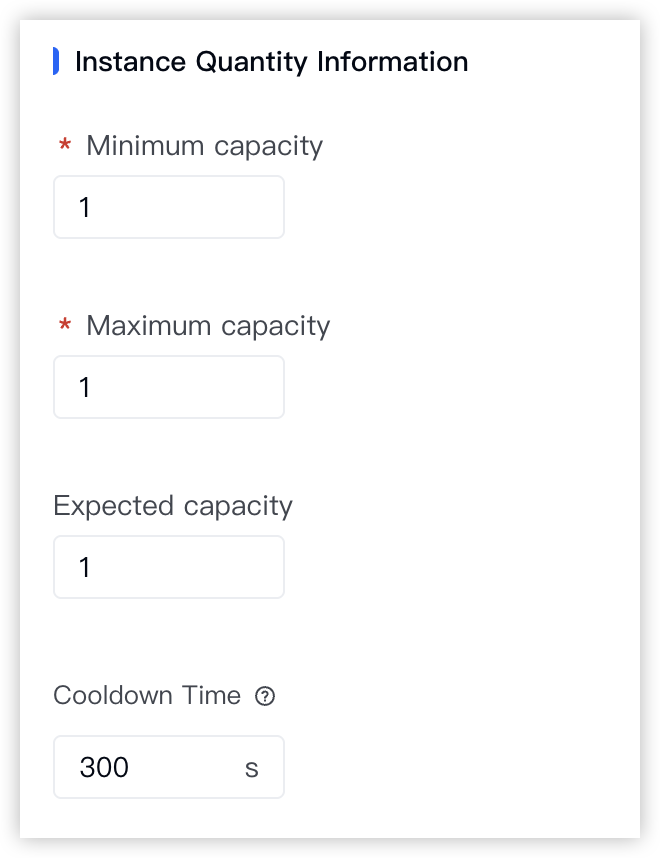
  1. Configure the instance count information for the scaling group. You can configure the capacity only when you select "Enable" for "Extended Launch Template Configuration" in the previous step.​
  • ​​​
  • ​
    Parameter​​
    Description​
    Sample value​
    Minimum Number of Instances/Minimum Capacity​
    The minimum value for the instance count or capacity in the scaling group.​
    • When Auto Scaling executes an adjustment, Auto Scaling will automatically ensure that the instance count or capacity in the scaling group is not less than the value of this parameter.​
    1​
    Maximum Number of Instances/Maximum Capacity​
    The maximum value for the instance count or capacity in the scaling group.​
    • When the scaling group executes an adjustment, Auto Scaling automatically ensures that the instance count in the scaling group does not exceed the value of this parameter. However, the instance capacity in the group may be slightly greater than the value of this parameter. This is because:​
    • If the maximum capacity is not perfectly divisible by the weight of the highest-priority instance type, the value will be rounded up to meet the computing power requirement. For example, if the maximum capacity is set to 100 and the weight of the highest-priority instance type is 30, 4 instances will ultimately be provisioned when scale-out is triggered, resulting in an actual scaling group capacity of 120.​
    • The default upper limit for the maximum number of instances is 100. You can raise the upper limit in the Quota Center, with a maximum allowable value of 1000.​
    1​
    Expected Number of Instances/Expected Capacity​
    Configure the expected instance count or capacity in the scaling group and enable the expected instance count feature. For more information, see Expected instance count/capacity.​
    • The expected instance count or capacity must be greater than or equal to the minimum instance count or capacity and less than or equal to the maximum instance count or capacity.​
    • However, when the scaling group executes an adjustment, the actual capacity of the scaling group may be slightly greater than the value of this parameter. This is because:​
    • If the expected capacity is not perfectly divisible by the weight of the highest-priority instance type, the value will be rounded up to meet the computing power requirement. For example, if the expected capacity is set to 100 and the weight of the highest-priority instance type is 30, 4 instances will ultimately be provisioned, resulting in an actual scaling group capacity of 120.​
    1​
    Cooldown Time​
    The cooldown time after the scaling group executes an adjustment. For more information, see Cooldown time.​
    During the cooldown time, the scaling group will reject adjustments triggered by scheduled, periodic, or alert-based scaling rules. Adjustments triggered by other conditions, such as manual scaling or instance count checks, can proceed as expected.​
    300s​
    ​
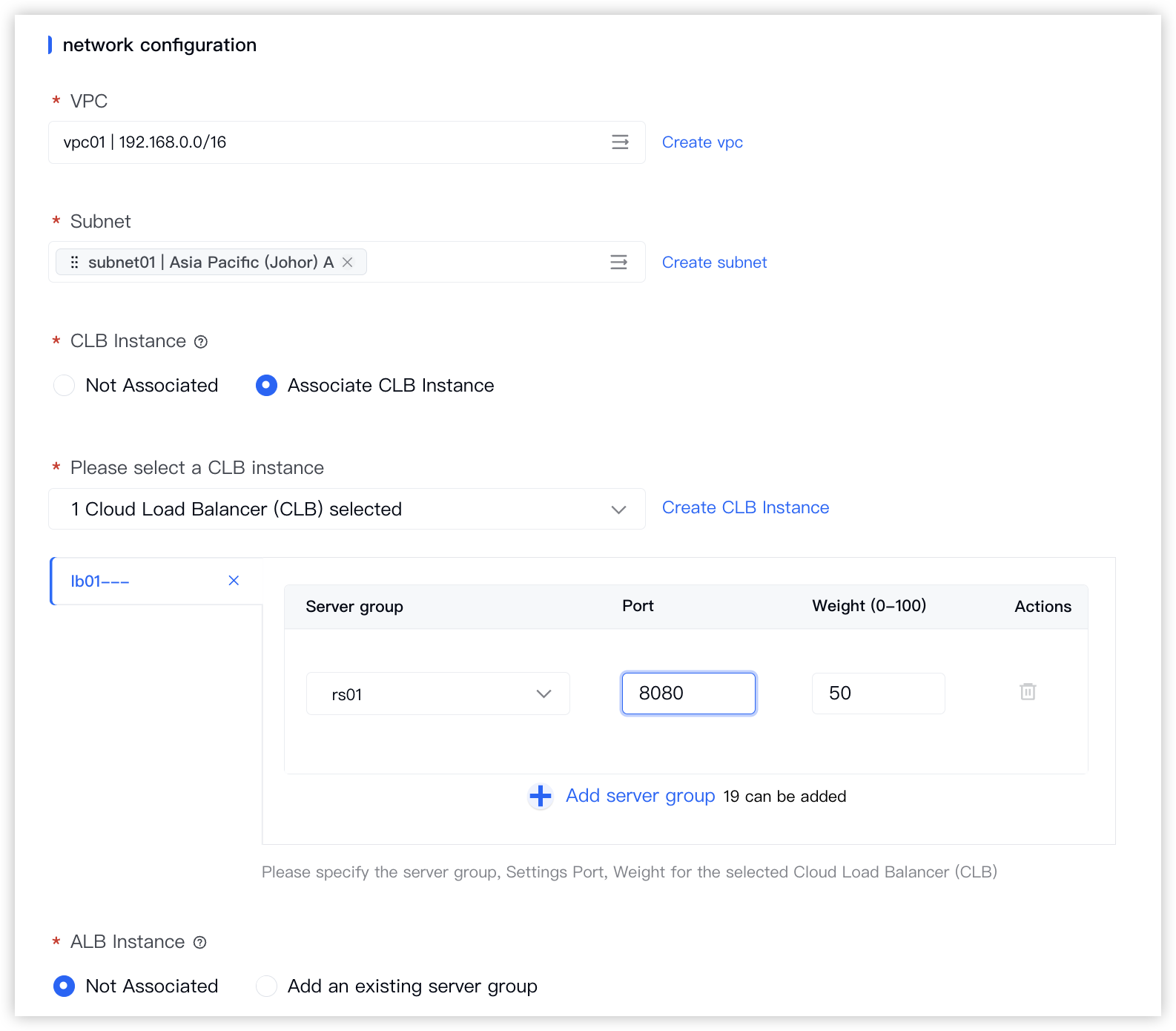
  1. Configure the network configuration information for the scaling group.​
  • ​​​
  • ​
    Parameter​
    Description​
    Sample value​
    Virtual Private Cloud​
    Select the VPC to which the instances belong. After the scaling group is created, you cannot change the VPC.​
    vpc01​
    Subnet​
    Select the subnet to which the instance belongs.​
    • To meet high availability and disaster recovery requirements, we recommend that you select multiple subnets in different availability zones.​
    • To meet low latency requirements, we recommend that you select a single subnet and deploy instances in the same availability zone.​
    subnet02, subnet01​
    Associate/select Classic Load Balancer (CLB)​
    You can associate the scaling group with a Classic Load Balancer (CLB) instance based on your needs, add backend server groups to the instance, and configure ports and weights for each instance.​
    • A single CLB supports up to 20 backend server groups, and all CLBs support a maximum of 100 backend servers, suitable for scenarios where a single instance provides multiple types of services.​
    Associate CLB instance, lb01, rs01, 8080, 50​
    Associate ALB Instance/Please select an ALB instance​
    You can associate the scaling group with an Application Load Balancer (ALB) instance, add server groups to the instance, and configure ports and weights for the server groups.​
    • A single ALB supports up to 20 server groups. All ALBs can cumulatively support up to 100 backend servers, which is suitable for a scenario where a single instance provides multiple types of services.​
    Not Associated​
    ​
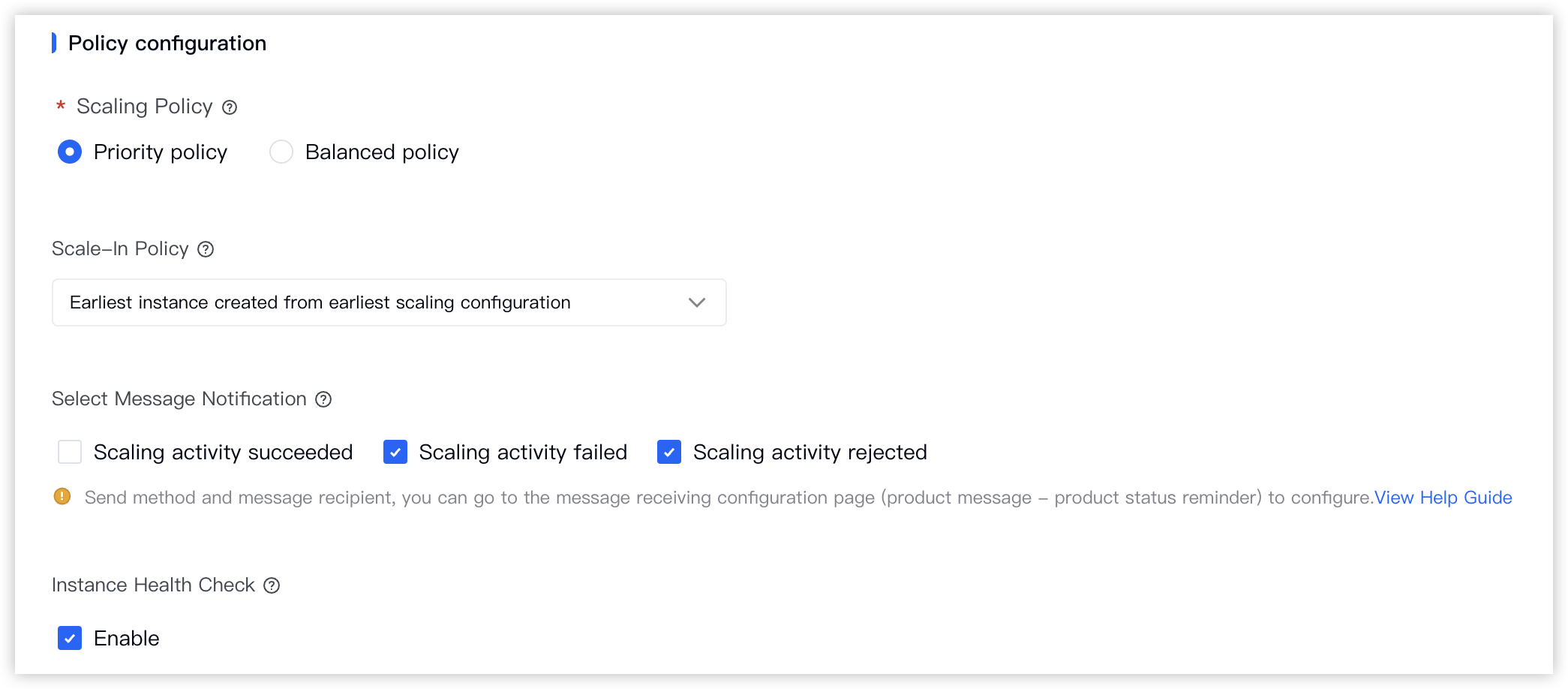
  1. Configure the policy configuration information for the scaling group.​
  • ​​​
  • ​
    Parameter​​
    Description​
    Sample value​
    Scaling Policy​
    If you select multiple subnets, this parameter is required. After you create the scaling group, you can change the scaling policy based on your needs.​
    • For automatically triggered adjustments:​
    • Priority policy: The scaling group sorts the availability zones by the order in which you select subnets. The availability zone corresponding to the first selected subnet has the highest priority. In this example, subnet02 has the highest priority.​
    • When the scaling group scales out, instances are preferentially deployed in availability zones with higher priority. When the scaling group scales in, instances are preferentially removed from availability zones with lower priority.​
    tip​
    If instances cannot be scaled in the target availability zone, other availability zones are selected in order of priority.​
    • Balanced policy: When the scaling group scales out or in, instances are randomly deployed or removed to ensure that instances in the scaling group are as evenly distributed as possible across all availability zones.​
    tip​
    • If instances cannot be scaled in the target availability zone, other availability zones are randomly selected.​
    • If instances cannot be scaled out in the original availability zone, other availability zones are selected in order of priority when "Priority policy" is selected, and randomly selected when "Distributed policy" is selected.​
    Priority policy​
    Scaling mode​
    When the scaling group automatically removes instances or manually deletes instances, the reclaimed instance resources will follow the recycling mode setting here.​
    • Release mode: Removed instances are deleted with no resources retained.​
    • Shutdown recycling mode: Removed instances are disabled in Economical Mode, which reclaims the instance's computing resources (vCPU, GPU, and memory). However, to avoid data loss, the Volume, image, Elastic IP (EIP), and bandwidth (fixed bandwidth mode) are retained.​
    tip​
    • Do not retain application data, logs, etc., in the instances to avoid the risk of data loss after instance reclamation.​
    • Currently, only Pay-as-you-go instances without local volumes mounted (excluding EBM and HPC-optimized instances) support Economical Mode.​
    release: releases the instances.​
    Advanced configuration​
    Configure the mixed billing methods for instances in the scaling group. You can combine any of the following methods to help reduce costs. This parameter takes effect only when "Spot" is selected for "Billing method" in Scaling Configuration Sources.​
    • Minimum Pay-as-you-go Instances/Capacity: The minimum Pay-as-you-go instance count or capacity in the scaling group. When the Pay-as-you-go instance count or capacity in the scaling group is less than the value of this parameter, Pay-as-you-go instances will be created first.​
    tip​
    • When the expected instance count is less than the minimum Pay-as-you-go instance count in the group, all instances in the group will be Pay-as-you-go instances.​
    • This parameter does not affect the final number of instances created in the scaling group. The number of instances is still limited by the instance count information.​
    • Percentage of Pay-as-you-go Instances: The proportion of Pay-as-you-go instances in the scaling group. When the percentage is calculated, the Pay-as-you-go instances corresponding to the minimum Pay-as-you-go instance count in the group are not included.​
    • Spot Expiration Replacement: If you select "Enable", about 5 minutes before a spot instance is reclaimed, the scaling group will proactively create a new spot instance to replace the current spot instance.​
    tip​
    The current spot instance will be identified as abnormal by the health check feature and removed 5 minutes later.​
    • Use Pay-as-you-go Instances Supplement Spot Capacity: When the automatic scale-out policy is met, if spot instances are sold out, Pay-as-you-go instances of the same instance type will be created to meet the scale-out demand.​
    tip​
    When the scaling group scales in, supplementary Pay-as-you-go instances will be removed first, and then other instances will be removed based on the automatic scale-in policy.​
    Turn on. Minimum Pay-as-you-go Instances: 3.​
    Scale-In Policy​
    During automatic scale-instances, AS removes instances from the scaling group according to this policy. ​
    tip​
    When both the instance removal policy and the scaling policy exist, the scaling policy is executed first.​
    Earliest instance created from earliest scaling configuration​
    Select Message Notification​
    If you select an option, you can receive notifications of scaling results via internal messages, SMS, or email. This way, you can timely learn changes in the scaling group.​
    • If you do not select an option, message notification will not be used. You can enable message notification later by referring to Creating message notification.​
    • After you select an option, a message notification will be automatically created. To receive notifications successfully, you also need to configure the message delivery method and recipients. For more information, see Configuring message notification.​
    Scaling activity failed​
    Instance Health Check​
    • When instance health check is enabled for the scaling group, each instance that joins the scaling group immediately has instance health check enabled. Instance health check monitors the running status of instances every 5 minutes. If an instance is in Error status, it is considered abnormal. The scaling group will automatically remove or delete abnormal instances.​
    • When instance health check is disabled, the scaling group will not process abnormal instances.​
    Enable​
    ​
​
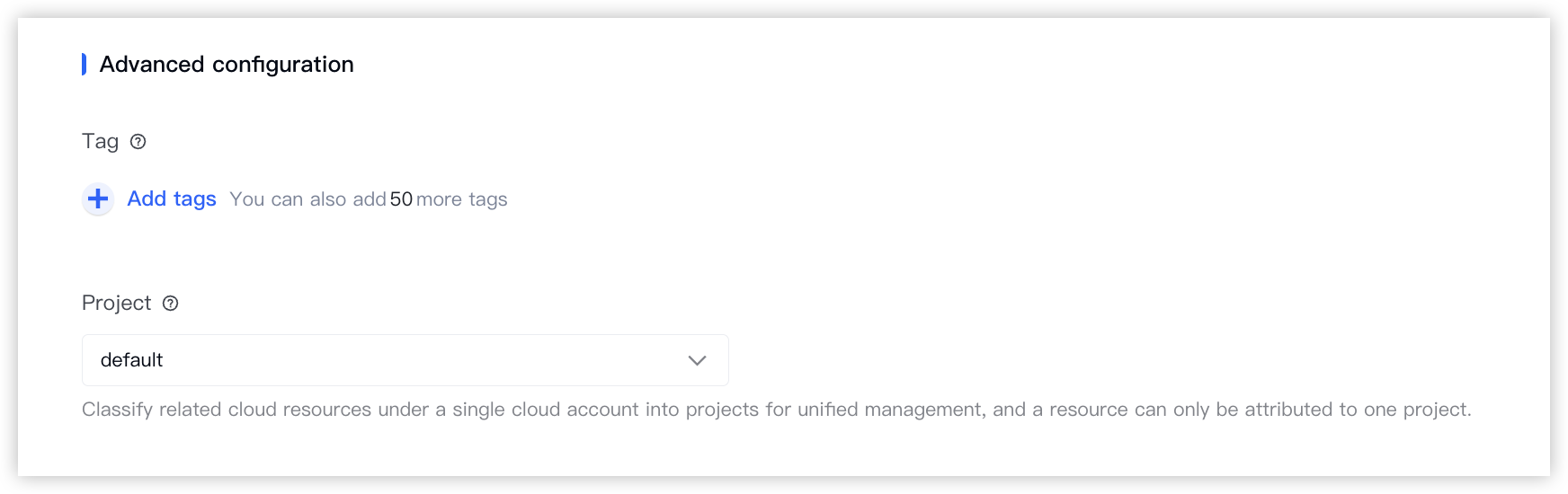
  1. Configure the advanced configuration information for the scaling group.​
  • ​​​
  • ​
    Parameter​​
    Description​
    Sample value​
    Project​
    (Optional) Select a project based on your needs. A project is a collection of resources. You can add the new instance to a project and manage it centrally at the project level, which helps keep resources independent and maintain data security.​
    • The default value is empty, indicating that the scaling group is not added to any project.​
    • A resource can belong to only one project.​
    • After a project is selected, the scaling group can only be used by users with permissions for that project.​
    • If you associate a project to a scaling group when you create the scaling group, resources subsequently created or selected for the scaling group, such as ECS instances, EIPs, VPCs, and load balancers, must also belong to this project.​
    • If a project is already selected in the top menu bar before the "Create Scaling Group" pop-up window is displayed, the created scaling group is associated with the selected project by default. To associate the created scaling group with another project, exit the "Create Scaling Group" pop-up window and change the project to "All Resources" or the target project in the top menu bar.​
    • If no other projects are available, click "new project" to create a project in the IAM console. After you create the project, return to the creation page and select the created project.​
    default​
    Tag​
    A tag consists of a key-value pair and is used for categorizing and searching resources.​
    Click the ​​ icon and enter the tag key and tag value to add a tag to the scaling group.​
    • Tag key: as-key​
    • Tag value: as-test​
    ​
  1. Click the "OK" button to complete the operation.​
At this point, a scaling group is created and is in Disabled status. Subsequently, you need to create a scaling configuration and associate it with the scaling group. The scaling group will work as expected only after being enabled. For more information, see Creating scaling configuration and Enabling scaling group.​
Subsequent operations​
  • You need to associate a scaling configuration source with the scaling group to define the compute, storage, network, and security capabilities of cloud resources such as ECS instances. This configuration will be used to create cloud resource instances during elastic scaling.​
  • After you associate a scaling configuration source with the scaling group, you can view the Elastic Strength of the scaling group on the scaling group list page. Elastic Strength refers to the availability of compute resources within the scaling group. The more instance types configured in the group and the larger the stock of these types, the higher the Elastic Strength and the greater the scale-out success rate.​
  • If Elastic Strength is weak, we recommend that you adjust the scaling group configuration in the following aspects:​
  • ​
    Reason for weak Elastic Strength​
    Recommendation​
    The instance type has insufficient stock.​
    The selected instance type has insufficient stock. We recommend that you expand the range of instance types or select an instance type with adequate stock.​
    The scaling group contains only spot instances, and no pay-as-you-go instances are configured as a supplement.​
    If the scaling group contains only spot instances, we recommend that you configure Pay-as-you-go instances as a supplement.​
    ​
Related documents​
​
Last updated: 2026.06.24 17:08:47