Server Migration Center
Server Migration Center


Document

- Documentation
 Server Migration CenterUser GuideClearing task resources
 Copy page
 Download PDF
User Guide
Clearing task resources
Copy pageDownload PDFClearing task resources
This topic describes how to clear temporary resources generated by SMC tasks for data transfer during migration.
Usage notes
- Only temporary resources generated by migration tasks in Terminated, Completed, and Failed status can be cleared.
- Make sure that releasing related resources will not affect your normal business operations.
- If the source server is running a Windows operating system:
- When the migration destination is an ECS instance, stop the target ECS instance before clearing the volume resources generated by the task.
- When the migration destination is an ECS image, stop the temporary instance (relay instance) before clearing the volume resources generated by the task.
tip
Procedure
- Log in to the Server Migration Center console.
- In the left-side navigation pane, select "Migration Job".
- In the top menu bar, select the project where the target migration source is located.
- Select the corresponding tab based on the migration type of the task.
-
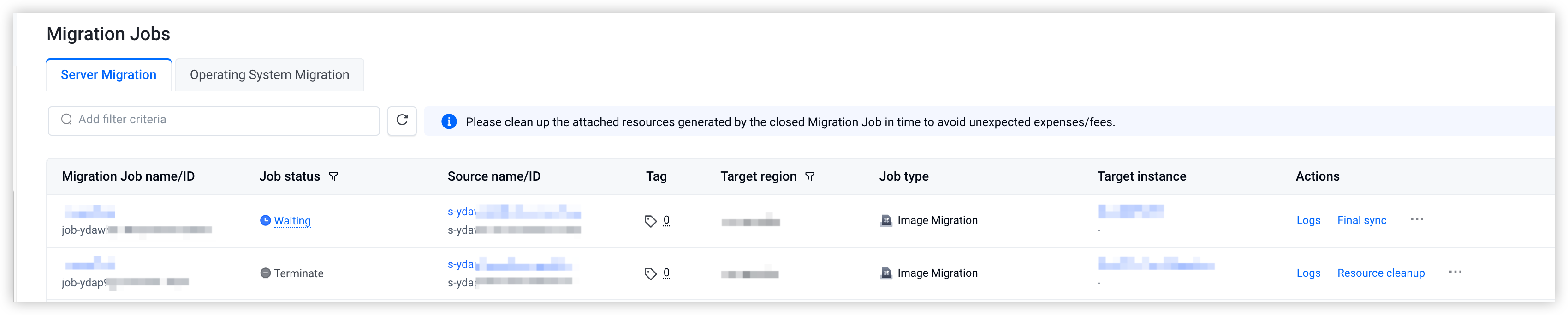
- Click the "Clear resource" button in the Actions column on the right side of the target migration task.
-

- In the pop-up window, check and confirm the pending release resource information. Then, click the "Confirm" button to complete the operation.
-
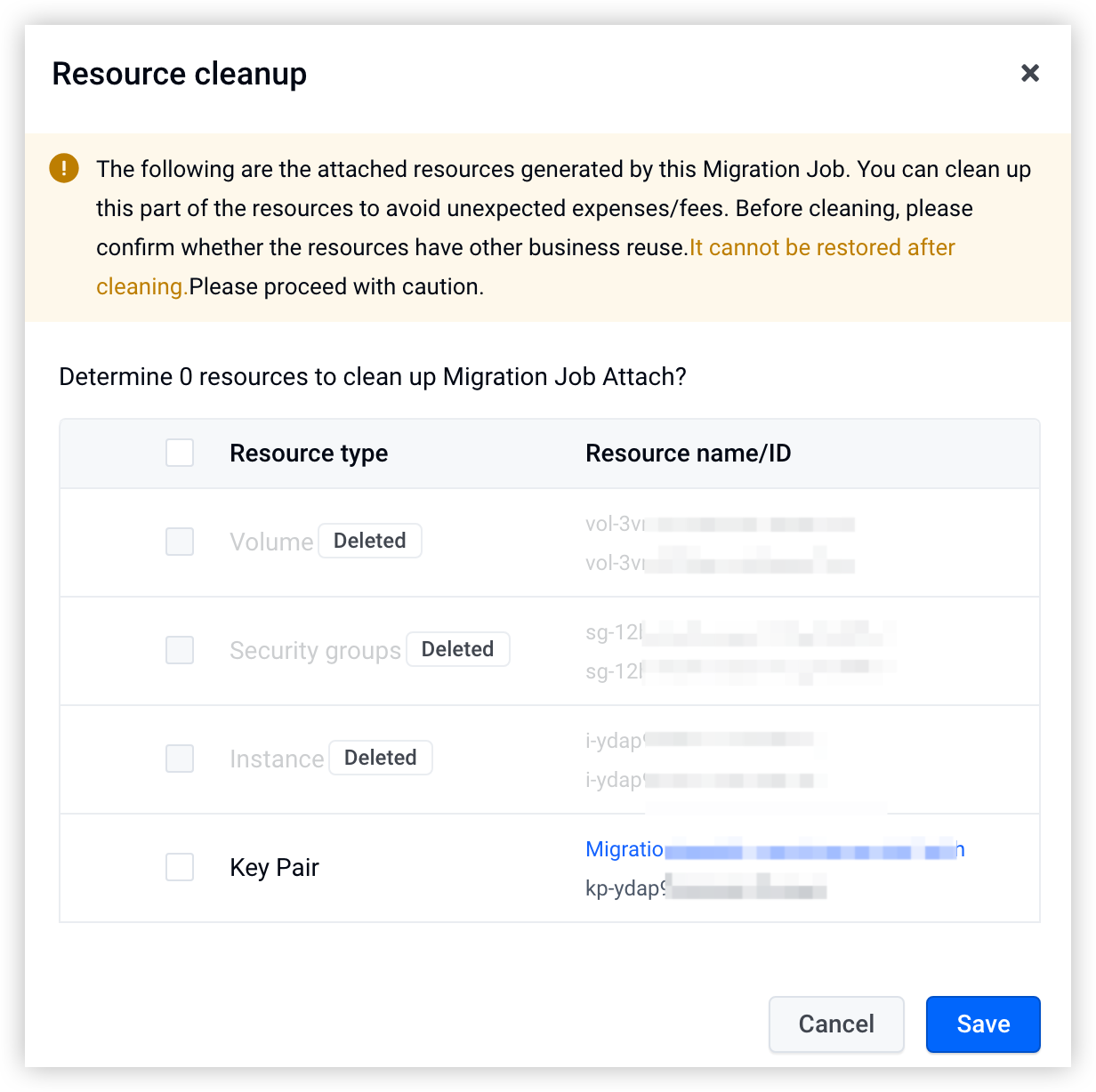
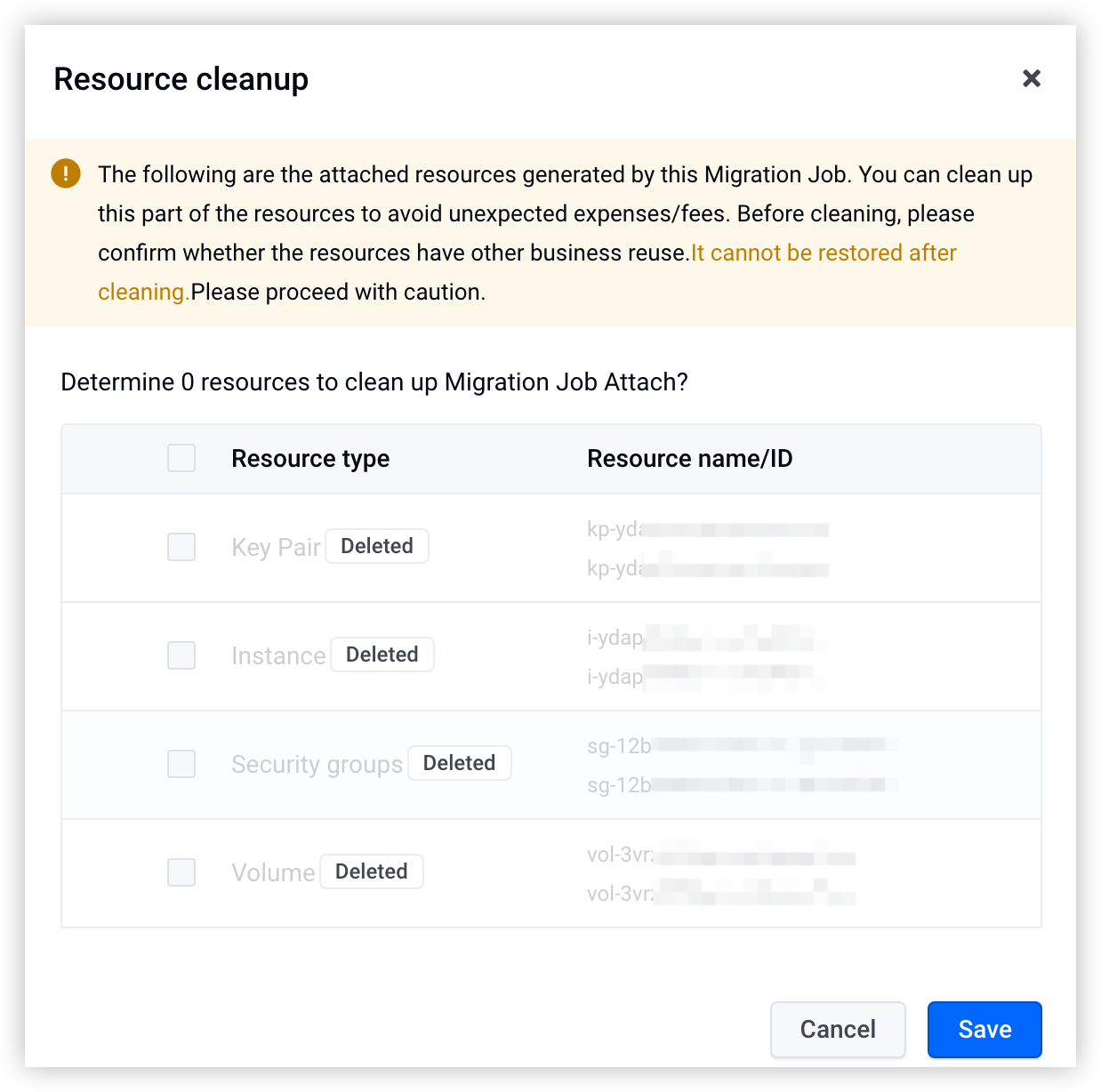
- After the clearing operation is completed, click the "Clear resource" button in the Actions column on the right side of the target migration task. Then, confirm the operation result in the pop-up window.
- Succeeded
- When all temporary resources are in the Deleted status, this indicates that they have been cleared.
-
- Partially failed
- If there are temporary resources that have not been cleared, clear them manually.
- In the pop-up window, click the name of the resource that failed to be cleared to navigate to the target resource page.
-
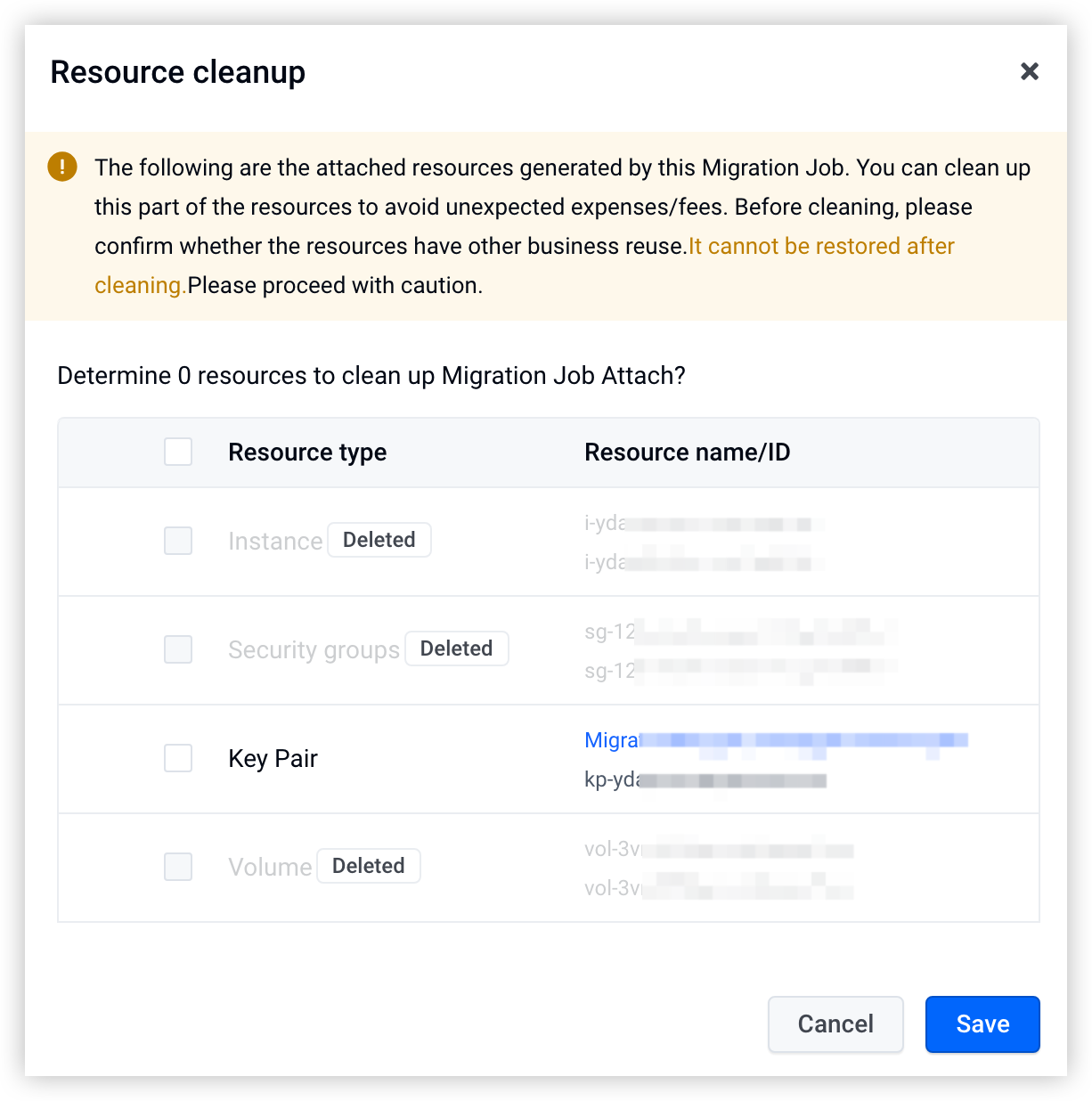
- Follow the page instructions to complete the deletion.
Last updated: 2025.12.31 15:42:21
All rights reserved © Beijing Volcano Engine Technology Co., Ltd2024
