Load Balancer
Load Balancer


Document

- Documentation
 Load BalancerClassic Load Balancer (CLB)Best PracticesConfiguring cookie-based session persistence for a Layer-7 listener
 Copy page
 Download PDF
Best Practices
Configuring cookie-based session persistence for a Layer-7 listener
Copy pageDownload PDFConfiguring cookie-based session persistence for a Layer-7 listener
This section describes how to configure the sticky session feature for a Layer 7 listener to ensure that access requests from the same client are forwarded by Cloud Load Balancer (CLB) to the same backend server for processing.
Scenarios
The Layer 7 listener of CLB supports the cookie-based sticky session feature either by inserting a cookie or rewriting a cookie.
- Inserting a cookie: If this method is used, the configuration is simple. You only need to enable the sticky session feature on the CLB console and specify the sticky session timeout.
- Rewriting a cookie: If this method is used, you must first configure a cookie on the web server of the backend server, and then enable the sticky session feature and specify the cookie name on the CLB console.
The following takes rewriting a cookie as an example to describe how to configure the sticky session feature for a Layer 7 listener.
Precautions
- Ensure that the web server, such as Nginx or Apache, has been installed on the backend server.
- Nginx: A high-performance lightweight web server for HTTP and reverse proxying, with Nginx 1.20.1 as an example in this section.
- Apache: a high-performance web server. In this topic, Apache 2.4.6 is used.
- Ensure that the scheduler Weighted Round Robin (WRR) is used for the Layer 7 listener with sticky session enabled.
Configuration procedure
Step 1: Configure the Cookie for the backend server
The cookie configuration method varies according to the web server. The following takes Nginx and Apache as examples to describe the cookie configuration procedure.
Nginx
- Log in to a backend server of the CLB instance by referring to Logging in to a Linux instance or Logging in to a Windows instance.
- Run the following command to check the path of the Nginx configuration file:
- find / -name nginx.conf
- The output is the path of the Nginx configuration file, as shown below.
-

- Run the following command to back up the configuration file in the configuration file directory.
- cd /etc/nginxcp nginx.conf nginx.conf.bak
- Run the following command to modify the Nginx configuration file:
- vi nginx.conf
- pressiEnter edit mode, add the configuration location field in the server configuration information, and configure the cookie information.
- ···server {listen 80;listen [::]:80;server_name localhost;location / {add_header Set-Cookie backend_server="ecs01"; # Settings cookie, backend_server indicates the cookie name, ecs01 indicates the cookie valueexpires 3600; # Settings cookie expiration timeroot html;return 200 '$request;$http_host;$server_port;$server_addr'; # Settings response formatindex index.html index.htm;}···
- Press ESC to exit the editing mode, input :wq to save and exit the file.input
- Run the following command to restart Nginx so that the configuration takes effect:
- systemctl restart nginx.service
- Refer to the above steps to complete the cookie configuration for all backend servers in the backend server group of the CLB instance.
Apache
- Log in to a backend server of the CLB instance by referring to Logging in to a Linux instance or Logging in to a Windows instance.
- Run the following command to check the path of the Apache configuration file:
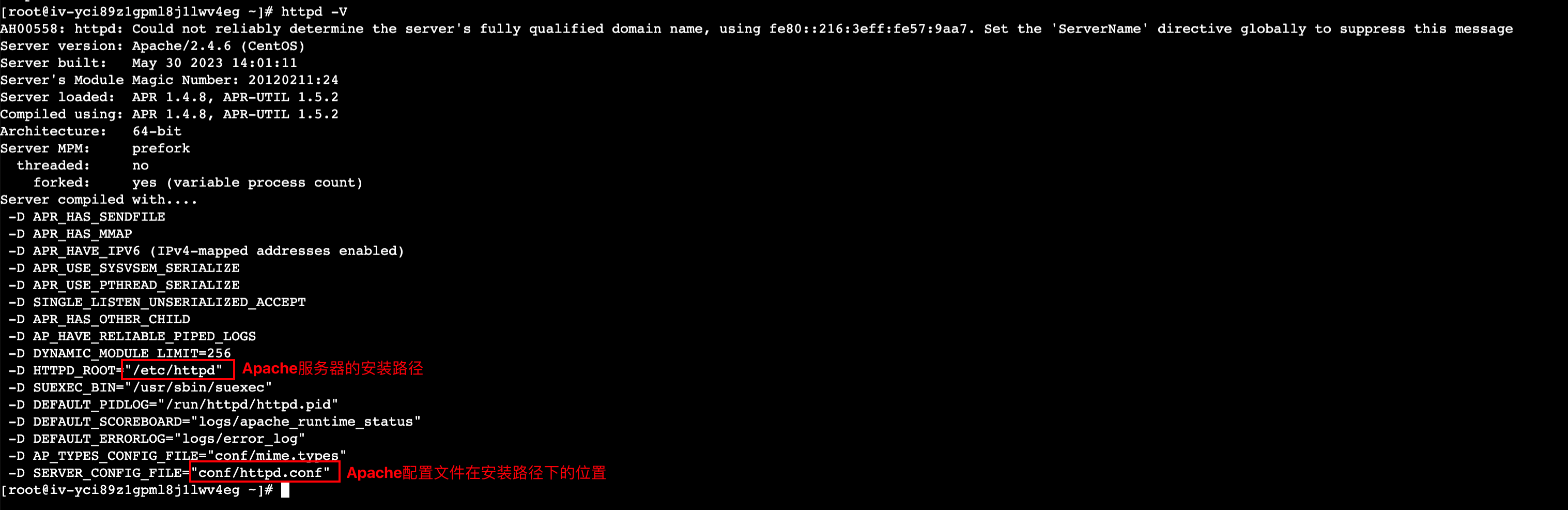
- httpd -V
- The following echo indicates that the path of the Apache configuration file is /etc/httpd/conf/httpd.conf.
-
- Run the following command to back up the configuration file in the Apache configuration file directory.
- cd /etc/httpd/confcp httpd.conf httpd.conf.bak
- Run the following command to modify the Apache configuration file:
- vi httpd.conf
- pressiPress the I key to enter the editing mode, and configure the cookie by adding the following information at the end of the Apache configuration file:
- Header add Set-Cookie "backend_server=ecs01; expires=3600"
- Press ESC to exit the editing mode, input :wq to save and exit the file.input
- Run the following command to restart Apache so that the configuration takes effect:
- systemctl restart httpd.service
- Refer to the above steps to complete the cookie configuration for all backend servers in the backend server group of the CLB instance.
Step 2: Enable session persistence feature for the Layer 7 listener
- Log in to the CLB console.
- From the top menu bar, select the project and the region of the target CLB instance.
- Click Configure Listener to the right of target CLB instance.
- Click Edit Listener to the right of the target listener, configure the sticky session feature as shown below.
warning
Cookie name here must be consistent with the cookie configuration of the backend server.
- Click Confirm to complete the procedure.
Step 3: Verifying the sticky session feature
- Log in to the client.
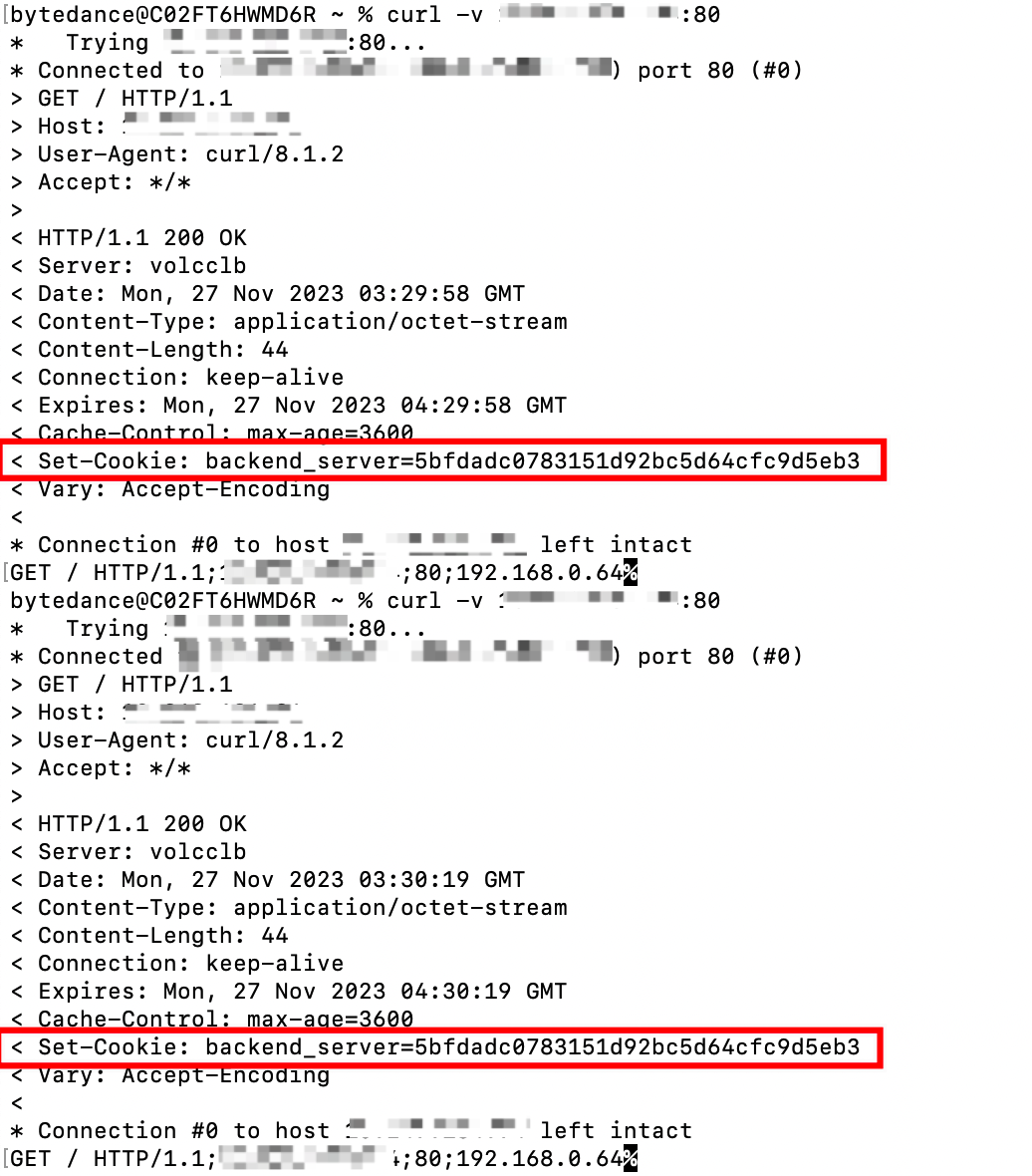
- In the command line window, run the following command multiple times and check the returned backend server information:
- curl -v http://EIP of the CLB instance:Listening port
- The backend server information returned multiple times is shown in the figure below. If it contains the Set-Cookie field and the returned values are the same, the session remains valid, and access requests from the same client are forwarded to the same backend server.
-
Last updated: 2025.10.11 17:21:52
All rights reserved © Beijing Volcano Engine Technology Co., Ltd2024
