Torch Log Service
Torch Log Service


Document

- Documentation
 Torch Log ServiceUser GuideAlarmalarm notification channelCreate notification group
 Copy page
 Download PDF
alarm notification channel
Create notification group
Copy pageDownload PDFCreate notification group
The TLS notification group is a collection of alarm notification channels used to specify action policies when an alarm is triggered. You can add notification rules, and TLS will intelligently assign different alarm notification channels based on these rules. This topic describes the steps to create a notification group.
Prerequisites
- If the alarm notification channel is phone, SMS, or email, make sure you have created an IAM user or user group. The IAM user must complete security phone and email verification on the security settings page.
- If the alarm notification channel is DingTalk or WeCom and the reminder method is set to specific user, make sure you have created an IAM user or user group. The IAM user must complete security phone and email verification on the security settings page.
Notice
When you set notification method to specified user, the IAM user's mobile number must be a Mainland China number.
- If the alarm notification channel is Lark, DingTalk, WeCom, or a custom Webhook, make sure you have created a Webhook integration configuration. For steps, see Create Webhook integration configuration.
- When creating a notification group with an IAM user, make sure the IAM user has permission to view other IAM users. The permission policy must include iam:ListUsers.
Background information
TLS manages alarm action policies and notification recipients through notification groups. TLS dynamically assigns different alarm notification channels based on the notification rules and channels defined in the notification group. For example, critical alarms are notified via phone, while other levels are notified via Lark. Alerts triggered outside working hours are sent by email.
The supported notification channels for TLS are as follows:
- SMS, phone call, and email: Recipients can be specific IAM users or all users within a designated IAM user group. Alarm notifications are sent via SMS, phone call, or email to the IAM user's mobile phone or email address.
- Lark, DingTalk, WeCom, and custom Webhook: Use Webhook integration to configure the robot Webhook address for Lark/DingTalk/WeCom, or other custom Webhook addresses, such as self-built systems or third-party alarm systems like Cloud Alert by RuiXiangyun Intelligent Alarm Platform. After binding the relevant Webhook integration configuration in the notification group, the alarm system sends alarm notifications to the specified Webhook address according to the configuration. For more details, see Create Webhook integration configuration.
Steps
- Log in to TLS console.
- Select the region where log service is located from the top navigation bar.
- On the left navigation bar, select Common features > Log alarm > Notification management.
- On Notification management page and under Notification group tab, click Create notification group.
- Set the notification group name .
- Set the notification policy.
- The notification policy manages the channels for sending alarm notifications, including notification rules and channels.
-
- Click Add rule.
- In the Rule dialog box, add alarm notification rules.
- You can specify notification rules by alarm level, alarm policy name, alarm policy name, alarm policy ID, duration, and notification time. You can configure multiple conditions with AND or OR relationships.
Notice
The recovery notification will automatically exclude any additional content you set when creating the alarm policy. You can set the {{NotifyType}} variable in the content template to distinguish between recovery notifications and alert notifications.
- Alarms are matched to rules in order from top to bottom. If a rule is satisfied, the corresponding notification channel is used to send the alarm notification.
- You can add up to 50 rules in each notification group, and up to 10 notification channels to each rule.
- In the Notification channel dialog, set the notification channel.
-
- Select Project.
- In the dropdown list, select the IAM project associated with the notification group you’re creating.
- If you have not created any IAM projects or have no suitable IAM projects to select, click Create new project to create a new IAM project. If you do not specify an IAM project, TLS adds the notification group to the IAM project named default.
- Click Create Notification group.
Configuration example
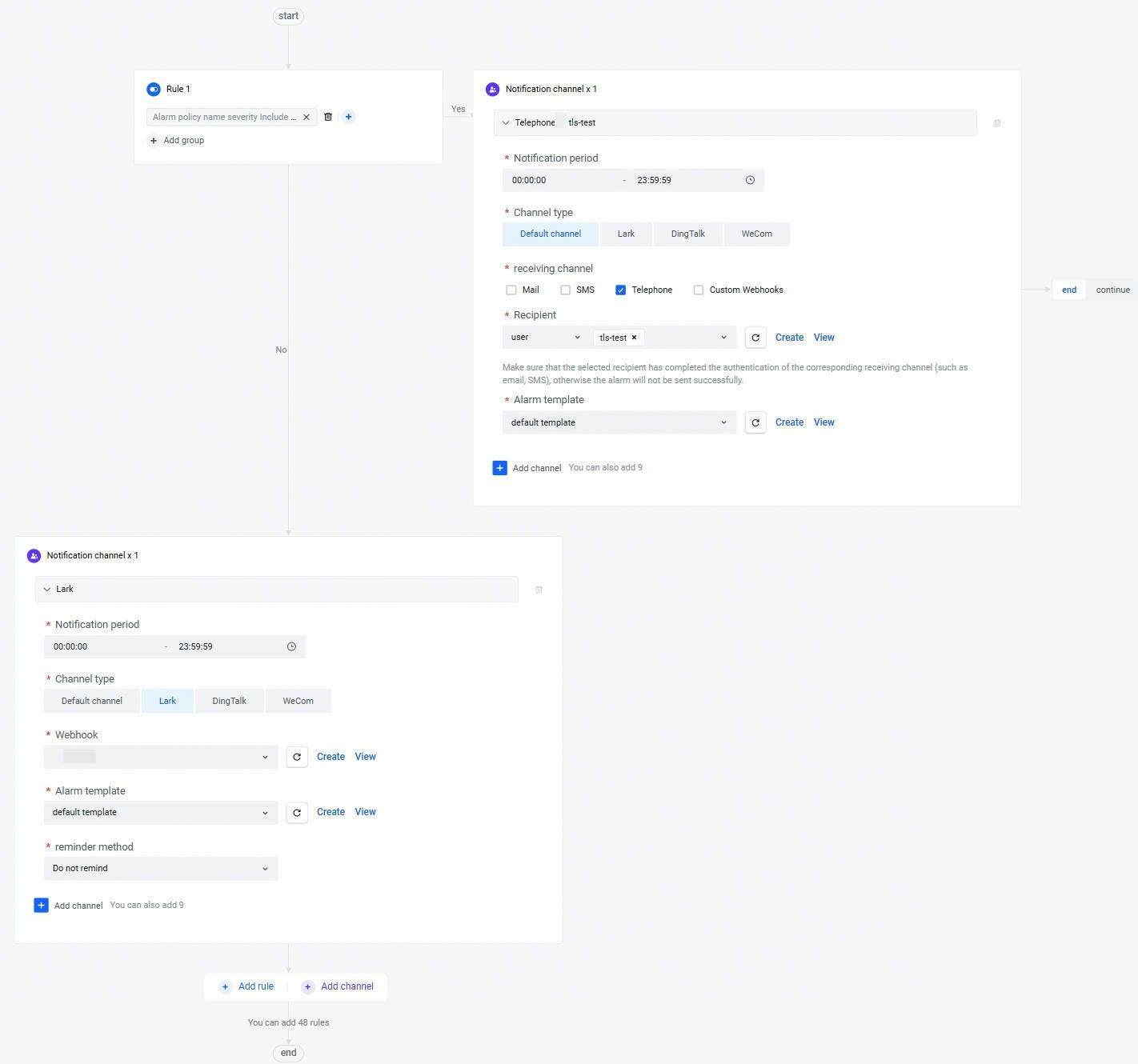
- Notification scenarios
- For serious alarm, the alert is delivered by phone; for other alarm levels, the alert is delivered via Lark notification.
- Notification policy configuration
Related operations
Disable recovery notifications:
By default, TLS sends alert and recovery notifications to the specified channel. If you do not want to receive recovery notifications, you can disable them by creating or editing the alarm policy. For details, see How to turn off alarm recovery notifications?.
Last updated: 2026.04.23 17:57:38
All rights reserved © Beijing Volcano Engine Technology Co., Ltd2024
