Torch Log Service
Torch Log Service
Torch Log Service


Document
Product News
Product Overview
Product Billing
User Guide
TLS Agent
AgentLoop
Resource management
Host group
Data collection
LogCollector collection
Introduction to LogCollector
Installation and upgrade
Collect host logs
Collect container logs
LogCollector plugins
Manage LogCollector
general reference
Data import
Cloud product log collection
TOS log collection
DBW log collection
VPN Log collection
VKE log collection
CLB log collection
CloudTrail log collection
CFW log collection
NTA log collection
ALB log collection
APMPlus log collection
veFaaS log collection
VPC log collection
veImageX log collection
TrafficRoute DNS log collection
DDoS log collection
WAF log collection
DCDN log collection
Multi-cloud security platform log collection
APIG log collection
Machine learning task log collection
CR log collection
Volcano Ark application lab log collection
FileNAS log collection
LLM Application Firewall Service log collection
vePFS log collection
Cloud security center log collection
EFS log collection
Data storage
Query and analysis
Configure log indexes
Query log
Analyze logs
Query and analyze logs using third-party tools
Associate external data source for log query
SQL function
SQL syntax
Visualization
Query and analysis charts
Summaries of query and analysis charts
Create dashboard
Use dashboard
Add dashboard filters and variables
Use other systems to analyze logs
Log application
Log applications for product observability
Log applications for large models observability
Coding Agent log app
ModelProvider log app
No-coding Agent log app
Log applications for basic service monitoring
Data processing
Data transformation
Syntax and functions
Global operation function
expression function
Data processing best practices
general reference
Data write processor
Data consumer processor
Data consumption and shipping
Ship logs to TOS
Ship logs to Kafka
Ship logs to Splunk
Alarm
Alarm policy
Alarm notification content
Alarm notification content template
alarm notification channel
Tracing service
Monitor Log Service
API reference
Project management API
Topic management API
Shard management API
Index management API
Log management API
Host group management API
Collection configuration management API
Data import API
Data processor API
Data transformation API
Data backflow API
SQL analysis API
Alarm management API
Consumer group management API
Kafka protocol consumption API
Tag management API
Trace storage API
Account management API
SDK reference
Go SDK
Java SDK
Python SDK
iOS SDK
C++ SDK
CLI reference
Best practices
Data collection
Query and analysis
permission management
Consumption and delivery
Visualization
Alarm
FAQs
Billing and cost FAQ
Data collection FAQ
Data storage FAQ
Index configuration FAQ
Query and analysis FAQ
Scheduled SQL tasks FAQ
Alarm FAQ
- Documentation
 Torch Log ServiceUser GuideLog applicationLog applications for product observabilityCloudLens for ALB
 Copy page
 Download PDF
Log applications for product observability
CloudLens for ALB
Copy pageDownload PDFCloudLens for ALB
This section introduces CloudLens for ALB, the basic service monitoring log application provided in the TLS application marketplace.
Overview
The log observability capabilities of cloud products built on ALB instances support monitoring center display, access overview, second-level metric monitoring, and additional features.
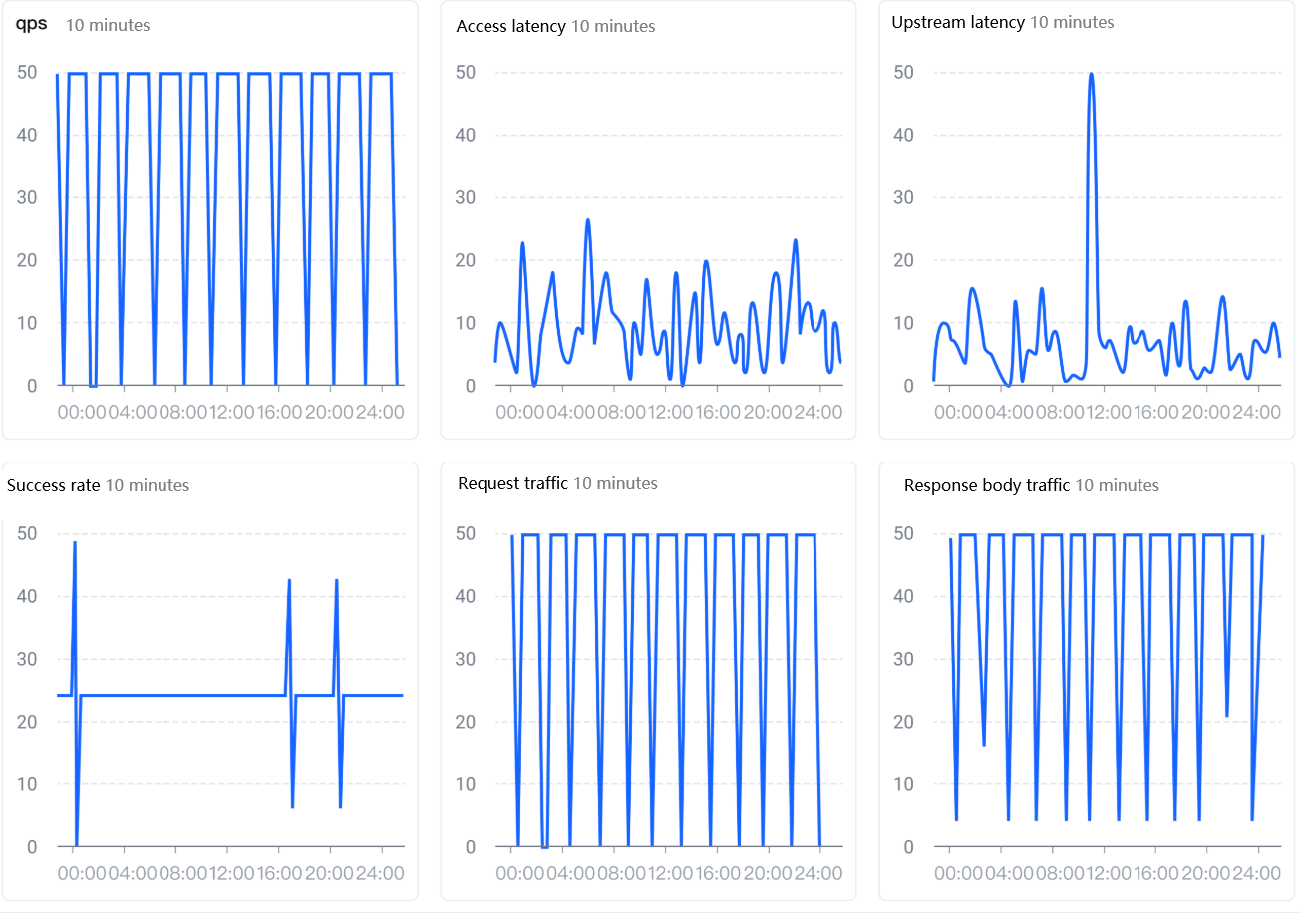
Monitoring chart details
The monitoring chart details for TLS CloudLens for ALB are as follows:
Type | Chart |
ALB second-level metric monitoring |
|
ALB access overview |
|
ALB monitoring center |
|
Steps to integrate log applications
Description
After the CloudLens for ALB log application is successfully created, you can modify the access configuration, but you cannot cancel the access.
- Log in to TLS console.
- In the top navigation bar, select the region where TLS is located.
- In the left navigation bar, select Common features > Log applications.
- On the Marketplace tab, select the log application card to be integrated. For example, on the CloudLens for ALB card, click Integrate application.
- Confirm the following information according to the interface prompts, then click Submit.
- ParametersDescriptionBilling informationAfter integrating ALB access logs, TLS will charge based on storage space, read traffic, request count, data transformation, log shipping, and other factors.Authorize RAM accessGrant cross-service access permissions.
- By default, after successful integration, you enter the dashboard page.
Manage integration configuration
After successful integration of the log application, you can perform management operations on the integrated log applications:
- Log in to TLS console.
- In the top navigation bar, select the region where TLS is located.
- In the left navigation bar, select Common features > Log applications.
- Go to the My applications tab, and in the Actions column for the corresponding log application, click Integration management.
- Expand the ALB data dashboard, click Integration configuration on the right. On the integration configuration tab, the following management operations are supported:
- OperationsDescriptionSelect regionIn the region drop-down list, you can select the region where the instance is located.Disable monitoring collectionIn the monitoring column for Instance, click Disable to disable monitoring collection for that instance.You can select multiple instances. Click Batch disable to disable monitoring for the selected instances.Enable monitoring collectionIn the monitoring column for Instance, click Enable to enable monitoring collection for that instance.You can select multiple instances. Click Batch enable to enable monitoring for the selected instances.
-
Last updated: 2026.05.28 16:04:56
All rights reserved © Beijing Volcano Engine Technology Co., Ltd2024
