火山方舟
火山方舟


订阅 [Agent/Coding Plan]

请输入


- 文档首页
 火山方舟Agent Plan 企业版接入 AI 工具OpenCode
 复制全文
复制全文 下载 pdf
OpenCode
 文档反馈
文档反馈 问问助手
问问助手本文介绍如何配置方舟 Agent Plan 企业版到 OpenCode 中使用。
一、前提条件
- 需由管理员账号完成以下操作后,子账号方可配置并使用 AI 工具:
- 购买方舟 Agent Plan 企业版套餐:一、购买 Agent Plan 企业版。
- 为子账号分配席位:二、分配席位。
二、安装 OpenCode
在命令行界面,执行以下命令安装 OpenCode。
npm install -g opencode-ai
安装结束后,执行以下命令查看安装结果,若显示版本号则安装成功。
opencode --version
三、配置 OpenCode
- 创建并打开 OpenCode 的配置文件。文件路径因系统而异,具体操作如下:
- macOS/Linux 系统 OpenCode 配置文件路径:~/.config/opencode/opencode.json。
- 如果在主目录下没有.config/opencode目录,执行以下命令创建目录。
- mkdir -p ~/.config/opencode
- 创建并打开配置文件。
- nano ~/.config/opencode/opencode.json
Windows 系统 OpenCode 配置文件路径:%USERPROFILE%\.config\opencode\opencode.json。以 CMD 命令行方式为例,操作如下。- 如果当前用户目录下没有.config\opencode目录,执行以下命令创建目录。
- if not exist "%USERPROFILE%\.config\opencode" mkdir "%USERPROFILE%\.config\opencode"
- 创建并打开配置文件。
- notepad "%USERPROFILE%\.config\opencode\opencode.json"
- 编辑 opencode.json,需关注的配置信息如下:
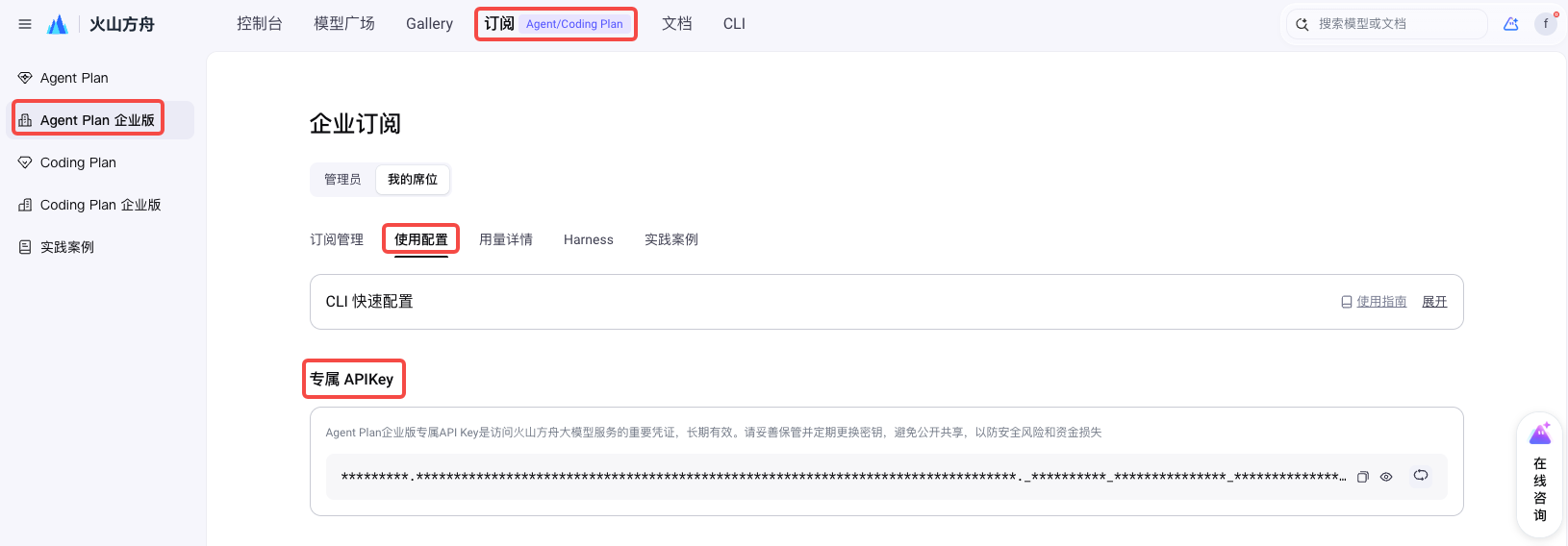
- <ARK_API_KEY>:替换为您自己的 专属 API Key。
-
- model:见 支持模型及 Harness,需配置文本生成模型。
- Agent Plan 兼容 OpenAI 接口协议,支持 Responses API、Chat API。推荐使用 Responses API 的配置,推理效果更好。
- 支持的两类 API 仅在 npm 配置上不同:
- Responses API 配置:"npm": "@ai-sdk/openai"
- Chat API 配置:"npm": "@ai-sdk/openai-compatible"
- 以配置 ark-code-latest 为例,具体信息如下。
注意
- glm-5.3、glm-5.3-flash、deepseek-v4.1-flash、deepseek-v4-flash、deepseek-v4-pro 支持 1M 上下文窗口用于包含大型代码库的长会话,可以通过 limit.context 字段显式指定窗口大小。
- provider.agent-plan.models 节点下有两处(对象键、name 字段)需替换为同一 Model Name,切勿遗漏。
- 若需开启模型图片理解能力,需在模型配置节点下新增如下配置项:"modalities": {"input": ["text", "image"], "output": ["text"]}
说明
npm 必须使用 @ai-sdk/openai,模型才会使用 Responses API,在 baseURL 的基础上自动拼接 /responses。
{
"$schema": "https://opencode.ai/config.json",
"model": "agent-plan/ark-code-latest",
"provider": {
"agent-plan": {
"npm": "@ai-sdk/openai",
"name": "Volcano Engine(Responses API)",
"options": {
"baseURL": "https://ark.cn-beijing.volces.com/api/plan/v3",
"apiKey": "<ARK_API_KEY>"
},
"models": {
"ark-code-latest": {
"name": "ark-code-latest",
"limit": {
"context": 256000,
"output": 32000
},
"modalities": {
"input": [
"text",
"image"
],
"output": [
"text"
]
}
},
"doubao-seed-2.1-pro": {
"name": "doubao-seed-2.1-pro",
"limit": {
"context": 1024000,
"output": 65536
},
"modalities": {
"input": [
"text",
"image"
],
"output": [
"text"
]
}
},
"doubao-seed-evolving": {
"name": "doubao-seed-evolving",
"limit": {
"context": 1024000,
"output": 65536
},
"modalities": {
"input": [
"text",
"image"
],
"output": [
"text"
]
}
},
"glm-5.3": {
"name": "glm-5.3",
"limit": {
"context": 1024000,
"output": 65536
},
"modalities": {
"input": [
"text"
],
"output": [
"text"
]
}
},
"glm-5.3-flash": {
"name": "glm-5.3-flash",
"limit": {
"context": 1024000,
"output": 65536
},
"modalities": {
"input": [
"text",
"image"
],
"output": [
"text"
]
}
},
"glm-latest": {
"name": "glm-latest",
"limit": {
"context": 1024000,
"output": 65536
},
"modalities": {
"input": [
"text"
],
"output": [
"text"
]
}
},
"deepseek-v4.1-flash": {
"name": "deepseek-v4.1-flash",
"limit": {
"context": 1024000,
"output": 65536
},
"modalities": {
"input": [
"text",
"image"
],
"output": [
"text"
]
}
},
"deepseek-v4-flash": {
"name": "deepseek-v4-flash",
"limit": {
"context": 1024000,
"output": 65536
},
"modalities": {
"input": [
"text"
],
"output": [
"text"
]
}
},
"deepseek-v4-pro": {
"name": "deepseek-v4-pro",
"limit": {
"context": 1024000,
"output": 65536
},
"modalities": {
"input": [
"text"
],
"output": [
"text"
]
}
},
"doubao-seed-2.1-lite": {
"name": "doubao-seed-2.1-lite",
"limit": {
"context": 1024000,
"output": 65536
},
"modalities": {
"input": [
"text",
"image"
],
"output": [
"text"
]
}
},
"doubao-seed-2.0-mini": {
"name": "doubao-seed-2.0-mini",
"limit": {
"context": 256000,
"output": 65536
},
"modalities": {
"input": [
"text",
"image"
],
"output": [
"text"
]
}
},
"minimax-m3": {
"name": "minimax-m3",
"limit": {
"context": 1024000,
"output": 65536
},
"modalities": {
"input": [
"text",
"image"
],
"output": [
"text"
]
}
},
"kimi-k2.7-code": {
"name": "kimi-k2.7-code",
"limit": {
"context": 256000,
"output": 32000
},
"modalities": {
"input": [
"text",
"image"
],
"output": [
"text"
]
}
},
"kimi-k2.8-preview": {
"name": "kimi-k2.8-preview",
"limit": {
"context": 1024000,
"output": 65536
},
"modalities": {
"input": [
"text",
"image"
],
"output": [
"text"
]
}
}
}
}
}
}
说明
npm 必须使用 @ai-sdk/openai-compatible,模型才会使用 Chat API,在 baseURL 的基础上自动拼接 /chat/completions。
{
"$schema": "https://opencode.ai/config.json",
"model": "agent-plan/ark-code-latest",
"provider": {
"agent-plan": {
"npm": "@ai-sdk/openai-compatible",
"name": "Volcano Engine(Chat API)",
"options": {
"baseURL": "https://ark.cn-beijing.volces.com/api/plan/v3",
"apiKey": "<ARK_API_KEY>"
},
"models": {
"ark-code-latest": {
"name": "ark-code-latest",
"limit": {
"context": 256000,
"output": 32000
},
"modalities": {
"input": [
"text",
"image"
],
"output": [
"text"
]
}
},
"doubao-seed-2.1-pro": {
"name": "doubao-seed-2.1-pro",
"limit": {
"context": 1024000,
"output": 65536
},
"modalities": {
"input": [
"text",
"image"
],
"output": [
"text"
]
}
},
"doubao-seed-evolving": {
"name": "doubao-seed-evolving",
"limit": {
"context": 1024000,
"output": 65536
},
"modalities": {
"input": [
"text",
"image"
],
"output": [
"text"
]
}
},
"glm-5.3": {
"name": "glm-5.3",
"limit": {
"context": 1024000,
"output": 65536
},
"modalities": {
"input": [
"text"
],
"output": [
"text"
]
}
},
"glm-5.3-flash": {
"name": "glm-5.3-flash",
"limit": {
"context": 1024000,
"output": 65536
},
"modalities": {
"input": [
"text",
"image"
],
"output": [
"text"
]
}
},
"glm-latest": {
"name": "glm-latest",
"limit": {
"context": 1024000,
"output": 65536
},
"modalities": {
"input": [
"text"
],
"output": [
"text"
]
}
},
"deepseek-v4.1-flash": {
"name": "deepseek-v4.1-flash",
"limit": {
"context": 1024000,
"output": 65536
},
"modalities": {
"input": [
"text",
"image"
],
"output": [
"text"
]
}
},
"deepseek-v4-flash": {
"name": "deepseek-v4-flash",
"limit": {
"context": 1024000,
"output": 65536
},
"modalities": {
"input": [
"text"
],
"output": [
"text"
]
}
},
"deepseek-v4-pro": {
"name": "deepseek-v4-pro",
"limit": {
"context": 1024000,
"output": 65536
},
"modalities": {
"input": [
"text"
],
"output": [
"text"
]
}
},
"doubao-seed-2.1-lite": {
"name": "doubao-seed-2.1-lite",
"limit": {
"context": 1024000,
"output": 65536
},
"modalities": {
"input": [
"text",
"image"
],
"output": [
"text"
]
}
},
"doubao-seed-2.0-mini": {
"name": "doubao-seed-2.0-mini",
"limit": {
"context": 256000,
"output": 65536
},
"modalities": {
"input": [
"text",
"image"
],
"output": [
"text"
]
}
},
"minimax-m3": {
"name": "minimax-m3",
"limit": {
"context": 1024000,
"output": 65536
},
"modalities": {
"input": [
"text",
"image"
],
"output": [
"text"
]
}
},
"kimi-k2.7-code": {
"name": "kimi-k2.7-code",
"limit": {
"context": 256000,
"output": 32000
},
"modalities": {
"input": [
"text",
"image"
],
"output": [
"text"
]
}
},
"kimi-k2.8-preview": {
"name": "kimi-k2.8-preview",
"limit": {
"context": 1024000,
"output": 65536
},
"modalities": {
"input": [
"text",
"image"
],
"output": [
"text"
]
}
}
}
}
}
}
四、启动并使用 OpenCode
- 启动 OpenCode:
- opencode
- 输入/models,选择配置的模型并在 OpenCode 中使用。
其他操作
配置视觉模型
方舟 Agent Plan Team Medium 及以上套餐提供图片生成模型配额,Team Large 及以上套餐提供视频生成模型配额。方舟提供 Skill 帮助 AI 工具快速接入并使用。具体配置方法请参见 配置视觉模型。
切换模型
你可以随时根据需求切换文本生成模型。方舟支持多种方式切换模型。
最近更新时间:2026.09.23 17:07:21
这个页面对您有帮助吗?
有用
有用
无用
无用