Billing Center
Billing Center


Document

- Documentation
 Billing CenterRenewal ManagementAuto-renewalAuto-renewal
 Copy page
 Download PDF
Auto-renewal
Auto-renewal
Copy pageDownload PDFAuto-renewal
Rules
- To prevent service interruption due to instance expiration, customers can enable or modify automatic renewal before the instance expires. Instances set to "Automatic Renewal" will be listed under the "Automatic Renewal" tab.
- Instances set to "Automatic Renewal" and with the status "Running" support manual renewal, batch renewal, reverting to manual renewal, modifying automatic renewal, and choosing not to renew upon expiration.
- Instances set to "Automatic Renewal" and with the status "About to Stop/Stopped" only support manual renewal, batch renewal, and reverting to manual renewal.
- Instances set to "Automatic Renewal" and with the status "Refund Stopped" will have their automatic renewal disabled and be moved to the "Manual Renewal" tab, supporting only manual renewal.
- After enabling automatic renewal, if no renewal deduction date is set, the system will default to deduct payment at 0:00 seven days before the resource expires, retrying every six hours until the resource is finally released (expired and recycled). Please ensure sufficient balance. If a renewal deduction date is set, the system will start automatic renewal deduction at 0:00 on the set date, retrying every six hours until the resource is finally released (expired and recycled).
- Resources with automatic renewal enabled can be manually renewed at any time. After a successful manual renewal, automatic renewal remains active.
- During automatic renewal, if your account has available vouchers, the system will automatically apply them.
- Renewal list instance status explanation
status | explain |
running | instances remain running until expiration |
Scheduled for shutdown | instance expired but not stopped |
stopped | instance stopped due to expiration |
refund suspension | Some product instances support a retention period after unsubscribe. During this period, resources can only be restored by manual renewal. |
Steps
- Enable auto-renewal
- Go to the "Billing Center > Renewal Management > Manual Renewal/Non-Renewal Upon Expiration", select the instance, and click "Enable Auto-Renewal."
- Set the duration and number of times for single auto-renewal. The number of auto-renewals defaults to permanent but can be customized. Once the custom count is used up, it switches to manual renewal.
- Click "Enable" to complete the setup.
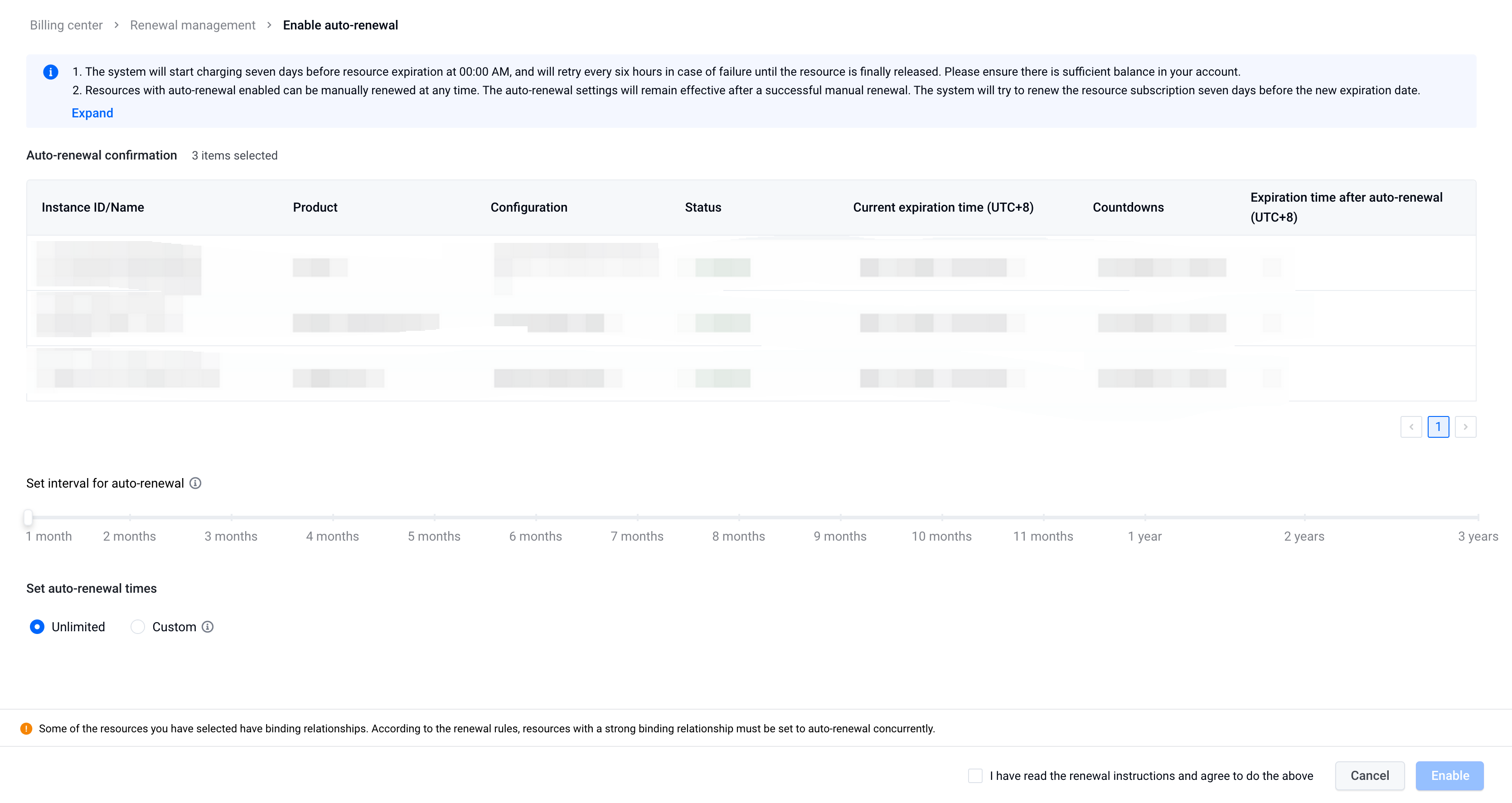
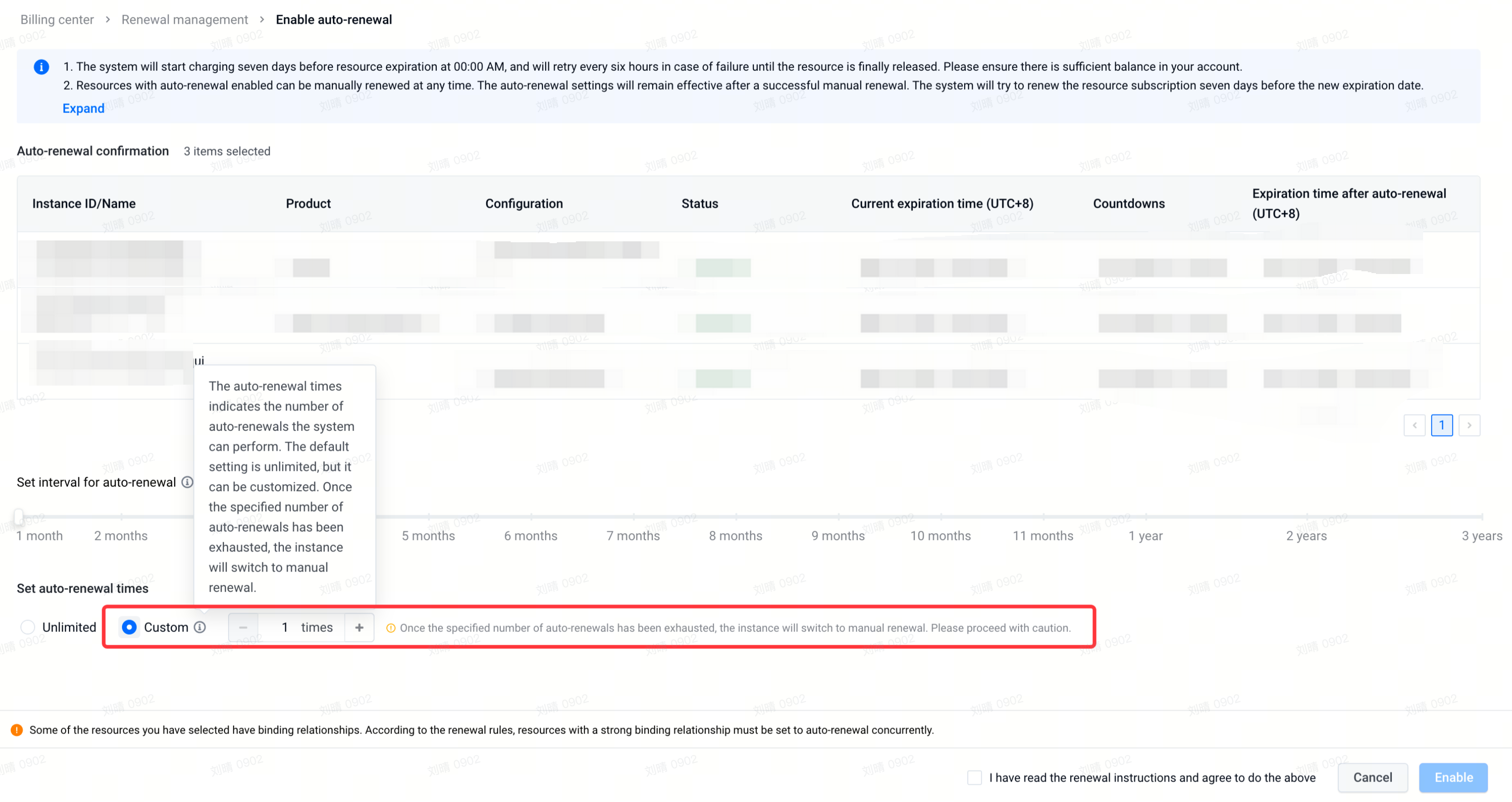
- Go to the "Billing Center > Renewal Management > Auto-Renewal" tab.
- Manually renew an auto-renewal instance: select the instance, click "Renew" or "Batch Renew" to enter the renewal page, set the renewal duration, click "Pay," and complete the payment to succeed in manual renewal.
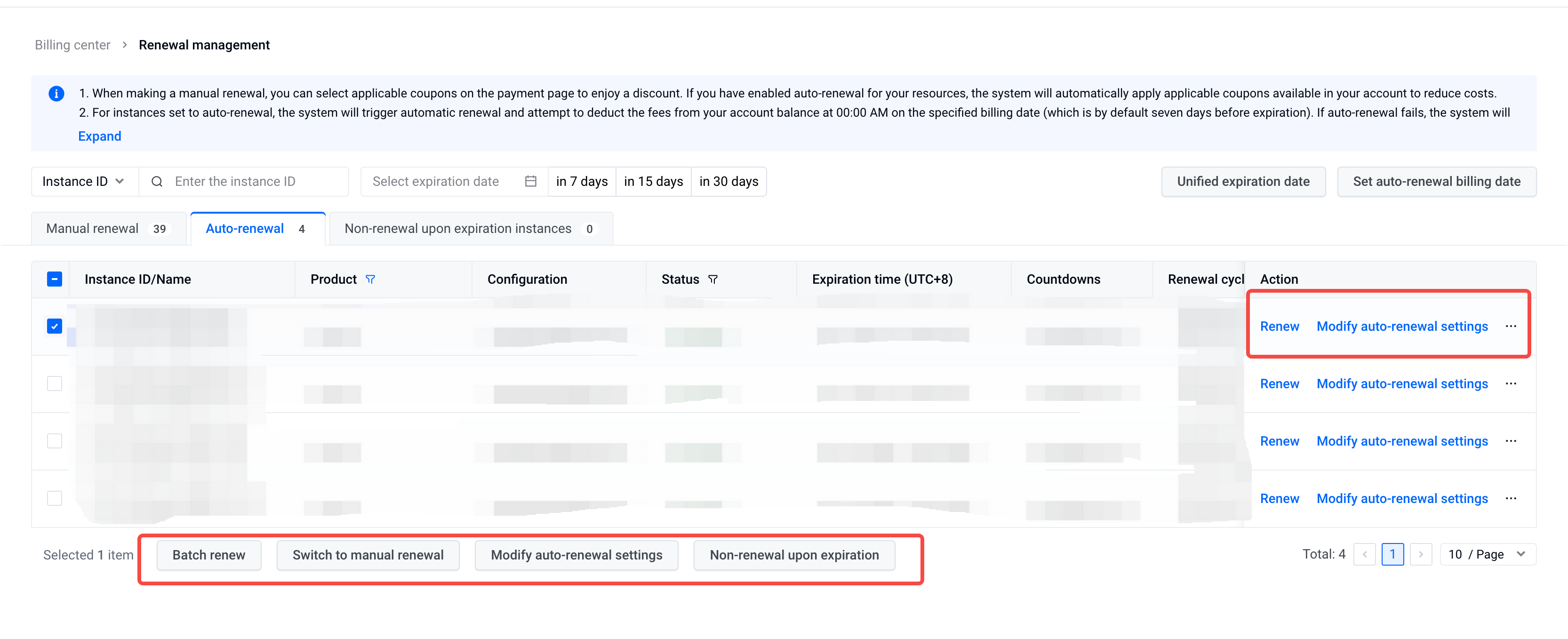
- You can restore single or multiple instances to manual renewal, modify auto-renewal (before expiry), or set to Non-Renewal Upon Expiration (only before expiry) based on your needs. After a successful operation, instances will automatically move to the "Manual Renewal," "Auto-Renewal," or "Non-Renewal Upon Expiration" tab.
Last updated: 2025.07.15 11:43:30
All rights reserved © Beijing Volcano Engine Technology Co., Ltd2024
