Billing Center
Billing Center


Document

- Documentation
 Billing CenterRenewal ManagementAuto-renewalAuto-renewal billing date
 Copy page
 Download PDF
Auto-renewal
Auto-renewal billing date
Copy pageDownload PDFAuto-renewal billing date
Rules
- For resources with auto-renewal enabled, customers can customize the auto-renewal deduction date. The system will start deductions according to the set date. Please ensure sufficient account balance.
- If the auto-renewal deduction date is not set, the system defaults to start auto-renewal at 0:00 seven days before the resource expires. If set, the system will start auto-renewal at 0:00 on the customer-defined deduction date.
- After successfully changing the auto-renewal deduction date, scheduled auto-renewals after that time will take effect based on the new deduction date.
Steps
- Go to the “Renewal Management” page and click the “Set auto-renewal billing date” button at the top right of the renewal list.

- Set the auto-renewal deduction date, selectable from seven days before expiration up to the expiration day (00:00:00).
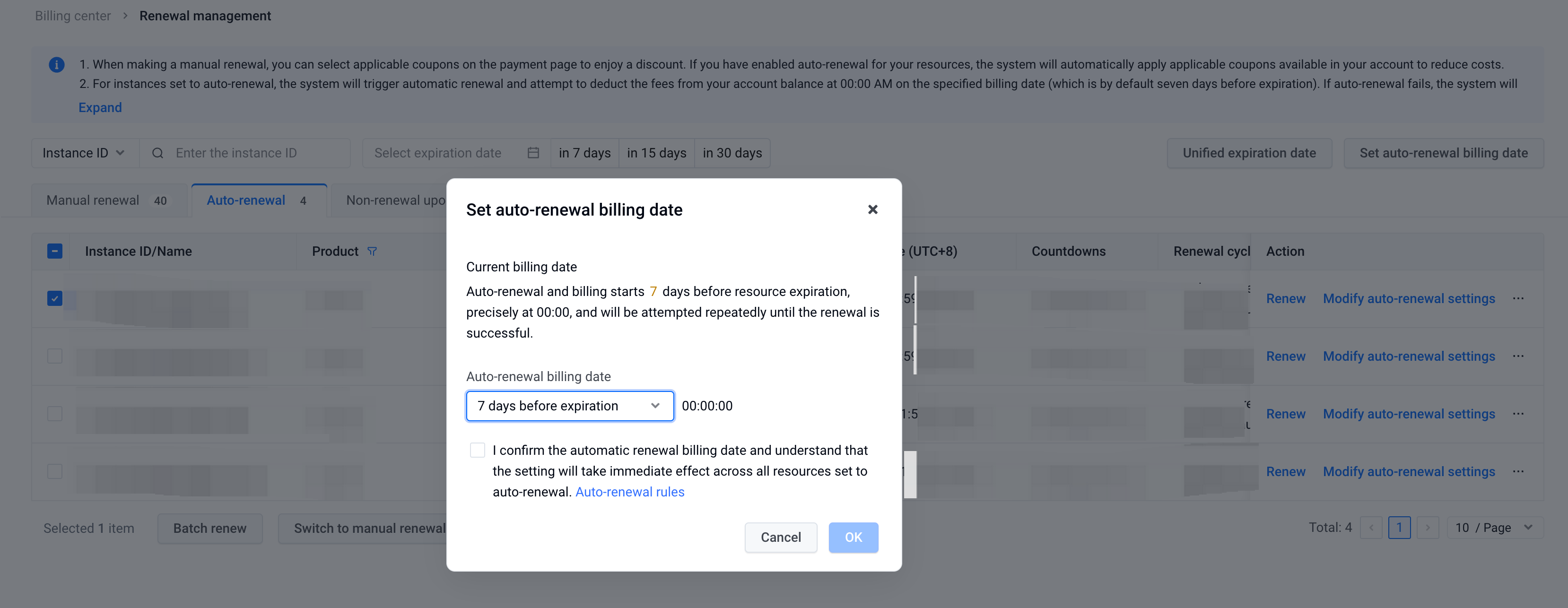
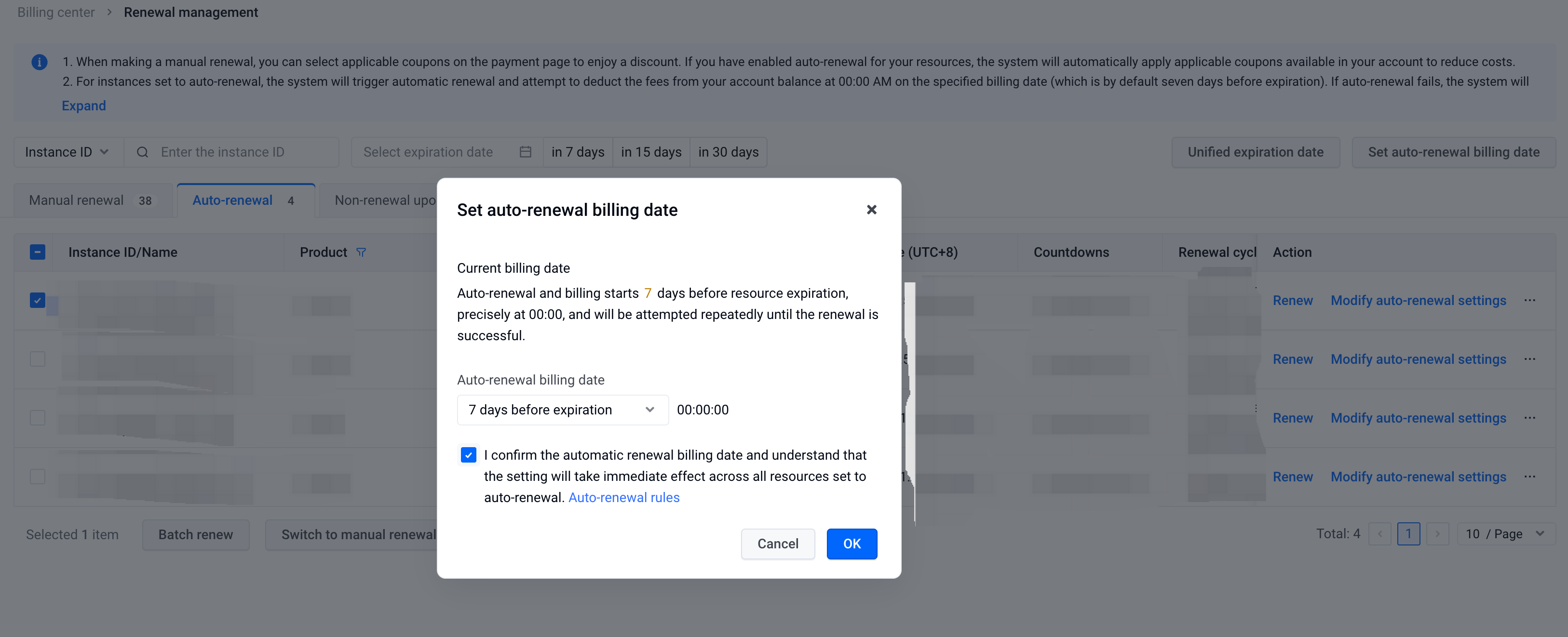
- Check the auto-renewal deduction date notice and click “OK” to complete the setting.
Last updated: 2025.07.15 11:43:30
All rights reserved © Beijing Volcano Engine Technology Co., Ltd2024
