Billing Center
Billing Center


Document

- Documentation
 Billing CenterBill managementBill tags
 Copy page
 Download PDF
Bill management
Bill tags
Copy pageDownload PDFBill tags
Function introduction
You can tag cloud resources such as cloud server instances and container clusters. Each tag consists of a key and a value. You can define and use custom tags to categorize cloud resources or split bills based on the cost management and analysis dimensions within your enterprise. To use tags to split bills, you can manage tags in Bill Tags and then use the tags in bill details and other data.
Operation guide
- Set tags for cloud resources.
- When you create or purchase a resource, you can set a tag key and value on the configuration page. After purchase, you can modify the tag information on the resource details page.
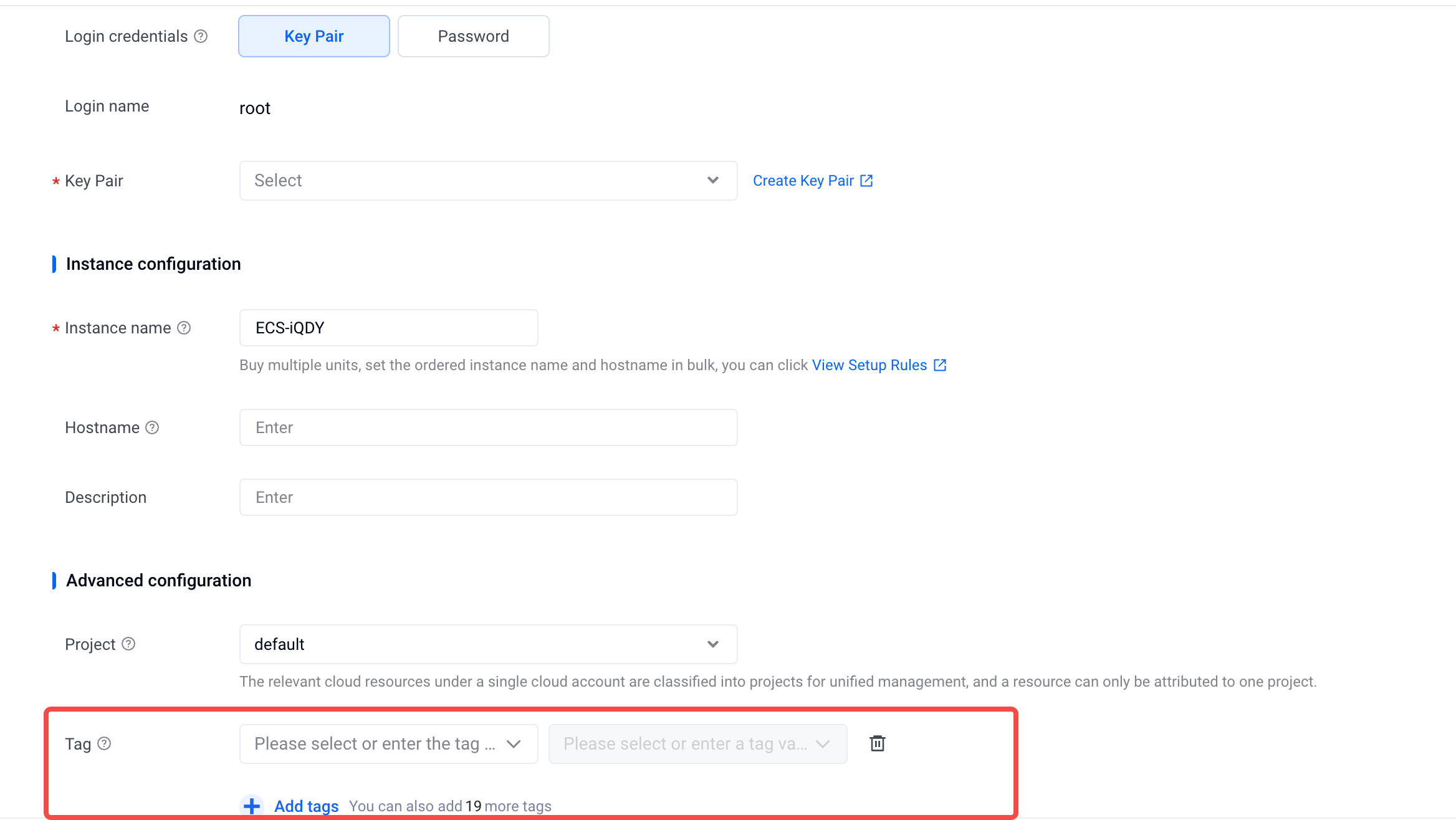
- Note: You can modify the tag information on the resource details page of the cloud product console. For more settings, you can view the guidance documents of the corresponding cloud products, such as the VKE service;
- Activate bill tags;
- After the tag is set successfully, you can go to " Bill Management - Bill tags ", and enable the corresponding tag key as the bill tags on demand. After enabling, the bill tags will be reflected in the "Tag" column in the bill details and other data;
- Note: Since 2024-02-05, the newly added system labels default to the "Disabled" state and support disabling; custom tags default to the "Disabled" status, and up to 100 custom tags can be enabled, you can enable/disable on demand.
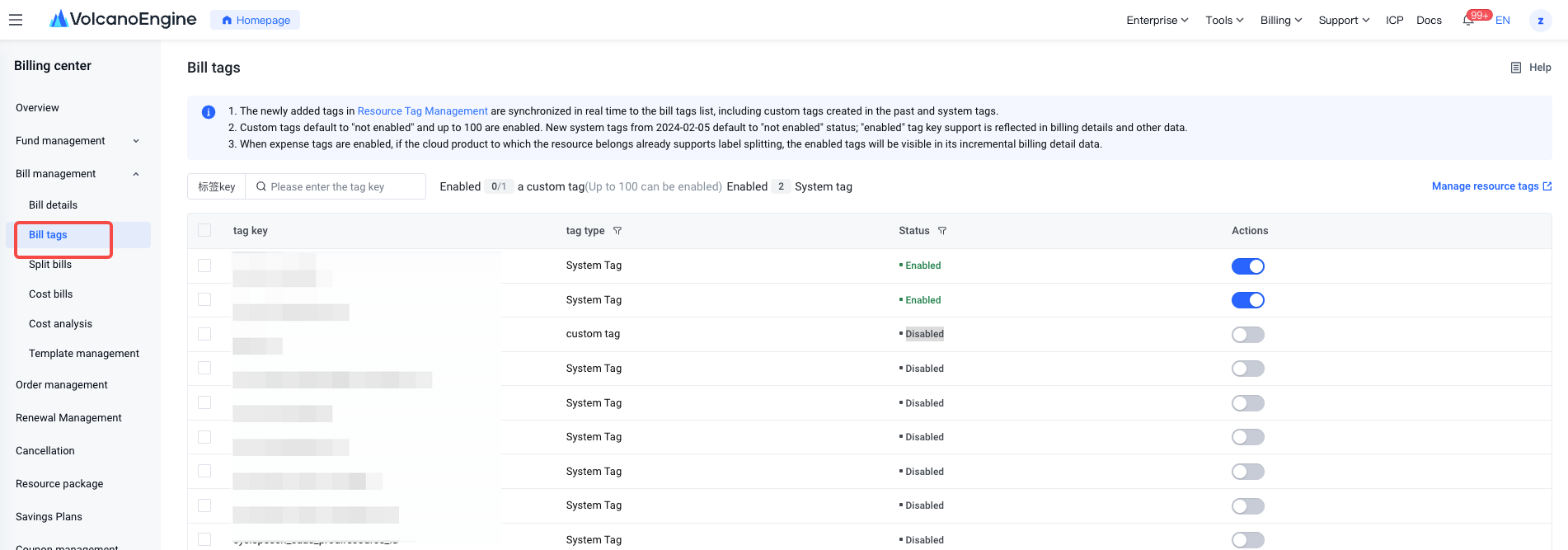
3. View tags, such as bill details;
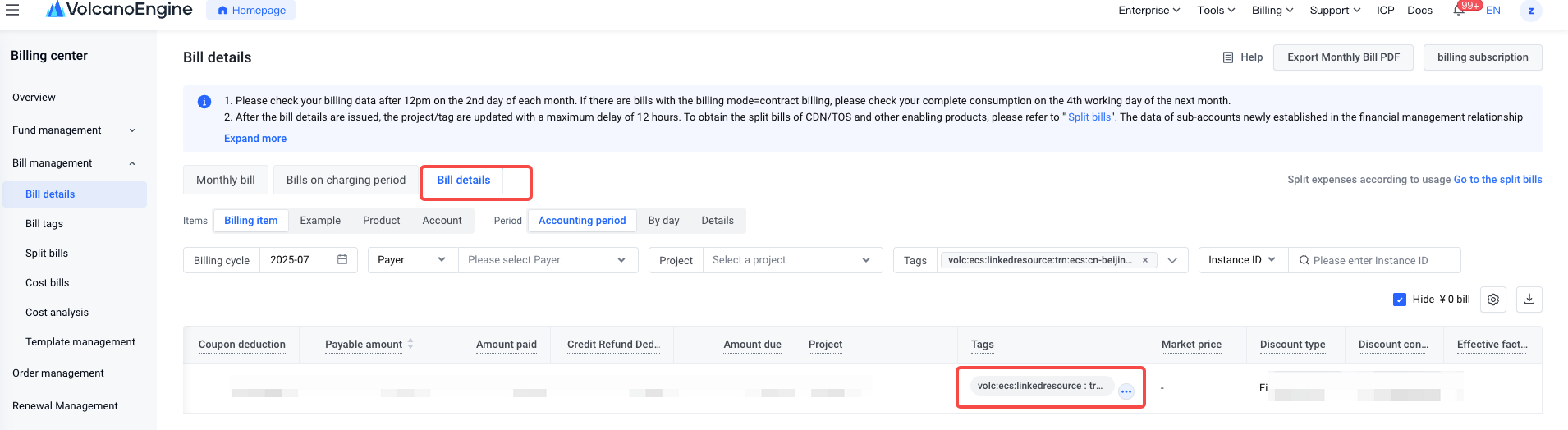
- On the bill details, split bills, and cost bills pages, you can view the tag data displayed in the "Tag" column, and you can also export the detailed data for further statistical analysis.
- Note: When selecting "billing item" or "instance" in the statistical dimension of the bill details, you can view the "Tag" column parameters. If the Tag are not exactly the same during aggregation, the tag column will be displayed as empty. It is recommended to select the reference period as "detail" to view/export.
Last updated: 2025.07.11 20:20:18
All rights reserved © Beijing Volcano Engine Technology Co., Ltd2024
