DataAgent (OnPremise)
DataAgent (OnPremise)


- Documentation
 DataAgent (OnPremise)Intelligent Marketing Agent User GuideEnterprise Knowledge EngineData AccessKnowledge AccessOLAP DatabaseHetu
 Copy page
 Download PDFCopy pageDownload PDF
Support Hetu data connection, this article describes how to connect Hetu data.
tip
Before you connect to the data, collect the following information:
- The IP address and port number of the server where the database is located.
- The name of the database.
- The username and password for the database.
The user needs to have project editing or permissions - by user management - module - data connection - new connection permissions to create a new data connection.
In the console, select Data Access > Knowledge Access, then click Create.
On the data connection screen select OLAP > Hetu .
Fill in the required basic information and make a test connection .
configuration item | explain |
|---|---|
data connection name | Support custom name, or use the system default name, the default format is |
connection method |
|
JDBC connection string | String to connect to the database through the JDBC interface. |
server | Enter the connection address for the server |
Port | Enter the port number for the server. |
Authentication method |
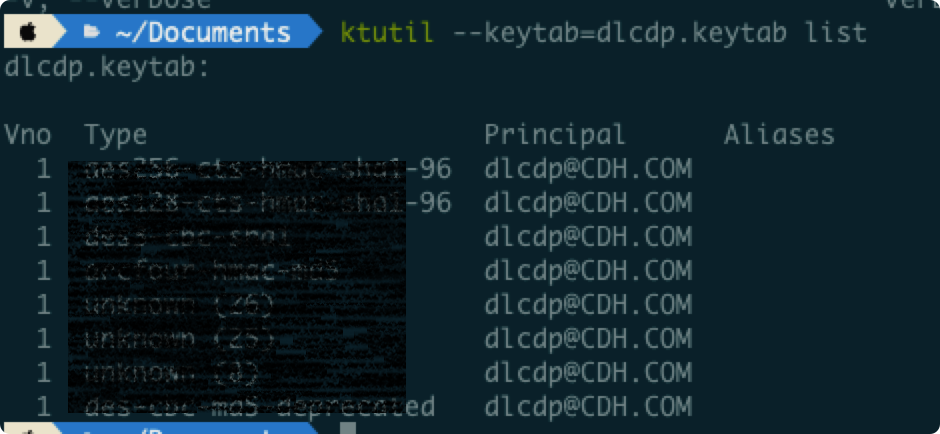
As can be seen from the figure above, the principal corresponding to the file dlcdp.keytab is dlcdp@CDH.COM.
|
user name | Enter the account name used to log in |
password | Enter the password corresponding to the specified username |
database | Enter the database name |
- Click Save after successful connection.
