DataAgent (OnPremise)
DataAgent (OnPremise)


- Documentation
 DataAgent (OnPremise)Intelligent Marketing Agent User GuideEnterprise Knowledge EngineData AccessKnowledge AccessKnowledge Access Overview
 Copy page
 Download PDFCopy pageDownload PDF
The system provides 40 + data connection methods, making it convenient for enterprises to integrate data into the enterprise knowledge engine system. This article describes the types and operations of data access.
The system provides 40 + data connection methods, including but not limited to relational databases (e.g. MySQL, Oracle, SQL Server, DB2, etc.), big data platforms (e.g. Hive, Impala, Clickhouse, etc.), MPP databases (Postgre, etc.), streaming databases (Kafka, etc.), text data (Excel, CSV), API interfaces, etc. It can not only connect with the customer data and business data access of various business companies within the customer (such as membership system, member mid-platform system, etc.), but also connect with the official website, APP, official account, Mini Program, service number and other data sources.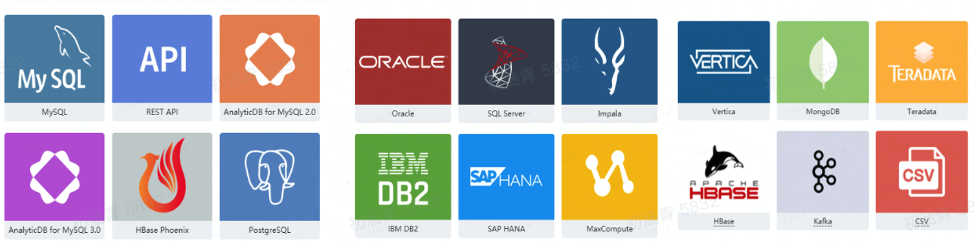
In order to access as much user-related data as possible and build a more accurate and complete data portrait, the system supports enterprises to access tripartite data. The data of the three parties may come from different platforms and channels. At this time, the ability of system text data access and API data access can be exerted. Through the text data import function, Excel and CSV data can be directly imported through the interface, and this part of the data can be stored in the platform. Users can customize the lifecycle and update cycle of imported data. At the same time, the system also provides Ocean Engine, A thousand rivers in great quantity, content platform and other data access capabilities to further enrich enterprise data.
The project administrator is required to open the data management module for the corresponding user in the project center - permissions , and the project editing or management permissions.
Taking MySQL data connection as an example, the steps are as follows:
In the console, select Data Access > Knowledge Access, then click Create.
On the Add Data Connection page, select and click MySQL .
- On the Add MySQL Data Source page, configure the corresponding parameters.
name | describe | sample value |
|---|---|---|
data connection name | The display name of the data source configuration list. | Demo data source |
server | Fill in the Internet Protocol Address. | 10.225.34.22 |
Port | Fill in the correct port number. | 3306 |
user name | The user name corresponding to the database. | cdp_admin |
password | The database corresponds to the password. | cdp_password123 |
connection method | optional | IP/Port |
permission mode | optional | read |
- Click Test Connection to test the data source connectivity.
- After the test is successful, click OK .
- Create a successful data connection page to view its basic information and lineage view.
