Cloud Monitor
Cloud Monitor


Document

- Documentation
 Cloud MonitorUser GuideAlert CenterAlert templatesApplying alert templates to object groups
 Copy page
 Download PDF
Alert templates
Applying alert templates to object groups
Copy pageDownload PDFApplying alert templates to object groups
You need to apply an alert template to cloud service resources in a object group. In this way, the Cloud Monitor console will automatically generate the corresponding alert policy.
Prerequisites
- An object group has been created. For details, see Creating object groups.
- Contacts and contact groups are created. For more details, refer to Creating contacts and contact groups.
- A callback URL is created. For more details, see Creating callback URLs.
Limits
- Each alert template can be bound to at most 100 object groups.
- Each object group can be bound to up to 20 alert templates.
Procedure
- Log in to the Cloud Monitor console.
- In the left navigation bar, click Alert Center > Alert Template.
- Find the target alert template in the alert template list, and click Apply to group in the Actions column.
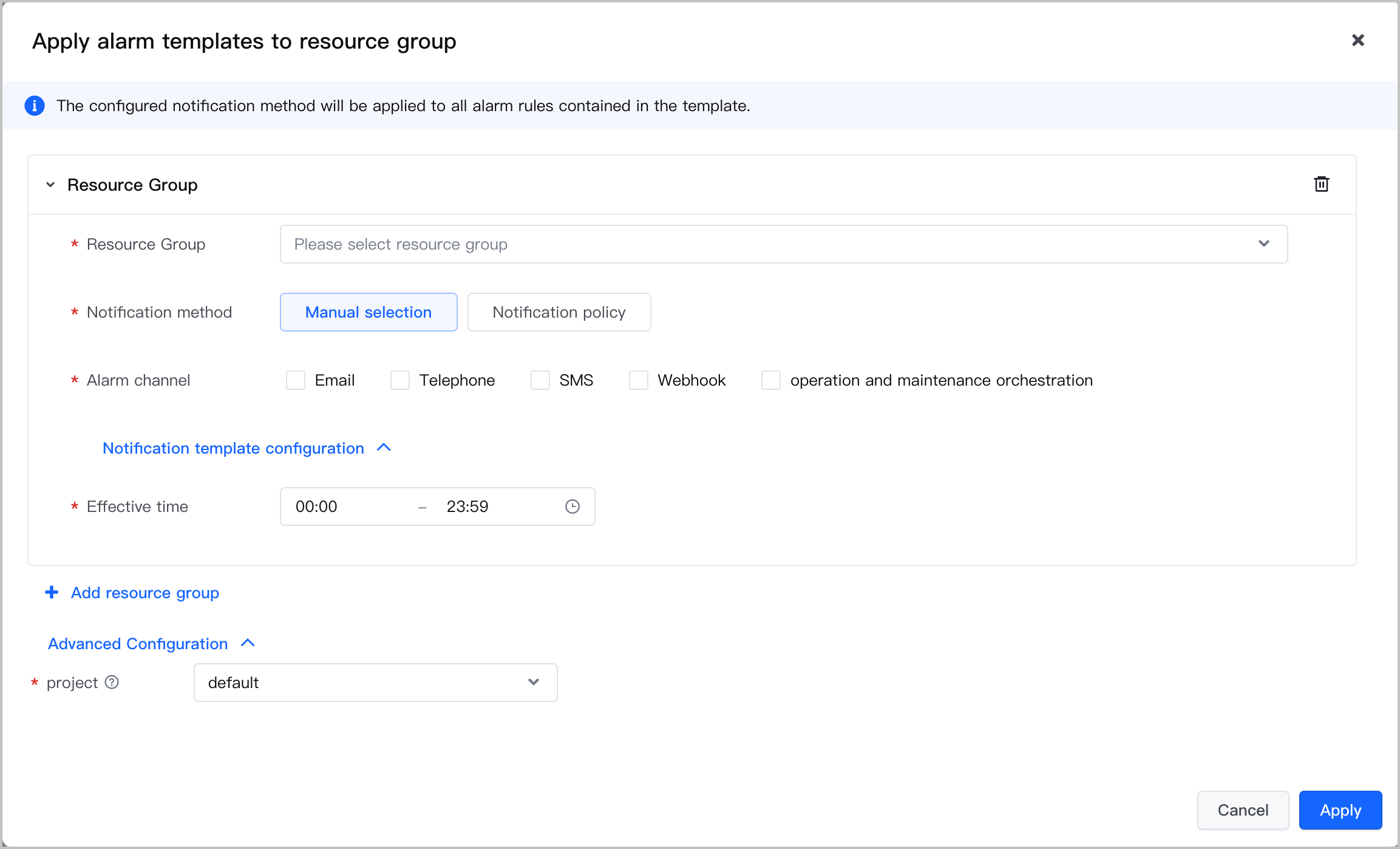
- In the Apply alert template to object group dialog box, click Add object group.
- Expand the object group, select the created object group, and configure the notification settings.
-
-
- Click Submit to complete the configuration.
Verifying results
After the configuration is complete, you can view the associations between alert templates, object groups, and alert policies in the alert template list.
Click the name of the alert template to enter the alert template details page, where you can view details about the alert template. The details include the basic information, associations, cloud product, and alert policy.
Last updated: 2026.07.10 14:02:23
All rights reserved © Beijing Volcano Engine Technology Co., Ltd2024
