GPU Compute Service
GPU Compute Service


Document

- Documentation
 GPU Compute ServiceGPU Compute ServiceUser GuideUninstalling NVIDIA driversUninstalling NVIDIA Tesla drivers
 Copy page
 Download PDF
Uninstalling NVIDIA drivers
Uninstalling NVIDIA Tesla drivers
Copy pageDownload PDFUninstalling NVIDIA Tesla drivers
Uninstall NVIDIA Tesla driver in Linux instance
Usage notes
- To uninstall a GPU driver, you need permission granted by the root account. If you are an ordinary user, execute the sudo command to obtain permission for the root account first. In this topic, logging in as the root account is used as an example.
- The commands for uninstalling different CUDA versions may vary. If the "cuda-uninstaller" file does not exist, go to the "/usr/local/cuda/bin/" directory and check for the file name starting with "uninstall_cuda". If the file exists, replace "cuda-uninstaller" in the command with the filename starting with "uninstall_cuda".
Uninstall Tesla driver installed via run package
- Execute the following command to uninstall the GPU driver.
- /usr/bin/nvidia-uninstall
- Execute the following commands to uninstall the CUDA and cuDNN toolkits. In this example, cuda-12.2 is used.
- /usr/local/cuda/bin/cuda-uninstaller
- rm -rf /usr/local/cuda-12.2
- Execute the reboot command to restart the GPU instance.
Use the cloud assistant to uninstall Tesla driver
tip
- The instance must be in the Running (Running) status.
- Cloud assistant Agent is installed. For operation details, refer to Installing cloud assistant Agent.
- Log in to the ECS console.
- In the top menu bar, select the region where your business is located.
- In the left-side navigation pane, select "Maintenance & Monitoring > Cloud Assistant" and then select the "Public commands" tab.
- Find the target command for uninstalling the Tesla GPU driver, and then click the "Create a job" button. Command-related parameters are listed below. For more parameters, refer to Creating jobs.
-
- After the job is created, the GPU driver and NVIDIA Fabric Manager are uninstalled automatically.
Uninstall NVIDIA Tesla driver in Windows instance
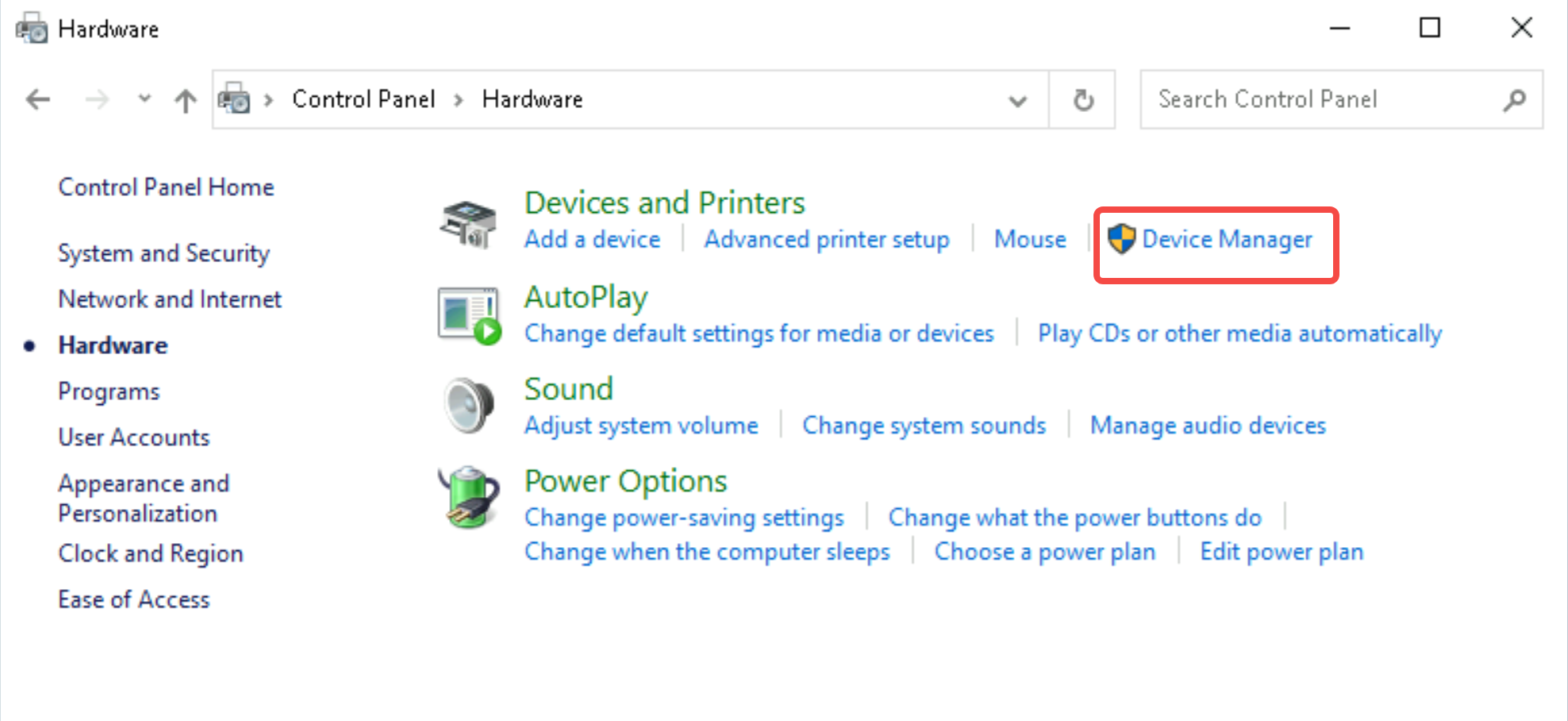
- Enter Device Manager and then expand "Display adapters".
-
-
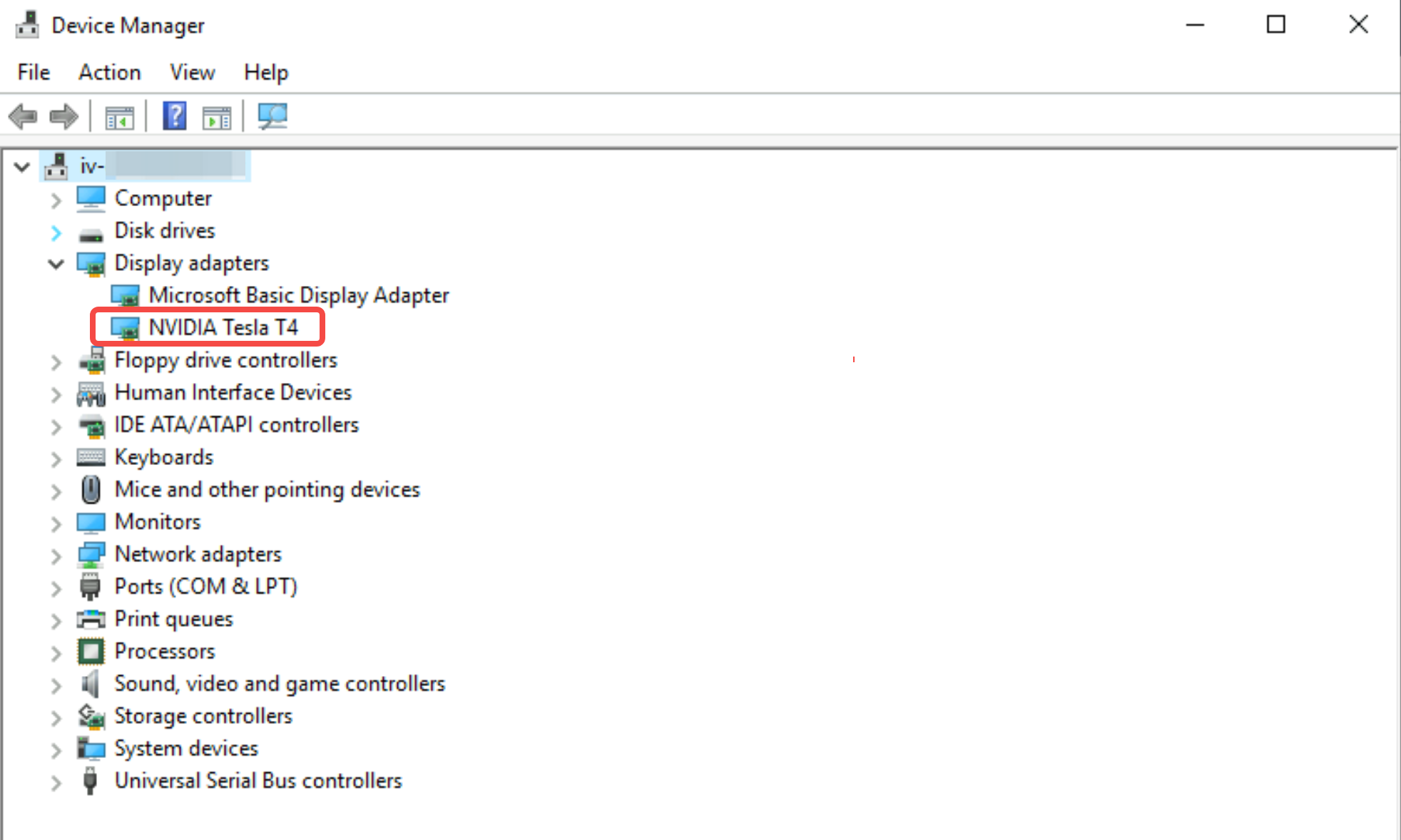
- Right-click the NVIDIA-related driver, and then select "Uninstall Device".
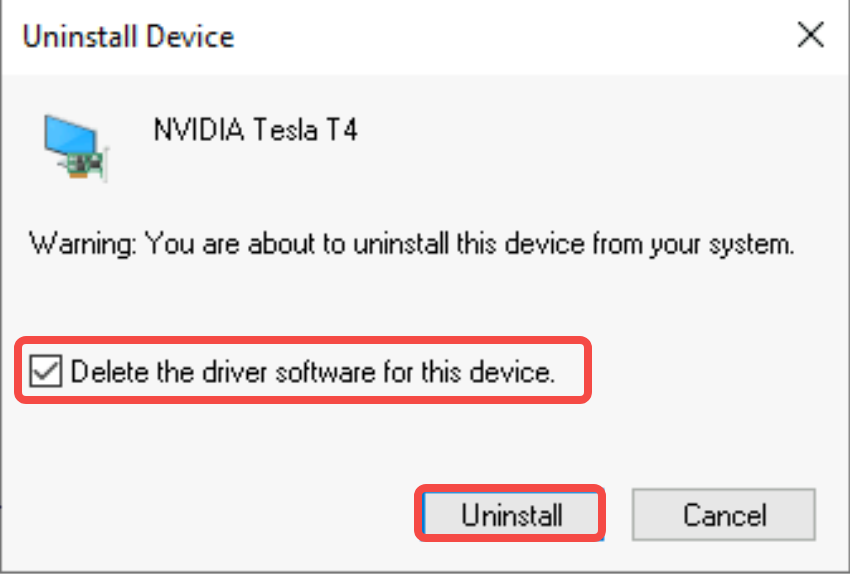
- Check the "Delete the driver software for this device." option, and then click the "Uninstall" button.
-
Last updated: 2025.12.03 16:28:03
All rights reserved © Beijing Volcano Engine Technology Co., Ltd2024
