GPU Compute Service
GPU Compute Service


Document

- Documentation
 GPU Compute ServiceGPU Compute ServiceBest PracticesPerformance testing/tuningHPC-Single-node/multi-node NCCL test (Easy_NCCL)
 Copy page
 Download PDF
Performance testing/tuning
HPC-Single-node/multi-node NCCL test (Easy_NCCL)
Copy pageDownload PDFHPC-Single-node/multi-node NCCL test (Easy_NCCL)
This topic mainly introduces how to easily verify the NCCL performance of HPC-optimized instances. This eliminates complex steps for verification, such as dependency installation, compilation, port configuration, and password-free setup.
- NCCL (Nvidia Collective Multi-GPU Communication Library, pronounced "Nickel") is a library that provides inter-GPU communication primitives. It provides topology awareness and can be easily integrated into applications. NCCL is optimized many times to achieve high communication speeds over PCIe, NVLink, and InfiniBand. NCCL supports a large number of GPU cards installed on one node or multiple nodes and can be used for one process or multiple processes (such as MPI) applications.
- For information about the configuration of HPC-optimized instances, such as GPU and RDMA, please refer to Instance specifications. Instance type ebmhpcpni3l and type hpcpni3h are in Beta. If you need a trial, please contact your account manager to apply.
Performance metric
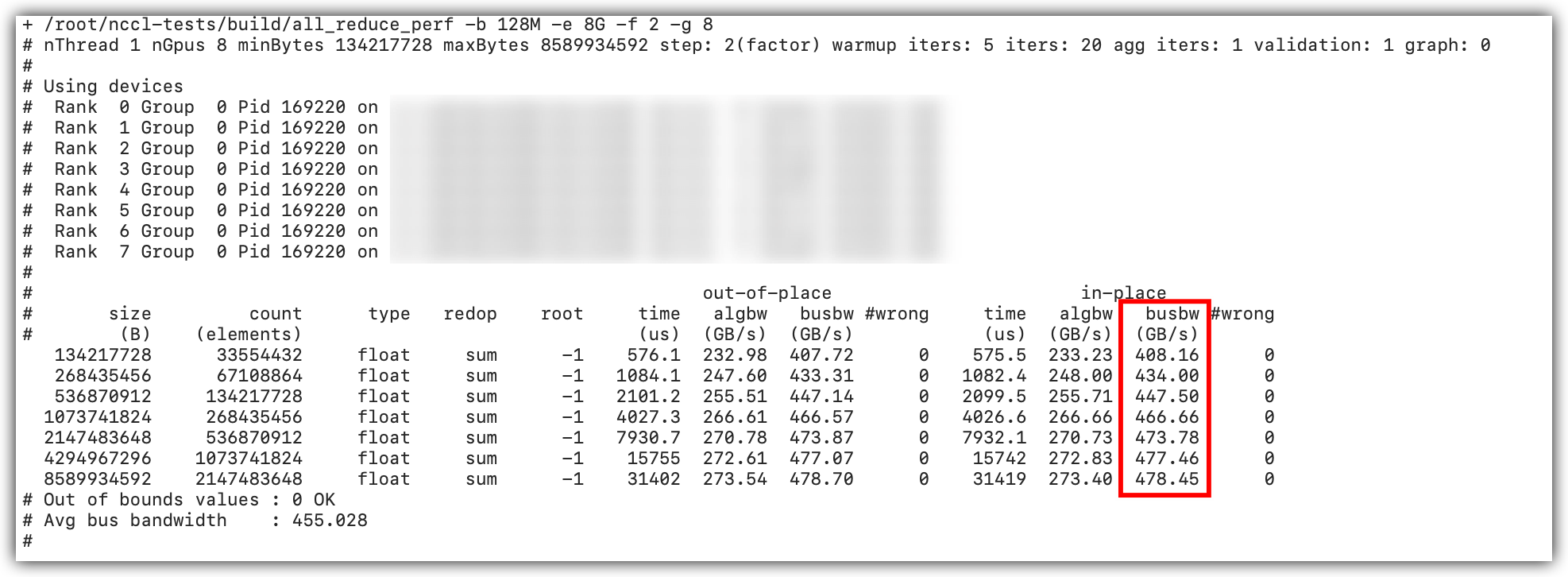
One of the key metrics for evaluating NCCL performance is bandwidth (the "busbw" in the test output). Bandwidth is further divided into algorithm bandwidth and bus bandwidth. For collective operations (such as allreduce, reduce-scatter), algorithm bandwidth varies with the number of nodes. The bus bandwidth is relatively stable and not affected by the number of nodes. Bus bandwidth refers to the total amount of data that a bus can transmit per unit time, which provides a more stable and consistent reference for hardware capability comparison.
In this topic, the example of testing NCCL bus bandwidth is used to illustrate the NCCL communication efficiency and hardware utilization in different scenarios. This can help targeted adjustments and optimizations in actual applications.
Configuration environment preparation
- You have at least one HPC-optimized instance created. This topic uses two instances as an example, named node 1 and node 2 respectively. The basic configuration of each instance is as follows:
- Both instances are associated with EIPs which enable instance access to the internet.
- The HPC-optimized instances in this topic are created based on Ubuntu 20.04. You can also choose other images.
- Refer to Logging in to Linux instances to log in to each node and then complete the following actions.
- Make sure that the GPU driver and CUDA toolkit are installed.
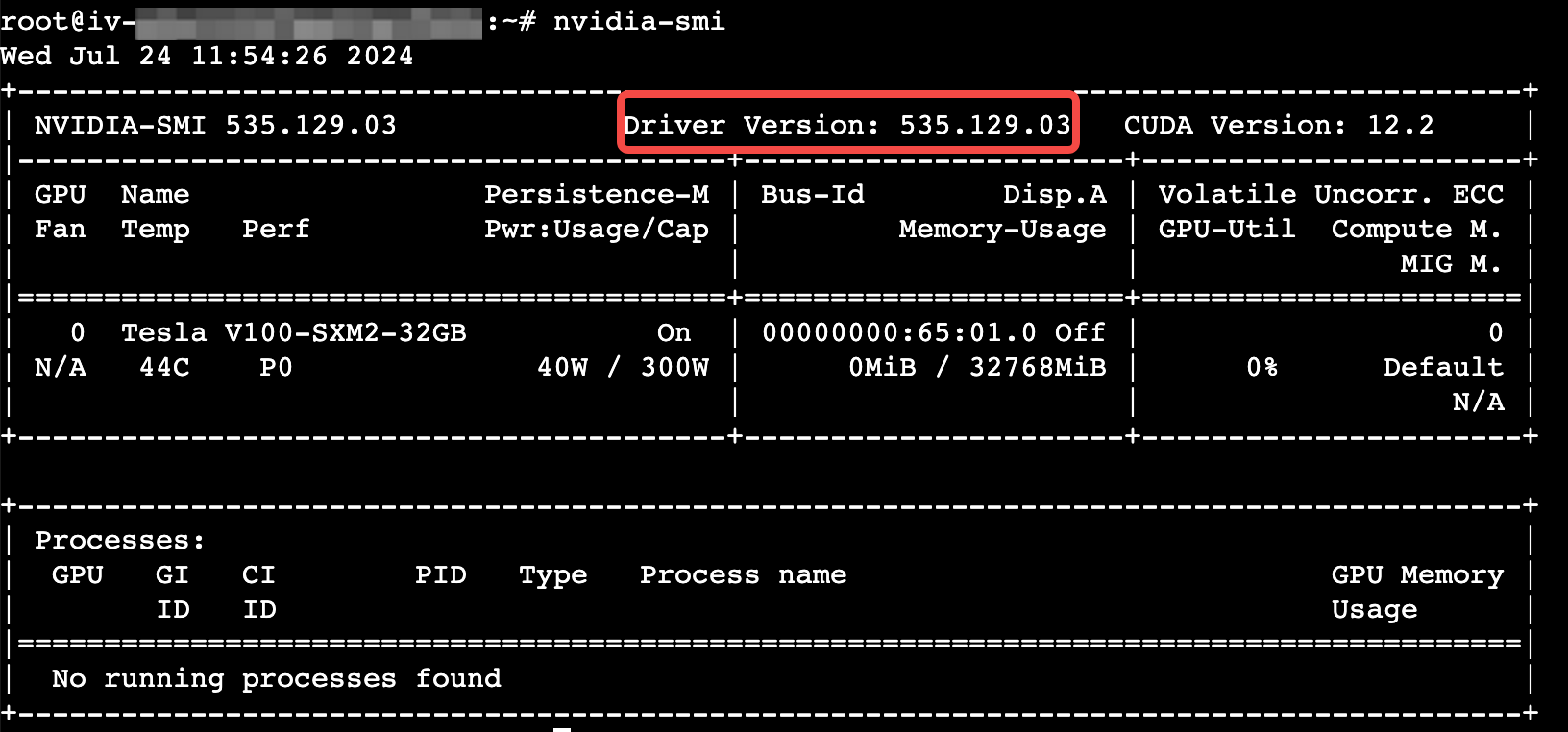
- Execute the following commands respectively to confirm whether the GPU driver and CUDA toolkit are installed. If you have no GPU driver and CUDA toolkit installed, install the CUDA toolkit and then install GPU driver.
- nvidia-smi/usr/local/cuda/bin/nvcc -V
- If the following information is returned, the GPU driver and CUDA toolkit are installed.
-
-

- Make sure that the NVIDIA Container Toolkit is installed. For specific operations, refer to Nvidia official guide.
- Check whether the resource is being used.
- To run the mpirun program, port 22223 is required. Execute the following commands in sequence to check the information of processes occupying this port and then terminate the processes (if any).
- lsof -i:22223 # View the process information occupying the target portkill <PID> # Replace <PID> with the ID of the process occupying the target port
Procedure
Step 1: Start and enter the container
- Execute the following commands on each node to start the container.
- Execute following commands on node 1:
- docker run -itd \--gpus all --net=host \--shm-size=100g \--ulimit memlock=-1 \--ulimit stack=67108864 \--privileged --ipc=host \--security-opt seccomp=unconfined \--cap-add=ALL \-v /var/run/nvidia-topologyd/:/var/run/nvidia-topologyd/ \iaas-gpu-cn-beijing.cr.volces.com/iaas_health/easy_nccl:ubuntu2204_cuda121_python310_nccl221_p22223 bash
- Execute following commands on node 2:
- docker run -itd \--gpus all --net=host \--shm-size=100g \--ulimit memlock=-1 \--ulimit stack=67108864 \--privileged --ipc=host \--security-opt seccomp=unconfined \--cap-add=ALL \-v /var/run/nvidia-topologyd/:/var/run/nvidia-topologyd/ \iaas-gpu-cn-beijing.cr.volces.com/iaas_health/easy_nccl:ubuntu2204_cuda121_python310_nccl221_p22223 bash
- Execute the following commands on node 1 and node 2 to enter the container bash environment.
- docker exec -it <container_id> bash
- To obtain the container_id, execute the docker ps command.
Step 2: Run NCCL test
Execute the corresponding commands in the table below based on the instance type for NCCL test.
tip
- Before the test, you can also refer to the HPC-Multi-node NCCL test optimization scheme: instance affinity sorting to sort by RDMA network affinity. This can improve the performance of large scale cluster tasks.
- The descriptions of NCCL-related arguments in the commands are as follows:
-
- Replace the IP after -H with the private IP address of the primary network interface for each instance. Format: <IP of node 1>:8,<IP of node 2>:8. The positions can be exchanged. To view the private IP address, please refer to Viewing instance information.
The sample result is shown in the picture below.
Example baseline
warning
The example baseline provided in this topic is for reference only. The actual bus bandwidth value may vary with hardware specification, system settings, and application scenarios.
Instance quantity | Action type | Bus bandwidth (busbw, GB/s) |
2 | allreduce | 97.42 |
| alltoall | 22.77 |
| reduce_scatter | 97.44 |
| all_gather | 96.96 |
1 | allreduce | 233.59 |
| alltoall | 219.25 |
| reduce_scatter | 229.07 |
| all_gather | 222.43 |
| sendrecv | 149.83 |
Last updated: 2026.02.02 10:05:12
All rights reserved © Beijing Volcano Engine Technology Co., Ltd2024
