GPU Compute Service
GPU Compute Service


Document

- Documentation
 GPU Compute ServiceGPU Compute ServiceFAQNVIDIA driver FAQ
 Copy page
 Download PDF
FAQ
NVIDIA driver FAQ
Copy pageDownload PDFNVIDIA driver FAQ
FAQ about NVIDIA Tesla driver
For which instances do I need to install NVIDIA Tesla driver?
For general-purpose computation, we recommend installing the NVIDIA Tesla driver (GPU driver, CUDA toolkit, and other related components) on Compute-optimized and HPC-optimized instances. For installation instructions, refer to Nvidia driver installation guide.
How to install the Tesla driver in an instance?
After installing the Nvidia driver, I failed to execute the nvidia-smi command, and the driver was reported not installed. How should I troubleshoot this issue?
Analysis: If the kernel-devel and kernel versions are different, a compilation error may occur when the RPM package is being installed.
Solution: Execute the rpm -qa | grep $(uname -r) command in the instance to view the version numbers of kernel and kernel-devel. Then, check whether their versions are the same. If not, download the corresponding kernel-devel package from an official channel, and then reinstall the driver.
Why is the CUDA version returned after executing the nvidia-smi command different from the one I actually installed?
The CUDA version returned after the nvidia-smi command is executed indicates the maximum CUDA version supported by your GPU instance, not the CUDA version you have actually installed.
How to view detailed information about a GPU graphics card?
To view GPU graphics card information on GPU instances of different operating systems, follow these steps:
- For Linux instances, execute the nvidia-smi command.
- For Windows instances, view related information in the Device Manager.
Why is there no network connectivity between A100/A800 graphics cards?
If an instance is equipped with multiple A100/A800 graphics cards, you need to install the NVIDIA-Fabric Manager package first to enable interconnection between graphics cards via NVSwitch.
- Public images have the NVIDIA-Fabric Manager package installed by default. To enable interconnection between graphics cards for public image-based instances, you only need to start NVIDIA-Fabric Manager.
- If you create a GPU instance that is equipped with multiple A100/A800 graphics cards based on a custom image (which does not have a NVIDIA-Fabric Manager package preinstalled), install the NVIDIA-Fabric Manager package that matches the GPU driver version first. Otherwise, you may fail to use the instance normally. For instructions, refer to Installing NVIDIA-Fabric Manager packages.
How to check the bandwidth between NVSwitch-connected GPU graphics cards?
Instances equipped with A100/A800 graphics cards support interconnection via NVSwitch. To learn more about NVSwitch GPU-to-GPU bandwidth, access the official NVIDIA website.
How do I upgrade NVIDIA Tesla driver?
If the version of the installed Tesla driver in your GPU instance does not match the current scenario, or if you can not access your GPU instance due to an inappropriate type or version of the installed driver, you can upgrade the Tesla driver. To upgrade the Tesla driver, you need to uninstall the current Tesla driver first and then install the new version.
- Uninstall the Tesla driver.
- (Conditionally required) Uninstall the NVIDIA-Fabric Manager software package. If your GPU instance supports NVSwitch (for example, A100/A800 graphics cards), you need to uninstall the NVIDIA-Fabric Manager package.
- Install the new Tesla driver.
- (Conditionally required) Install the NVIDIA-Fabric Manager package. Iff your GPU instance supports NVSwitch (for example, A100/A800 graphics cards), you need to install the NVIDIA-Fabric Manager package that matches the GPU driver version. Otherwise, you may fail to use the GPU instance normally.
FAQ about NVIDIA GRID driver
For which instances is it recommended to install NVIDIA GRID driver?
Rendering instances. This helps meet the needs of graphics processing (such as 3D rendering and video encoding/decoding). For information about rendering instance families, refer to Instance types.
Can I install the GRID driver on a GPU Accelerated instance?
Yes, you can. GRID driver is used to obtain graphics acceleration capabilities of GPU cards, applicable for graphics computing scenarios like OpenGL. You need to purchase an NVIDIA GRID License through official NVIDIA channels before installation. For detailed instructions, refer to Installing NVIDIA GRID drivers.
When I use VNC to log in to a Windows-based GPU instance with GRID driver installed, the screen turns black. Why?
After you install the GRID driver on a Windows-based GPU instance, the display output of the VM is managed by the GRID driver. As a result, VNC can no longer capture the display feed from the integrated graphics card, causing a black screen on VNC, which is normal. We recommend logging in to the GPU instance via ECS Terminal. For more information, see Using the console to log in to a Windows instance.
How to upgrade the NVIDIA GRID driver?
If the installed GRID driver version can not meet your business requirements, you can:
- First, uninstall the GRID driver.
- Obtain the new GRID driver installation package through the official NVIDIA channel, and then install the GRID driver.
FAQ about Nvidia ECC Mode
What is ECC Mode?
ECC (Error Correcting Code) is a technology for detecting and correcting memory errors. After ECC Mode is enabled via the GPU driver, a portion of the video memory is used as check bits to detect data corruption. Typically, data corruption can be automatically corrected. If automatic corrections fail, which also indicates that UE (Uncorrectable Error) occurs in video memory, the bad block will be avoided via Dynamic Page Retirement or Row Remapping.
How to view the ECC status of an instance?
Log in to the GPU instance, and then execute the following command. After this, you can view the current ECC status.
nvidia-smi -q -d ecc
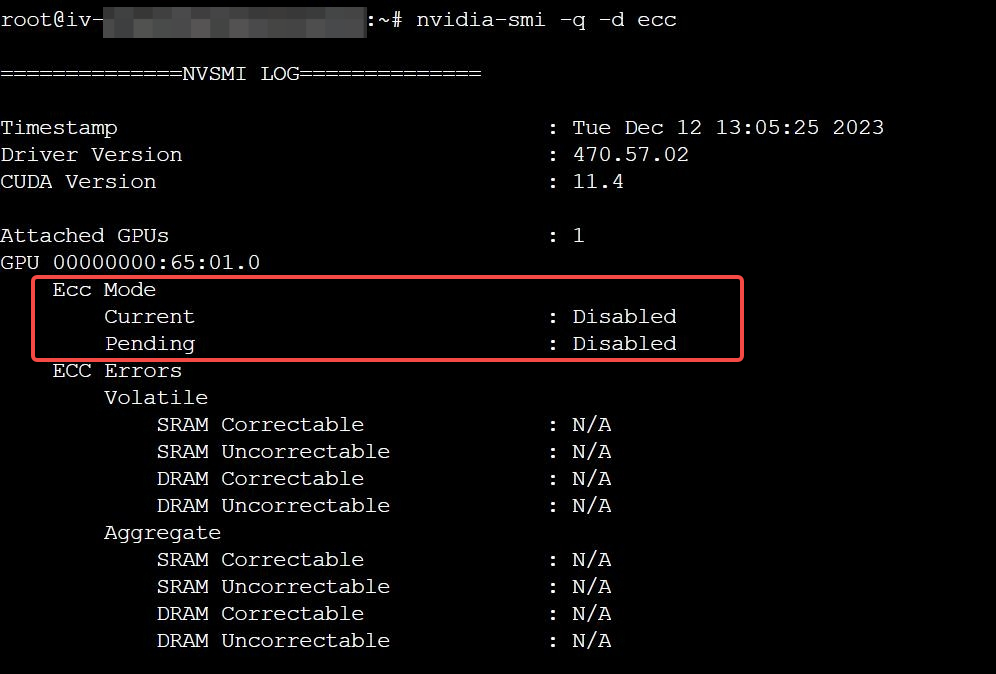
When should ECC be enabled or disabled?
In general, it is recommended to disable ECC for rendering workloads and enable ECC for computing workloads. Since ECC itself consumes video memory and causes performance overhead, ECC can be disabled in certain computing scenarios. This can be risky and is generally not recommended.
Why does enabling/disabling ECC on a GPU instance fail?
Issue description: Some users use a driver to set ECC Mode on a GPU instance, but after they restart the instance, the setting is reported invalid.
Cause: Insufficient support for Legacy Persistence Mode in NVIDIA Tesla driver versions 535 and later.
Solution: You need to enable the Persistence Daemon to activate the new persistence feature before configuring ECC. The steps are as follows:
- Execute the following commands to enable Persistence Mode. In this topic, Persistence Mode is enabled as guided in Persistence Daemon.
- sudo nvidia-persistenced --user <username> # Run Persistence Daemon ("username" is your username)nvidia-smi -pm 1 # Enable Persistence Mode
- Execute the following commands to configure ECC.
- nvidia-smi -pm 0 # Disable Persistence Modenvidia-persistenced --persistence-mode # Start Persistence Daemonnvidia-smi -e 1 # Enable ECC Mode (1=Enable, 0=Disable)reboot now # Restart OS
- Log in to the instance again, and then execute the following command to view the ECC status.
- nvidia-smi -q -d ecc
Last updated: 2026.01.12 14:10:18
All rights reserved © Beijing Volcano Engine Technology Co., Ltd2024
