Database Workshop
Database Workshop


Document

- Documentation
 Database WorkshopOperation guideInstance access Instance list management (New version)
 Copy page
 Download PDF
Instance access
Instance list management (New version)
Copy pageDownload PDFInstance list management (New version)
DBW is a unified cloud management platform for lifecycle management of multiple types of databases. The DBW instance list (new version) centrally manages database instances of types including RDS for MySQL, veDB for MySQL, Cache for Redis, Document Database for MongoDB, RDS for PostgreSQL, and RDS for SQL Server.
Function introduction
The old version of the instance list displays database instances of a certain type on-demand according to the database type. The new version of the instance list displays all types of database instances but also supports filtering by database type. There is a slight difference in management concepts between the two, but their functions are completely consistent. You can switch between the new and old versions of the instance list as needed in the upper right corner. The differences between the new and old instance lists are as follows.
Prerequisites
Instances of the related database types have been created, as follows.
- To create an RDS for MySQL instance, see Create MySQL instance.
- To create a veDB for MySQL instance, see Create veDB for MySQL instance.
- To create an RDS for PostgreSQL instance, see Create PostgreSQL instance.
- To create an RDS for SQL Server instance, see Create SQL Server instance.
- To create a Cache for Redis instance, see Create Redis instance.
- To create a Document Database for MongoDB instance, see Create MongoDB instance.
Precautions
- Automatic synchronization mechanism: DBW automatically synchronizes instance information from various database types at regular intervals.
- Status Indicator Description: A red badge on the Sync Instance Information button indicates that new instances have been added or changes have occurred to existing instance information.
- Manual synchronization: Click the Synchronize instance information button to actively trigger synchronization. Synchronization is asynchronous. You must manually refresh the instance list to view the latest data after it completes.
- Handling abnormal instances: An abnormal status indicates that the instance is currently unreachable. If you confirm that the instance has been decommissioned or is no longer in use, you can delete it directly from the DBW instance list.
- Security control: Currently supports enabling security control for the following database instances.
- Relational databases: RDS for MySQL, veDB for MySQL, RDS for PostgreSQL, and RDS for SQL Server
- Non-relational databases: Document Database for MongoDB and Cache for Redis
- Automatic inspection and inspection weight configuration
- Automatic inspection: supports enabling automatic inspection for instances including RDS for MySQL, veDB for MySQL, RDS for PostgreSQL, and Cache for Redis.
- Automatic inspection weight: supports setting custom inspection weights for database instances including RDS for MySQL, veDB for MySQL, and RDS for PostgreSQL.
- Session and transaction snapshots
- Session snapshot: supports enabling session snapshots for instances including RDS for MySQL, veDB for MySQL, RDS for PostgreSQL, and Document Database for MongoDB.
- Transaction and lock: supports enabling transaction and lock snapshots for database instances including RDS for MySQL, veDB for MySQL, and RDS for PostgreSQL.
- Slow log diagnosis: supports enabling slow log diagnosis for database instances including RDS for MySQL and veDB for MySQL.
Procedure
- Log on to the DBW console.
- On the left navigation bar, click Instance list.
- On the top menu bar, select the project and region.
- On the Instance list page, click the Connection normal tab, where you can perform the following operations.
- You can search for the target instance by instance ID or instance name in the upper right corner of the Instance list page, or filter instances that meet the criteria by Database type, Security control, or Automatic inspection.
- ActionsDescriptionView instance informationIn the instance list, you can view information such as the last update time of the instance list, instance name/ID, database type, security control, automatic inspection, primary node availability zone, instance type, database version, owning project, creation time, and status in DBW.The fields in the instance list support customization, so the fields displayed in the list may vary.Synchronize instance informationClick Synchronize instance information, then refresh the instance list later to obtain the latest information for all instances. When a red marker appears in the upper-right corner of the Connection normal tab, it indicates new instances have been added or existing instance information has changed. It is recommended to update the instance list promptly to obtain the latest instance information.Customize list fieldsIn the upper right area of the list, click Customize list fields to customize and select the fields to be displayed in the list.
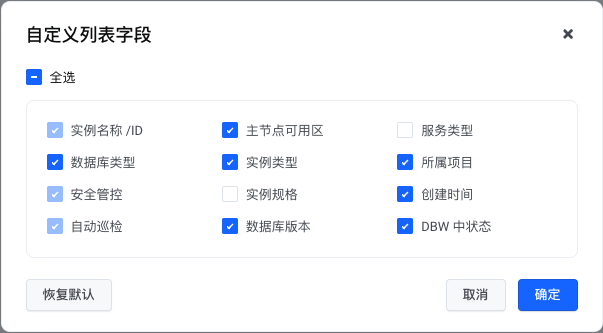
- The default resources in the instance list include Instance name/ID, Database type, Security control, Automatic inspection, Primary node availability zone, Instance type, Database version, Projects, Creation time, and Status in DBW.
- Grayed-out fields indicate non-editable fields.
Enabling security controlDBW supports unified management of database instances. Enabling security control allows database changes to go through a ticket approval workflow, simplifying and standardizing database management operations and improving data management processes. For specific operations and precautions for enabling security control, please refer to the enable security control features of the respective databases below.Enable automatic inspectionDBW provides a database inspection feature that performs regular automated health checks and risk assessments on database instances, helping you understand their operational status. For specific steps and considerations on enabling automatic instance inspection, refer to the inspection management function of the respective databases below.Customize inspection weightBy default, DBW sets the weight of each score deduction item of all instance nodes to Medium. It also supports modifying the weight of each score deduction item based on business requirements.Enable slow log diagnosisDBW provides a slow log diagnosis feature, which analyzes the Top 200 slow logs generated on the previous day and offers diagnostic results and optimization suggestions to help improve database performance and stability. For specific operations and precautions on enabling slow log diagnosis, refer to the following Document.Enable session snapshotDBW provides session snapshot and transaction and lock snapshots features, which can collect session and transaction and lock related information of the instance at certain frequencies. For detailed operations and precautions for enabling session snapshots or transaction and lock snapshots, refer to the session management or transaction and lock management features of the respective databases below.Log on to the data interaction platformClick Log in in the actions column of the target instance to log in to the instance's data interaction platform. On the data interaction platform, i.e., the SQL window, you can execute various SQL statements and manage databases/table structures.Log in to the Operation observability pageClick Operations observability in the Actions column of the target instance, or click the target instance's Instance name/ID, to view and manage session statistics, slow log analysis, auditing, and other features for that instance.View instance detailsClick Instance details in the actions column of the target instance to navigate to the instance information page of the instance.-
- On the Instance list page, click the Access exception tab, where you can perform the following operations.
- Supports searching for the target instance by instance ID or instance name in the upper right corner of the Instance list page.
-
Last updated: 2026.03.13 15:40:09
All rights reserved © Beijing Volcano Engine Technology Co., Ltd2024
