File Storage vePFS
File Storage vePFS


Document

- Documentation
 File Storage vePFSBest PracticesBack up data from vePFS to object storage on a regular schedule using the tosutil tool
 Copy page
 Download PDF
Best Practices
Back up data from vePFS to object storage on a regular schedule using the tosutil tool
Copy pageDownload PDFBack up data from vePFS to object storage on a regular schedule using the tosutil tool
This article describes how to use the tosutil tool to back up data from vePFS to TOS object storage.
Background information
vePFS provides data migration features. We recommend using these features for a better experience. For details, refer to Data Migration Overview.
Use cases
- The core training data stored in vePFS is highly sensitive and requires regular backups to ensure data security.
- Checkpoint data generated during training should be regularly synced to the object storage to promptly free up vePFS storage space.
Prerequisites
- The bandwidth of both ECS and object storage meets backup requirements.
- The network bandwidth for ECS instances varies depending on the specification. For details, see ECS specification description.
- For object storage bandwidth constraints, refer to Limitations.
- A storage bucket has already been created. For step-by-step instructions, see Create a storage bucket.
- File storage vePFS has already been mounted on ECS. For step-by-step instructions, see Mount vePFS.
- The tosutil tool has already been installed and initialized on ECS. For step-by-step instructions, see Install tosutil and Initialize tosutil.
Steps
Step 1: Set up scheduled backups for vePFS data
- Log in to Cloud Service ECS.
- Run the following command to create directories for storing backup scripts and log files. This example creates the backp directory.
- cd /optmkdir backup
- Run the following command to create a backup script. for example, backup_vepfs_to_tos.sh , and open it with a text editor.
- vim backup_vepfs_to_tos.sh
- Add backup information to the script.
tip
This backup command performs incremental backups, copying only new and modified files in vePFS to object storage.
- #!/bin/bash# Specify the source and target paths for backup. Adjust them as needed for your actual business scenario.source_path="/mnt/vepfs/backup/files"bucket_name="your-tos-bucket"log_file="/opt/backup/backup.log"# Backup parameter commandjobs=32parallel=4# Backup command. Records start and end times, and outputs tosutil logs to the log file.start_time=$(date +%Y-%m-%d_%H:%M:%S)echo "Start vepfs backup to tos: $start_time" >> $log_filetosutil cp -r -u -j $jobs -p $parallel $source_path tos://$bucket_name >> $log_file 2>&1end_time=$(date +%Y-%m-%d_%H:%M:%S)echo "Finish vepfs backup to tos: $end_time" >> $log_file
- Backup parameter details:
-
Step 2: Configure scheduled tasks
- Run the following command to grant execution permission to the backup script.
- chmod +x backup_vepfs_to_tos.sh
- Run the following command to create and edit a cron job.
- crontab -e
- Add the backup content to the cron table. For example, back up once daily at midnight. For detailed command configuration, see Appendix.
- 0 0 * * * /bin/bash /opt/backup_vepfs_to_tos.sh
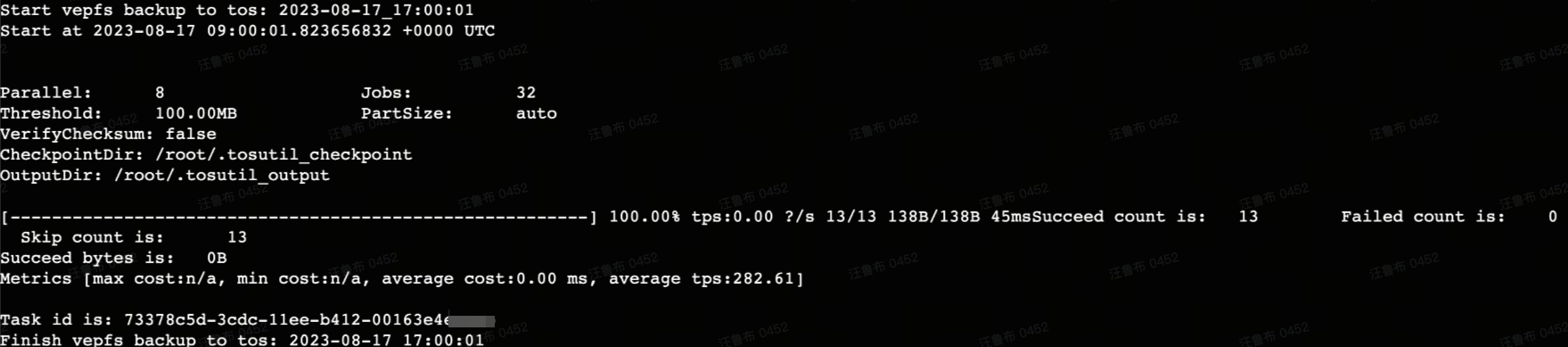
- Check the start and end time of the backup, as well as backup details, in the backup.log file.
tip
Backup details include: length of time, number of successfully backed up files, number of failed files, number of skipped files, and backup file size.
-
Appendix: crontab scheduled policy description
Cron format: * * * * * [your command]
The parameters are described below.
Here are some common examples.
Last updated: 2026.03.03 10:39:10
All rights reserved © Beijing Volcano Engine Technology Co., Ltd2024
