Torch Object Storage
Torch Object Storage


Document

- Documentation
 Torch Object StorageUser GuideWorking with bucketsBasic configurationsBack-to-origin rulesConfiguring mirroring rules
 Copy page
 Download PDF
Back-to-origin rules
Configuring mirroring rules
Copy pageDownload PDFConfiguring mirroring rules
When you set up a mirror-based back-to-origin (mirroring) rule and request an object that does not exist in the bucket, TOS fetches the object or its metadata from the origin server and sends it back to you. This topic explains how to configure mirroring rules.
Background information
A mirroring action can be triggered by one of the following two operations:
- Triggering via GetObject: When the requested object does not exist in the bucket, TOS fetches the object from the specified origin server and returns it to the requester. Simultaneously, TOS writes the object to the bucket.
-

- Triggering via HeadObject: When the metadata of the requested object does not exist in the bucket, TOS retrieves the object's metadata from the configured origin server and returns it to the requester.
-

Notes
Steps
- Log in to the TOS console.
- In the left navigation pane, click Buckets. In the Buckets list, click the bucket you want to manage.
- In the left navigation pane, select Basic configurations > Back-to-Origin rules. On the Back-to-Origin rules page, click Create rule.
- On the Create Back-to-Origin Rule page, configure the following parameters:
- ParameterDescriptionBack-to-Origin methodSelect Mirroring.Back-to-Origin conditionConfigure the desired trigger conditions. A mirroring action will only be triggered when all configured conditions are met simultaneously. The fields are described as follows:
- HTTP Status Code: Selected by default and only supports HTTP status code 404.
- Filename prefix: Select this option and enter the desired prefix.
- Filename suffix: Select this option and enter the desired suffix.
For example, if you set the filename prefix to test and the filename suffix to object.png, and then you attempt to access an object in the bucket that matches the pattern test***object.png, the object does not exist in the bucket and an HTTP 404 status code is returned. In this case, TOS provides the back-to-origin address configured in the rule, allowing you to access the object.tip- After checking the box(es) for Filename prefix or/and Filename suffix, you must enter the corresponding information for the condition to take effect. If you leave the field(s) blank, the condition will not be matched.
- To match all suffixes under a specific prefix, enable only the Filename prefix condition. Alternatively, enable the Filename suffix condition without entering a value.
Specify the domainSpecify which domain names are allowed to access the origin server. Accessing the origin server via any other domain name will not trigger mirroring actions.warning- You can specify a maximum of 20 domain names.
- The domain names must be accessible to the bucket. We recommend using the custom domain associated with the bucket.
Back-to-Origin typeSet the origin server type for back-to-origin. The fields are described as follows:- Select back to source private bucket if the origin server is a private bucket from TOS or another cloud provider.
- Do not select back to source private bucket if the origin server is a public bucket from TOS or another cloud provider.
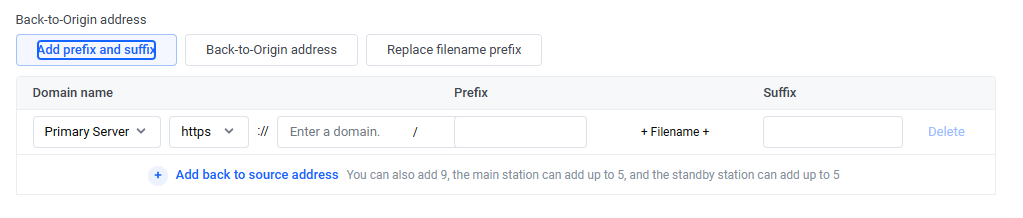
Back-to-Origin addressConfigure the address to which TOS will redirect when the back-to-origin conditions are met. There are three configuration options: Add prefix and suffix, Back-to-Origin address, and Replace filename prefix.- Common configuration items (applicable to all three options)
- Origin server type (Required): The options are Primary Server and Secondary Server. You can configure multiple servers. When both primary and secondary servers are configured, TOS prioritizes requests to the primary servers. TOS only requests the secondary servers if all the primary servers fail to connect. If there are multiple servers of the same type, TOS randomly selects one to initiate the request.
- Protocol (Required): The options are http and https. The default is https.
- Domain name (Required): It must be in domain format. IP addresses are not supported.
- Add prefix and suffix
- Prefix/Suffix (Optional): If configured, this prefix or suffix is added to the object name for the request sent to the origin server. The object name returned to the client is unaffected by the prefix and remains unchanged.
- For example, if a client requests the object aaa.txt and the prefix is set to bbb, the requested object from the origin server will be bbbaaa.txt. However, the object returned to the client will still be aaa.txt.
- Back-to-Origin address
- When the back-to-origin rule is triggered, the request is redirected to the configured address.
- For example, if a client requests the object aaa.txt and the back-to-origin address is set to http://example.com, and the object does not exist on the origin server, the request will be redirected to http://example.com to retrieve the object from that address.
- Replace filename prefix
- When the back-to-origin rule is triggered, the request is redirected to an object with the filename prefix replaced.
- Prefix (Optional): To replace a prefix, first specify the Filename prefix in the Back-to-Origin condition section. Then, the new prefix will replace the specified filename prefix.
- Replacing a prefix is typically considered truncation. However, if you do not specify a prefix before replacing it, filling in this field is the same as adding a prefix.
- The object name returned to the client is unaffected by the prefix and remains unchanged.
- For example, if a client requests the object aaa.txt, and the Filename prefix in the Back-to-Origin condition section is set to aa and the Prefix is set to bb, the requested object from the origin server will be bba.txt. However, the client will still receive aaa.txt.
tipIf you select "back to source private bucket" as the Back-to-Origin type, you must enter the service provider information for your source bucket in the Back-to-Origin address section. The fields are described as follows:- If the service provider is Volcano Engine, click Click to Authorize to grant TOS access to your private bucket. Then, select the source bucket, which must be a bucket under the current account.
- When the service provider is Baidu Cloud or Other S3 storage protocols, fill in the AccessKey (AK), SecretKey (SK), Source Region, Source bucket, and Back-to-Origin address to access the service provider.
Whether to support HeadObjectSelect whether to trigger mirroring actions via HeadObject requests. This option is disabled by default.- Disabled (Default): Only GetObject requests can trigger mirroring actions.
- Enabled: Both GetObject and HeadObject requests can trigger mirroring actions.
Whether to carry request parameterSelect whether to forward the query string from the request to the origin server. This option is enabled by default.warningEnabling this option will only transmit parameters defined by AWS Signature Version 4 if your origin server is a private bucket. Note that this feature does not support forwarding all query string parameters from the request.Disable Range Download Request Pull FileSelect whether to write the requested object to the bucket when a range download triggers a mirroring action. This option is disabled by default.- Disabled (Default): The requested object is fetched from the origin server and returned to the requester without being written to the bucket.
- Enabled: The requested object is fetched from the origin server, returned to the requester, and written to the bucket to ensure data integrity.
Whether to redirect based on the origin serverSelect whether to redirect the request based on the 3XX status code of the origin server. A request can only be redirected once. This option is disabled by default.HTTP Header Delivery Rules (client side to source)Select the rule for passing response headers when TOS accesses the specified origin server. The options are as follows:- Transparently Transmit All HTTP Headers (Default): When selected, all parameters are passed through, except Host, Content-Length, Date, and Authorization.
- Transparently Transmit Specified HTTP Headers: Define the specific headers that are allowed to be passed through. You can add a maximum of 10 headers.
- Transparently Transmit No HTTP Headers: When selected, all parameters are blocked from being passed through.
- Not Transparently Transmit Specified HTTP Headers: Define the specific headers prohibited from being passed through. You can add a maximum of 10 headers.
Add specified HTTP headers (client side to source)Specify the key and value for the HTTP header. This key and value will then be added to the header and passed through to the origin server.warning- You can specify a maximum of 10 HTTP headers.
- Content-Length, Date, Range, and Authorization are not supported.
Support custom metadata- When fetching an object from a specified origin server, you can save the response headers (SourceHeader) from the origin as custom metadata for the object. TOS automatically prefixes the metadata key with x-tos-meta- and appends the suffix you set (MetaDataSuffix), forming the final metadata key.
- Click Add metadata and configure the following:
- Enter the origin response header (SourceHeader) in the left input box.
- Enter the metadata key suffix (MetaDataSuffix) in the right input box.
- You can add or remove multiple mapping groups. Each rule supports up to ten mappings.
- For example, if SourceHeader is content-language and MetaDataSuffix is language, the final metadata key is x-tos-meta-language.
- Click Submit.
- After creating a mirroring rule, you can view it in the rules list.
Related operations
- Edit a back-to-origin rule: Click Edit in the Actions column of the rule you want to modify.
- Delete a back-to-origin rule: Click Delete in the Actions column of the rule you want to remove, and confirm the deletion by clicking Delete in the box that appears.
- Move a back-to-origin rule up/down: In the Actions column of the rule you want to move, click ... > Up or ... > Down.
Last updated: 2026.08.04 18:26:36
All rights reserved © Beijing Volcano Engine Technology Co., Ltd2024
