Volcano Engine Function as a Service
Volcano Engine Function as a Service


Document

- Documentation
 Volcano Engine Function as a ServiceUser guideCloud sandboxSandbox instancesPause and resume for sandbox instances
 Copy page
 Download PDF
Sandbox instances
Pause and resume for sandbox instances
Copy pageDownload PDFPause and resume for sandbox instances
The pause and resume feature for sandbox instances allows you to perform pause (Pause) and resume (Resume) Actions on running sandbox instances. After pausing, the instance enters the paused state, its computing resources are released and billing is stopped, and the running state is fully retained. This article introduces the background information, usage scenarios, and operational methods for this feature.
warning
- The pause and resume capability is currently in beta. To activate it, please submit a ticket.
- The pause and resume capability only takes effect for sandbox instances created after the feature is activated.
Background information
In many scenarios, sandbox instances are not always running at full capacity after being created, but often have long idle periods waiting for user input or external events. If an instance continues to run during idle periods, it results in unnecessary resource consumption and costs. The pause and resume feature for sandbox instances enables you to proactively pause an instance during idle periods, stop billing, and retain its running state. When you need to continue using it, you can resume the instance and it will continue running from the state before pausing.
Status transitions
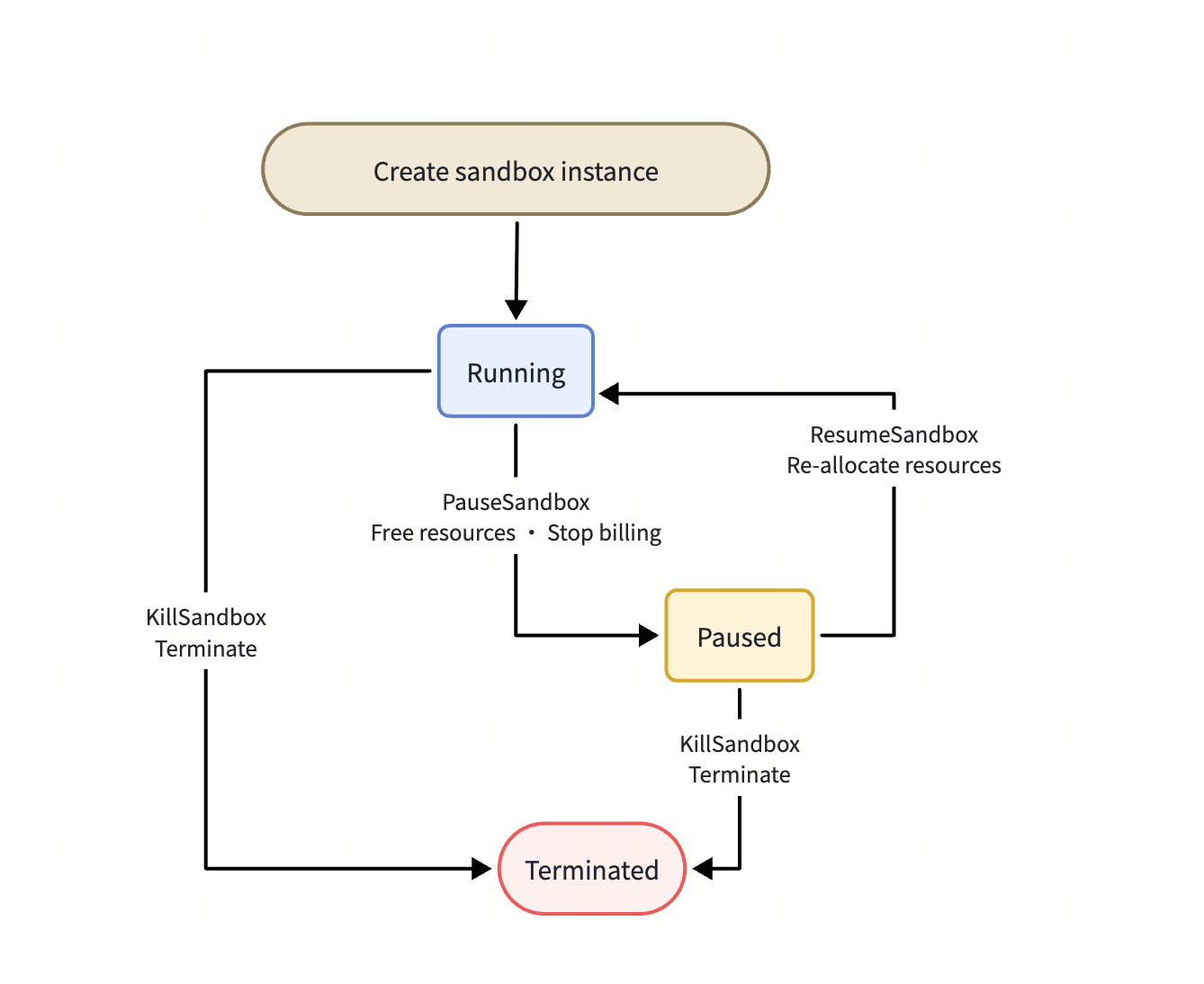
Sandbox instances switch between Running and Paused states. Resources are released (billing is stopped) when paused, and reallocated when resumed. You can perform Actions via the console, or call the PauseSandbox and ResumeSandbox APIs to pause and resume respectively. Status transitions are illustrated in the following diagram.
tip
After pausing, the instance's computing resources (CPU / memory) are released. When resumed, the system reallocates resources. Instances in the paused state also support query and terminate Actions.
Resource retention during pause
- File system (including file contents): retained, saved as a file system snapshot, and is consistent before and after resuming.
- Memory data: not retained. Data in process memory, running processes, and established network connections must be reinitialized after resuming.
Application scenarios
Pausing and resuming sandbox instances is applicable to the following scenarios.
Scenarios | Description |
Long-session AI agent | The agent often remains idle for extended periods while waiting for the user's next input. After pausing, billing stops, and when the user resumes the conversation, the instance continues running, reducing the idle cost of a single session. |
Interactive development / online IDE | Pause the environment while the developer is away, and resume without reconstruction upon returning, retaining the complete context while reducing costs. |
On-demand task-based sandbox | Pause instances during task intervals and resume execution as needed, avoiding long-term retention of running instances for low-frequency tasks. |
Cost-sensitive batch scenarios | When many instances are idle during off-peak hours, pause to reclaim idle resources, reducing overall resource usage while retaining the state. |
Prerequisites
Procedure
Step 1: Pause a sandbox instance
- Log in to the veFaaS console.
- In the top navigation bar, select the target region.
- In the left navigation bar, select Cloud Sandbox > Sandbox Application, click the target application name to enter the details page, and select the Sandbox Instance tab.
- Locate the target instance, and in the Actions column, click ... > Pause.
- On the confirmation page, click Confirm to complete the operation.
Step 2: Resume a sandbox instance
- On the Sandbox Instance tab, click View Paused Instances to display the paused sandbox instances.
- In the Actions column of the target sandbox instance, click Resume.
- On the confirmation page, click Confirm, and the instance resumes running.
Last updated: 2026.08.19 14:06:08
All rights reserved © Beijing Volcano Engine Technology Co., Ltd2024
