Volcano Engine Function as a Service
Volcano Engine Function as a Service


Document

- Documentation
 Volcano Engine Function as a ServiceUser guideCloud sandboxSandbox instancesSandbox instance warm pools
 Copy page
 Download PDF
Sandbox instances
Sandbox instance warm pools
Copy pageDownload PDFSandbox instance warm pools
The sandbox instance warm pool automatically maintains a group of pre-started sandbox instances for sandbox applications. This ensures that instances can be allocated within tens of milliseconds after requests to create sandbox instances are initiated. This eliminates cold start.
warning
- Instances in the warm pool are pre-started on the user side, which consumes resources and incurs corresponding fees. For specific billing details, see Pay-as-you-go - Cloud Sandbox.
Background information
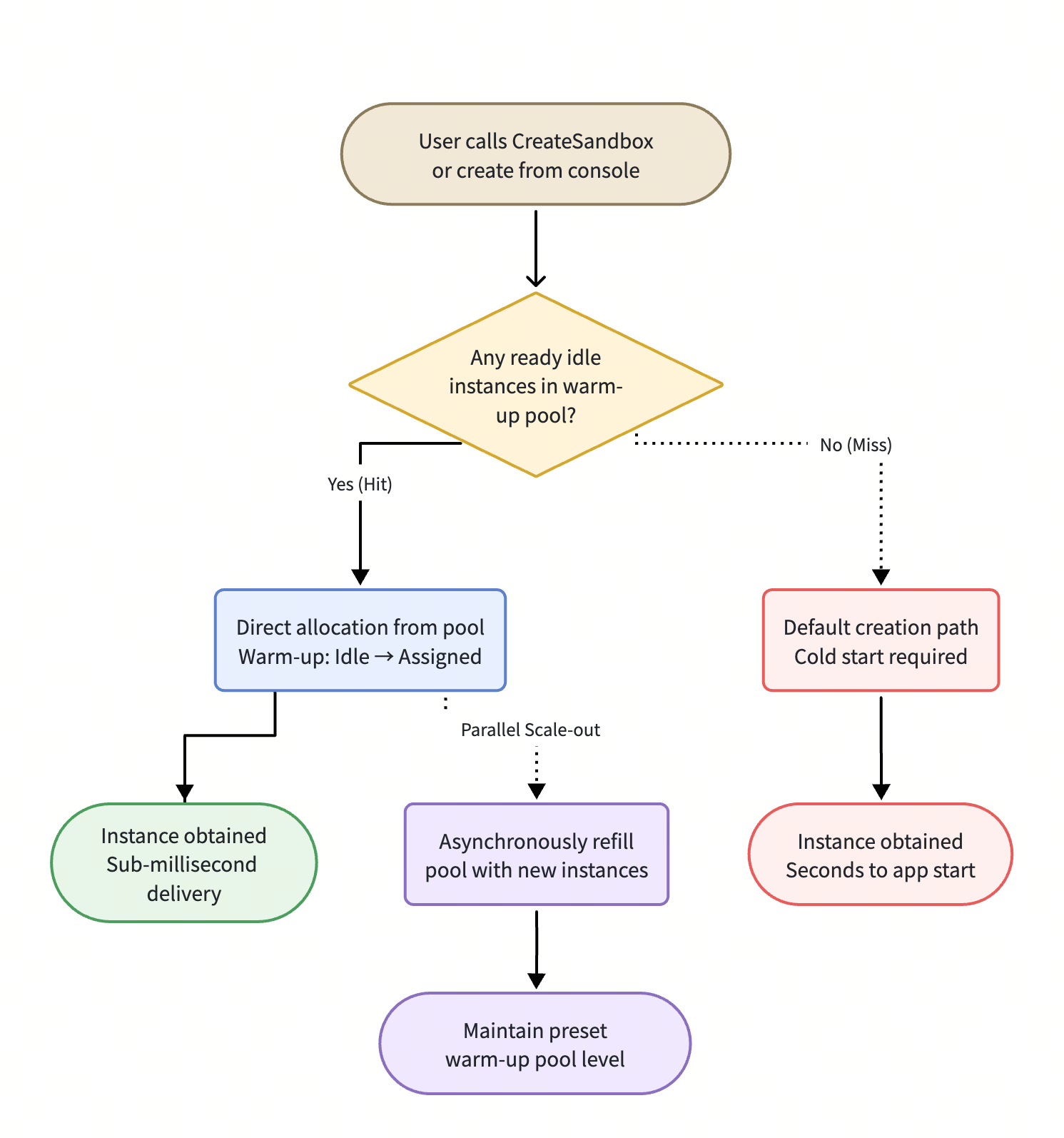
In the default process, each time you create a sandbox instance, it must go through image pulling, instance start, runtime initialization, and other steps, resulting in cold start delays of several seconds or longer. The sandbox instance warm pool pre-starts and maintains a batch of idle instances in a ready state, moving this time-consuming process ahead of the request arrival, so allocation can be nearly instantaneous.
Allocation and replenishment process
Through the warm pool, the system maintains a set of sandbox instances in a ready state in the background. When you call the CreateSandbox API or create a sandbox instance in the console, the system preferentially allocates instances from the resource pool. This significantly reduces latencies.
Resource pool replenishment
To keep the warm pool size at the expected level, the system automatically replenishes resources based on instance consumption. The resource pool replenishment logic of the platform is calculated by using the following formula: QPS = Resource pool size/Sandbox instance creation time (s).
- Resource pool size: The number of warm pools set by the user in Resource quotas.
- Sandbox instance creation time: The average instance creation time obtained through real-time system monitoring.
The system dynamically adjusts the replenishment speed based on the calculated QPS rate to ensure the resource pool size remains stable.
TOS dynamic mount
tip
The TOS dynamic mount capability is currently in the beta phase. To activate this feature, please submit a ticket.
When creating a sandbox instance, you can dynamically map the specified TOS bucket (and subdirectories) as a local directory within the instance based on the parameters passed in the current request. The instance can access TOS data as if it were reading and writing local files. The mounted bucket, path, and authentication information are passed with each CreateSandbox request. Different requests can mount different data, enabling data isolation and reuse between instances, without the need to modify the image or code.
When the number of TOS mount points matches the number of pre-warmed instances, the following information does not affect whether a pre-warmed instance is matched.
- Authentication information: AccessKeyId, SecretAccessKey
- Mounted bucket: BucketName
- Path: BucketPath
Application scenarios
Sandbox instance pre-warming is suitable for the following usage scenarios.
Scenario | Description |
AI Agent online inference | When Agent tools are called or code is executed, the sandbox needs to be started immediately. The pre-warmed pool ensures rapid response to user requests and avoids cold start impacting the interactive experience. |
Burst and high-concurrency traffic | To handle traffic peaks or scheduled batch tasks, prepare ready instances in advance to support instantaneous high-concurrency creation, avoiding queuing and timeouts. |
Reinforcement learning / large-scale evaluation | RL rollout and benchmark evaluation require launching a large number of sandboxes in parallel. The warm-up pool provides a stable supply of high-throughput instances, shortening the evaluation cycle. |
Code Interpreter / online IDE | Scenarios such as code interpreters and interactive programming are sensitive to response latency. The pre-warmed pool eliminates waiting and improves the initial screen experience. |
Prerequisites
Procedure
Step 1: Configure the pre-warmed pool size
- Log in to the veFaaS console.
- In the top navigation bar, select the target region.
- In the left navigation pane, click Cloud sandbox > Sandbox app. Find the target sandbox application and click its name.
- On the sandbox application details page, click the Sandbox instance tab.
- In the Resource quotas section of the Sandbox instance tab, click Settings to specify the Warm pool size parameter.
- Click Confirm to complete the configuration.
- After the configuration is complete, the system will start as many sandbox instances as specified, with their initial Start type set to Pre-warmed-Idle.
Step 2: Use the sandbox instance pre-warmed pool
On the Sandbox instance tab, click Create sandbox instance. For details, see Creating sandbox instances. At this point, veFaaS will preferentially allocate a Warmed - Idle instance from the warm pool, and its status will change to Warmed - allocated. In addition, the system will immediately start a new sandbox instance to replenish the warm pool to maintain the preset warm pool size.
warning
Take note of the following items when you create a sandbox instance:
- If you change the instance lifecycle duration, instance metadata, or TOS bucket, idle instances can still be allocated from the pre-warmed pool.
- If you modify parameters such as Instance specification and Execution timeout, idle instances cannot be allocated from the warm pool, and new instances will be created by default.
Step 3: Resource monitoring
On the Sandbox app details page, click the Monitoring tab. Then, click Cloud Sandbox Reserved Instance Pool Monitoring to view the running status and instance allocation status of the warm pool. You can also perform the following operations:
- Click View more metrics to go to the Cloud Monitor console and view the monitoring dashboard for the current sandbox application.
- Click Create alert strategy to go to the Cloud Monitor console and configure an alert policy for the current sandbox application. When a metric meets the trigger condition for an alert, the system will send an alert notification through your specified method. This helps you promptly identify service exceptions. For specific operations, see Creating alert policies.
Step 4: (Optional) Turn on and use TOS dynamic mount
Call CreateSandbox to create an instance. Specify the TOS bucket to mount this time through InstanceTosMountConfig, and the system will dynamically complete the mount when creating the instance. The configuration example is as follows.
Parameter | Meaning | How to obtain |
FunctionId | The function identifier corresponding to the sandbox application, used to specify under which sandbox application to create the instance. | In the veFaaS console, go to the target sandbox application details page, and in Basic Information, view and copy the application ID / function ID. |
Credentials.AccessKeyId | Access key, used for identity authentication to TOS, must have read and write permissions for the target bucket. | |
Credentials.SecretAccessKey | | |
TosMountPoints.BucketName | The name of the TOS bucket to be mounted. | View it in the TOS console under the bucket list. For detailed operations to create a TOS bucket, see create bucket. |
TosMountPoints.BucketPath | The path of the subdirectory to be mounted within the bucket. Must start with /; setting it to / means mounting the entire root directory of the bucket. | After confirming the target directory path in the TOS console under the corresponding bucket's file list, fill it in. |
TosMountPoints.LocalMountPath | Mount to the local directory in the sandbox instance runtime environment. After mounting, use this path to read and write TOS data. Must start with /, and the local directories of multiple mount points cannot be duplicated. | Customizable by you, for example, /mnt/tos/local1; avoid conflicts with other mount points or reserved directories. |
Last updated: 2026.08.19 14:06:08
All rights reserved © Beijing Volcano Engine Technology Co., Ltd2024
