Volcano Engine Function as a Service
Volcano Engine Function as a Service


Document

- Documentation
 Volcano Engine Function as a ServiceBest PracticesFeature applicationUsing veFaaS to host static sites
 Copy page
 Download PDF
Feature application
Using veFaaS to host static sites
Copy pageDownload PDFUsing veFaaS to host static sites
Hosting static sites on veFaaS is suitable for scenarios requiring rapid validation and flexible configuration. When combined with APIG, it enables rich traffic control (e.g., rate limiting and authentication) while maintaining a consistent deployment process and operational experience with other functions. This topic describes how to quickly host a static site through veFaaS and obtain an accessible site URL.
Background information
veFaaS supports four ways to host static sites. Choose the one that best fits your business requirements.
- Deploy via CLI: It is suitable for scenarios where you already have a frontend project locally and prefer command-line operations. It supports automatic framework detection and build commands, and can be seamlessly integrated into CI/CD pipelines.
- Deploy via veFaaS MCP: It is suitable for quickly publishing HTML reports or frontend build artifacts directly within AI coding tools (such as Trae IDE), without the need to manually write commands.
- Create via application templates (console): It is suitable for scenarios where you need to create and host static applications quickly. The template comes with a built-in static hosting solution, automatically generates an access URL after release, and supports binding to a code repository for continuous development.
- Create via function templates (console): It is suitable for scenarios requiring fine-grained function-level configuration or custom proxy logic. This method is ideal for users who already have experience with function-based projects.
Prerequisites
- An API Gateway instance has been created. For details, see Creating instances.
- A Node.js environment has been set up locally. We recommend downloading Node.js version 20.x. For detailed instructions, see the Official documentation. After successful installation, run node --version to check the Node.js version.
Procedure
Deploy via CLI
The veFaaS CLI tool helps you deploy applications and functions, as well as manage domains and environment variables from your terminal, enabling static site hosting.
- Install veFaaS CLI. For details, see CLI installation.
- In your terminal, use vefaas login to log in. Follow the prompts to log in using either a Volcano Engine account or AK/SK, then press Enter to confirm.
- AK/SK: The key pair consists of an Access Key ID (AK) and an Access Key Secret (SK). For details, see Access Key management.
- Volcano Engine account: Open the SSO login page in your browser, select the Volcano Engine account you wish to use and authorize it. Upon successful login, you will see a message indicating that the authentication is complete. You may then close the browser tab to finish the login process.
- Deploy the application.
- In your project directory, run the veFaaS command directly, and follow the interactive prompts to create a new Deploy and enter the application name.

- Select a running APIG, and the veFaaS CLI will automatically detect the framework type, build command, artifact path, start command, and listening port used by your current project. It will also automatically select the appropriate runtime. You can adjust these settings as needed. These configurations will be used for the function deployment. For this template project, you can simply use the default configuration.

- The dependency installation and build process will begin. Upon completion, since the veFaaS CLI detects that the current project is a static site, it will automatically generate a DefaultCaddyFile as the configuration file for static resource hosting services. You can adjust them as needed. For this template project, you can simply use the default configuration.
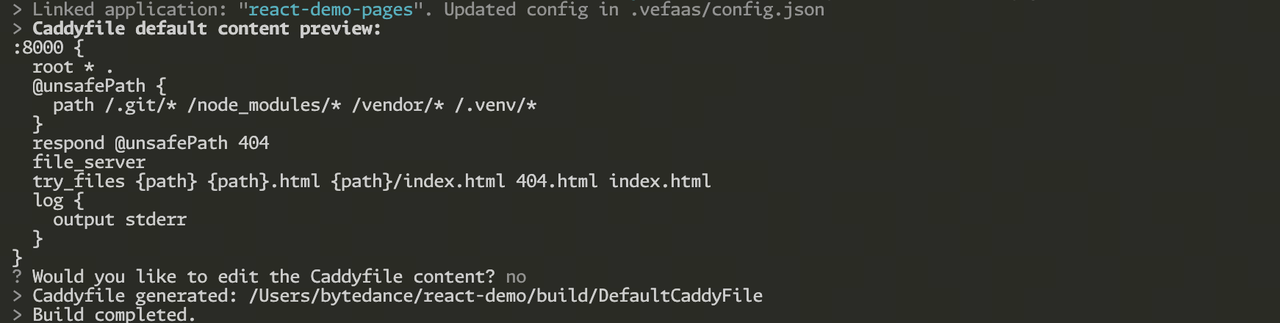
- The veFaaS CLI will upload the build artifacts to veFaaS and initiate the release process. At the same time, an accessible URL will be generated. Once the function deployment is complete, you can use this URL to access the hosted static site.

Deploy via veFaaS MCP
veFaaS MCP has integrated the capabilities of the CLI, enabling detection of static resources and automatic parameter configuration. For HTML static files or frontend build artifacts, you can quickly deploy them within AI Coding tools using MCP.
- Trae IDE: You can click the button in the overview to quickly jump to the MCP configuration in Trae. For detailed instructions, see Using veFaaS in Trae.
- Other AI Coding tools: See the document Using veFaaS MCP to manage functions.
Deploy via application templates
You can quickly create a hosting application for a static site using a template.
- Log in to the veFaaS console.
- In the top navigation bar, select the target region.
- In the left navigation bar, click App > App plaza.
- On the App plaza page, search for React.js.
- Hover over React.js and click Create app.
- Configure the application.
- Basic information
- ParameterDescriptionNameThe name of the application. The name is automatically generated by default.
- Resource allocation
- ParameterDescriptionRegionThe region where the application and its associated cloud resources are located.Function nameSpecify a custom name for the function.API Gateway InstanceSelect the target API Gateway instance. The resources related to the API Gateway trigger, including services, Upstream, and routes, will be automatically created for this API Gateway instance.
- Code repository configuration
tip
Code repository configuration enables automatic application build and deployment.
- ParameterDescriptionAssociated code repositoryClick the toggle to disable or enable this feature. This feature is enabled by default. By binding a code repository, you can continue development based on the code source and push branches.Warehouse typeOnly GitHub is supported.UsernameClick GitHub License on the right side. After authorization is complete, select the authorized GitHub account.New code repository nameThe automatically generated name of the code repository. After the application is created, a private code repository with that name will be created within the associated GitHub account.
- Read the disclaimer, select the I am aware of the Deployment Risks (Disclaimer) checkbox, and click Create.
- After successful deployment, you can obtain the static site's access URL by clicking Copy address on that application card on the My app page.
Deploy via function templates
tip
After deployment, you can modify the static site configuration file as needed in the function's Code > Resource Manager > DefaultCaddyFile. For details, see Caddy documentation.
You can quickly create a hosting function for a static site using the preset example templates for hosting static sites.
- When creating a Web function application for hosting a static site, only the function code needs to be configured as described below. Leave other parameters as the default. For detailed instructions, see Creating web applications.
- ParameterDescriptionDeployment methodSelect Code package.RuntimeSelect Native Node.js 20.x.Code package typeSelect Function template > Example templates for hosting static websites .
- After deployment, release the function. For detailed instructions, see Releasing functions.
- Create an APIG trigger to obtain the address of the static site. For detailed instructions, see Creating an APIG trigger.
- In the trigger list, find the trigger you created, and obtain the address of the static site in the Configurations column.
Last updated: 2026.08.19 14:06:07
All rights reserved © Beijing Volcano Engine Technology Co., Ltd2024
