Billing Center
Billing Center


Document

- Documentation
 Billing CenterContract managementAgency Payment Contract
 Copy page
 Download PDF
Contract management
Agency Payment Contract
Copy pageDownload PDFAgency Payment Contract
When you need to make corporate remittances using a bank account that does not match your real-name authentication entity, you must first sign a tripartite agency payment contract to directly transfer funds to your Volcano Engine-exclusive account.
Contract Inquiry
In the Billing Center - Contract Management menu, click the "Agency Payment Contract" tab to view all agency payment contracts you have created.
You can also search contracts using query criteria, including contract number, entrusted party, and contract validity period.
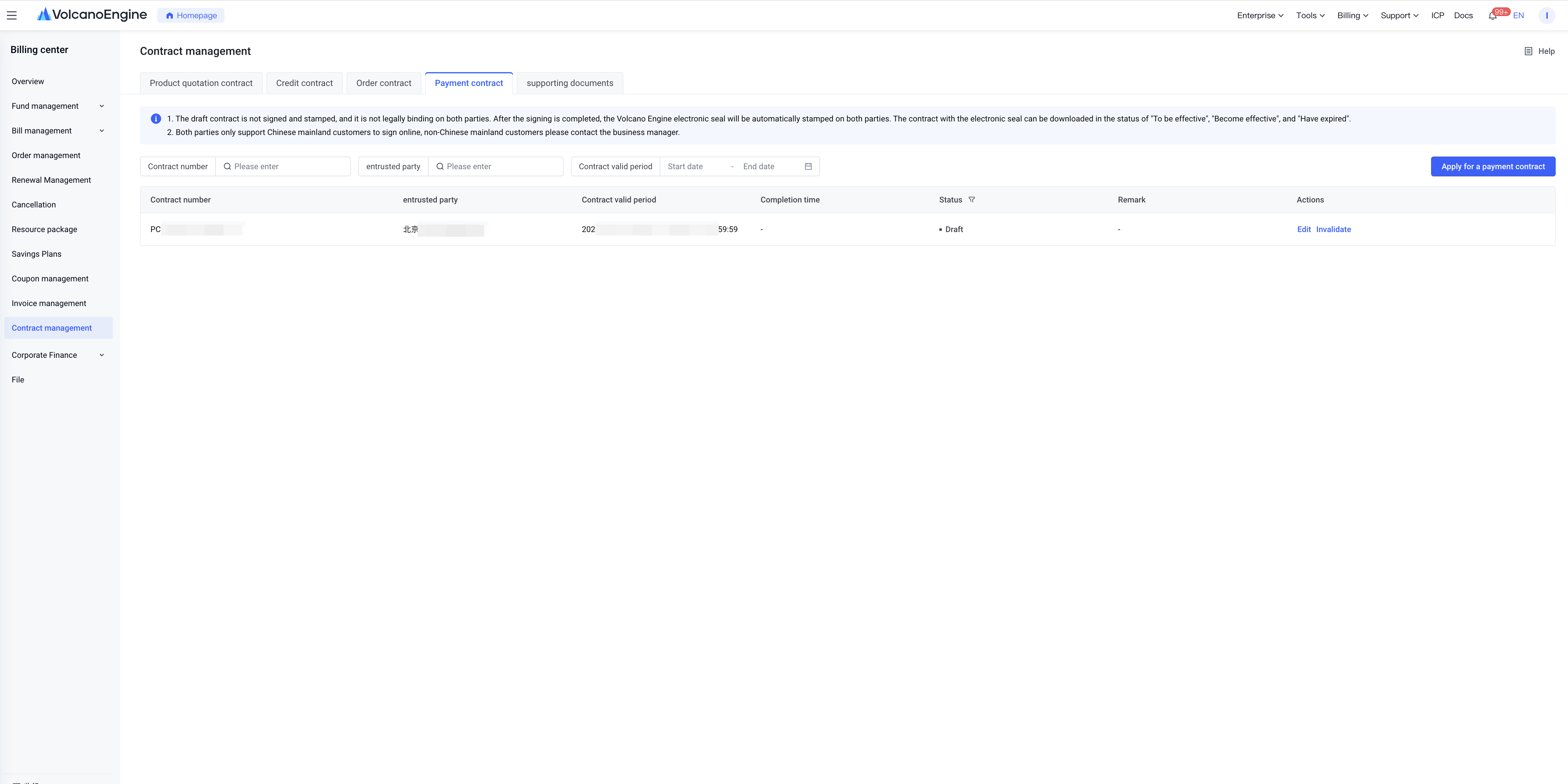
In the "Agency Payment Contract" tab list, you can view, edit, download, or void contracts. The meanings of different statuses and corresponding action buttons are shown in the table below:
Status | Status Description | Related Actions |
Draft | A draft of the contract has been created but not formally submitted | Edit, Invalidate |
In contract generation | The contract has been submitted and is being processed by the system | / |
In the process of signing | The contract has been confirmed and submitted; the client or the counterparty has not completed signing | Sign Now, Invalidate |
To be effective | The contract has been signed, but the current time is before the contract start date | Download |
Become effective | The contract has been signed and is currently within the valid period | Download |
Have expired | The contract has been signed, but the current time is past the contract end date | Download |
Have been voided | Client manually void the contract while it is in draft status | / |
tips:
- Draft contracts are unsigned and unstamped, holding no legal binding for either party. Once both parties sign, the contract is automatically stamped with the Volcano Engine electronic seal. Contracts with statuses "To be effective", "Become effective", or "Have expired" can be downloaded with the electronic seal.
- Agency payment contracts support online signing only for mainland China customers. Non-mainland China customers should contact their business manager for offline contract signing.
Contract Signing
Signing Process Instructions
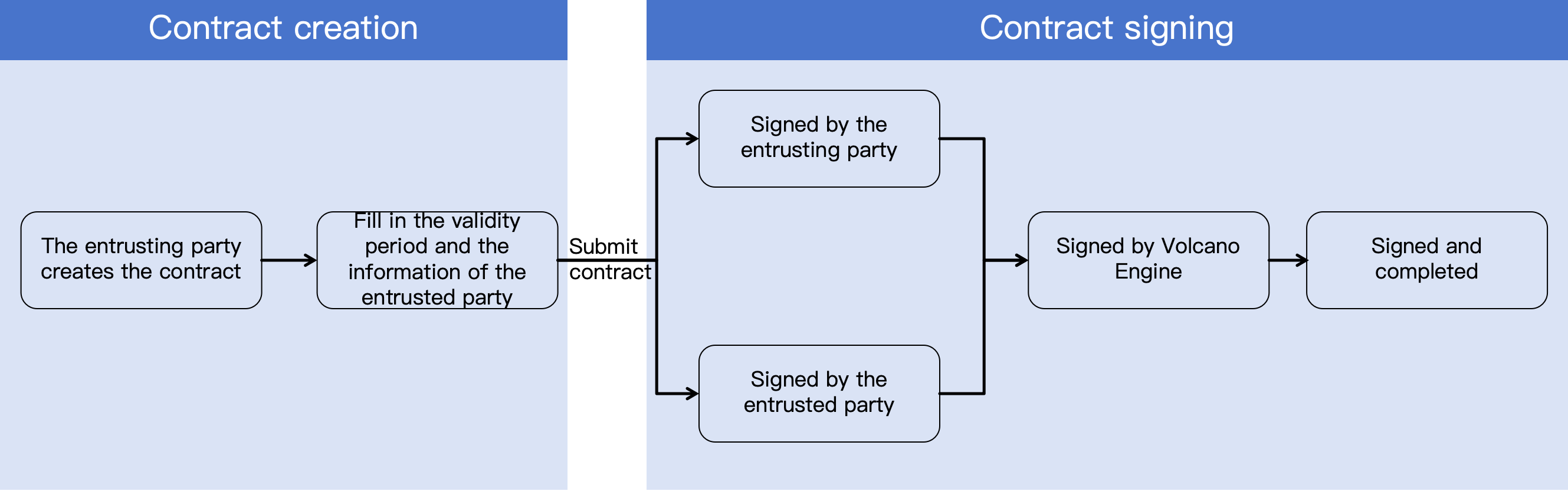
Create contract by the entrusting party
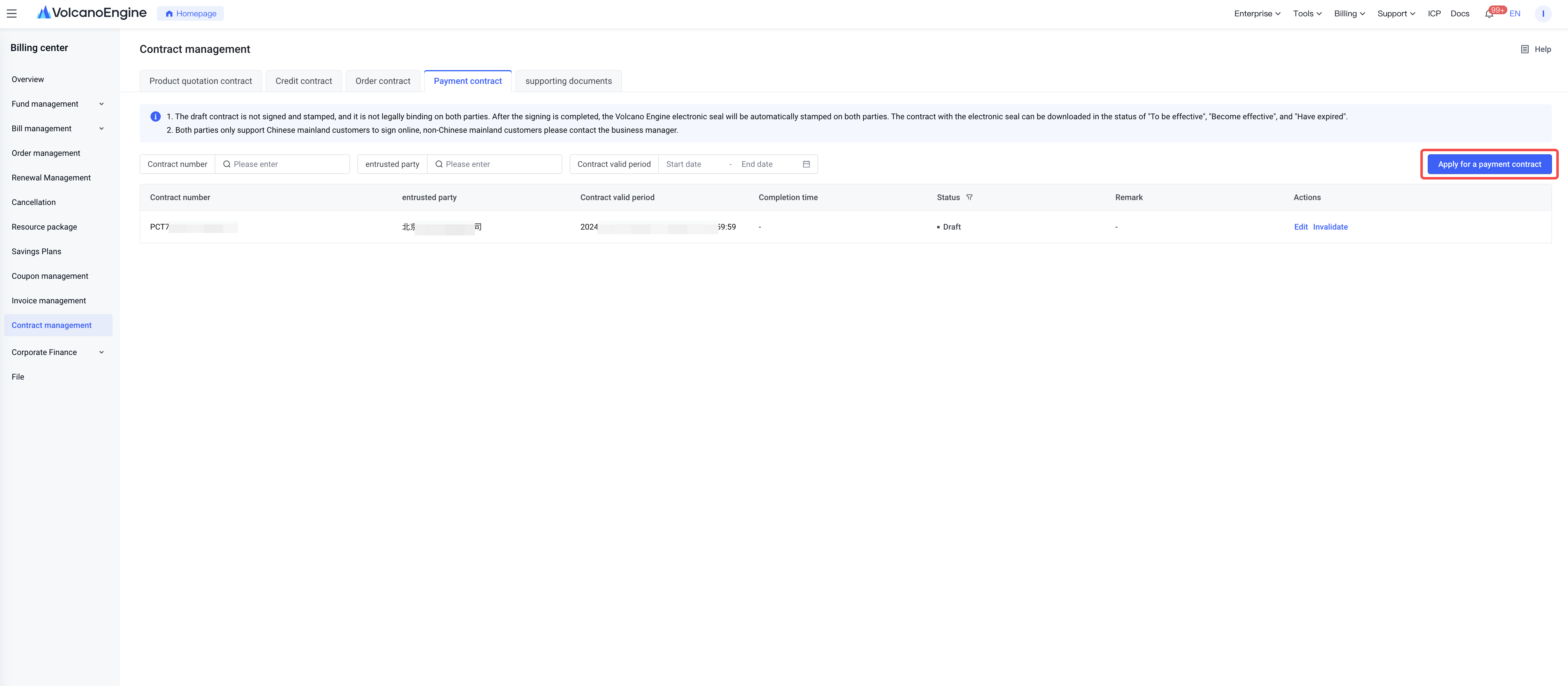
In the Billing Center - Contract Management menu, click the Payment Contract tab, then click the [Apply for payment contract] button on the Payment Contract page to start creating a payment contract.
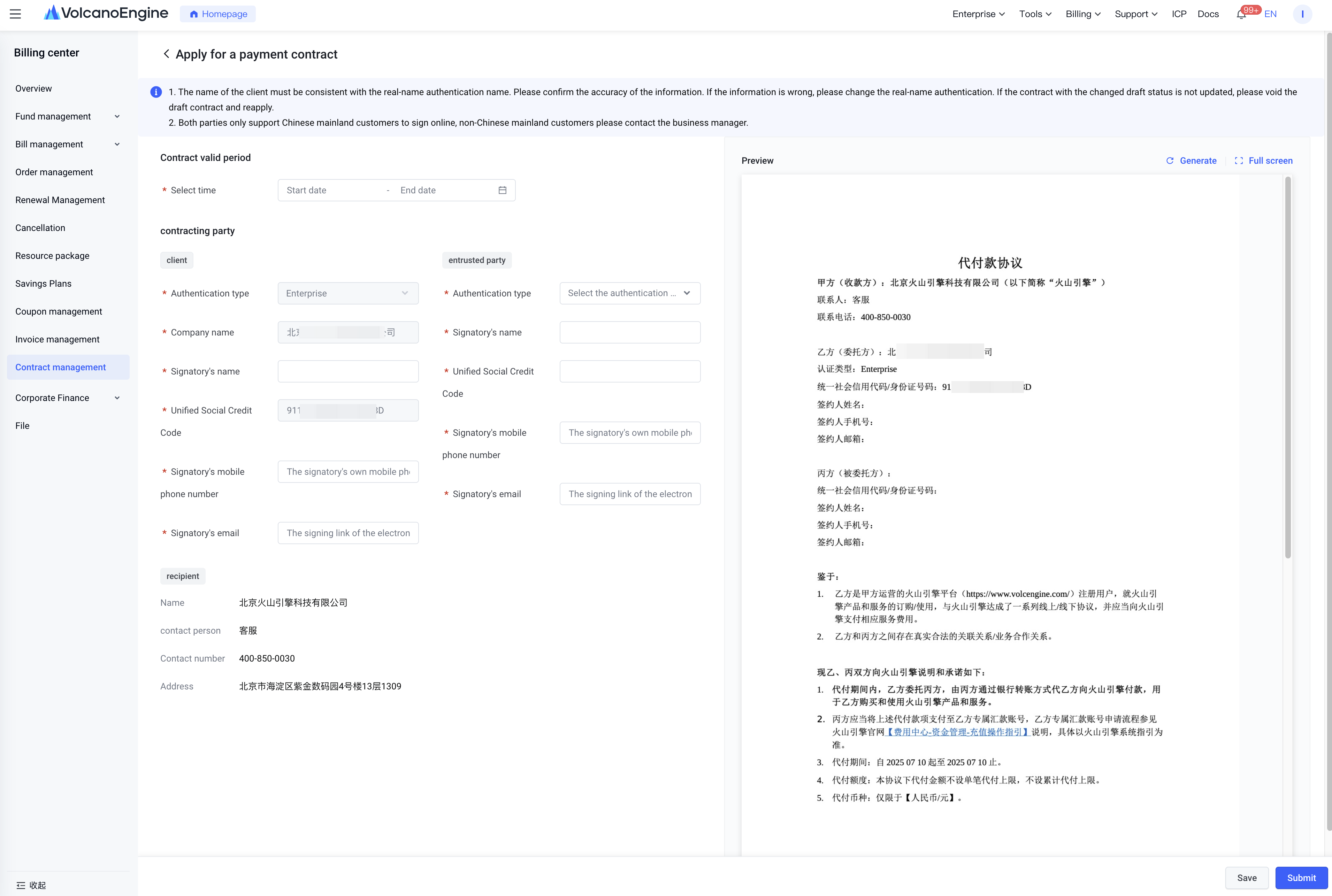
- On the create payment contract page, the entrusting party's authentication type, company name, and unified social credit code will display according to the real-name authentication information of the currently logged-in account. If the information is incorrect, please update the account real-name authentication first.
- You need to additionally fill in the contract validity period, entrusting party's signing information, and entrusted party's information. Ensure the accuracy and authenticity of the information for subsequent electronic contract notifications and agreement signing.
- The right side of the page is the text preview area, which initially displays the standard template of the payment contract. After completing the information on the left, you can manually click the "Generate" button, and the system will populate and create the contract text according to your input. You can preview the accuracy of the contract text beforehand.
- Click the "Save" button to save the contract as a draft. You can find this contract in the payment contract list to edit it again.
- Click the "Submit" button. After the system verifies the information, it submits the signing process, and the contract status updates to "In the process of signing".
-
Entrusting party signs online
After submitting the payment contract, the entrusting party can sign the contract online in two ways.
1) Access the LetSign Platform through Volcano Engine Console.
Paid contracts with the "In the process of signing" status have a "sign now" button. Clicking it redirects to the LetSign Platform for online signing.
2) Access the LetSign Platform via SMS & email links.
The principal receives an SMS and email from the LetSign Platform requesting signature. Clicking the link redirects to the platform for online signing.
After redirecting to the LetSign Platform, log in to enter the contract signing page.
Note: To use LetSign, complete the platform’s real-name authentication. For individual payment, refer to the LetSign Individual Authentication Guide; for corporate payment, refer to the LetSign Corporate Authentication Guide.
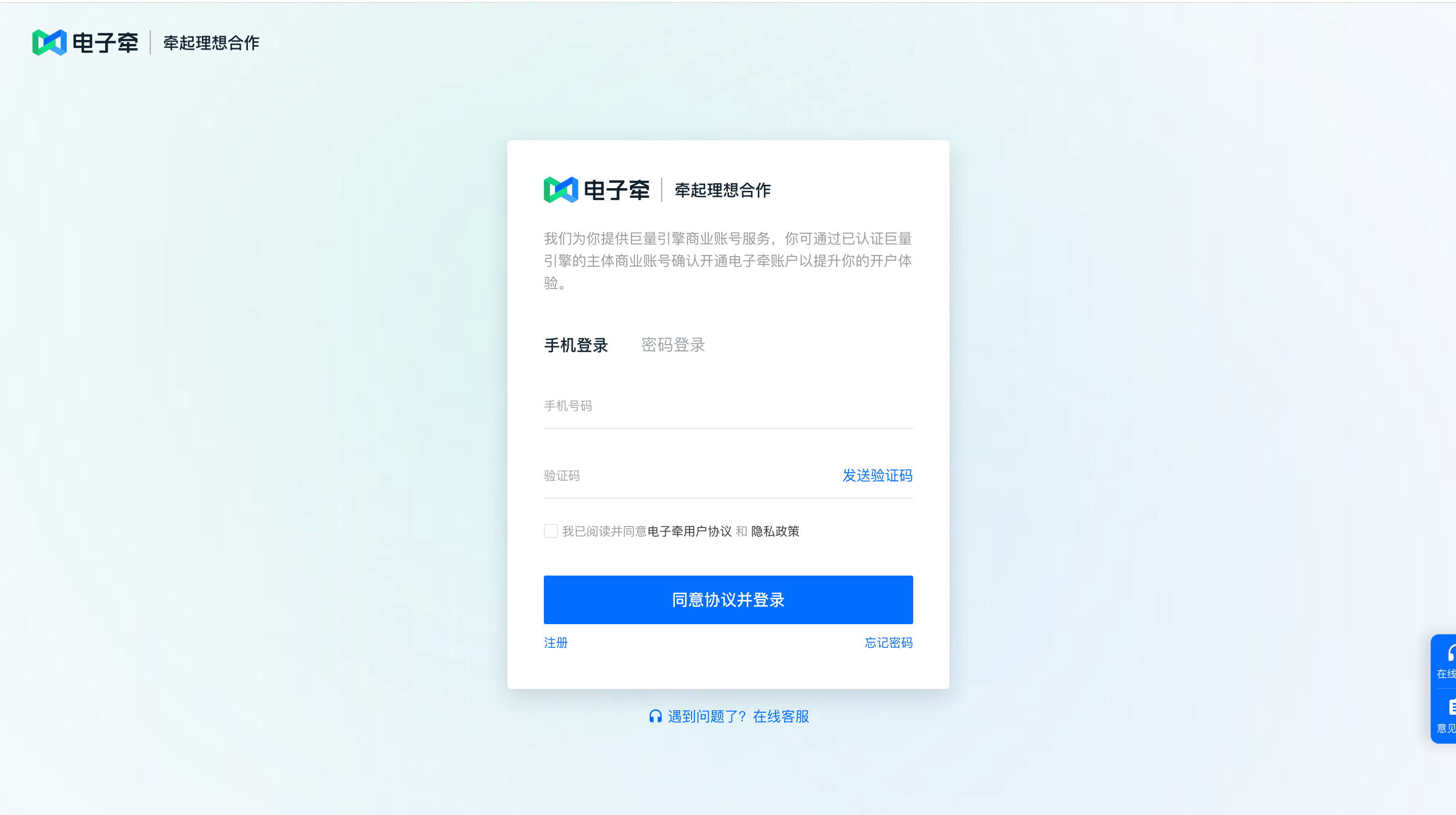
After logging in and completing authentication, access the contract signing interface to view and sign payment contracts.
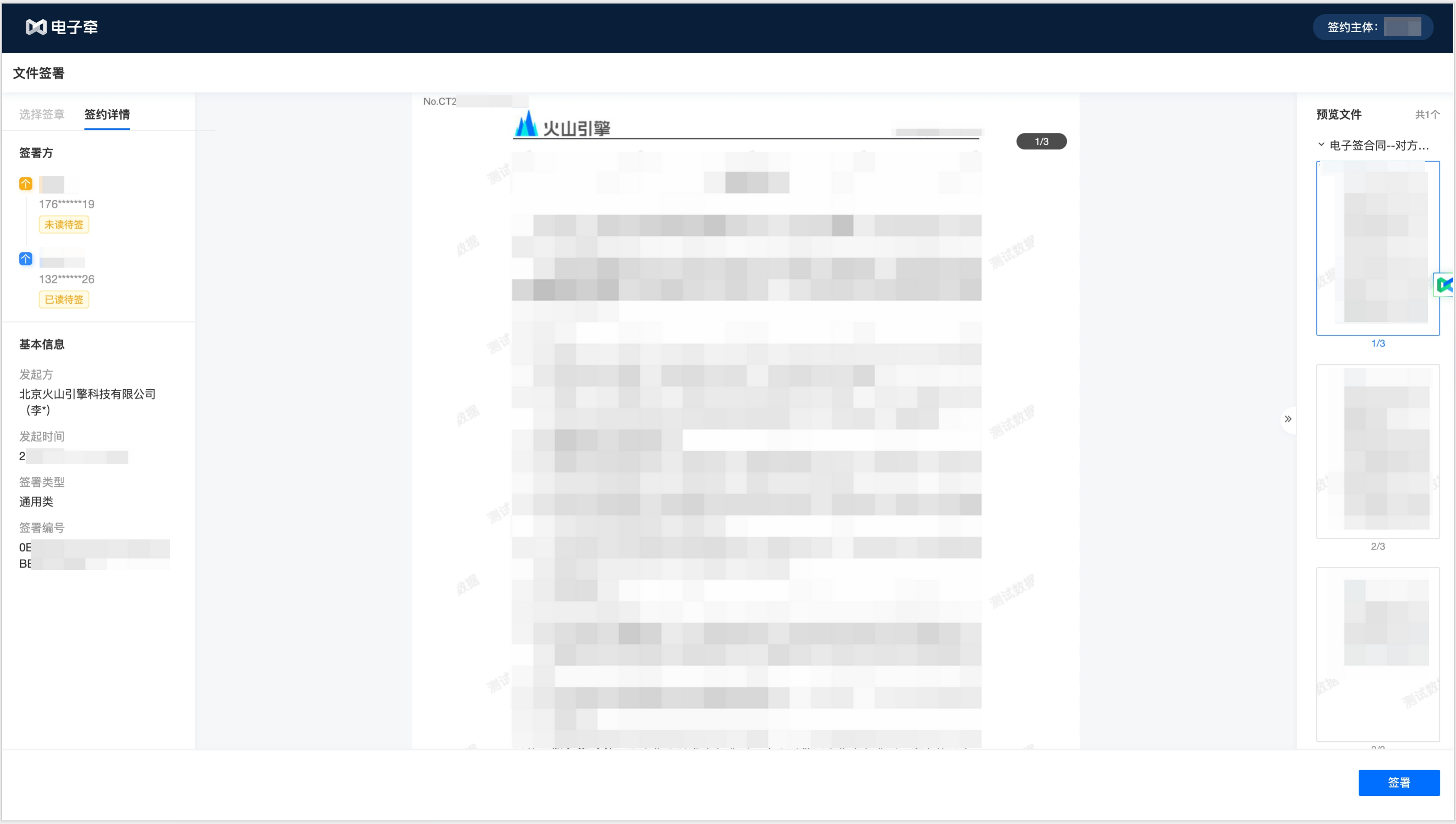
If you confirm the contract text is correct, click the "Sign" button to start signing. Follow prompts to select an electronic seal and verify via SMS code. After completion, the system displays the signing result, indicating the principal has signed.
Entrusted party signs online
The entrusting and entrusted party may sign in any order.
The system sends SMS and email notifications for signature to the entrusted party based on the information provided by the entrusting when creating the payment authorization contract.
The entrusted party clicks the link in the SMS or email to access the LetSign platform for online signing of the payment authorization contract. The signing process follows the "entrusting's online signing" procedure.
Volcano Engine automatic signing
After both the entrusting and entrusted party complete signing, Volcano Engine automatically applies the electronic seal, which takes approximately 5-10 minutes. Once all three parties have signed, the entrusting receives notifications of contract completion via SMS, email, and in-app message (these will be sent to the phone number and email linked to your Volcano Engine official website account).
Last updated: 2025.09.26 11:35:38
All rights reserved © Beijing Volcano Engine Technology Co., Ltd2024
