Billing Center
Billing Center


Document

- Documentation
 Billing CenterRenewal ManagementManual renewalManual renewal
 Copy page
 Download PDF
Manual renewal
Manual renewal
Copy pageDownload PDFManual renewal
Rules
- Annual and monthly subscription instances set to "manual renewal" and in "running" status support manual renewal, bulk renewal, enabling auto-renewal, and no renewal upon expiration. Instances with "manual renewal" that are in "about to stop/stopped/refund suspended" status only support manual renewal and bulk renewal.
- Reserved instance vouchers set to "manual renewal" and in "running" status support bulk renewal, manual renewal, enabling auto-renewal, and no renewal upon expiration. Expired reserved instance vouchers do not support renewal.
- Available vouchers can be selected on the order confirmation page during manual renewal.
- Resources with strong binding relationships must be renewed together (e.g., cloud server and system disk). Resources with weak binding relationships can choose whether to renew together with other instances (e.g., public IP bound to cloud server) during renewal.
- For instances undergoing temporary upgrades, the manual renewal fee calculation uses the original configuration before the temporary upgrade and extends the final expiration date.
- Instance statuses are listed as follows.
status | explain |
Running | instances remain running until expiration |
About to stop | Instance expired but not stopped |
Stopped | Instance stopped due to expiration |
Refunded and shutdown | Some product instances support a retention period after cancellation, during which resources can only be restored through manual renewal. |
Steps
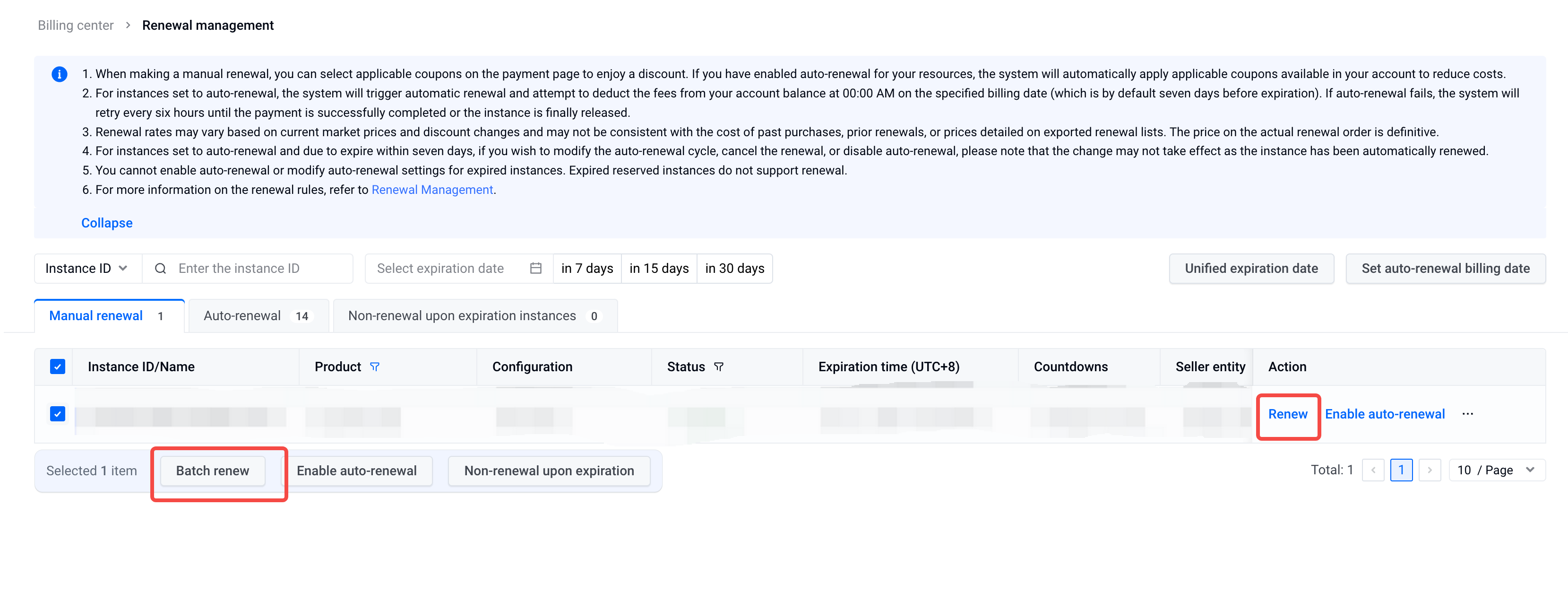
- Go to Billing Center > Renewal Management > Manual Renewal.
- Renew a single instance or perform batch renewal as needed.
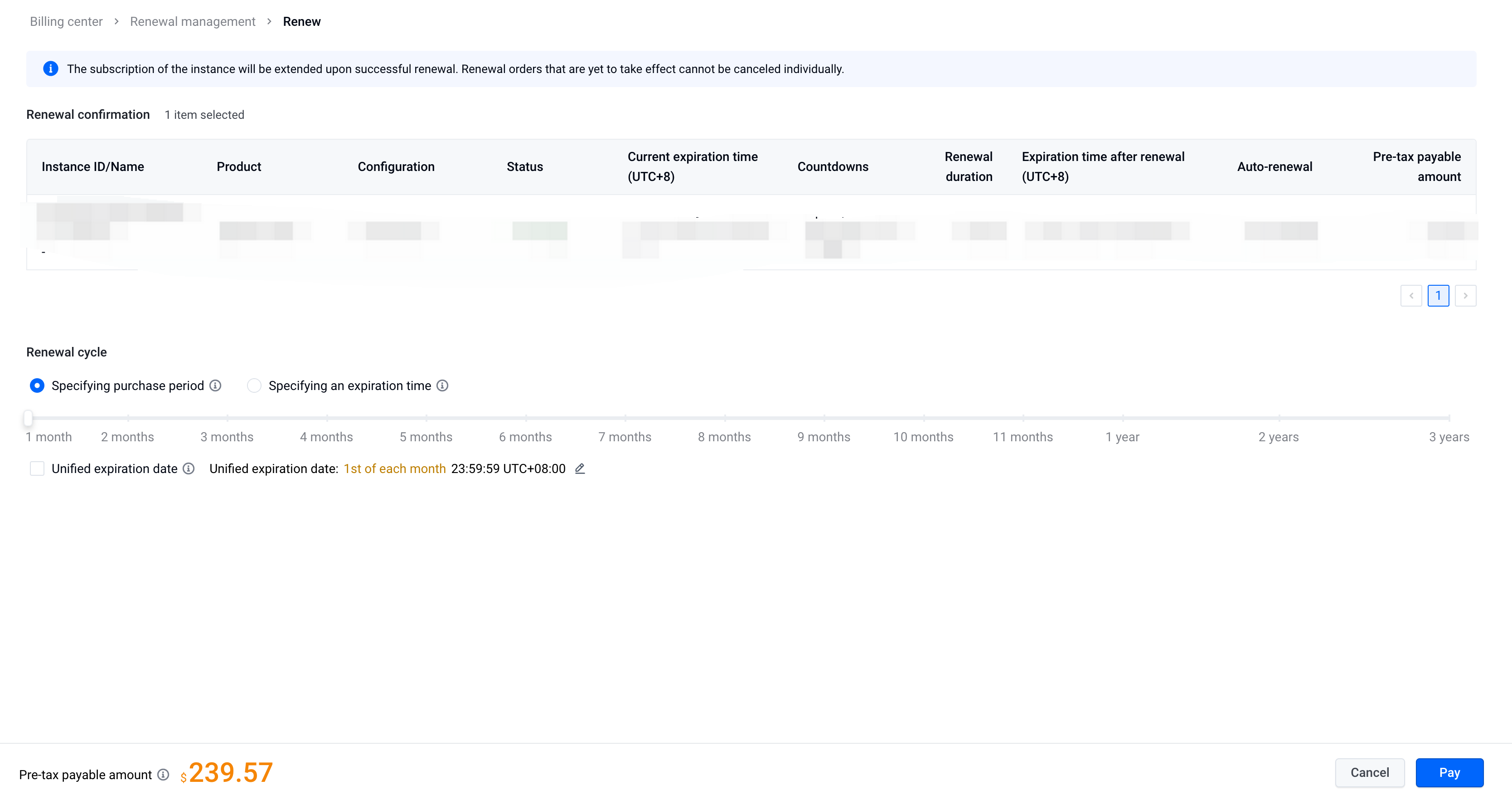
- On the renewal confirmation page that appears, set the renewal duration, click "Pay", and proceed with the payment to complete the renewal.
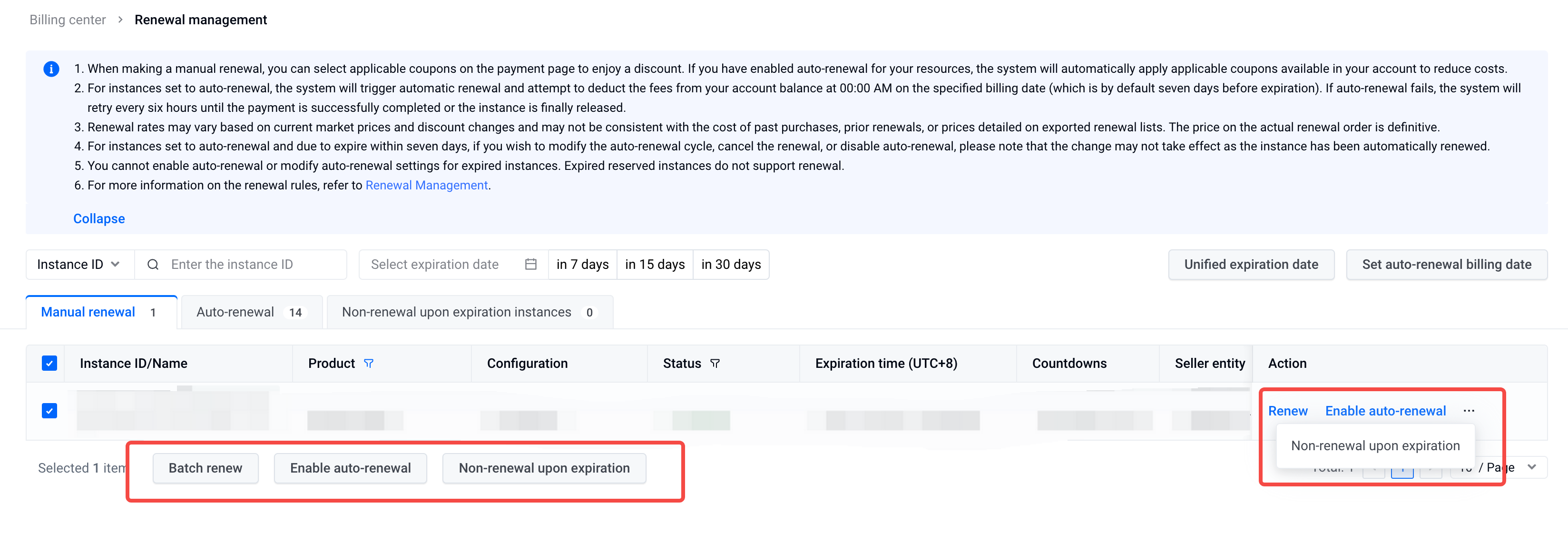
- Before the expiration date, you can also enable auto-renewal for one or more instances or set them to non-renewal upon expiration as needed. After successful operation, the instances will be automatically listed under the Auto-Renewal or Non-Renewal Upon Expiration tab.
Last updated: 2025.07.15 11:43:30
All rights reserved © Beijing Volcano Engine Technology Co., Ltd2024
