Billing Center
Billing Center


Document

- Documentation
 Billing CenterOrder Management
 Copy page
 Download PDF
Billing Center
Order Management
Copy pageDownload PDFOrder Management
Overview
1. Order Introduction
- Log in to each product console to select and order products. For detailed ordering procedures and instructions, please refer to the related product documentation.
2. Order Balance Restrictions
The platform currently enforces different balance restrictions for ordering based on the product type. The specific rules are as follows:
- If purchasing a prepaid product, the account must have no outstanding balance or the debt must be fully paid at checkout to place an order;
- If purchasing a postpaid product with a monthly billing cycle, the outstanding balance must be paid before placing an order;
- If purchasing a postpaid product with an hourly or daily billing cycle, the order balance threshold is either 0 yuan or 100 yuan.
- If the product is metered, the order balance threshold is 0 yuan, meaning orders can be placed only with no outstanding balance or after settling any debts (please refer to the specific product billing documentation for details);
- If the product is a periodic configuration, the minimum order balance is 100 yuan. This means no outstanding fees or outstanding fees must be fully paid, and the sum of the available balance and vouchers must meet the balance threshold before placing an order; (to prevent the balance from being exhausted shortly after order activation, causing fee suspension, a 100 yuan threshold is set).
3. Value Allocation Rules
When changing reserved instance coupons, the remaining value of the original coupon must be allocated proportionally to each target coupon based on their computing power share.
- The allocated reserved instance coupon value will be used for subsequent changes or cancellations;
- The specific allocation rules are as follows:
- Step 1: Calculate the remaining value of the original coupon:
- Calculate the remaining value of each original coupon separately, then sum up to get the total remaining value of all original coupons;
- The calculation of the original coupon's remaining value refers to the cloud server amount calculation formula in Cancellation Management.
- Step 2: Allocate value to target coupons:
- The value of each target coupon = (target coupon's computing power / total computing power of all original coupons) * total remaining value of all original coupons;
- The computing power of each reserved instance coupon = computing power factor * number of instances. The computing power factor is determined by the coupon's configuration specifications.
Cost Center - Order Management Overview
- Log in to the Volcengine console and go to Cost Center - Order Management to view all created order information. You can also pay for or cancel orders that have been created but are awaiting payment.
-
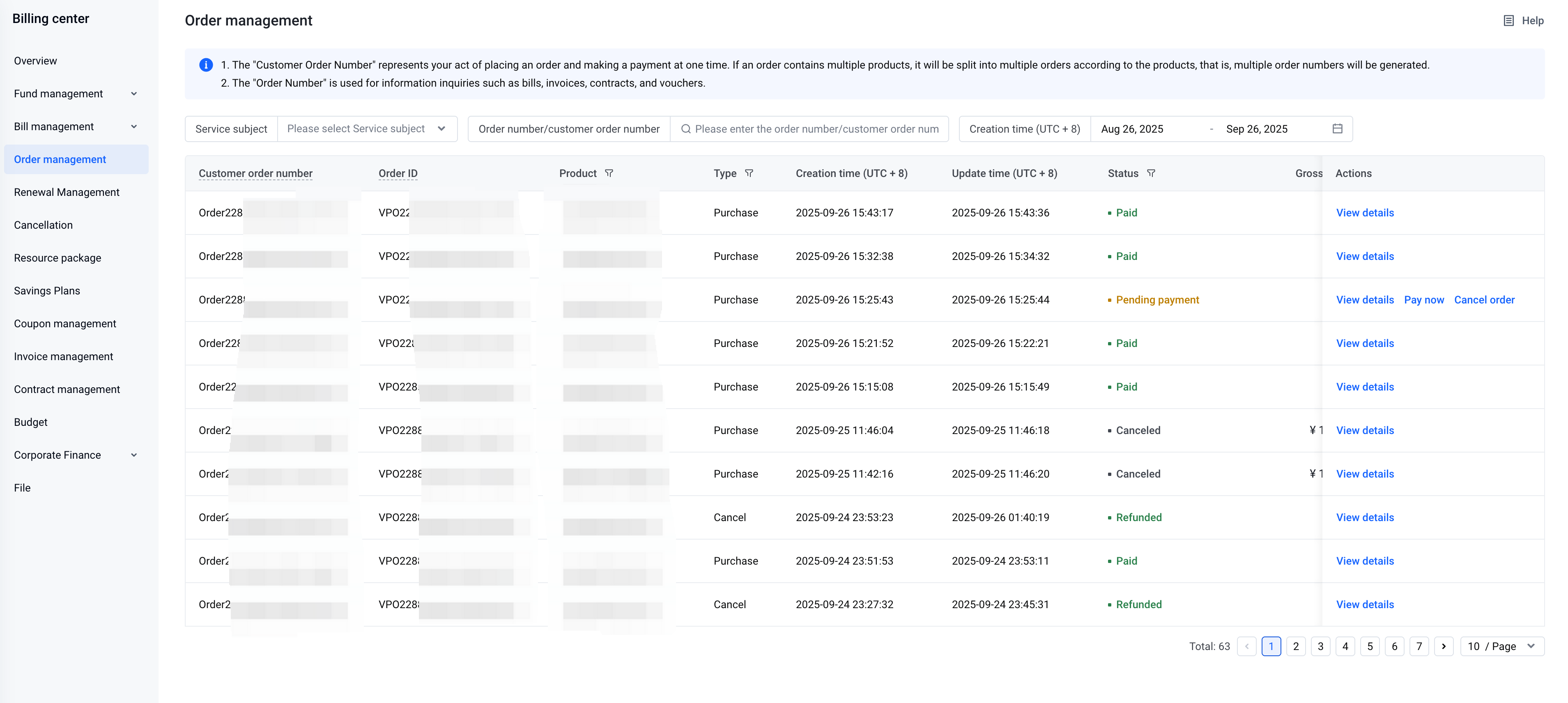
1. Query and Filter Conditions
You can query orders based on the following query and filter conditions.
- Order Number: Enter the order number to view a specific order.
- Creation Time: Select the start and end dates to view orders created within this period. The default query displays orders from the past month.
- Product: Select a product to filter orders for that product.
- Order Type: Select an order type to filter orders by different types.
- Order status: select order status to filter orders by different order states.
2. Table field description
The order list displays order number, product, type, creation time, update time, status, original price, payable amount, and other information.
- Order number: the unique identifier of the order.
- Product: shows the product name corresponding to the order.
- Type: indicates the order type, including “new purchase, trial, conversion, renewal, upgrade, cancellation, reserved instance adjustment, temporary upgrade.”
- Creation time: represents the time when the order was created.
- Update time: represents the time when the status was updated.
- Status: represents the current status of the order, including “pending payment, paid, cancelled, refunded, partially refunded, refunding, refund failed.”
- Original price: represents the original price amount of the order.
- accounts payable: the amount requiring cash payment in the order.
- actions: for orders with status "pending payment," you can perform "pay" or "cancel" actions; for other order statuses, only clicking the order number to "view details" is available.
3. order details
click the order number to open the order details page, which displays in two formats.
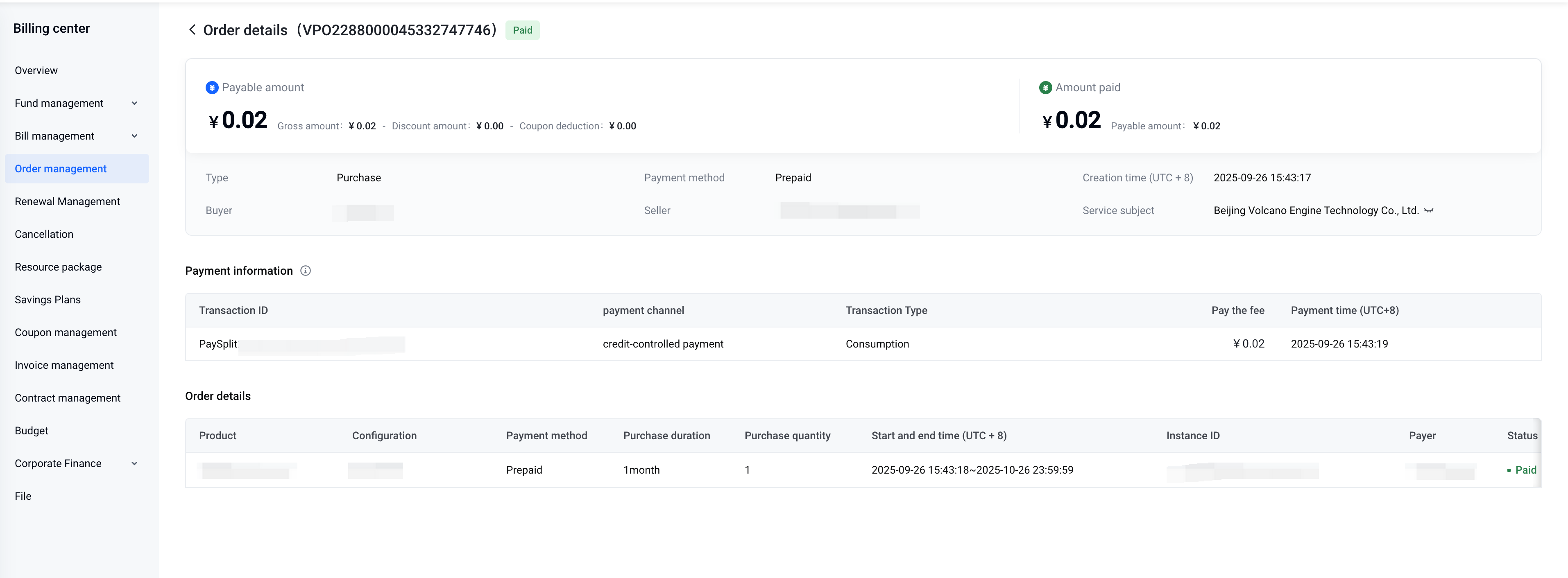
3.1. order details page for new purchase, renewal, trial, and conversion types:
3.2. order details page for upgrade, cancellation, reserved instance adjustment, and temporary upgrade types:
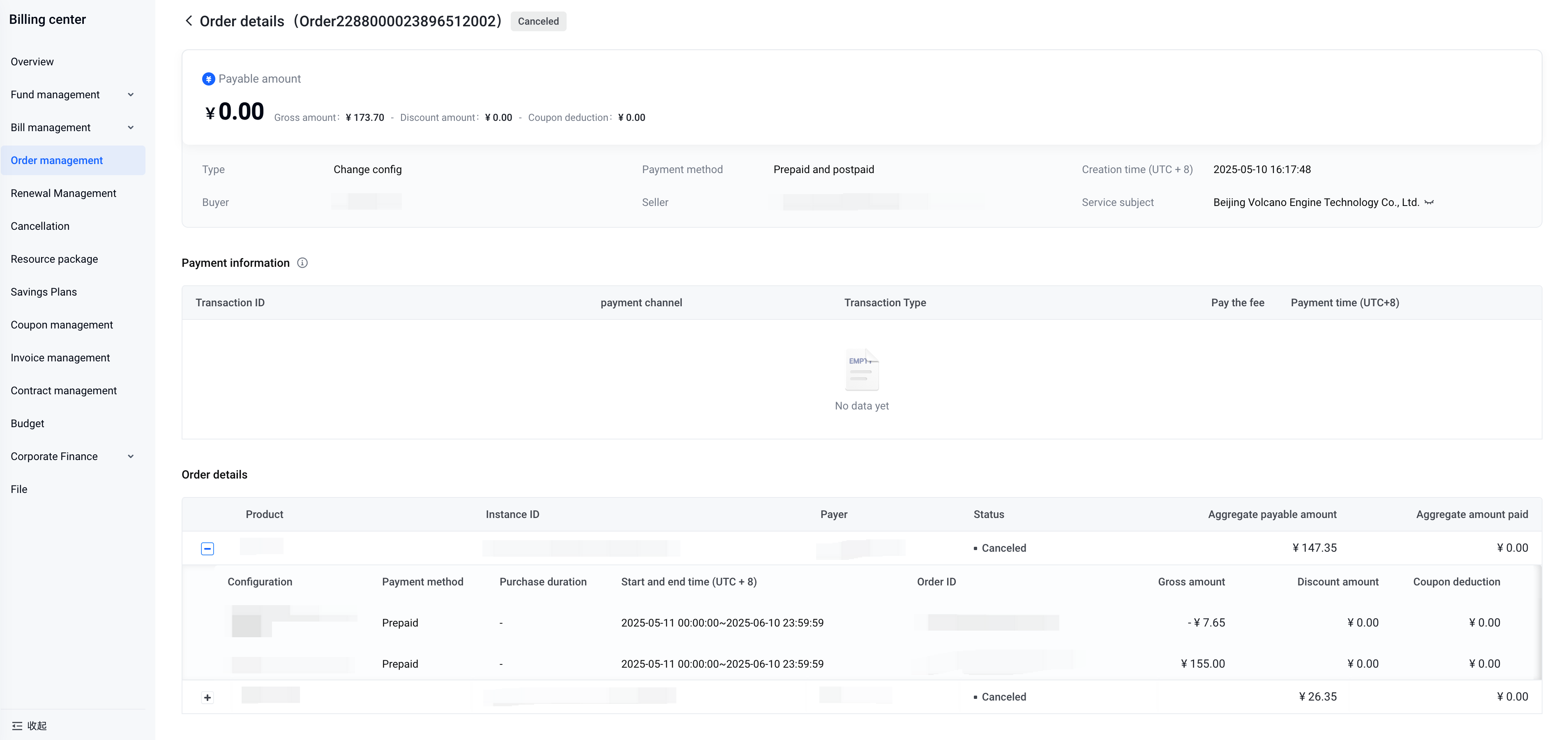
order overview field descriptions:
- order number: the unique identifier of the order.
- type: displays the order type.
- creation time: shows the time when the order was created.
- Payment method: shows whether the order payment method is prepaid or postpaid.
- Status: represents the current status of the order.
- Total original price: shows the sum of the original prices of all sub-orders in the order details.
- Discount amount: shows the sum of discounts for all sub-orders in the order details.
- Voucher deduction: shows the sum of voucher deductions for all sub-orders in the order details.
- Amount payable: shows the total payable amount for all sub-orders in the order details.
- Amount paid: shows the total amount actually paid for all sub-orders in the order details.
Order details field description:
Order details display the transaction information related to each order operation. Each order has corresponding order details. For resizes, reserved instance adjustments, or consecutive temporary upgrade orders, the order details must show both the old configuration before the change and the new configuration after the change. Therefore, multiple order detail records may appear.
After completing the order placement, the resource service delivery process for this transaction must be recorded separately. This resource service is referred to as an "instance".
- Product: Displays the product name corresponding to each sub-order in the order details.
- Configuration Details: Displays the specific configuration parameters of the product corresponding to each sub-order in the order details.
- Payment Method: Displays the payment method corresponding to each sub-order in the order details.
- Purchase Duration: Displays the purchase duration corresponding to each sub-order in the order details. Prepaid orders will show the purchase duration for this order, while postpaid orders will not have this information.
- Start and End Time: Displays the start and end time of the purchase duration corresponding to each sub-order in the order details. Prepaid orders will show the start and end time for this order, while postpaid orders will not have this information.
- Instance ID: Displays the unique identifier of the instance created after delivering the product configuration corresponding to each sub-order in the order details.
- Status: Displays the current status of each sub-order in the order details. There are six statuses: "Pending Payment," "Paid," "Canceled," "Refunded," "Refund In Progress," and "Refund Failed."
- Original Amount: Represents the original amount of the sub-order.
- Discount Amount: Represents the discount amount resulting from the contract price or promotional activities for the sub-order.
- Voucher deduction: represents the amount of voucher deduction allocated to sub-orders when using vouchers for payment.
- Amount payable: represents the cash amount that the sub-order requires, amount payable = original price - discount amount - voucher deduction.
- Amount paid: represents the actual cash amount paid for the sub-order; after payment is completed, amount paid = amount payable.
Last updated: 2025.09.26 15:55:16
All rights reserved © Beijing Volcano Engine Technology Co., Ltd2024
