Billing Center
Billing Center


Document

- Documentation
 Billing Centerinvoice managementInvoice Refund/Cancellation Operation Guidelines
 Copy page
 Download PDF
invoice management
Invoice Refund/Cancellation Operation Guidelines
Copy pageDownload PDFInvoice Refund/Cancellation Operation Guidelines
1. Refund operation guidelines
1.1 Digital electricity invoice refund process
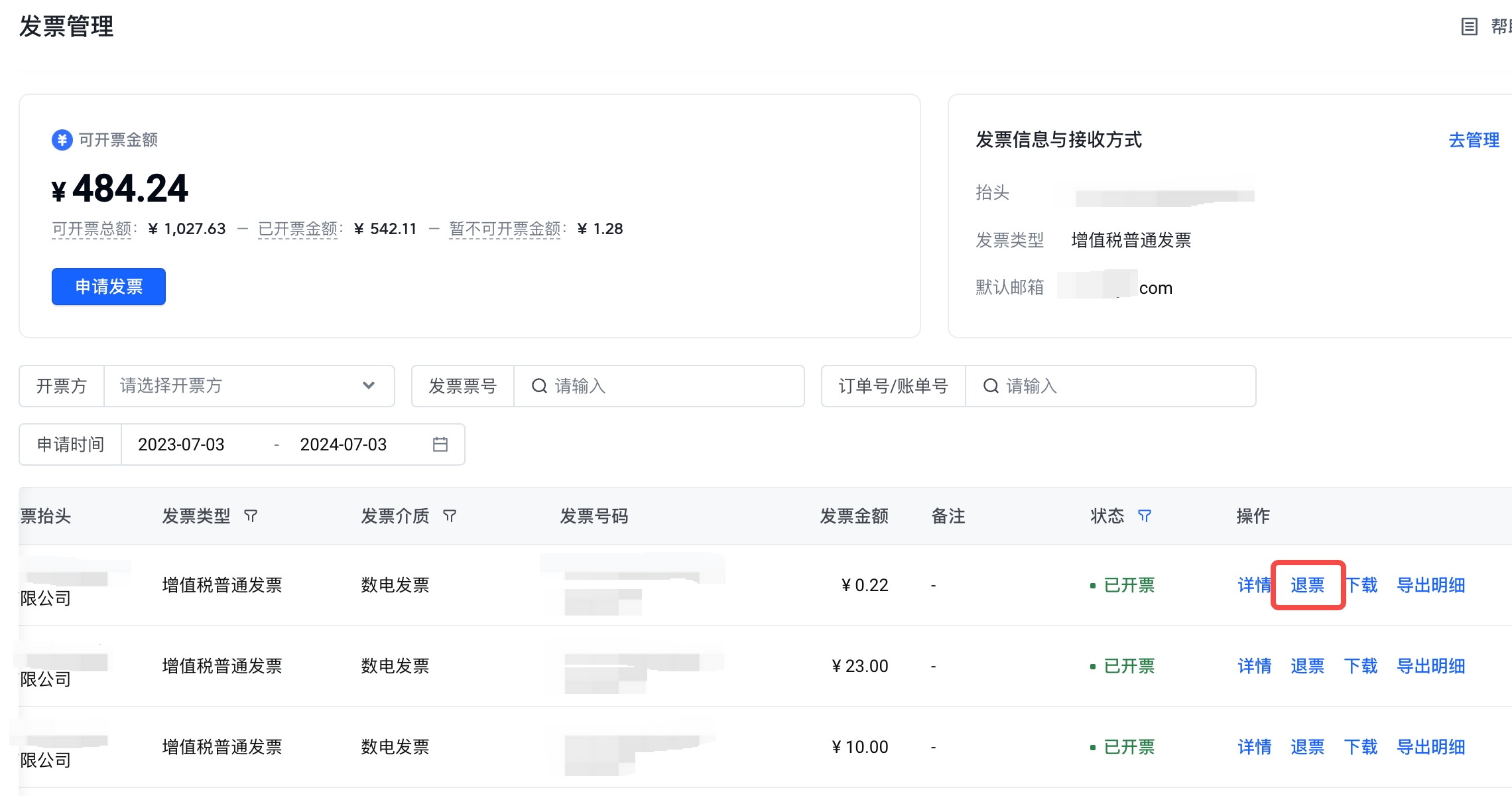
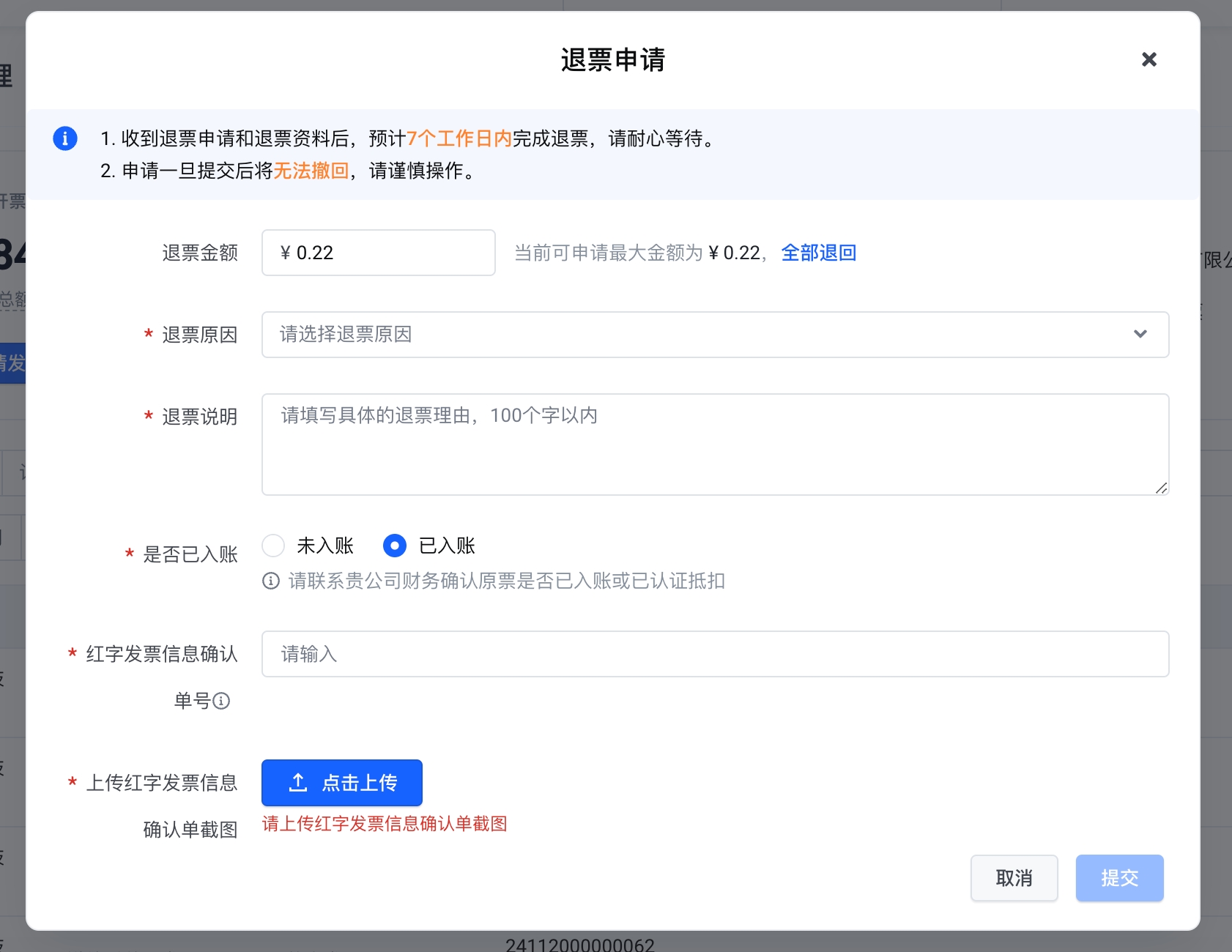
Log in to the Volcano Engine console , on the Expense - Invoice Management page, find the invoicing record you need to refund, select the Refund button in the invoicing record operation column, and click the Refund button.
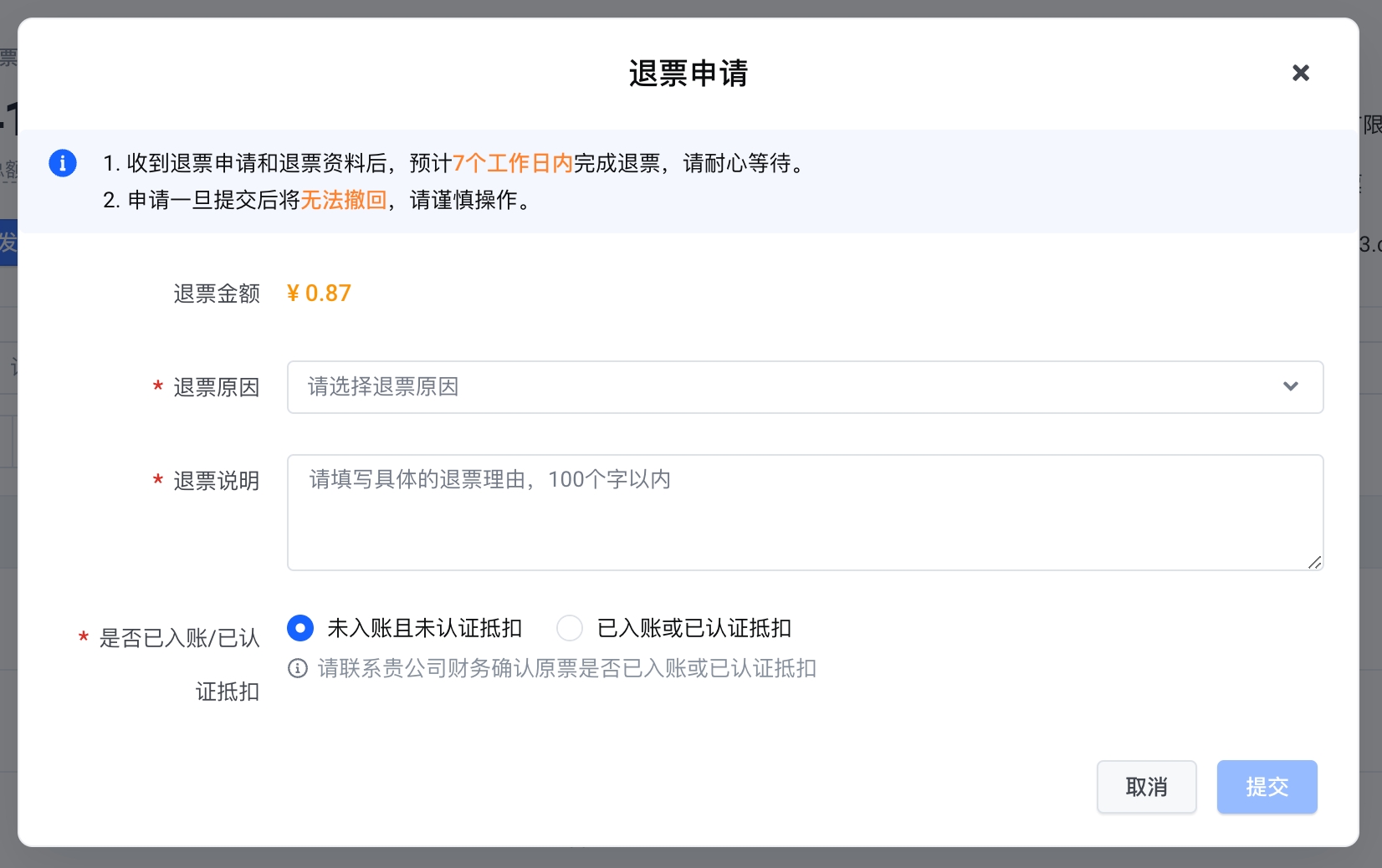
- For VAT special invoice refund, it is necessary to distinguish whether the invoice is credited or deducted
- (1) If it is not credited and not deducted, the user only needs to select the reason for the refund , fill in the refund instructions , and click Submit to complete the refund application.
-
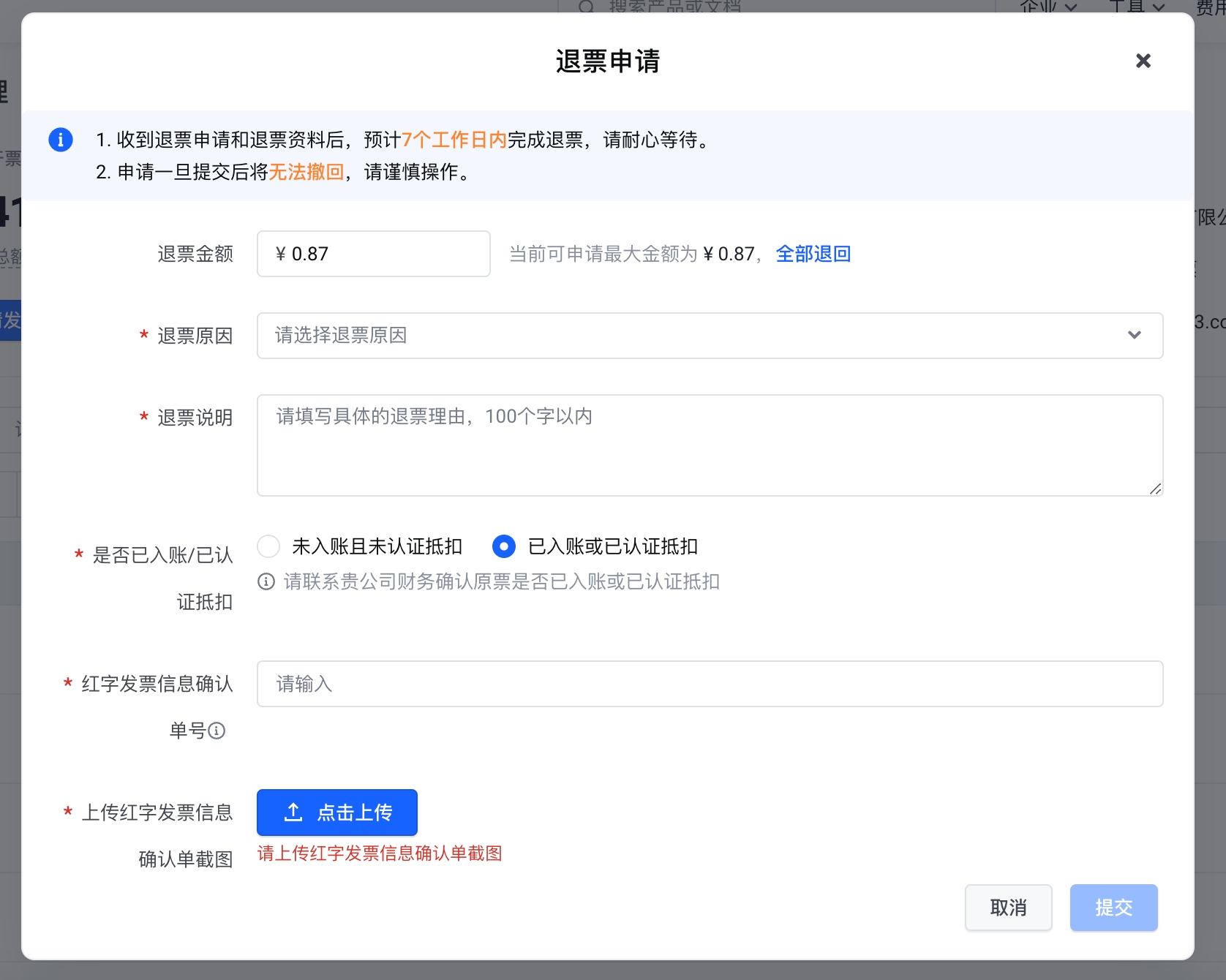
- (2) If it has been credited or deducted, the user needs to enter the scarlet letter information confirmation order number, and upload the screenshot of the scarlet letter information confirmation order (the screenshot of the scarlet letter information confirmation order provided cannot exceed 72 hours); then select the reason for refund , fill in the refund instructions , click Submit , and complete the refund application.
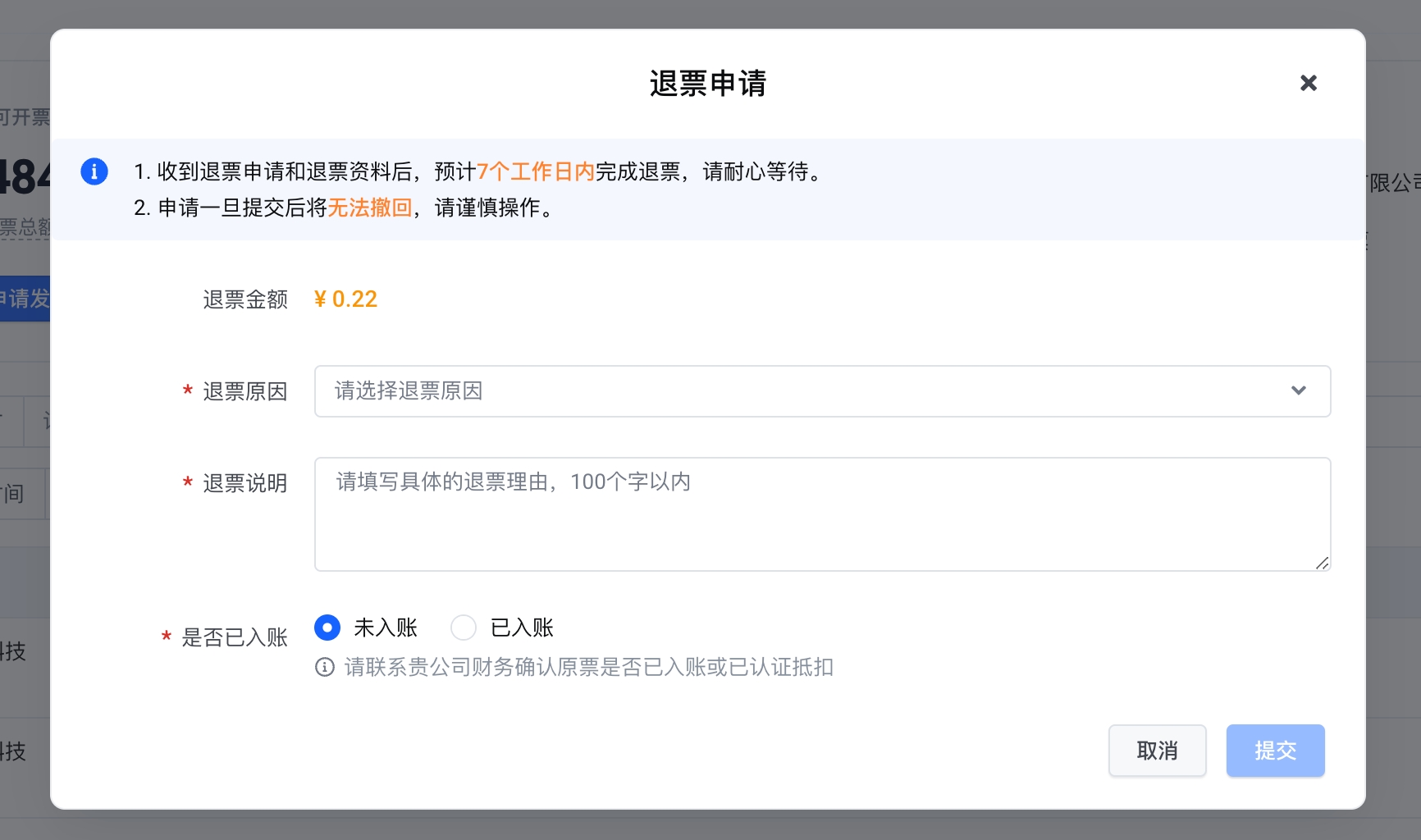
- For VAT ordinary invoice refund, it is necessary to distinguish whether the invoice has been credited
- (1) If it is not credited, the user only needs to select the reason for the refund , fill in the refund instructions , and click Submit to complete the refund application.
-
- (2) If it has been credited: the user needs to enter the scarlet letter information confirmation order number, and upload the screenshot of the scarlet letter information confirmation order (the screenshot of the scarlet letter information confirmation order provided cannot exceed 72 hours); then select the reason for refund , fill in the refund instructions , click Submit to complete the refund application.
1.2 Paper invoice refund process
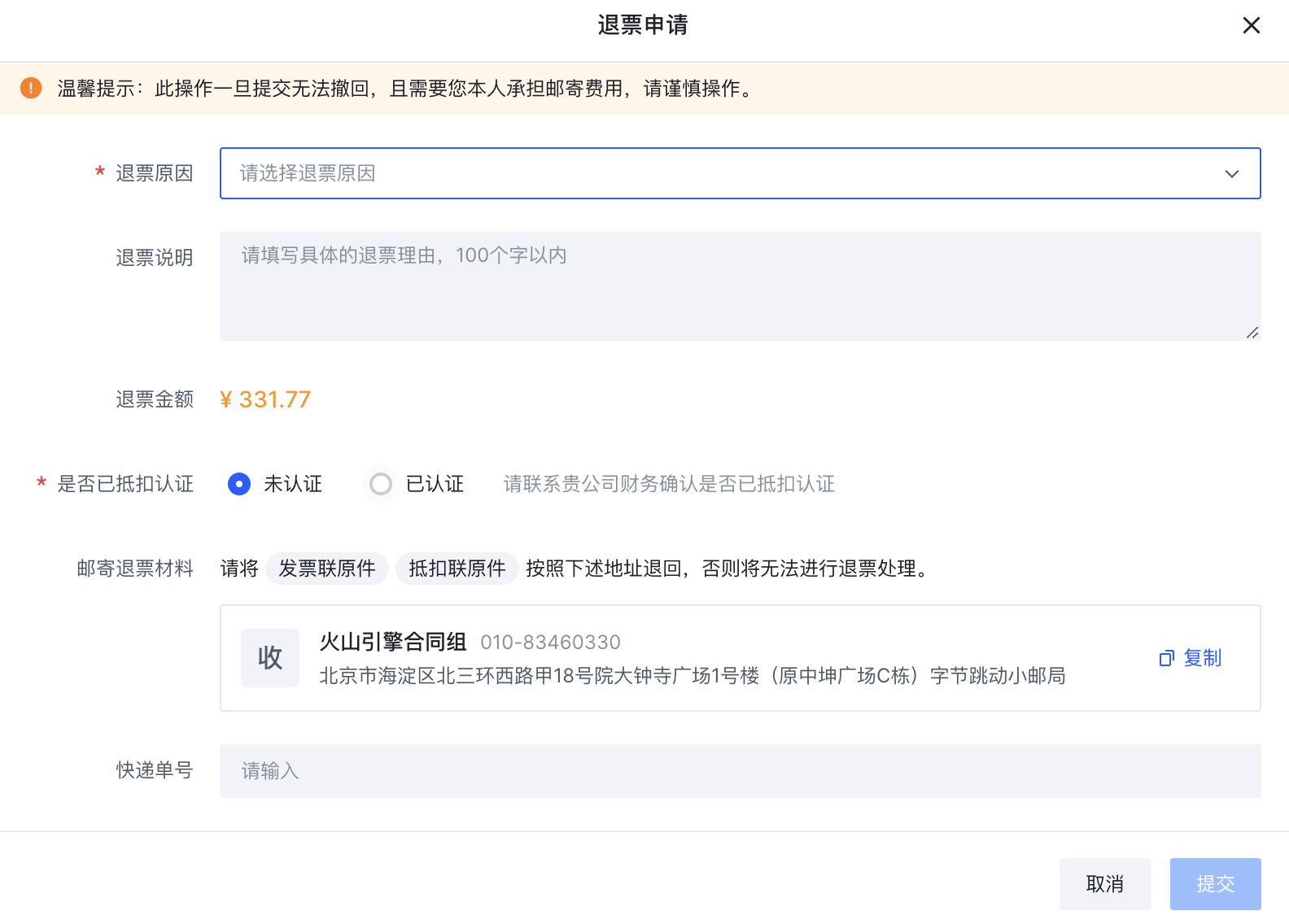
1) When the original invoice is a paper invoice, the user needs to mail the refund materials first. The types of invoices are different, and the materials required to return and exchange invoices are different.
- VAT ordinary invoice: the original invoice needs to be mailed to Volcano Engine;
- VAT special invoice: distinguish whether the invoice is certified;
- (1) Not certified: the original invoice needs to be mailed to Volcano Engine;
- (2) Certified: need to mail the red letter VAT special invoice information table original to Volcano Engine;
tip
The shipping information is as follows:
- Delivery address: ByteDance Small Post Office, Building 1, Dazhongsi Plaza, Yard 18, North Third Ring West Road, Haidian District, Beijing (formerly Building C, Zhongkun Plaza);
- Recipient: Volcano Engine Contract Group;
- Recipient phone number: 010-83460330 (this number is only used to send refund materials. If you have any relevant questions, you can contact customer service)
Attention
You must pay the postage for invoice return mailing, and payment on delivery is not supported.
2) After the materials required for the refund are mailed, you need to submit a refund application in the Volcano console, that is, log in to the Volcano Engine console , on the Fee-Invoice Management page, find the invoicing record you need to refund, and click the Refund/Bulk Refund button in the operation bar. In the newly popped up operation page, select the reason for the refund, fill in the invoice mailing number, refund instructions and other information, and select whether the special VAT invoice has been deducted and certified. After filling it out, click Submit to complete the refund application.
tip
- After Volcano Engine receives the refund materials returned by the customer and the online refund application, it will void or red the invoice for the customer. After the invoice is voided or the red operation is completed, you can reapply for the invoice.
- After switching the number of electricity, all the red tickets issued for the refund application are digital electricity invoices . Users can log in to the Volcano Engine Console - Fee - Invoice Management page after receiving the notification message of successful refund . Download the corresponding invoice record. The download file will include the newly issued red letter digital electricity invoice.
1.3 Electronic invoice refund process
1) Log in to the Volcano Engine console , on the Expense - Invoice Management page, find the invoicing record you need to refund, and click the Refund button in the operation bar.
2) In the new pop-up page, select the reason for the refund, fill in the refund instructions, and then click Submit to complete the refund application.
tip
After switching the number of electricity, all the red tickets issued for the refund application are digital electricity invoices . Users can log in to the Volcano Engine Console - Fee - Invoice Management page after receiving the notification message of successful refund . Download the corresponding invoice record. The download file will include the newly issued red letter digital electricity invoice.
2. Cancel the operation instructions
2.1 Cancellation of invoicing application
If you have submitted an invoicing application, but it needs to be cancelled or reissued for special reasons. You can cancel this invoicing application before the invoice is actually issued.
tip
If the invoicing party is a service provider, the invoicing application does not support cancellation for the time being.
The cancellation operation process is as follows:
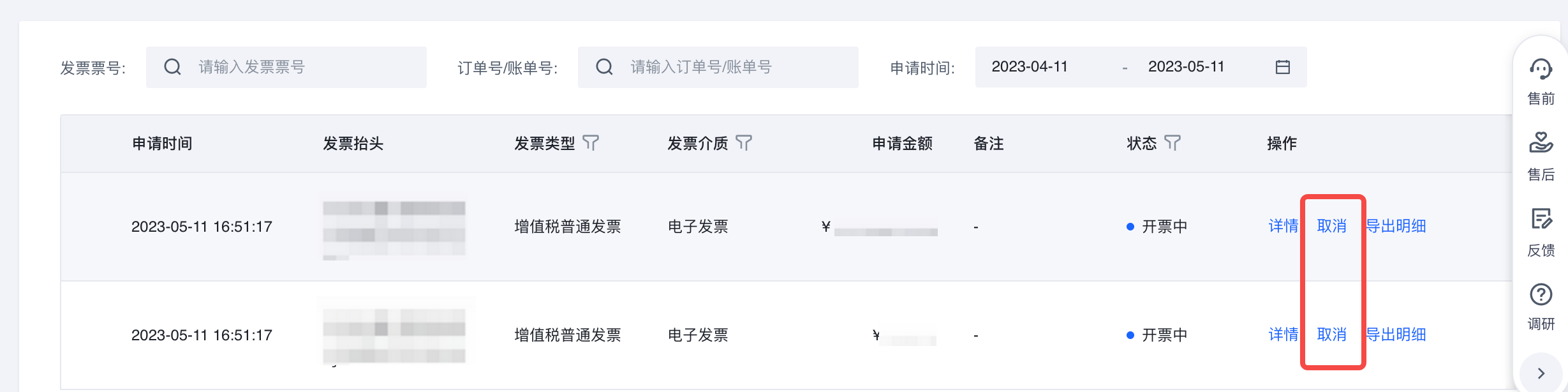
1) Log in to the Volcano Engine console and find the invoicing application you need to cancel on the Fee - Invoice Management page;
2) Select the invoicing application you need to cancel and click the Cancel button.
warning
At present, only the following two states of invoicing application can be "cancelled".
- The invoice status shows pending review . Click the Cancel button under the operation bar and confirm again in the newly popped operation box to cancel the invoice application.
- The invoice status is displayed in the invoicing , click the Cancel button under the operation bar, and confirm again in the newly popped operation box. If the prompt operation is successful, it means that you have cancelled the application. If the prompt cannot be cancelled, the invoice has been issued. Only refund operations can be performed.
2.2 Cancel the refund application
If you have submitted a refund application, you can cancel the refund application before the application is approved. The operation process is as follows:
1) Log in to the Volcano Engine console and find the refund application you need to cancel on the Fee-Invoice Management page;
2) If the invoice status shows that the invoice status shows the refund , click the Cancel button under the operation bar and confirm again in the newly popped operation box, you can cancel the refund application.
The remaining refund status does not support cancellation of the application for the time being.
3. Refund FAQ
warning
1. The following screenshot is a screenshot of the Electronic Taxation Bureau in Beijing in August. As the tax office system is upgraded, the page may also be updated. The system screenshots involved in this document are for operation guidance only, and the actual situation shall prevail.
2. There may be minor differences in the electronic tax bureaus of different regions, and the local tax bureau shall prevail.
3. Whether the electronic tax bureau checks the account means whether the blue invoice is checked in the electronic tax bureau or the comprehensive service platform, not whether the invoice has been reimbursed or the finance has been accounted for. If you are not sure whether it has been accounted for, please confirm with your company's finance.
3.1 How to check whether the invoice is certified and deducted and whether it is credited?
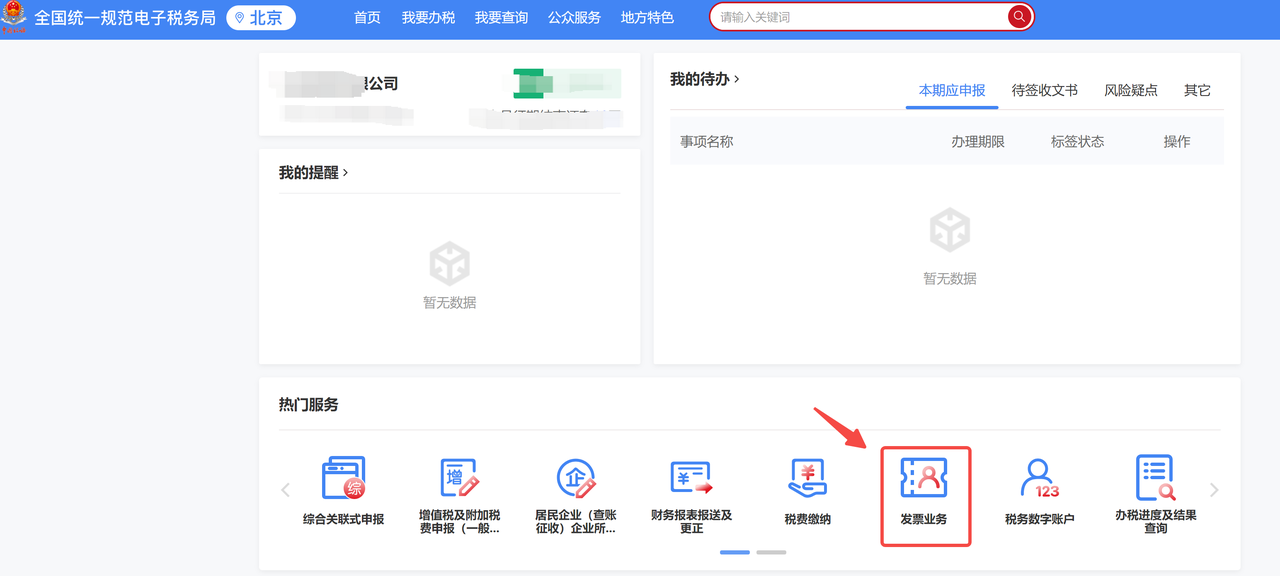
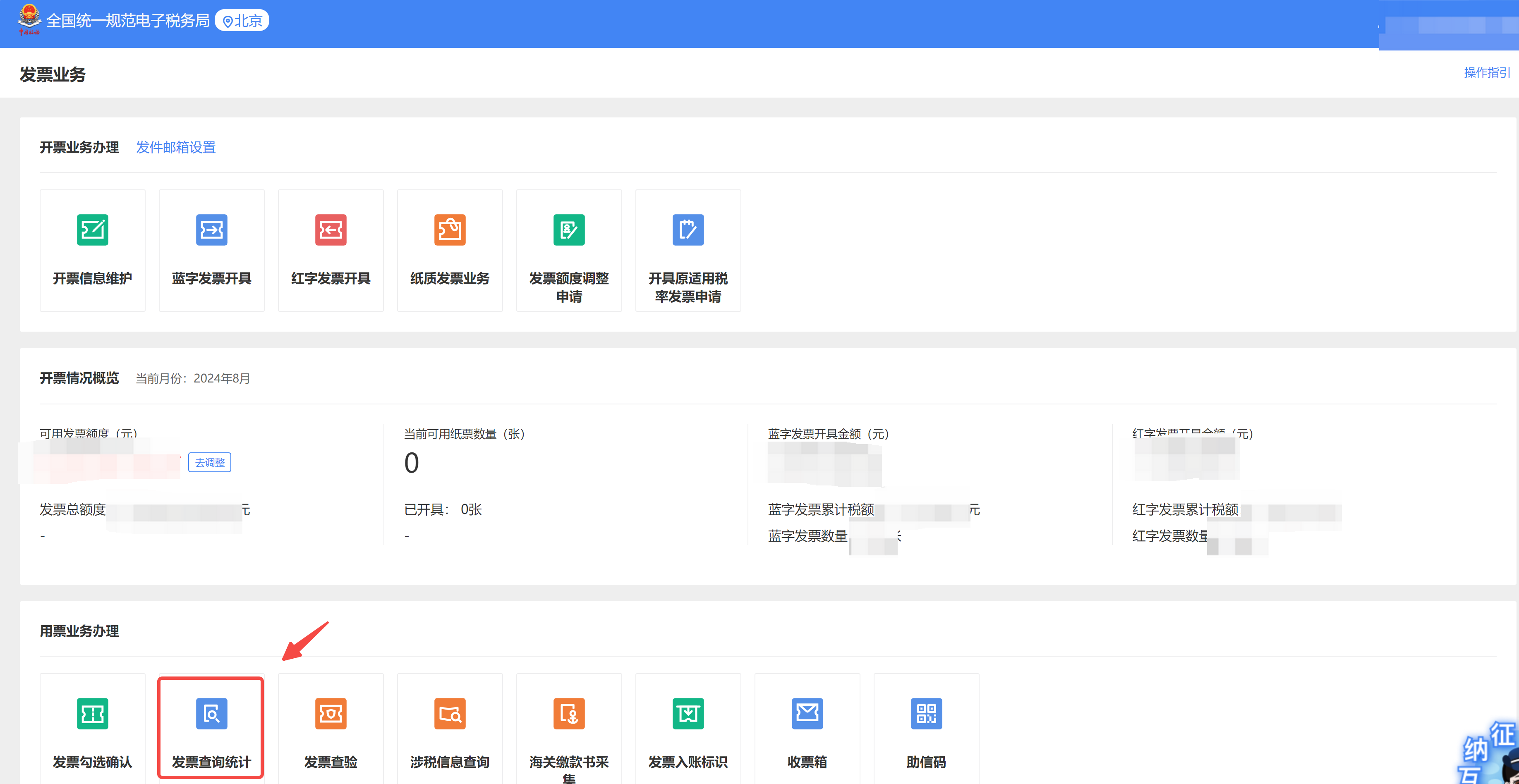
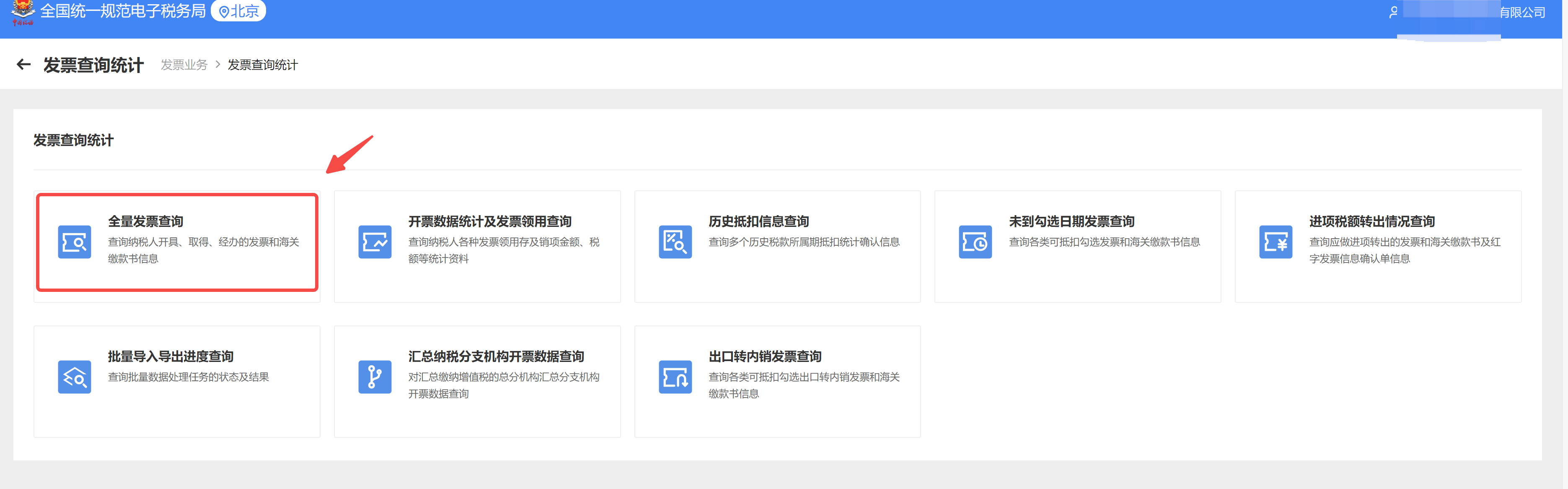
Step 1: Open the electronic tax bureau on the PC for login - enterprise business
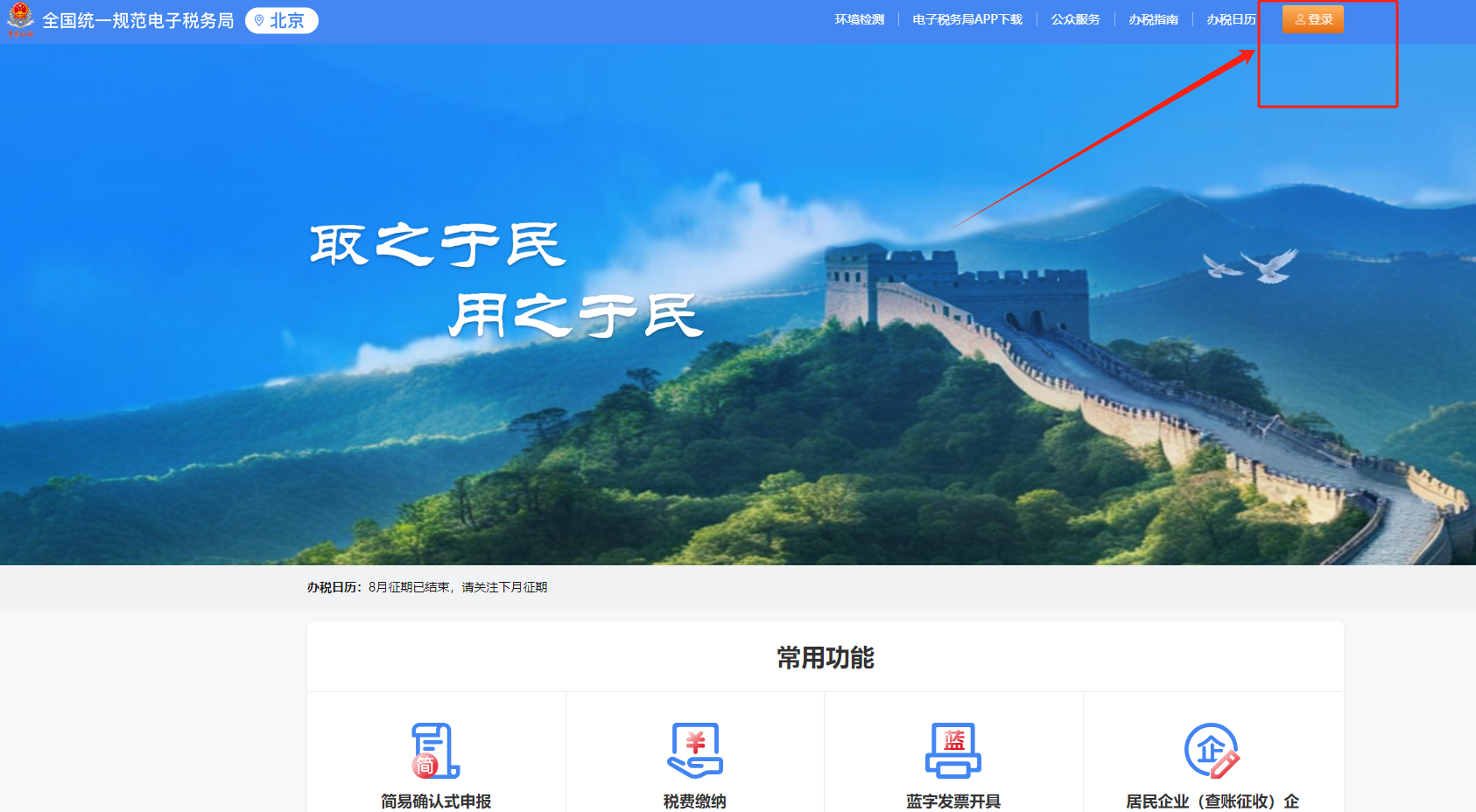
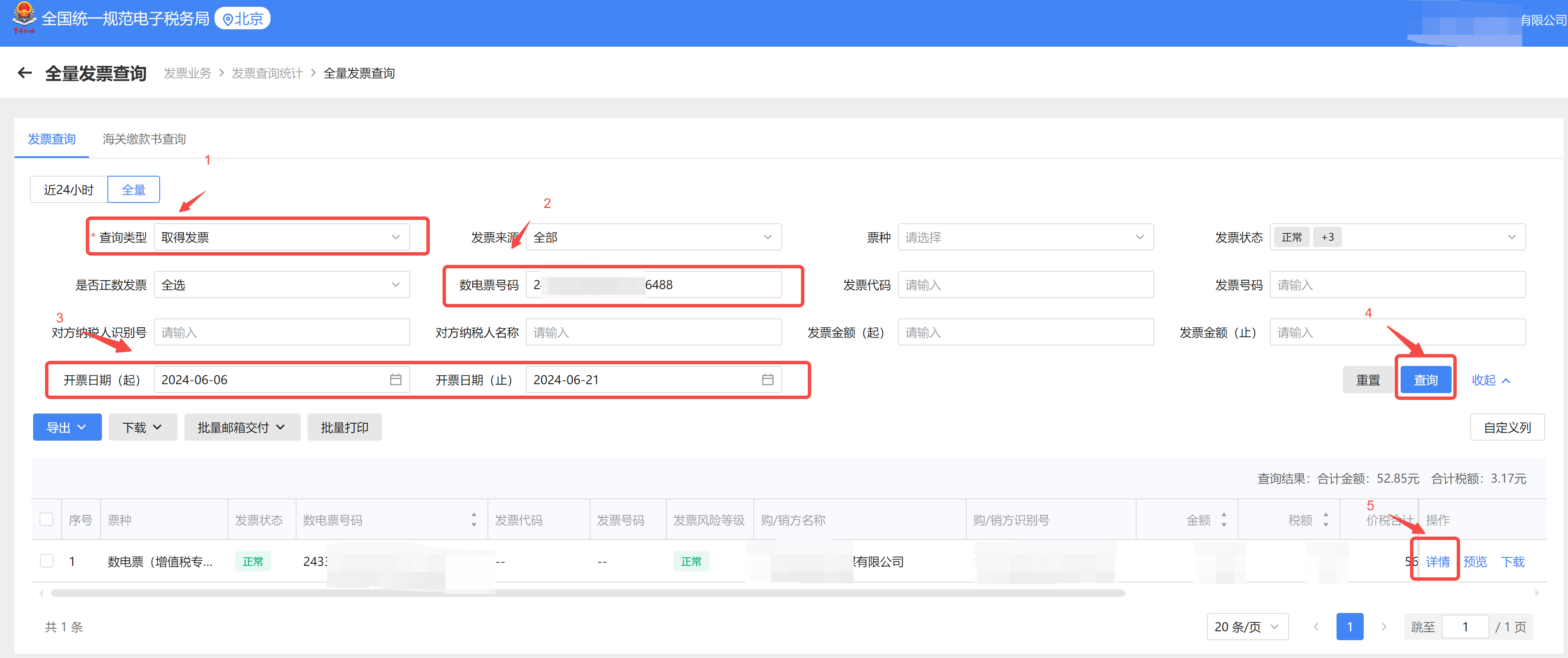
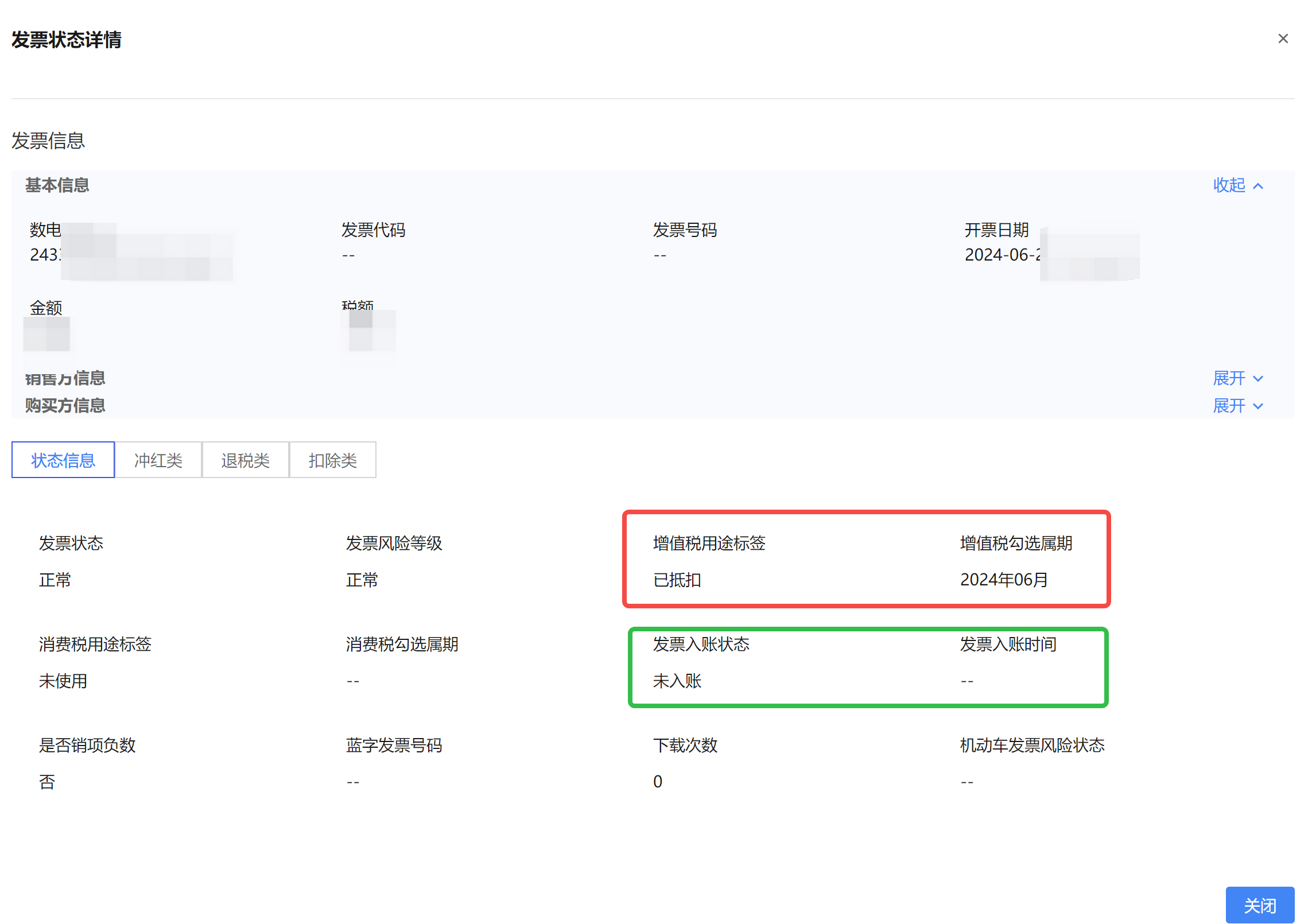
Step 2: After logging in, click [Invoice Business] -- [Invoice Inquiry Statistics] -- [Full Invoice Inquiry] -- Select [Get Invoice] to enter the relevant blue invoice information, click [Inquiry], and click [Details] after inquiring about the invoice.
warning
If the VAT use label is [Deducted] and there is a VAT check period, that is, the blue invoice has been deducted.
The VAT use label is [unused], that is, the blue invoice is not deducted.
The invoice entry status is [not credited], that is, the blue invoice is not credited.
The invoice entry status is [credited], that is, the blue invoice has been credited.
3.2 How to issue a scarlet letter information confirmation form?
3.2.1 red letter information confirmation form issuance steps
Step 1: Open the electronic tax bureau on the PC side to log in - enterprise business (no permission can be added by a legal person or a financial person in charge)
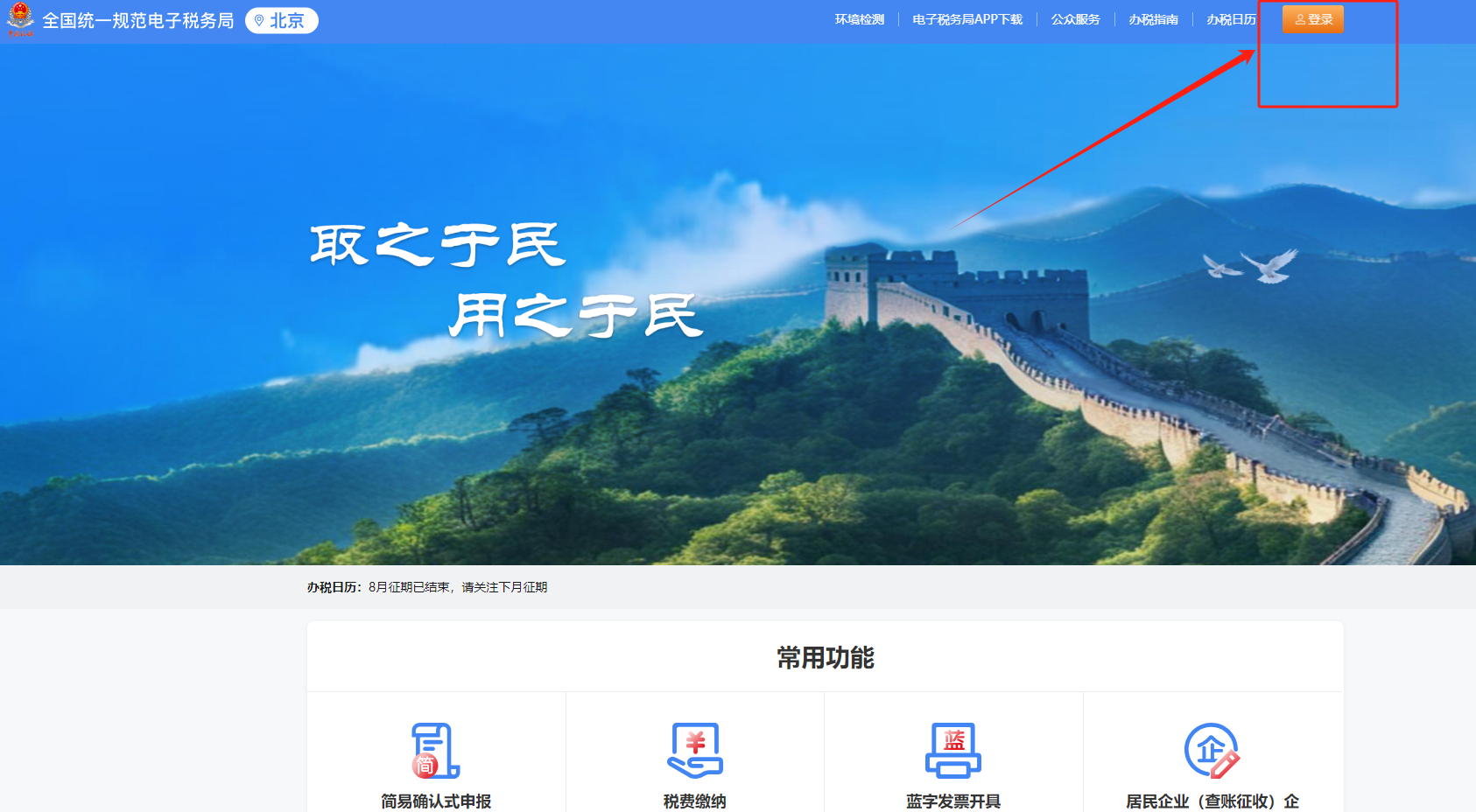
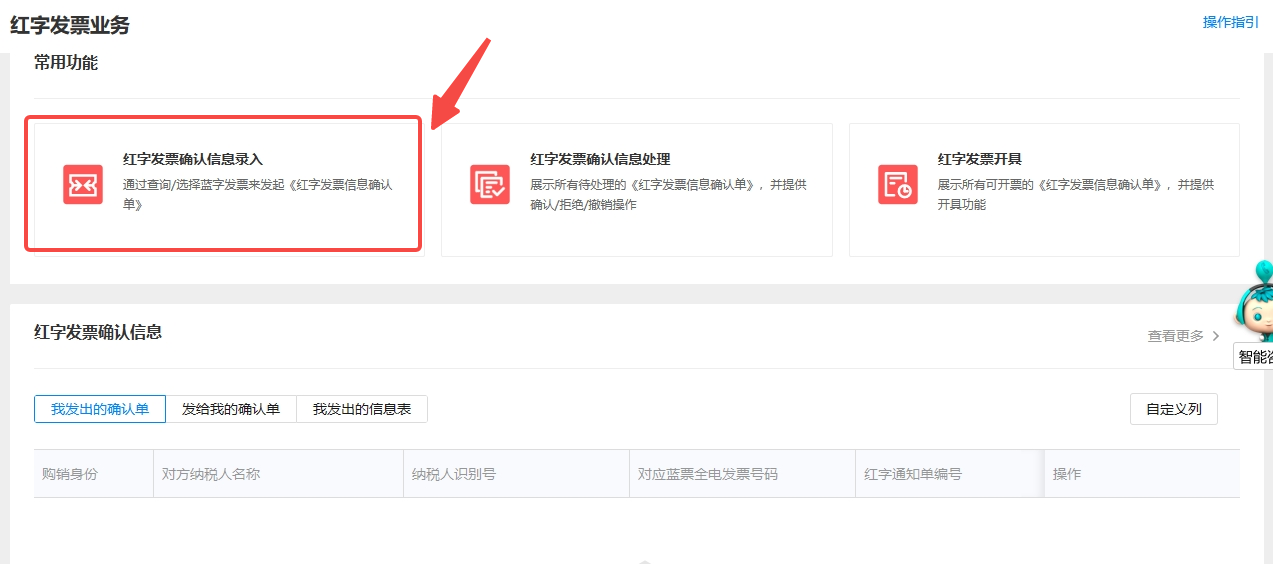
Step 2: Click [Invoice Business] -- [Scarlet Letter Invoice Issuance] -- [Scarlet Letter Invoice Confirmation Information Entry] in turn
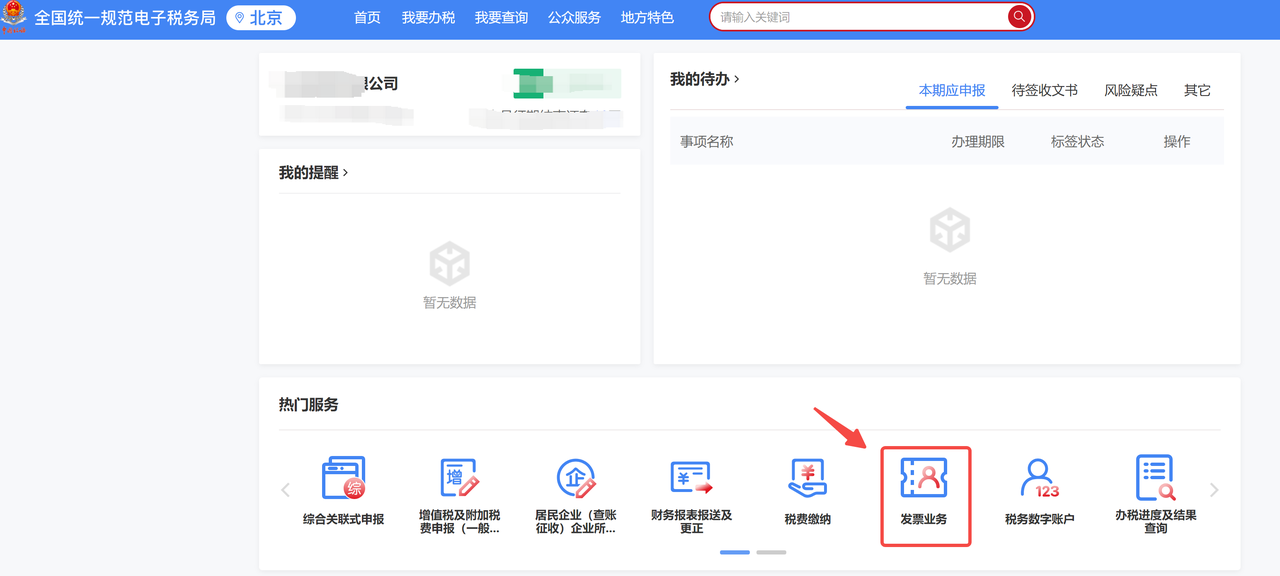
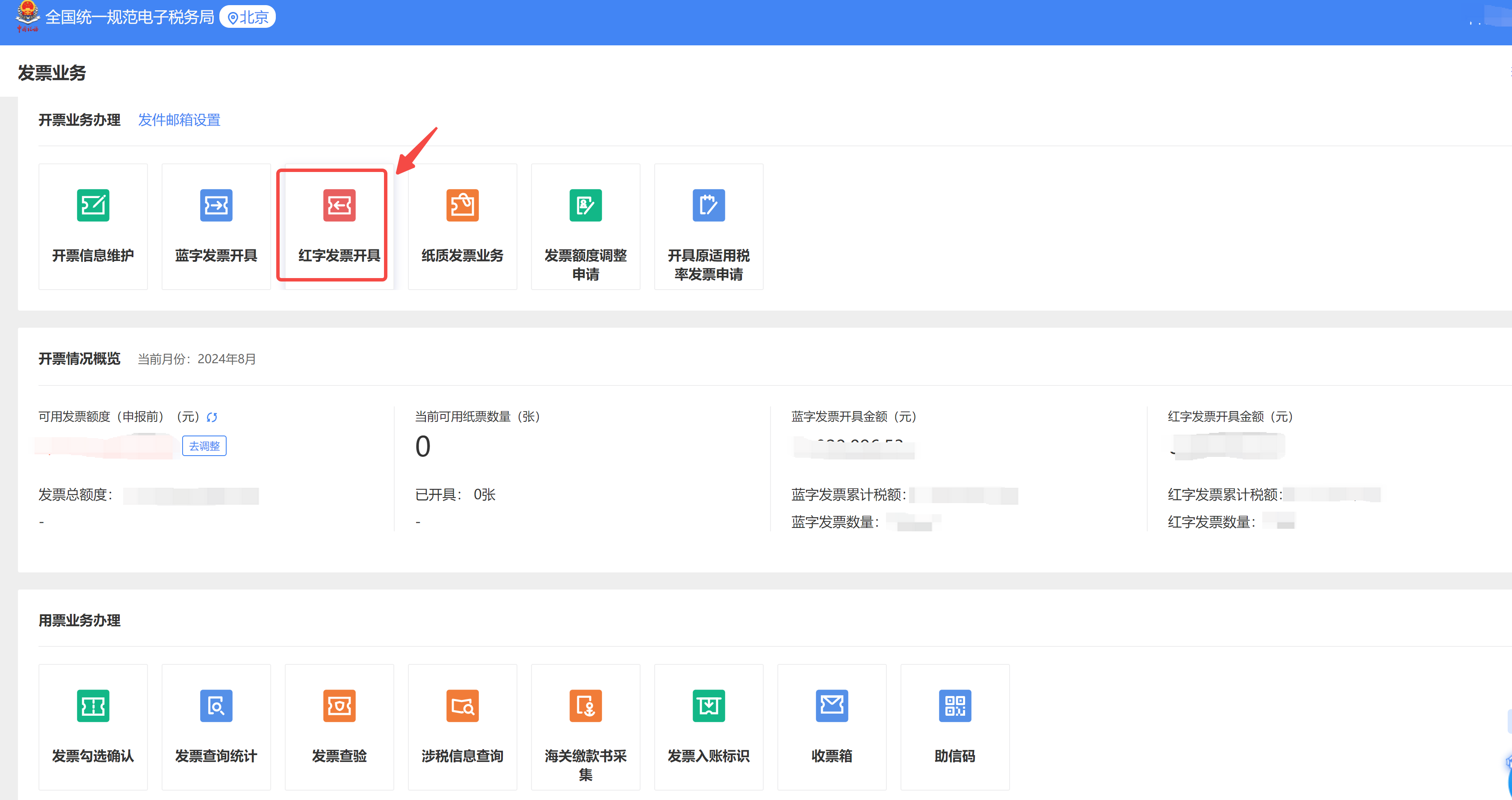
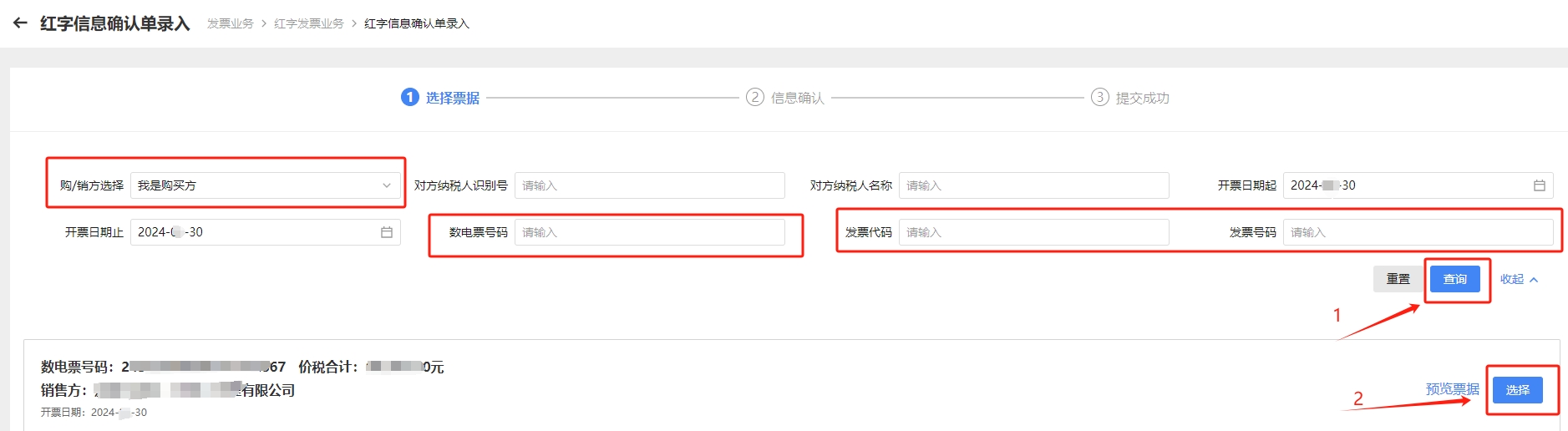
Step 3: Enter the query conditions (please refer to the picture below), such as: the start and end time of the blue ticket, the invoice number with blue characters, click the [Query] button, find and tick the corresponding blue ticket, and click [Select]
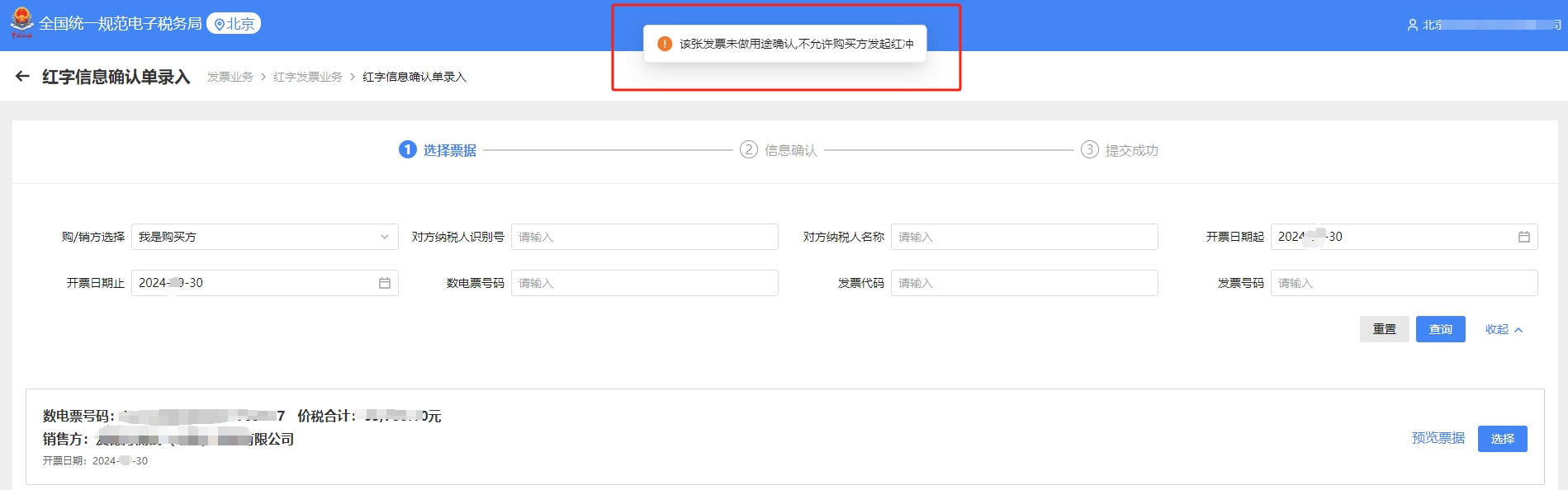
warning
If there is a prompt in the picture below, it proves that the buyer has not made an account or deducted it, and you can inform the seller (note: at this time, only the full amount of the entire invoice can be red), and the buyer does not need to cooperate.
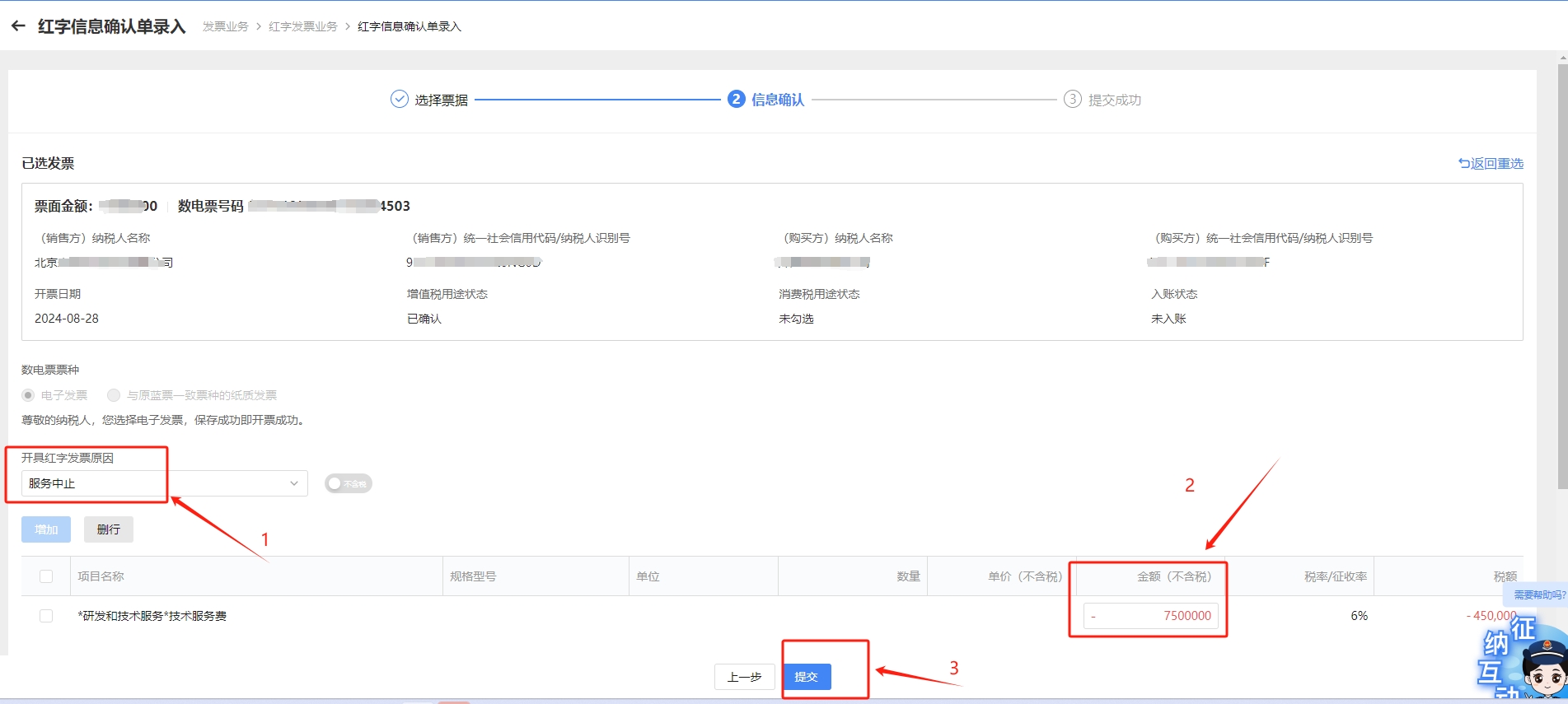
Step 4: Truthfully select the corresponding [Reason for issuing a scarlet letter invoice] (for example: service suspension), modify the [amount of red chong] according to the actual situation, click [Submit], and click [OK] after the information is correct.
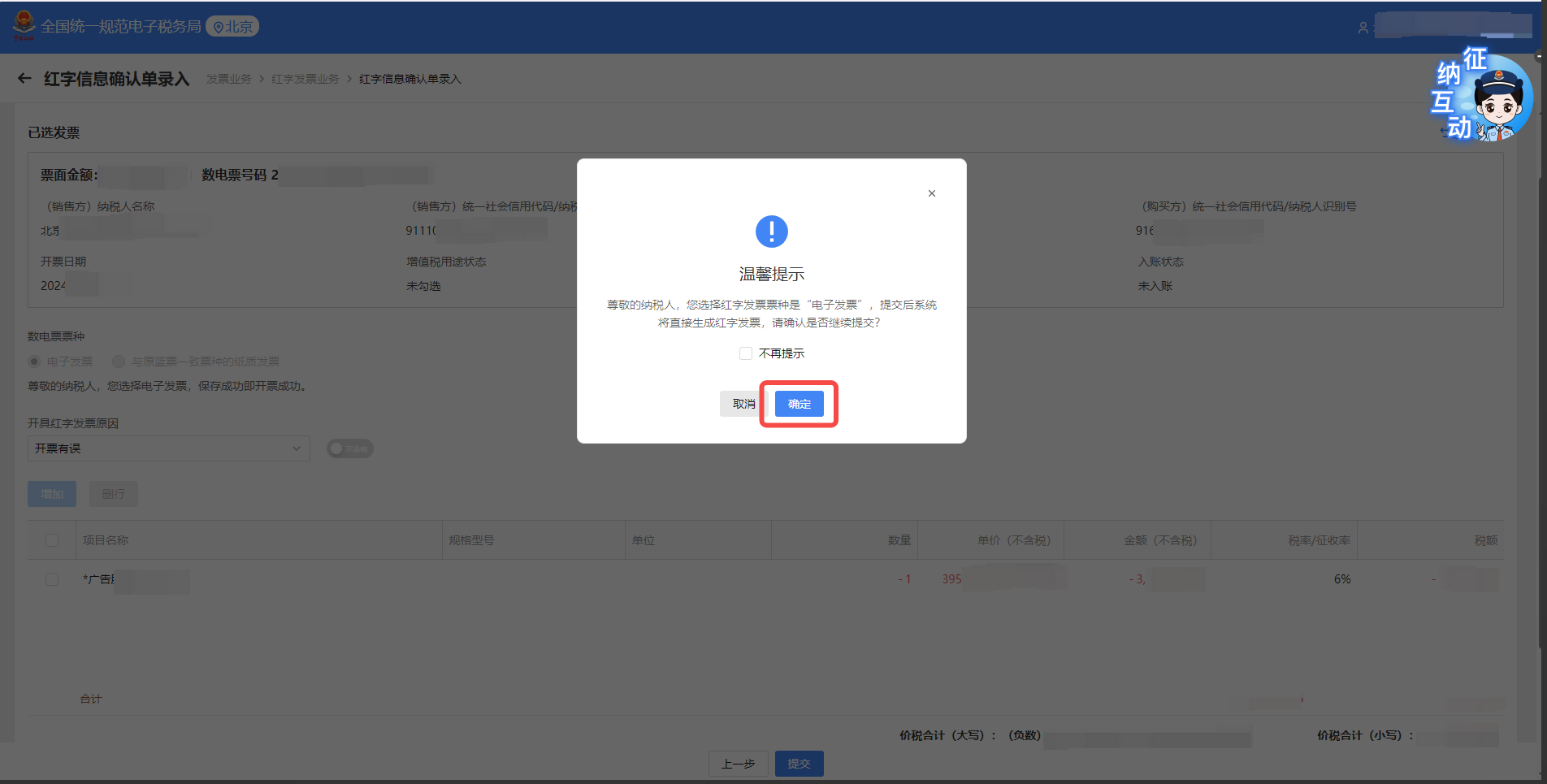
Method 1: After the submission is successful, take a screenshot of the system and click [View Confirmation Order Details], and upload the invoice management-refund page 3.2.2 Figure 1 or Figure 2 below. Note: Systems in some regions can directly download Figure 2.
Method 2: Return to the system [Scarlet Letter Invoice Business] - [Issued Confirmation Form] to find the confirmation form, and upload the screenshot to the invoice management-refund page. See 3.2.2 Figure 3 for details, and clicking [View More] on the basis of Figure 3 becomes Figure 4.
3.2.2 scarlet letter invoice information confirmation sheet screenshot style reference
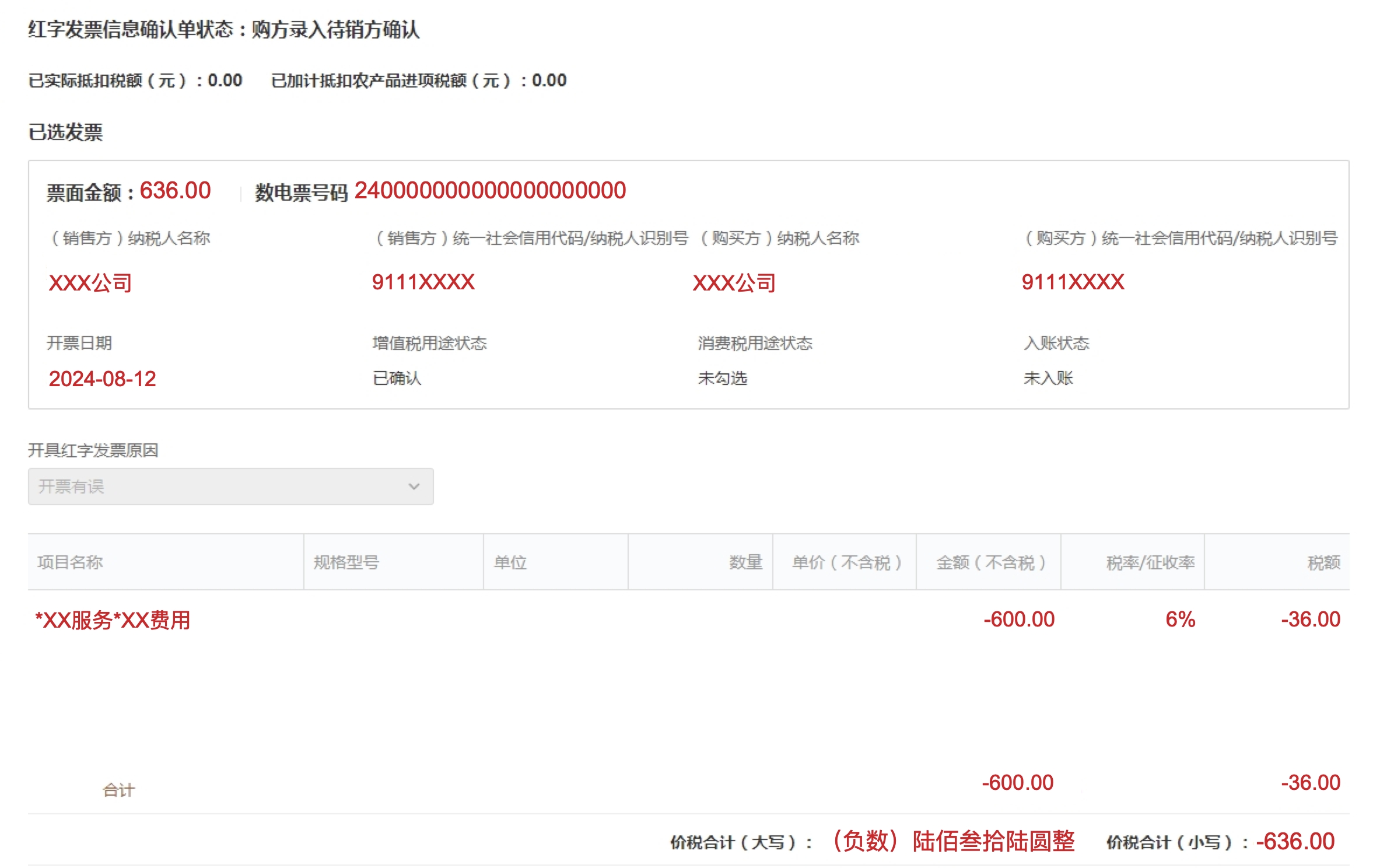
(Figure 1)
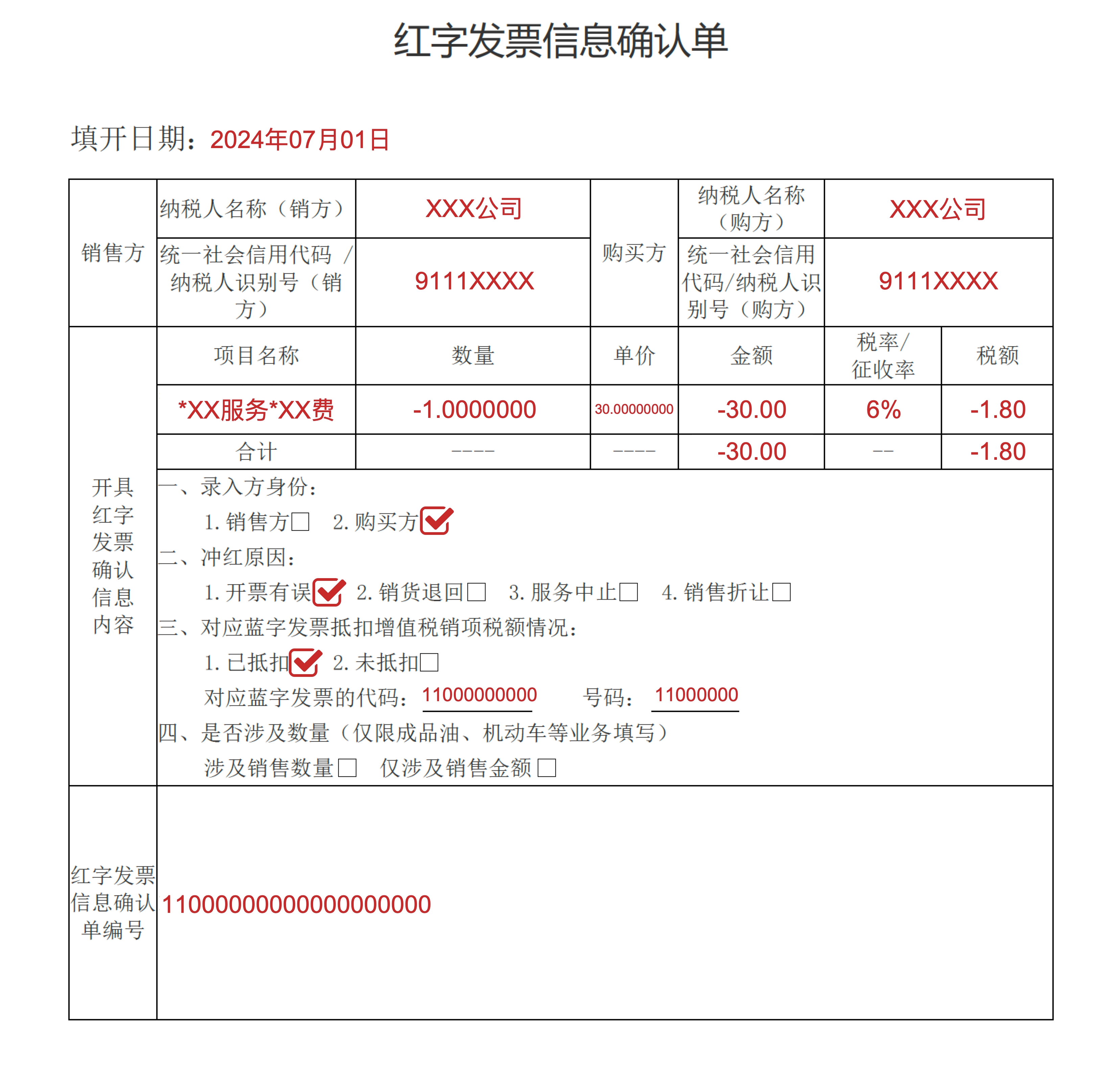
(Figure 2)

(Figure 3)
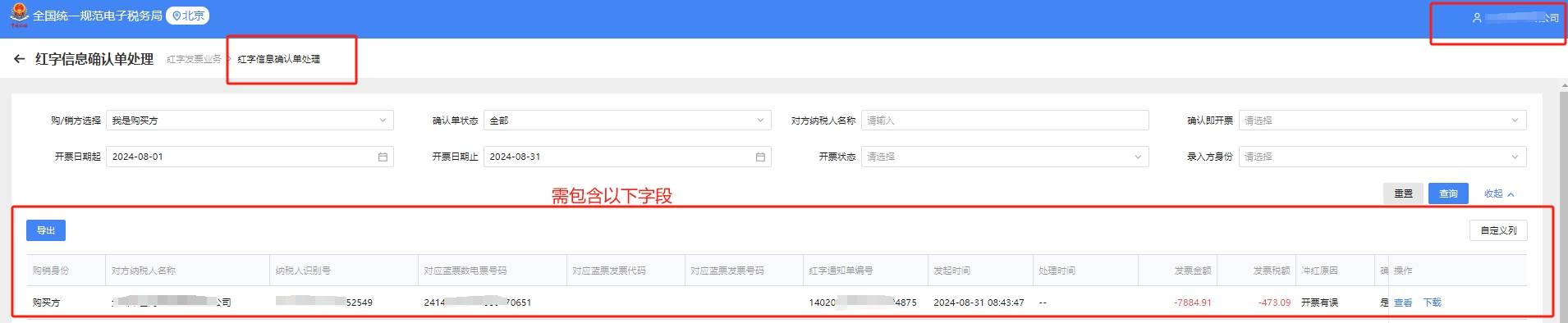
(Figure 4)
Last updated: 2025.07.24 19:56:57
All rights reserved © Beijing Volcano Engine Technology Co., Ltd2024
