Billing Center
Billing Center


Document

- Documentation
 Billing CenterCommon Billing Issues
 Copy page
 Download PDF
Billing Center
Common Billing Issues
Copy pageDownload PDFCommon Billing Issues
Table of Contents
- How can I check my detailed spending/deduction records on Huoshan?
You can view the bill details in Cost Center - Bill Management - Bill Details to obtain specific cost information.
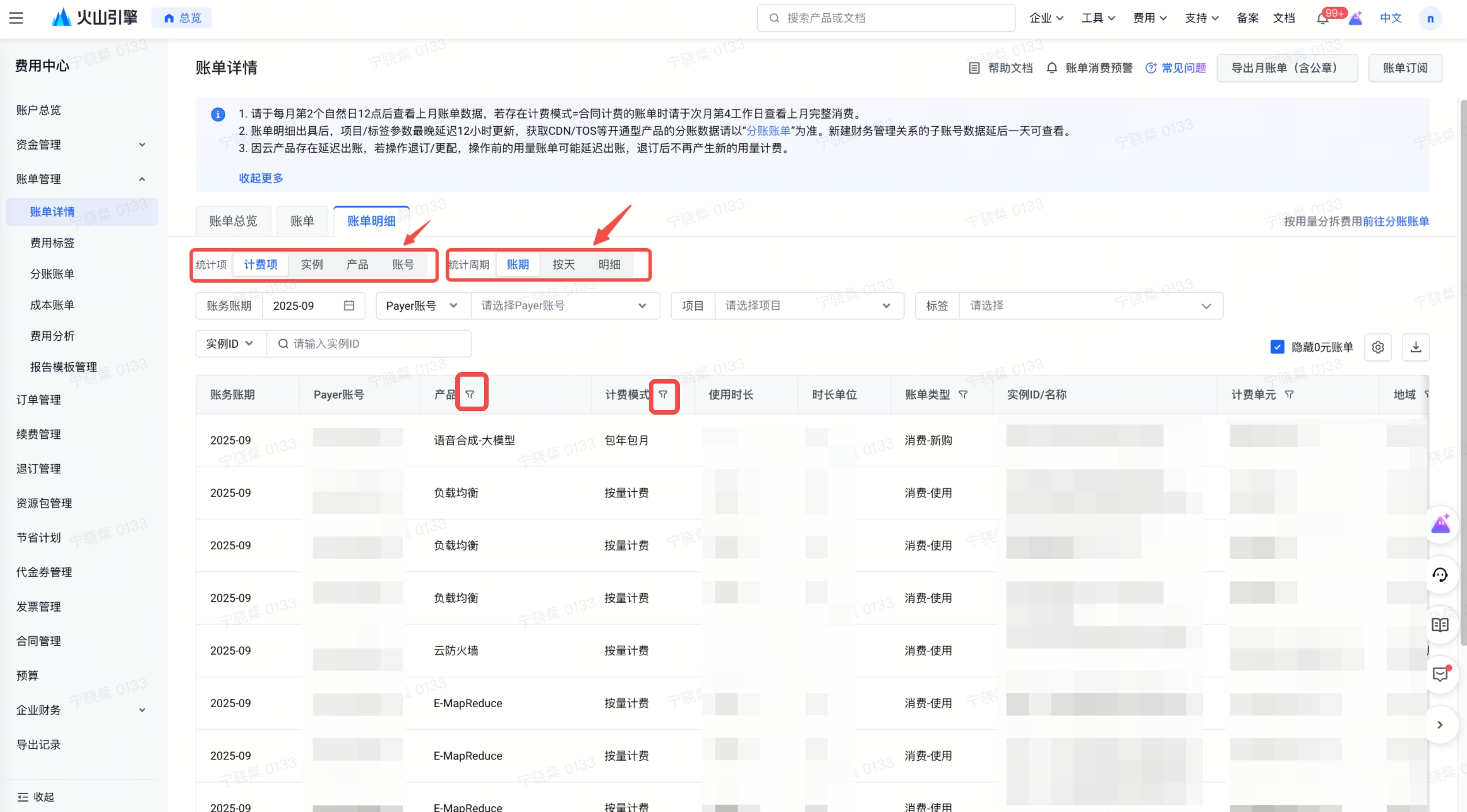
On the [Bill Details] page, you can view billing statistics across different dimensions. Switch between [Statistical Items] (Billing Items, Instances, Products, Accounts) and [Statistical Periods] (Billing Cycle, Daily, Itemized) to see the data from various perspectives.
When the [Statistical Item] is set to Billing Item and the [Statistical Period] is set to Detail, the following information will be provided. You can refer to the corresponding fields in the bill according to the information you need.
 For example:
For example:To view the bill for cloud servers, you can filter by [Product = Cloud Server] on the page. To view the bill for annual/monthly (prepaid) services, you can filter by [Billing Mode = Annual/Monthly], and so on.
For more information about billing, please refer to the document: New Version of the Billing Management Documentation
- How to use project split accounting?
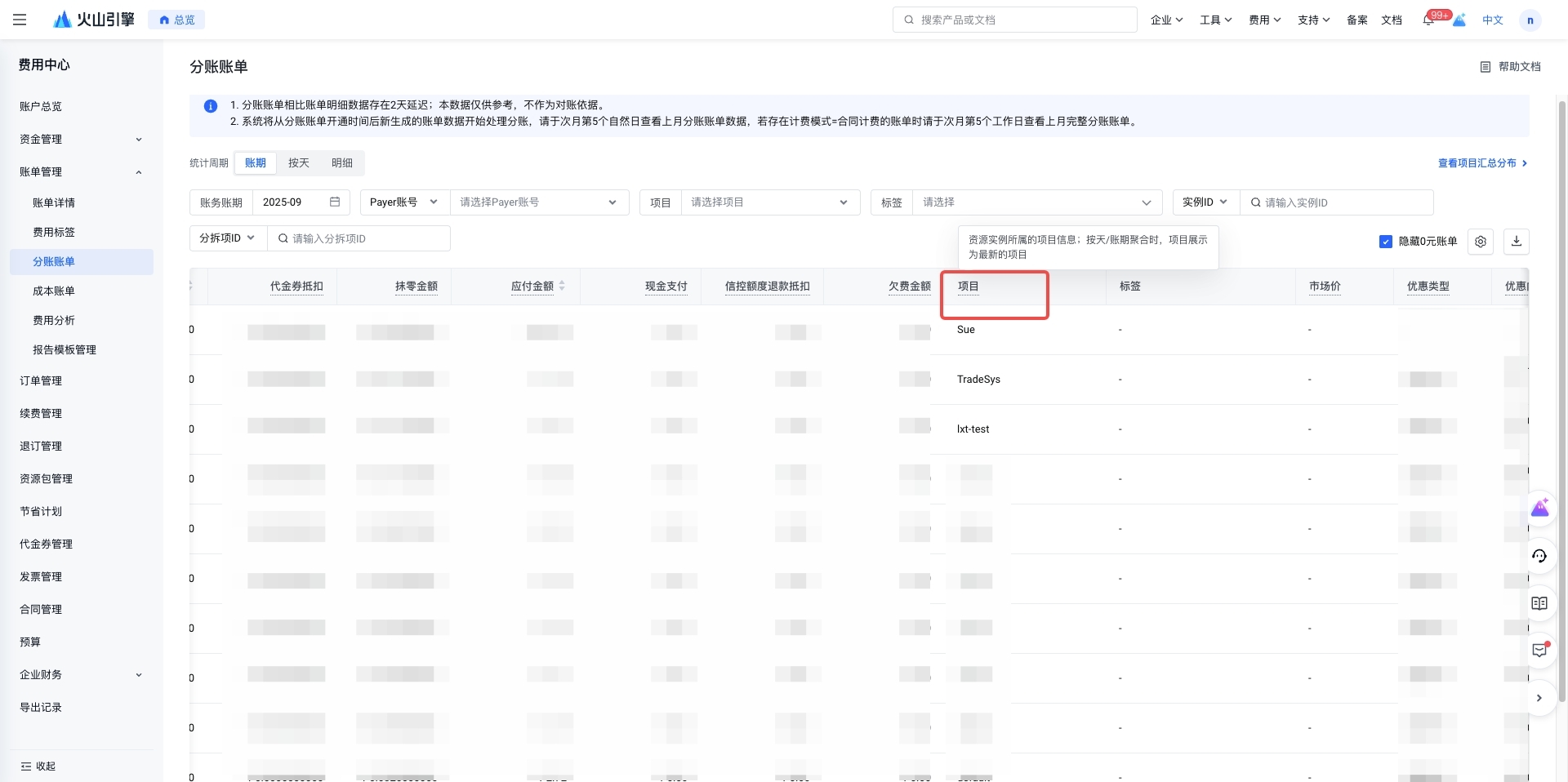
Volcano Engine supports grouping resources for business logic aggregation and management in Access Control - Resource Project - Project Management, and enables cost splitting by project through the Project field.
You may refer to Project Resource Management to categorize resources by project dimension, and enable Cost Center - Billing Management - Split Billing to address financial cost allocation.
- How can I view the actual monthly apportioned consumption data?
The cost bill provides expense allocation capabilities, allocating your cloud resource expenses by calendar month according to specified allocation rules, and includes both prepaid allocation data and postpaid billing data.
- Log in to the Cost Center - Cost Bill console (this feature must be enabled and is free to use)
- Filter and Export Cost Data
- Use filtering capabilities (such as allocation month, project, tag, instance ID/instance name, etc.) to locate the required allocation data.
- Supports exporting billing data in CSV format for further analysis
- You can also use OpenAPI-Cost bills to obtain cost billing data.
- How do I access the Cost Center?
- Can cost bills be used for reconciliation?
The cost data is allocation data based on specific algorithms and is provided for reference only.
As Volcengine offers services with different billing models, please use Cost Center - Bill Management - Bill Details for reconciliation.
- How do I configure the message push filter when the cost is 0 yuan?
Open the bill subscription settings window at the top right corner of Cost Center - Bill Management - Bill Details.
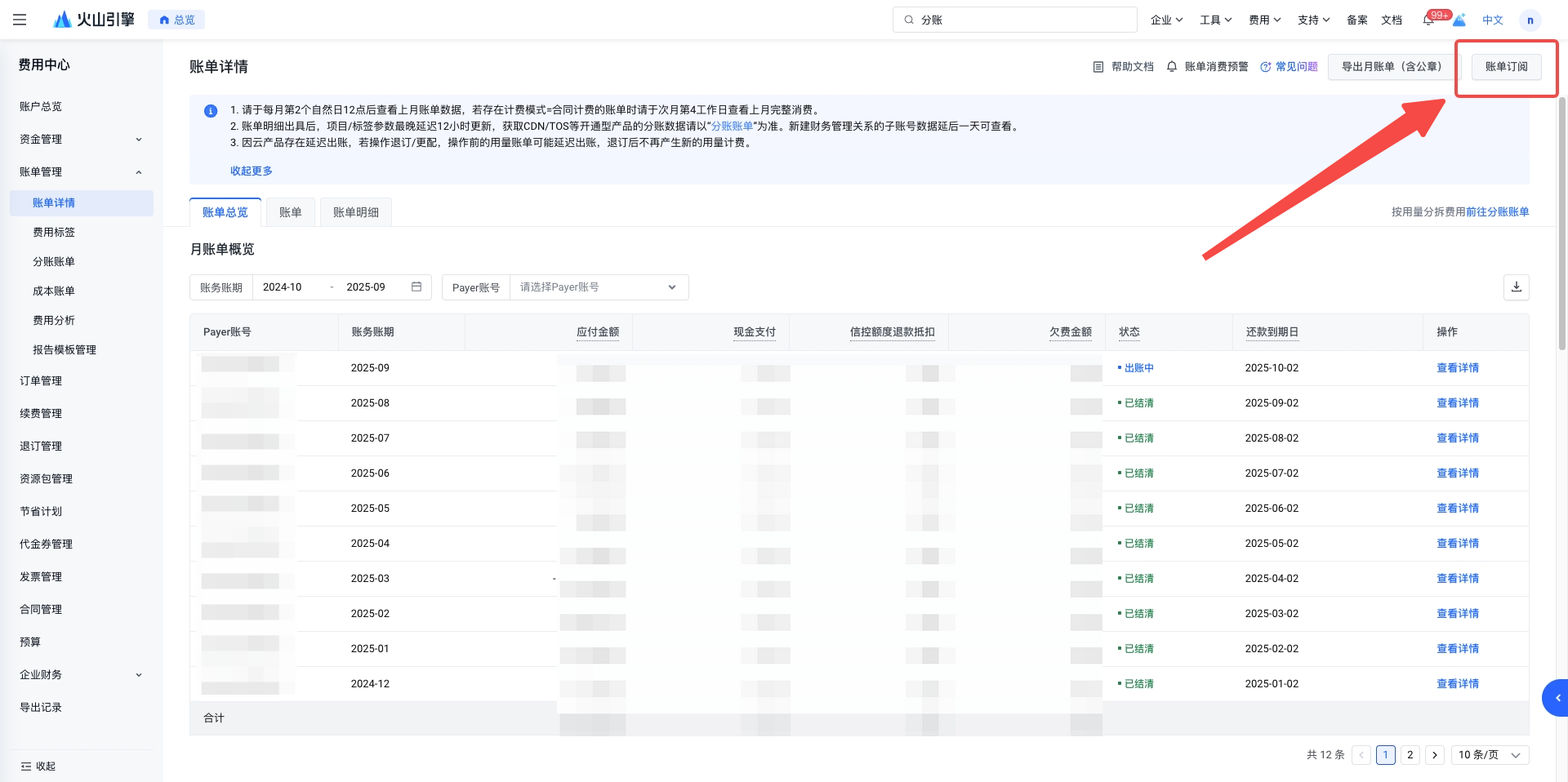
Under Push Notification Filtering Settings, you can select the option not to send bill notifications when all bill-related amounts (such as original price, discounted price, payable amount, etc.) are zero yuan.
- What is a billing unit in a bill?
In Volcengine, a billing unit refers to the smallest division used for measuring and calculating fees during the settlement process. It represents the specific model of the service you use.
- Why is the amount in the bill negative?
A negative bill amount is typically due to operations such as refunds, rounding adjustments, or other fee modifications. The following are the specific reasons and explanations that may result in a negative bill amount:
- Cancellation and Refund Operations
If your spending on Volcano Engine results in a refund (including configuration upgrade refunds, subscription cancellation refunds, reserved instance coupon refunds, or temporary configuration upgrade refunds), the refunded amount will be reflected in the bill. Refund amounts are typically displayed as negative values and are used to offset outstanding bills from the current or previous billing periods.
- Fee Adjustment
Under special circumstances, Volcano may manually adjust invoices (such as for compensation, special offers, etc.). These adjustments may result in the bill amount being negative.
- Rounding Amount
During the settlement process, amounts from the third to the tenth decimal place are discarded in accordance with billing precision rules. The portion of the amount that is discarded is referred to as the 'truncated amount'. The rounding amount will appear as a negative value (e.g., -0.06 yuan) in the detailed bill, indicating the amount waived for you.
- How do you distinguish a bill?
In Volcano, there are multiple types of bills and various dimensions for cost differentiation:
- Based on Account Distinction:
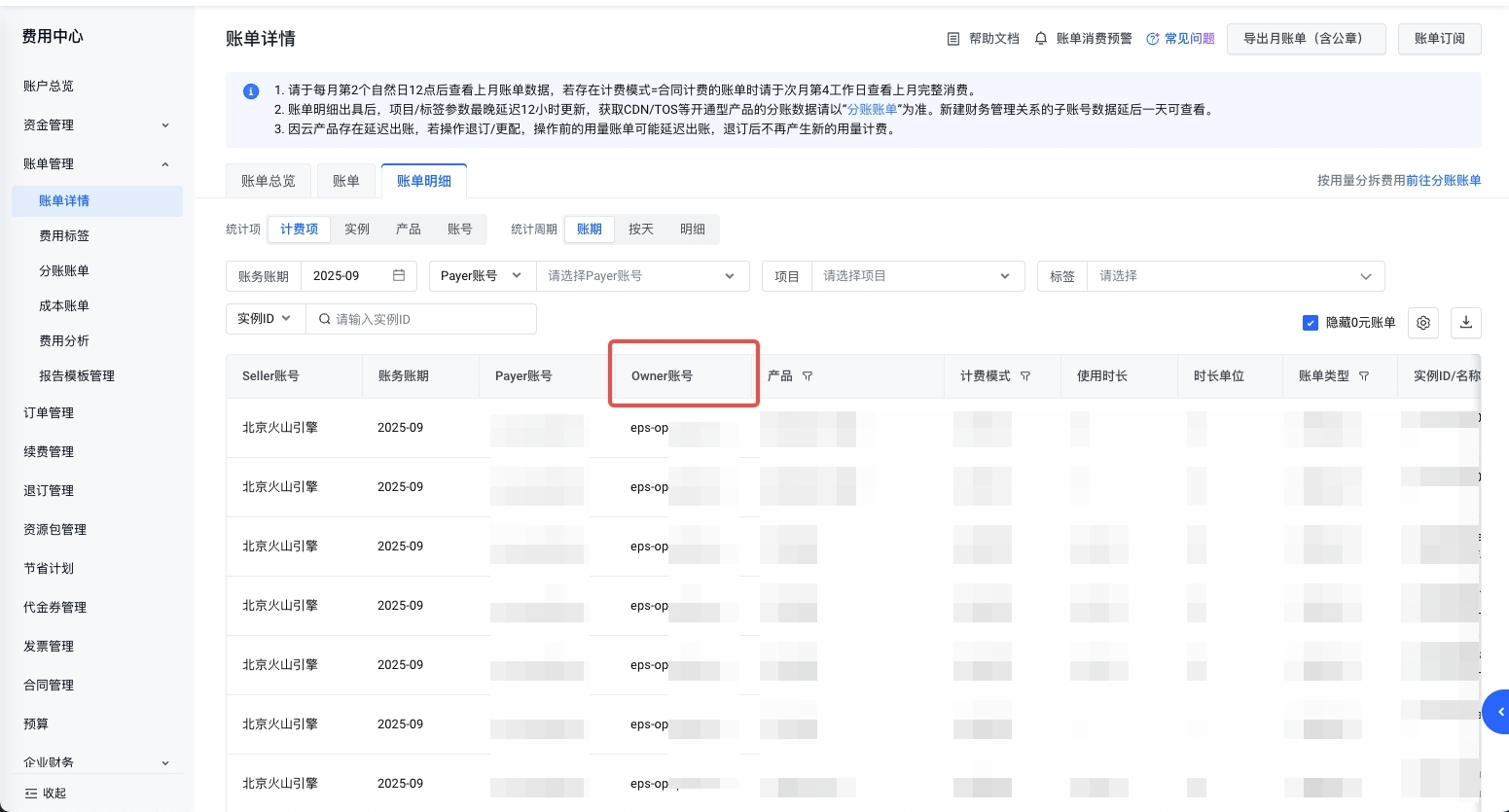
If your account has a financial custody/financial management relationship and you wish to identify which account is using a particular service, you can refer to the Owner account in Billing Center – Bill Management – Bill Details, Billing Center – Bill Management – Split Bill, or Billing Center – Bill Management – Cost Bill. The Owner account represents the service user. (Can't find the Owner account? Try using the custom column feature.)
- Classification Based on Resource Logic:
Since the billing granularity for some cloud products does not match the resource management granularity, it is necessary to use the Split Bill function to split the billing amount at the resource level. In the split bill, the split item ID is equal to the resource granularity ID of the cloud product. The billing usage of a product is determined by aggregating the usage of each split item, and the billing amount is automatically split according to the usage of these split items.
Meanwhile, if you need to split bills based on the resource management mechanism (Project: centralized grouping management of multiple regions and various cloud resources under a single account) or resource key-value pairs (Tag: splitting based on KV key-value pairs, including system tags, custom tags, creator tags, etc.), please enable the Cost Center - Bill Management - Split Bill feature and properly maintain resource information. After that, use split bills to perform project- and tag-based resource splitting.
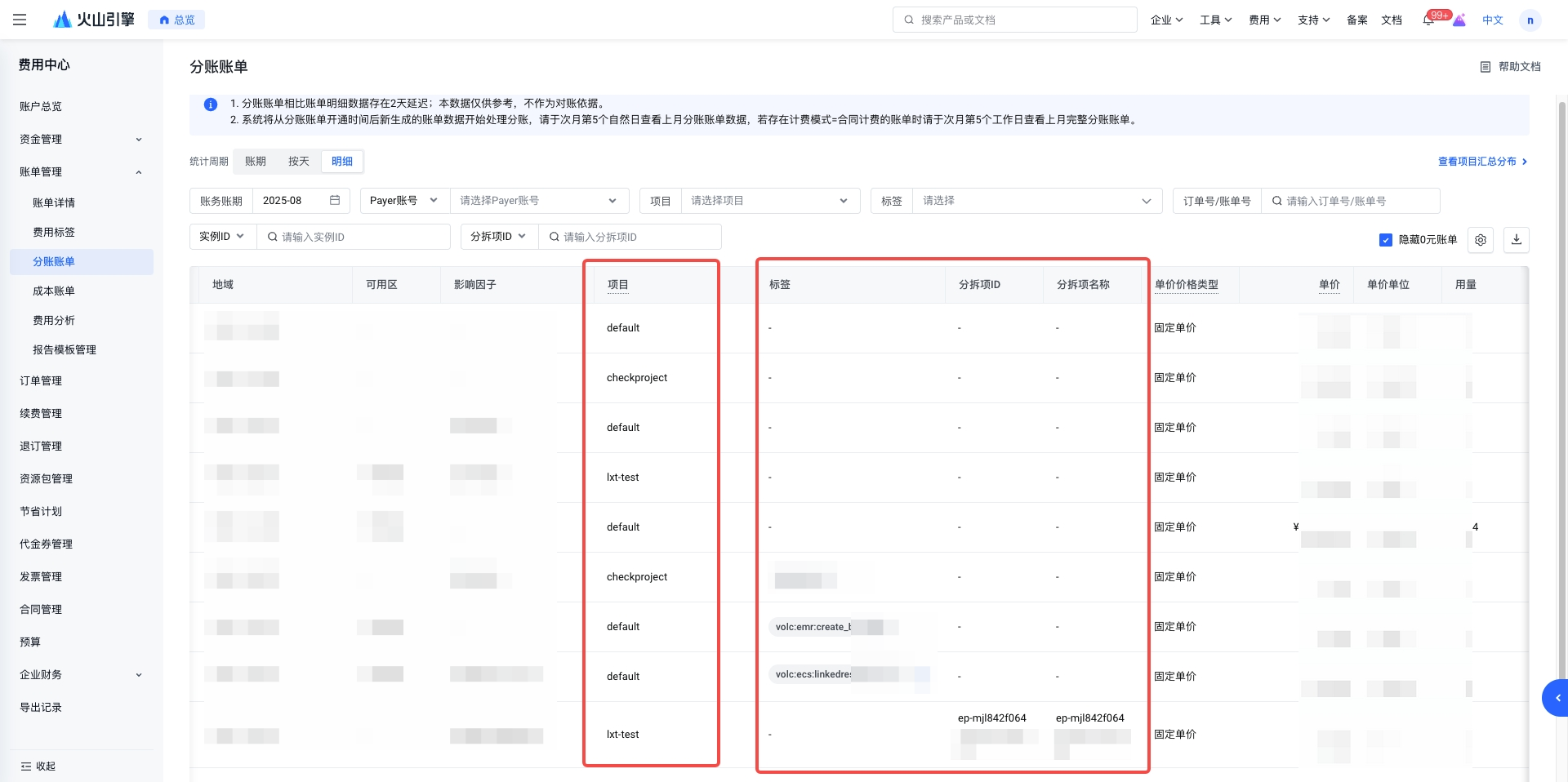
- Classification Based on Product Attributes:
In the Cost Center - Bill Management section, you can view the bill overview and bill details tabs. Here, you can split incurred business expenses based on resource information such as product, billing mode, billing unit, and region.
- Distinction Based on Cost Allocation:
Volcano provides cost allocation capabilities through Cost Center - Bill Management - Cost Bill, allowing your cloud resource expenses to be allocated to each calendar month according to specified allocation rules. If you need to distinguish bills based on cost allocation logic, you can enable the Cost Bill service to distinguish allocation data based on specific algorithms.
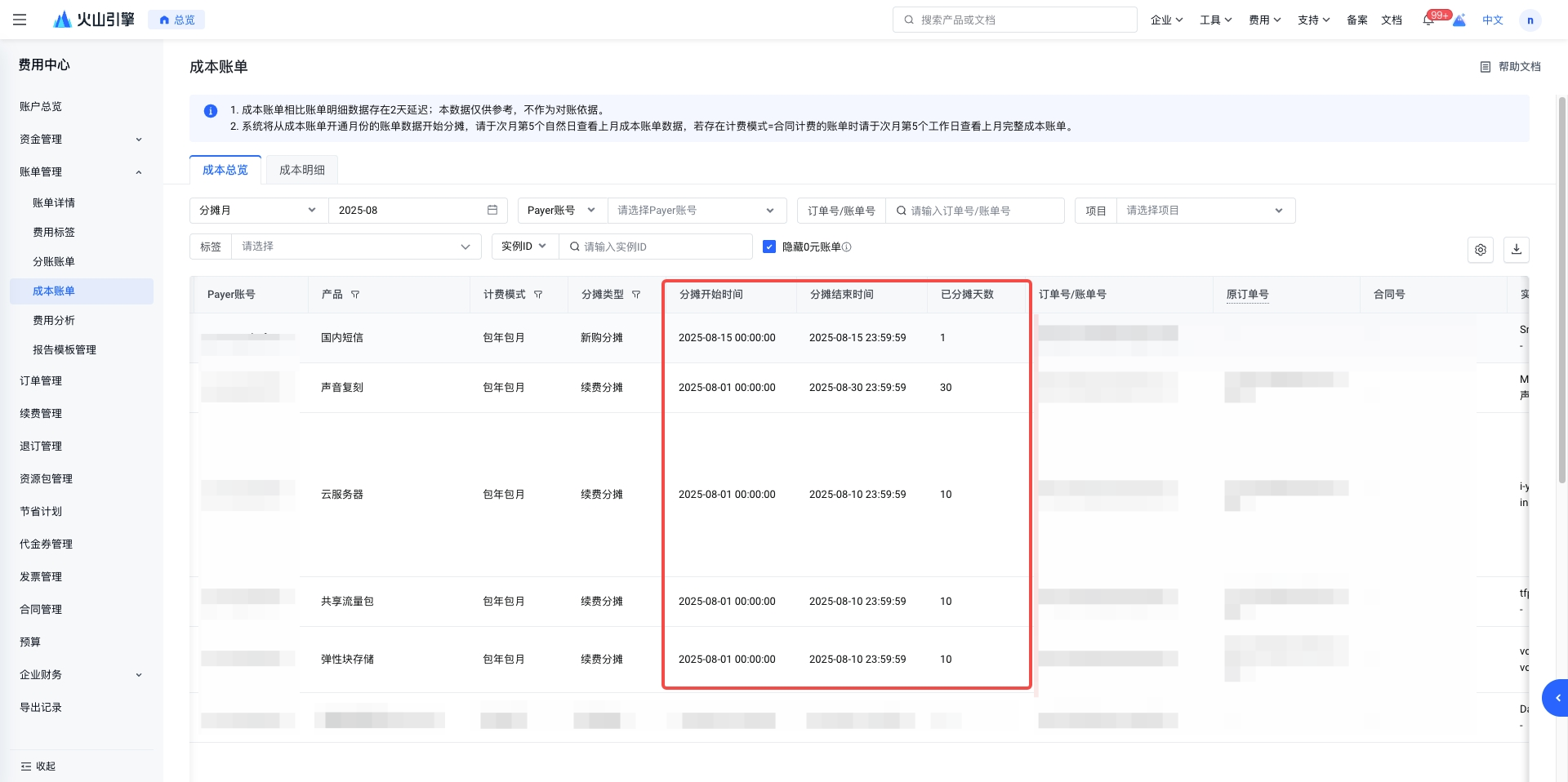
- Which interfaces are available for billing?
Currently, Volcano offers billing interfaces of different types for you to choose from.
- How can I export bills for multiple months at once?
Volcano Engine supports one-time export of billing data in CSV format for up to 12 months and in PDF format for up to 6 months from the page.
On the billing pages you use (Bill Details, Sub-account Bill, Cost Bill), click the "Export Bill File" icon on the right side, and a pop-up window will appear for you to select export file options.
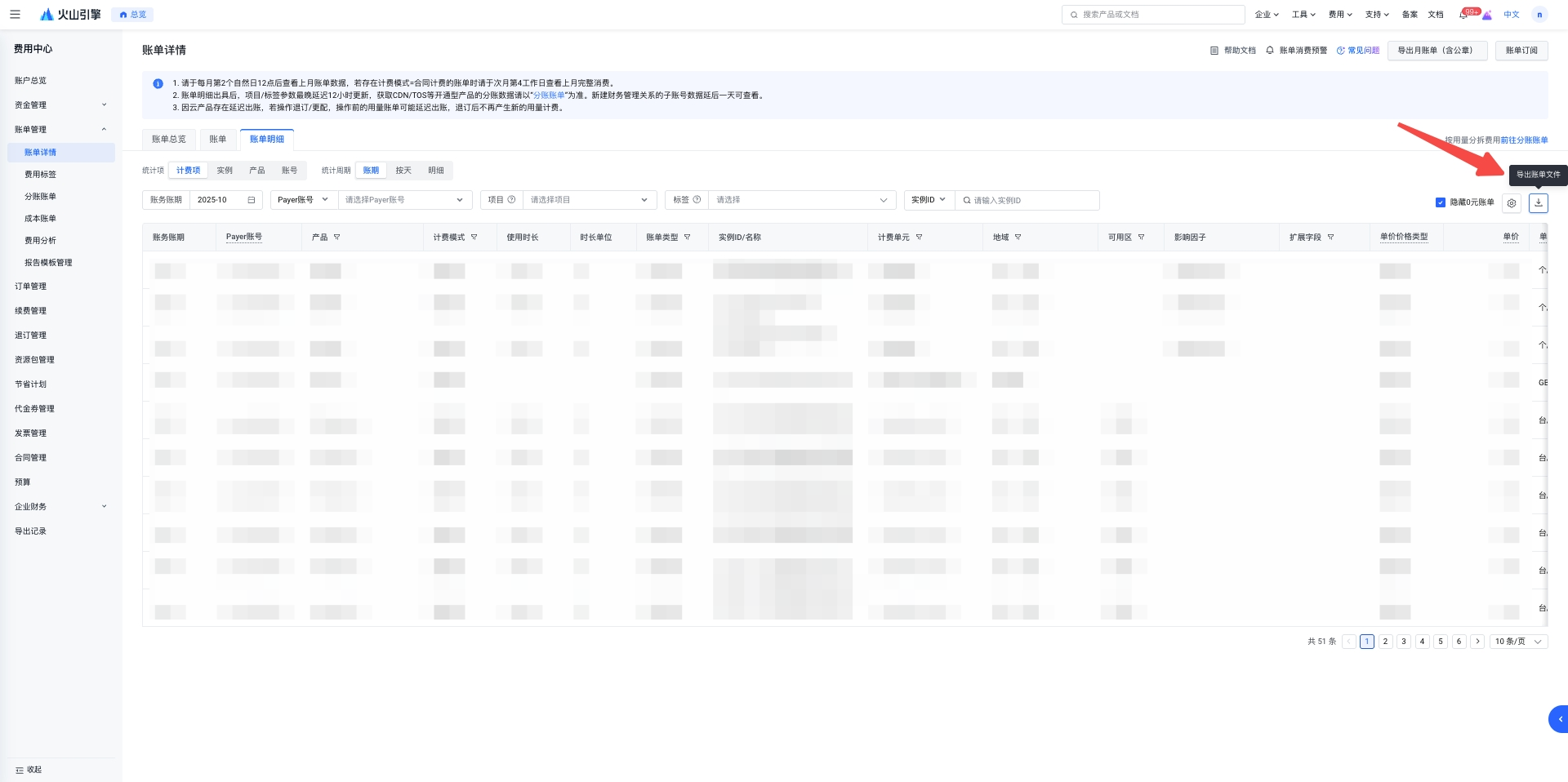
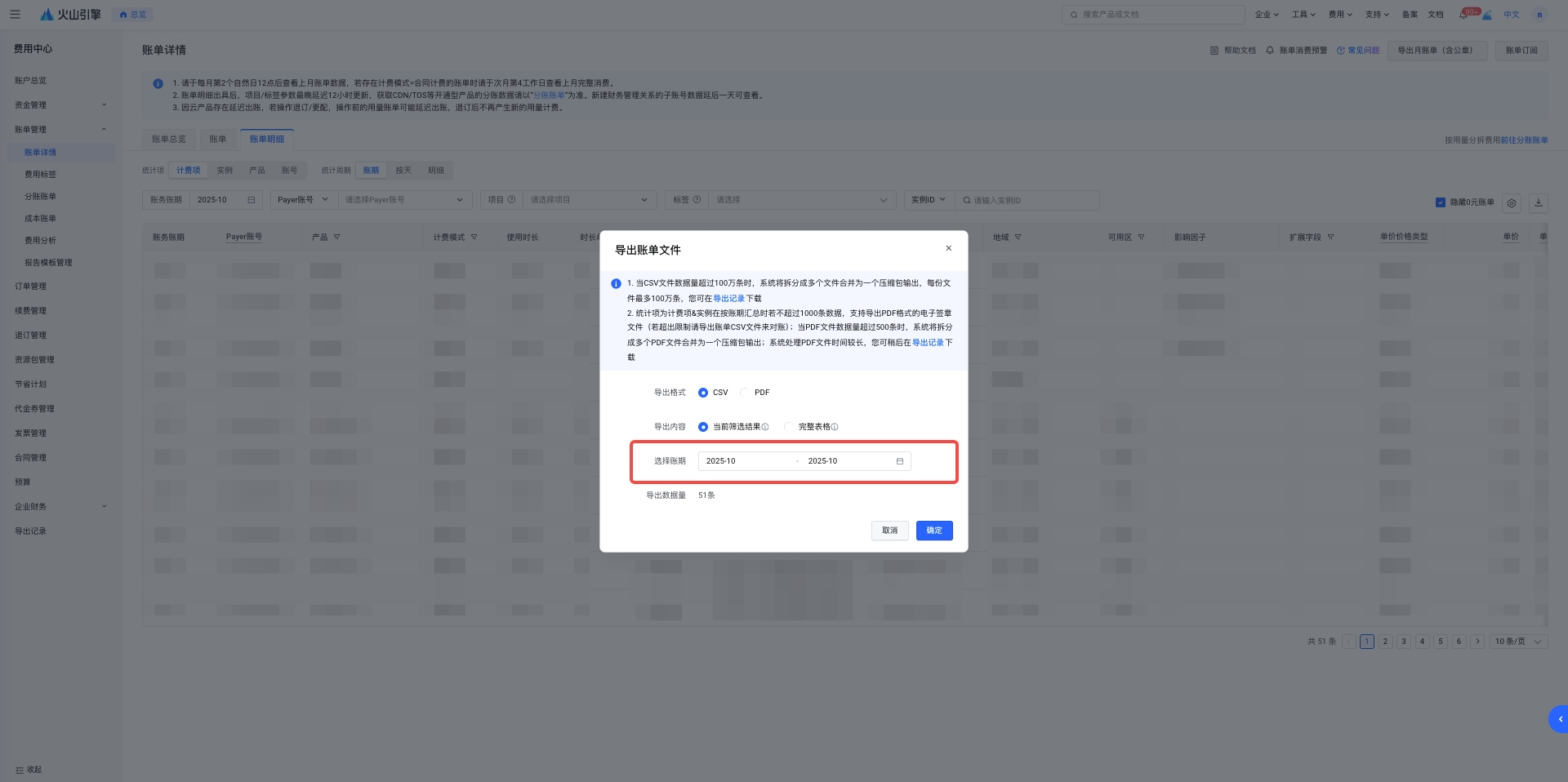
In the pop-up window, you can select the billing period, choose the required billing period range, and export the corresponding file.
- How do I download the monthly bill summarized by product?
In Expense Center - Bill Management, click [View Details] for the relevant billing period. The popup displays the monthly bill summary by product. Click [Export Bill CSV] to export the monthly bill summary by product.
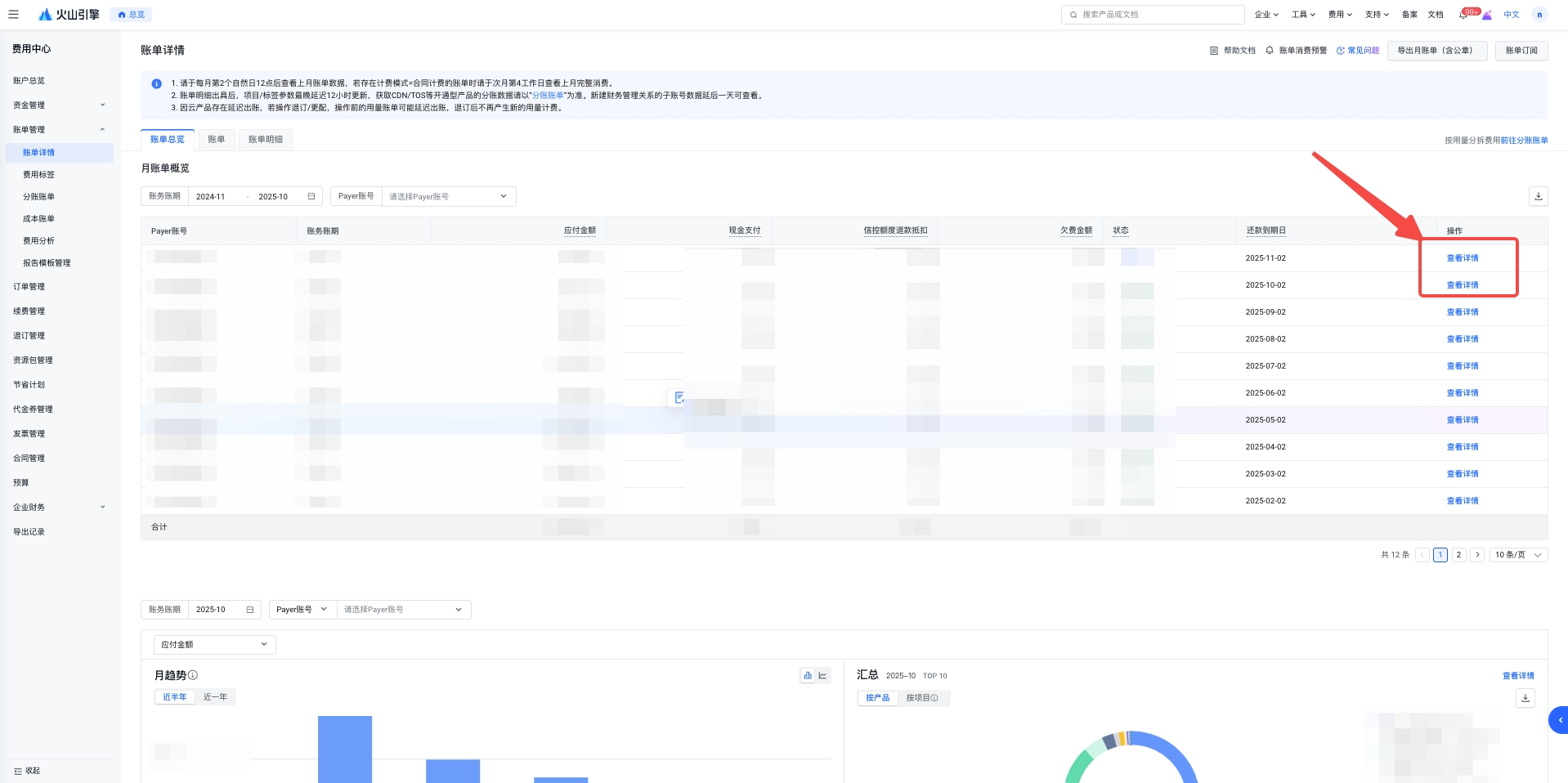
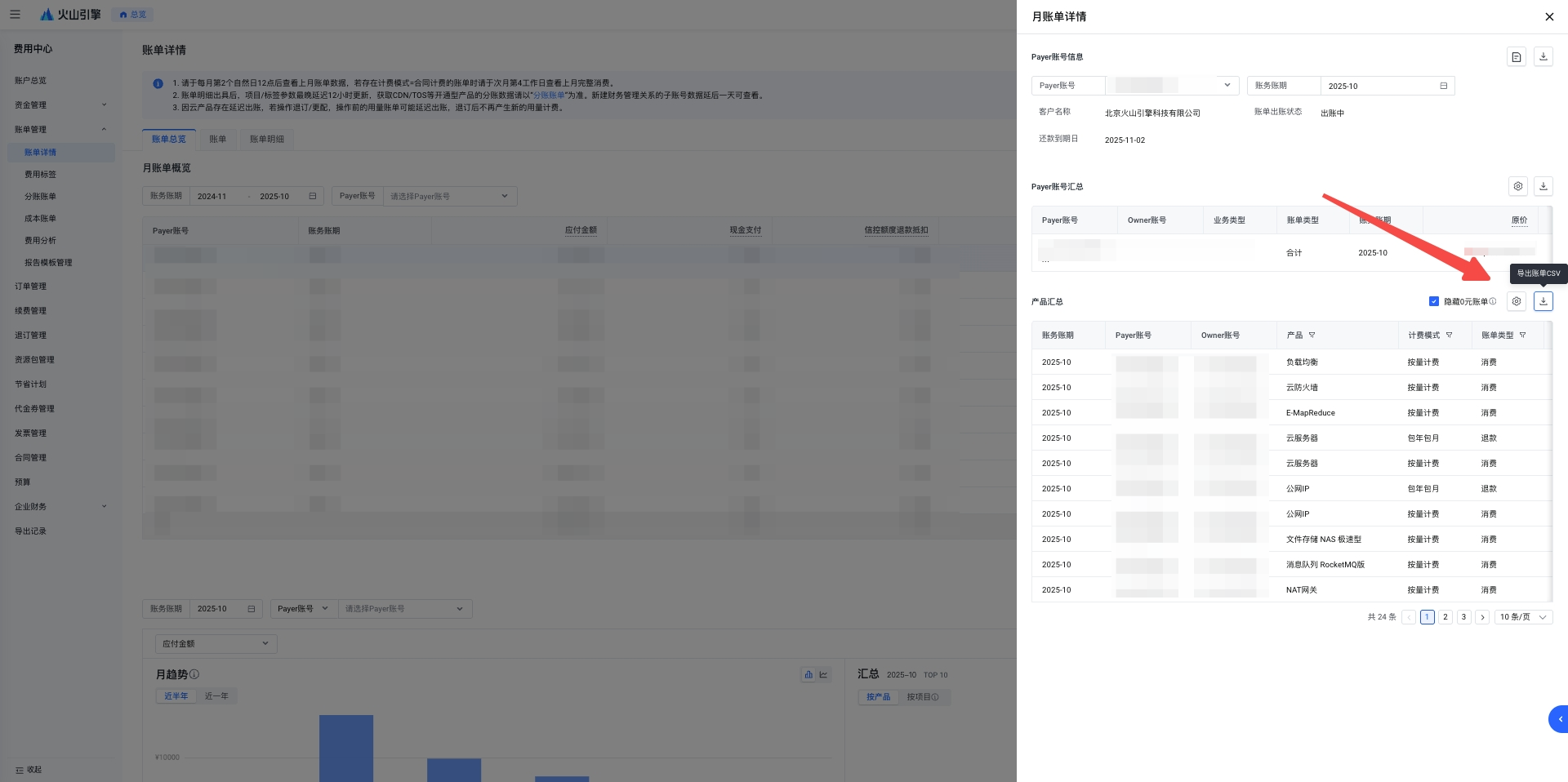
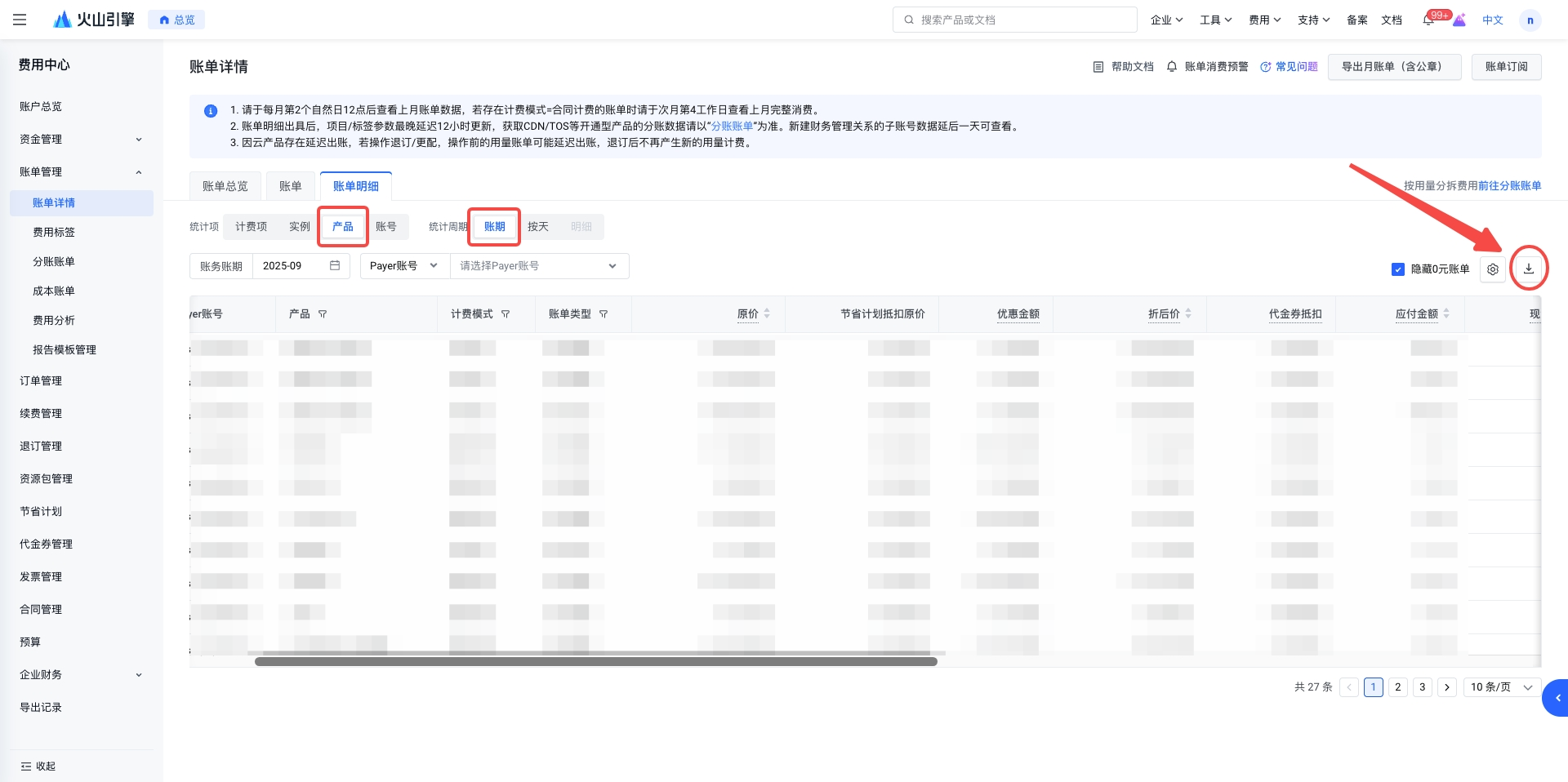
Alternatively, in the billing details, you can filter by the [Product] + [Billing Cycle] dimensions and download the summary bill for these dimensions. Compared to the monthly bill summarized by product dimension, the 'Product + Billing Cycle' summary bill in the billing details provides a more detailed breakdown by bill type.
- Can purchasing a resource package while in arrears be used to offset the arrears?
The resource package can only be used to offset usage incurred after the resource package becomes effective; any arrears resulting from usage before the resource package becomes effective cannot be offset by the resource package.
- Why does the instance name in the bill not reflect the updated name after modifying it in the console?
- Bills that have already been issued will not reflect the updated instance name data.
- After modifying the instance name in the console, newly added bills will periodically synchronize data from the resource system, and there is usually a certain delay.
- What are the billing rules of Volcano Engine?
The billing models for Volcano products are primarily divided into two types: pay-as-you-go and annual/monthly subscription. Depending on the specific configuration of the product you purchase, you may be subject to different billing cycles. Below is a brief explanation of the billing cycles:
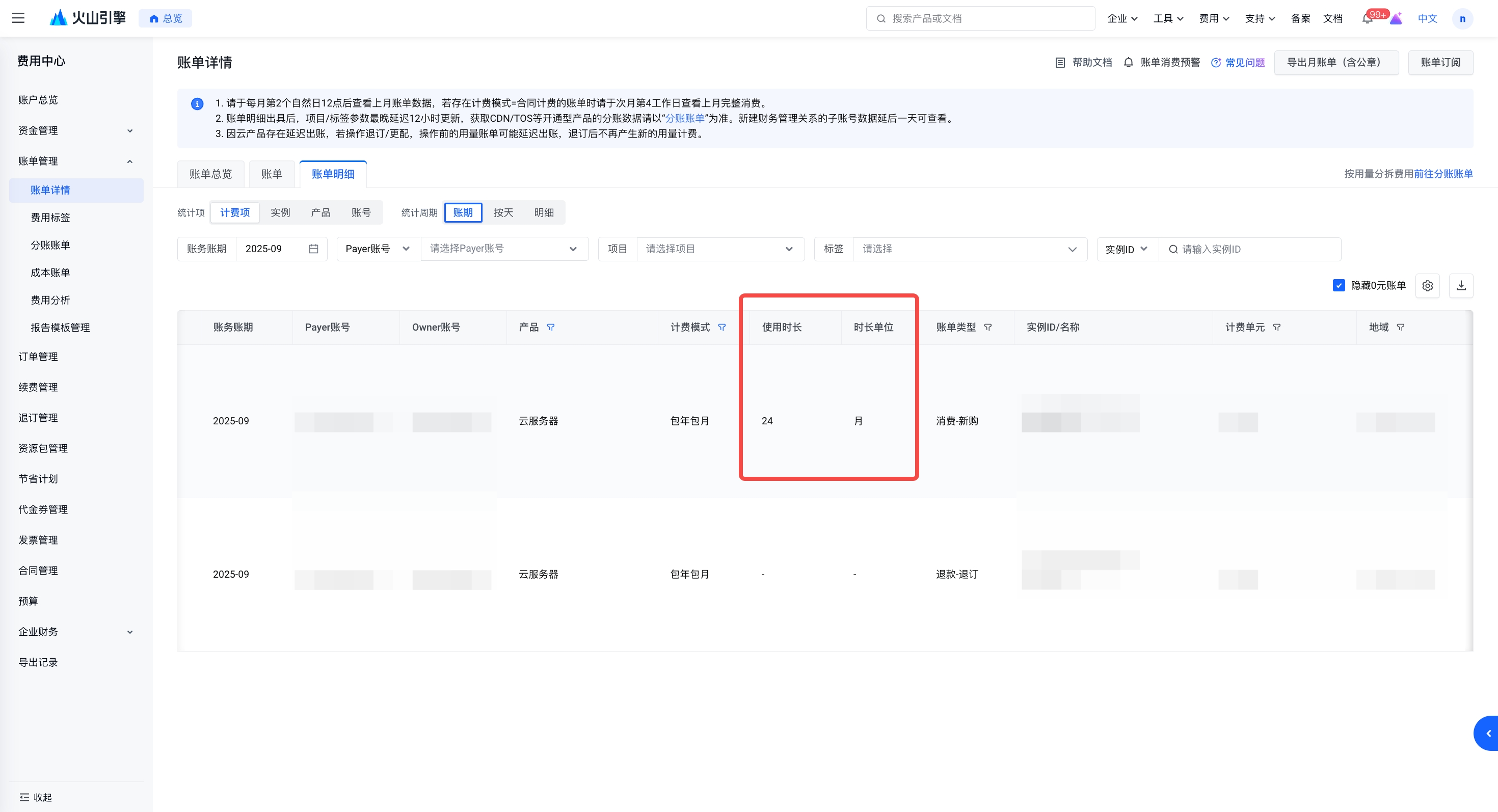
- Annual/Monthly Subscription (Prepaid): A billing method in which you pay in advance and can choose to purchase one month, one year, or multiple years at a time. After completing a single payment, you may continue to use the Volcanic Service throughout the validity period of your purchase. Regarding fees, a one-time charge will be incurred when you place an order to purchase or renew, and no additional fees will be charged during subsequent use. For example, if you place an order for a cloud server with an annual/monthly subscription in March 2025 with a validity period of two years, a billing statement for 24 months of usage will be issued at the time of order in March. During the subsequent usage period after March, no further billing statements will be generated until you renew or cancel the subscription.
- Pay-as-you-go: Pay-as-you-go is a billing model in which payment is made after usage. You do not need to purchase a large amount of resources in advance; resources can be activated and released on demand at any time. Pay-as-you-go resources are categorized according to specific product configurations into hourly billing (a bill is generated every hour), daily billing (a bill is generated every day), and monthly billing (a bill is generated every month). Hourly and daily billing statements are typically issued within a few hours after the end of the billing cycle; due to server fluctuations, some data may be delayed. Volcengine will confirm and issue the complete monthly billing statement along with the monthly settlement. Monthly billing statement data is usually issued after 12:00 on the second calendar day of the following month.
- What is a refund offset for the credit control limit? What is the logic behind the deduction?
Credit Quota Refund Offset refers to the situation where, after a user consumes using the credit quota provided by Volcano Engine, a refund, upgrade/downgrade, or adjustment occurs. The amount returned due to a refund, upgrade/downgrade, or adjustment is called Credit Quota Refund.
The amount refunded from the credit control limit will not be directly returned to the user's cash account; instead, it will be stored in a dedicated credit control refund ledger and automatically applied first to offset the bill charges of the original order incurred during historical consumption.
For example, if you incur credit-controlled spending in a given month and receive a refund during that same month, the refund will be applied first to offset the bill for purchases made that month, rather than being converted into a cash balance that can be withdrawn.
- Before Unsubscribing

- After cancellation (The blue section indicates the part of the order that has changed)

For example, if there is a credit-controlled transaction in a given month and a refund occurs in the following month or at a later date, the refunded amount will first be used to offset the original order cost from the month in which the purchase was made. Assume you have a monthly expense of 180 yuan.
- Before Unsubscribing

- After cancellation (The blue color indicates the parts of the order that have changed)
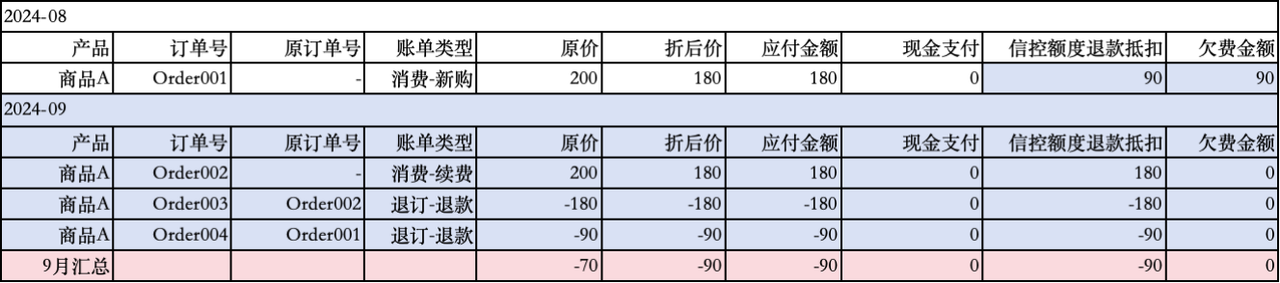
Special Case: If a credit limit refund is used to offset the bill fees of the original order from previous consumption, and that original order has already been settled by cash repayment, the credit limit refund will instead be credited as cash to your account balance.
- When is payment required?
- To ensure that you can use Volcanic Cloud services normally, you must maintain an available account balance greater than 0. If your available balance reaches zero, your services may be suspended or reclaimed, and any reclaimed resources cannot be restored. You can view your available balance on: Cost Center - Account Overview
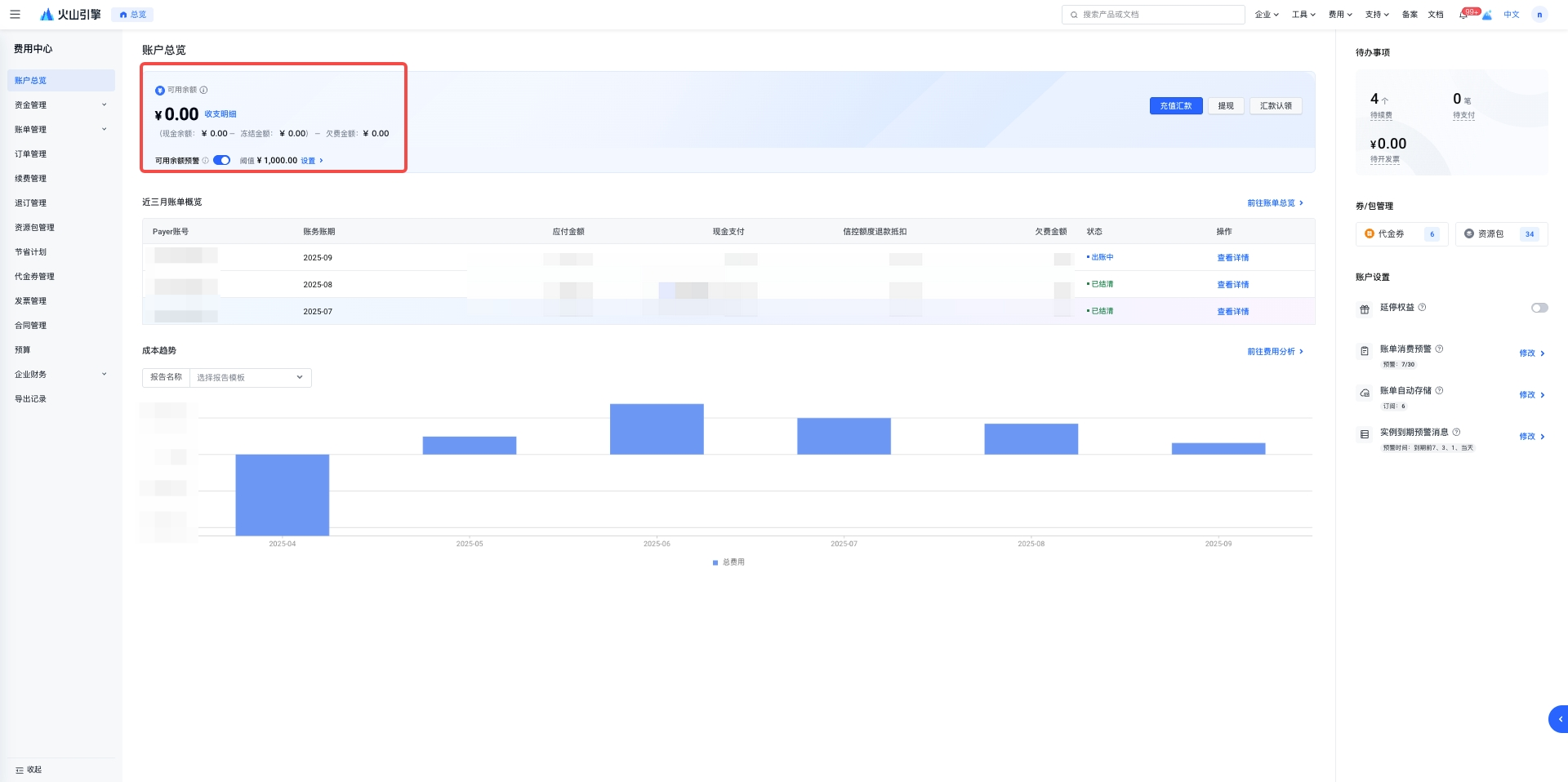
- You must pay the corresponding bill amount before the repayment due date to avoid late payment.
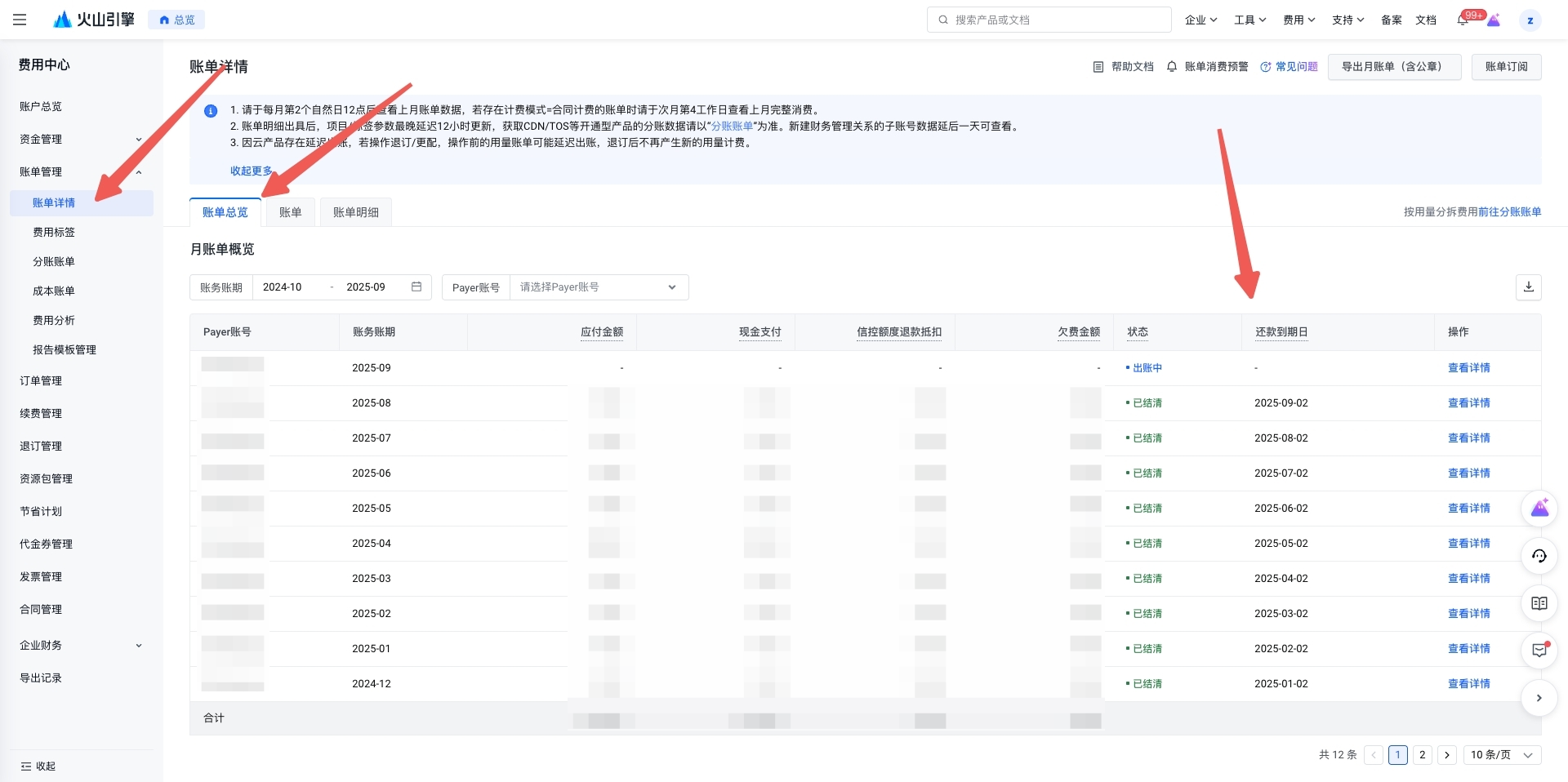
- What is an Instance ID? What is a Resource ID?
Instance ID: Refers to a specific service unit provided by a cloud product. Focus on describing the functional units of cloud products; each instance corresponds to one configuration and multiple billing items. For example, in ECS, an instance refers to a virtual machine, while in CDN, an instance is a billable service; a single instance may comprise a collection of multiple resources.
Resource ID: Compared to an instance, it places greater emphasis on describing a resource entity that can be managed and authorized, and is typically associated with functions such as billing and permission isolation. For example, in resource management, project tags are all assigned to resources.
For certain products, the resource ID and instance ID have a one-to-one correspondence, meaning the resource ID is equal to the instance ID. Examples include cloud servers and elastic block storage.
However, for some products with independently activated resources, the resource dimension does not correspond to the instance billing dimension. For example, in Volcengine Ark and TOS, resources such as independent access points and storage buckets are not in a one-to-one relationship with instance services; instead, a single service corresponds to multiple resources.
- What is the payable amount?
The payable amount field is present in bills with multiple dimensions. When combined with bill granularity, it gives the payable amount different meanings:
In the billing details, Amount Payable = Discounted Price - Voucher Deduction - Rounding Amount = Cash Payment + Credit Limit Refund Offset + Outstanding Amount. At this point, the payable amount refers to the actual amount consumed by resources in this detail category. This is the amount the user should pay.
For example, as shown in the figure below, when Statistical Item = Billing Item & Statistical Period = Detail, a payable amount of 0.00 indicates that the actual consumption amount generated by Bill7549101655905325321 is 0 yuan.
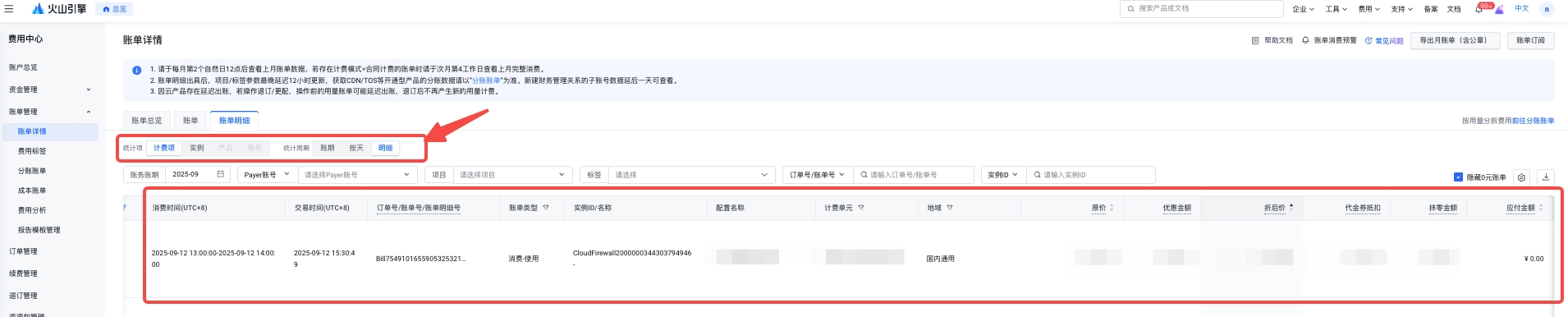
In the bill overview, Amount Payable = Cash Payment + Credit Limit Refund Deduction + Outstanding Amount. In this case, the amount payable is the sum of the corresponding bill details (including consumption and refunds). If refund amounts are applied to other months, the amount payable may be less than the outstanding amount. You can refer to both the calculation formula for the amount payable and the bill detail expenses for clarification.
Overall, the amount payable represents the amount that consumers should pay under the corresponding dimension of the bill, but it does not represent the unpaid amount. The actual payment status needs to be viewed together with amount payable, cash payment, credit limit refund deduction, and outstanding amount.
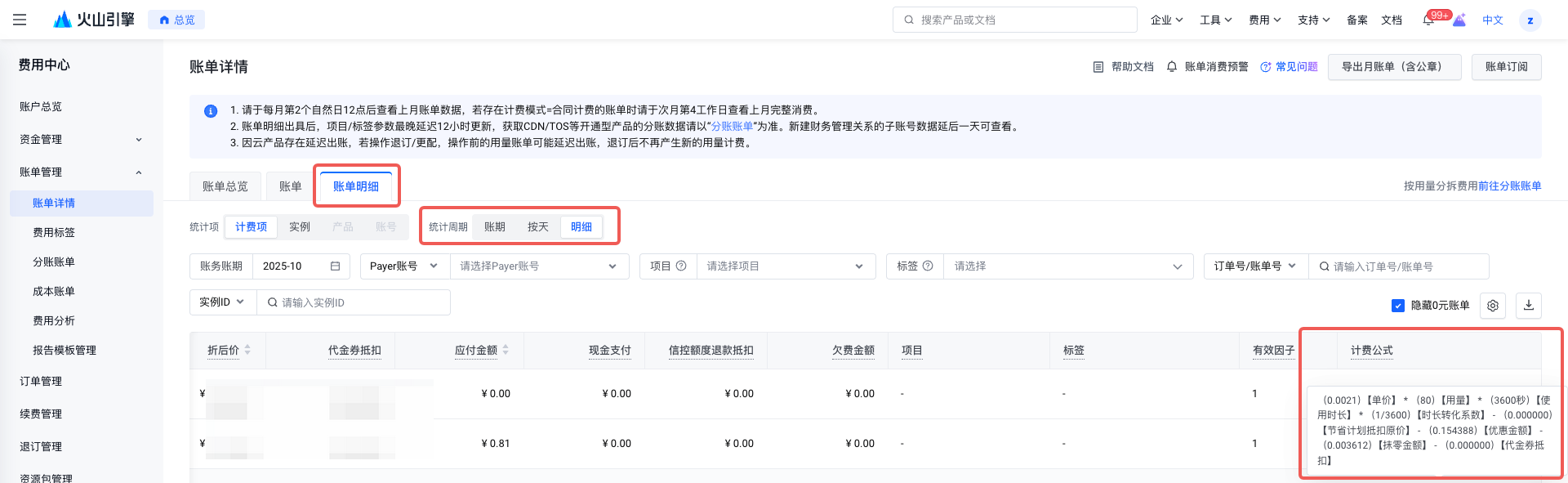
- How is the bill amount calculated, and what is the calculation formula?
On the Billing Center - Bill Management bill details page, go to the Bill Details tab. There, you can select the statistical period data and view the original price billing formula.
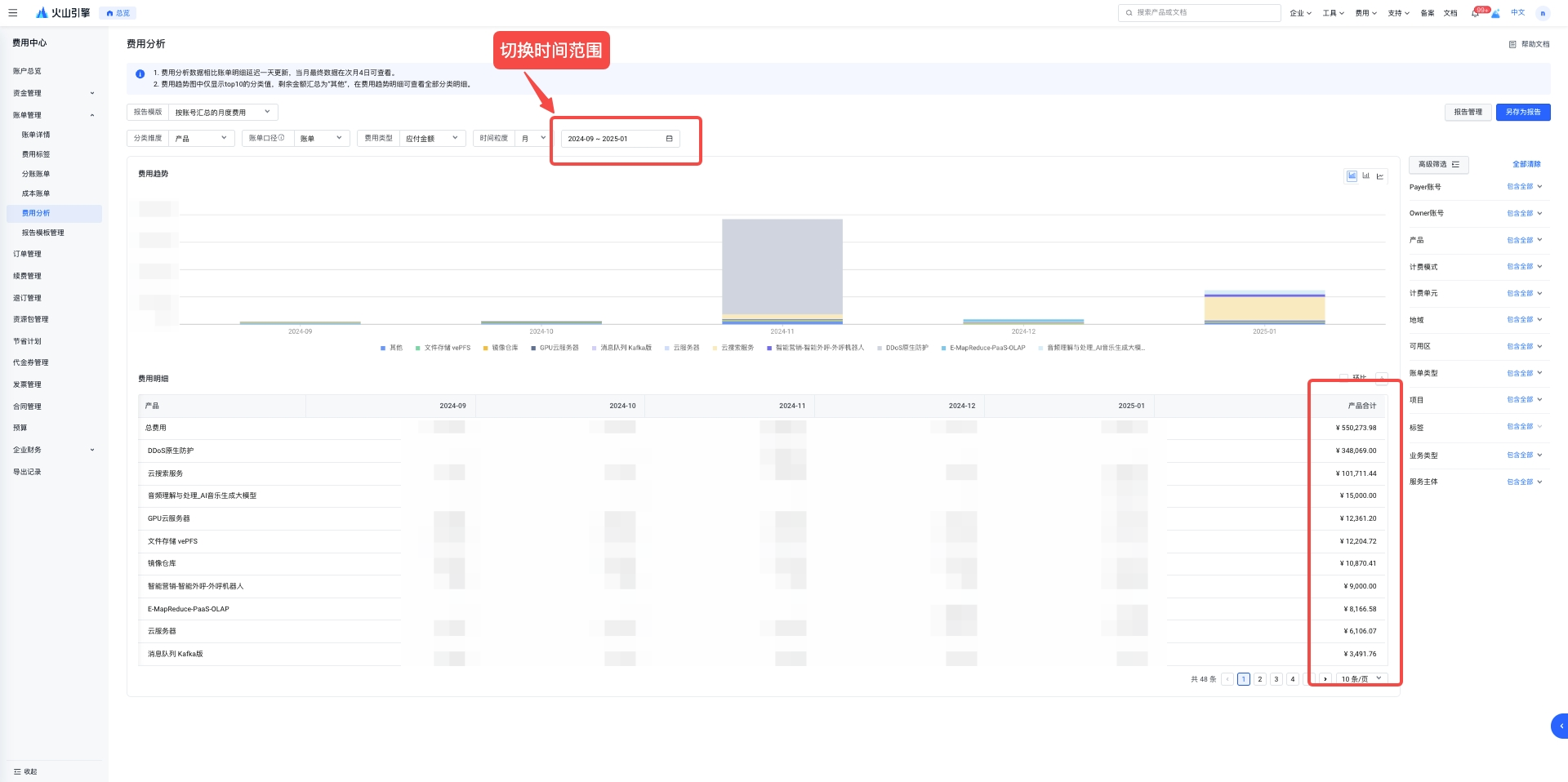
- How can I view the total annual cost of all cloud servers across multiple accounts?
If you wish to view the annual cloud service expenditures for multiple accounts, and these accounts are independent with no financial relationship between them, you can only check each account's bill by logging into each account separately.
If there is a financial relationship between accounts (such as financial custody or financial management), the main account can be used to view billing data for both itself and its sub-accounts. The cost analysis function enables aggregation of product consumption amounts on an annual basis.
- How can I view the actual usage fees for the current month under the annual or monthly subscription?
The annual and monthly subscription model adopts a pay-before-use billing approach. When you purchase one or more months at a time, you can utilize the cost allocation feature in Cost Center - Billing Management - Cost Bill to split the actual usage costs of the annual and monthly subscription products. The specific rules for splitting annual and monthly subscription products are as follows:
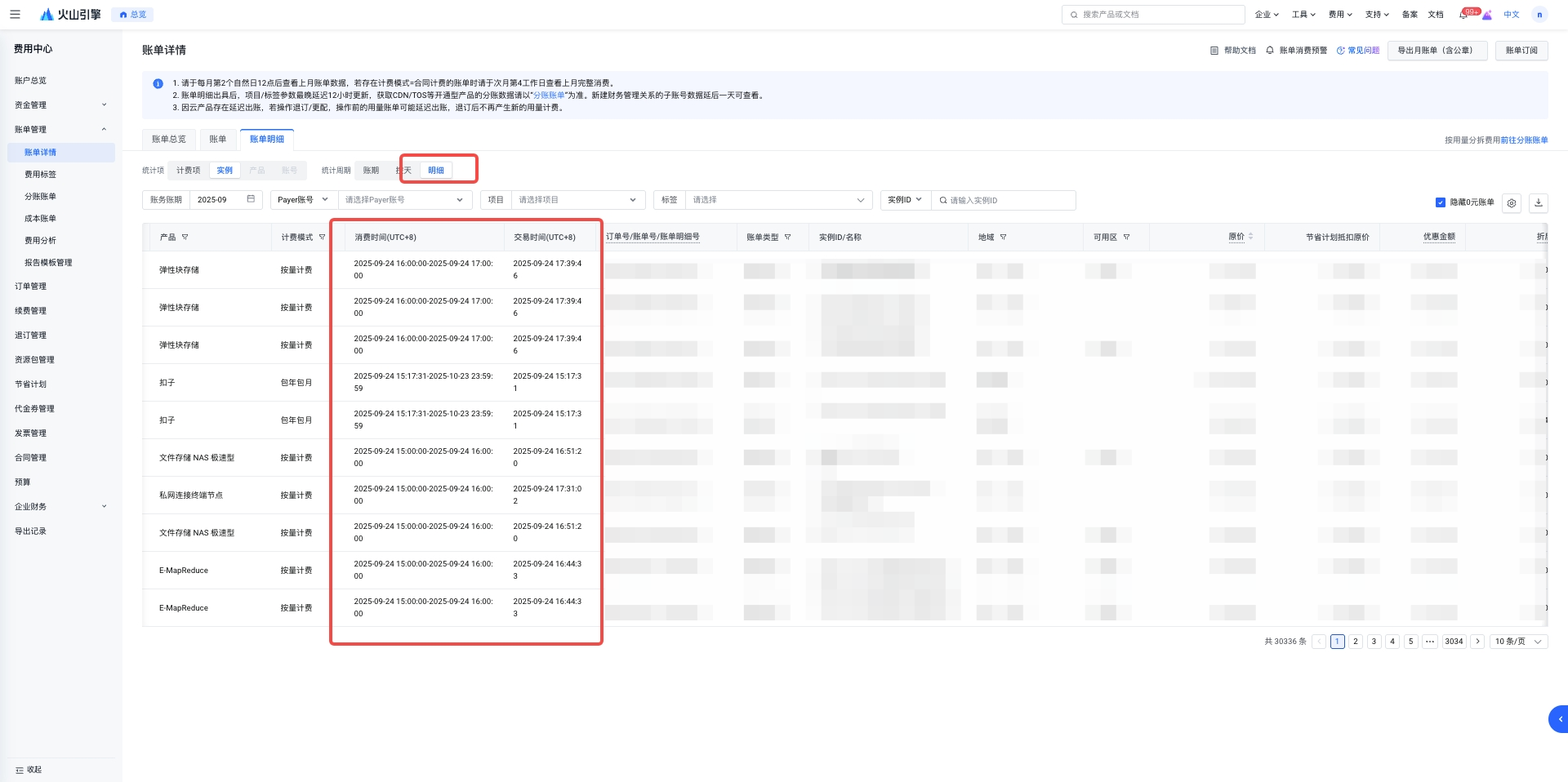
- How can I check the exact time of the transaction?
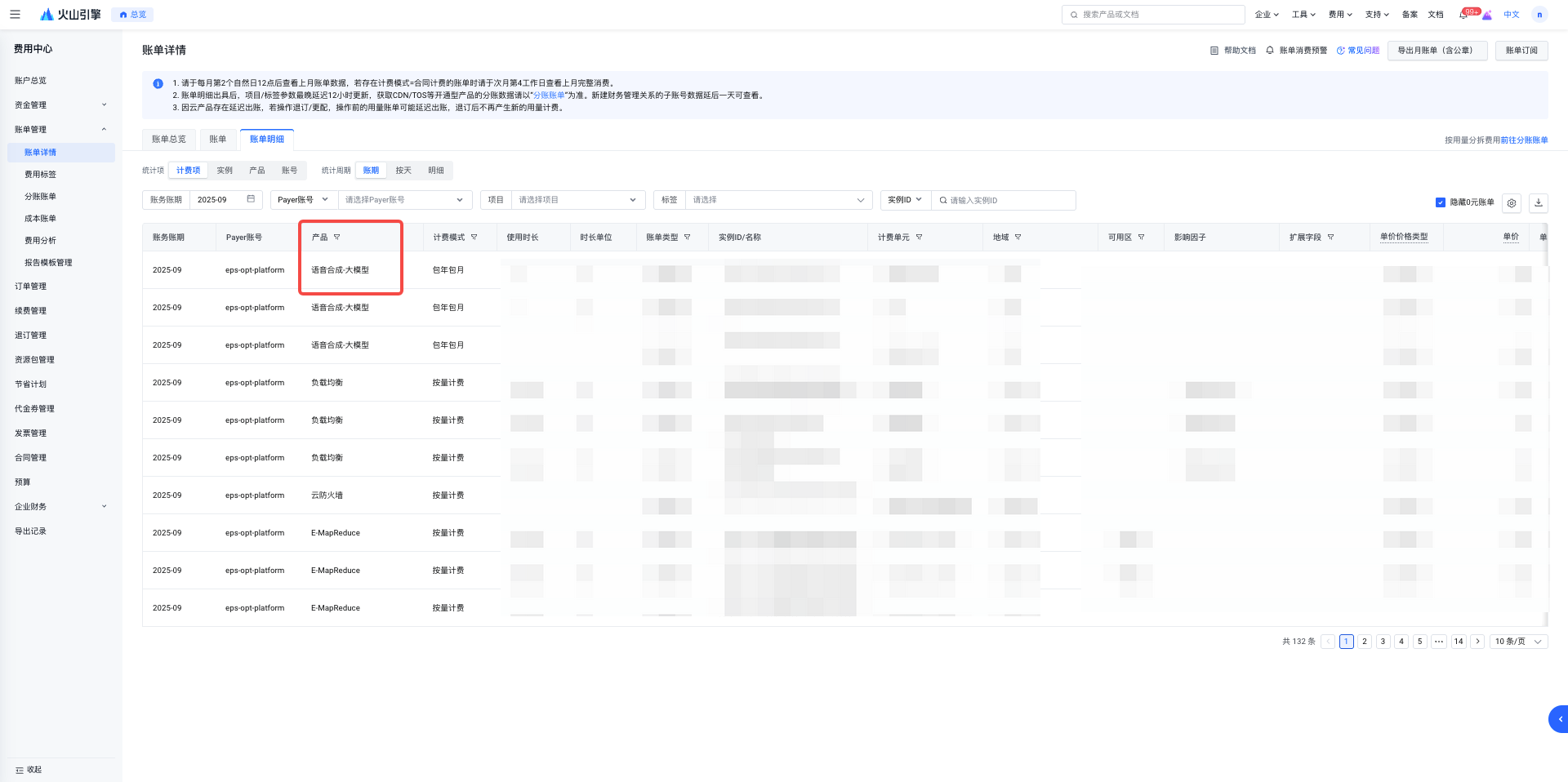
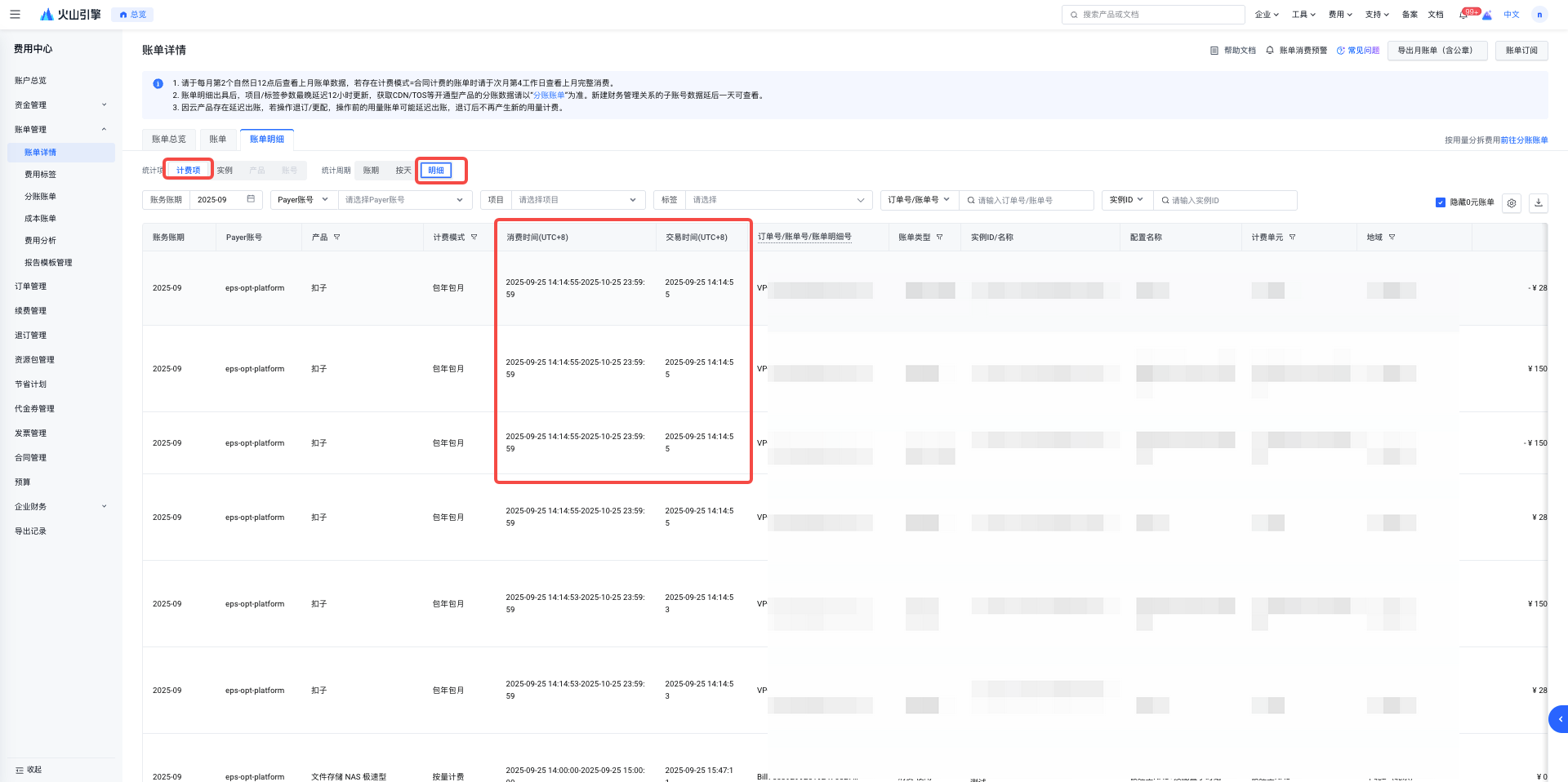
In bills where the statistical period dimension is set to 'detail', Volcano Billing records both the corresponding consumption time and transaction time. You can view the specific time when the consumption occurred and the consumption details in the bill details.
Consumption Time: The start and end time of a consumption behavior.
- The valid start and end times of an instance when purchasing prepaid (annual or monthly) cloud products, that is, the effective date and expiration date of the order.
- When using pay-as-you-go cloud products, the start and end times of each postpaid billing cycle (real-time, hourly, daily, monthly).
Transaction Time: The deduction time corresponding to the consumption record.
- When purchasing prepaid (annual or monthly) cloud products, the start time of the instance validity period is the effective time of the order.
- The time when the actual transaction deduction occurs after the end of each postpaid billing cycle for pay-as-you-go cloud products.
It takes a certain amount of time for the system to calculate expenses within the consumption cycle; therefore, a delay between the transaction time and the consumption end time is a normal occurrence.
- Does the bill amount include tax?
The billing amounts displayed by Volcano Engine are tax-inclusive, and the specific tax rate will be indicated on the invoice.
- Can monthly statement PDF files be obtained via an interface?
Monthly bill PDF files are temporarily not available via API. Please go to Billing Center – Bill Management to download the corresponding PDF bill file.
- How are bills for different products displayed?
- In the billing overview, clicking [View Details] for the corresponding month allows you to view the monthly summary bill by product, distinguished by product fields.
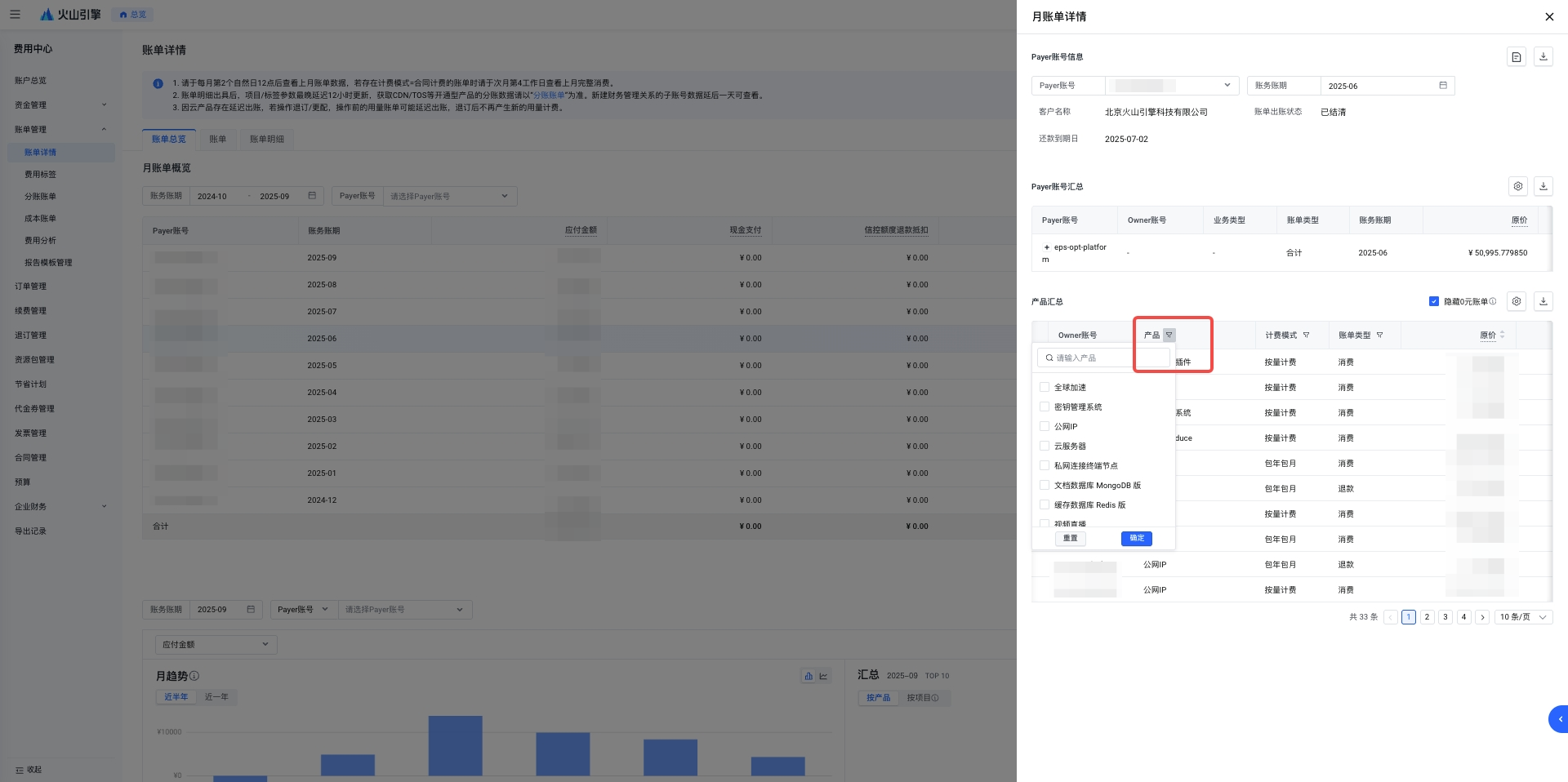
- In the bill details, bills can also be distinguished by the product field.
- Why does my account show arrears again shortly after I recharge the amount owed?
When you use postpaid resources, there is a time difference between the consumption time of the service and the settlement transaction time (the process by which the platform calculates the fees). If you make a payment during this time gap, you may find that after recharging the outstanding amount, your account becomes overdue again after a short while. You can check the specific consumption time and transaction time in the Billing Item + Details section under billing details.
- Which amount should be used for bill repayment?
The role of the amount payable and the amount overdue in bill settlement:
The payable amount refers to the amount that can be invoiced each month and represents the amount you should pay for the current month. Once the bill is issued, this amount remains unchanged and is suitable for bill reconciliation.
The amount owed is affected by consumption and refunds, and reflects the sum you have not paid. If you wish to ensure that your account does not become overdue, you may make repayments according to the amount owed.
- Why can't I see the overdue bill when the account is already overdue?
Compared to fund data, bills and bill details involve a larger volume of data and more complex presentation, which may result in some synchronization delay. You may try viewing the bill again later.
- What does the billing period mean on a bill?
There are two billing period fields in Volcano Bill: Business Billing Period and Financial Billing Period.
- Accounting period: The period to which the bill's issuance is assigned.
- Business accounting period: refers to the period during which the business actually occurs.
Typically, the business billing period and the accounting billing period of an invoice fall within the same month. Specifically, when there is a billing adjustment that spans across months, such as adjusting the January bill in March, the accounting period is March and the business period is January.
- What is the order in which recharge amounts are applied after an overdue bill?
The system will make deductions in the order in which bills are issued, giving priority to the earliest outstanding bills.
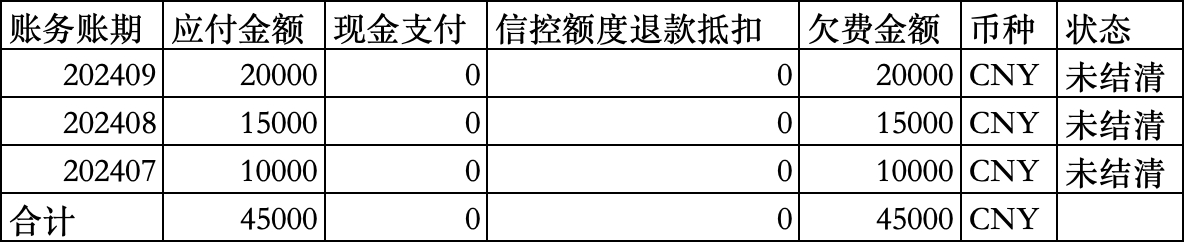
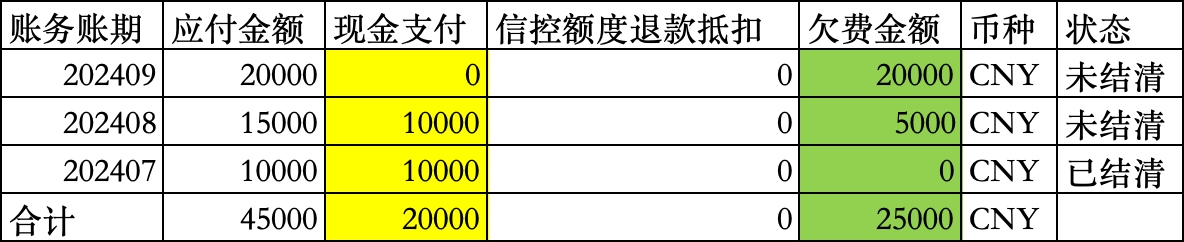
For example, if you have outstanding payments for July, August, and September 2024, the recharge amount will be applied first to offset the arrears for July. Only after the July bill has been fully settled will it be used to offset the August bill. For example, if you have outstanding payments in each of the three months—July, August, and September—and you recharge an amount of 20,000 yuan, your bill will change as follows.
Before Recharge
After recharge
If you need funds to be earmarked for a specific purpose, please contact your business manager.
- What are the differences among the various types of bills in bill management?
Volcano provides bills of different types:
- Billing Statement: Details used for settlement and reconciliation, including itemized billing details calculated by charge statistics, statements at the bill issuance level, and Billing Overview summarizing monthly billing amounts. Related Introduction: New Version Bill Management – Cost Center - Volcano Engine
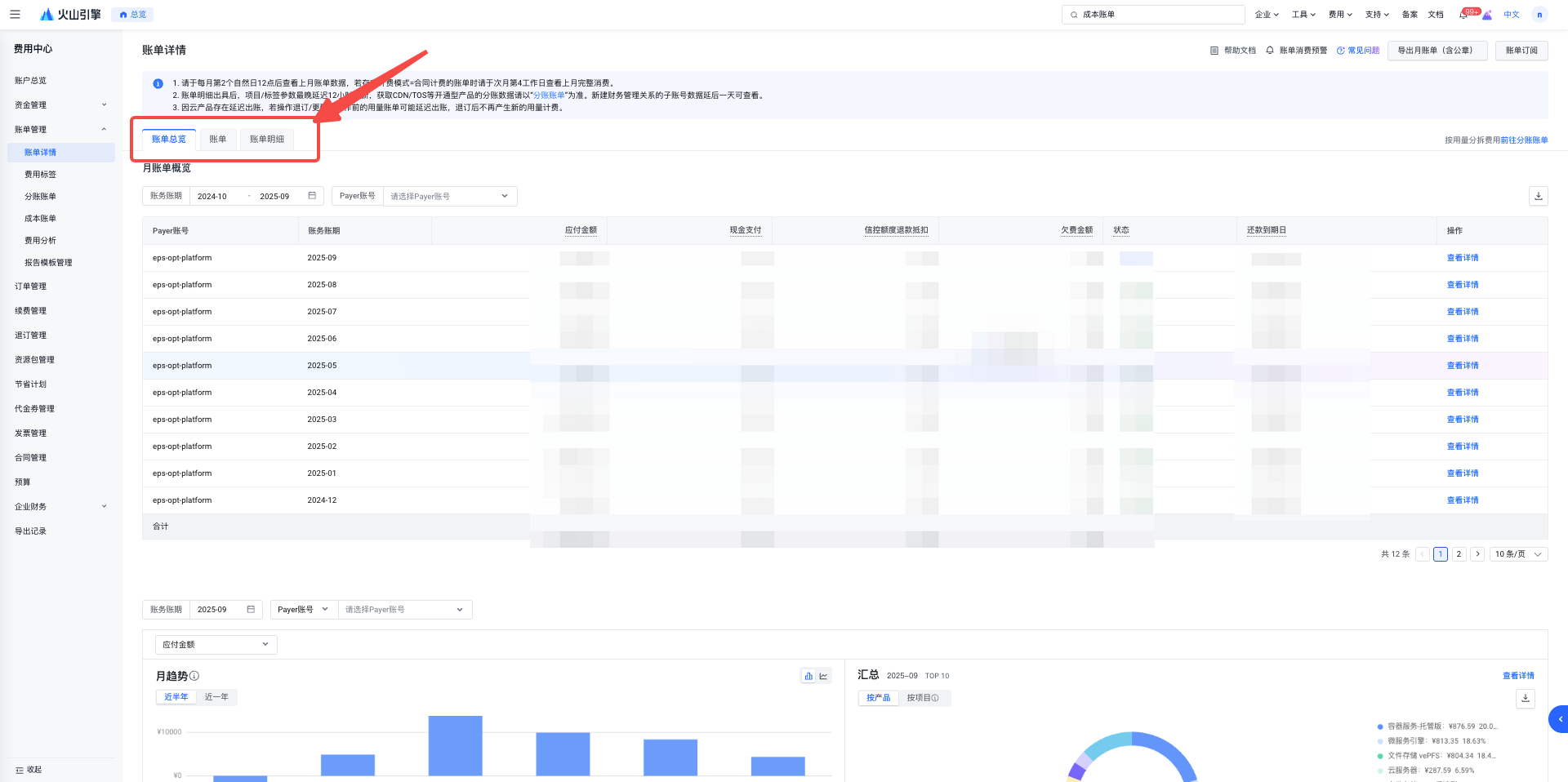
- Cost bill: Split using a specific algorithm for viewing allocated costs. Overview: Cost Bill--Cost Center--Volcano Engine
- Sub-account statement: Based on split items, costs are allocated at the resource granularity. Overview: Revenue Sharing Statement--Cost Center-VolcEngine
- Will the billing API return deductions made using credit limit refunds?
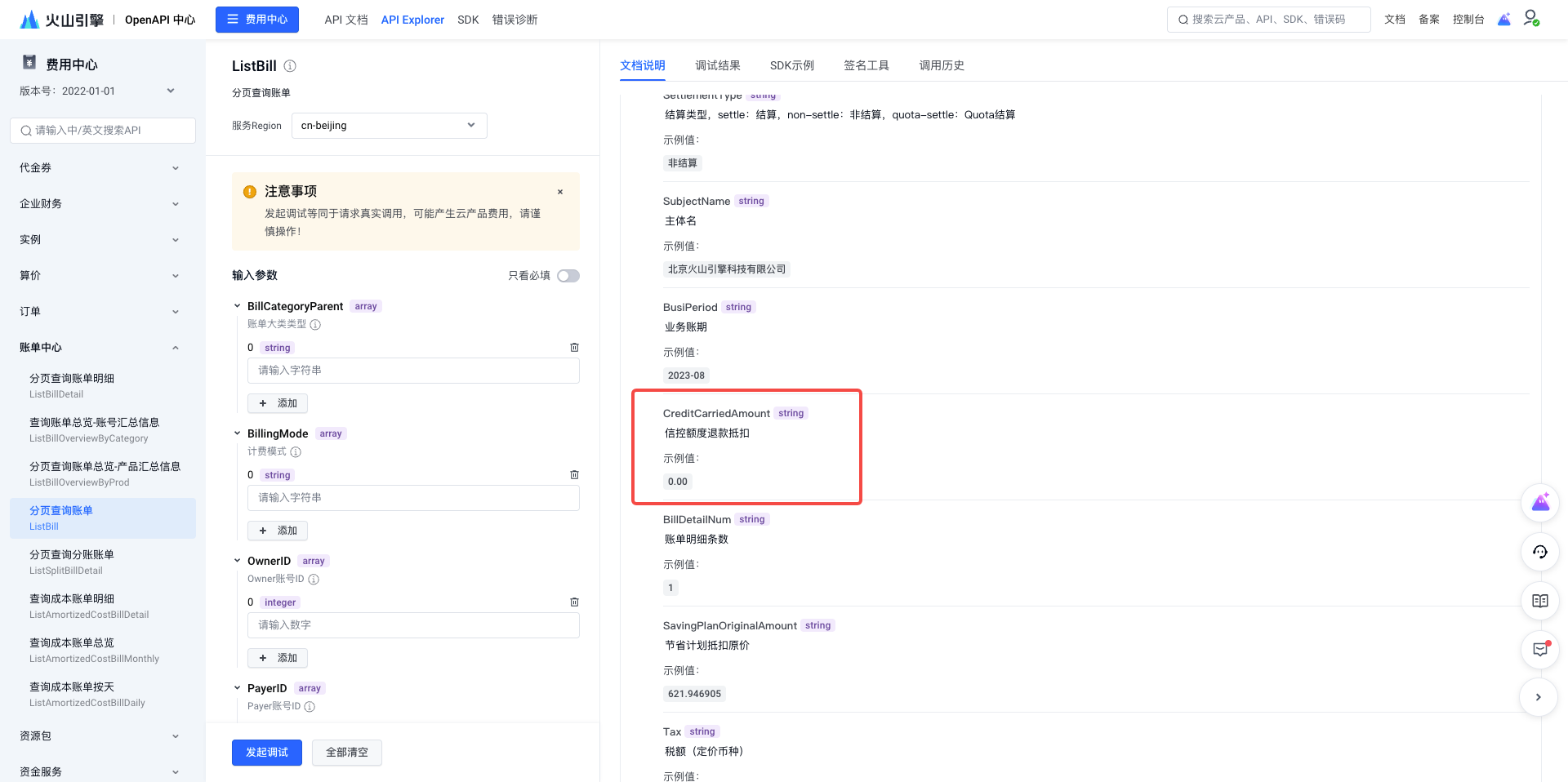
Yes, the billing API will return the credit limit refund deduction field. For specific details, please refer to the response parameters of the API you are using. For example:
In the paginated bill query ListBill API, the response parameter CreditCarriedAmount represents the deduction for credit control limit refunds.
- Why is it recommended to issue invoices and make repayments based on the payable amount?
The advantages of making repayments and issuing invoices on a monthly basis, based on the amount payable, are as follows:
- Fixed Amount: After the statement is issued at the beginning of each month, the amount due on the previous month's bill will no longer change, while the outstanding amount may fluctuate at any time due to cash payments (customer payments, adjustments) and credit limit refunds or offsets (refunds, reallocation, adjustments).
- Invoice-Bill Consistency: The invoiceable amount for the current month is exactly the same as the amount due on the bill. Invoices can be issued directly for the billing period. If invoicing is based on the outstanding amount, it is usually necessary to specify the amount to be invoiced.
- How long after a label is updated can it be seen on the bill?
When labels are updated, bills that have already been generated (including bills, split bills, and cost bills) will not be updated to reflect the new labels; instead, they will retain the label data present at the time of billing. Bills generated after updating tags will record the new tag information.
- Where can the traffic flow direction information of a transit router be viewed?
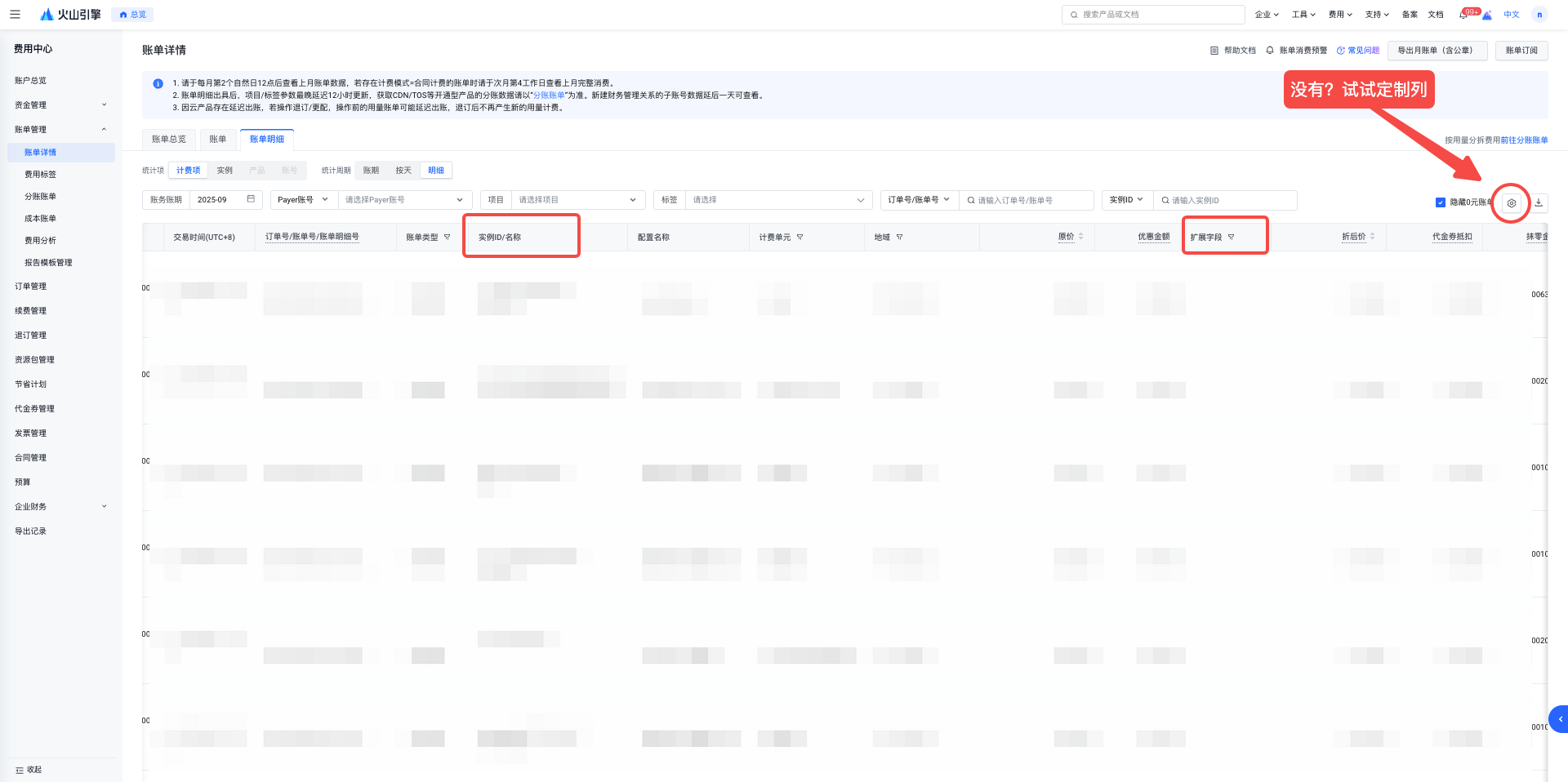
Billing in Volcano Bill is based on the granularity of Attachment instances. Attachment is a sub-resource of TR. The bill instance ID is the Attachment ID, and the extension field ID is the TR ID. By using the billing items and detail dimensions in the Cost Center – Billing Management billing details, you can view the corresponding instance ID and extended fields.
- How do I unsubscribe from an instance?
Standard Cancellation Process Guide: Standard Example Cancellation Process Guide (For External Use)
You may also visit the Documentation Center - Volcano Engine to find the billing documentation for the product you use. You can unsubscribe by following the instructions in the documentation.
- What Is a Project? What is a tag? What is their relationship? Do the two not affect each other?
A Project is a resource management method provided by Volcano Engine, used to group and manage cloud resources for different businesses or projects. A project is a collection of resources, and resources used for project management can only be added to a single project. Projects enable unified viewing and management of a set of resources, and allow control over the permissions that users and roles within the project have for these resources. The project is suitable for scenarios that require grouping and permission management based on dimensions such as business departments and project teams. For more details, please refer to: Project Overview
A tag is an additional resource identifier composed of a set of key-value pairs, used to classify and aggregate cloud resources from different dimensions. Resources that support tag management can be bound to multiple tags simultaneously. Tags are applicable in scenarios that require classification management based on dimensions such as resource characteristics and resource owners. For more details, please refer to: Tag Overview
Item and label are two independent fields in the bill and do not affect each other.
- Why does overdue payment still occur despite the presence of credit control?
The credit control limit authorized by Volcano Engine is the range within which you are allowed to have outstanding payments. Outstanding payments within the credit control limit will not result in your service being suspended. Your credit control limit will be restored after all outstanding payments have been made.
- Will billing continue after the instance is shut down or terminated?
Shutting down an instance does not mean that billing will stop. The specific billing details depend on the shutdown mode of the instance. For example, in the case of cloud servers:
- Normal Shutdown Mode: After the instance is shut down, all resources (including computing resources and storage resources) will continue to be billed.
- Saving Stop Mode: After the instance is shut down, computing resources (vCPU, GPU, and memory) will stop being billed, but storage resources such as cloud disks and public IPs will continue to be billed.
It should be noted that only pay-as-you-go instances that have not mounted a local disk support economical shutdown mode. If you wish to completely stop billing, you need to delete the instance and its associated resources.
The billing models of other products can also be found by visiting the Documentation Center - Volcano Engine and searching for the billing documentation of the corresponding product.
- Why would there be outstanding charges if no action has been taken?
Usually, when no operations have been performed within a certain period, possible reasons for account arrears resulting from consumption bills include:
- There is a delay between the actual usage of postpaid resources and the billing deduction. For example:
- Billing is based on hourly aggregated usage; the usage for the current hour will be billed and deducted in the following hour.
- Settlement is based on the amount added each day; usage from yesterday will be billed and deducted today.
- Based on peak usage monthly billing, charges incurred from usage in the previous month will be billed and deducted on the 2nd day of the current month.
- Expenses are incurred through operations performed by sub-accounts associated with the main account, when the main account grants its IAM sub-accounts permissions to create resources or place orders for payment, or when the main account itself serves as a financial trustee account.
- Under the main account, resources such as the Kouzi Team Edition are shared with other enterprise or team accounts; team members can share intelligent agents and applications in the shared workspace.
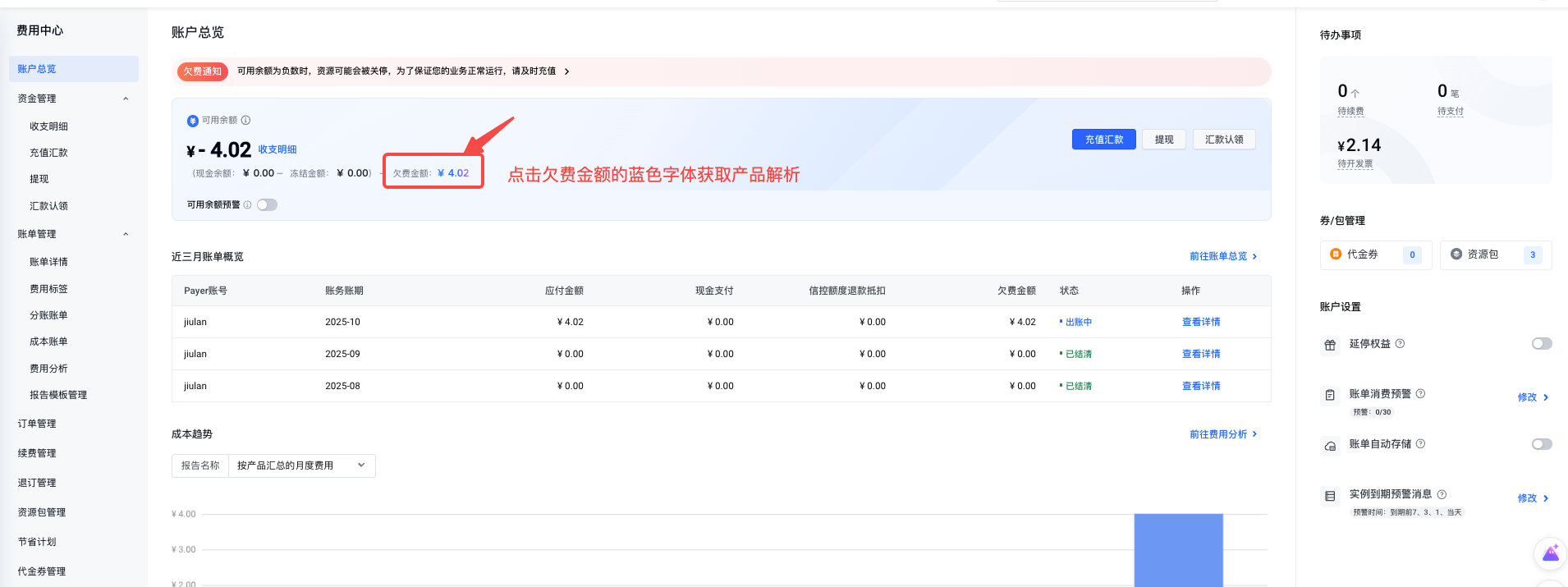
Follow the steps below to view the details of products and services that have incurred outstanding charges:
- Log in to Fee Center - Fee Overview: https://console.volcengine.com/finance/account-overview
- Click the blue text labeled "Overdue Amount" shown in the screenshot to view the analysis of overdue products.
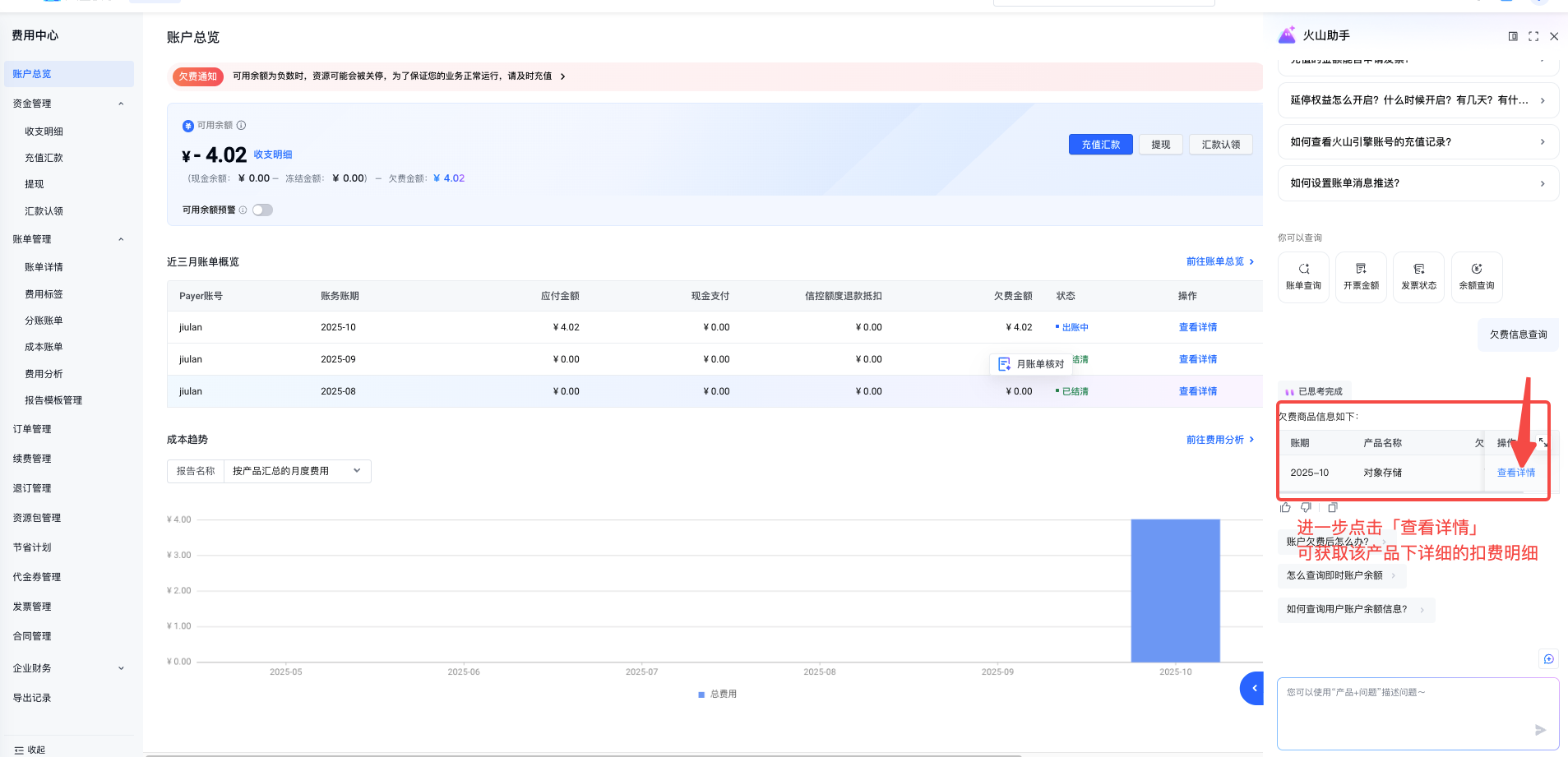
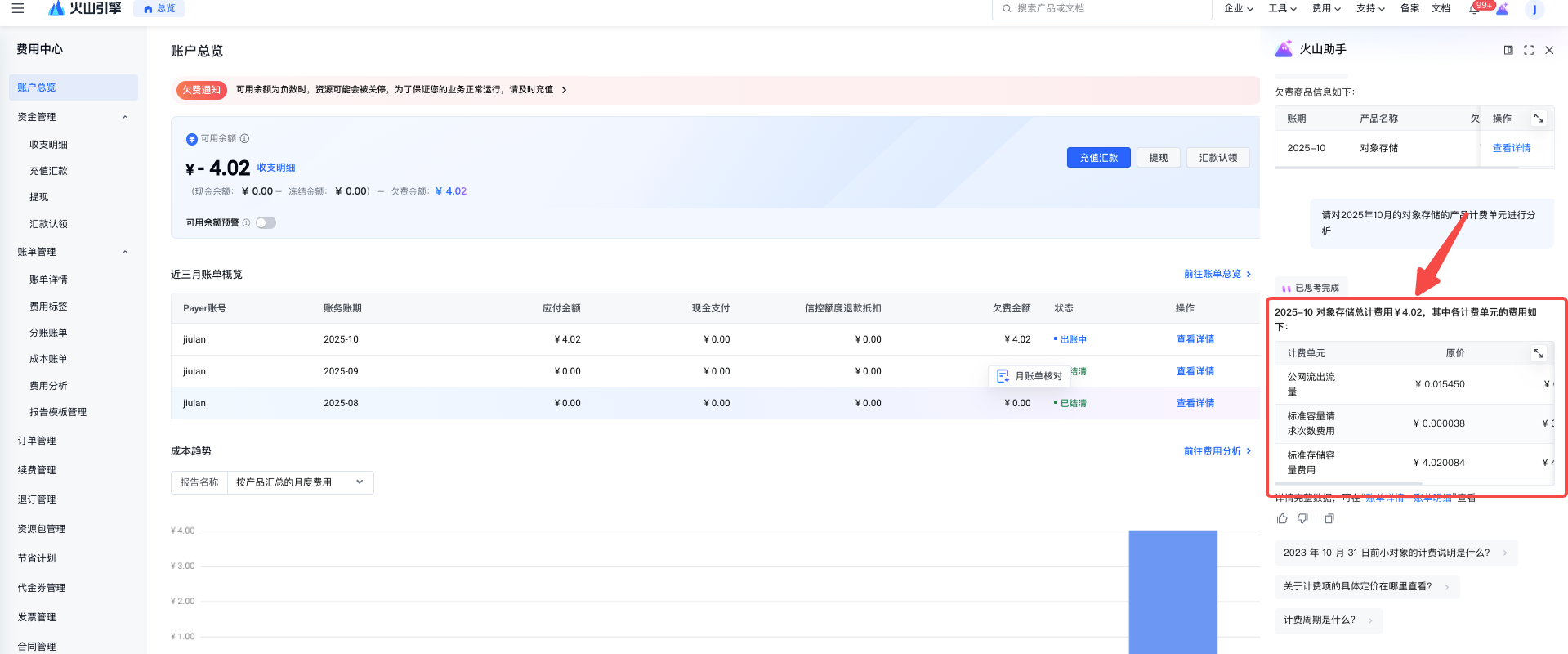
By following the steps below, you can view the detailed breakdown of products and services consumed that incurred charges during the current month in a more comprehensive manner:
- Log in to Cost Center - Cost Overview: https://console.volcengine.com/finance/account-overview
- Locate billing periods with the statuses "In Billing" and "Unsettled"; click 'View Details' to view the details.
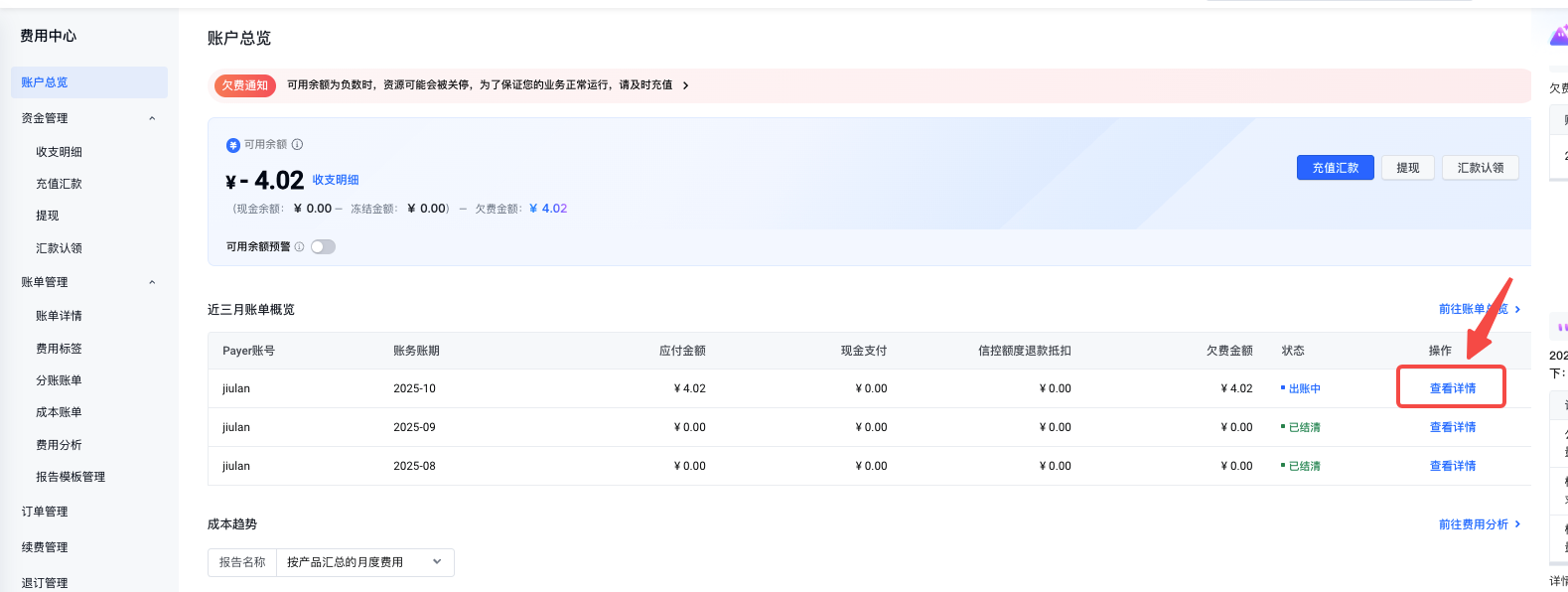
- Why are billing charges incurred for the XX service when it has not been activated?
Unexpected charges typically occur when you activate a product and, due to service dependencies, other cloud services are created or used. You can follow the instructions below to further confirm detailed information about the unexpected charges, including the specific products involved, service details, the time the charges were incurred, usage amounts, and the actual deduction time, to quickly locate the issue.
- Log in to the Volcengine Console - Billing Center - Bill Management - Bill Details page.
- Switch to the billing details page, select the billing period you wish to query, and first choose the 'Product' dimension to view bills aggregated by product. Check whether there are any unexpected product bills. The meanings of common bill types are as follows:
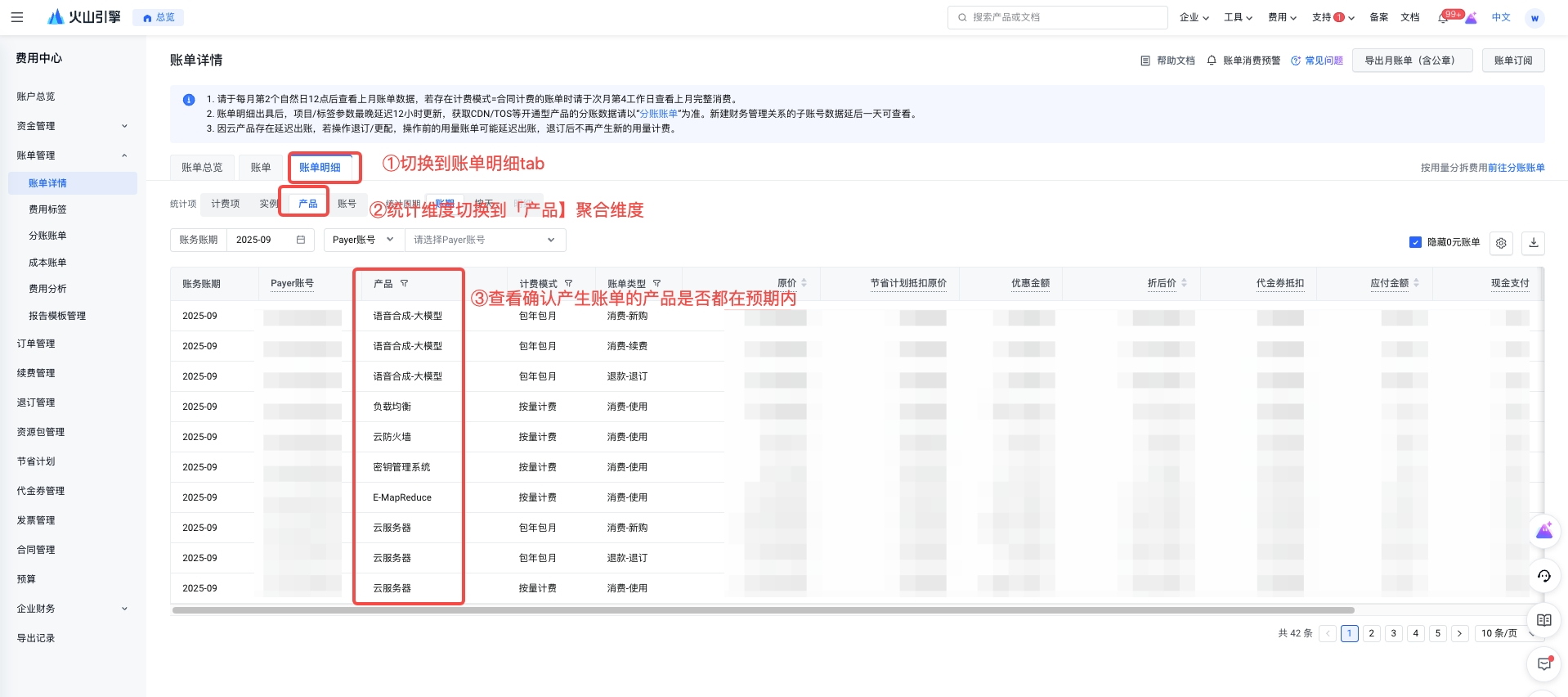
- If you have questions about the bill for a specific product, you can switch to the "Billing Details" tab to view usage details.
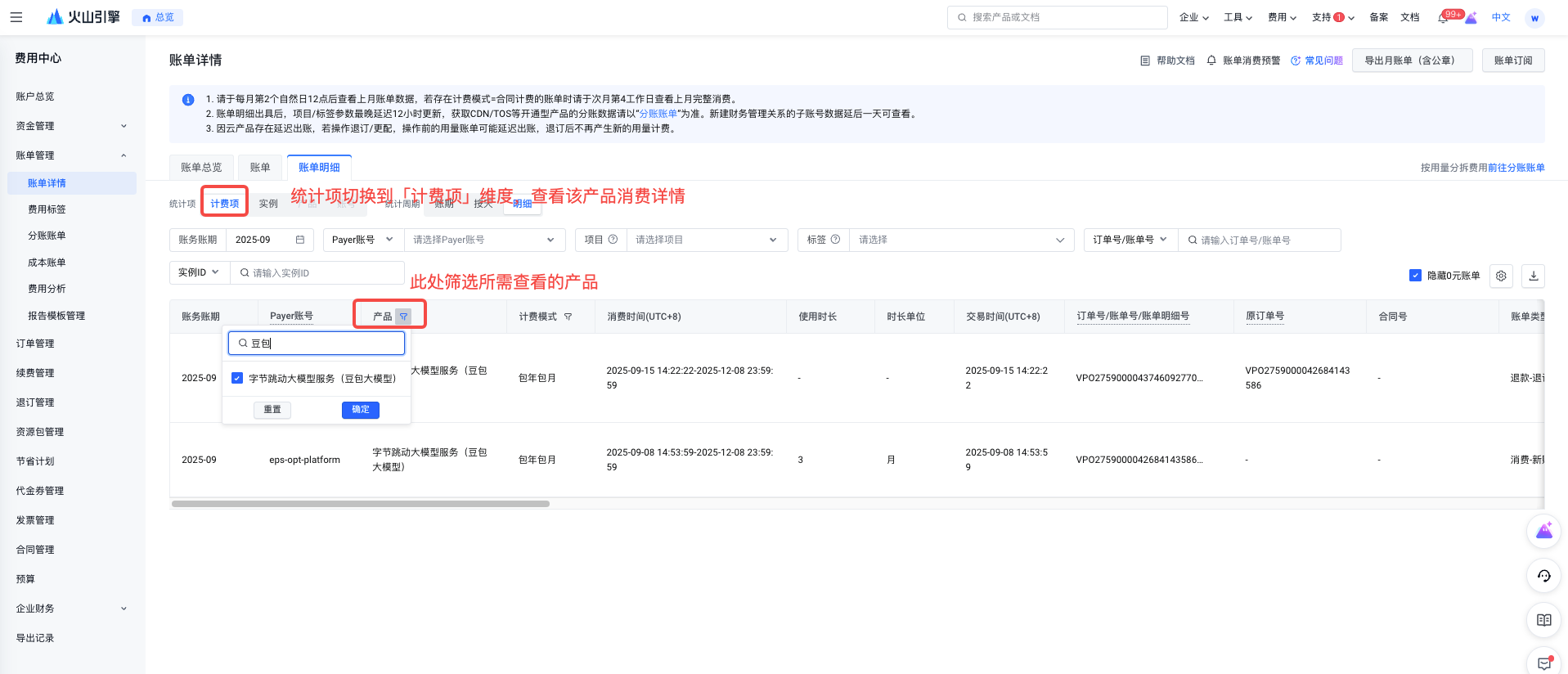
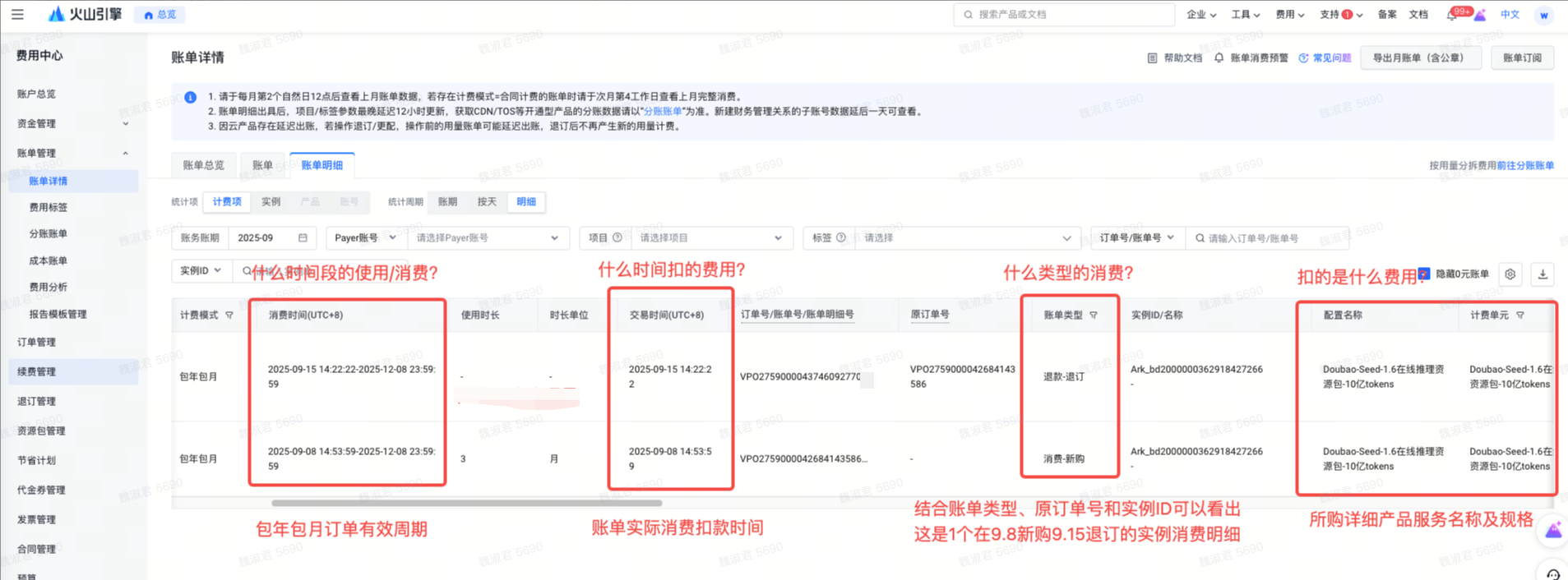
- If you have any questions regarding the consumption of the above Doubao Large Model, you can respectively obtain the following detailed information by checking the corresponding fields.
- During which time period was the consumption generated by usage? (See the "Consumption Time" field)
- When was the fee deducted? (See the "Transaction Time" field in the bill details)
- What type of consumption? (See the 'Bill Type' field in the bill details)
- What fees are being deducted? (View the 'Product', 'Configuration', and 'Billing Unit' fields in the billing details)
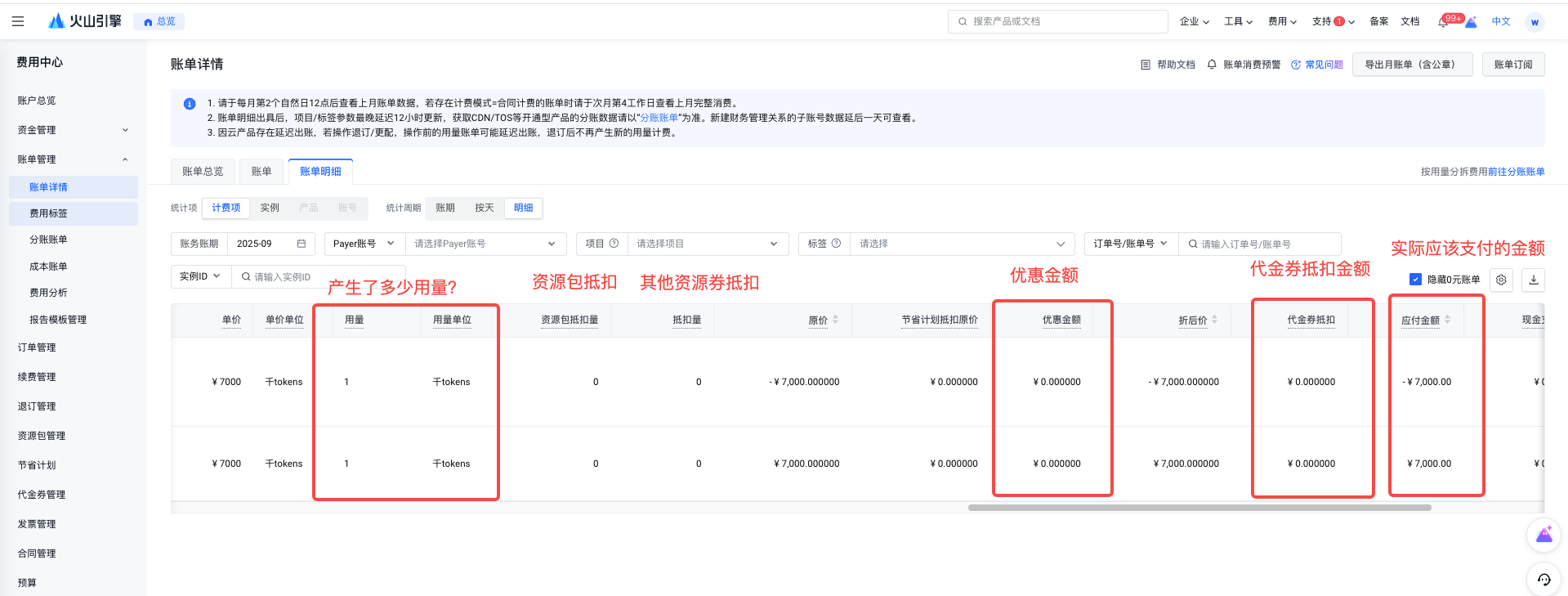
- How much usage was generated? (View the 'Usage' and 'Unit' fields in the billing details)
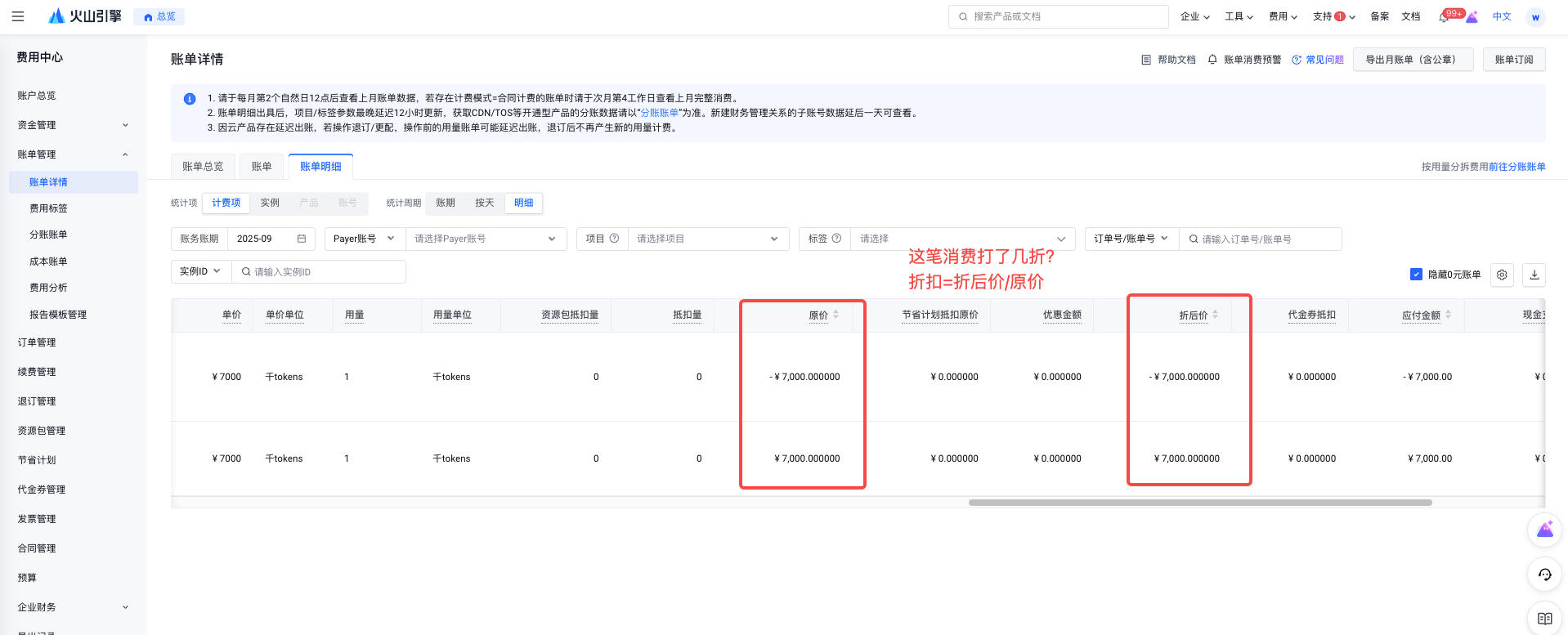
- What is the discount amount? (Check the 'Discount Amount' field in the billing details, or calculate it as 'Original Price minus Discounted Price minus the Savings Plan deduction applied to the Original Price.')
- How many vouchers were deducted? (View the 'Voucher Deduction' field in the billing details)
- How many resource packs were deducted? Example voucher? (Check the billing details for 'Resource Package Deduction Amount' and 'Deduction Amount')
- How much do I actually need to pay? (View the "Amount Payable" field in the bill details)
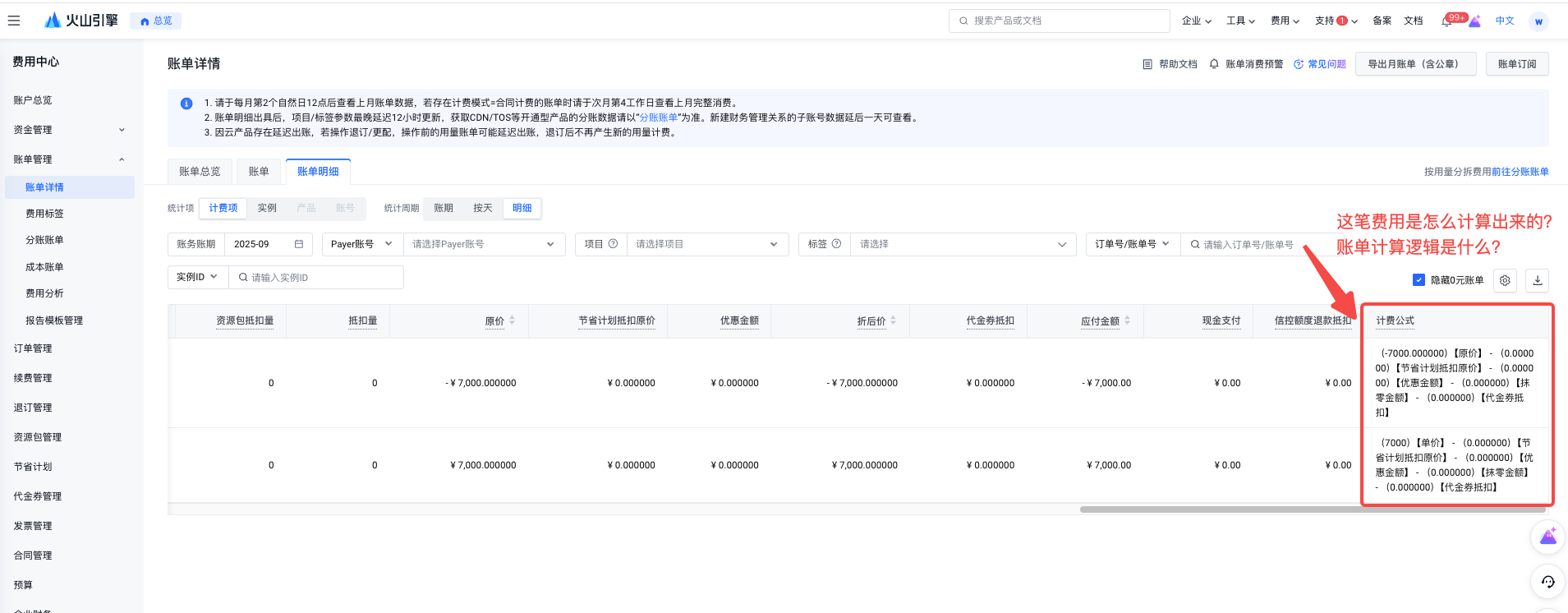
- How are the costs calculated? What is the billing logic (refer to the 'Billing Formula' field in the bill details)
- What percentage of the original price did you pay for this expense? Only the contract price is shown; deductions such as coupons, packages, etc. are not included. To view bill details, use "discount = discounted price / original price".
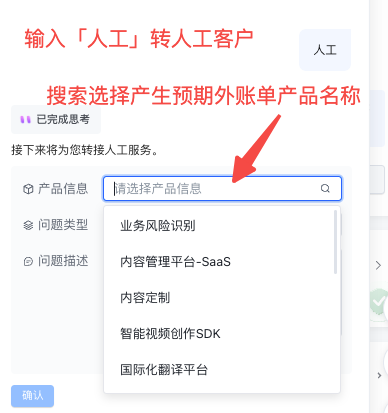
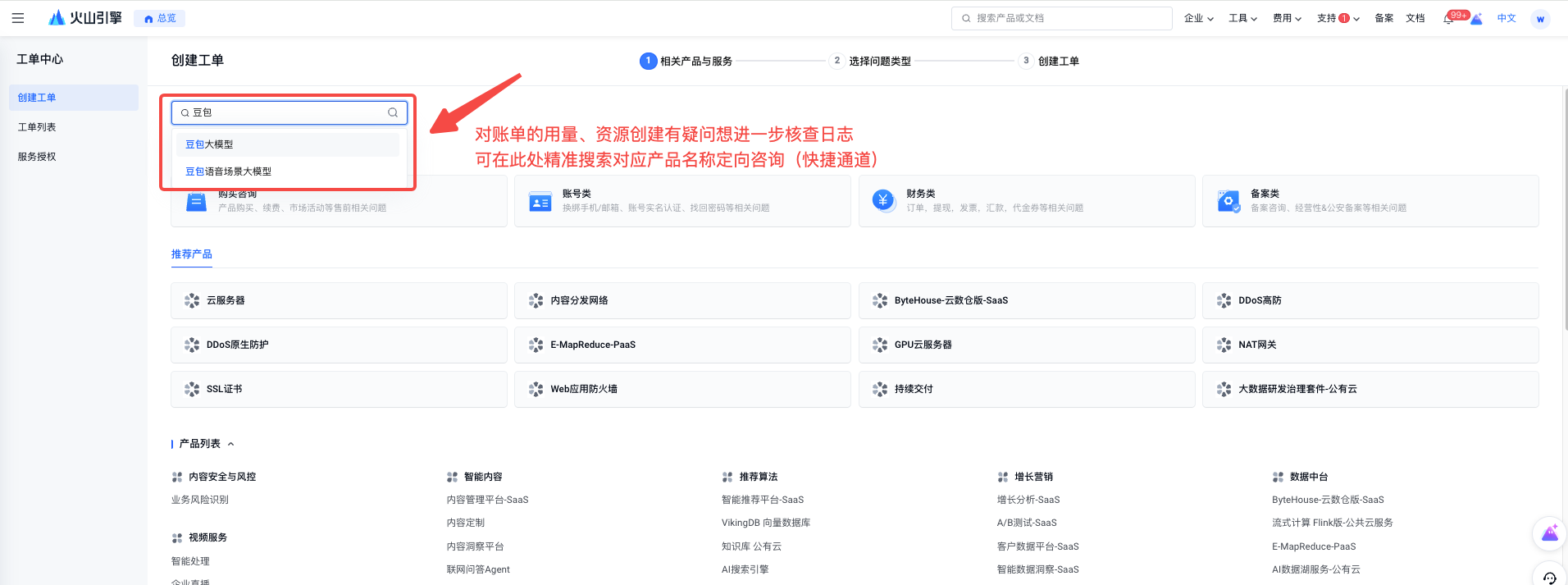
- If you have any questions about the account used to activate paid services, you can further escalate the issue to a customer service representative. The steps are as follows:
Volcano Intelligent Assistant Interface
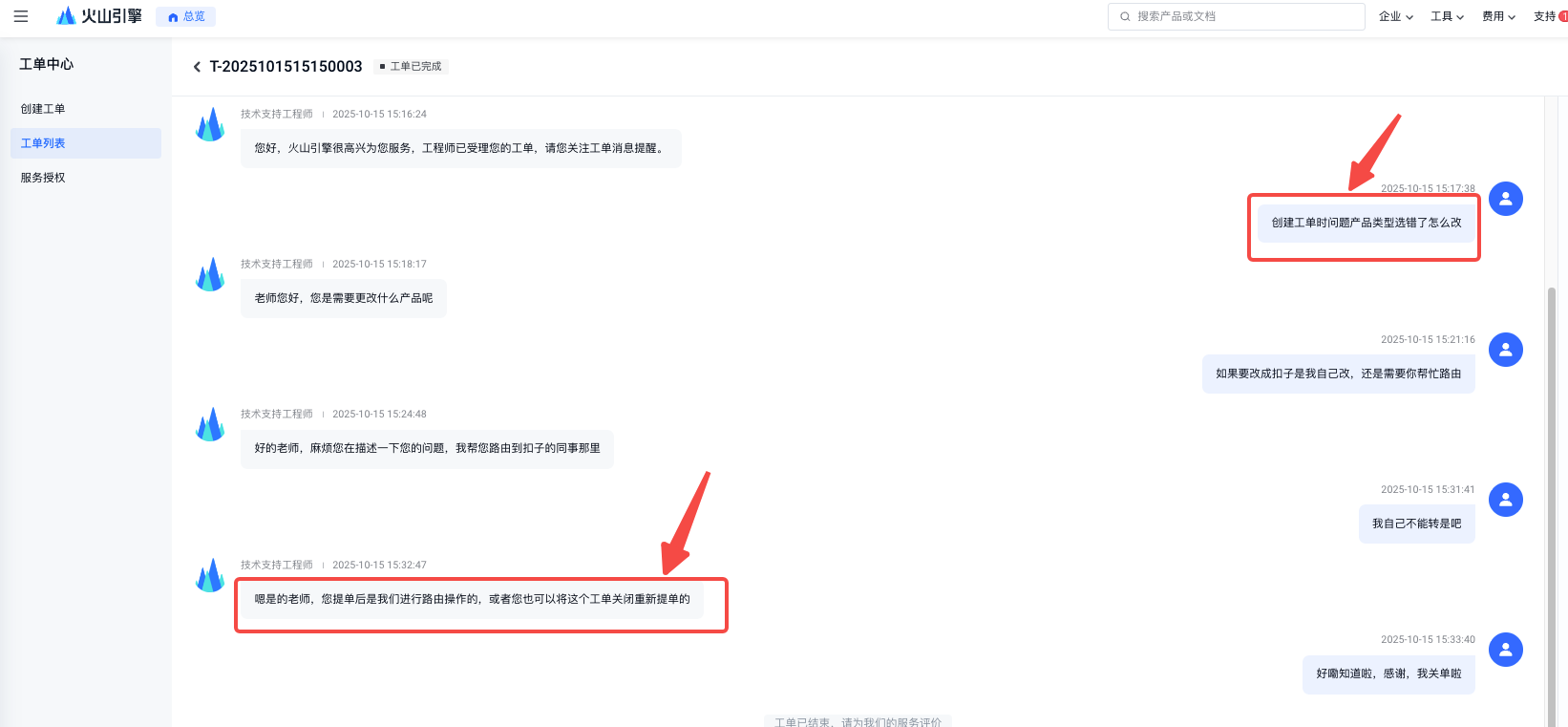
Console Work Order Interface
- Why does it show arrears even though the account has been recharged / there is a cash balance? (Outstanding Amount, Overview Status)
If you have already recharged your account and the available balance is greater than 0, but the outstanding amount in the bill summary for the past three months on the account overview page is still not zero, you need to interpret this in conjunction with the 'Status' field.
- If only the latest billing period shows an outstanding amount and its status is 'Billing in progress', while all previous billing periods have an outstanding amount of 0 and are marked as 'Settled', this indicates a delay in the billing and repayment system update. You may wait 5–10 minutes and then check whether the outstanding amount has changed to 0. If there are active instances under the current account, usage bills will continue to be generated. Please ensure your account has sufficient available balance to avoid service interruption. Outstanding payments may affect your online business.
- If both the current billing period and historical billing periods have outstanding amounts, with the current billing period status as 'Invoicing' and the historical billing period status as 'Unsettled,' this indicates that there are unpaid amounts on historical consumption bills. After the account balance is recharged, repayments will be made in chronological order from the oldest to the newest billing period, repaying historical outstanding amounts first. At this time, the total outstanding amounts for both historical and current billing periods must be paid in full to ensure normal account operation.

Data updates to the fund account may occur earlier than updates to the billing data. Common scenarios include receiving an arrears notification via SMS but not seeing the corresponding usage bill, or the SMS indicating arrears while the bill does not reflect any outstanding amount. If you encounter such situations, please wait patiently for 5–10 minutes before checking again. If there is still no change, you may contact customer service for further assistance.
- Why am I still in arrears even though there is remaining quota in the resource package?
Postpaid services that typically result in outstanding payments cannot be deducted using resource packages with remaining balance. Alternatively, if the resource package is activated after the postpaid bill that led to the outstanding payment is generated, deduction is not possible.
You can further confirm through the following methods:
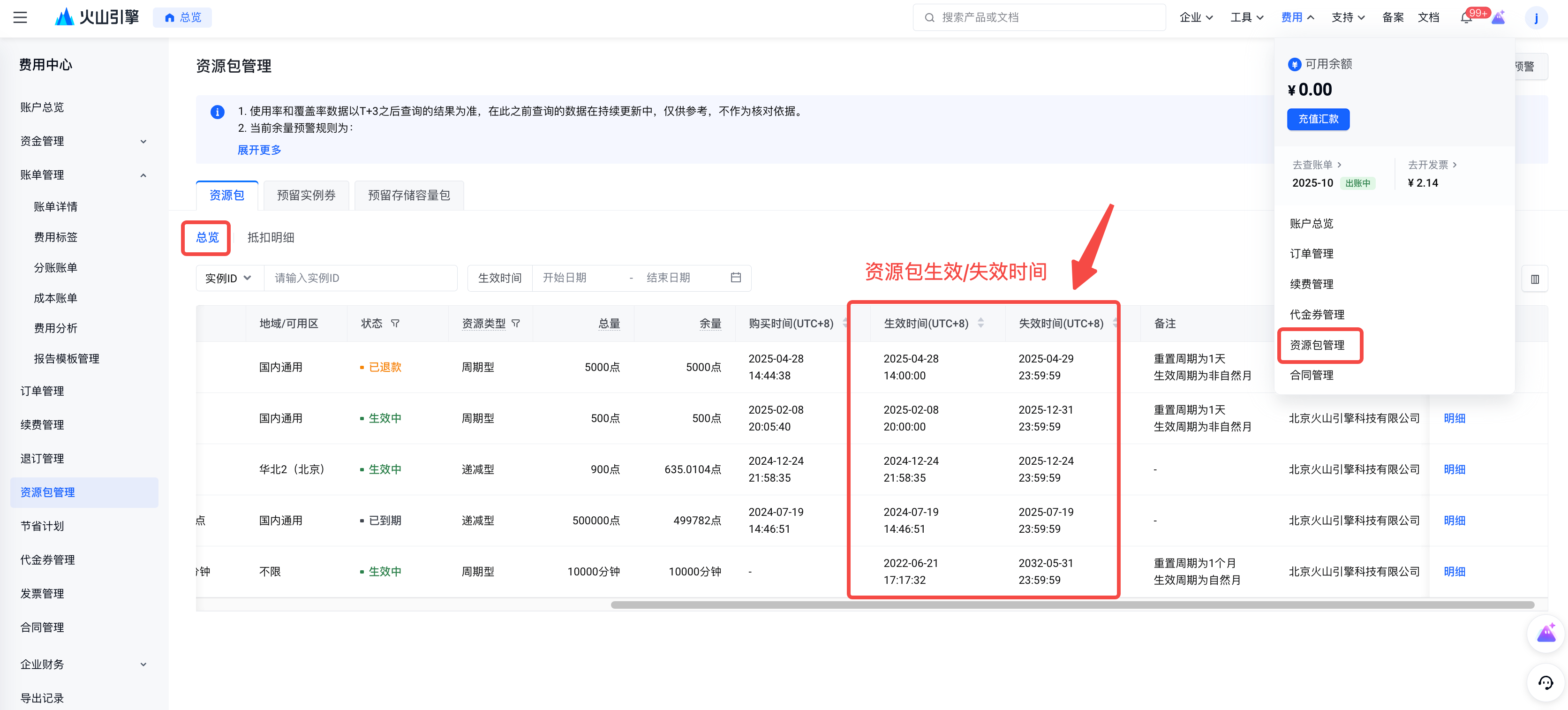
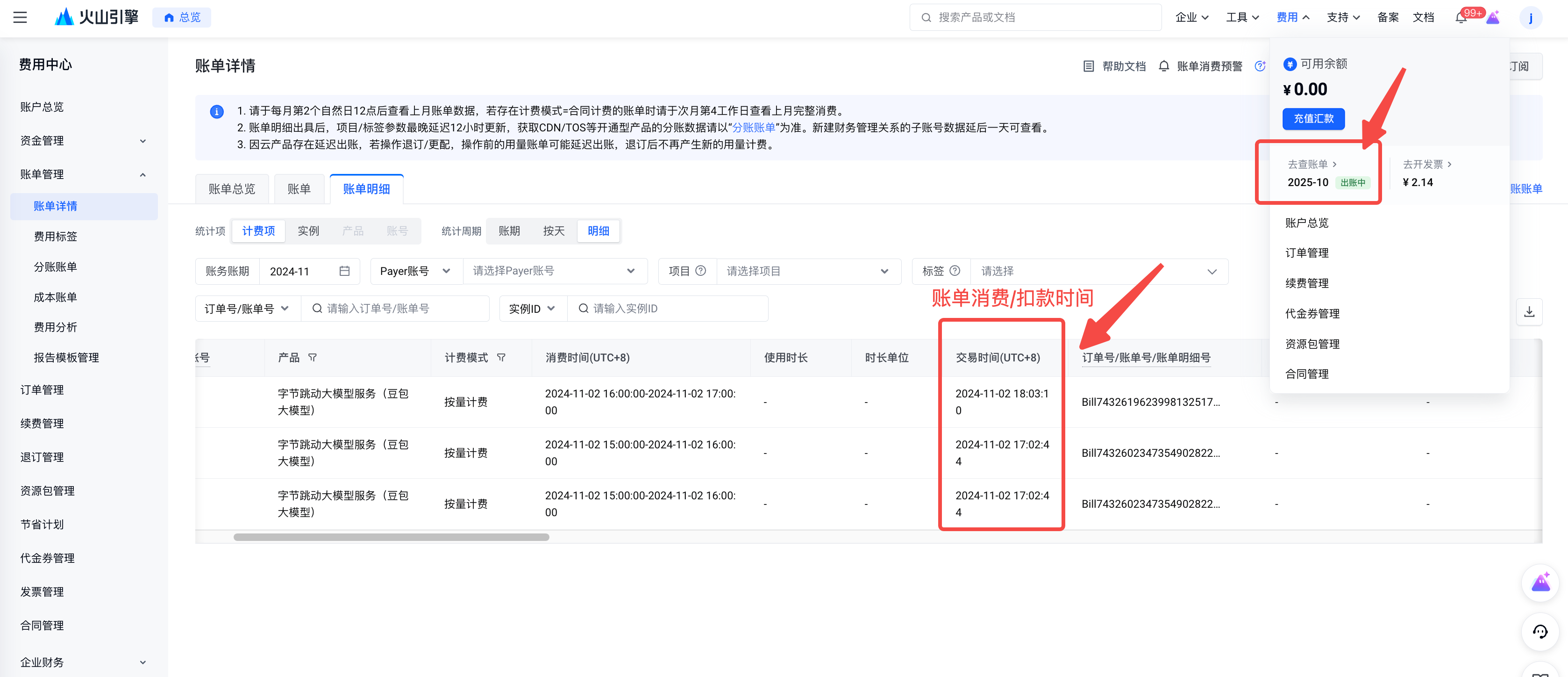
- View Resource Package Effective Time and Postpaid Bill Generation Time (Actual Consumption Deduction Time)
Resource Package Effective Time Query Address: https://console.volcengine.com/finance/resource-package
Postpaid Bill Generation Time Query URL: https://console.volcengine.com/finance/bill/detail, you need to manually switch to the Bill Details tab to filter for the required billing period.
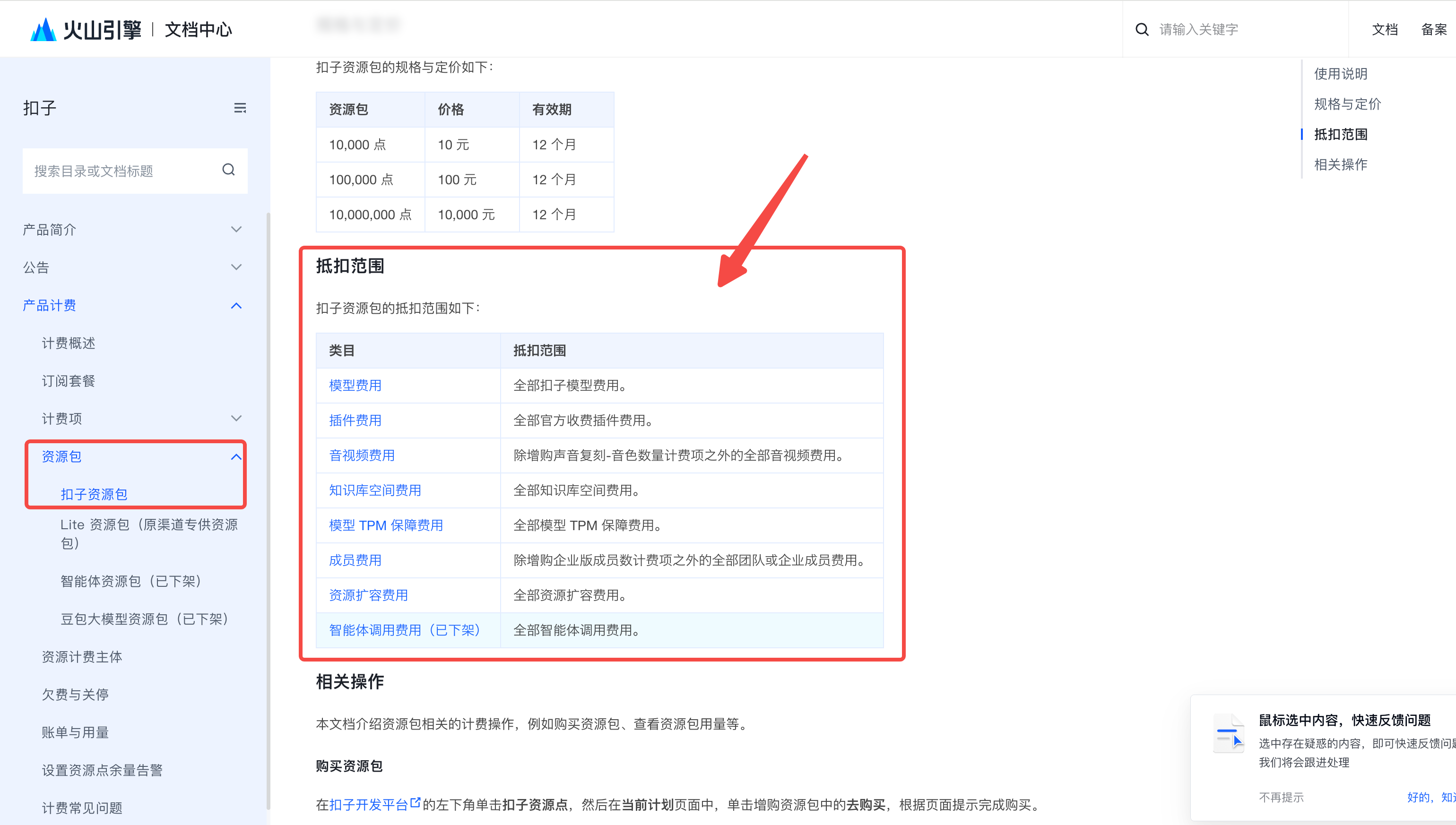
- The scope of deduction supported by resource packages is typically specified in the billing documentation of the corresponding cloud product; for example, using deduction units (扣子) as an illustration.
Documentation Link for Deduction Scope of Kouzi Resource Package: https://www.volcengine.com/docs/84458/1584255
- How is the rounding-off amount calculated? What is the rule for removing small change? Is payment required?
- Volcano Engine product pricing is set to exactly six decimal places; therefore, usage-based billing fees are calculated to six decimal places during the billing process. In the actual settlement process between Volcano and its clients, amounts are first aggregated according to specific rules, and then the values from the third to the sixth decimal place are discarded. The portion of the amount that is discarded in this way is referred to as the 'truncated amount'.
- The truncation rules are applied after aggregating data by resource purchase account, billing cycle, product code, instance ID, and consumption time. The frequency of truncation depends on the billing settlement period: if settlement is performed daily, truncation is applied once after daily aggregation; if settlement is performed hourly, truncation is applied once after hourly aggregation.
Example: Suppose the hourly pricing for the system disk is RMB 0.0002100 per GB, with a usage of 40 GB. The payable amount on the hourly bill would be RMB 0.008400. The monthly payable amount (assuming 30 days per month) would be 0.008400*24*30 = RMB 6.048000. After deducting the rounding adjustment of RMB 0.008000, the final payable amount to be settled with Volcano is RMB 6.04.
- The rounding amount does not need to be paid. This is because the rounding amount refers to the portion of the amount from the third to the sixth decimal place that is discarded by Volcengine during the billing process. Volcengine waives this portion during settlement, so no actual payment is required.
- Why is the rounding adjustment amount negative?
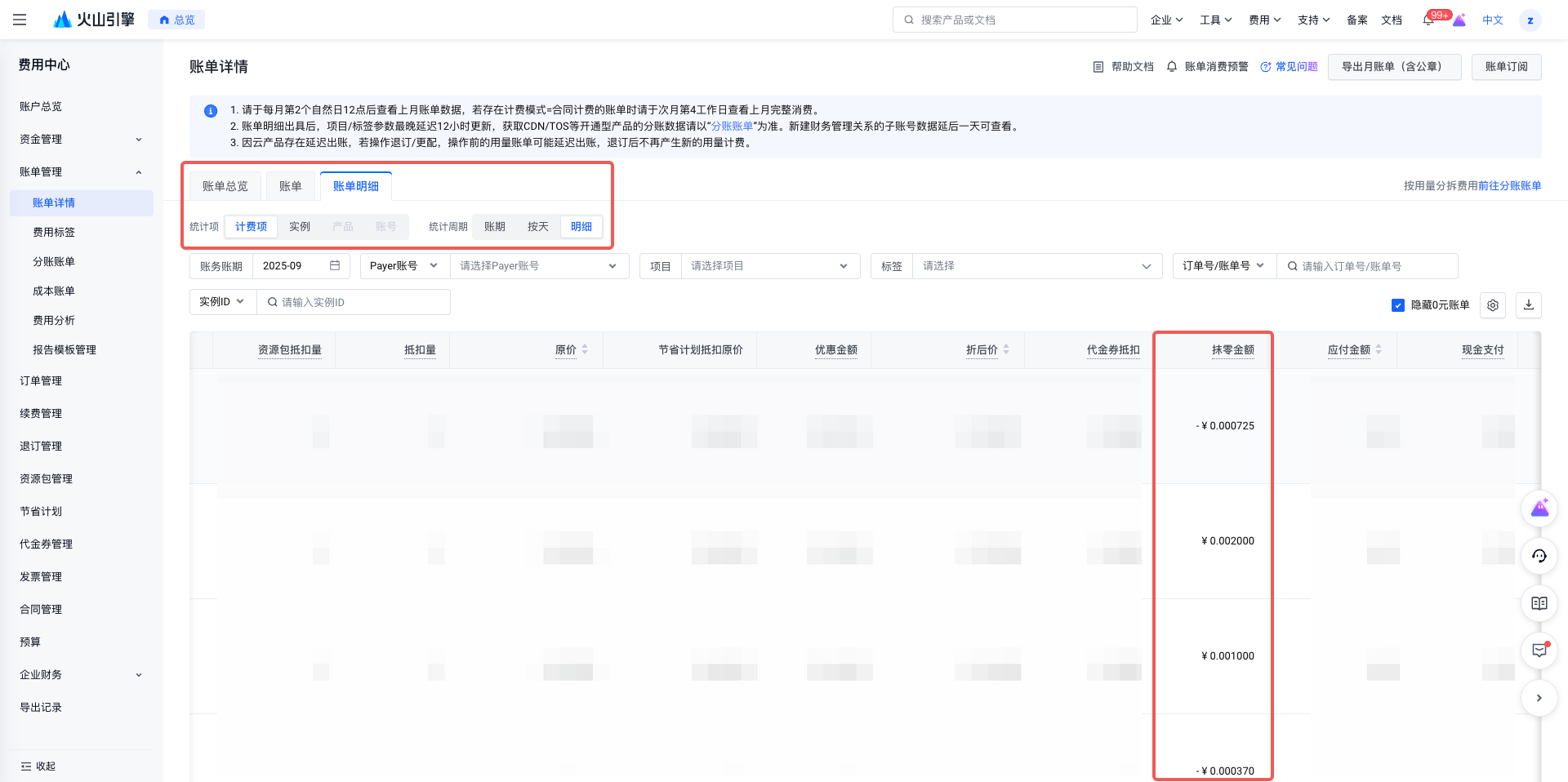
Typically, the finest granularity for viewing bills is at the bill detail—billing unit (BillDetail) level. Transaction payment deductions are aggregated at the bill detail—instance (Bill) level. The calculation and processing of rounding amounts occur at the aggregated Bill level. Based on the total rounding amount, the allocation is performed in descending order of BillDetail amounts. Priority is given to using the last four decimal places of the largest BillDetail amount as the distributed rounding amount. If this amount exceeds the actual aggregated rounding amount, the remaining BillDetails will result in negative rounding amounts after allocation.
Example: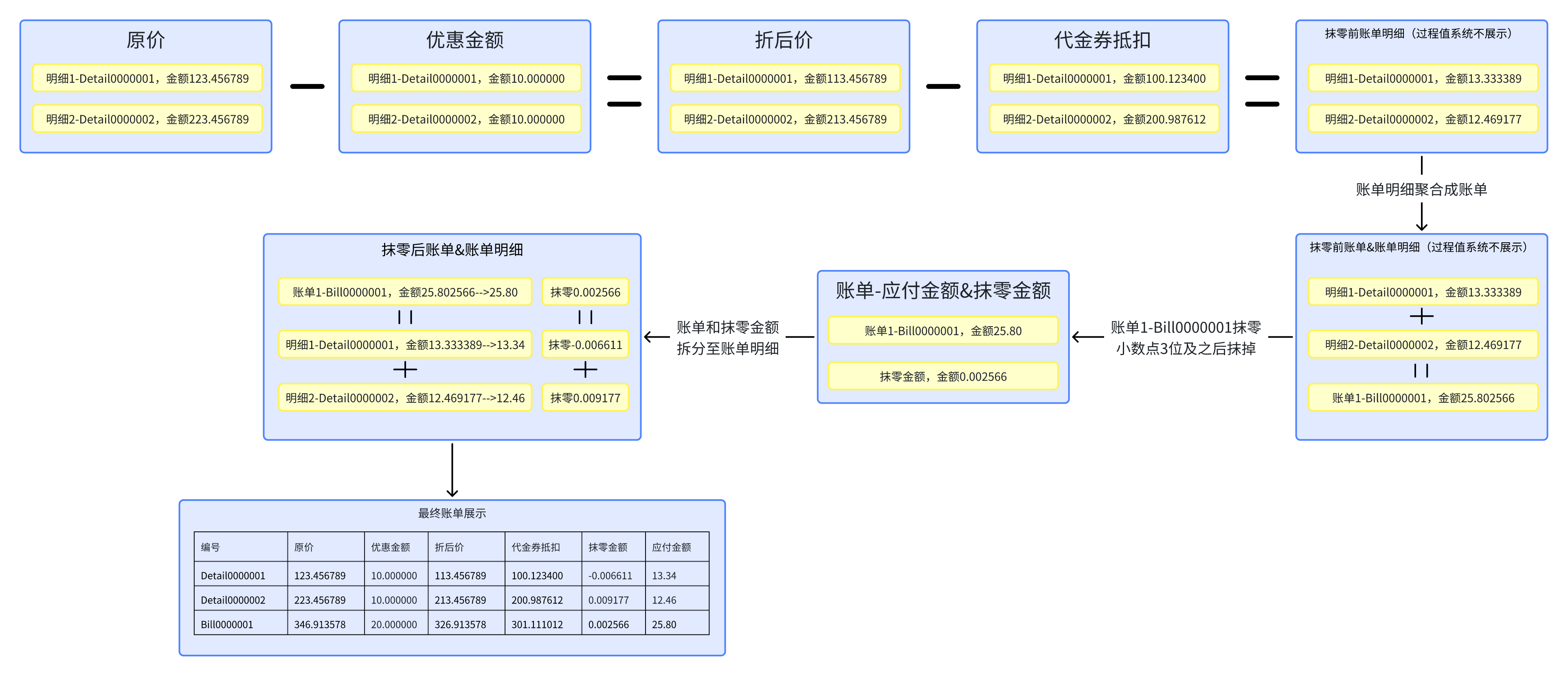

- Why are the amounts on the revenue sharing bill and the bill details inconsistent?
The primary reason is that the timeliness of data updates for the sub-account statement lags behind that of the billing details. The sub-account statement is generated by re-splitting and aggregating items based on the billing details; therefore, its data updates occur two business days later than those of the billing details.
The data provided by the current billing management module is updated and archived based on monthly billing cycles; therefore, any data viewed for the current billing cycle during the middle of the month does not represent the complete data for that month. It is recommended to refer to the following times to review the reconciliation work related to the processing of complete monthly billing data.
Additionally, the data granularity of sub-account billing does not correspond to the measurement and billing granularity of cloud resources, making it impossible to reconcile quantity, price, or discounts, and thus unsuitable as a basis for enterprise reconciliation. It is generally used for secondary sub-accounting or cost analysis from the perspective of internal enterprise management.
Settlement Cycle | Consumption Time | Bill Details Posting Time (T+1) | Revenue-Sharing Bill Issuance Time (T+3) |
Hourly Settlement | 2025-10-17 13:00:00-2025-10-17 14:00:00 | After 2025-10-17 15:00:00 | After 2025-10-19 00:00:00 |
Daily Settlement | 2025-10-17 00:00:00-2025-10-17 23:59:59 | After 2025-10-18 8:00:00 | After 2025-10-19 00:00:00 |
Monthly Settlement | 2025-10-01 00:00:00-2025-10-31 23:59:59 | After 2025-11-02 12:00:00 | After 2025-11-04 00:00:00 |
Recommended Time for Complete Monthly Billing Data | | Please verify the billing details and itemized data for the previous billing period after 12:00 on the 2nd of each month. If contract billing (such as adjustments or project-based billing) applies, please check the complete data after 00:00 on the 4th of each month. 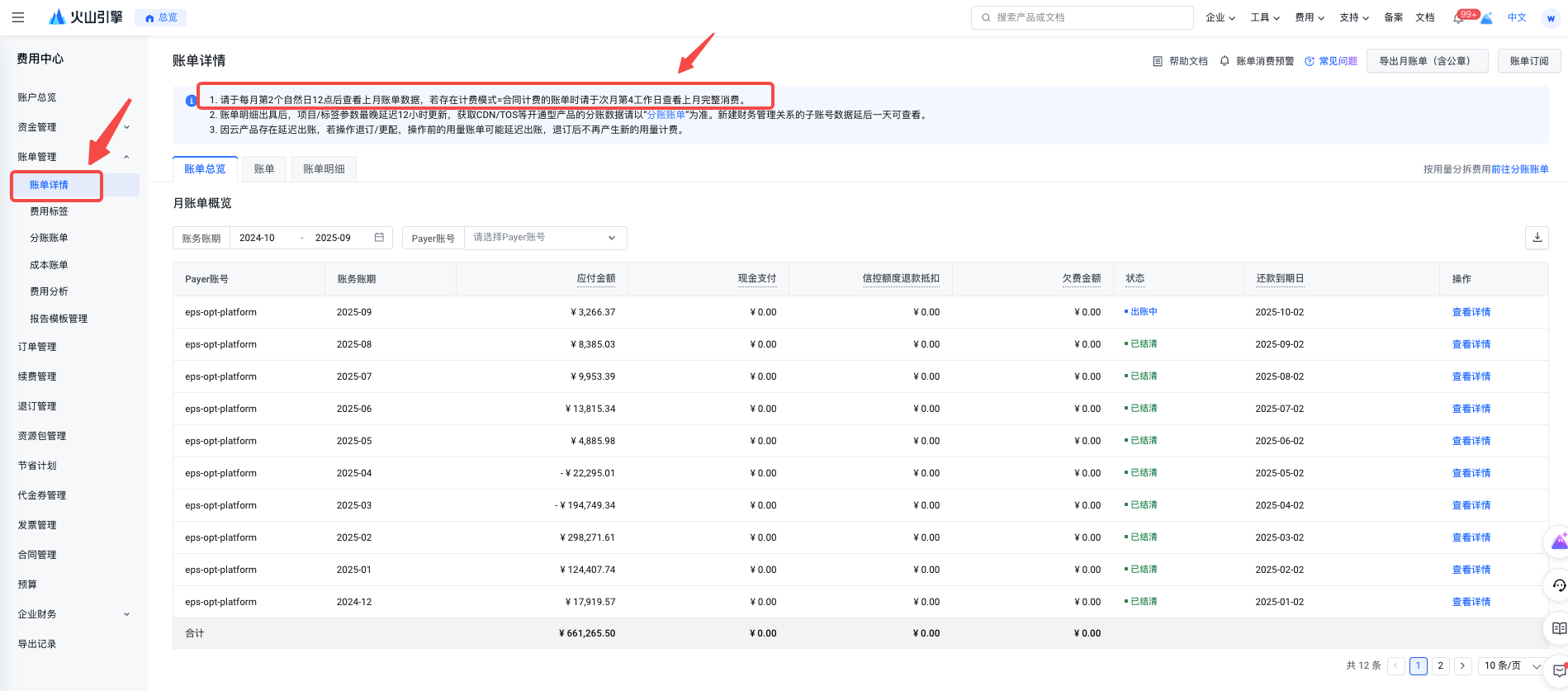 | After midnight on the 5th day of each month, please verify the profit-sharing statements and detailed data for the previous month's billing period. 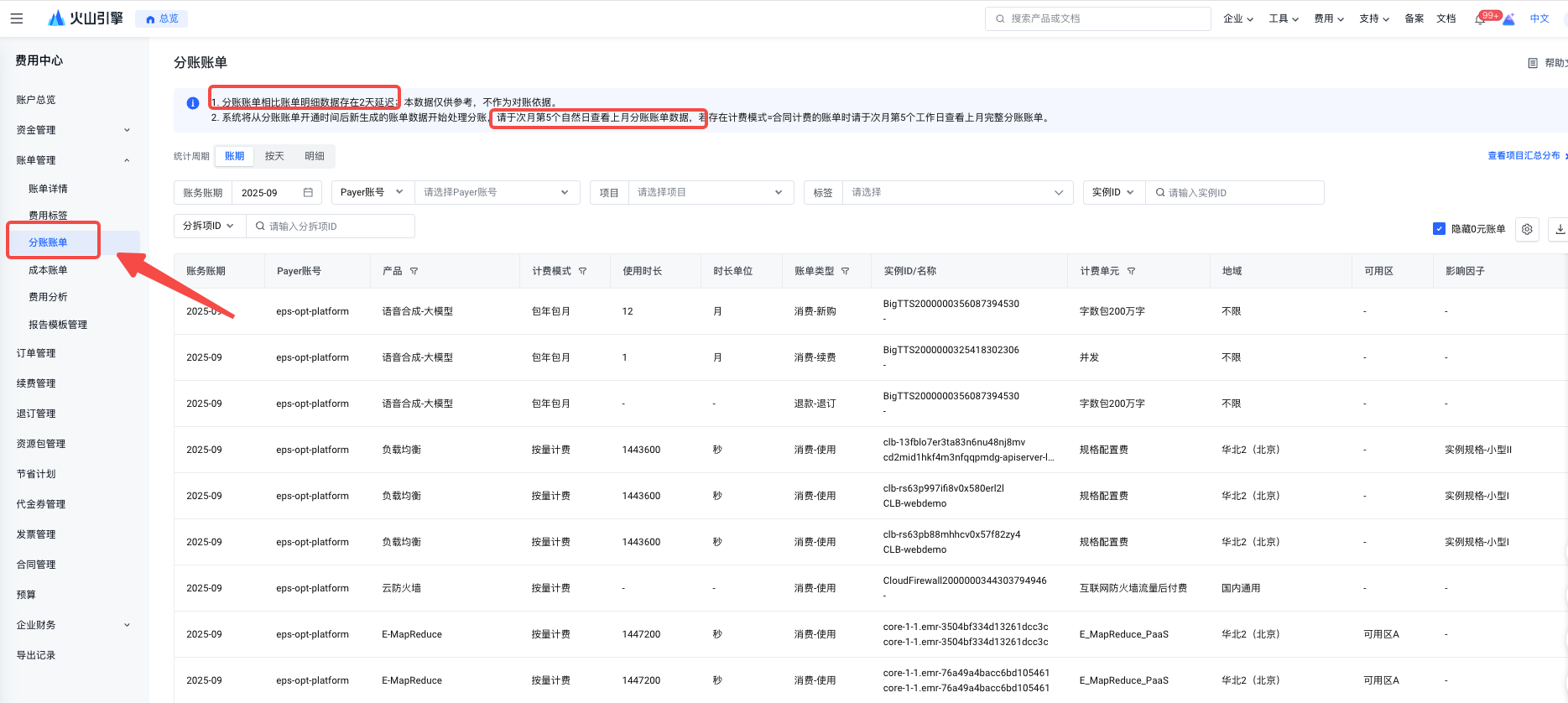 |
- What do the discount type and discount content in the bill refer to (does it mean contract discount?)
Discount content refers to the specific discount information corresponding to each discount type; both should be considered together. The enumerations and definitions of the discount types involved are as follows:
Discounts shown in the offers are not necessarily contractual; they may also come from Huoshan's promotional activities or offers. All such discount information will be reflected in this field. If both a contract discount and a promotional discount are triggered when you place an order, the system will prioritize the contract discount. In other words, if you have an active contract discount, the corresponding field on the bill will display the contract discount.
- How to view/verify the discount information on the bill?
- Log in to the Volcengine Console > Fee Center > Bill Management page: https://console.volcengine.com/finance/bill/detail
- Switch to the bill details page, select the billing period you wish to query, and first choose 'Billing Item' as the statistical dimension to view discount information at the detail level.
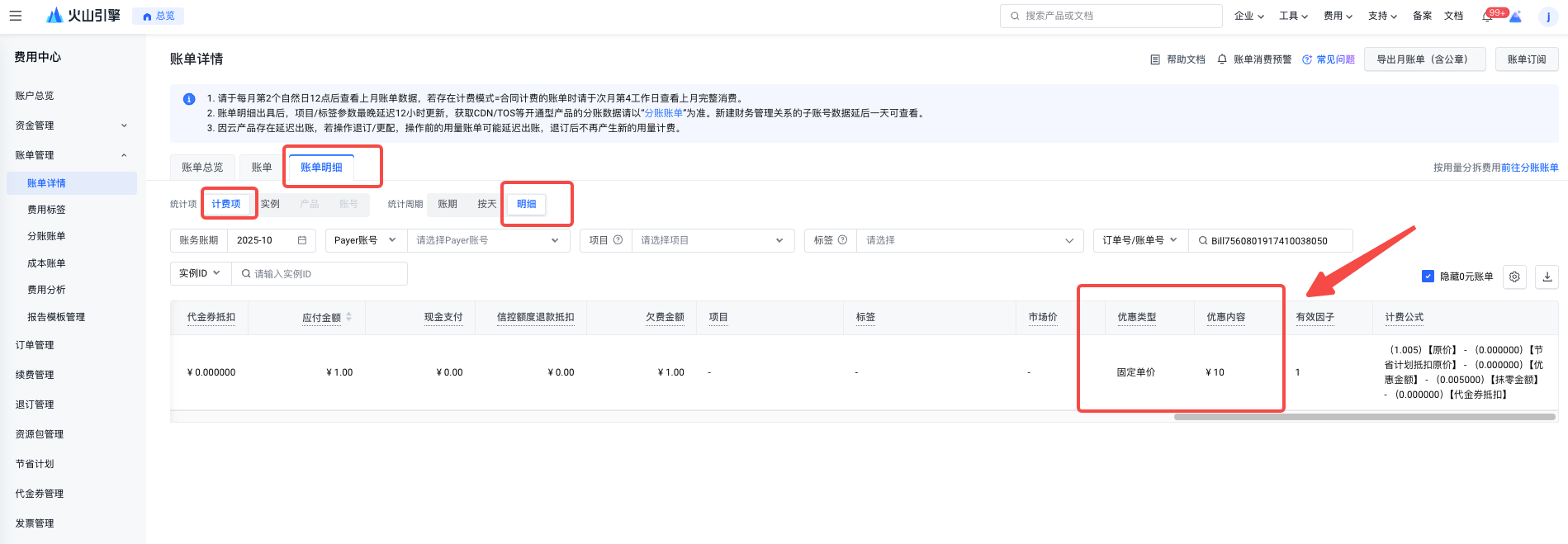
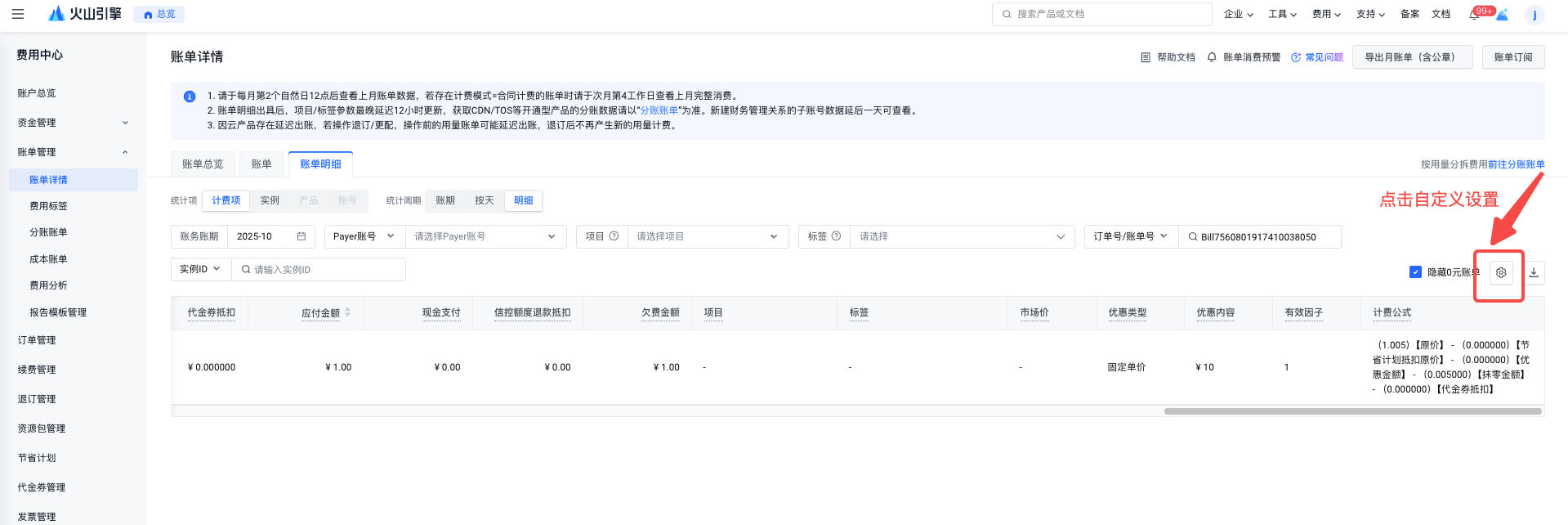
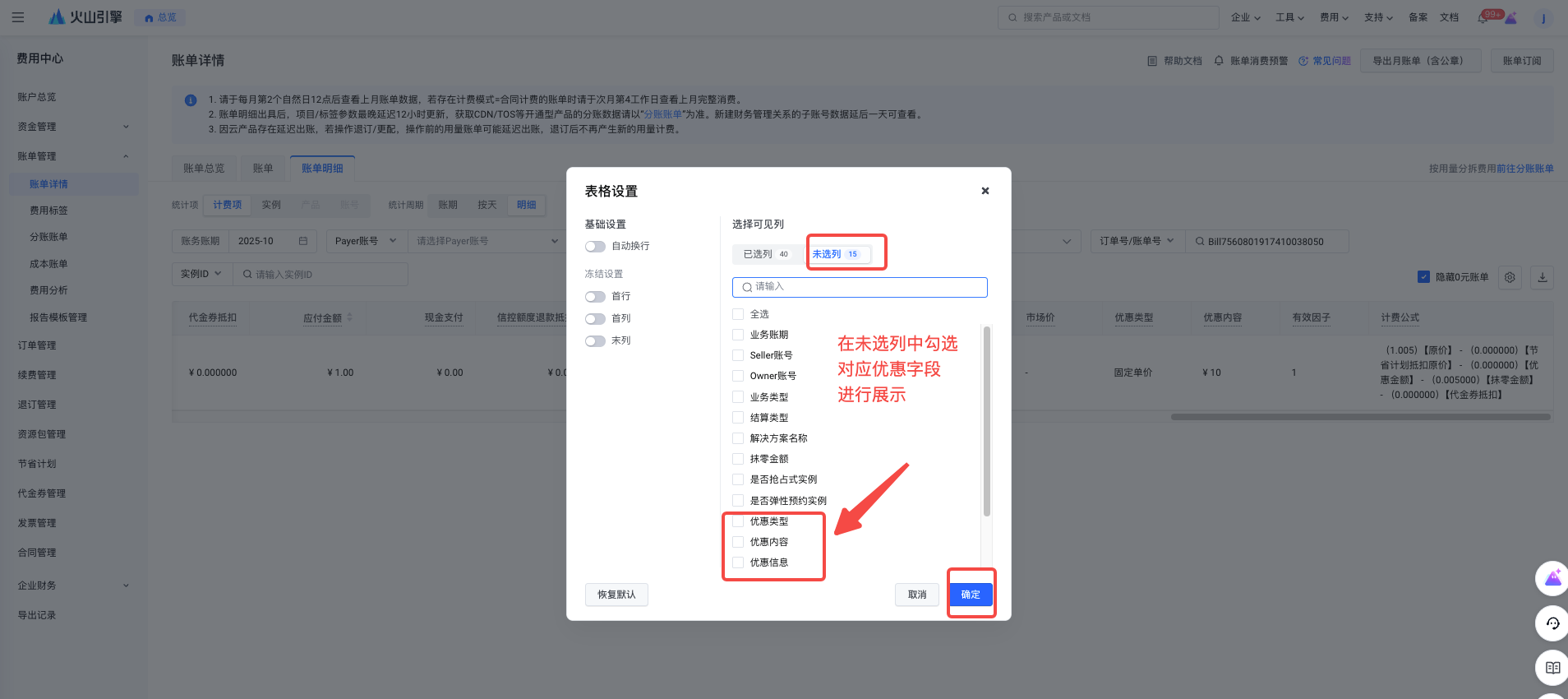
- If you cannot find the field on your current interface, it means it has been hidden. You can display it by following the steps shown in the illustration to customize the view.
- How can I view the amount on the bill before discounts and deductions?
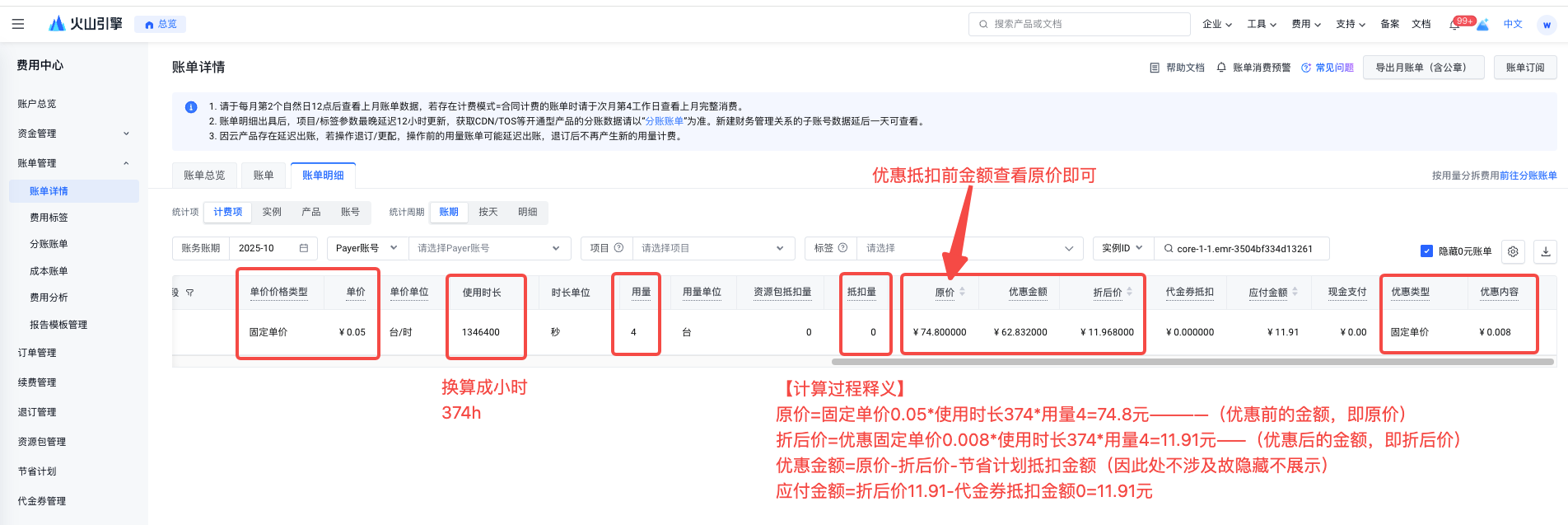
The amount before discount deduction refers to the original price prior to any discounts being applied. This is typically calculated by multiplying the service’s list price by the duration of use or usage volume. The specific calculation formula depends on the pricing model of the respective service, and the formulas for different products are as follows:
- Why do the data in the income and expenditure details not match the data in the billing details? What is the difference between the two?
Income and expenditure details and bills are reconciliation data from different dimensions and business scenarios; they must not be used for amount comparison. The detailed distinctions are explained as follows:
- [Income and Expenditure Details] reflect changes in the account's fund inflows and outflows, including recharge, withdrawal, refund, bill payment deductions, and other fund increases and decreases. These details are suitable for verifying each individual fund transaction in the account. They do not include voucher deduction details or details of bill payments offset by credit sales/credit control (vouchers are essentially consumption deduction coupons, and credit control represents the overdraft threshold for account consumption; both are not considered actual funds and therefore are not reflected in the income and expenditure details).
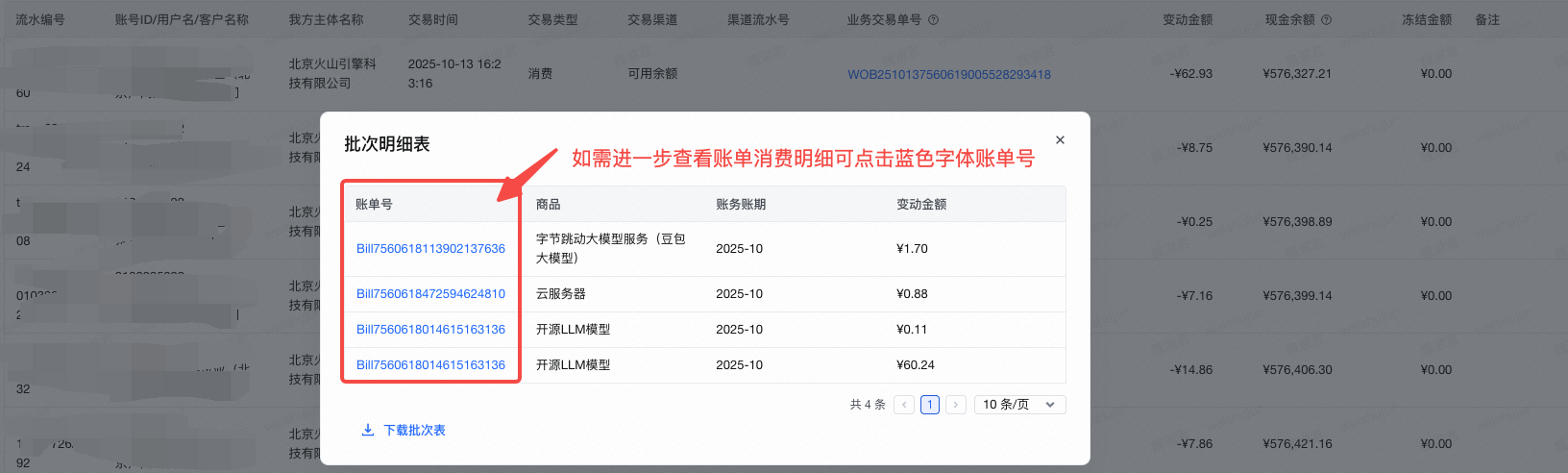
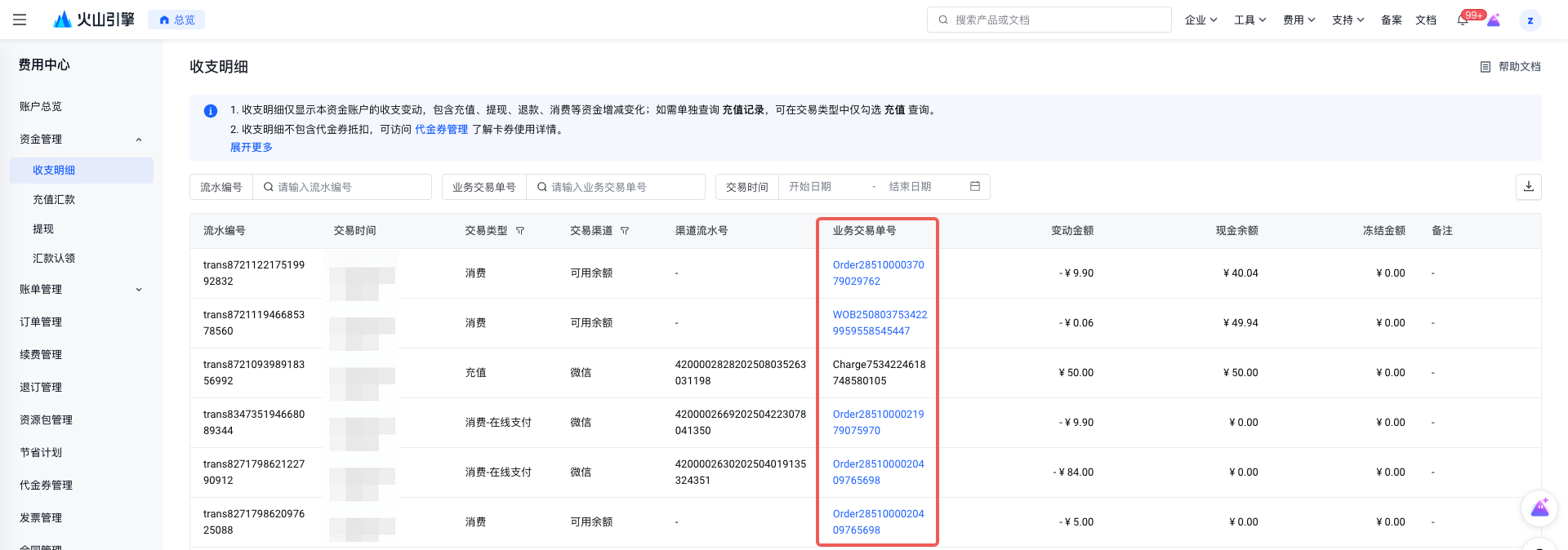
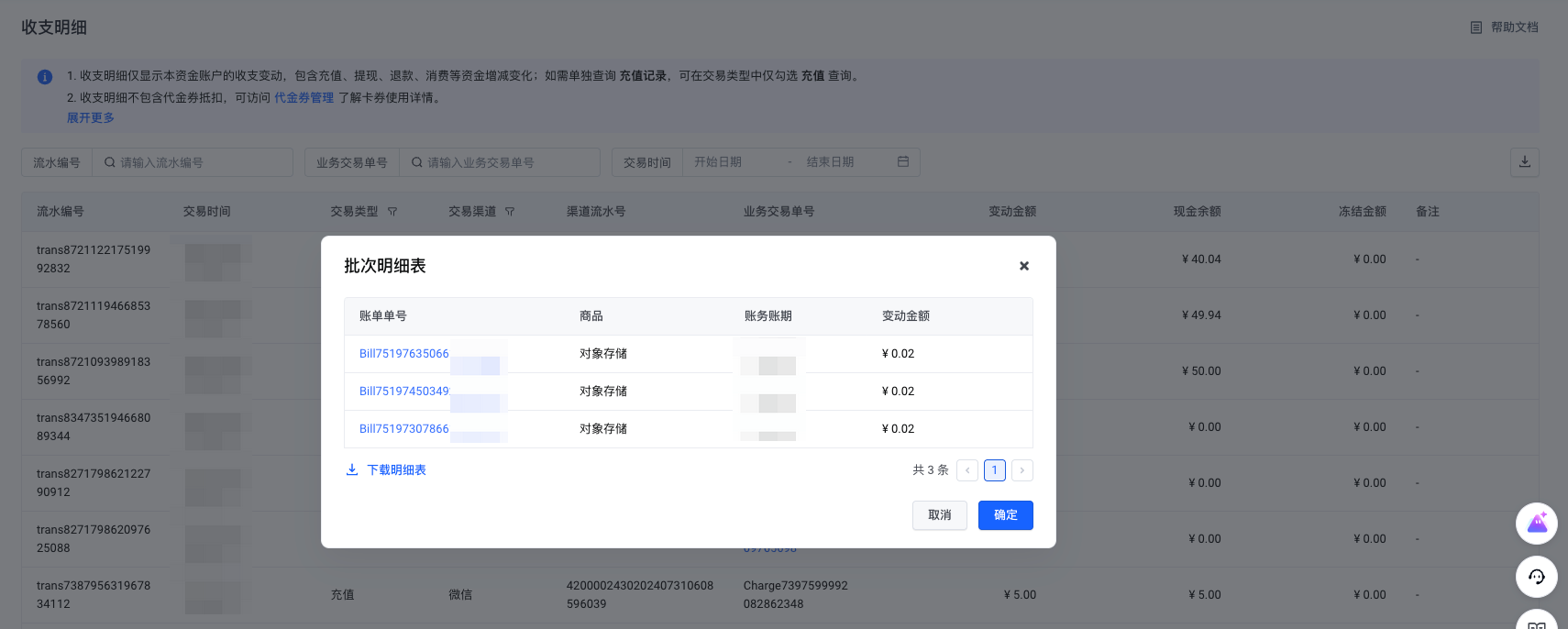
Financial roles in most enterprises focus primarily on monitoring each inflow and outflow of funds. To view the deduction details of a specific income or expense transaction, you can click the blue text in the business transaction number field. If you need to further review the billing details associated with that transaction, you may click the blue bill number to navigate and view them.

- [Billing Details] reflect the consumption details generated by actual resource usage or service subscriptions under this account during the corresponding billing period. They do not include non-resource consumption such as recharge or withdrawal. If there are no service subscriptions or resource usage under this account during the period, no billing consumption details will be generated.
In most enterprises, business resource operations and maintenance managers are particularly attentive to verifying the consumption amount resulting from resource service usage within each cycle. This enables further adjustments such as resource increases/decreases, deployment, and other actions, and serves as a reference for budget procurement in the next cycle.
- [For example] Suppose Zhang San topped up Account A with 5,000 yuan in cash via WeChat Pay on September 6, 2025. On October 2, 2025, when the September bill for Account A was issued, a monthly consumption bill totaling 4,700 yuan was generated. At this point, Zhang San was concerned that the account balance might be insufficient, which could trigger a suspension due to arrears and affect the normal operation of online services. He then topped up another 5,000 yuan via Alipay. The corresponding entries in Account A's transaction details and billing details are as follows:
- Income and Expenditure Details
- 2025-09-06: +5,000 yuan WeChat recharge
- October 2, 2025: -4,700 yuan bill payment
- 2025.10.02: +5000 CNY Alipay Top-up
- 【Billing Details】
- 2025.09 Billing Period: -4,700 yuan
- How do I check the resource expiration time?
You may check the expiration time of the corresponding resource by following these steps:
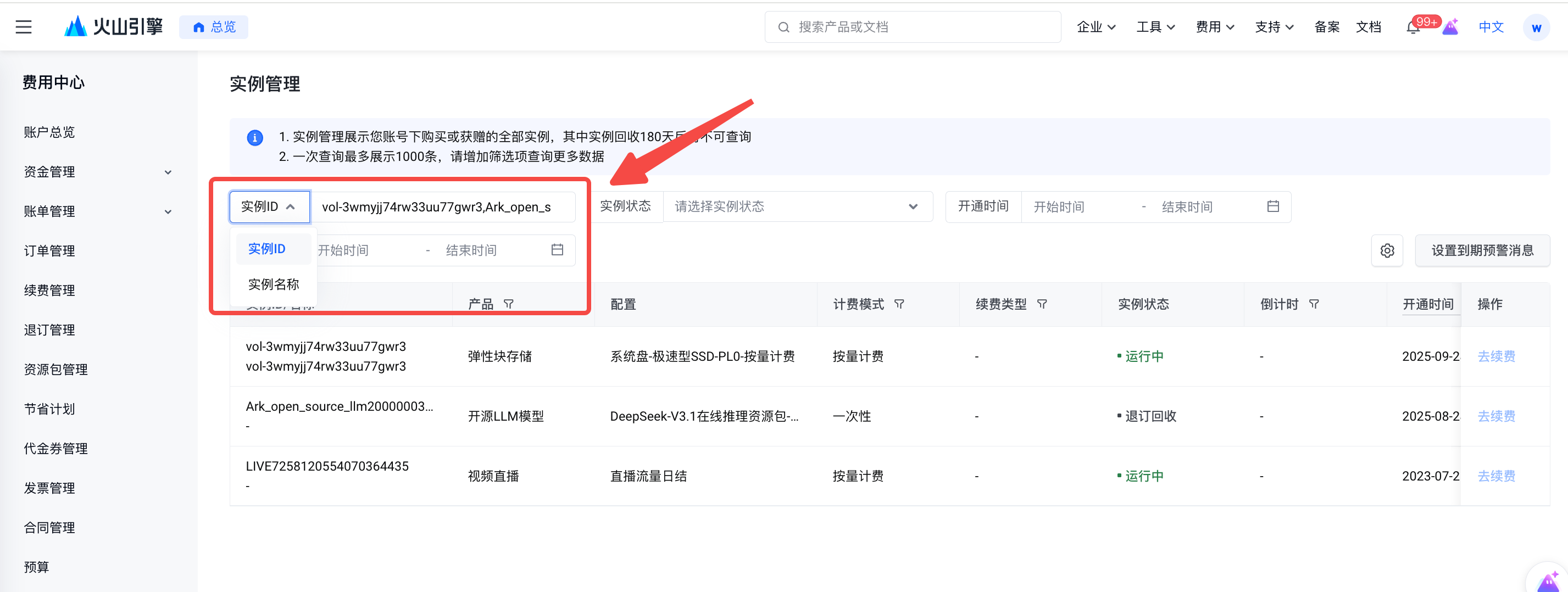
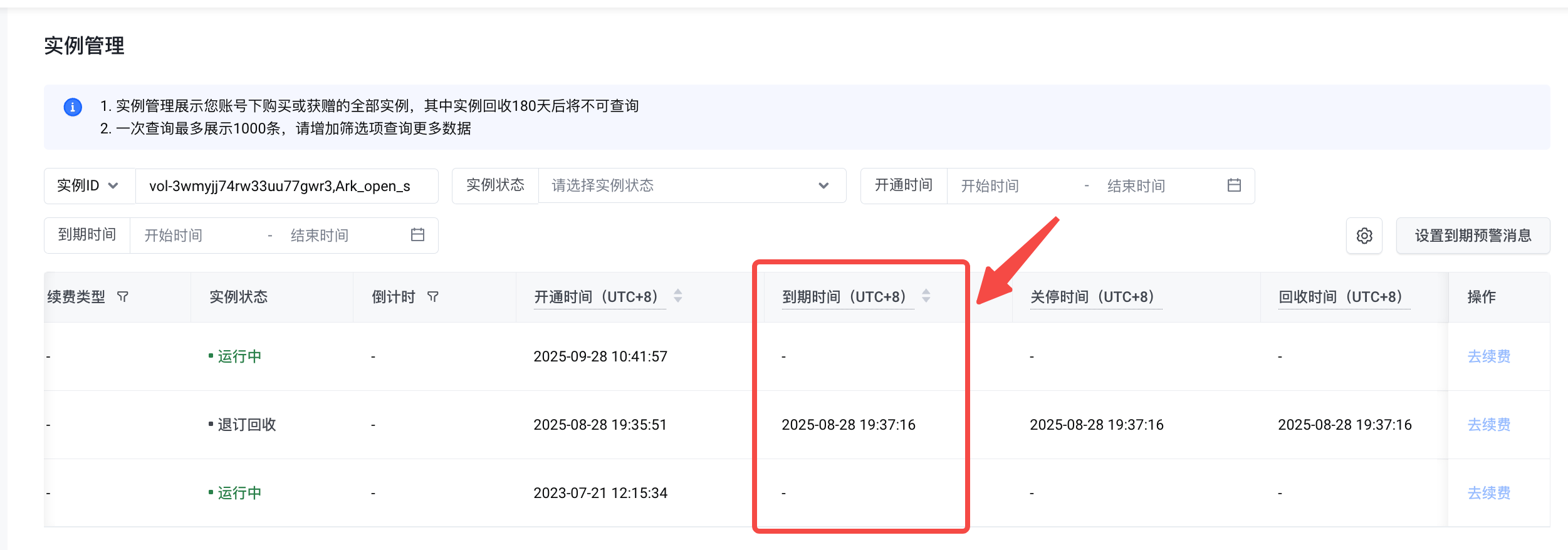
- Log in to the Instance Management page: https://console.volcengine.com/finance/instance-manage
- Enter the desired instance ID or instance name in the search box. To query multiple instances, separate them with commas. Up to 10 instances can be queried at a time.
- Check the expiration time of the corresponding instance. Instances with a '-' in the expiration & shutdown time field are pay-as-you-go, postpaid instances that are still operating normally. These instances have no default expiration date and remain valid indefinitely. No charges will be incurred if they are not used. If you no longer require these instances, you may delete or unsubscribe from them in the corresponding product console.
- How do I view renewal, refund, upgrade/downgrade, or adjustment bills?
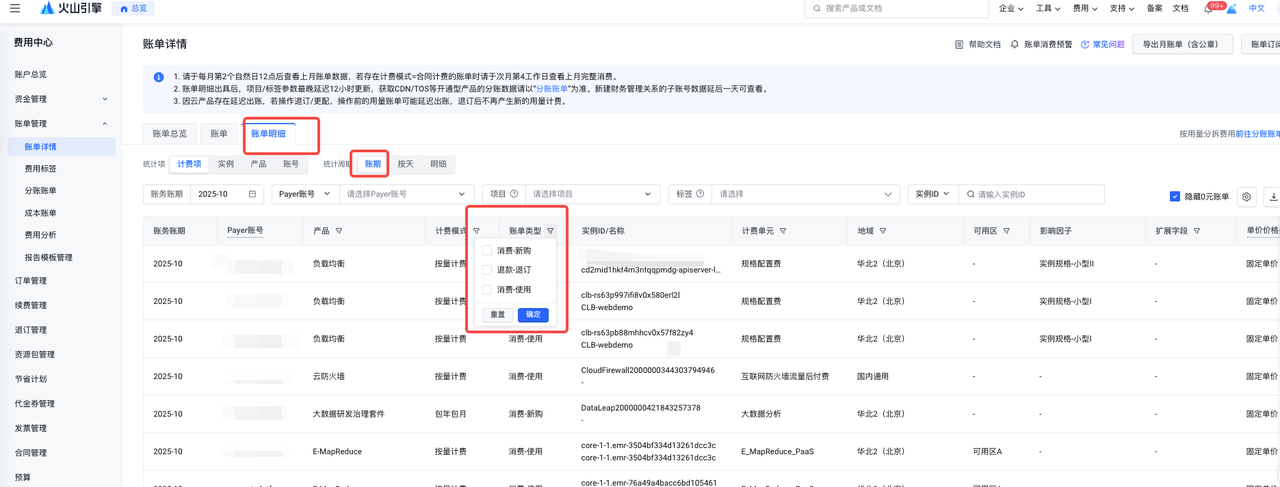
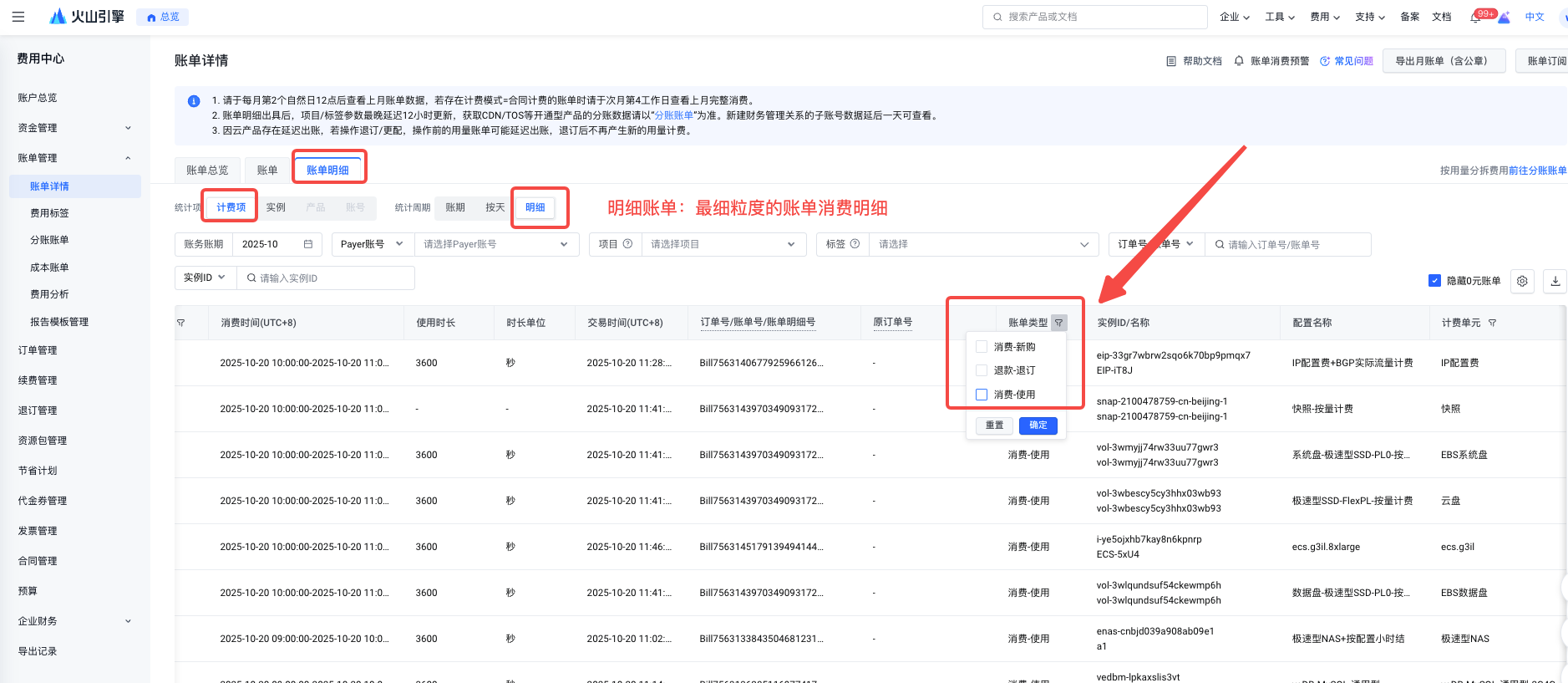
You can log in to Console - Billing Management - Bill Details and filter by "Bill Type" to view consumption data for the corresponding bill type.
The meanings of common bill types are as follows:
- View Summary by Accounting Period
- View consumption details:
- How can you separately query the costs of subscription-based cloud resources and those billed by pay-as-you-go?
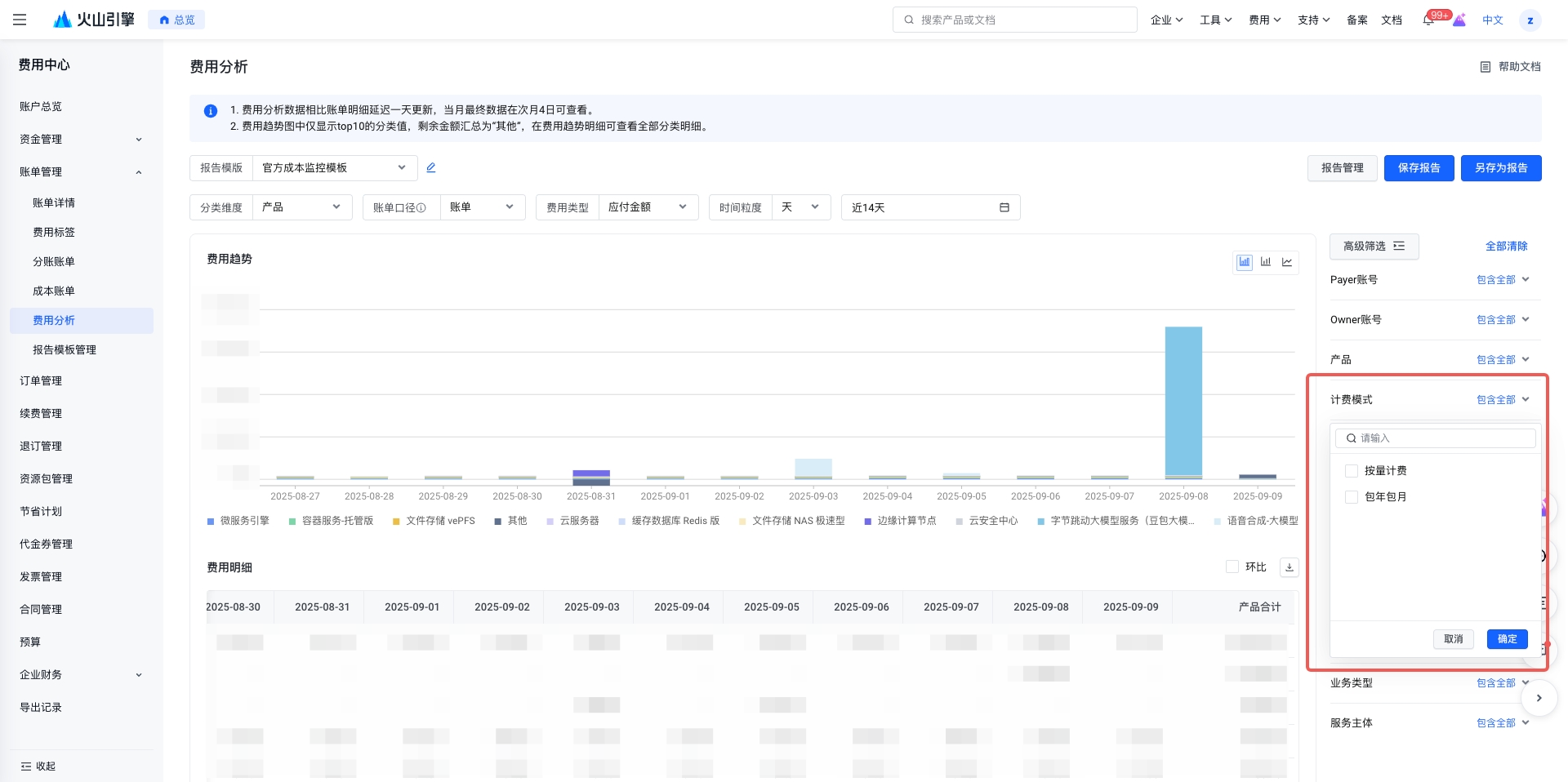
You can log in to the console, go to Billing Management, and select Cost Analysis to query and analyze consumption data using various filter criteria.
- Open the Expense Analysis page
- Select different filtering criteria based on the billing mode to view consumption data for annual/monthly subscription and pay-as-you-go billing.
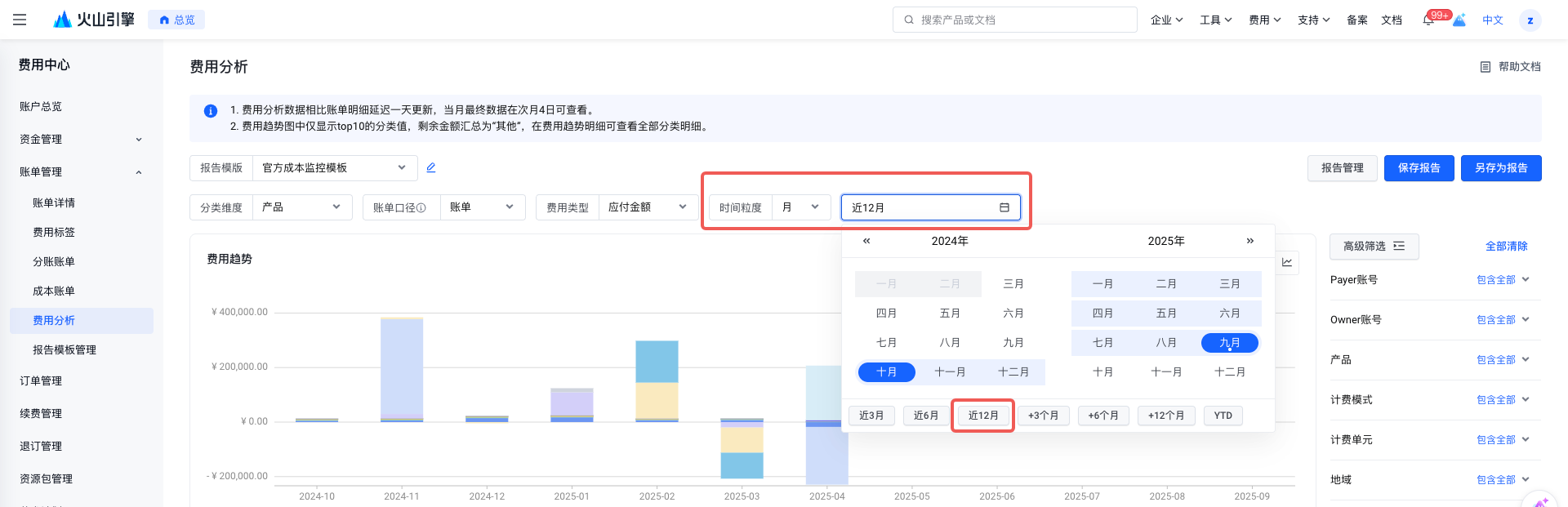
- How to Check Annual Consumption
You can log in to the console, navigate to Bill Management - Expense Analysis, and use various filter criteria to query and analyze consumption data.
- Open Cost Analysis page
- Select 'Month' as the time granularity and choose either the recent 12 months or a specific month as the period to view annual consumption.
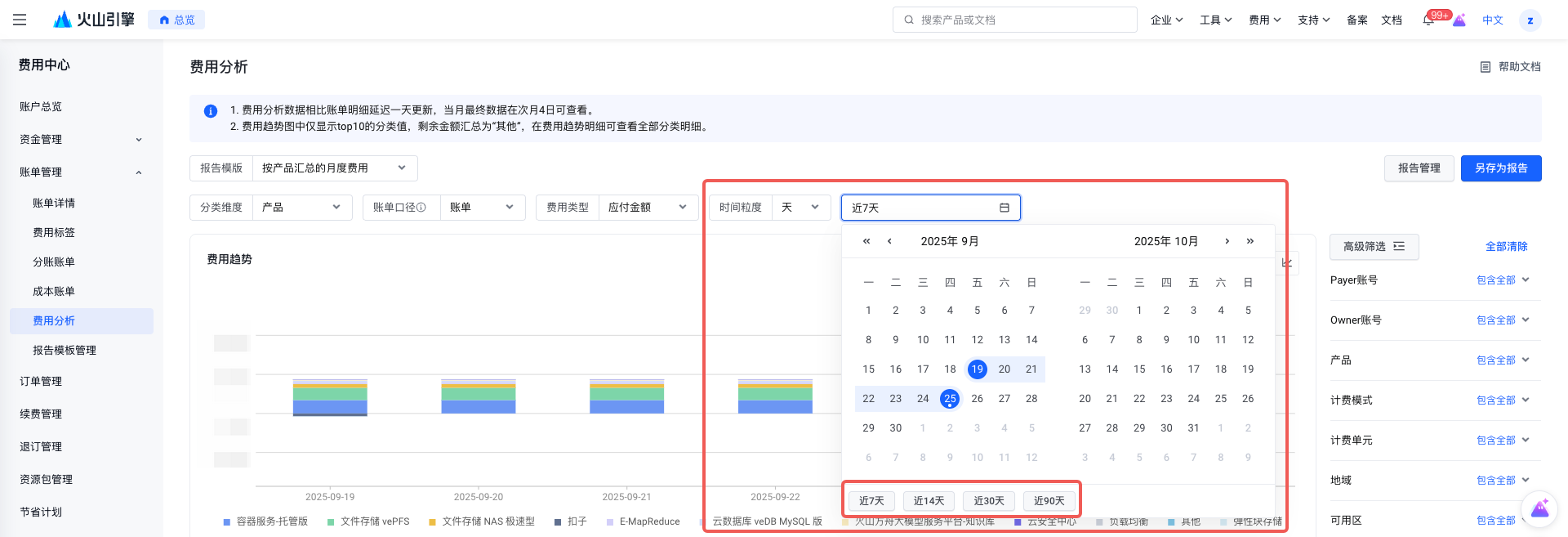
- How to View Billing Charges by Day
You can log in to the console, navigate to Bill Management, and select Cost Analysis to query and analyze consumption data using various filter criteria.
- Open the Expense Analysis page
- Select 'Day' as the time granularity, and choose the period as needed to view consumption for that period, such as the past 7 days.
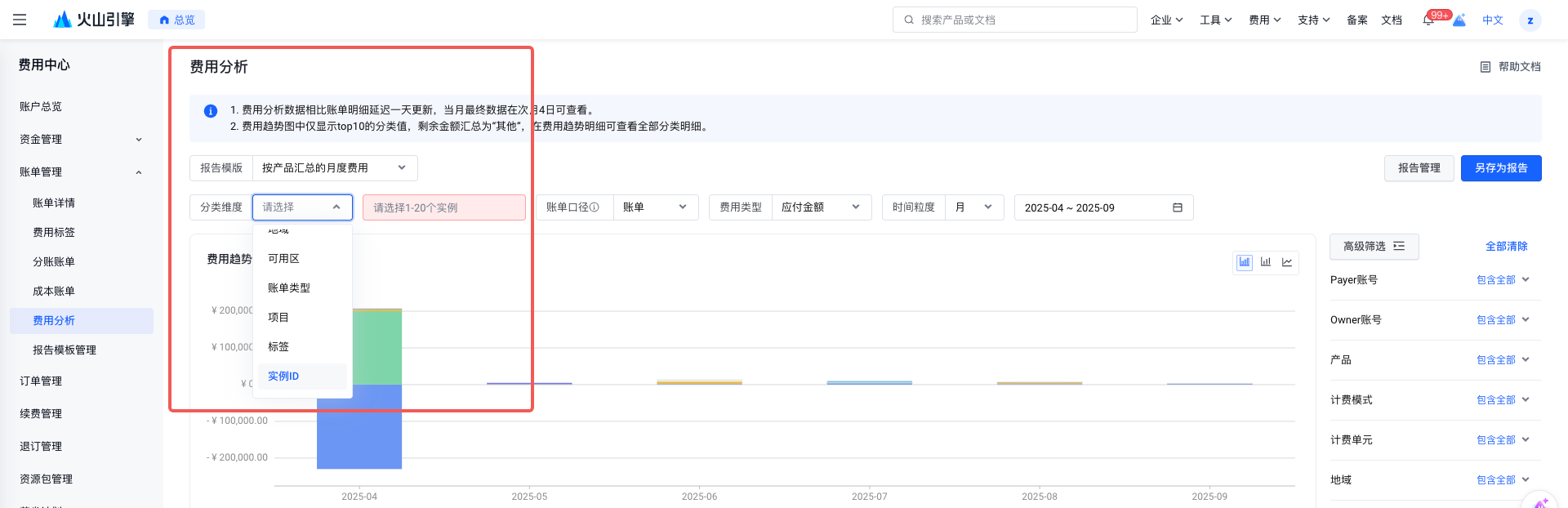
- How to view the cost of a specific instance
You can log in to the console, go to Bill Management, and select Expense Analysis to query and analyze consumption data using various filter criteria.
- Open the Expense Analysis page
- Select 'Instance ID' as the classification dimension, then enter the instance IDs to be queried on the right to calculate the costs for those instances. A maximum of 20 instances can be queried at one time.
- How can I query the rounding amount and the detailed bills related to the rounding amount?
You can log in to the console, go to Bill Management, and select Bill Details to view the rounding-off amount information for the current month.
- You can view the total rounding amount in the Bill Overview tab.
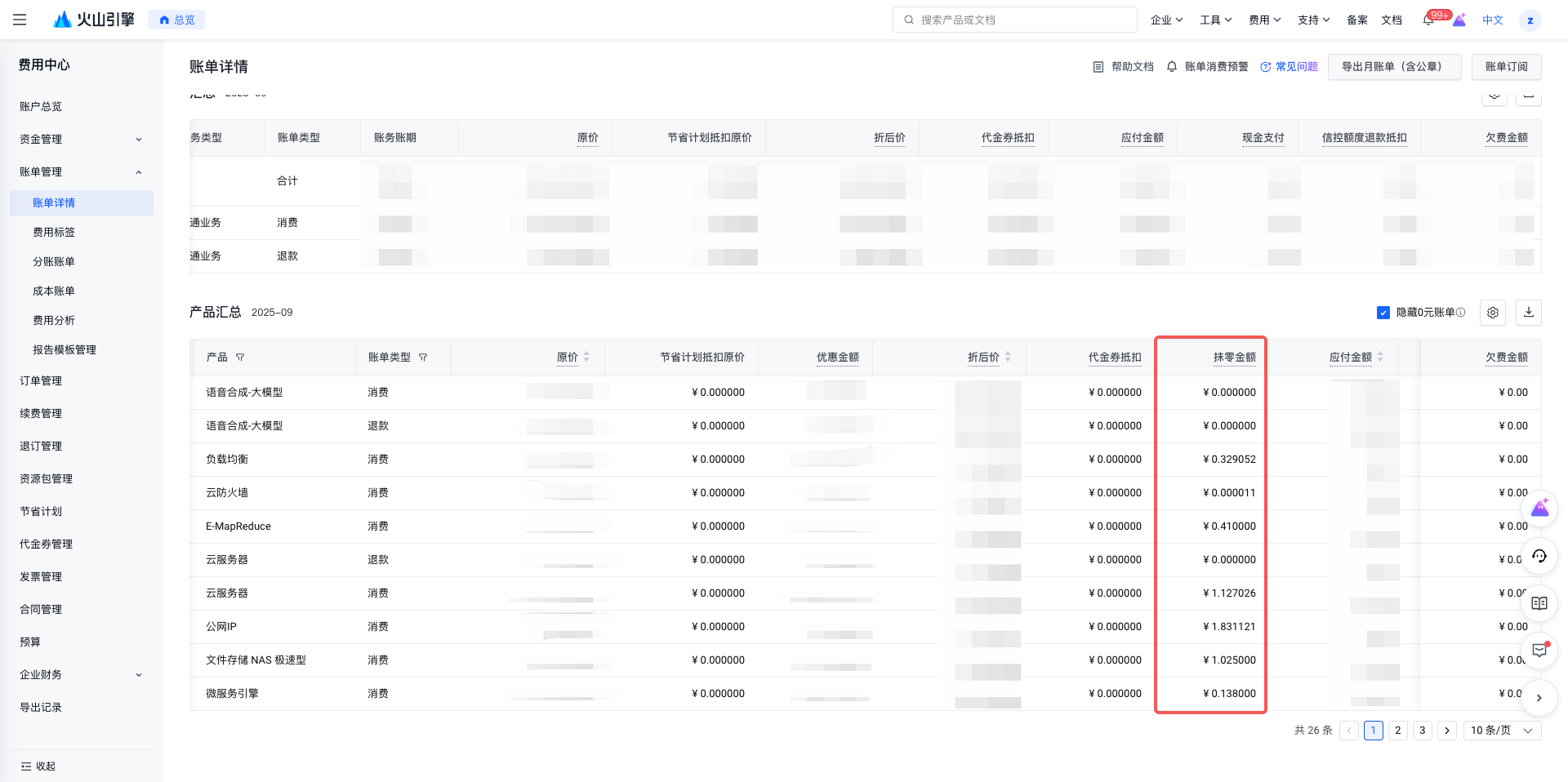
- You can view the detailed rounding amount in the bill details tab. If the rounding amount is negative, see Why is the rounding amount negative?
- How do I export/download expense billing details?
You can log in to the console, go to Bill Management, and select Bill Details to export bill detail data.
- The billing details section provides data export across multiple statistical dimensions. Before exporting, you can select statistical items and statistical periods as needed, then click the download button on the right.
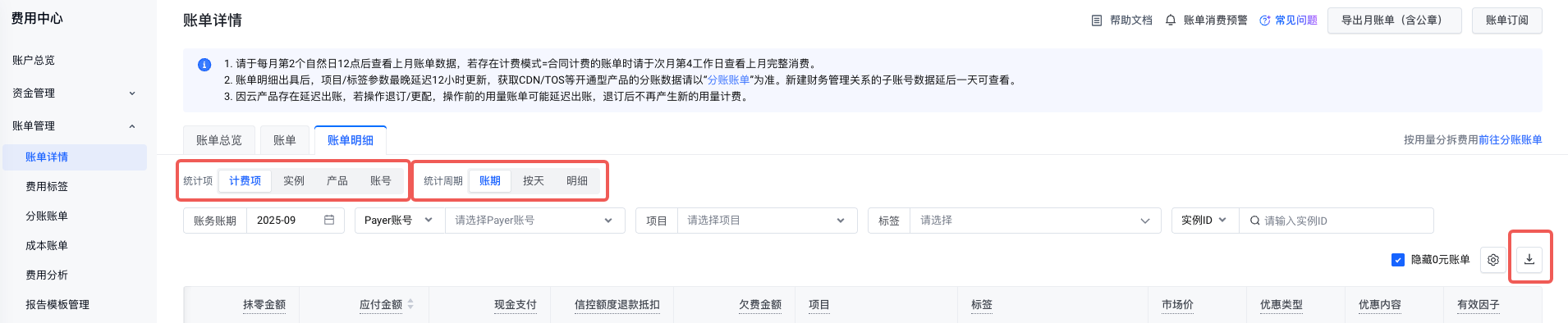
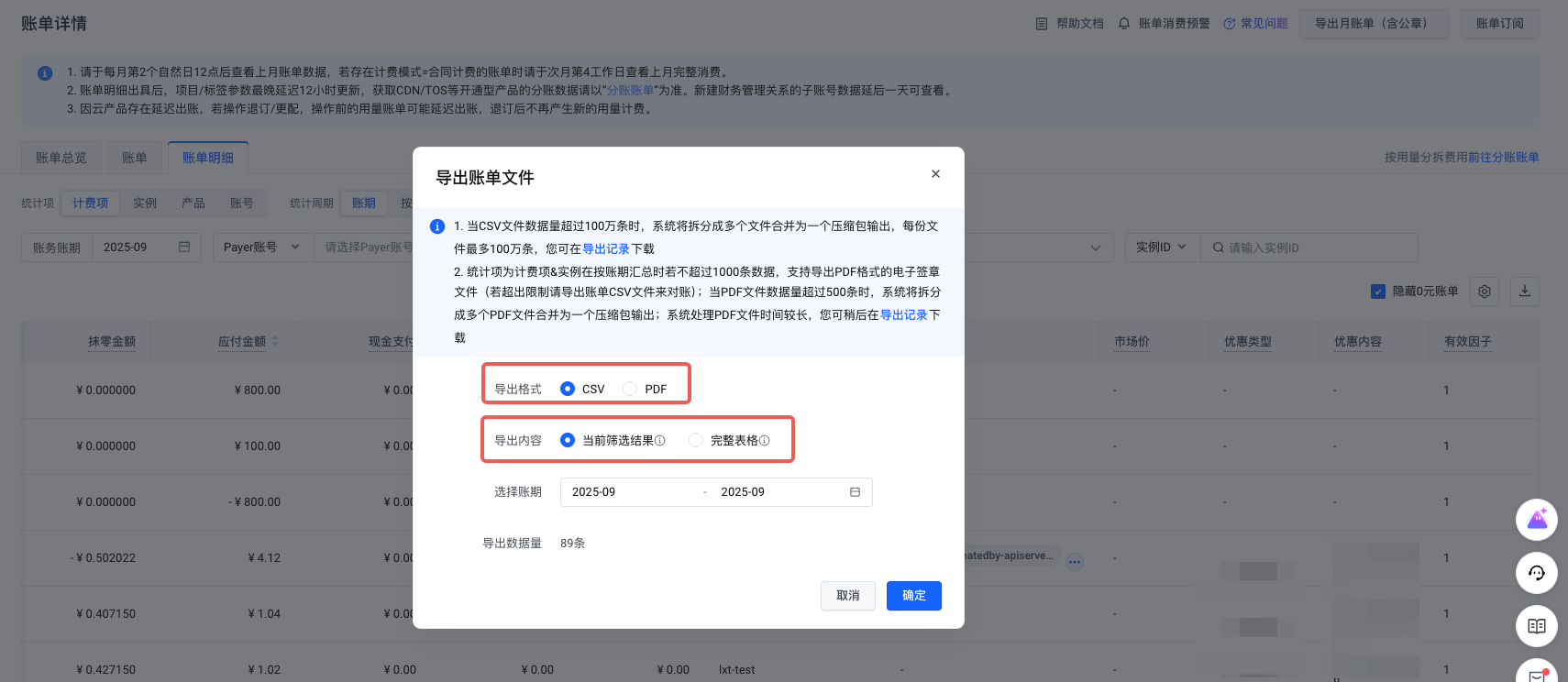
- In data downloads at the billing item and billing period dimensions, two file formats are supported: CSV (without official seal) and PDF (with official seal). You can choose to download either all data or only the currently filtered data.
- Why are charges still incurred after cloud resources are deleted, released, unsubscribed, or unbound?
There are two main reasons why charges continue to be incurred after cloud resources are deleted:
- Associated Resources Not Deleted: Using cloud servers as an example, when deleting an instance, if the associated data disks or public IP resources are not deleted at the same time, these resources will be retained and continue to incur charges. In particular, public IP configuration fees are charged on an hourly basis.
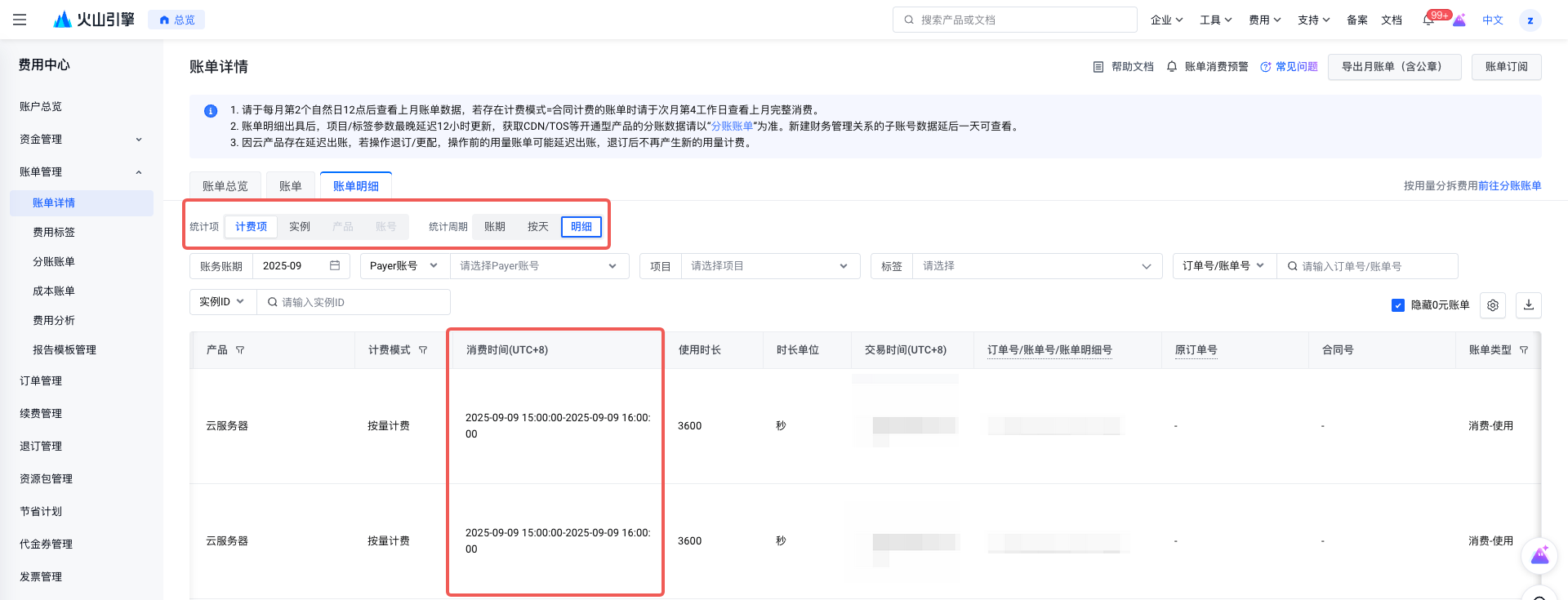
- Billing Cycle Delay: Under the pay-as-you-go model, users first utilize cloud services. Only after usage does Volcengine calculate the user's consumption and charge according to the billing cycle of the cloud resources, generate a bill based on the billing results, and provide the bill to the user. There is a time interval between the consumption of cloud resources and the generation of billing statements, so it is possible that cloud resources are deleted or released at the current point in time, but the billing statements for consumption prior to deletion or release are generated after the deletion or release occurs. Log in to the console, navigate to Billing Management, and select Billing Details, then go to the Detailed Bill tab,. Use the filter where Statistic Item equals Billing Item and Statistical Period equals Detail to locate the cloud resources that incurred charges. Then, check the Consumption Time in the query results to determine whether the cloud resource was consumed before it was released.
- What do 'outstanding bill' and 'bill being generated' mean?
In the Monthly Bill Summary section of the Bill Overview Page, monthly bill summary information is displayed. The final monthly bill is issued after 12:00 on the 2nd day of the following month. When viewing the monthly bill in the middle of the month, the bill is in a cumulative monthly summary status. Therefore, when checking the bill mid-month, it always remains billing in progress.
Outstanding refers to the status where the current month's bill remains in arrears and has not been repaid. If repayment is not made after using credit sales under credit control, this is also considered Outstanding.
- Why is bill data not retrieved when filtering by project or tag?
- Cloud products are metered products (such as CDN, TOS, and Doubao large model). In the billing details, the project field is displayed as '-', but in the sub-account bill, the corresponding resource's project or tag can be identified using the split entry ID. Project or tag information is not shown in the billing statement.
- If the time when resource allocation tags or projects are assigned is later than the time when the bill is generated—that is, if the bill is created before tags or projects are applied—historical billing data cannot be supplemented with tag or project information. For example, if the project/tag time configured for the instance is January 25, 2025, but the billing detail/sub-account bill generation time for the corresponding resource is January 20, 2025, and the bill issuance time is earlier than the instance configuration project/tag time, this will result in the corresponding resource's bill not appearing in the billing details/sub-account details when filtering by project/tag.
- The tag information is empty. This may be because, after associating tags with resource instances, the tags were not enabled in the Billing Tags function. As a result, when the system generates the bill, it cannot associate the corresponding resource instance tag information. You can go to the Billing Tags function to check whether the configured tags were enabled before billing.
- The project and tag fields in recently generated billing detail data, allocation detail data, and cost detail data are temporarily empty; if matching projects are available, these fields are expected to be supplemented within 12 hours after the data is generated.
- Cloud products have not integrated project/tag capabilities, or have only partially integrated some functionalities;
- This cost instance does not correspond to any resource entity; it is an asset instance. For example, all cost items for asset-type resource packages are currently empty, such as Reserved Instance Voucher, reserved storage capacity packages, and savings plan packages.
- Why was I charged double for my monthly subscription product within one month?
If you have confirmed that you did not manually renew during the month, it is likely that the automatic renewal option was selected when you placed your order. You can check whether the resource is available in the Auto Renewal tab on the Renewal Management page.
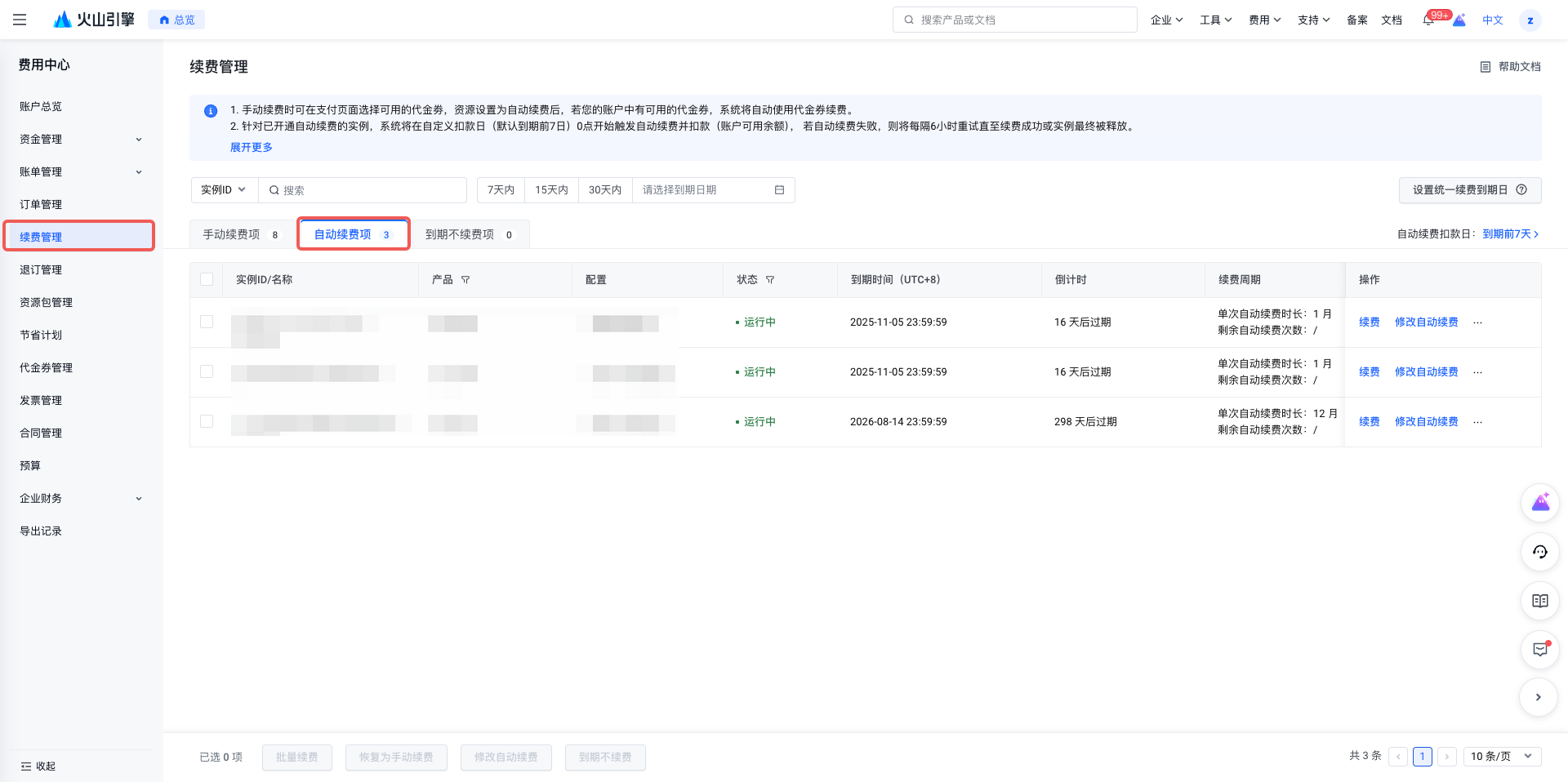
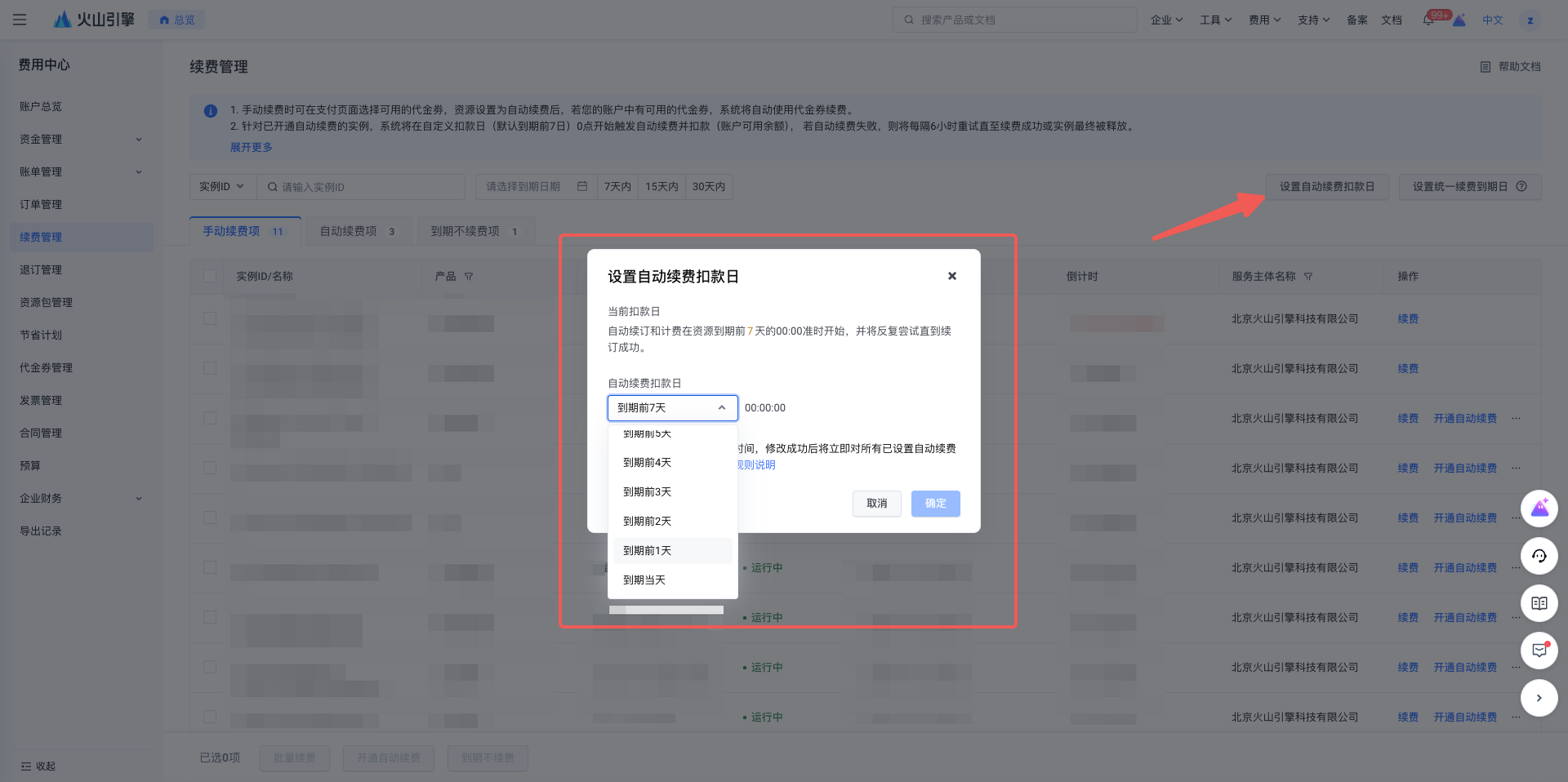
If auto-renewal is enabled for a monthly subscription product, Volcengine will, by default, initiate payment deduction on the 7th day before the resource expires. If the automatic renewal deduction date and the product purchase date fall within the same month, two charges will be made that month: one for the new purchase order and one for the renewal order.
For example: You ordered a monthly subscription product on 2025-04-02, which will expire on 2024-05-02. If automatic renewal is enabled when placing an order, the system will, by default, automatically deduct payment to renew the resource starting on the seventh day before it expires. Namely, the renewal fee will be deducted on 2024-04-25. At this time, the April bill will be charged twice, generating two consumption records: one corresponding to the new purchase from 2024-04-02 to 2024-05-02, and the other to the renewal from 2024-05-03 to 2024-06-02. You can determine the cycle of paid purchases from the consumption time field in the bill details.
If you wish to modify the number of days for early renewal, you can go to the Renewal Management page and set the early renewal time yourself.
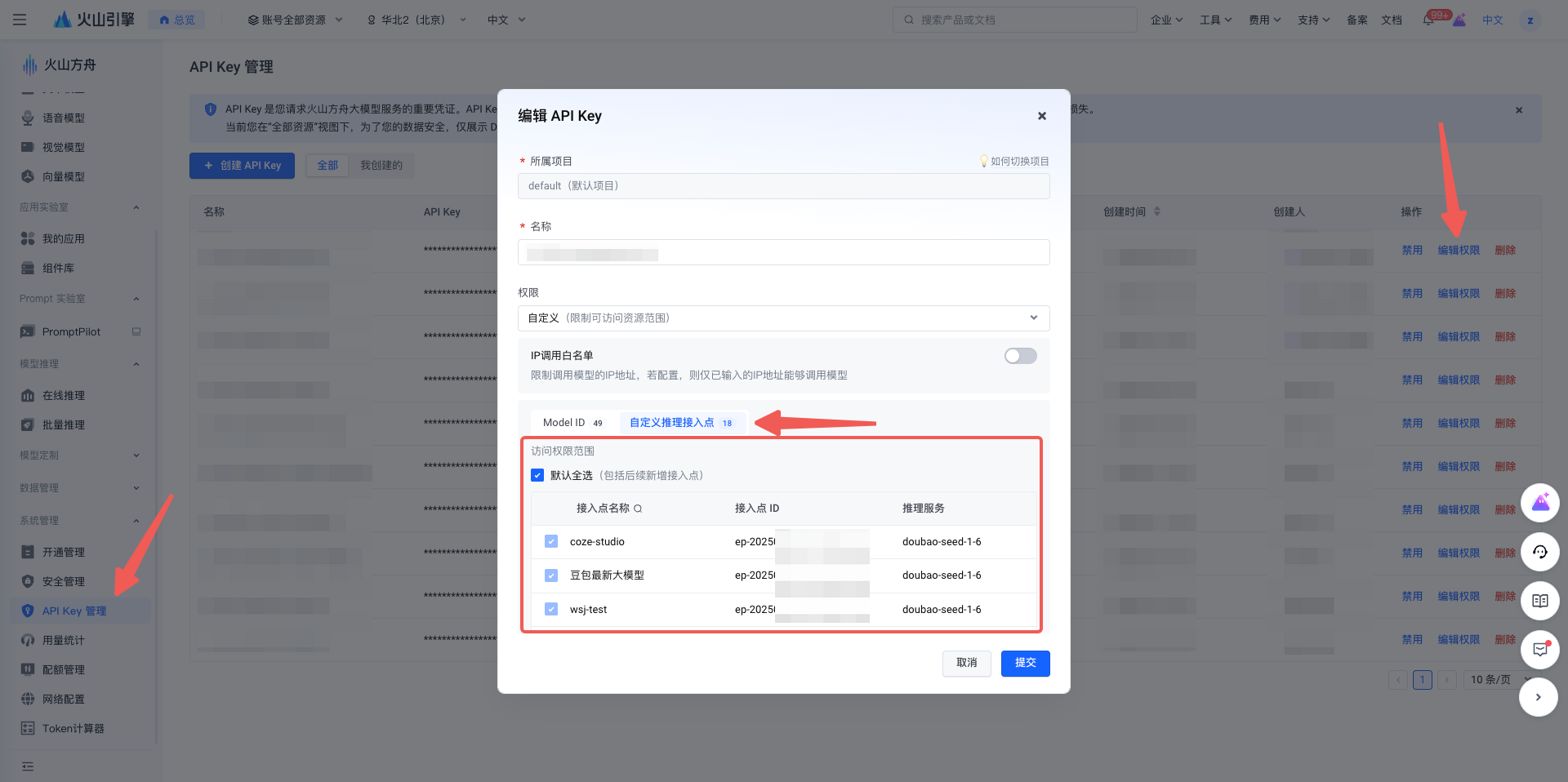
- How does Ark perform revenue sharing by model, EP, or apikey? (How to view monthly consumption in Ark by model/access point/API key)
Volcano Ark (which includes the Doubao large model, DeepSeek, and other open-source models) currently supports cost splitting by both model and EP dimensions. To manage costs at the APIKEY level, APIKEY permissions must be managed within Ark. For different EPs, the corresponding amounts are split according to the EP dimension.
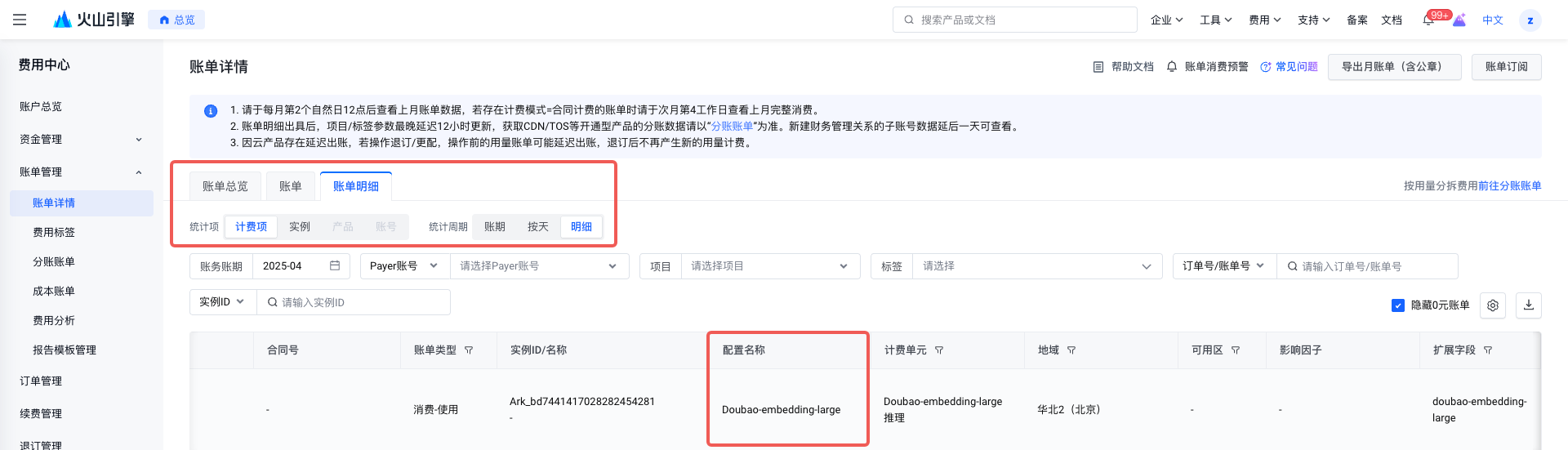
By model: You can log in to the Console - Billing Management - Billing Details, select 'Billing Item' for the statistical item, and select 'Details' for the statistical period. The configuration name field records the model name, which can be used to perform cost statistics based on this field. Click the download button at the top right to export the billing detail data, then process the data.
For EP access points: the split billing function must be enabled in advance. Bills generated after enabling the profit-sharing capability will contain a split item ID field.
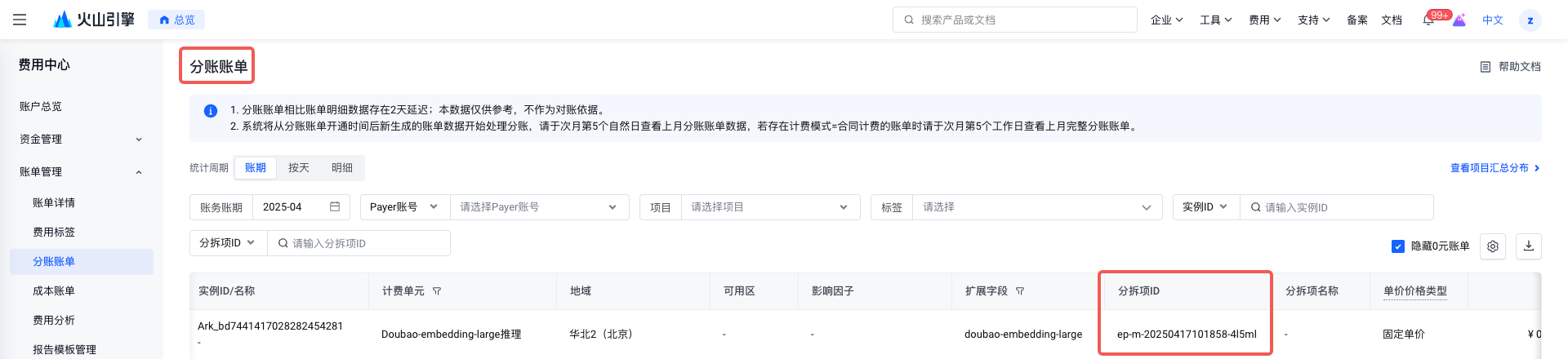
In the context of the Ark product, this field represents the access point ID (EP). The monetary value of this field can be used to perform EP-level financial breakdowns.
By APIKEY: Splitting accounts by APIKEY is not currently supported; a temporary alternative solution can be used for now.
Go to the API Key Permission Management page. By modifying the access point permissions allowed for the API Key, you can control the mapping between the API Key and access points. Each API Key can correspond to a single access point, so that costs can be differentiated by access point instead of by API Key.
- What field information is included in the bill details?
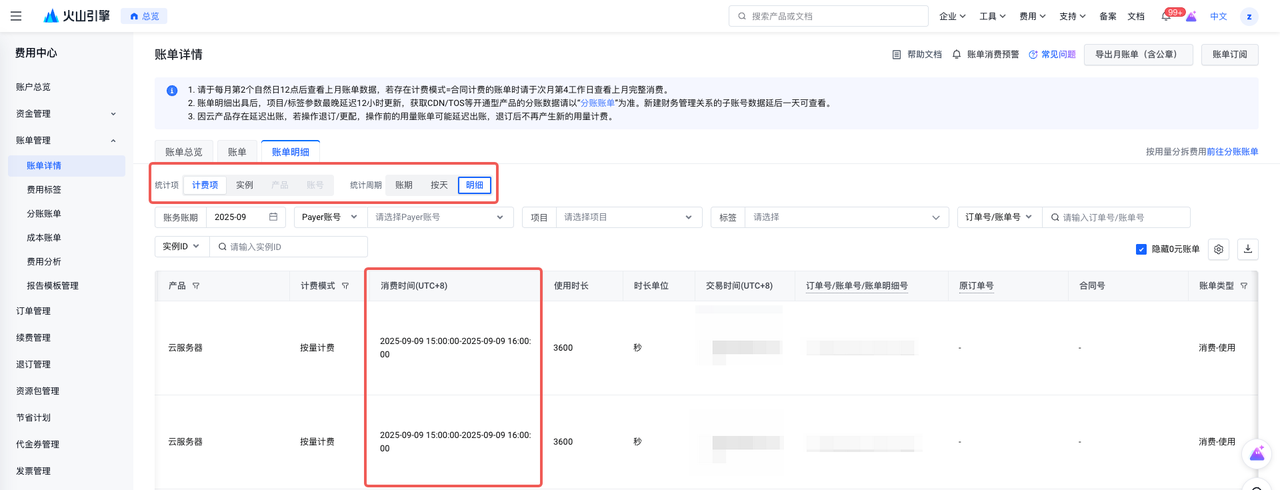
You can view the bill details in Billing Center - Bill Management - Bill Details to obtain specific cost information.
When the [Statistic Item] equals Billing Item and the [Statistic Cycle] equals Detail, the following information will be provided. You can view the corresponding fields in the bill according to the information you need.
- How long does it take to complete the billing?
- Billing Details: Please check the previous month's billing data after 12:00 on the 2nd calendar day of each month. If there are bills with billing mode = contract billing, please check the complete consumption for the previous month on the 4th working day of the following month.
- Revenue Sharing Bill/Cost Bill: Compared to the detailed bill data, there is a two-day delay; therefore, these bills are available for review on the 5th (expense bills for the 1st–2nd are generated, and cost and revenue sharing data for the 3rd–4th are generated). Delivered in the morning of the 5th. The revenue-sharing bill records revenue-sharing data generated after activation, while the cost bill apportions the costs of orders starting from the activation month.
- Expense Analysis: By default, expense analysis uses billing detail data. Data for the current month is updated two days after the billing details are issued. The final data for the current month becomes available for viewing on the 4th day of the following month. If cost billing data is used for analysis, it can be viewed on the 5th day of the following month. The following few scenarios may occur in the middle of the month, including but not limited to delayed billing, refunds, account adjustments, and write-offs of outstanding payments. Accounts with split billing statements enabled will use split billing statement data; monthly data will be updated on T+2 after the split billing statement is issued.
- The item/tag information of bill details is updated with a maximum delay of 12 hours compared to the bill detail data.
- Because the time required to calculate usage for each cloud product varies, it is not possible to complete billing in advance.
- I've stopped using it—why am I still being billed?
Billing Cycle Delay: Under the pay-as-you-go model, billing only occurs after users have utilized cloud services. Volcengine calculates usage and charges according to the billing cycle of the cloud resources, then generates and provides the bill to the user based on the billing results. There is a time interval between the consumption of cloud resources and the generation of billing statements,so it is possible that although cloud resources were used, there will be a certain delay in billing after usage ends, which may lead to the mistaken belief that billing stops as soon as usage stops. You can log in to the console, navigate to Billing Management, and select Billing Details, then choose the Detailed Bill tab,. Use the filter criteria where Statistical Item equals Billing Item and Statistical Period equals Detailed to locate the cloud resources that incurred charges. Refer to the Consumption Time in the query results to determine whether the service was used at that time.
- How to Split Billing by IAM Sub-User
- An IAM sub-user is a type of identity used for access control, created by the main account or an authorized user. After a user is granted a permission policy, they can log in to the console or use an API access key (Access Key) to call APIs and access cloud resources. Therefore, IAM sub-users do not have the capability for independent billing. However, users can still use the creator tag feature to mark resources created by IAM sub-users, and by filtering these creator tags, bills can be split by resource creator.
- The creator tag is also a type of system tag that is automatically generated and bound to the corresponding resource, and is used to identify the creator of the resource. For example, sys:tag:createdBy : IAMUser:12345678:exampleUser can be used to tag resources created by IAM sub-user 12345678. By using creator tags, you can analyze costs and billing, enabling effective management of enterprise cloud expenses. For activation methods, refer to https://www.volcengine.com/docs/6649/1314322
- After enabling the creator tag, you need to go to the cost center's cost tag feature to activate this tag for marking billing data. For first-time use, you must first enable the split billing feature.
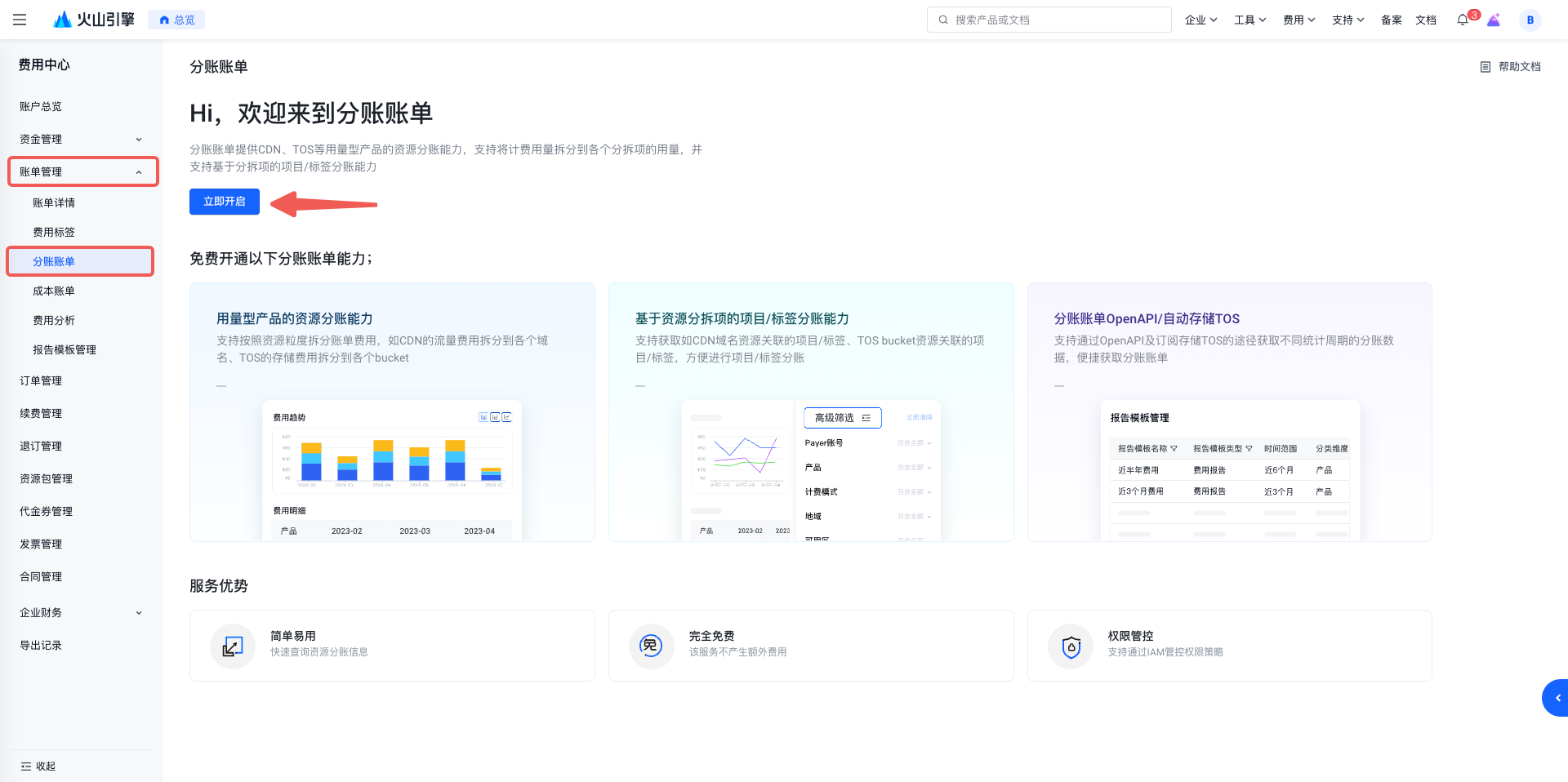
After activation, you need to go to the Cost Tag section and enable the creator tag 'createdBy'. Note: If the tag switch is not turned on, even if resources and tags are bound, the billing statement will not display tag information.
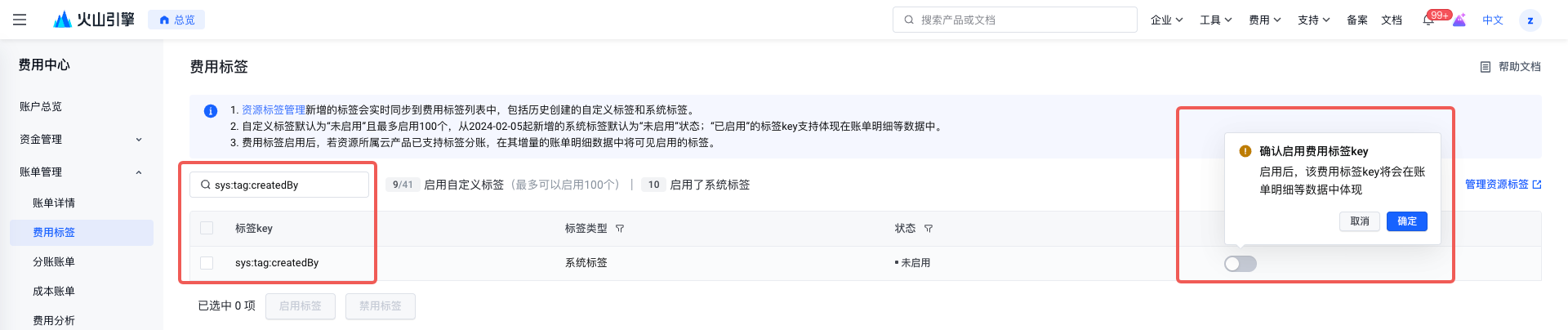
After enabling tags, resources created by sub-users will be automatically labeled with the 'createdBy' tag information. You can then view cost allocation by filtering tags in the split billing statement.
- How to Download a Bill File with an Official Seal
Currently, Volcano Engine provides two types of PDF billing documents with official seals. One is a billing overview, which summarizes expenses by product on a monthly basis. Another option is the detailed bill, which can be exported as a PDF bill file containing usage information and an official seal. The two operations are as follows
- Export PDF Billing Overview:

Multiple accounting periods can be selected during export, and product filtering supports both inclusion and exclusion relationships.
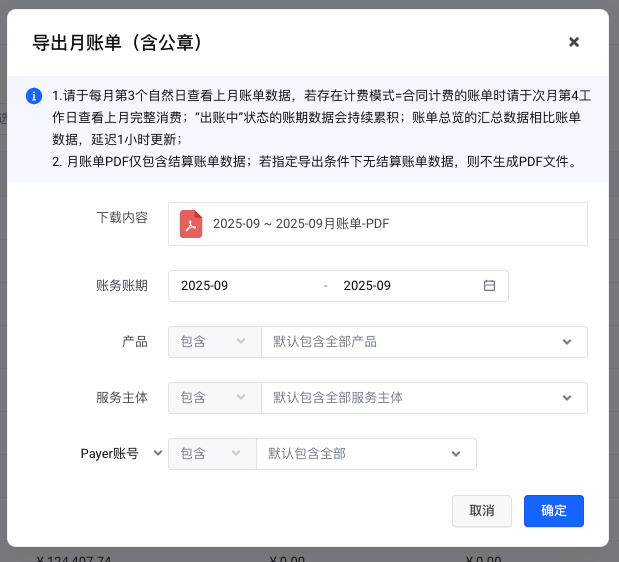
- Export Billing Details PDF: Select 'Billing Item' for Statistical Item and 'Billing Cycle Dimension' for Statistical Period.
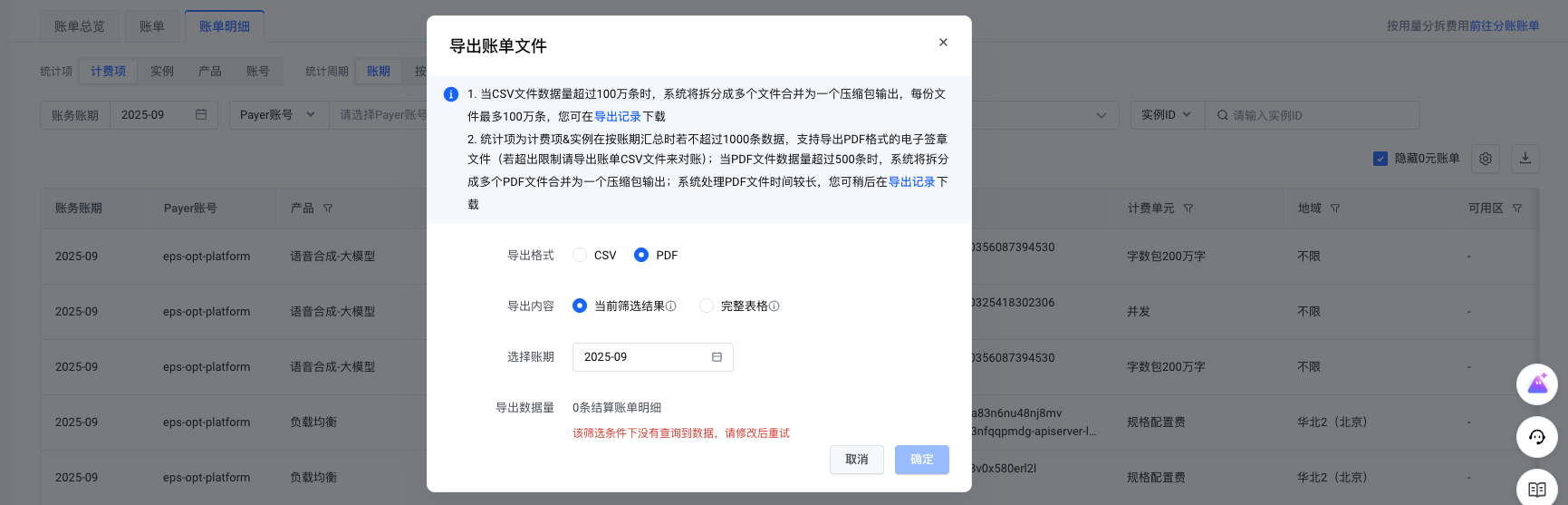
Click the download button to select PDF-format files for download (including chapters).
- What dimensions of revenue sharing does Kouzi support?
Currently, through the Split Billing feature, you can view resource usage and corresponding split costs for each workspace using the Workspace dimension.
For detailed billing rules and splitting methods, please refer to the Button Billing Rules Document.
- Why are the consumption time and transaction time inconsistent, and what is the difference between them?
Consumption Time: The start and end times of consumption behavior.
- When purchasing prepaid (annual or monthly) cloud products, the valid start and end times of the instance correspond to the effective and expiration times of the order.
- When using pay-as-you-go cloud products, the start and end times of each postpaid billing cycle (real-time, hourly, daily, monthly).
Transaction Time: The deduction time corresponding to the consumption record
- When purchasing prepaid (annual or monthly) cloud products, the validity period of the instance begins at the effective time of the order.
- When using pay-as-you-go cloud products, the time at which the actual transaction deduction occurs after the end of each postpaid billing cycle.
It takes a certain amount of time for the system to calculate expenses within the consumption cycle; therefore, a delay between the transaction time and the consumption end time is a normal occurrence.
- Can order/bill records be deleted
No, orders and billing records are classified as non-modifiable data and cannot be adjusted once generated.
- What expenses are recorded in the income and expenditure details?
- Income and expenditure details: Only cash transactions are recorded; changes in credit control are not reflected herein. Therefore, if the user is a credit control user, after making a purchase, they should check the consumption record in the billing details. If no repayment operation has occurred, there will be no cash repayment record in the income and expenditure details.
- In the income and expenditure details, you can click the number in the [Transaction Order Number] field to view the repayment destination and repayment product for the corresponding cash transaction.
- What Is a Contract Billing Statement
Contract billing refers to a billing and settlement type that is independently used according to the terms specified in the contract between you and Volcano Engine. If your contract with Volcano contains special provisions regarding this matter, contract-based billing may be involved; otherwise, all other cases fall under standard system billing.
For detailed information regarding contract billing, please contact your account manager.
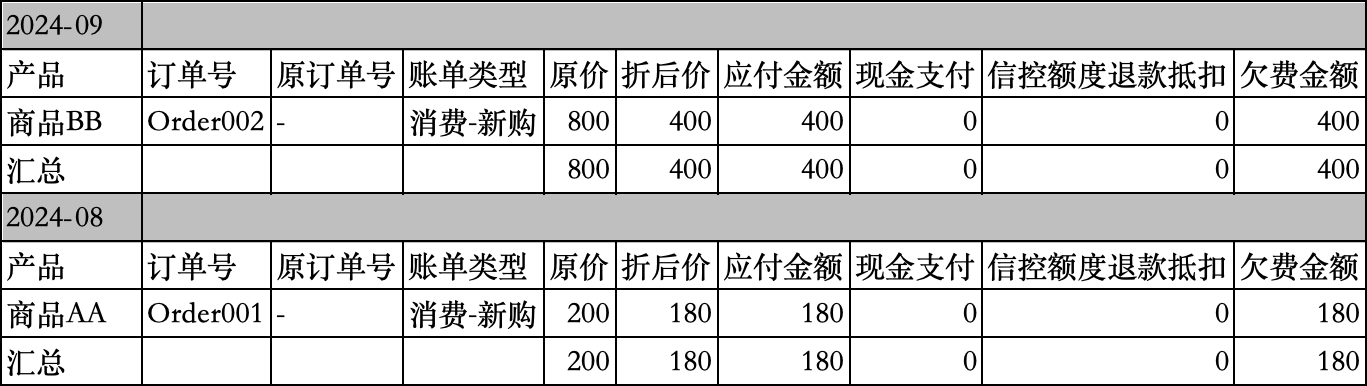
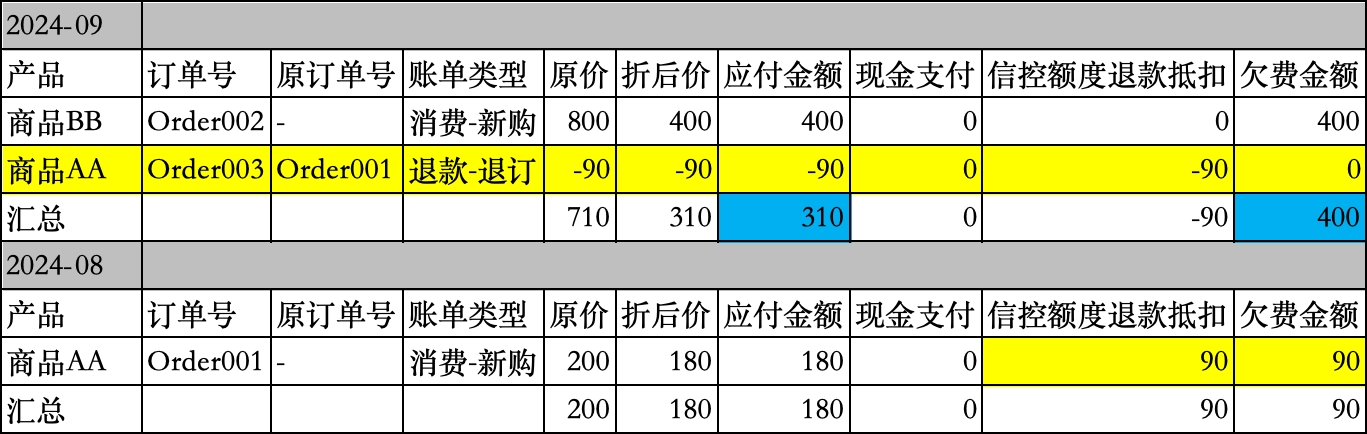
- Why is the amount payable less than or not equal to the amount owed?
Under normal circumstances, the outstanding amount is equal to the amount payable. However, when there are cross-month refunds or adjustments, the amount payable in the month of the refund may be less than the outstanding amount. This is because, in the current month, the refund bill is added to the original bill, resulting in a reduced payable amount for the month. Consequently, the outstanding amount for the month to which the refund is applied also decreases.
For example, consider the billing data for August and September 2025. After unsubscribing from product AA in September, the payable amount for September is less than the outstanding amount, whereas in August, the payable amount is greater than the outstanding amount.
- Before Unsubscribing
- After unsubscription
- How to estimate the expenses/costs of a product?
Currently, Volcano Engine offers two methods for estimating future costs.
- Cloud products are currently in use. Based on existing usage, future consumption over a certain period can be forecasted using the Expense Forecast feature.
- Open the Cost Analysis page
- Select a future time period within the time range
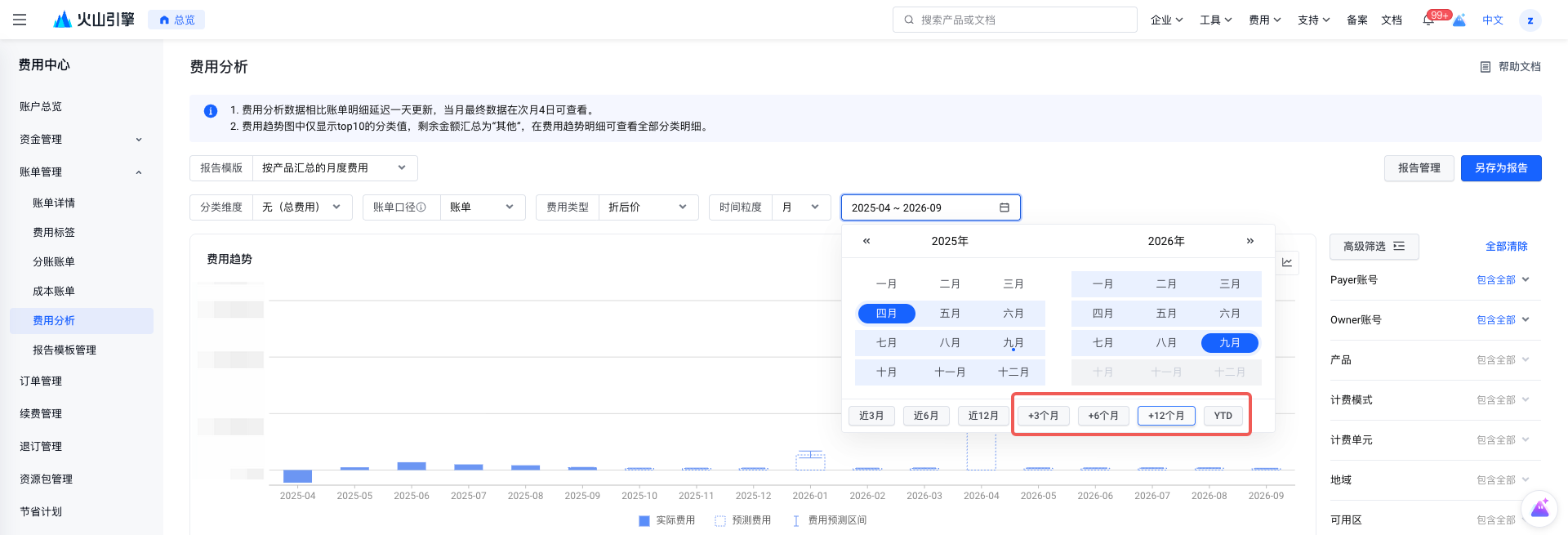
You can immediately view the predicted cost amount based on the current bill amount.
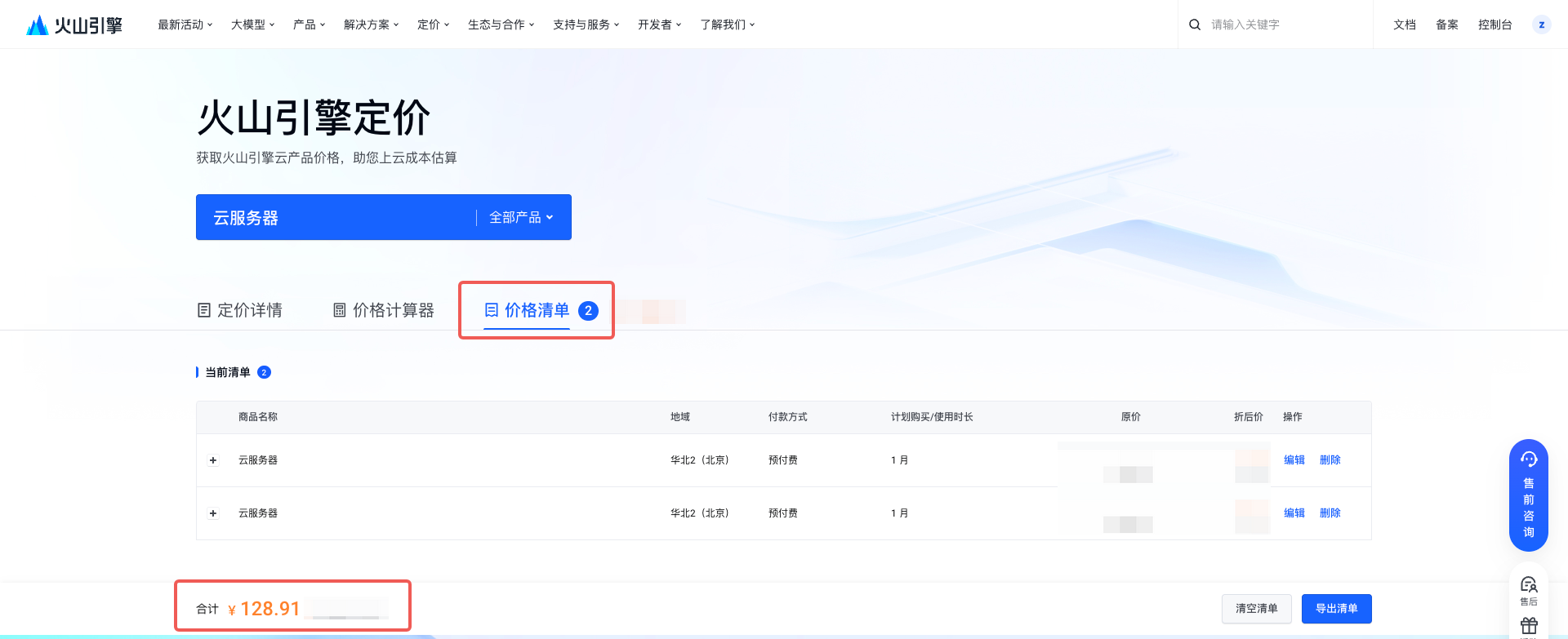
- To predict cloud products that have not yet been used and estimate their costs after activation, you can use the Price Calculator feature.
- Select the corresponding cloud product, and choose the configuration and model you require.
- Click to add to list
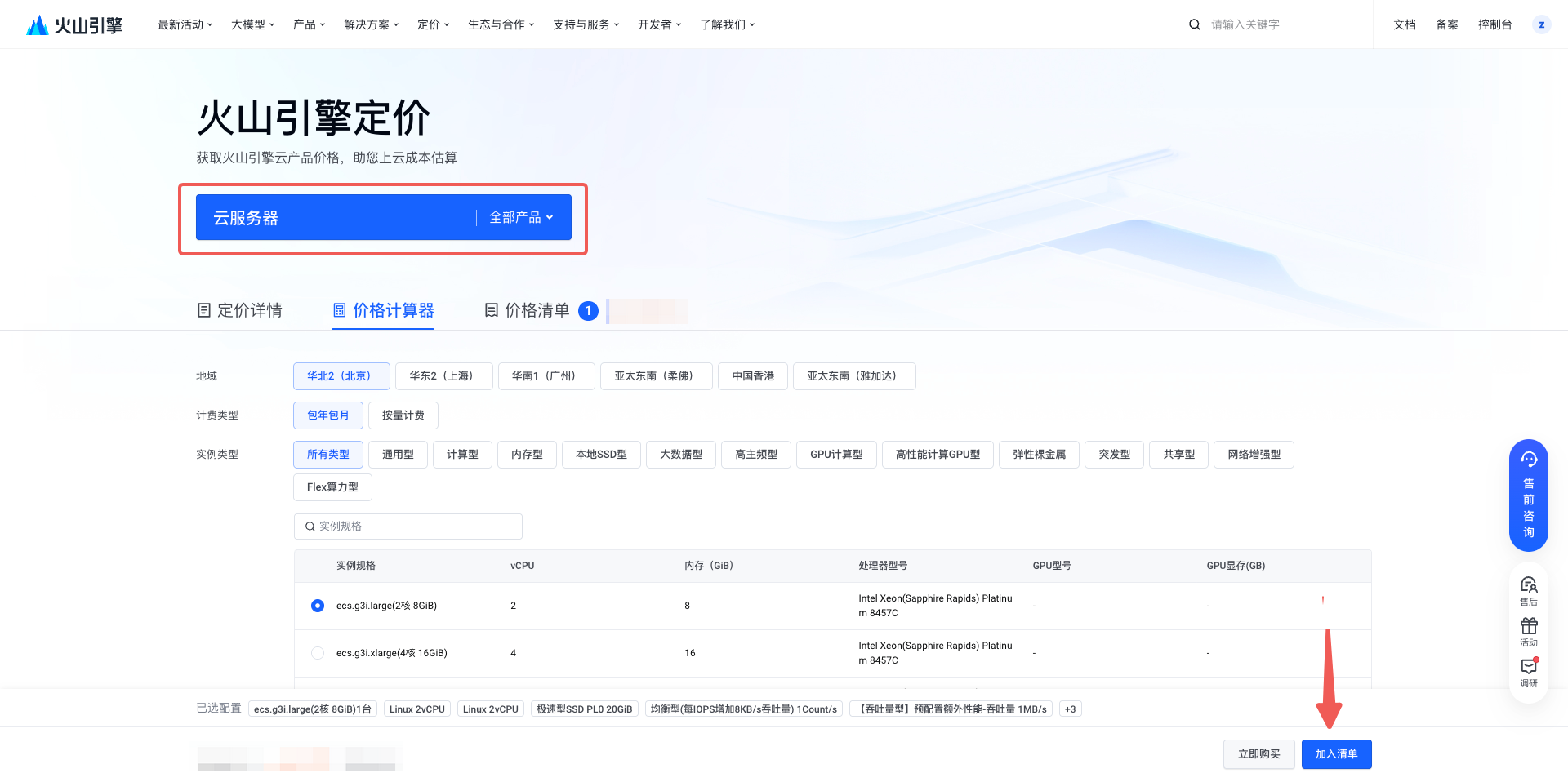
- Click to view the price list to see the amount payable for placing an order.
- What is the definition of split item id?
Depending on the specific form of each cloud product, the meaning corresponding to the split item id is defined independently by each cloud product.
For example, in Volcano Ark, the split item ID is the endpoint ID; batch inference endpoints are prefixed with ep-bi, while online inference endpoints are prefixed with ep.
- Why is the usage shown in the bill inconsistent with the usage displayed in the cloud product console?
Billing rules vary among different cloud products, and the usage data reflected in the bill represents standardized measurements specifically for billing purposes. Data that is uniformly pushed to the platform for price calculation after usage information from various cloud products has been aggregated.
In the cloud product console, multiple data definitions or calculation methods, as well as usage information from various dimensions, may be available to help users monitor their business more effectively. This results in an inconsistency between the data definitions in the cloud product console and the billing measurement definitions. Therefore, cost settlement should be based on the usage data in the bill, while the data in the cloud product console is available for analysis and daily resource management.
- How to Use Expense Analysis under Financial Custody
In financial custody, the main account can view the billing data of all sub-accounts, while financial custody sub-accounts can only view their own billing data. Therefore, when using cost analysis, logging in with the main account allows analysis of billing data for all sub-accounts as well as the main account itself, while logging in with a sub-account allows analysis of billing data for that sub-account only.
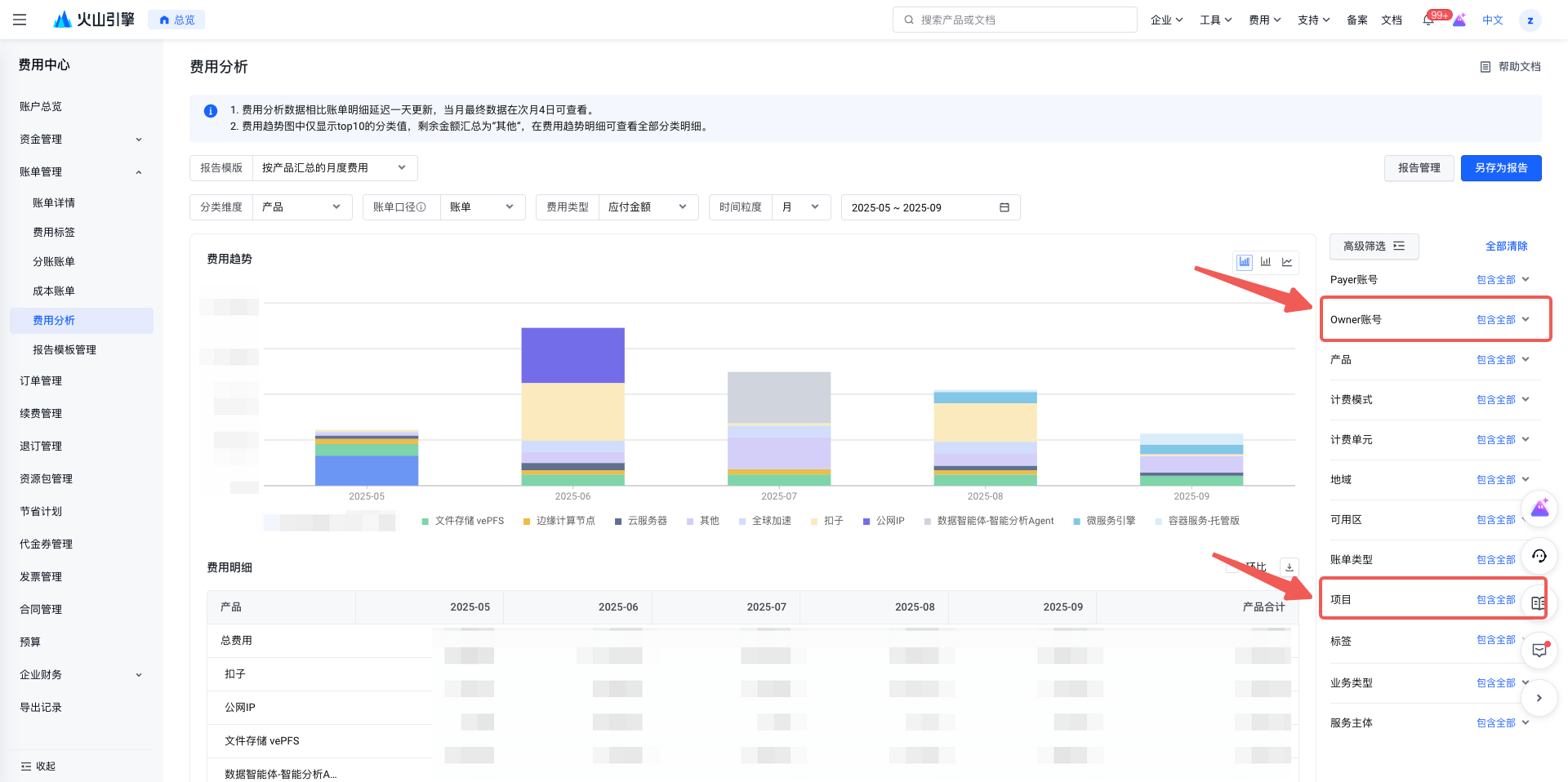
For example, when performing cost analysis by logging in with the main account, you can use the advanced filter labeled [Owner账号] on the right side to view billing data for different sub-accounts. You can view billing data for different projects by using the advanced filter under 'Project'. Note: When Project A is assigned to the main account, statistics for Project A cannot be generated if you filter solely for the Owner account as a sub-account.
- Which amount on the bill should be used for monthly top-up repayments?
In normal usage scenarios where no account adjustments have been made, it is recommended that payment and invoicing be based on the bill's [amount payable].
- How to compare the reasons for significant differences in expenses between two months
There are numerous factors that may cause fluctuations in the billing amount, including usage, duration of use, discounts, voucher deductions, resource package deductions, etc.
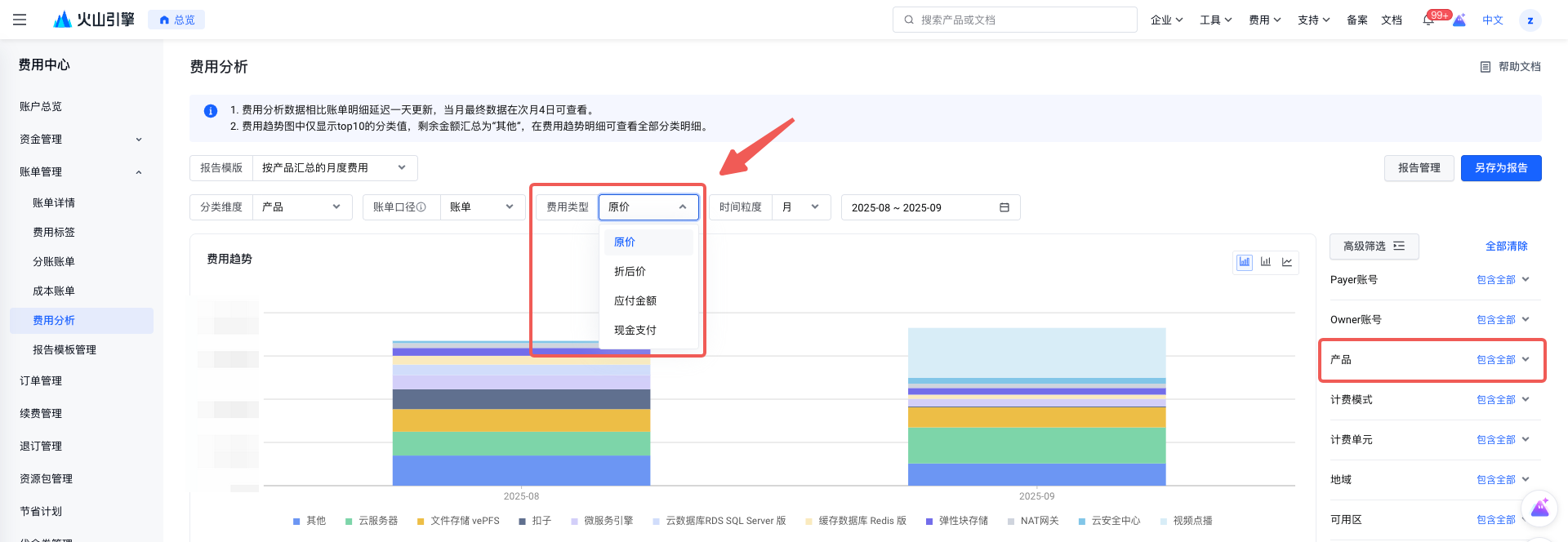
During daily use, you can first open the Cost Analysis page, select the two months to compare, and then sequentially choose 'Original Price' and 'Discounted Price' under [Cost Type]. Check whether the original price is the same as the discounted price, and whether there are significant fluctuations between them.
If the original price remains unchanged while the discounted price fluctuates, this may be due to the expiration of contract discounts or the depletion of vouchers. For specific details, you can compare the 'Discount Details' and 'Voucher Deduction' fields in the billing statement details.
If both the original price and the discounted price show significant fluctuations, this may be caused by substantial changes in usage. Specifically, you can compare the 'Usage Duration' and 'Usage' fields in the billing details to verify whether the fluctuations are due to changes in usage. For details about the bill fields, see [What are the bill fields].
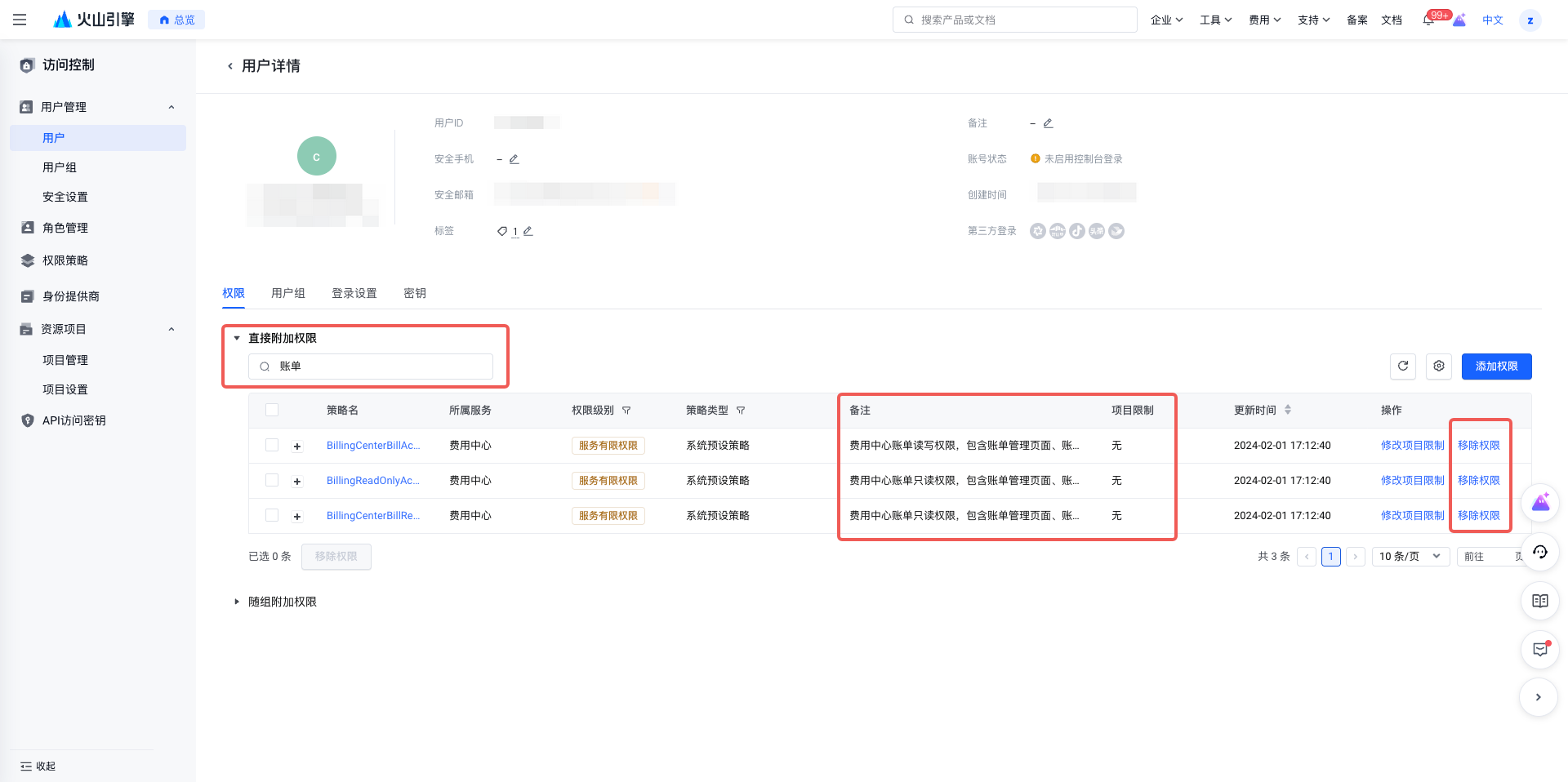
- How to Block Billing View Permissions via IAM
Volcano Engine enables IAM sub-user identities to access cloud services, and sub-users' bill viewing permissions can be restricted through permission management.
- Open Access Control and enter the user list. If there are no user roles, you can follow the prompt to create a new user.
- If there are existing users, you can click the username to enter the user information details page.
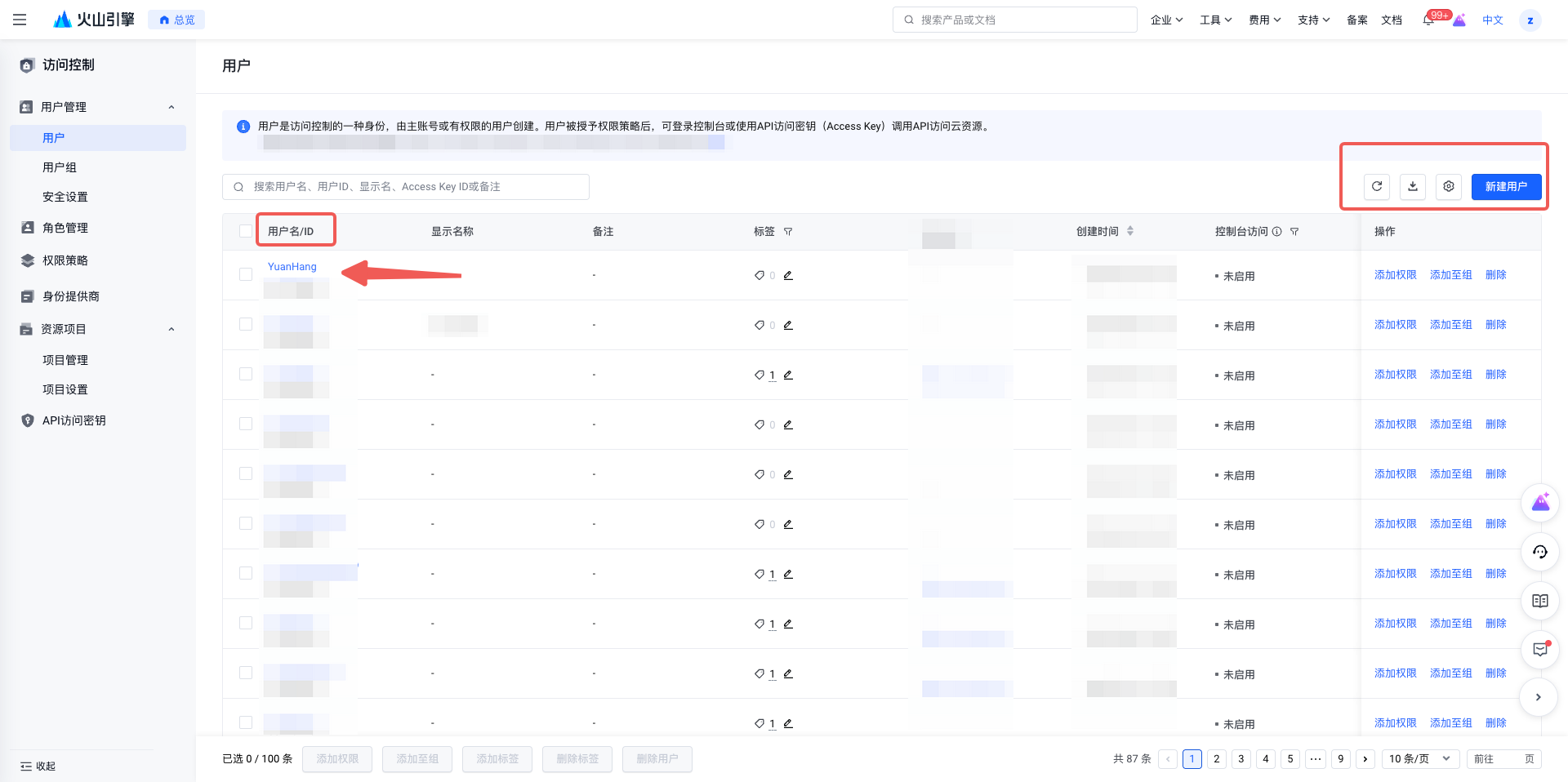
- To manage permissions, search for those related to "billing." Then, click "Remove Permission" on the right. After this action, IAM sub-users will no longer be able to view billing data.
- Obtain daily bills through the interface
You can use the API to query specific content; refer to the API documentation at https://www.volcengine.com/docs/6269/1127494.
To view data by day, set the GroupPeriod parameter in the input to 1, which represents daily view (GroupPeriod: 0 – billing period; 1 – daily; 2 – detailed).
Last updated: 2025.10.31 23:04:15
All rights reserved © Beijing Volcano Engine Technology Co., Ltd2024
