Billing Center
Billing Center


Document

- Documentation
 Billing CenterContract managementProduct Quotation Contract
 Copy page
 Download PDF
Contract management
Product Quotation Contract
Copy pageDownload PDFProduct Quotation Contract
The product quotation contract is a standard template signed between the Volcano Engine platform and customers, containing the quotation information provided by Volcano Engine to the customer. This contract uses electronic signatures and will be stamped with Volcano Engine's electronic seal after the customer clicks accept. The electronic contract signed by the customer through the Console Billing Center - Contract Management has the same legal effect as the paper contract.
Contract Inquiry
After your account manager initiates the quotation and contract and completes the approval, the contract will appear in your console under Billing Center - Contract Management - Product Quotation Contract. Volcano Engine will send notifications to the phone number and email linked to your official account via SMS and email respectively, and also send an in-app message on the official site to notify you of a pending confirmation product quotation contract (the specific channels depend on your selections in the official site message center).
You can check the product quotation contracts under your account in the following ways:
1. Click the links in the SMS, email, or in-app messages for quick access to the product quotation contract list page;
2. Log in to the Volcano Engine console and go to Billing Center - Contract Management - Product Quotation Contract to access the product quotation contract list;
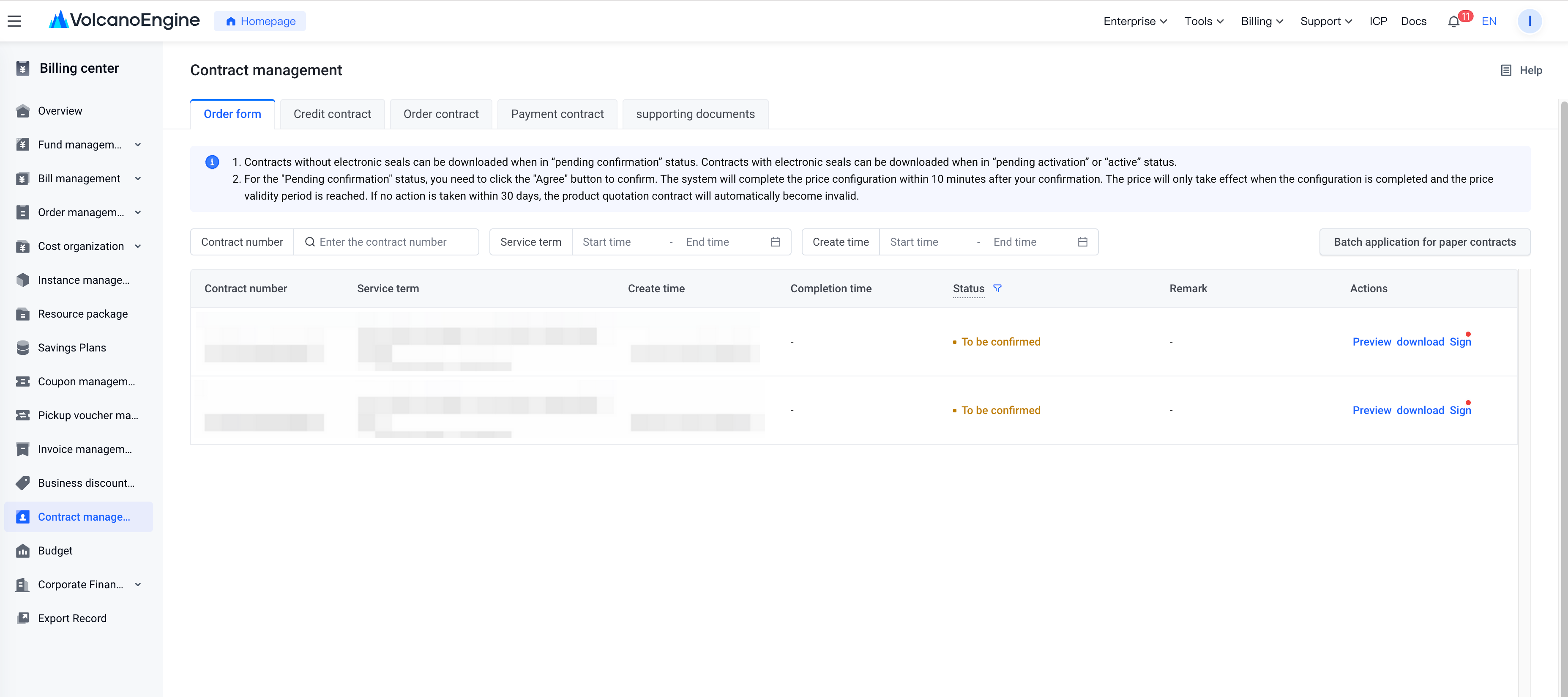
On the list page, you can view each product quotation contract’s contract number, service term, create time, completion time, status, remark, and other details under your account. You can also search by contract number, service term, or create time.
In the "Actions" column on the right, you can click the “Preview” / “Sign” button to view the contract content.
If you need to download the contract text to your local device, you can click the “Download” button to obtain the PDF version of the contract.
1. When the status is "To be confirmed" the downloaded contract does not have an electronic seal.
2. When the status is "To be effective"/"Become effective" the downloaded contract includes the electronic seal.
Contract Signing
1. Signing Validity Period
You need to accept or reject the pending confirmation contract within 30 days of receipt. If no action is taken within 30 days, the contract status will change to "Order form is invalid".
Contracts with an "Order form is invalid" status cannot be signed further. Contact your sales manager to initiate a new contract if needed.
2. Status Description
- To be confirmed: The contract has been sent to the client, who has not yet confirmed, and it has been less than 30 days since it was sent.
- Have been rejected: The client has clicked to reject the contract.
- In contract generation: the client has agreed to accept the contract, and the system is processing it.
- Contract generation failed: the client has agreed to accept the contract, but the system encountered an issue during processing; please contact your business manager.
- To be effective: the client has agreed to accept the contract, and the system has completed processing, but the current time has not yet reached the contract's effective date.
- Become effective: the client has agreed to accept the contract, the system completed processing, and the current time is within the contract validity period.
- Have expired: the client has agreed to accept the contract, the system completed processing, but the current time is past the contract end date.
- Have been terminated: the client has agreed to accept the contract, the system completed processing, and Volcano Engine terminated the contract before the end date.
- Order form is invalid: the contract was sent to the client, and the client did not accept or reject it within 30 days
3. Accept to sign the contract
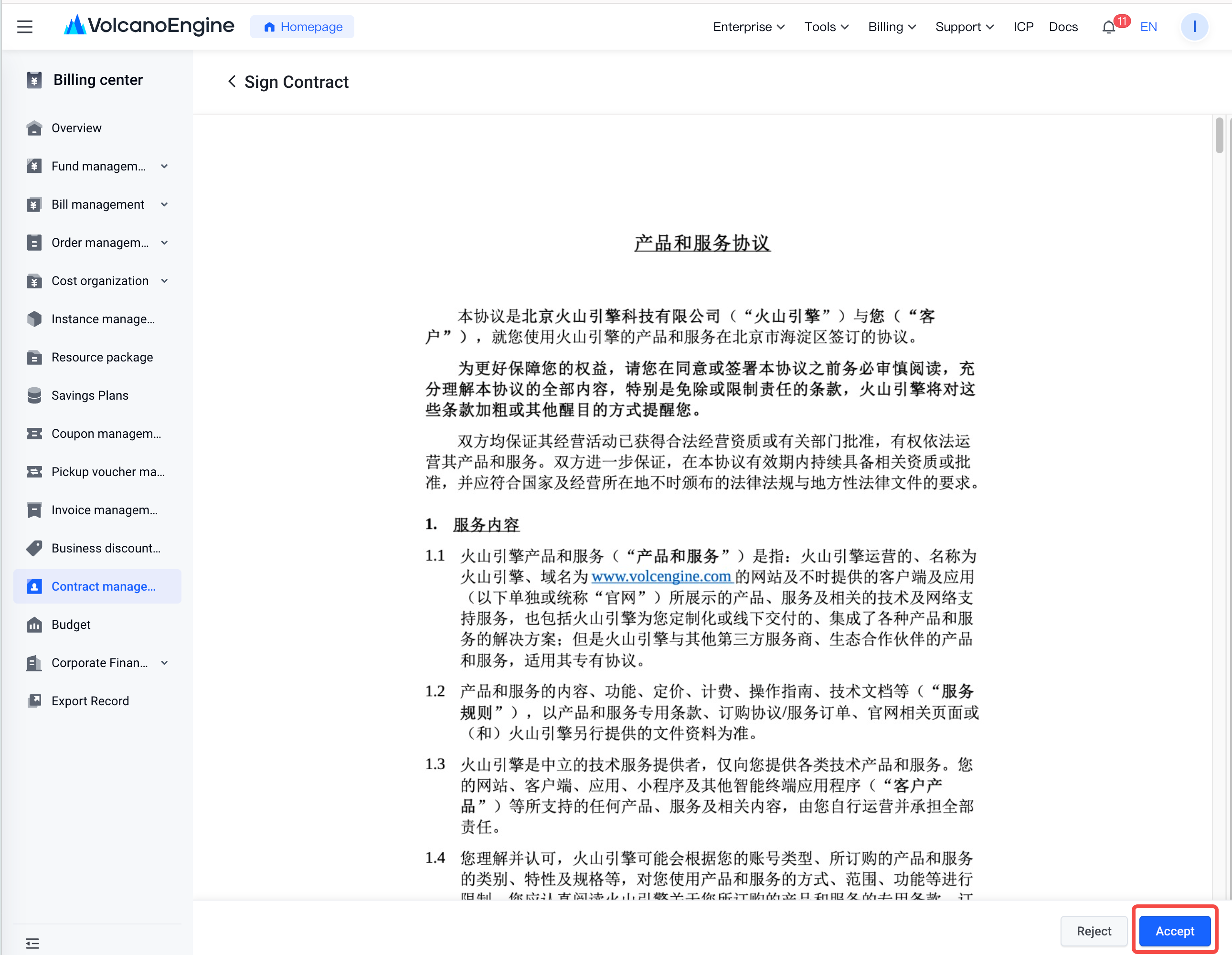
If you accept the contract content, you can click the “Sign” button in the “Actions” column to enter the signing page, and then click “Accept” to confirm the contract.
After you click “Accept” and confirm, the status will change to “In contract generation”. At this point, the contract is in the system signing process. Once signing is completed, the status will change to “To be effective”. The system will complete the price configuration within 10 minutes after signing is completed. The price can take effect only when the price configuration is completed and the price effective start time has been reached.
Important notice: If you agree to sign the contract after the service term starts, the system will automatically set the signing date as the new service term start date; if you agree to sign before the service term starts, the start date remains unchanged.
4. Reject to sign the contract
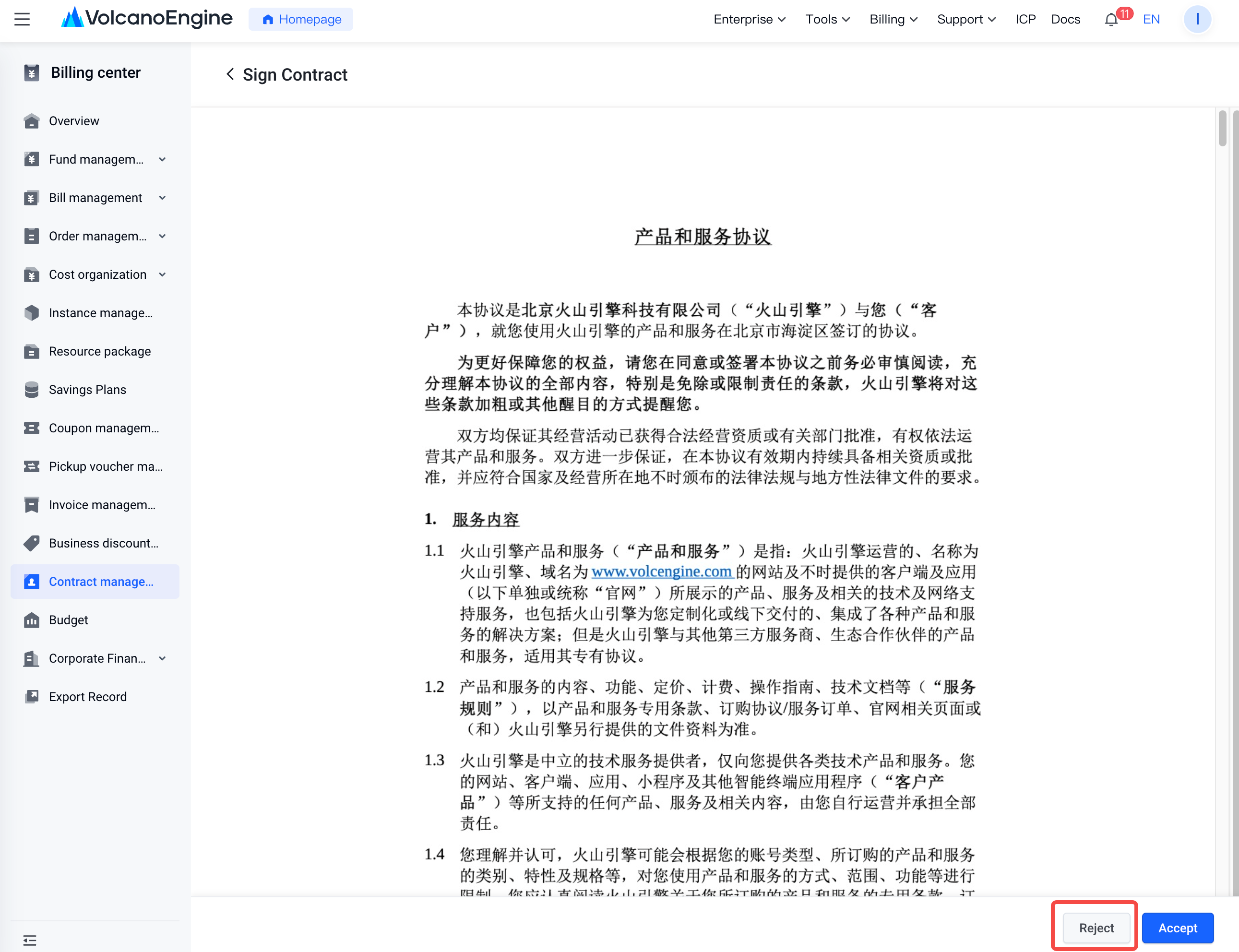
If you do not accept the contract content, you can click the “Sign” button in the “Actions” column to enter the signing page, and then click “Reject” to reject signing the contract.
After clicking "Reject", a pop-up will appear for you to select the reason for refusal. Please choose based on your actual situation. Once submitted, the status will change to "Have been rejected". If you still need the contract, contact your sales manager to initiate it again.
Reasons for rejection: incorrect contact information, incorrect client name, price discount to be negotiated, need to change signing method;
- Incorrect contact information: The contact details shown in the contract do not match the actual client contact information.
- Incorrect client name: The client name shown in the contract does not match the actual client name.
- Need to change signing method: The client does not accept electronic signatures and requires paper signing offline.
- Price discount to be negotiated: The price discount shown in the contract does not match the client’s expectations.
Last updated: 2026.08.05 17:09:47
All rights reserved © Beijing Volcano Engine Technology Co., Ltd2024
