Billing Center
Billing Center


Document

- Documentation
 Billing CenterRenewal ManagementNon-renewal upon expiration
 Copy page
 Download PDF
Renewal Management
Non-renewal upon expiration
Copy pageDownload PDFNon-renewal upon expiration
Rules
- Customers can set instances that will not be used after expiration to "Non-Renewal Upon Expiration," placing them under the "Non-Renewal Upon Expiration" tab.
- Instances set to "Non-Renewal Upon Expiration" enter a retention period after expiration. During this period, services will be suspended and unavailable, but resources and data will be retained. To continue using the service, initiate manual renewal promptly. Instances will be automatically released after the retention period expires.
- Expired instances do not support changing the renewal type to "Do not renew after expiration."
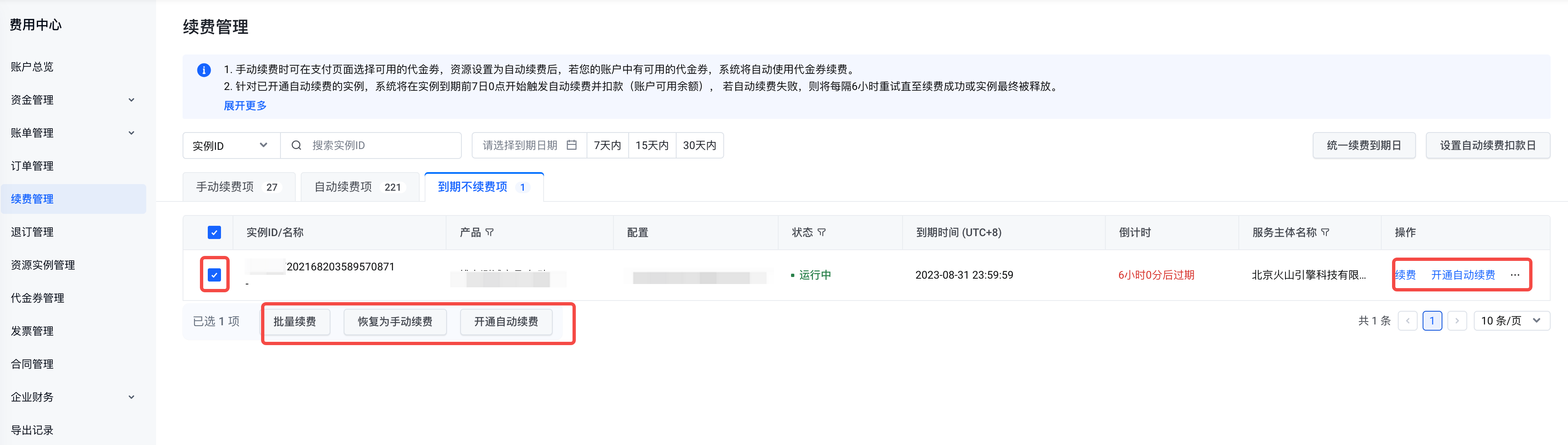
- "Running" instances set to "Do not renew after expiration" can be batch renewed, manually renewed, reverted to manual renewal, or enrolled in auto-renewal. Instances with "expired" status only support batch renewal, manual renewal, and reverting to manual renewal.
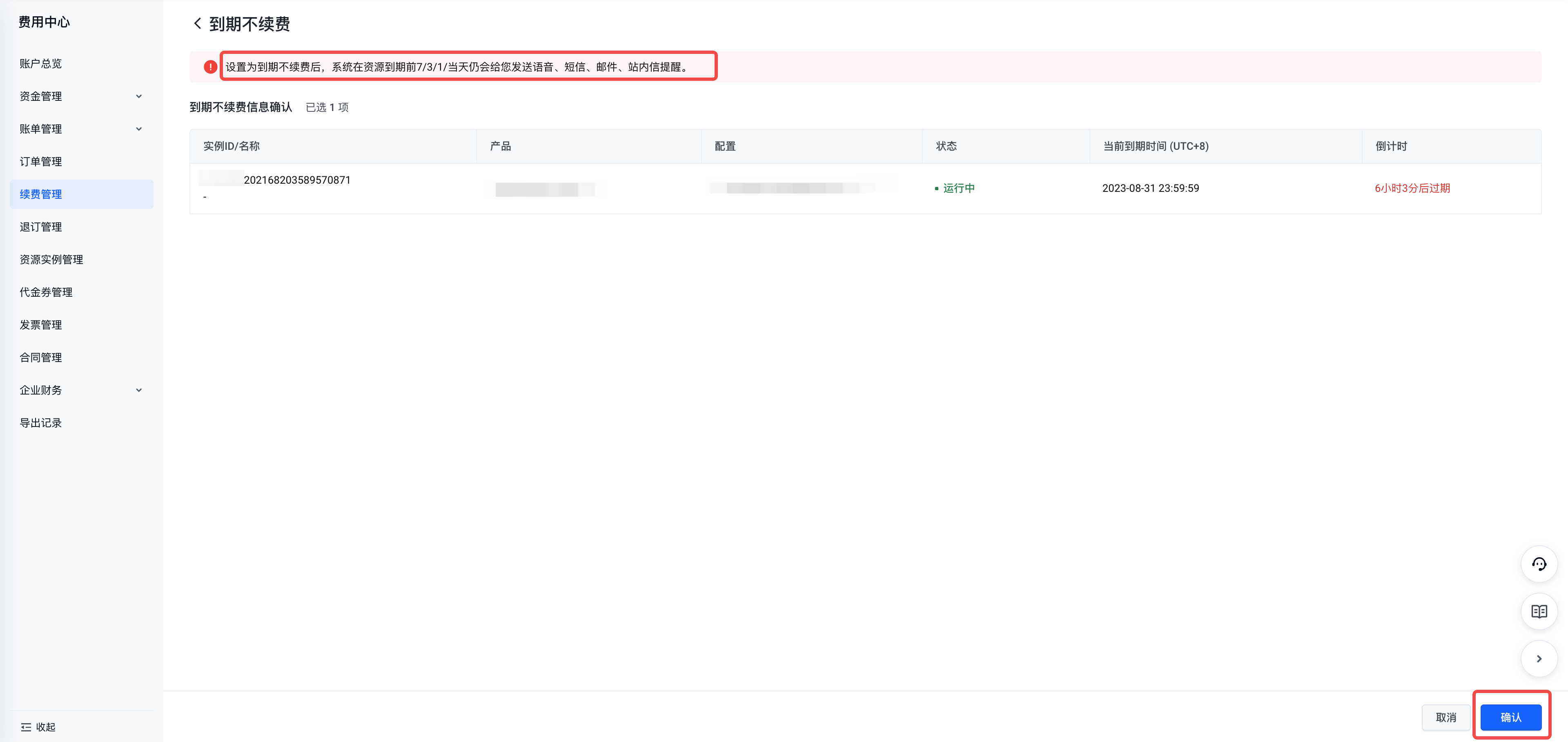
- For instances set to "Do not renew after expiration," notifications for expiration warnings, service suspension, and recovery will be sent via voice call, SMS, email, and internal message 7, 3, 1 days before expiration and on the expiration day. Please pay attention to these notifications.
Steps
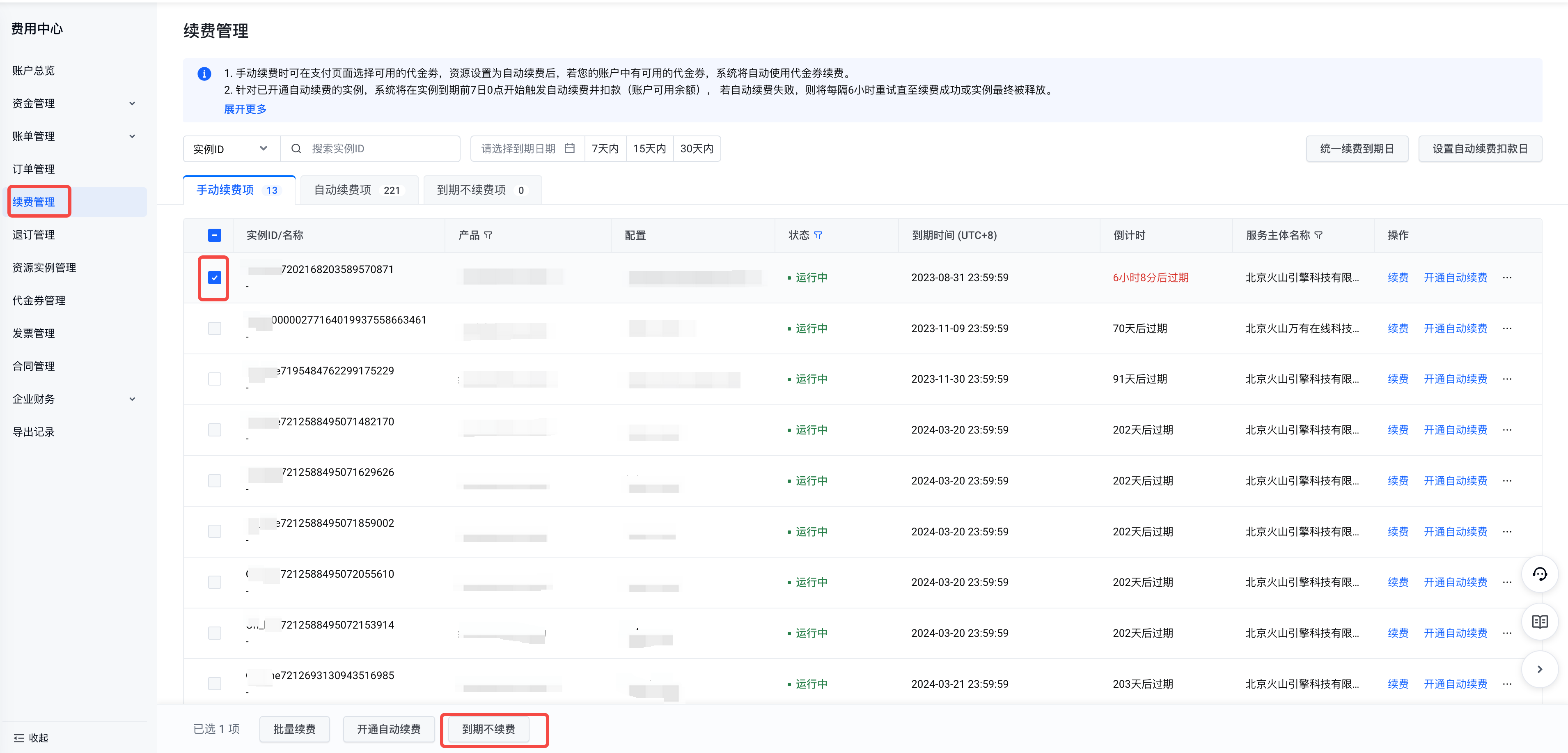
- Go to the "Cost Center - Renewal Management - Manual Renewal/Auto Renewal" tab, select the instances to set as do not renew after expiration, then click the "Do Not Renew After Expiration" option in the actions column or the batch "Do Not Renew After Expiration" button at the bottom of the page.
- On the "Do Not Renew After Expiration" page, click "Confirm" to successfully set the option.
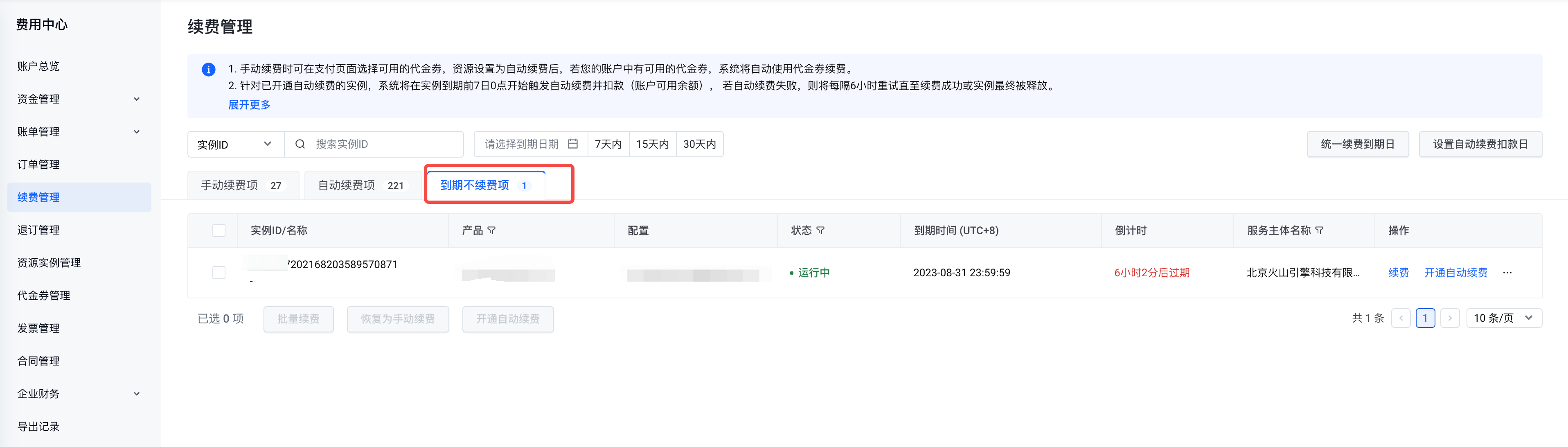
- After successfully setting "Do not renew upon expiration," you can view the corresponding instances in the "Fee Center - Renewal Management - Do Not Renew Upon Expiration" tab.
- Instances set to not renew upon expiration can be manually renewed based on actual needs. After clicking "Renew" or "Bulk Renew," you will enter the renewal confirmation page. Set the renewal duration, click "Proceed to Payment," and complete the payment to successfully renew the order.
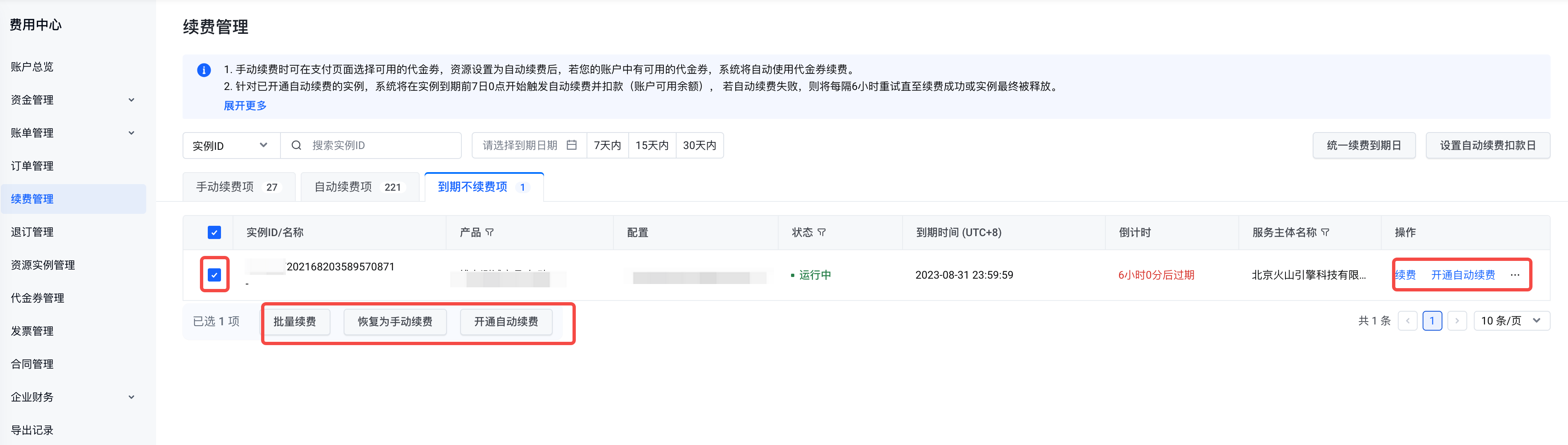
- Instances set to not renew upon expiration can be restored to manual renewal or switched to auto-renewal (before the instance expires) for single or multiple instances based on actual needs. After the operation succeeds, the instances will automatically move to the "Manual Renewal" or "Auto Renewal" tab.
Last updated: 2025.07.15 11:43:30
All rights reserved © Beijing Volcano Engine Technology Co., Ltd2024
