ArkClaw Enterprise
ArkClaw Enterprise


Document

- Documentation
 ArkClaw EnterpriseArkClawConsole user guideUsage TipsAdvanced featuresUsing AI diagnosis to troubleshoot and fix ArkClaw failures
 Copy page
 Download PDF
Advanced features
Using AI diagnosis to troubleshoot and fix ArkClaw failures
Copy pageDownload PDFUsing AI diagnosis to troubleshoot and fix ArkClaw failures
AI diagnosis is a set of troubleshooting and recovery capabilities provided by ArkClaw. You can use this feature to identify and fix common operational issues in ArkClaw. When ArkClaw exceptions occur, such as no response or startup failure, you can manually trigger AI diagnosis, and the system automatically performs troubleshooting and repair.
Applicable scenarios
Operation instructions
- Only ArkClaw instances in the running or restarting status support the AI diagnosis feature.
- AI diagnosis only supports fixing some automatically identifiable failures and cannot cover all issue scenarios (such as plugin/skill errors and third-party IM connection exceptions). If your issue is not resolved through this diagnosis, you can provide feedback by referring to the "Issue not resolved" below for help.
- You can select multiple issue types simultaneously for batch troubleshooting, or repeatedly initiate diagnosis for issues of the same type to verify the issue status.
Procedure
- Log in to the ArkClaw console and switch to the target ArkClaw page.
- In the upper-right corner of the page, click "... > AI diagnosis".
- Select the corresponding issue card based on the issue you encountered.
tip
- If the "Diagnose ArkClaw slow response" feature is unavailable, please select "Diagnose ArkClaw slow response > Enable" to join the User Experience Improvement Program.
-
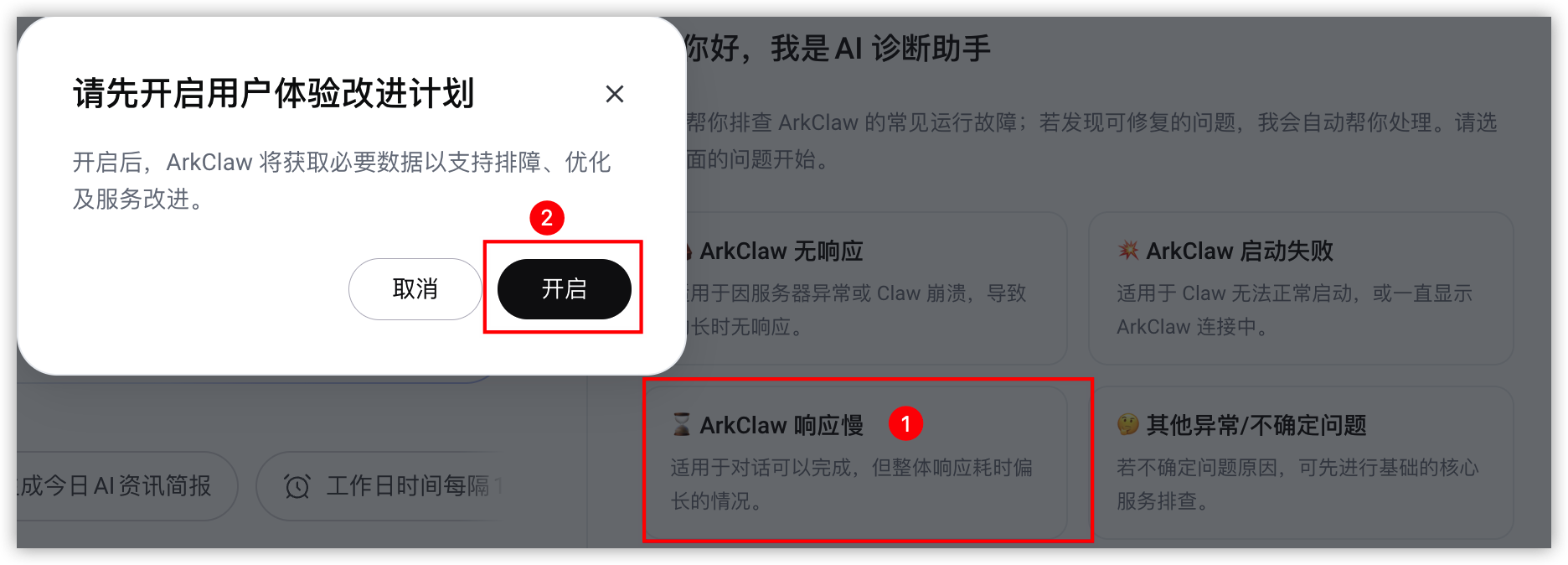
- The User Experience Improvement Program is enabled by default. If you do not need it later, you can exit the User Experience Improvement Program as needed.
- (Optional) Enter issue symptoms, error messages and other details in the supplementary information field, such as specific scenarios of unresponsive instances and key error log snippets, to help the AI diagnosis assistant identify issues more accurately.
- Click the "Start diagnosis" button and wait for the system to perform diagnosis and repair.
tip
- The diagnosis and repair process is expected to take 3-5 minutes. Please wait.
- To stop the diagnosis midway, click the "Cancel diagnosis" button. After the cancellation, the system will immediately stop subsequent diagnosis steps. Completed actions will not be automatically undone.
- Based on the diagnosis result, you can perform the following operations:
- Continue diagnosis: You can further supplement the issue description based on the current diagnosis result, and the system will initiate a new diagnosis task.
- Evaluate the diagnosis result: You can provide feedback on each AI diagnosis by clicking the thumbs-up or thumbs-down button. The platform will identify issues arising during diagnosis based on your feedback and continuously optimize the diagnostic performance.
- Give a thumbs-up for the diagnosis result:
- Below any satisfactory AI diagnostic response, click the
 .
.
- Give a thumbs-down for the diagnosis result:
- Below any unsatisfactory AI diagnostic response, click the
 .
.
- In the pop-up window, select the reasons for your dissatisfaction (multiple selections allowed). Click the "Submit" button to complete the operation.
Related features
Feature | Actions |
Active pushing of diagnosis cards | When the AI diagnosis module detects an exception, it proactively pushes a diagnosis card via the ArkClaw Console or Feishu message channel to help you quickly identify the issue.
tip By disabling the "ArkClaw error AI diagnosis plugin", you can disable active pushing of diagnosis cards.
|
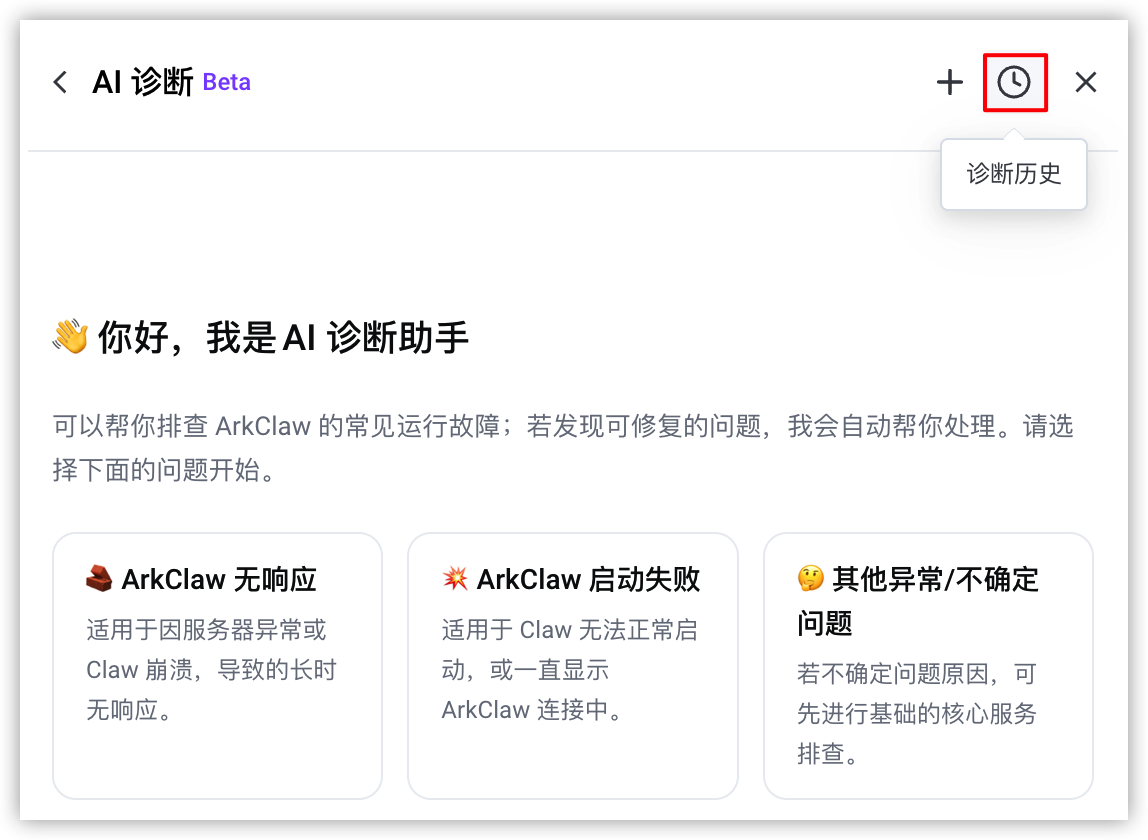
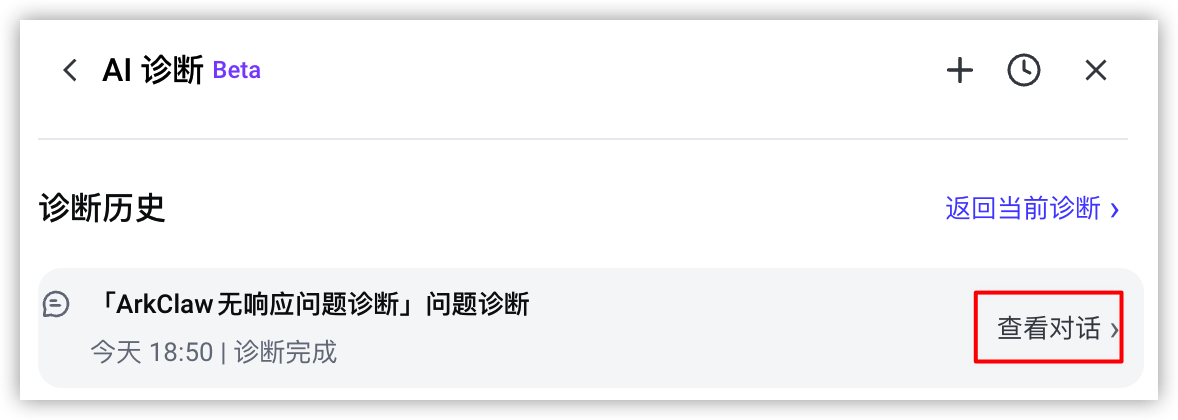
View diagnosis history | You can also view the records and details of previous AI diagnoses to trace the troubleshooting process and repair result of the target diagnosis task.
|
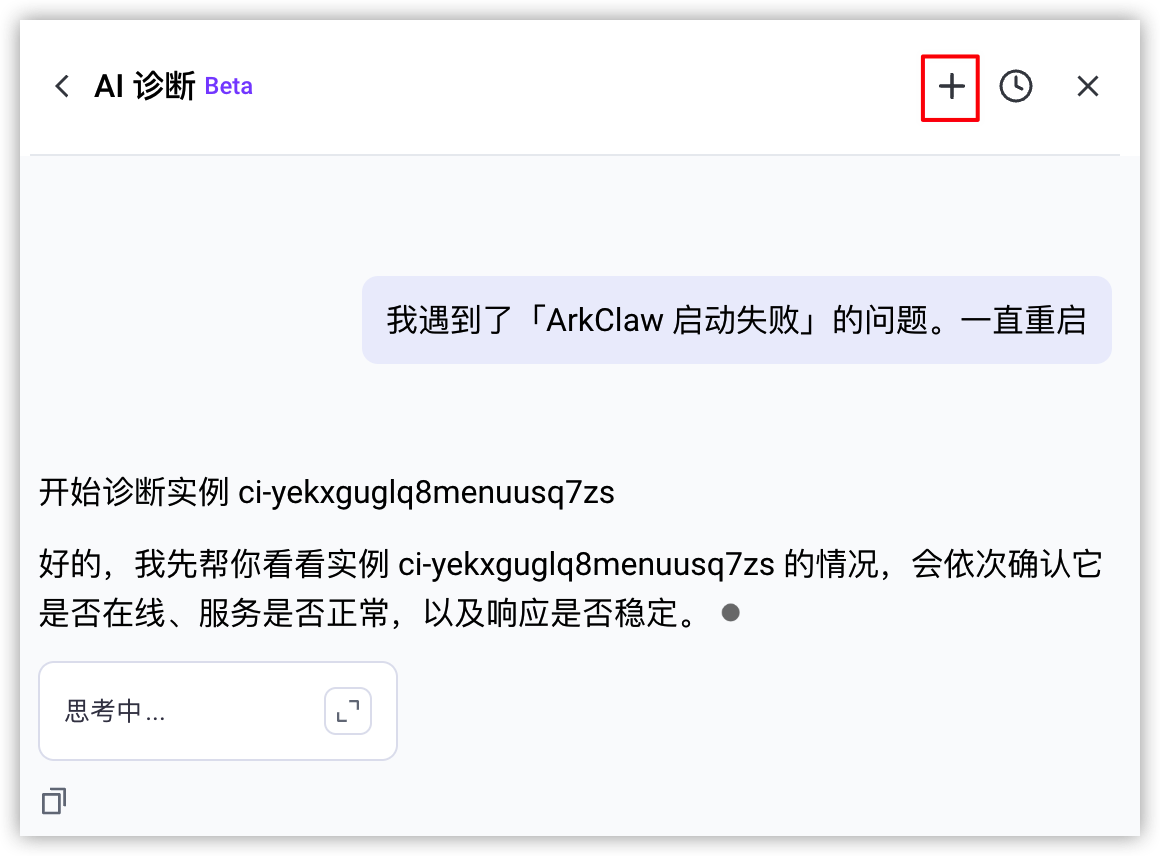
Create multiple diagnosis tasks | During the current diagnosis, you can initiate new diagnosis tasks. Multiple diagnosis tasks do not interfere with each other.
tip
|

Last updated: 2026.08.20 10:36:38
All rights reserved © Beijing Volcano Engine Technology Co., Ltd2024
