ArkClaw Enterprise
ArkClaw Enterprise


Document

- Documentation
 ArkClaw EnterpriseArkClawConsole user guideManaging ArkClawBacking up and restoring ArkClaw data
 Copy page
 Download PDF
Managing ArkClaw
Backing up and restoring ArkClaw data
Copy pageDownload PDFBacking up and restoring ArkClaw data
If ArkClaw experiences anomalies such as interface freezes or unresponsive operations that cannot be resolved by restarting or auto healing, and you do not want to restore ArkClaw to factory settings, you may try restoring from a backup to fix the issue.
This feature can fully restore the entire system and all data to the state at the time corresponding to your selected backup. After restoration, the system will be the same as its state when the backup was created.
Back up ArkClaw data
Enable or disable automatic backup
Automatic backups are generated by the system based on the preset rules. No manual creation is required. Once enabled, backups are generated automatically every 24 hours.
- Log in to the ArkClaw console.
- Switch to the target ArkClaw page and click the Claw details page icon in the upper-right corner.
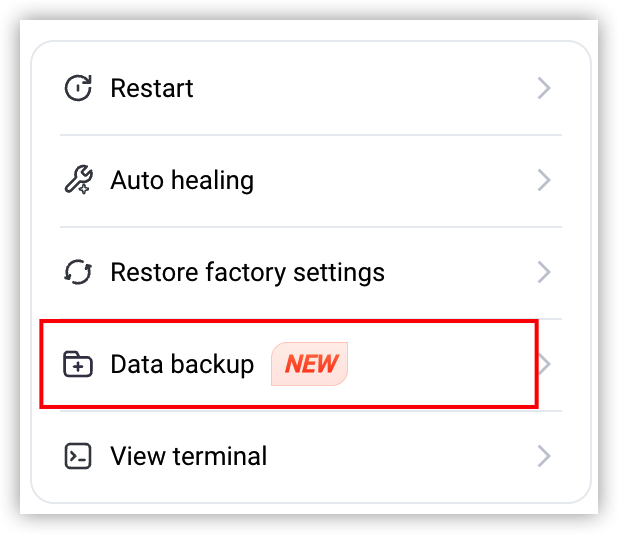
- Click the "Data backup" tab.
-
- Perform the corresponding operations as needed.
- ArkClaw has automatic backup enabled by default, with uninterrupted automatic backup every 24 hours. If automatic backups are not currently enabled for your ArkClaw (for example, disabled manually or not enabled automatically), you can manually enable the feature as needed.
- For ArkClaw purchased at or after 20:32 on March 27, 2026, automatic backup is enabled by default after purchase.
- For ArkClaw purchased before March 30, 2026, automatic backup can be automatically enabled or manually enabled:
- Automatically enabled: If your ArkClaw was purchased before 20:32 on March 27, 2026, and had activity records within the 7 days before this date (for example, you used ArkClaw and received a reply), the system automatically enables backups at a random exact hour (such as 15:00) on March 28. After that, subsequent backups are performed at this time by default.
- Manually enabled: If your ArkClaw was purchased before 20:32 on March 27, 2026, and had no activity records within the 7 days before this date, you can manually enable automatic backups. After you enable them, subsequent backups are performed at this time by default.
warning- After a new daily backup is generated, the system automatically overwrites the previous backup and retains only the latest one.
- When automatic backup is enabled for the first time, no historical backup exists.
In the automatic backup section, click the  button to enable auto-backup. After auto-backup is enabled, the system automatically creates a backup for you every 24 hours.
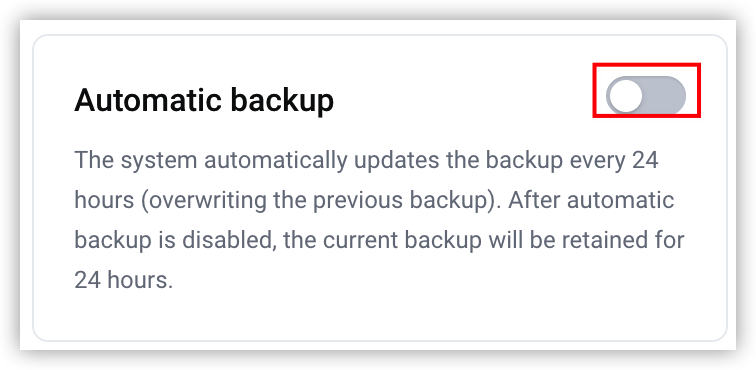 warningAfter automatic backup is disabled, the system will no longer perform automatic backup. Existing backup data will be retained for 24 hours and then automatically cleared.
- In the manual backup zone, click
 .
.
- Click the "Confirm" button to complete the operation.
Manage manual backups
Manual backup requires you to actively create backup files.
tip
- Manual backups have a maximum retention period of 30 days and will be automatically deleted after 30 days.
- Each time you manually create or update a backup, a new backup is generated. When you create a new backup or perform a re-backup, the system automatically overwrites the original backup and retains only the latest manual backup.
- If auto-backup is enabled, the system suspends auto-backups while a manual backup is in progress, and resumes them after the manual backup completes.
- Log in to the ArkClaw console.
- Switch to the target ArkClaw page and click the Claw details page icon in the upper-right corner.
- Click the "Data backup" tab.
- Perform the corresponding operations as needed.
- You can manually create a backup of the current system or data at any time as needed for subsequent restoration. This method can improve operational flexibility, effectively reduce exceptions caused by misoperations, and safeguard your data security.
- In the manual backup area, click the "Create backup" button.
- Enter the backup Name, and click "Confirm" to complete the procedure.
tipBackup creation is expected to take 2-3 minutes. Please wait patiently.- (Optional) Select the target backup, and click the
 icon to change the backup name.
warningUpdating the backup again will overwrite your current backup. Please proceed with caution.- In the manual backup zone, click the "Back up again" button.
- Enter the backup name, and click "Confirm" to complete the procedure.
warningAfter you delete a backup, it cannot be restored. Proceed with caution.- In the manual backup zone, click
 icon in the lower-left corner.
- Confirm the backup to be deleted and click the "Confirm" button to complete the operation.
Restore ArkClaw
You can restore ArkClaw data using automatically generated or manually created backups as needed.
warning
After restoration, current data will be lost and the system will be restored to the state corresponding to the backup. Proceed with caution.
- Log in to the ArkClaw console.
- Switch to the target ArkClaw page and click the Claw details page icon in the upper-right corner.
- Click the "Data backup" tab.
- Select the backup file to restore ArkClaw.
- To use an automatically generated backup file: In the automatic backup area, click the "Restore" button.
- To use a manually created backup file: In the manual backup area, click the "Restore" button.
tip
- For ArkClaw purchased at or after 20:32 on March 27, 2026, no backups are currently available. The system starts the first automatic backup at approximately 9:00 on the same day. If ArkClaw is purchased at or after 9:00 on that day, the first backup is postponed to be generated at approximately 9:00 on the next day.
- For ArkClaw purchased before 20:32 on March 27, 2026, the automatic backup time is based on when it was automatically or manually enabled.
- Confirm the backup to restore and click the "Confirm" button to complete the operation.
tip
After restoration, Arkclaw will restart. Please wait patiently.
- View the restoration result.
tip
Archive restoration takes 1–2 minutes. Please wait patiently.
- Restored: If "Arkclaw backup restored" appears, you can start a normal chat.
- Recovery failed: If "Failed to restore ArkClaw backup" appears, you can retry restoration following the steps above, or access support via feedback.
Last updated: 2026.07.02 19:26:38
All rights reserved © Beijing Volcano Engine Technology Co., Ltd2024
