ArkClaw Enterprise
ArkClaw Enterprise


Document

- Documentation
 ArkClaw EnterpriseArkClawConsole user guideUsage TipsConvenience featuresViewing and configuring scheduled tasks
 Copy page
 Download PDF
Convenience features
Viewing and configuring scheduled tasks
Copy pageDownload PDFViewing and configuring scheduled tasks
ArkClaw responds to your requests in real time and supports scheduled tasks. It acts as a personal assistant that automatically completes tasks at scheduled times to remind you.
Concept
Create scheduled tasks
If you have not yet created scheduled tasks or need to add new ones, you can quickly create them via templates or custom configurations to deliver proactive reminders in various scenarios.
Prerequisites
To push scheduled task information to message channels (Feishu, WeCom, WeChat, and DingTalk), complete the integration of message channels first.
tip
By default, ArkClaw receives scheduled task information in the session. You can also choose not to integrate message channels.
Procedure
You can use system preset templates to easily and quickly create scheduled tasks.
- Log in to the ArkClaw console.
- Switch to the target ArkClaw page, and select "Scheduled tasks" in the directory tree on the left.
- Click the target scheduled task template, for example, "Industry sentiment".
- Confirm whether the content of the selected template fully meets your requirements.
- If the template meets your requirements, click "Confirm" to complete the operation.
- If it does not meet your requirements, you can adjust the relevant content or click the "AI optimization" button in the upper-right corner of the prompt input box. The system will automatically expand the input content into structured instructions containing execution requirements, steps, and output requirements, thereby improving the accuracy and stability of task execution. Then, click "Confirm" to complete the operation. For parameter descriptions, refer to Creating personalized scheduled tasks.
- After a scheduled task is created, it does not run by default. The system automatically executes the task based on the specified execution time.
- (Optional) To ensure that the task configuration is valid, we recommend that you perform a test run after the task is created to verify whether it meets your expectations.
- Find the created task in the task list, and click
 to run a test.
- Check the test run result: If "Last execution succeeded" appears and ArkClaw returns a message similar to the following, the scheduled task is successfully configured.
tip
- In this example, the "Web" channel is used as the push channel.
- If the push channel of the scheduled task is set to "Feishu", "WeCom", "WeChat", or "DingTalk", check the push message on the corresponding platform.
When the system preset templates cannot cover your business scenario, you can create custom scheduled tasks to meet personalized and customized business requirements.
- Log in to the ArkClaw console.
- Switch to the target ArkClaw page, and select "Scheduled tasks" in the directory tree on the left.
- Click the "Create scheduled task" button. Then, configure the parameters described in the following table to complete the scheduled task configuration.
-
- Click "Confirm" to complete the procedure.
- After the task is created, its initial status is Not executed. The system will automatically trigger and run the task at the specified time.
- (Optional) To ensure that the task configuration is valid, we recommend that you perform a test run after the task is created to verify whether it meets your expectations.
- Find the target task in the task list and click to run a test.
- Check the test run result: If "Last execution succeeded" appears and you have received the corresponding scheduled task information, the scheduled task is successfully configured.
tip
- In this example, the "Web" channel is used as the push channel.
- If the push channel of the scheduled task is set to "Feishu", "WeCom", "WeChat", or "DingTalk", check the push message on the corresponding platform.
View scheduled tasks
View the scheduled task calendar
Use the calendar view to view scheduled tasks by week or month. The calendar clearly displays task execution windows, helping you plan and manage tasks centrally and quickly identify scheduling conflicts to prevent overlapping execution windows.
- Log in to the ArkClaw console.
- Switch to the target ArkClaw page, and select "Scheduled tasks" in the directory tree on the left.
- Click the Calendar tab to switch to the calendar view.
- In the upper-right corner of the page, click the "Week" or "Month" tab to view all scheduled tasks by week or month.
- You can also perform the following operations:
- View the details of the target scheduled task: Click the target scheduled task. For more information, see View scheduled task details.
- Create a scheduled task: Select the target date, and then click the
 icon to create a scheduled task. For more information, see Create scheduled tasks.
View scheduled task templates
You can view all scheduled task templates at any time and quickly learn about the configuration information of various commonly used tasks. It is convenient for direct reference or selection and helps improve the efficiency of task creation.
- Switch to the target ArkClaw page, and select "Scheduled tasks" in the directory tree on the left.
- View all scheduled task templates.
- Click a template to view its details. For example, click "Daily summary" to view the complete configuration information for that template.
- You can also directly select the target template to create scheduled tasks.
View scheduled task details
You can view all created scheduled tasks at any time and clearly check detailed information such as the execution time, status, and execution traces of each task.
- Switch to the target ArkClaw page, and select "Scheduled tasks" in the directory tree on the left.
- In the list of created scheduled tasks, you can view the following information:
- FeatureDescriptionFilter scheduled tasksThe final result of the latest execution of each task is displayed by default. You can click the
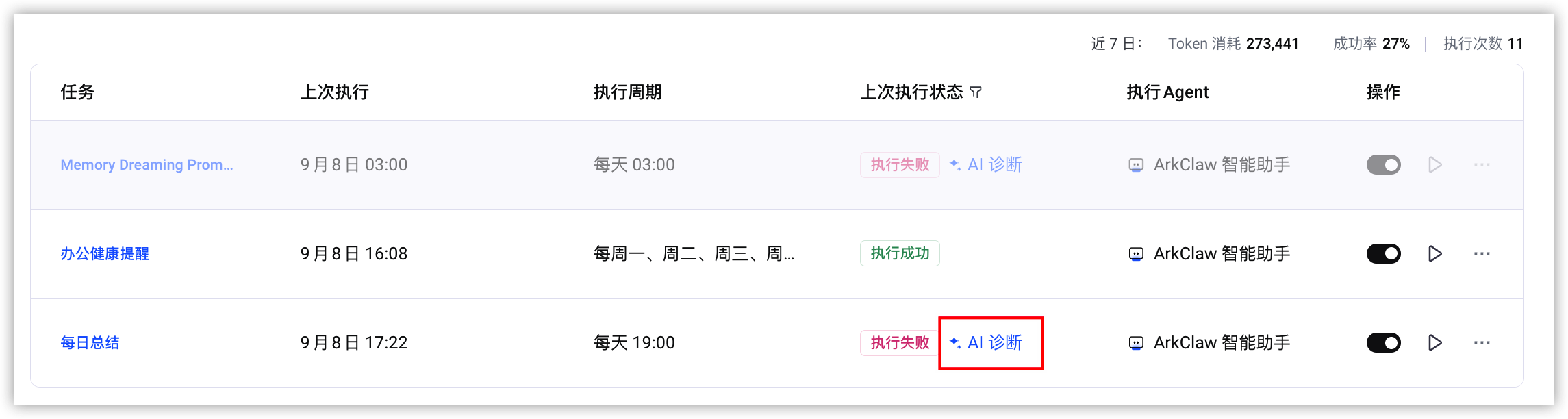
 icon, select the target execution statuses, and click the "Confirm" button to quickly locate scheduled tasks with different statuses.Statistics for the past 7 daysIt displays all scheduled tasks under the current account, as well as core statistics including total token consumption, execution success rate, and cumulative execution counts in the past 7 days. This helps you quickly learn the overall running health and resource consumption of tasks.AI diagnosis
- Diagnose the latest execution: When the "Latest execution" in the task list shows Failed, click the "AI diagnosis" button to analyze the cause of the latest failure.
-
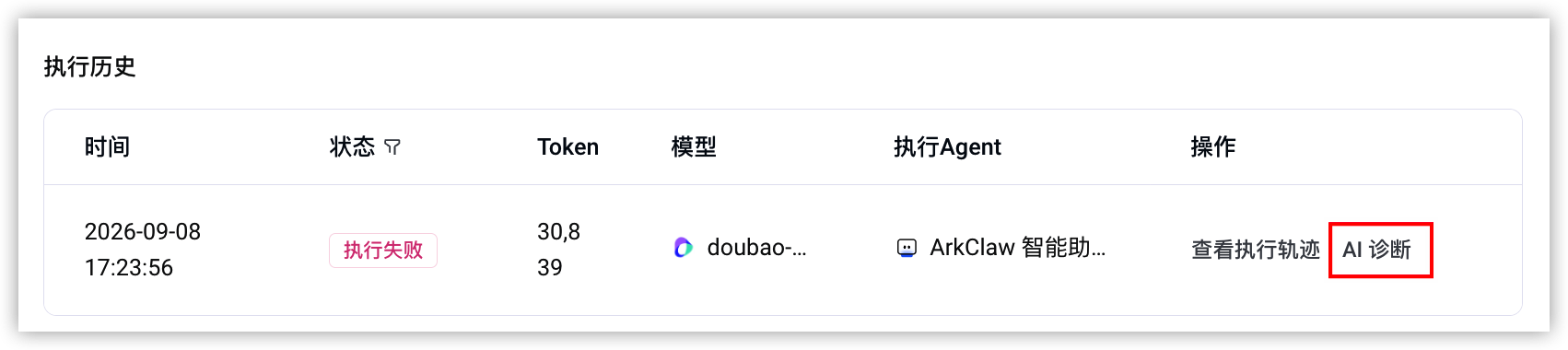
- Diagnose a specific execution: Go to the details page of the target task, find the record with the status Failed in the execution history, and click "AI diagnosis" to analyze the cause of that failure.
-
DetailsIn the "Actions" column of the target task, select "··· > Details" or click anywhere in the row of the target task to enter the details page of the task and view the following information:- Task configuration: Displays the execution time, next execution time, execution agent, prompt, push channel, and other information of the target task.
- Statistics for the past 7 days: Displays the average token consumption, execution success rate, cumulative execution counts, and average duration for the target task over the past 7 days.
- Execution history: Displays all execution records of the target task. You can view information such as execution time, status, and model used in each record. You can also perform the following operations on a single record:
- View execution trace: In the "Actions" column of the target execution record, click the "View execution trace" button to track the complete call chain of the scheduled task, including the reasoning chain, tool calls, and full input and output records of this execution. Learn more about execution trace details.
- In-depth diagnosis: If the basic diagnosis indicates an exception, you can select "Execution trace > In-depth diagnosis" for a comprehensive diagnosis. For details, refer to Execution trace diagnosis.
ActionsIn the "Actions" column of the target scheduled task, you can enable/disable, edit, copy, or delete the scheduled task. For details, refer to Managing scheduled tasks.
Manage scheduled tasks
You can use the "Edit" feature to modify a scheduled task, such as its keyword, execution time, and notification channel, to meet your varying needs.
- Switch to the target ArkClaw page, and select "Scheduled tasks" in the directory tree on the left.
- In the task list, select "··· > Edit".
- After the modification, click "Confirm" to complete the operation. For parameter descriptions, refer to Creating scheduled tasks.
To create multiple scheduled tasks with similar configurations, you can use the "Copy" feature to quickly generate duplicates. This eliminates the need to repeatedly configure task settings (such as the keyword, execution time, and notification channel), enabling you to complete scheduled task configuration efficiently.
- Switch to the target ArkClaw page, and select "Scheduled tasks" in the directory tree on the left.
- In the task list, select "··· > Copy".
- Confirm whether the copied content fully meets your requirements.
- If it meets your requirements: Click "Confirm" to complete the operation.
- If it does not meet your requirements: Adjust the parameters as needed, and then click "Confirm" to complete the operation. For parameter descriptions, refer to Creating scheduled tasks.
By default, a scheduled task is enabled after it is created. You can manually disable it as needed and enable it again at any time.
tip
After you disable a scheduled task, the system no longer automatically executes the target task at the preset time. The configured task content and parameters will not be lost, and the task will resume normal execution once it is enabled again.
- Switch to the target ArkClaw page, and select "Scheduled tasks" in the directory tree on the left.
- Choose to enable or disable a scheduled task as needed.
After a scheduled task is deleted, the system no longer automatically executes the target task at the preset time. This operation cannot be undone. Proceed with caution.
tip
If you delete a scheduled task, the system does not delete the corresponding chat history. You can still view it in the chat history list.
- Switch to the target ArkClaw page, and select "Scheduled tasks" in the directory tree on the left.
- In the task list, select "··· > Delete".
- After you confirm the information of the scheduled task you want to delete, click the "Delete" button to complete the operation.
Last updated: 2026.10.10 16:37:24
All rights reserved © Beijing Volcano Engine Technology Co., Ltd2024
