ArkClaw Enterprise
ArkClaw Enterprise


Document

- Documentation
 ArkClaw EnterpriseArkClawConsole user guideUsage TipsConvenience featuresCloud PCAutomated office capabilities of cloud PC
 Copy page
 Download PDF
Cloud PC
Automated office capabilities of cloud PC
Copy pageDownload PDFAutomated office capabilities of cloud PC
Cloud PC has built-in automated office capabilities. Simply enter natural language instructions or specific data in the dialog box, and ArkClaw will automatically generate, process, and format Excel spreadsheets or Word documents for you.
Usage notes
The office capabilities of the cloud PC are fully instruction-driven. Please note the following characteristics during use:
- Interface-free instruction execution: Tasks are processed automatically in the background. You can view the real-time processing progress in the dialog box. No traditional graphical office software interface (such as Word or WPS) will be displayed, and file creation and editing are performed via natural language instructions.
- File saving and retrieval: Generated files are saved in /root/.cua/runs/output by default. You can explicitly specify in your instruction to save the file to your cloud PC desktop or send it to you. You may then download it to your local device for viewing or manual editing.
- Visual document preview: To directly double-click and preview files on the cloud PC desktop, you need to manually download and install the relevant office software (such as WPS) in the cloud PC.
- Continuous interaction and editing: For generated files, you can send instructions to specify modification requirements. ArkClaw will help you complete advanced operations such as content modification, merging, supplementation, or formatting.
(Optional) Install office dependencies
If you are using an ArkClaw instance created before April 16, 2026, perform the following steps to manually install the office dependencies before you can use this feature.
- Log in to the ArkClaw console.
- Go to the target ArkClaw page. In the upper-right corner of the page, click the "
 " button.
- Click the "View terminal" button to open the ArkClaw terminal.
- Execute the following command to install office dependencies.
-
-
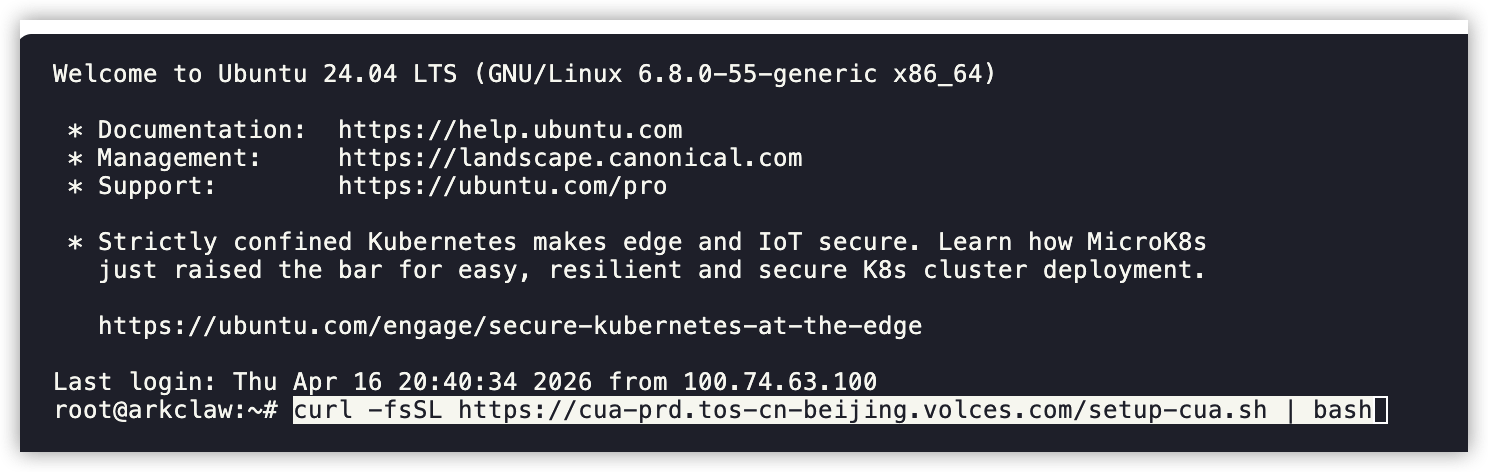
- If the following information is displayed, the office dependency installation succeeds.
- Click
 or press Enter to refresh the ArkClaw page to enable and experience the office capabilities of the cloud PC.
Usage examples
This section provides sample interactions for common use cases as a reference for writing your prompts.
Create an Excel report with specified formulas and style
You can ask ArkClaw to generate complex spreadsheets with specific data, automated formulas, and custom styles.
- Sample prompt:
- Use CUA: Create an annual sales report in Excel format named annual_sales.xlsx, with the following requirements:
- [Sheet1 - Sales data]
- Headers (A1:F1): "Zone", "Product", "Q1 sales", "Q2 sales", "Q3 sales", and "Total annual sales". Bold the headers and set a background color.
- Data rows (rows 2-5): 2 zones (China (Shanghai), China (Beijing)). Each zone has 2 products (laptop, mobile phone), with 4 rows of data in total. Fill in reasonable values for the quarterly sales.
- Formula for column F: Calculate the total annual sales for each row using the SUM formula: =SUM(C:E).
- Summary row (row 7): Calculate quarterly and total annual sales using the SUM formula. Apply bold formatting and a light background color.
- [Final verification]
- Confirm that the file has been generated in the current directory, and check formulas and cells.
Create and format a Word document
Send instructions to ArkClaw to create content for you and save it as a standard Word document.
- Sample prompt:
- Use CUA to randomly generate a short story file named new.docx.
- After successful execution, log in to the IM client (such as Feishu), and send the new.docx file from the desktop to me.
-
Last updated: 2026.05.27 20:39:01
All rights reserved © Beijing Volcano Engine Technology Co., Ltd2024
