ArkClaw Enterprise
ArkClaw Enterprise


Document

- Documentation
 ArkClaw EnterpriseArkClawConsole user guideUsage TipsAdvanced featuresMigrating OpenClaw to ArkClaw
 Copy page
 Download PDF
Advanced features
Migrating OpenClaw to ArkClaw
Copy pageDownload PDFMigrating OpenClaw to ArkClaw
Using the migration feature, you can quickly migrate existing OpenClaw (hereinafter referred to as the source) data to the target ArkClaw (hereinafter referred to as the destination). After migration, ArkClaw will use the memories, skills, and other data accumulated in OpenClaw to maintain consistency with your original usage habits and operation logic. This enables a smooth transition with zero learning cost and no service interruption.
Usage notes
- Migrating OpenClaw deployed locally or on major cloud platforms (such as Alibaba Cloud, Huawei Cloud, and Tencent Cloud) is supported. You only need to ensure that OpenClaw is deployed on the Linux operating system, and its version is between 2026.2.13 and 2026.5.18 (including versions 2026.2.13 and 2026.5.18).
tip
You can confirm relevant information during a conversation. For example: "What is your current OpenClaw version, and is the OS of the deployment environment Linux?"
- For details about the scope of data imported to ArkClaw, see Import scope instructions.
warning
- Files larger than 200 MB will not be migrated.
- Migration will not proceed if the total size of all OpenClaw files exceeds 1 GB.
- Inference model information configured in OpenClaw will not be migrated to ArkClaw. ArkClaw uses models supported by the ModelArk Coding Plan by default. You can adjust the inference model as needed.
- After the import, existing configurations in ArkClaw will be overwritten and unrecoverable. We recommend that you back up ArkClaw before importing data.
Procedure
Step 1: Obtain the OpenClaw export command at the destination
warning
Obtain the export command in the required destination ArkClaw. Otherwise, the import will fail.
- Log in to the ArkClaw console, and switch to the target ArkClaw page.
- In the upper-right corner of the ArkClaw chat page, click "··· > Migrate OpenClaw to ArkClaw".
- Click the copy button to obtain the export command.
warning
- The export command is valid for 1 hour. Use it within the validity period. If the command expires, reopen the page to obtain a new command.
- The export command packages and uploads your OpenClaw data to a temporary dedicated ArkClaw space without modifying any configurations of your original OpenClaw.
- After you perform the import operation (whether successful or failed), the temporarily stored OpenClaw data will be deleted immediately. If no import operation is performed, the data will be retained for 24 hours and automatically deleted upon timeout.
Step 2: Export OpenClaw at the source and obtain the import address
- Log in to the server where OpenClaw is deployed.
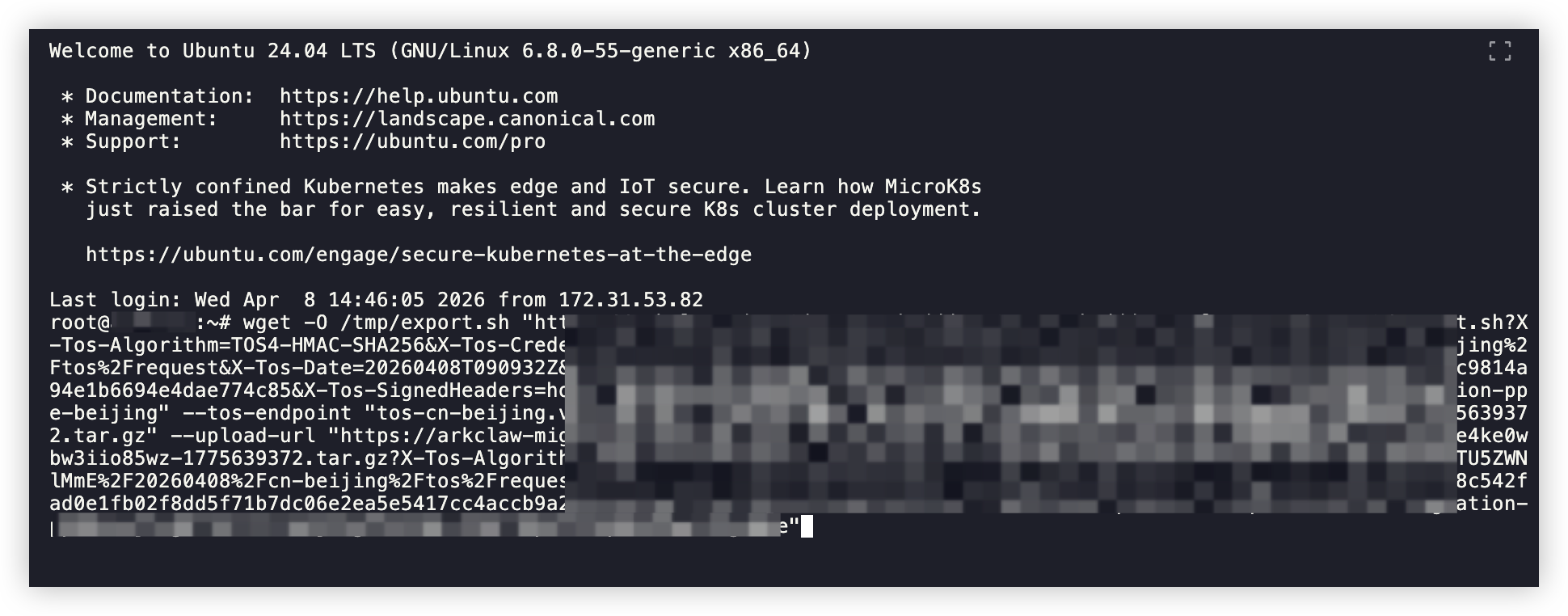
- Execute the export command obtained in the previous step in the terminal to quickly export OpenClaw to the ArkClaw exclusive space for temporary storage, and generate an exclusive and secure OpenClaw import address.
-
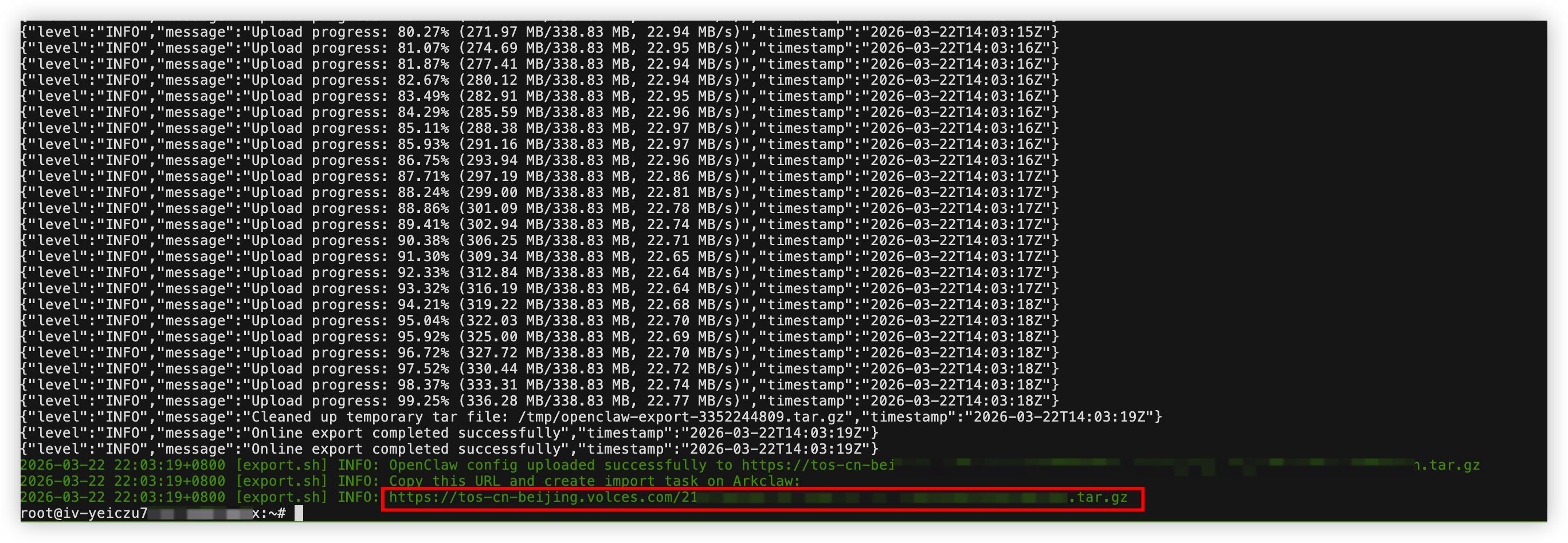
- After the command is executed, copy the OpenClaw import URL displayed in the output.
-
Step 3: Import OpenClaw
- Return to the ArkClaw console and click "··· > Migrate OpenClaw to ArkClaw" in the upper-right corner.
warning
Select the same ArkClaw that is used to obtain the export command in Step 1. Otherwise, the import will fail.
- Enter the import address you obtained in Step 2, and click the "Import and restart ArkClaw" button.
- Confirm the risks in the pop-up window and click "Confirm" to start the import process.
- After ArkClaw is imported, you can chat with ArkClaw to verify that all configurations are completely consistent with the original OpenClaw configurations.
- If the import fails, ArkClaw will automatically roll back to its pre-import state. You can refer to Step 1 and Step 2 again to re-import OpenClaw.
tip
If ArkClaw fails to start and you backed it up before migration, you can use the backup to restore ArkClaw to a normal running state. Otherwise, you can try ArkClaw auto healing or restore ArkClaw to factory settings.
Step 4: Configure message channels
The migration feature does not migrate message channel configurations from OpenClaw to ArkClaw. You need to manually configure message channels for ArkClaw.
- We recommend that you create new bots for the corresponding message channels and integrate them into ArkClaw. Learn more.
- If you want to use an existing bot, make sure that it is not used by another OpenClaw instance. If it is already configured and used in another OpenClaw instance, you can:
- Stop the OpenClaw service or disable the message channel.
- If you no longer use the original OpenClaw, you can stop its service directly.
- Log in to the server where OpenClaw is deployed.
- Execute the following command to stop the OpenClaw service.
-
If you want to continue using your original OpenClaw, you can disable the message channels it integrates with while keeping OpenClaw running.- Log in to the server where OpenClaw is deployed.
- Execute the following command to disable specific message channels.
-
- Execute the following command to restart the OpenClaw gateway for the configuration to take effect.
-
- Refer to the instructions in Configuring message channels to configure Feishu, WeChat, or other message channels for ArkClaw as needed.
Import scope instructions
This feature imports the following OpenClaw configurations into ArkClaw.
Last updated: 2026.07.02 14:27:15
All rights reserved © Beijing Volcano Engine Technology Co., Ltd2024
