ArkClaw Enterprise
ArkClaw Enterprise


Document

- Documentation
 ArkClaw EnterpriseArkClawConsole user guideUsage TipsConvenience featuresHermes AgentHermes Agent FAQ
 Copy page
 Download PDF
Hermes Agent
Hermes Agent FAQ
Copy pageDownload PDFHermes Agent FAQ
This topic summarizes common issues related to the installation and usage of Hermes, as well as their solutions.
Installation of the Hermes Agent plugin
What should I do if ArkClaw fails to be upgraded?
ArkClaw must be upgraded to version ark-26.4.23 or later to support installation of the Hermes Agent plugin. Upgrade failures may occur during the upgrade due to issues such as compatibility problems or network fluctuations. If the upgrade fails, ArkClaw (including partially upgraded system/components) will automatically roll back to the pre-upgrade version. You can attempt the upgrade again by following the instructions in Upgrading ArkClaw system/component versions, or seek technical support via Feedback.
How do I resolve the "The current disk space is less than 5 GB" error when I install the Hermes Agent plugin?
Installing the Hermes Agent requires at least 5 GB of available storage space. You can chat with ArkClaw and ask it to help identify safe, deletable cache and temporary files, and then delete them after your confirmation to free up storage.
warning
File deletion is a high-risk operation. We recommend that you manually back up ArkClaw data and fully understand the purpose of the files to be deleted before deleting any data.
- You can view the current available storage space of ArkClaw on the "Status and usage" tab of the ArkClaw details page. Learn more.
- Ask ArkClaw to find and clean up safely deletable npm download cache.
tip
The npm cache stores local copies of installation packages. Cleaning this cache is safe and typically frees up 3–5 GB of storage. The only impact is that dependencies with the same name will need to be downloaded again during the next installation.
- Detect and evaluate safely deletable files.
- Prompt: Check the system npm cache directory (such as ~/.npm), and list the safely deletable npm download cache files with their sizes, purposes, and deletion risks.
- Clean up files.
- Prompt: Safely clean up the above npm download cache files. After cleanup, recheck and tell me how much storage space has actually been freed.
- If available storage is still less than 5 GB after cleaning the npm cache, you can clean up unused ArkClaw plugins.
warning
Deleting ArkClaw plugins is a high-risk operation. Many core ArkClaw features depend heavily on certain built-in plugins. Accidental deletion may cause corresponding features to become unavailable. We strongly recommend that you perform this operation only when storage capacity is extremely limited.
- Detect and evaluate safely deletable files.
- Prompt: Scan and list the currently installed plugins on ArkClaw with their disk usage, and briefly describe their purpose and deletion risks. We recommend that you prioritize the deletion of old backup directories and unused message channel plugins. [Strict security constraints]: lancedb, apmplus, arkclaw-mode-switch, ai-assistant-security, env-logger, skill-switch, and many others are core dependencies and must not be deleted. Based on the above constraints, filter and output a "recommended safe deletion list".
- Clean up files.
- Prompt: I confirm that I no longer need the XX plugin. Safely uninstall it and completely delete its directory and residual cache. Do not modify any core dependencies. After completion, tell me how much storage space has been freed.
tip
Replace XX with the actual plugin name you want to delete, such as qqbot.
How do I resolve Hermes Agent plugin installation failures?
The Hermes Agent plugin may fail to be installed due to compatibility issues. You can:
- Follow the guidance in Auto healing of ArkClaw to repair ArkClaw, and then try installing the Hermes Agent plugin again.
- If the plugin still fails to be installed, you can obtain technical support via feedback.
How do I resolve ArkClaw restart failure after I install the Hermes Agent plugin?
After the Hermes Agent plugin is installed, the ArkClaw gateway must be restarted for it to take effect. The restart may fail due to various compatibility issues. In this case, you can manually restart ArkClaw. Once the restart is complete, the Hermes Agent plugin will take effect automatically.
How do I view the installation logs of the Hermes Agent plugin?
The installation logs of the Hermes Agent plugin are stored in the /var/log/hermes-agent/ directory. You can check the installation process and detailed error information through these log files.
- Disable Hermes.
- Send a prompt to ArkClaw to view related logs. For example: Help me view the latest Hermes installation log in the /var/log directory.
- Execute the following command to view the latest 200 installation logs.
-
Will the installation files of the Hermes Agent plugin be automatically deleted after installation?
No, the installation files of the Hermes Agent plugin will not be automatically deleted. They are stored in the /var/cache/hermes-agent directory. You can delete them as needed:
- Disable Hermes.
- Send a prompt to ArkClaw to delete related files. For example: Delete the /var/cache/hermes-agent directory and all files in it.
- Execute the following command to forcibly delete the Hermes Agent cache directory and its files.
-
How do I resolve the issue where ArkClaw with Hermes Agent installed becomes unavailable after a version upgrade?
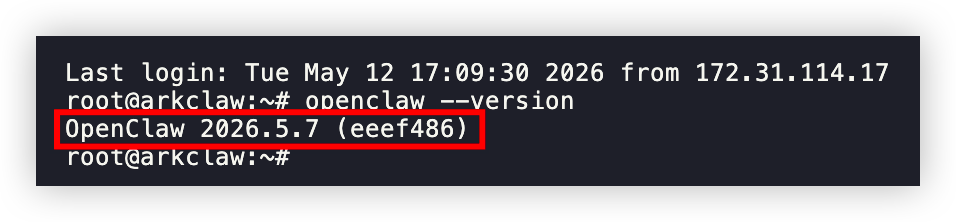
Due to compatibility issues with OpenClaw version 2026.5.7, the Hermes Agent plugin installed in a low version becomes unavailable after the upgrade. You need to reinstall the Hermes Agent plugin.
- Execute the following command to view the OpenClaw version corresponding to ArkClaw.
-
- If the following output is returned, this indicates that the OpenClaw version of ArkClaw is 2026.5.7. Follow the steps below to reinstall the Hermes Agent plugin. Otherwise, get technical support through feedback.
-
- Execute the following command to reinstall the Hermes Agent plugin.
tip
Reinstalling the Hermes Agent plugin retains all original data and does not cause data loss.
-
- After the command is executed, ArkClaw automatically installs the Hermes plugin. Close the terminal and wait 5 to 10 minutes.
- After the installation is completed, click the "Hermes" button again to enable this feature.
Usage of Hermes Agent
How do I resolve issues such as "Failed to enable/disable Hermes", "Failed to read configuration file" or "Failed to parse configuration file" when I enable or disable Hermes Agent?
This issue is usually caused by compatibility issues resulting from manual modifications to the ArkClaw configuration file. You can follow the guidance in Auto healing of ArkClaw to repair ArkClaw, and then try enabling or disabling Hermes Agent.
Where is the data generated by Hermes Agent?
The output results, accumulated skills, and other data generated by Hermes Agent after task execution are stored in the /opt/hermes-data directory by default.
Will the historically generated data still exist after I delete the Hermes Agent container?
The output results, accumulated skills, and other data generated by Hermes Agent after task execution are stored in the /opt/hermes-data directory by default. Deleting the Hermes Agent Docker container will not delete the data.
How do I uninstall the Hermes Agent plugin?
- Hermes Agent plugin.
- Execute the following command to uninstall the Hermes Agent plugin and delete its cache and historical data.
-
- Confirm that the Hermes Agent plugin has been completely uninstalled.
-
- Disable Hermes.
- Send a prompt to ArkClaw and check whether related documents still remain. For example: Help me check whether the Hermes container, cache, and data directory still exist.
Execute the following command to check whether the Hermes container, cache, and data directory still exist.If none of the commands returns any output, it indicates that the Hermes Agent plugin has been completely uninstalled.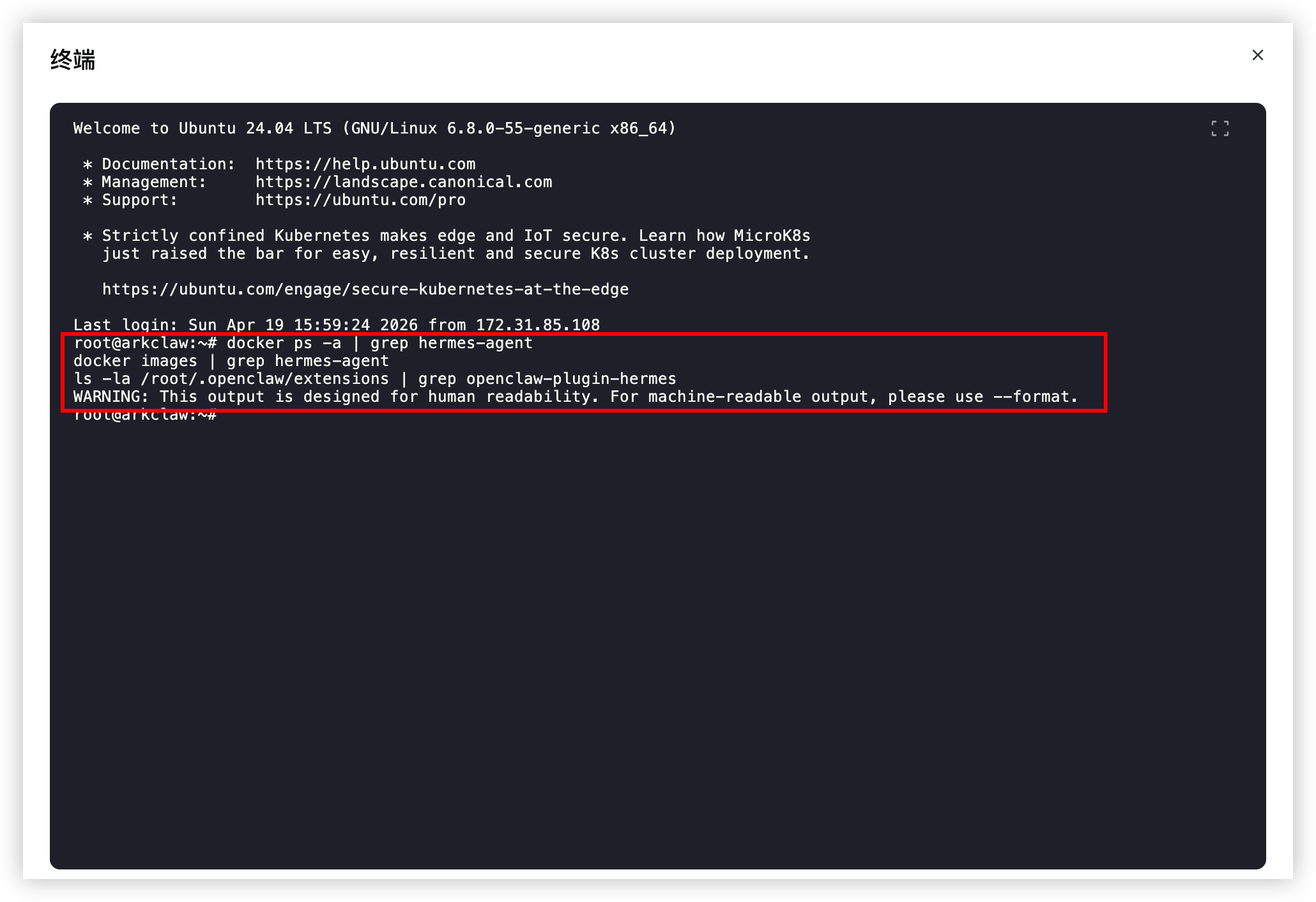
Can Hermes Agent be used through channels integrated with ArkClaw (such as Feishu and WeChat)?
Yes. After enabling the Hermes feature in the ArkClaw console, you can send the following quick commands in the integrated channels with ArkClaw (for example, Feishu or WeChat) to switch.
- /model hermes: Switch to Hermes for all subsequent tasks.
- /model ark: Switch to ArkClaw for all subsequent tasks.
How to read files generated by Hermes?
Hermes currently runs inside a Docker container. For file transfer, you can use a prompt to make Hermes generate or move files to the /opt/data directory. Then, you can access ArkClaw through the terminal and view the corresponding files in the /opt/data-hermes directory.
How do I resolve the prompt "OpenClaw configuration file is not valid JSON: /root/.openclaw/openclaw.json"?
You can perform the following steps to fix the issue:
- Click the "Hermes > Install plugin" button to reinstall the Hermes Agent plugin.
How do I replace the model used by Hermes Agent?
You currently cannot update the model used by Hermes Agent through the ArkClaw console. You can follow these steps to change the model:
- Execute the following command to download the script for changing the model used by Hermes Agent.
-
- Execute the corresponding command as needed to change the model used by Hermes Agent via scripts.
- Use this method if you only need to change the model without adjusting the provider or URL.warningIn this scenario, executing the command restarts the Docker container where Hermes Agent runs, which might interrupt running tasks. Perform this operation when Hermes Agent is idle.tipReplace <model_name> with the name of the target model you want Hermes Agent to use.
- If you use a ModelArk Coding Plan model, see Model configuration for the supported model names.
- If you use a model from ModelArk "Foundation models", enter the target model ID.
Use this method if you need to change the model as well as adjust the model provider or URL.warningIn this scenario, executing the command deletes and recreates the Docker container where Hermes Agent runs. Data in the container (excluding the persistent directory) is deleted and cannot be recovered. Proceed with caution. Data in the persistent directory /opt/hermes-data (corresponding to the /opt/data directory in the container) is retained after the container is recreated and does not require additional backup.tip- Replace <your_apikey> with the actual API Key for calling the target model.
- Replace <model_name> with the name of the target model, for example: doubao-seed-2-0-lite-260215.
- Replace <model_url> with the URL for calling the target model, for example: https://ark.cn-beijing.volces.com/api/v3.
How do I resolve the error "ACP error [-32603]: Internal error" when Hermes executes a task?
This issue usually occurs because the inference model used by Hermes is incorrectly configured or has reached the model quota limit. Accordingly, you can:
- Wait for the model quota to be restored. For example, if you are using the ModelArk Coding Plan, you can go to the Coding Plan console to view quota-related details and the quota refresh time.
How do I view information about the inference model used by Hermes Agent?
You can view information about the inference model used by Hermes Agent in the configuration file /opt/hermes-data/config.yaml.
- Execute the following command to view the inference model used by Hermes Agent.
-
- When an output similar to the following is displayed, the current model used by Hermes Agent is doubao-seed-2-0-code-preview-260215 .
-

Last updated: 2026.05.27 20:37:25
All rights reserved © Beijing Volcano Engine Technology Co., Ltd2024
