ArkClaw Enterprise
ArkClaw Enterprise


Document

- Documentation
 ArkClaw EnterpriseArkClawConsole user guideUsage TipsConvenience featuresCloud PCHandling abnormal scenarios
 Copy page
 Download PDF
Cloud PC
Handling abnormal scenarios
Copy pageDownload PDFHandling abnormal scenarios
Black screen on the cloud browser
A cloud browser may experience a temporary black screen or hide under the following operation scenarios. This is a normal interaction phenomenon and usually requires no operation. The system will recover automatically after a short while.
- Scenario 1: Initial loading phase
- Due to different network environments on different devices, the initial loading of the cloud browser may not be completed immediately, resulting in a temporary black screen.
- Recommendation: Wait a few seconds and the page will load normally.
- Scenario 2: Exiting the cloud browser
- A temporary black screen appears when you click the "Exit" button to exit the cloud browser.
-
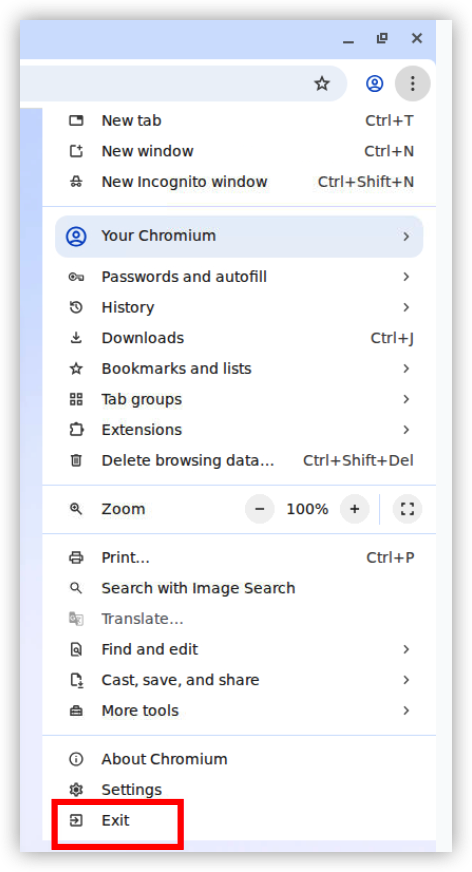
- Recommendation: Wait a few seconds. The system will automatically finish reloading and resume normal use.
- Scenario 3: Minimizing the cloud browser
- After you click the "Minimize" button, the browser window is hidden to the system navigation bar, causing a black screen.
- Solution: If in full screen mode, first click the "
 " button to exit full screen, and then send the instruction: "My browser has been minimized. Please relaunch it". The system will automatically invoke the cloud browser.
Failed to automatically download files via the cloud browser
Solution:
- Log in to the ArkClaw console.
- Switch to the target ArkClaw page.
- In the ArkClaw chat box, enter the following content and send:
-
- ArkClaw will automatically execute the repair script and update the browser skill configuration. Once it is completed, you can proceed with file download tasks normally.
- To perform further operations based on the downloaded content, send the corresponding prompt in the dialog box to complete the task.
- Sample prompt: After I click "Download" in the browser, the file can be read from /home/browser/Downloads.
Last updated: 2026.05.27 20:38:46
All rights reserved © Beijing Volcano Engine Technology Co., Ltd2024
