ArkClaw Enterprise
ArkClaw Enterprise


Document

- Documentation
 ArkClaw EnterpriseArkClawConsole user guideUsage TipsConvenience featuresSwitching thinking mode
 Copy page
 Download PDF
Convenience features
Switching thinking mode
Copy pageDownload PDFSwitching thinking mode
You can flexibly switch among Fast, Standard, and Expert thinking modes based on task complexity and response time requirements. This helps match scenarios on demand, reduce redundant thinking time, and improve conversation efficiency.
Thinking mode: Preconfigured levels for the AI based on thinking depth, response speed, conversation capacity, and tool invocation capabilities to handle questions of varying difficulty. You can switch modes in real time and select flexibly based on your needs.
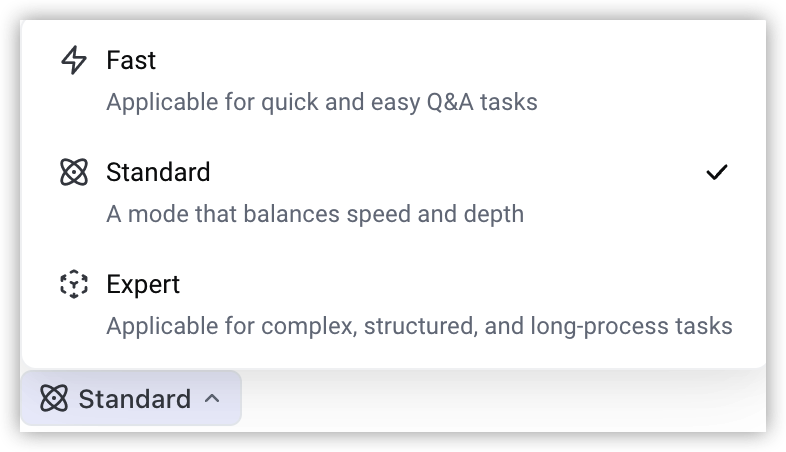
- Fast mode: Provides quicker responses with simplified reasoning. It is suitable for lightweight tasks such as small talk, translation, simple queries, and basic Q&A.
- Standard mode: Balances response speed and thinking depth. It is suitable for most general tasks such as data analysis and recommendations, delivering both efficiency and accuracy.
- Expert mode: Delivers thorough reasoning and rigorous logic. It is applicable for high-demand scenarios such as complex analysis, professional questions, in-depth creation, programming, deployment, and multi-step automation.
Usage notes
Switching thinking modes does not affect the current conversation. Chat history and context are preserved, and no new separate conversation will be created.
Procedure
On the ArkClaw conversation page, you can quickly switch thinking modes with one click as needed. This method is recommended for its simplicity and stability.
tip
Switching thinking modes via commands is currently not supported.
- Log in to the ArkClaw console.
- Go to the target ArkClaw page.
- (Optional) If the switch button is disabled (grayed out) on your ArkClaw due to an outdated version, upgrade to the latest version first, and then switch thinking modes using the on-screen button. Otherwise, skip this step.
tip
After the upgrade, you need to manually refresh the ArkClaw page to enable and experience the new features.
- Click the current mode name (e.g., Fast) in the chat input box.
tip
The mode name displayed in the chat input box indicates the currently active thinking mode. For example, if "Fast" is displayed, Fast mode is in use.
- In the pop-up window, select the desired thinking mode as needed. After switching, subsequent conversations will automatically respond in the selected mode.
-
You can quickly switch thinking modes by entering and sending commands in a fixed format in the chat input box of message channels such as Feishu, WeCom/WeChat, and Weibo.
This method is suitable for users who are accustomed to command-based operations or for quick switching in pure text interaction scenarios.
tip
- Switching thinking modes on the message channel page is currently in public preview. Compatibility issues or switching failures may occur in some scenarios. For a more stable and smooth experience, we recommend that you preferentially switch thinking modes on the ArkClaw page.
- Switching thinking modes is temporarily unavailable in Feishu groups with Thread mode enabled.
- Switching thinking modes is currently supported only on Feishu, Weibo, and WeCom/WeChat, and is not yet compatible with DingTalk.
Prerequisites
Procedure
- Open the corresponding message channel (Feishu, WeCom/WeChat, Weibo).
- Enter the conversation window with the bot/assistant.
- (Optional) Enter and send the /mode status command in the chat input box to view the currently available thinking modes.
- Enter and send the following switching commands in the chat input box as needed to quickly switch to your desired thinking mode. After switching, subsequent conversations will automatically respond in the selected mode.
- /mode fast: Fast mode.
- /mode standard: Standard mode.
- /mode expert: Expert mode.
- Verify whether the switching is successful:
- After ArkClaw is switched to /mode fast (Fast mode), the prompt shows "Switched. Current mode: Fast".
- After ArkClaw is switched to /mode standard (Standard mode), the prompt shows "Switched. Current mode: Standard".
- After ArkClaw is switched to /mode expert (Expert mode), the prompt shows "Switched. Current mode: Expert".
tip
If the thinking mode switching does not deliver the expected results on your ArkClaw, complete the plugin installation first, and then retry the switching steps above.
Last updated: 2026.07.02 14:34:29
All rights reserved © Beijing Volcano Engine Technology Co., Ltd2024
