Container Registry
Container Registry


Document

- Documentation
 Container RegistryContainer Registry (CR)Best practicesImage distribution accelerationAccelerating image pushes from outside the Chinese mainland
 Copy page
 Download PDF
Image distribution acceleration
Accelerating image pushes from outside the Chinese mainland
Copy pageDownload PDFAccelerating image pushes from outside the Chinese mainland
Network paths for image pushes from outside the Chinese mainland are long, which may cause slow and unstable image pushes. Binding an acceleration service domain name through the CR custom domain name feature can effectively improve image push stability and speed.
Prerequisites
- A custom domain name has been created, and its ICP filing has been completed. If the filing is incomplete, see Domain name ICP filing. Alternatively, complete the ICP filing through the cloud service provider that provides the domain name.
- An SSL certificate has been uploaded. For instructions, see Getting started with SSL certificate service.
- Ensure that the configured custom domain name has passed the ICP filing review and that Public network is enabled under Referrer.
Procedure
Step 1: Add a custom domain name to the CR instance
- Log in to the CR console.
- Select the target region in the top navigation bar.
- In the left navigation bar, click Instance list. On the Instance list page, click Enter instance.
- In the left navigation bar, click Domain name management. On the Domain name management page, click Add custom domain name.
- Configure custom domain name parameters.
- ParameterDescriptionTypeTrafficRoute: TrafficRoute is a resolution scheduling suite developed by Volcano Engine. For this type, the system automatically configures resolution records by default.Domain nameIf TrafficRoute is selected: Enter the prefix of the custom domain name, and then select a TrafficRoute-based resolution suffix. If no suffix is available, add one in TrafficRoute - DNS.CertificateSelect the uploaded certificate. For instructions on uploading a certificate, see Getting started with SSL certificate service.ReferrerVPC access and public network access are supported. After you select Custom for "Type" to create a domain name, to enable public network access, you need to add a domain name resolution record on the corresponding domain name provider platform. For information about how to add a domain name resolution record, see Adding public network access resolution records.
Step 2: Obtain the CNAME assigned to the acceleration domain name
- Log in to the DCDN console.
- In the left navigation pane, click Domain name management to go to the corresponding page.
- Click Add domain name. On the Add domain name tab, select File upload acceleration scenario.
- After selecting the acceleration scenario, configure the basic settings for the acceleration domain name. For configuration details, see Parameter descriptions.
- After the domain name is created, obtain the acceleration CNAME assigned by DCDN.
Step 3: Add the acceleration domain name to a DNS record
- Log in to the DNS console.
- On the Domain management page, locate the domain name whose DNS record you want to modify. Click Manage.
- On the Record management page, click Manage in the Actions column of the target DNS record.
- In the Basic information section, click Edit and add the created acceleration domain name.
Results
After the configuration is complete, you can view the added acceleration domain name on the Domain name management page of the DCDN console.
Validate results
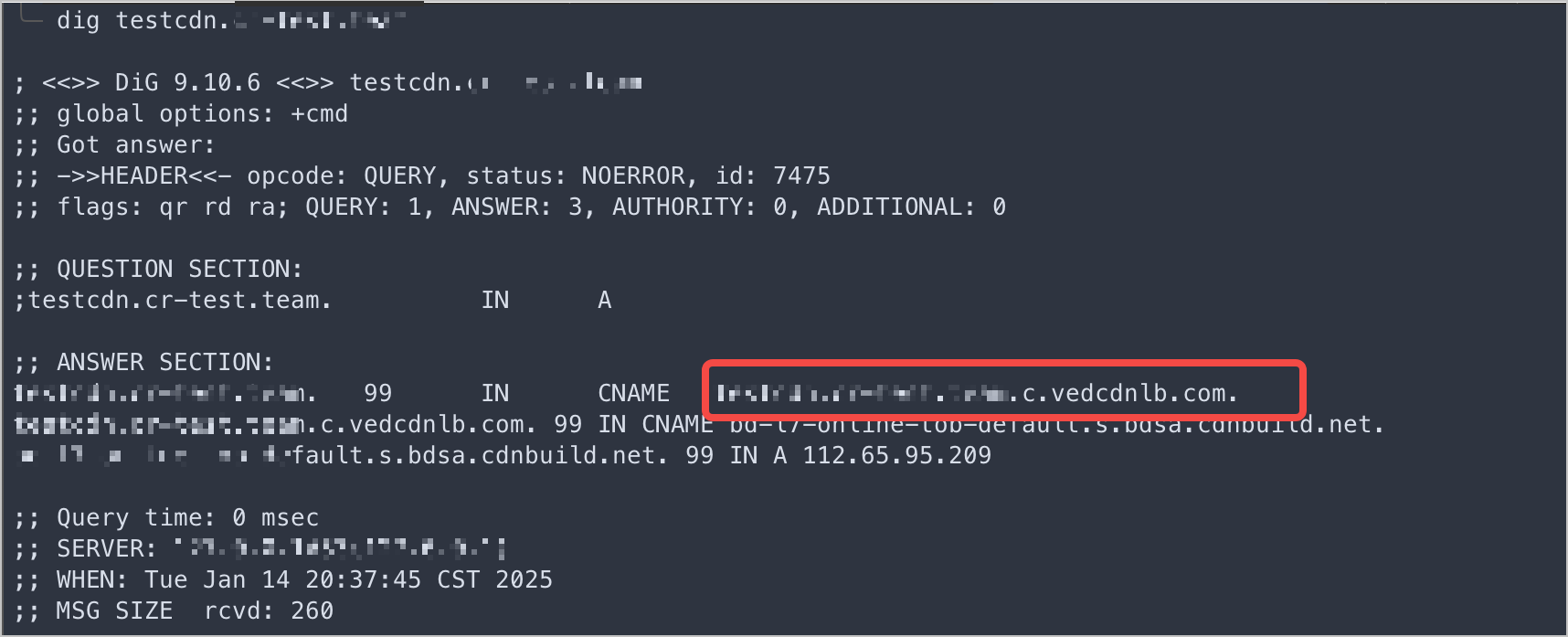
After the configuration is complete, execute the dig command to verify that the CNAME points to the acceleration domain name in DCDN.
Last updated: 2026.10.19 15:46:49
All rights reserved © Beijing Volcano Engine Technology Co., Ltd2024
