Container Registry
Container Registry


Document

- Documentation
 Container RegistryContainer Registry (CR)User guideUser authorizationRobot account managementCreating robot accounts
 Copy page
 Download PDF
Robot account management
Creating robot accounts
Copy pageDownload PDFCreating robot accounts
Robot accounts are only affected by the instance status and are not affected by changes to IAM users. This topic describes how to create a robot account.
tip
This operation applies only to Standard Edition instances.
Limits
Each root user can create up to 20 robot accounts. Creation fails if this limit is exceeded.
Background
The availability of accounts associated with individual users (such as IAM users) can be affected by personnel changes. Events like employee departure or role changes can cause the corresponding IAM user to be unavailable, leading to failures in related tasks. One example is an image pull task in a CI/CD automation system that relies on an IAM user.
Using robot accounts created at the instance level, which are not associated with IAM users, can effectively prevent issues in such scenarios.
warning
When you push or pull images via Docker, ensure you use Docker version 1.19 or later to avoid failures.
Procedure
- Log in to the target instance.
- Log in to the CR console.
- Select the target region in the top navigation bar.
- In the left navigation pane, click Instance list. Select an entry point depending on your instance type:
- Standard instance: Click Standard instance. Find the target instance and click Enter instance.
- Proxy repository: Click Proxy cache. Click the target domain name to enter the instance details page.
- In the left navigation pane of the instance details page, click Robot account.
- On the Robot account page, click Create robot account.
- Configure robot account parameters.
warning
We recommend that you set a specific expiration time or regularly reset the password to prevent account leakage.
-
- Click Confirm to complete the operation.
What to do next
Use robot account to push and pull images
After creating a robot account, you can use the account name and password of the robot account to log in to the CR instance in CI/CD pipelines, automation scripts, or container clusters. Then, you can push or pull images. This topic provides sample commands for reference. For complete operation instructions, see Pushing and pulling artifacts.
- Use the robot account to log in to the CR instance.
-
- Push or pull images.
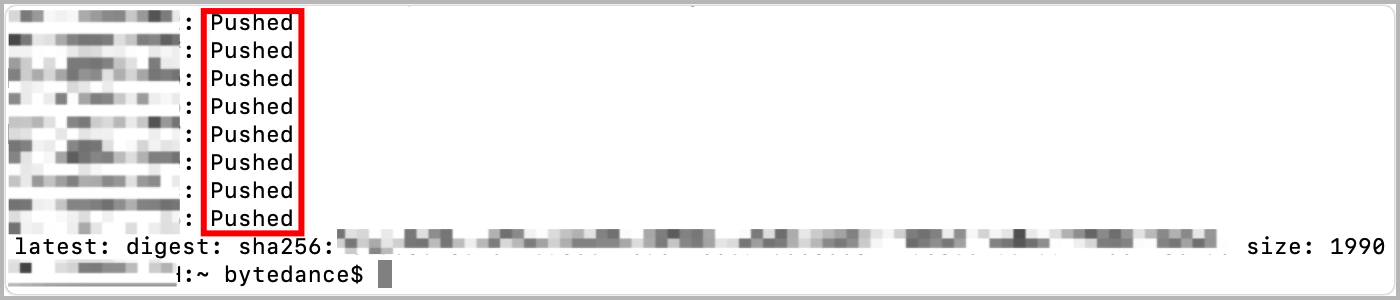
- After logging in successfully, execute the following commands to push the local image to the CR instance.If the system displays information similar to the following, it indicates that you have successfully pushed the image.
 After logging in successfully, execute the following command to pull the image from the CR instance.The system displays similar information as below, indicating that you have successfully pulled the image from the Container Registry.
Last updated: 2026.09.23 14:37:24
All rights reserved © Beijing Volcano Engine Technology Co., Ltd2024
