Container Registry
Container Registry


Document

- Documentation
 Container RegistryContainer Registry (CR)Getting startedPush and pull artifacts
 Copy page
 Download PDF
Getting started
Push and pull artifacts
Copy pageDownload PDFPush and pull artifacts
This article describes how to create a Container Registry instance and push and pull container artifacts (images or Helm Chart) using Docker, Nerdctl, or Helm client.
Background
The Container Registry supports the following three client tools for pushing and pulling artifacts:
Client | Purpose |
Docker | Push and pull container images. |
Nerdctl | Push and pull container images (containerd native tool). |
Helm | Push and pull Helm Chart. |
Prerequisites
Account and permissions
- A Volcano Engine root user account has been registered. For detailed instructions, see How to register an account.
- Enterprise account real name authentication has been completed. For detailed instructions, see Real name authentication.
- The Container Registry Product has been activated. If not activated yet, please log in to the Container Registry Console and follow the system prompts to activate the product.
- (Optional) If IAM users need to operate the Container Registry, ensure that Container Registry-related policy and role authorization have been completed. For specific operating instructions, see Authorization management.
Client environment
The corresponding client tool has been installed on the business server, and the corresponding image or Chart file is prepared.
Networking
Step 1: Create a Standard Edition Instance
- Log in to the CR console.
- Select the target region in the top navigation bar.
- After clicking List of instances in the left navigation bar, click Create instance in the List of instances area on the right page.
- On the Create Registry Instance page, fill in the Purchase Information.
tip
This step only describes the parameters related to this scenario. For more parameter descriptions, see Create instance.
- ParameterDescriptionNameThe name of the Standard Edition instance. Ensure that the instance name is unique within the same region.tipAfter the Standard Edition instance is created successfully, the instance name cannot be modified.Billing typeThis example selects Pay-as-you-go.
- In Specification, click Standard Edition.
- View the instance specification comparison and configuration costs. After confirming that everything is correct, click Confirm Order.
- On the Confirm order page, confirm the order information again, carefully read and check I have read and agree to the "Container Registry Service Terms".
- Click Confirm to submit the order and start creating the Standard Edition instance.
tip
You can view the instance creation progress on the Instances page. When Instance status is Running, it indicates that the instance has been created successfully.
Step 2: Initialize instance
- In the left navigation bar, click Instance list. On the right-side Instance list page, find the target Standard Edition instance, and click Enter instance.
- On the Initialize instance page, configure the instance initialization information.
tip
This step only introduces the parameters relevant to this scenario. For more parameter descriptions, please see Initialize instance.
- Configure network information.
- ParameterDescriptionPublic NAT for internet endpointtipEnabling public network access may take 5 to 10 minutes. You can later check the status on the Access control page.Once public access is enabled, clients on the public internet can directly push images to and pull images from the Standard Edition instance.
- Click Next to set the instance access password.
- ParameterDescriptionSet CR passwordYou can configure a fixed CR password.
- Click Next to select or create the namespace to which the instance belongs. You can then generate and copy the commands for image login, push, and pull.
- Click Complete to finish instance initialization.
Step 3: Push and pull artifacts
In the related code for artifact management actions, the placeholders and corresponding examples are described as follows:
Parameter | Placeholder | Sample value |
IAM user | User name | v** |
IAM user ID | User ID | 1007*** |
Instance | Instance | test1 |
Region | Region Code | cn-beijing |
Namespace | Namespace | space |
OCI artifact repository | Repository |
|
Artifact repository tag |
|
|
Pushing Images
- Use the command-line tool to execute the following command, and enter the configured password to log in to the CR instance.
-
- Example:
-
- Execute the following command to tag the local image.
-
- Example:
-
- Execute the following command to push the image to the CR instance.
-
- Example:
-
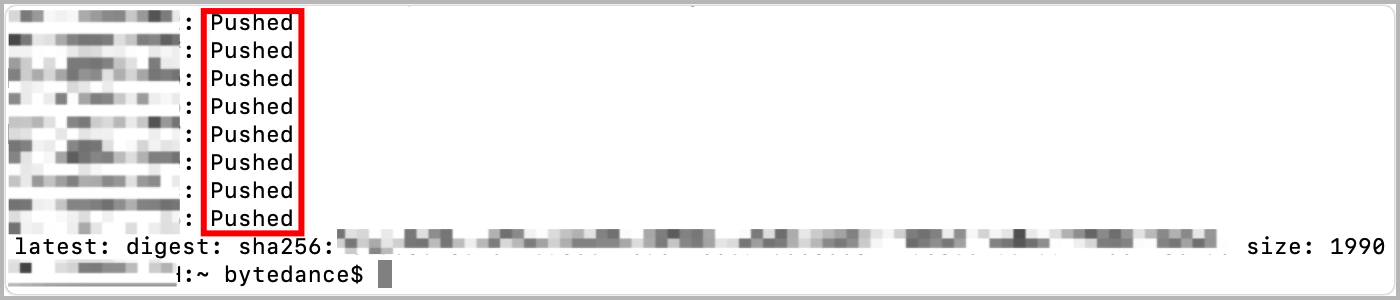
- If the system displays information similar to the following, it indicates that you have successfully pushed the image.
-
Pulling Images
tip
Public images can be pulled anonymously, which means you can directly pull public images without logging in to the Container Registry Instance.
- Use the command-line tool to execute the following command, and enter the configured password to log in to the CR instance.
-
- Example:
-
- Execute the following command to pull the image.
-
- Example:
-
- The system displays similar information as below, indicating that you have successfully pulled the image from the Container Registry.
-
Pushing Images
- Execute the following command using the command-line tool, and enter the access password you have set to log in to the CR instance.
-
- Example:
-
- Execute the following command to tag the local image.
-
- Example:
-
- Execute the following command to push the image to the CR instance.
-
- Example:
-
- If the system displays information similar to the following, it indicates that you have successfully pushed the image.
-
Pulling Images
tip
Public images can be pulled anonymously, which means you can directly pull public images without logging in to the Container Registry Instance.
- Execute the following command using the command-line tool, and enter the access password you have set to log in to the CR instance.
-
- Example:
-
- Execute the following command to pull the image.
-
- Example:
-
- The system displays similar information as below, indicating that you have successfully pulled the image from the Container Registry.
-
Push a Chart
- Use the command-line tool to execute the following command, and enter the configured password to log in to the CR instance.
-
- Example:
-
- Execute the following command to package the Chart file.
-
- Example:
-
- Execute the following command to push the Chart to the CR instance.
-
- Example:
-
Pull a Chart
- Use the command-line tool to execute the following command, and enter the configured password to log in to the CR instance.
-
- Example:
-
- Execute the following command to pull the Chart.
-
- Example:
-
- If the system returns information similar to the following, it indicates that the Chart was pushed successfully.
-
Push a Chart
- Use the command-line tool to execute the following command, enter the set password, and log in to the CR instance.
-
- Example:
-
- Execute the following command to package the Chart file.
-
- Example:
-
- Execute the following command to push the Chart to the CR instance.
-
- Example:
-
- If the system returns information similar to the following, it indicates that the Chart was packaged successfully.
-
Pull a Chart
- Use the command-line tool to execute the following command, enter the set password, and log in to the CR instance.
-
- Example:
-
- Execute the following command to pull the Chart.
-
- Example:
-
- If the system returns information similar to the following, it indicates that the Chart was pushed successfully.
-
Last updated: 2026.09.23 14:37:20
All rights reserved © Beijing Volcano Engine Technology Co., Ltd2024
