Container Registry
Container Registry


Document

- Documentation
 Container RegistryContainer Registry (CR)Best practicesImage migration and synchronizationCross-region disaster recovery for CR instances
 Copy page
 Download PDF
Image migration and synchronization
Cross-region disaster recovery for CR instances
Copy pageDownload PDFCross-region disaster recovery for CR instances
This topic describes how to build a cross-region disaster recovery solution for container images based on the synchronization rules of Container Registry (CR) and multi-region Standard Edition instances, through the Internet and DNS CNAME. The business-side image address always uses a custom domain name. When the primary region fails, you only need to change the DNS to complete the entry switch, and the business side does not need to modify any image paths or configurations.
Scenario introduction
This topic takes the example of the primary instance of the CR in China (Shanghai) failing and switching to the backup instance in China (Guangzhou), to introduce the operation method for cross-region disaster recovery of the registry. Typically, the custom domain name test.cr-test.team for business access points to the public domain name of the Shanghai primary instance. After the disaster recovery switch, this address changes to the public domain name of the Guangzhou backup instance.
The resources and example names involved in this topic are as follows.
Prerequisites
CR
Standard Edition instances of the CR have been created in China (Shanghai) and China (Guangzhou) respectively. For details, see Creating Standard Edition instances.
Domain name
- A domain name has been registered. For details, see Registering domain namesRegistering domain names.
- If you want to access an instance over the public network in the Chinese mainland, make sure that the configured custom domain name has passed ICP filing review and that Public network is selected for Referrer. If ICP filing has not been completed for the domain name, follow the domain name ICP filing process to complete ICP filing or complete domain name ICP filing with the cloud service provider that provides your domain name.
tip
Domain name ICP filing has a 30-minute delay. That is, the domain name can be used to create a custom domain name at least 30 minutes after ICP filing is completed.
- An SSL certificate for the domain has been uploaded. For details, see Getting started with Certificate Center.
Procedure
Step 1: Enable public network access
Enable public network access for the primary instance (Shanghai) and the backup instance (Guangzhou) respectively, and configure access control allowlists. The following uses the primary instance as an example. The operations for the backup instance are the same.
- Log in to the target instance.
- Log in to the CR console.
- In the top navigation bar, select China (Shanghai).
- In the left navigation bar, click Instance list > Standard instance, find the target instance testmonitor, and click Enter instance.
- In the left navigation pane, select Access control, and click Public network > Open/Close switch.
- In the confirmation box, click Confirm.
- In the Enable public network access dialog box, configure the allowlist addresses.
tip
In this example, the access control allowlist is set to 0.0.0.0/0 (allowing all IPs), which is for testing only. In actual production environments, configure only the IP address ranges involved in your business, in accordance with information security requirements.
- Click Confirm.
Step 2: Create a custom domain name
After creating the same custom domain name for both the primary and backup instances, the domain name of the CR instance remains unchanged before and after disaster recovery, so no business code modification is required. The following uses the primary instance as an example. The operations for the backup instance are the same.
- In the left navigation pane, select Domain name management, and click Add custom domain name.
- Configure custom domain name parameters.
- ParameterDescriptionTypeSelect Custom, and use a filed third-party domain name to create a custom domain name.Domain nameEnter the filed custom domain name. In this example, it is test.cr-test.team.CertificateSelect the uploaded certificate.ReferrerEnable VPC access. Subsequently, a resolution record will be configured in PrivateZone for the VPC where the Shanghai instance is located, resolving the custom domain name to the public domain name of the Guangzhou backup instance.
- Click Check and submit. After the check is passed, the custom domain name is created.
Step 3: Configure CNAME for custom domain name
Configure the resolution record for the custom domain name of the Shanghai primary instance, pointing it to the public domain name of the Guangzhou backup instance.
- Log in to the DNS console.
- In the left navigation pane, select PrivateZone > Domain management, and click the domain name test.cr-test.team in the China (Shanghai) region.
- On the Record management tab, click Add record.
- On the Add record page, fill in the basic information and the record value.
- ParameterDescriptionDomain nameEnter @, which represents a null value, to directly resolve the primary domain name test.cr-test.team.Record typeSelect CNAME to point the custom domain name to the public domain name of the Guangzhou instance.TTLSet the cache validity period for the DNS record. You can keep the default settings.Record valueFill in the resolution record for the custom domain name. In this example, it is the public domain name of the Guangzhou instance testmonitor-cn-guangzhou.cr.volces.com.
- Click Submit to complete the record addition.
Step 4: Configure instance synchronization rules
Configure synchronization rules on the Shanghai primary instance to ensure that images are continuously backed up from the Shanghai primary region to the Guangzhou disaster recovery region.
- Log in to the CR console , and switch to the China (Shanghai) region.
- In the left navigation pane, select Registry replication, and click Create registry replication rule.
- Configure synchronization rules.
- After the configuration is completed, images pushed to the test namespace in the Shanghai instance will be automatically synchronized to the Guangzhou instance.
- Registry replication type
- ParameterDescriptionReplication typeSelect Inter-instance synchronization to synchronize the Standard Edition instance to other Standard Edition instances under the same account.
- Source instanceSource instance
- ParameterDescriptionInstanceSelect the source Standard Edition instance to be synchronized. In this example, it is testmonitor.NamespaceSelect the namespace name under the source instance to be synchronized. In this example, it is test.RepositoryFor the OCI artifact repository names to be synchronized, this example selects All, which means synchronizing all OCI artifact repositories under the specified namespace.TagFor the OCI artifact versions to be synchronized, this example selects All, which means synchronizing all OCI artifact versions in the specified repository.
- Target instance
- ParameterDescriptionReplication typeSelect Within the main account.RegionSelect the region where the target Standard Edition instance is located. In this example, it is China (Guangzhou).Instance nameSelect the target Standard Edition instance. In this example, it is testmonitor.NamespaceSelect the namespace under the target instance. In this example, it is test.
- Synchronization rules
- ParameterDescriptionImage overwritingYou can select "Enable" to enable this feature. After enabling, if the target side has images with the same name as those on the source side, the source-side images will overwrite the existing images with the same name on the target side.Rule state
- Select Event-driven triggering: When an event matches the rules, synchronization is automatically triggered.
- Configure Trigger immediately as Yes. After the instance synchronization rule is successfully created, the rule matching will be triggered immediately to perform a synchronization operation.
Validate results
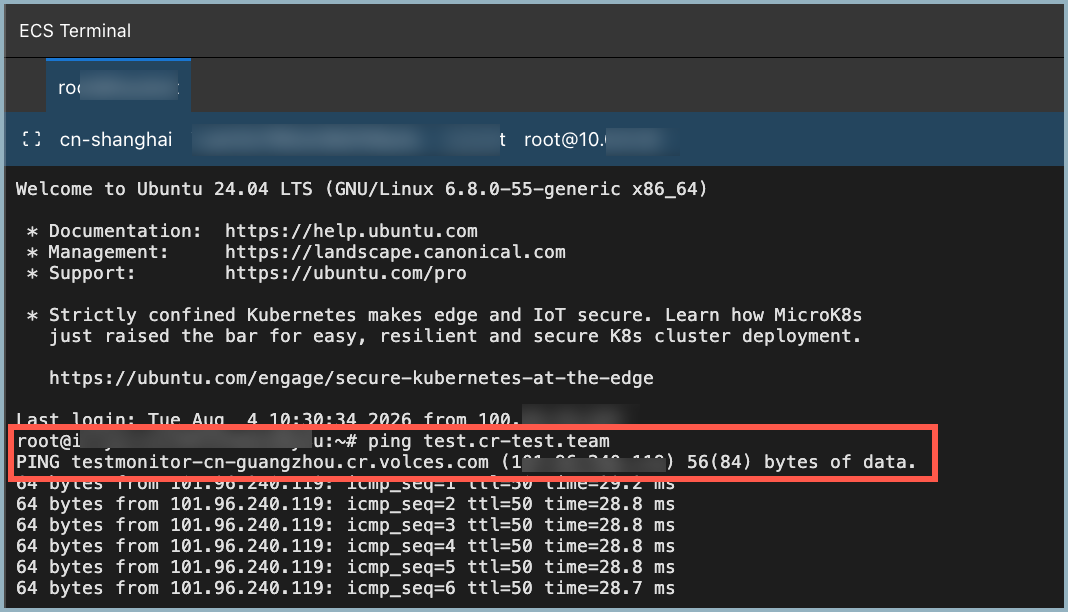
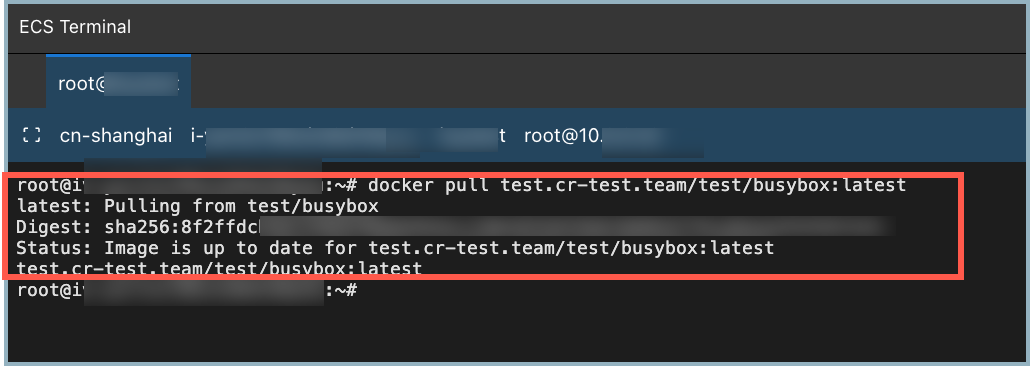
Perform verification on a host in the Shanghai region to confirm that the custom domain name now points to the Guangzhou instance and that images can be successfully pulled.
- Execute the following command. The resolved domain name should change to the Guangzhou instance domain name.
-
- Execution result:
-
- Images in the Guangzhou instance can be successfully pulled using the custom domain name.
-
- Execution result:
-
Last updated: 2026.10.19 15:46:51
All rights reserved © Beijing Volcano Engine Technology Co., Ltd2024
